Alluvium
Activity
Every entry from every account, day by day, with search, filters, bills and rules.
Every Activity feature
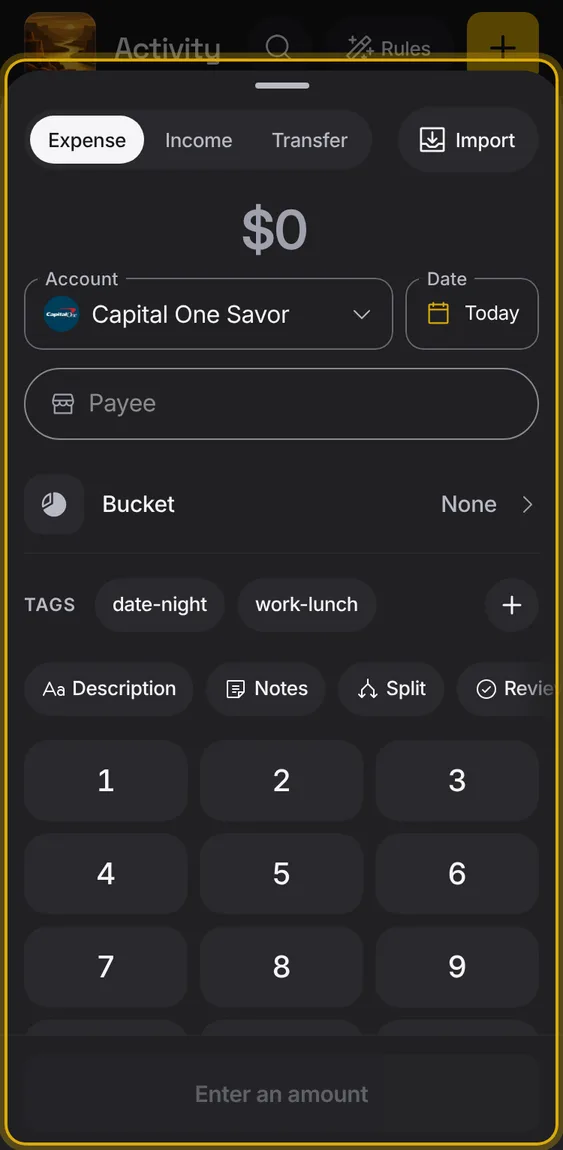
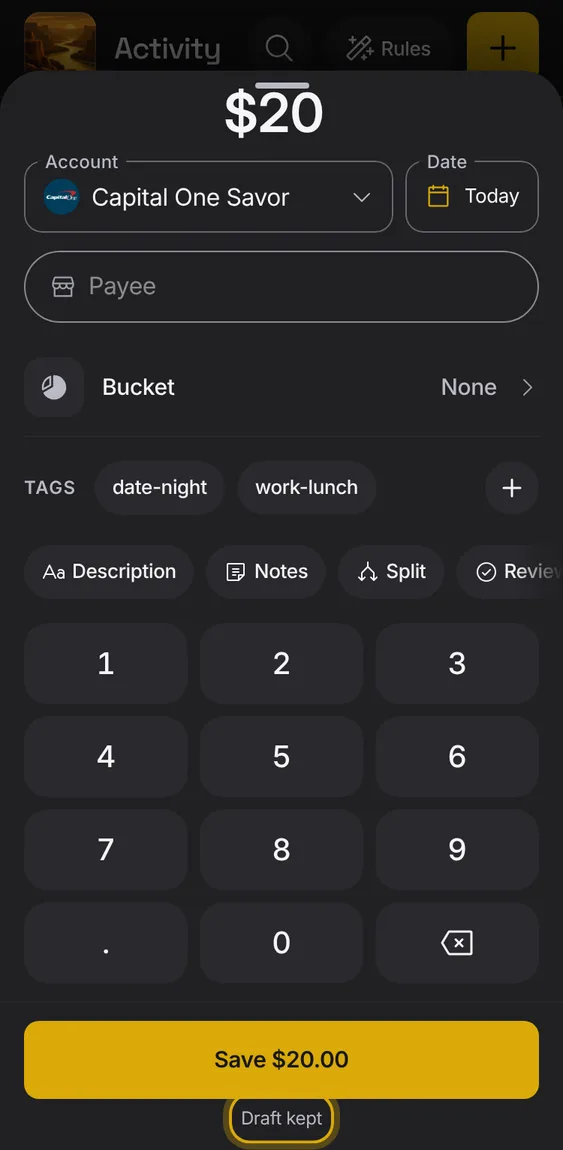
Record spending, income or a transfer by hand: the amount, the account, the day, who it was with, its bucket and its tags.
- Tap + on any tab.
- Type the amount on the keypad, then fill in the rest.
- Save says what it saves, like Save $12.00.
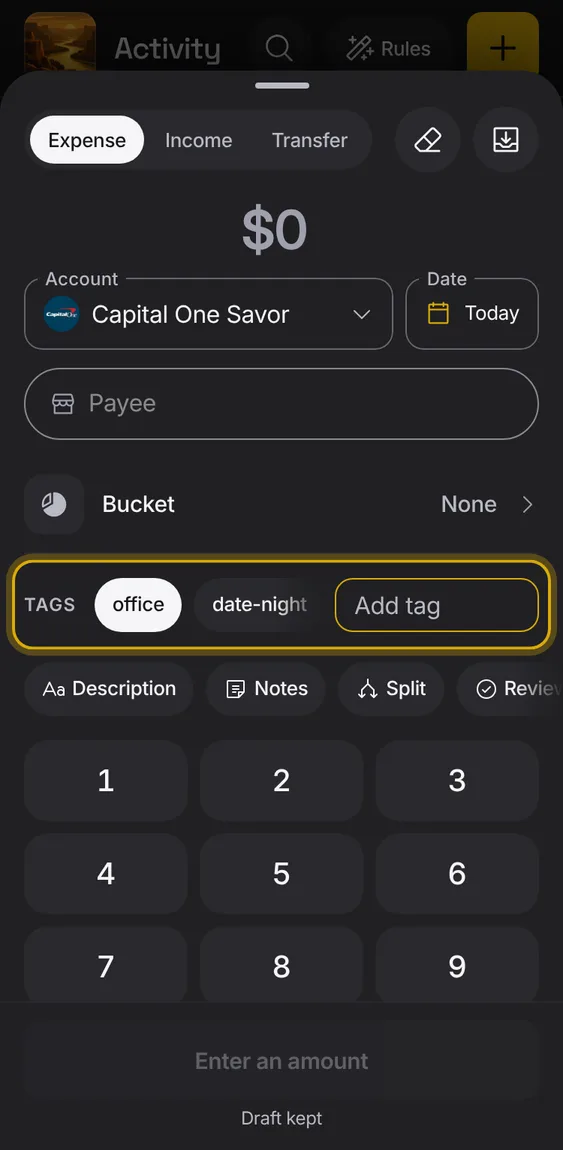
Describe an entry in your own words with tags: text pills in one row that scrolls sideways.
- Type in Add tag and press return to make one.
- Tap one of your other tags to put it on; tap a tag that's on to take it off.
- There is no list of tags to manage: a tag exists while an entry has it.
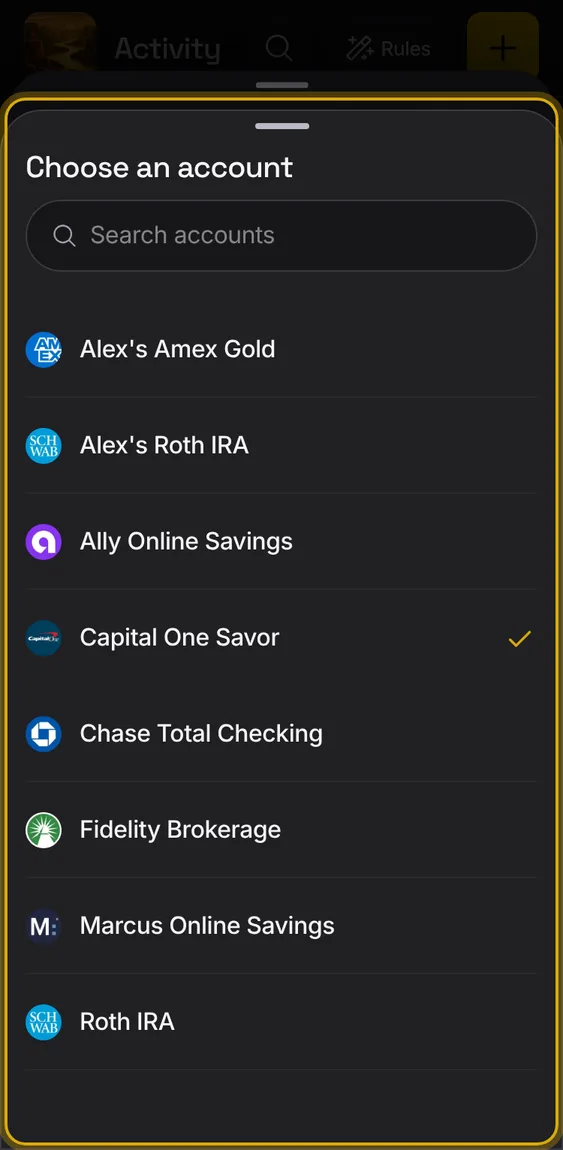
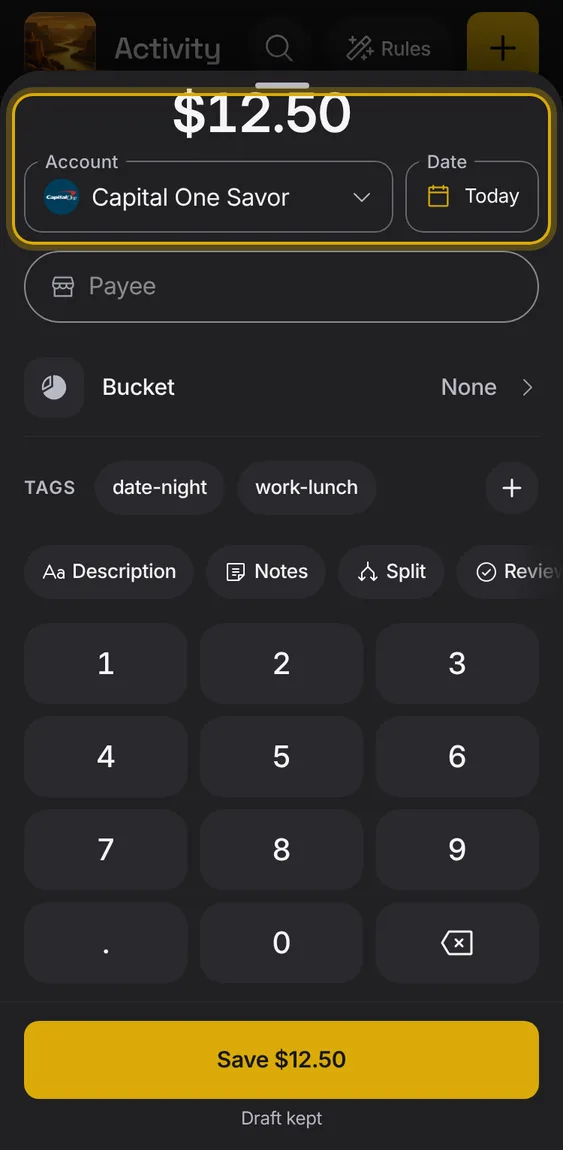
Which account it was and the day, set to the account you used last and today.
- Tap either field to change it.
A keypad for the amount, with the figure shown large as you type.
- Tap the digits; ⌫ removes the last one.
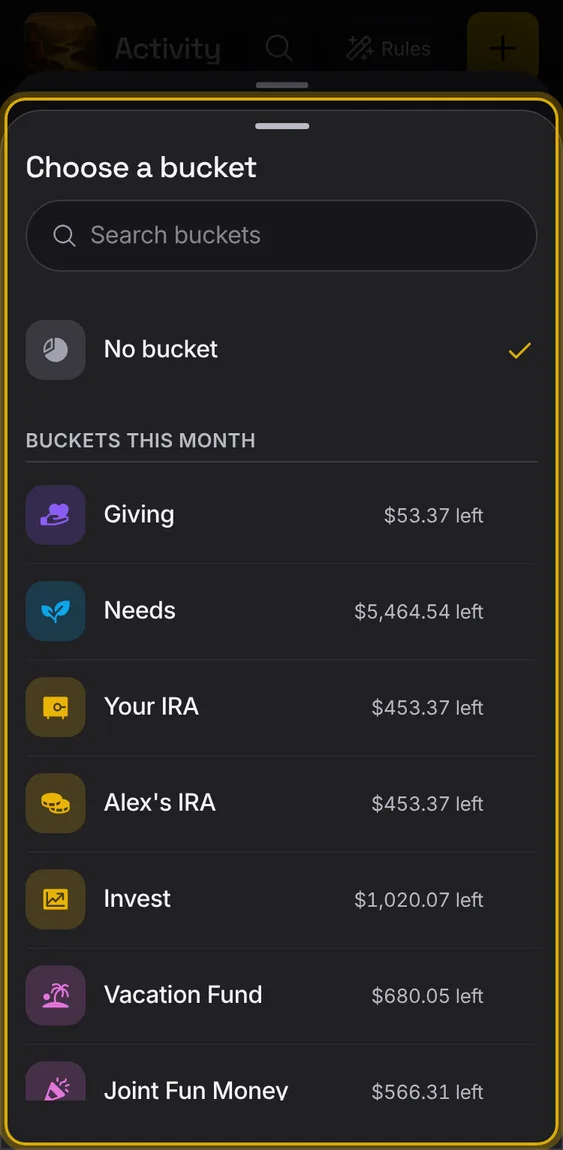
Pick which plan bucket the money comes out of.
- The payee's usual buckets come first, under You usually use.
- Each bucket says what's left this month.
- No bucket is always a choice.
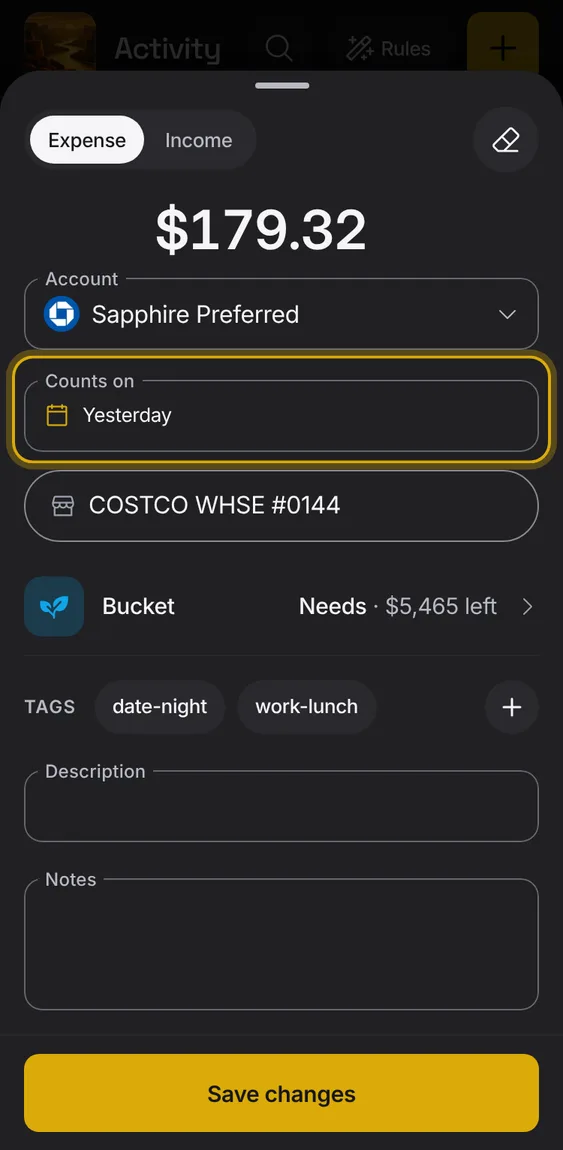
The day an entry counts in plans, which you can change apart from the bank's date.
- Change Counts on to move an entry into another month's plan.
- The bank's date stays as it was.
- Rules can set it too.
Description, notes and tags, behind More details.
- Tap More details to add them.
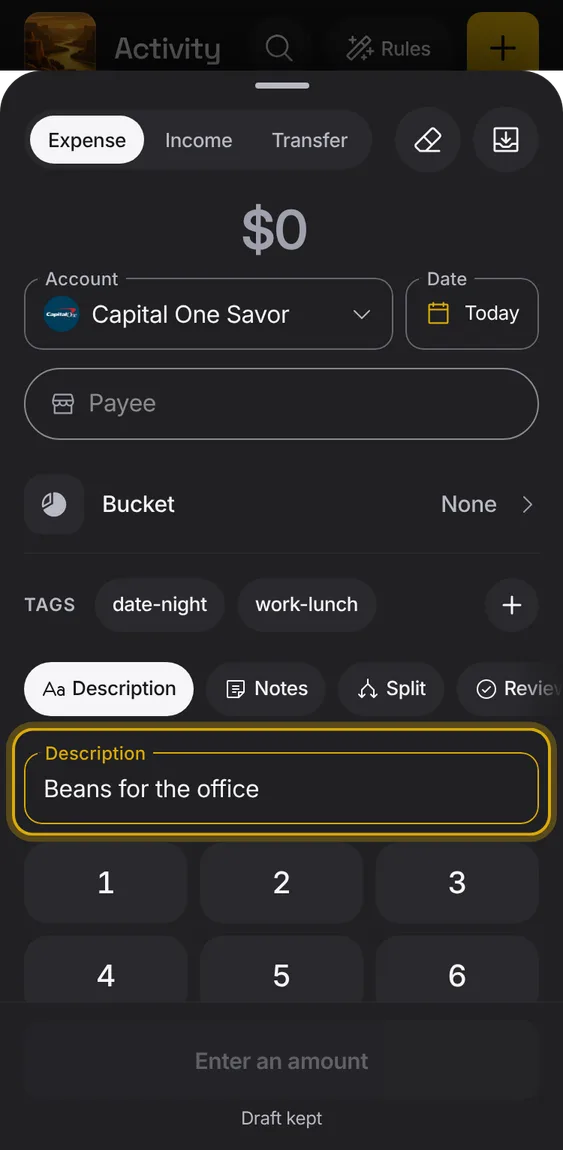
What you type is kept as a draft, so closing by mistake loses nothing.
- The footer says Draft kept; reopening says Draft restored.
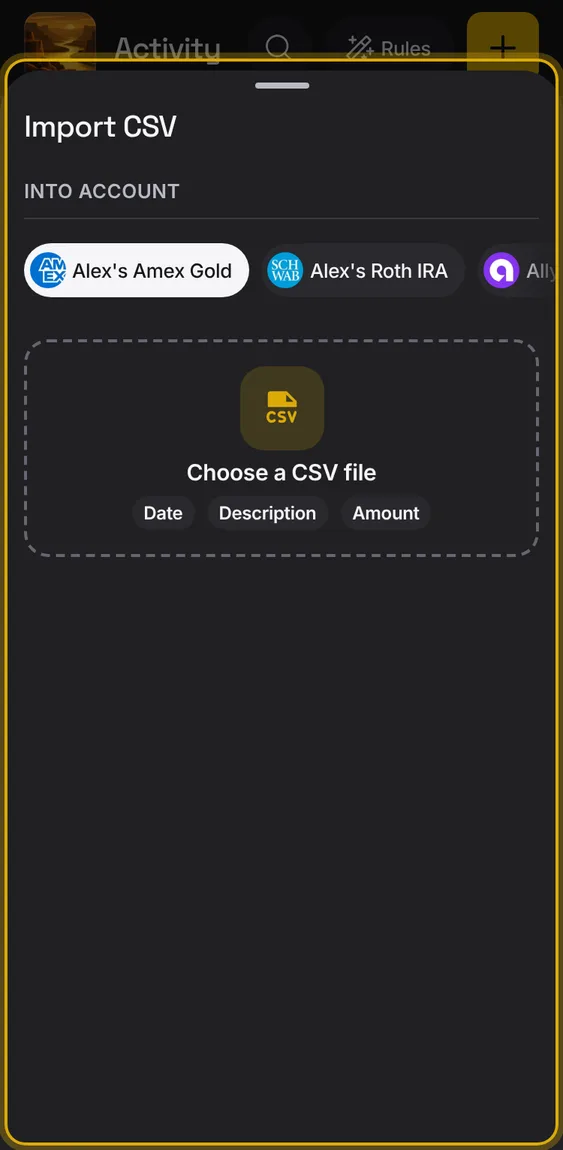
An Import button in Add entry opens the bank file import.
- Tap Import.
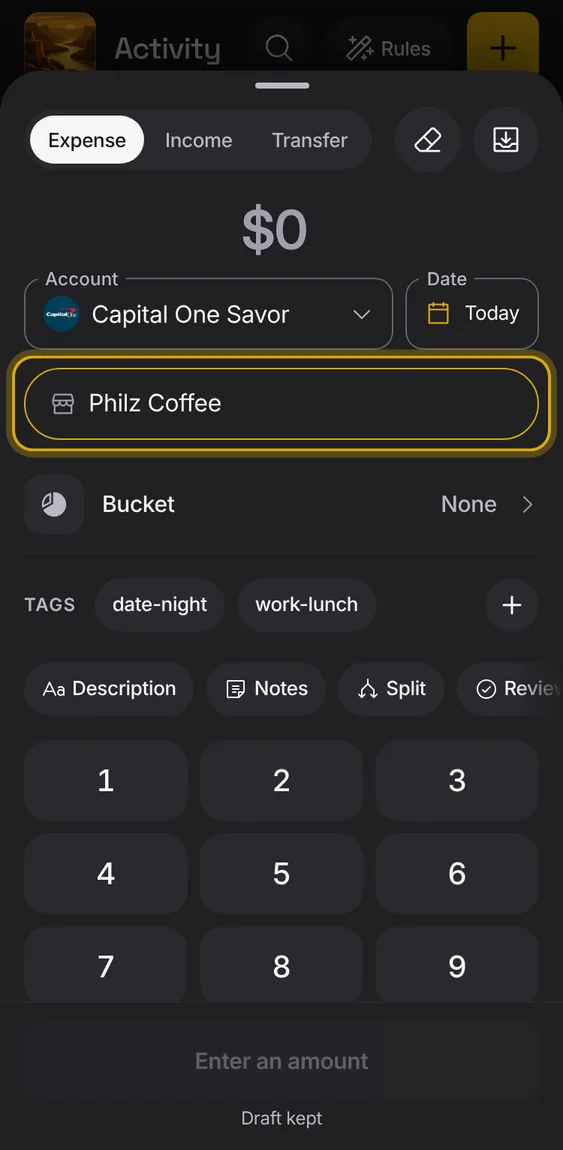
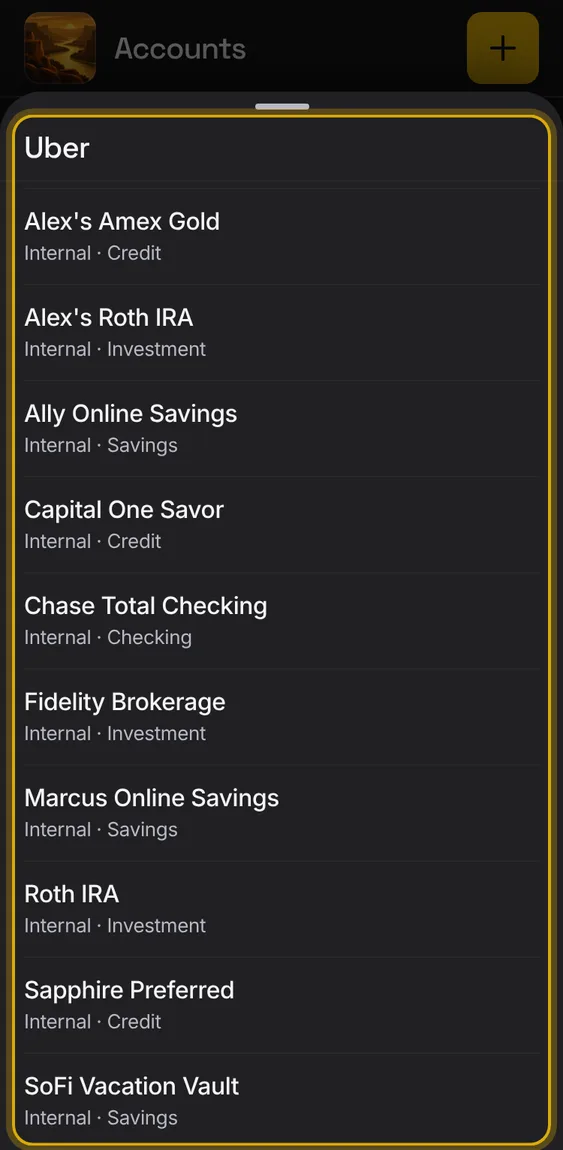
Who the money went to, or for income, who paid you.
- Type a name; known payees are offered.
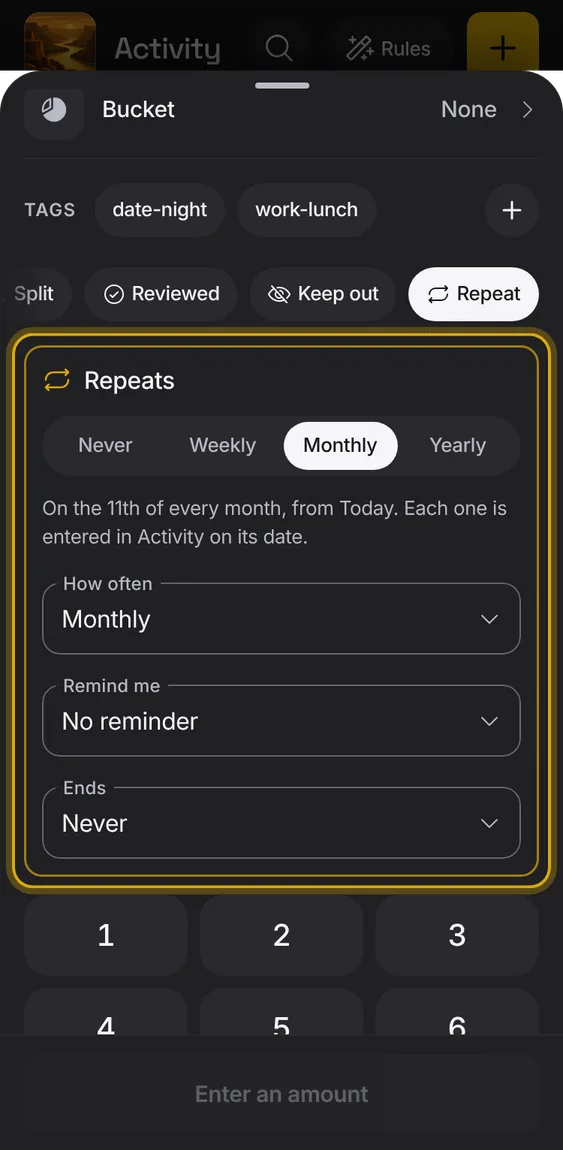
Make a new entry repeat weekly, monthly or yearly, so it becomes a bill that enters itself.
- Tap Repeat and choose how often.
- Set a reminder and an end date if you want.
- Save says how often.
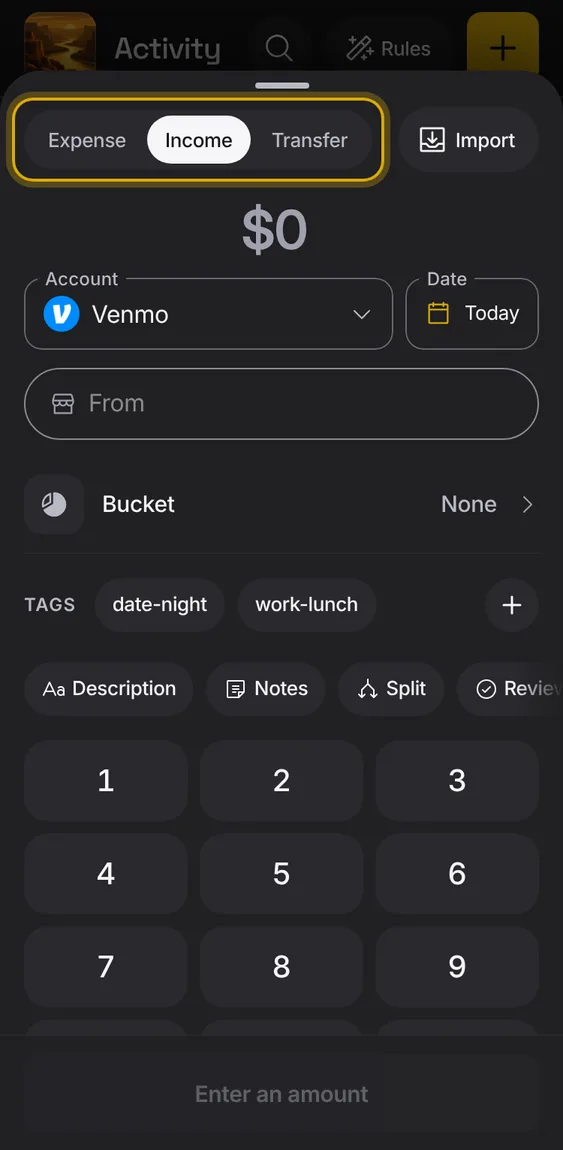
Choose whether the entry is spending, money in, or a move between your own accounts.
- Pick Expense, Income or Transfer.
- Income names who paid you; a transfer names both accounts.
New entries get a bucket by themselves, bank names are cleaned and transfers paired, with nothing to approve.
- Nothing to do: entries arrive filed.
- Change anything and your choice is kept from then on.
A bank entry is dated the day you paid, not the day the bank posted it.
- Its balance moves on the posting day.
Not in the demo. Needs an account: the demo has none.
Bank entries are cleaned once as they arrive: clear names, the right person and memo, and the day it really happened.
- Nothing is hard-coded for any one shop.
- The bank's original text is kept.
Not in the demo. Needs an account: the demo has none.
When buckets became what an entry is filed under, each past entry got its bucket, once, with Undo.
- It ran once for each household; the month's numbers didn't change.
Not in the demo. Needs an account: the demo has none.
Each new entry, typed, imported or from your bank, gets a bucket, even in a brand-new ledger.
- Your rules come first, then the payee's history, then a careful guess.
- Funding is never chosen for you.
A payee that's one of your own accounts is recognised, so payments to it become transfers.
- Mark a payee as your account in its sheet.
- Bank syncs bring its payments in as transfers.
What you change by hand is never overwritten by bank syncs or automatic filing, and teaches the payee's next entries.
- Change an entry's bucket; the payee's next entries follow.
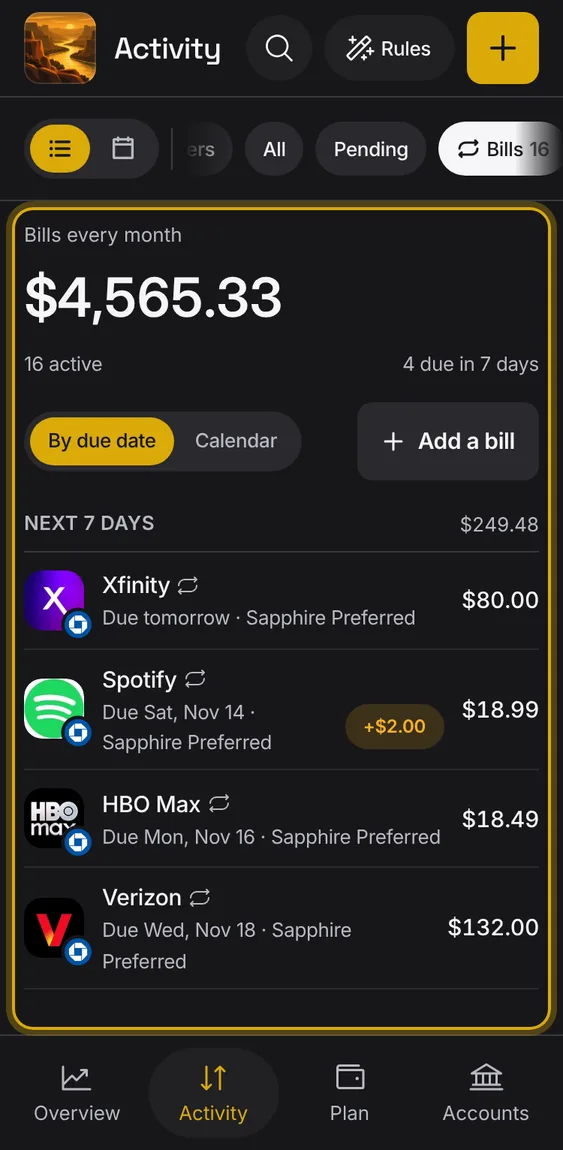
Your bills and subscriptions: found in your history or added by you, by due date or on a calendar, with what they cost a month.
- Tap the Bills chip in Activity.
- Plan's Bills row and the Overview calendar's bill days open the same list.
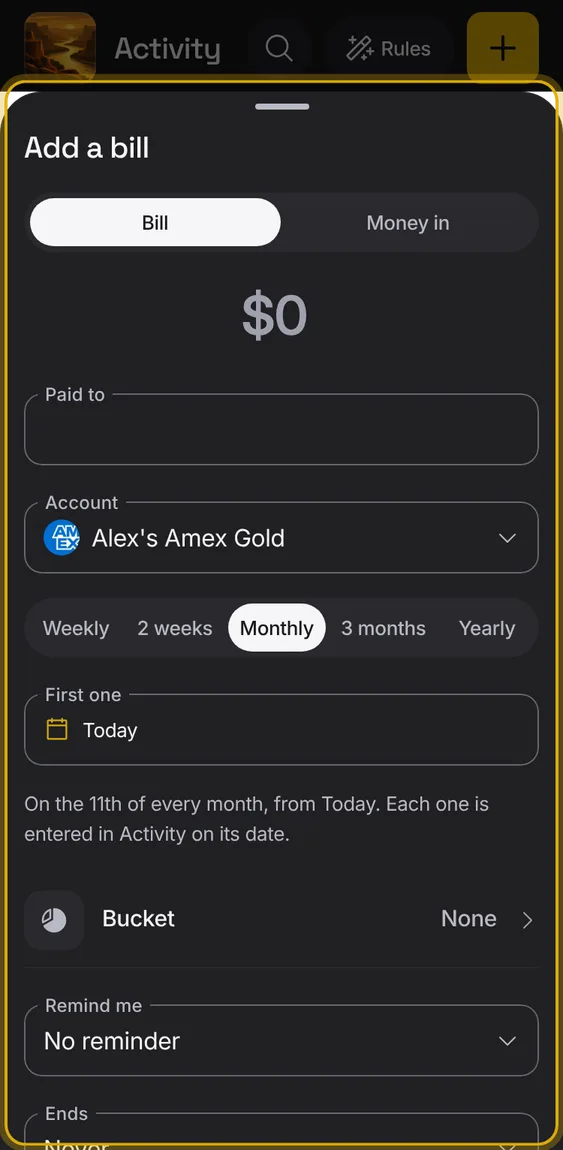
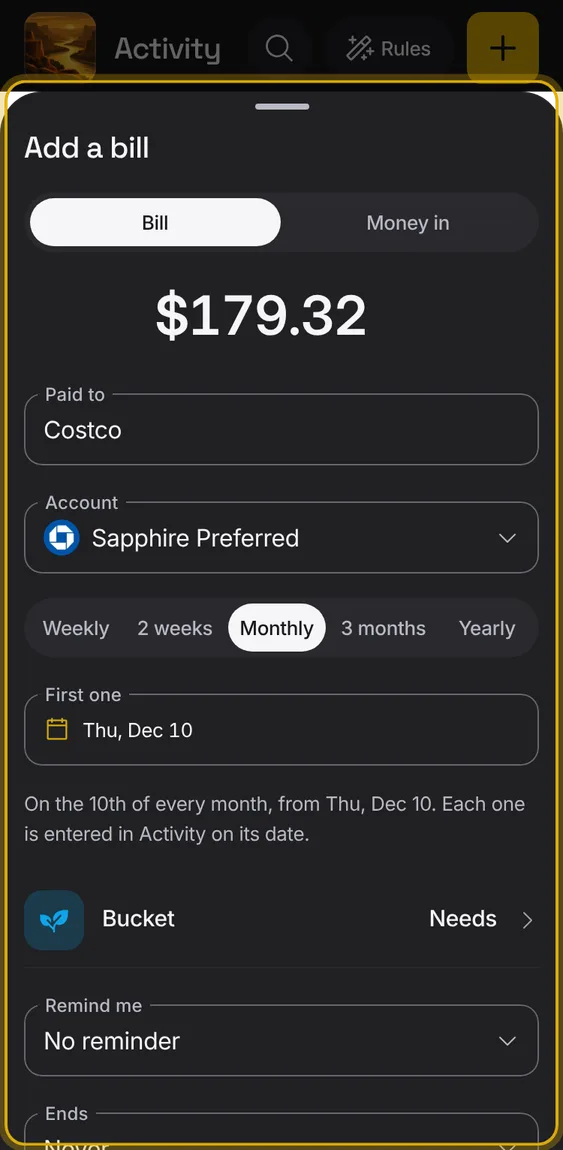
Add a bill or regular income yourself; its entry is added on each date by itself, with nothing to approve.
- Tap Add a bill.
- Set the amount, who it's paid to, the account, how often and the next date.
- Add a bucket, reminder and an end if you like.
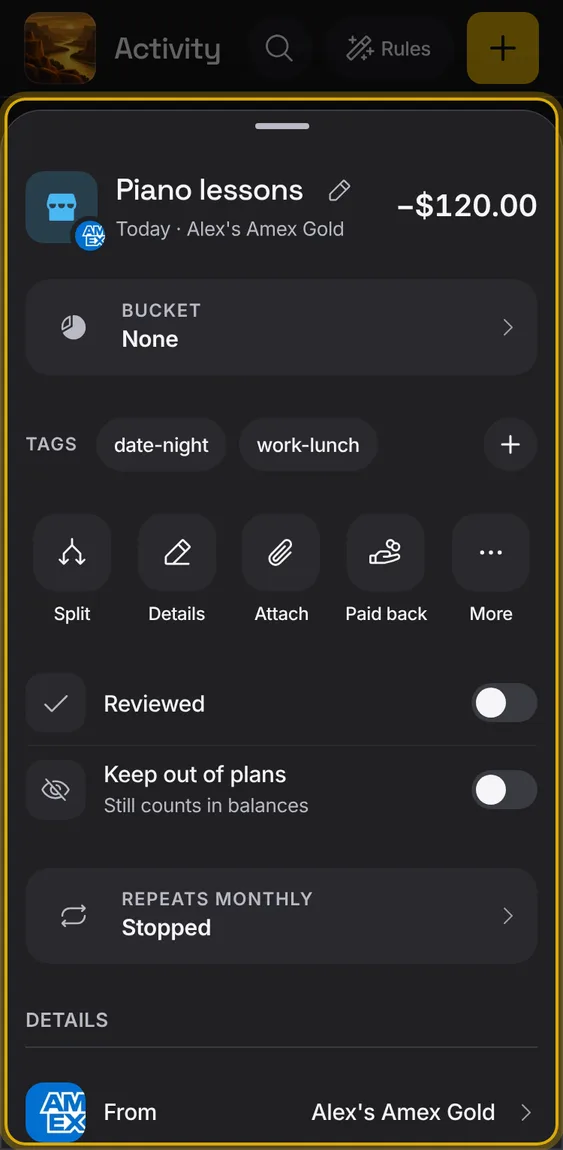
Stop a bill you added, start it again, or delete it; entries already added stay.
- In the bill's sheet, tap Stop or Delete bill.
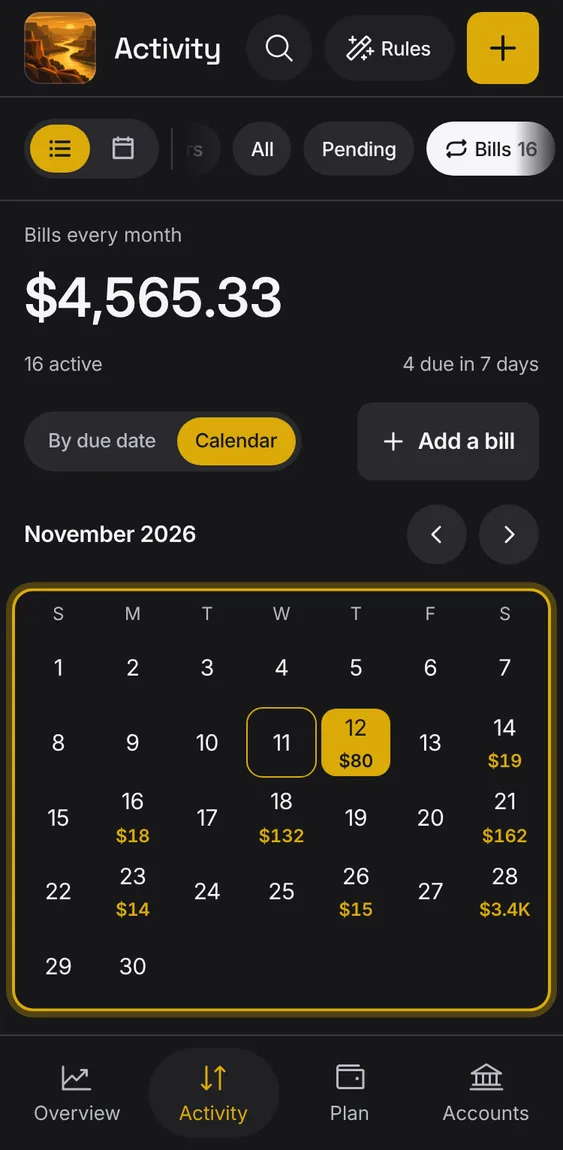
The bills on a month calendar, each due day showing its amount.
- Switch By due date to Calendar.
- Step between months; it opens on the next due day.
Set a reminder to cancel a subscription, mark it cancelled, and get flagged if it charges again.
- Remind me to cancel picks a day.
- I cancelled this moves it to Marked cancelled.
- A charge after cancelling is flagged.
Charges that come back regularly are found in your history as bills, with how often they come and what they usually cost.
- Detection is a suggestion you can correct.
- A card payment is never a bill.
A bill is overdue only after a few days' grace, since banks post late.
- Monthly bills get five days.
Not in the demo. Shows with more than the demo holds.
When the bank changes a merchant's name, the bill stays one bill, matched by the statement text.
- Nothing to do: your choices for it are kept.
A bill that missed two charges in a row moves to Stopped, out of the totals, the calendar and reminders.
- It shows when it was last charged.
Not in the demo. Shows with more than the demo holds.
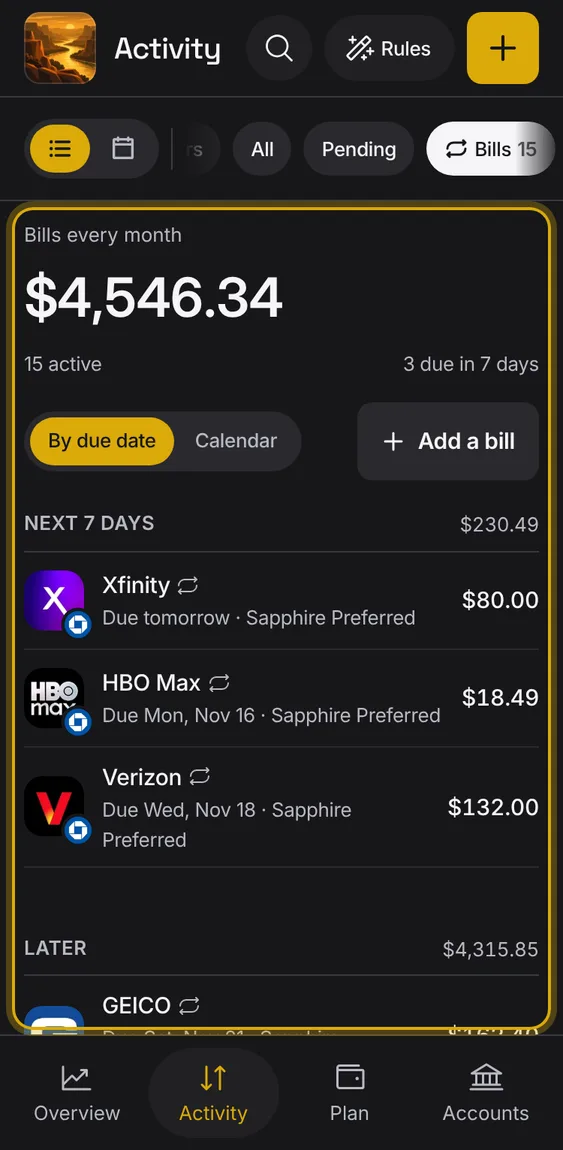
Bills are grouped by when they're due, with money in, stopped, cancelled and not-recurring ones after.
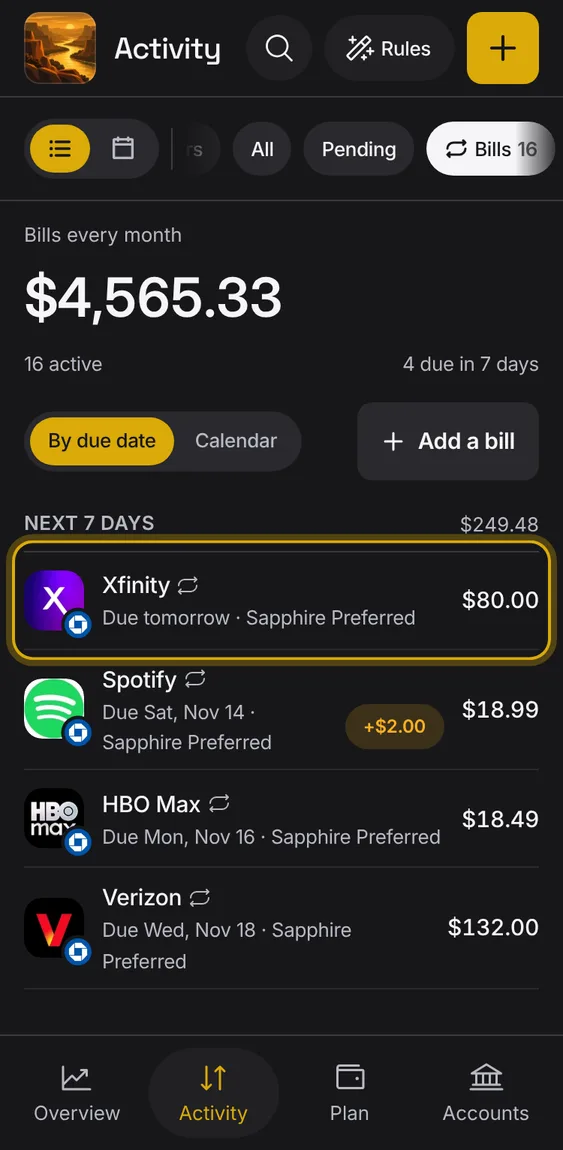
- Each row shows the payee, the account it's paid from, the due day and the amount.
Turn any entry into a bill from its More menu.
- In an entry, More → Make it repeat.
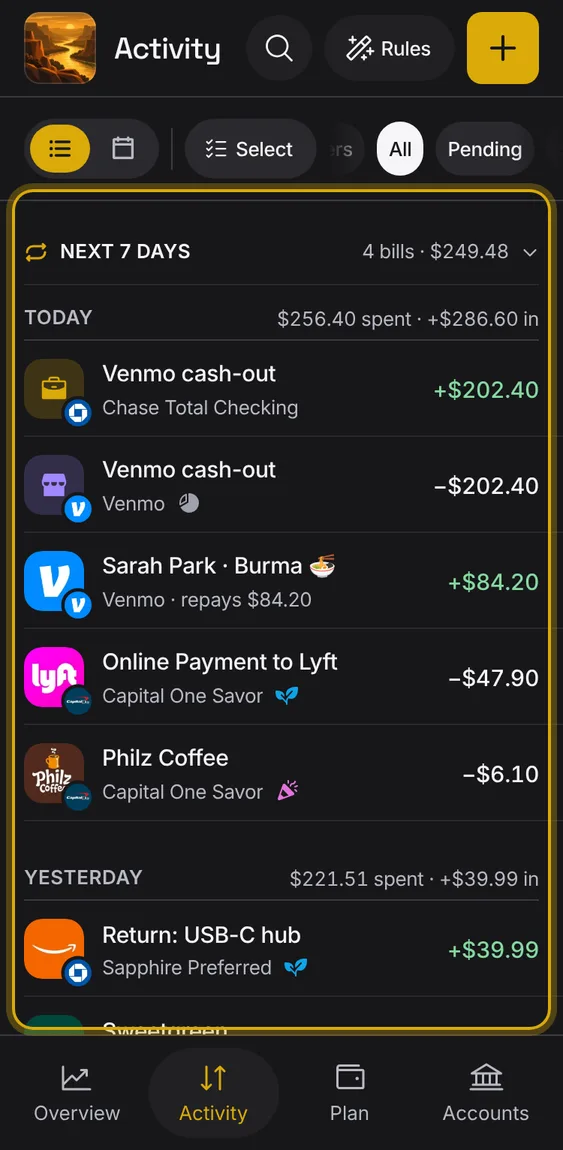
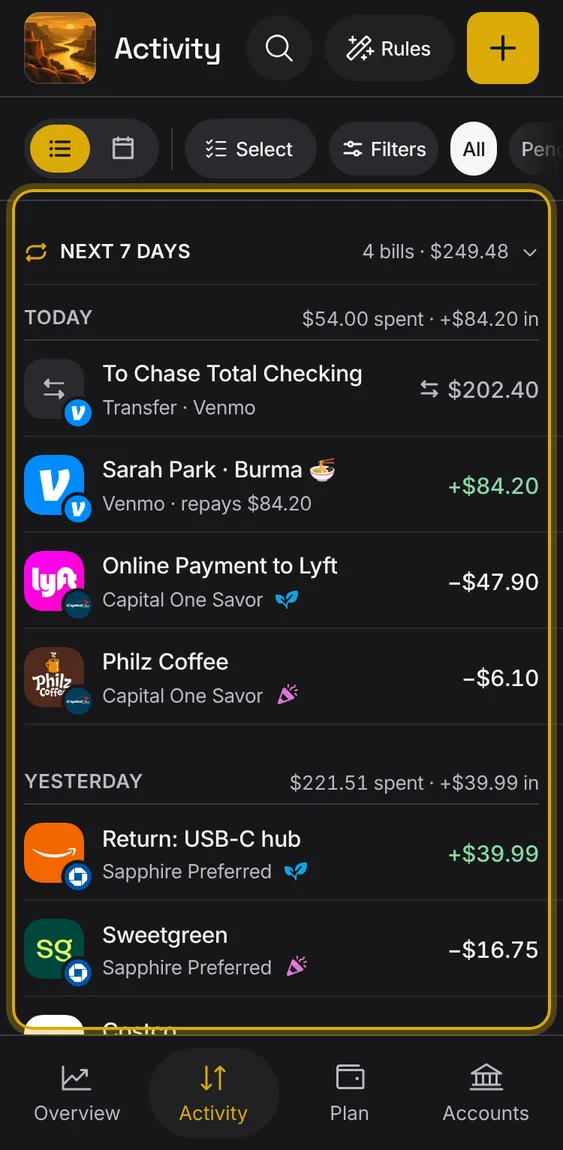
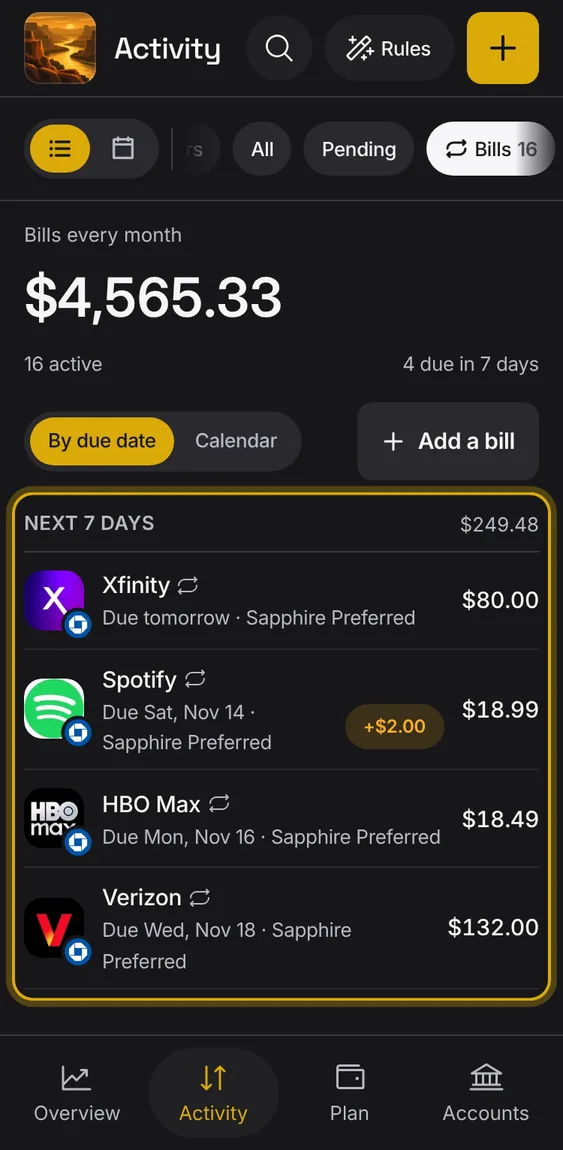
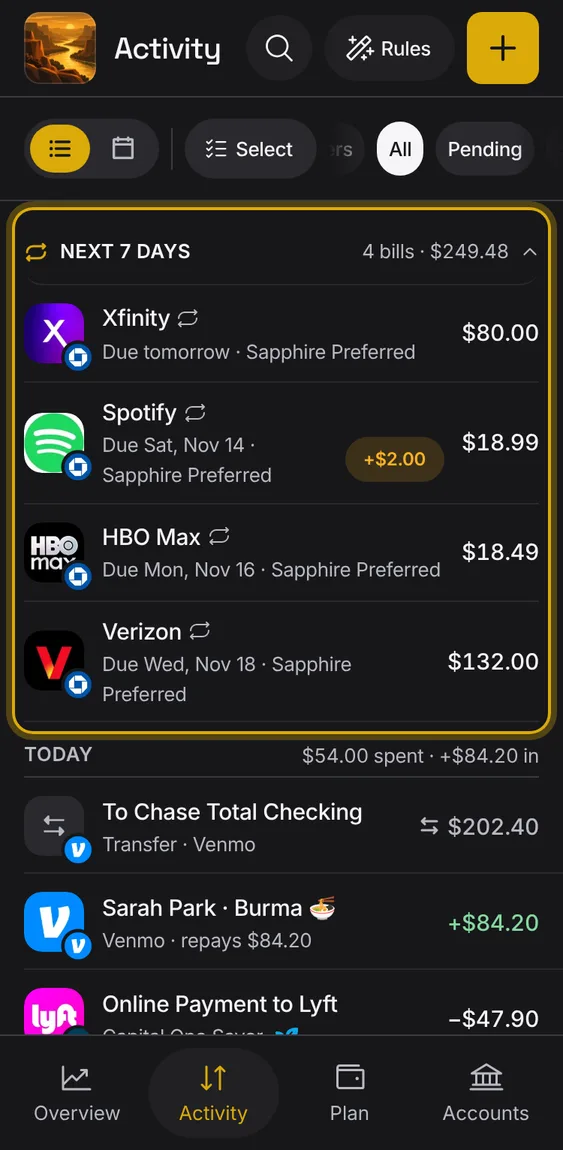
Above the days in Activity, one line says what's due in the next week; it opens to those bills.
- Tap the line to open it; tap again to fold it.
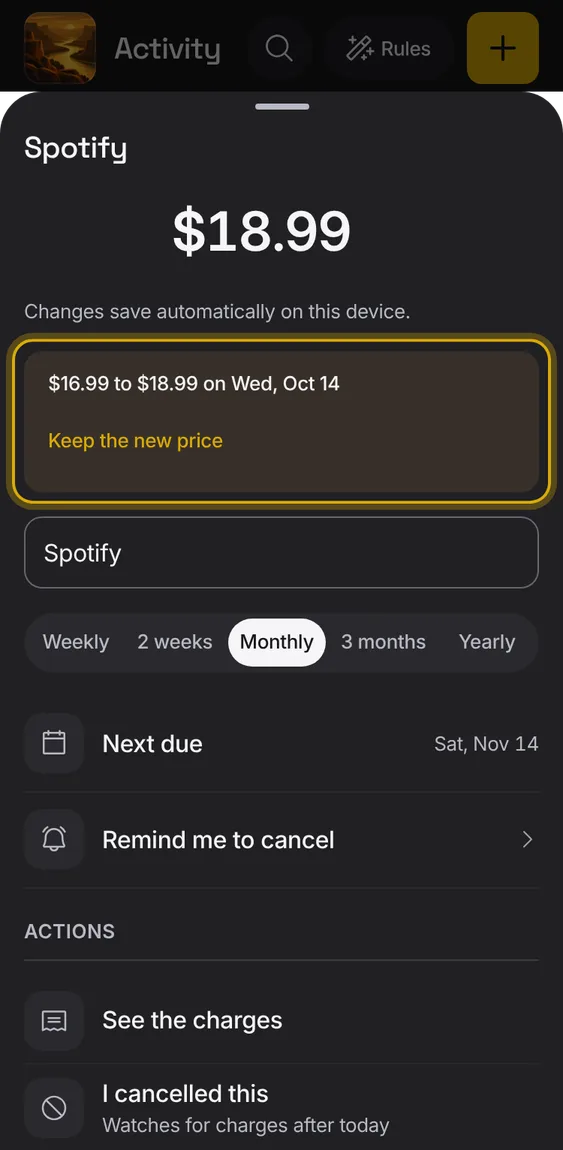
A bill whose price went up is flagged, so you notice.
- The row shows a price-rise mark.
- Accept the new price in the bill's sheet.
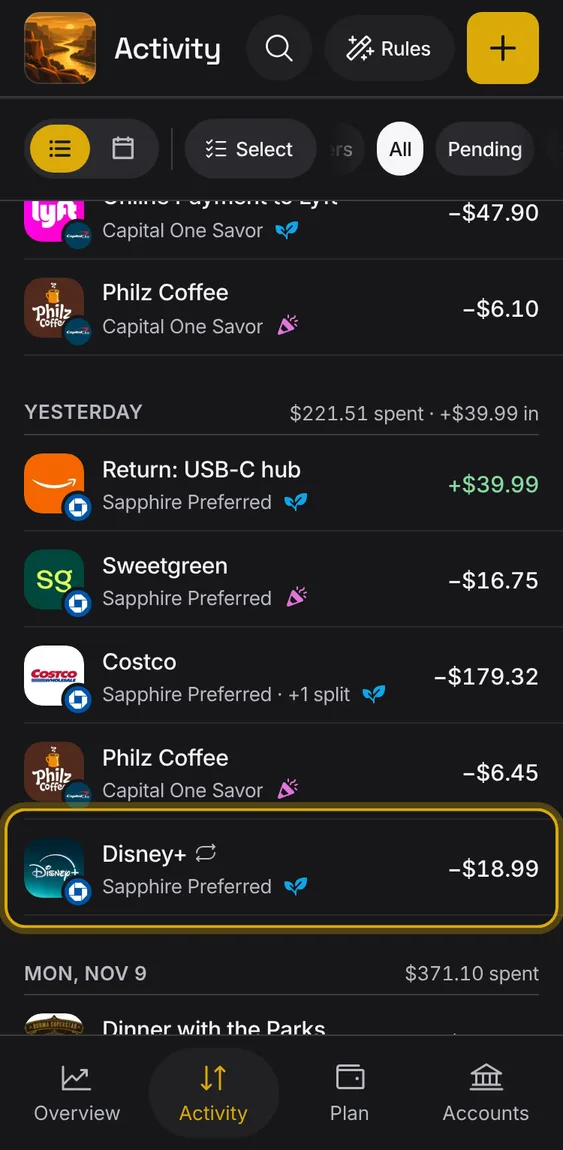
Entries of a bill carry a repeat mark after their name.
- Look for the repeat glyph in Activity.
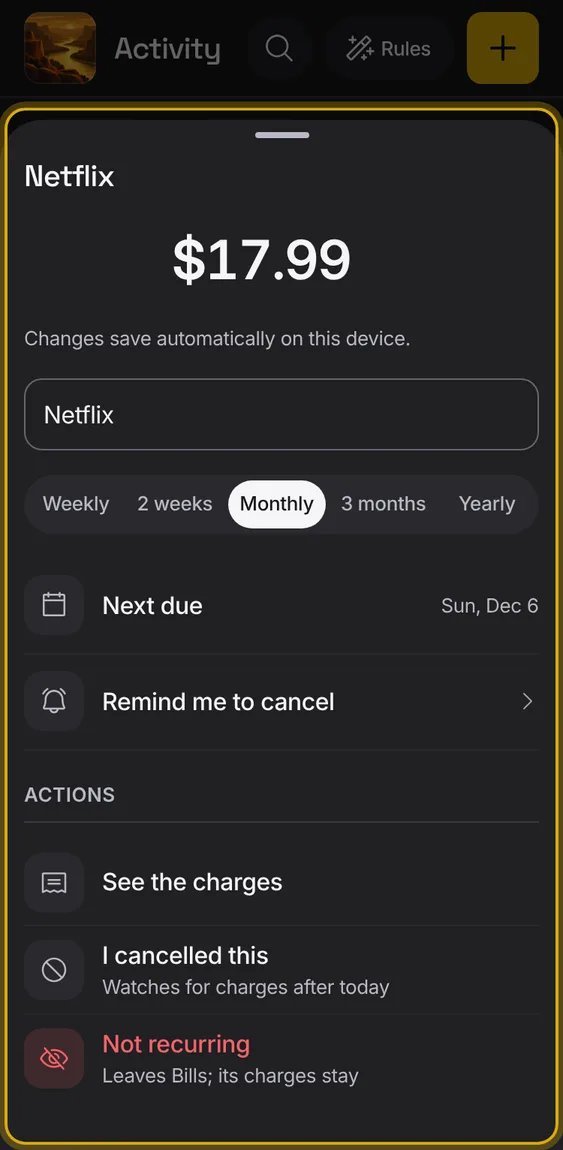
A found bill's own sheet: its amount, name, how often, next due, and actions.
- Change the name, amount or cadence; changes save as you make them.
- See the charges opens its entries in Activity.
- Use the detected values undoes your changes.
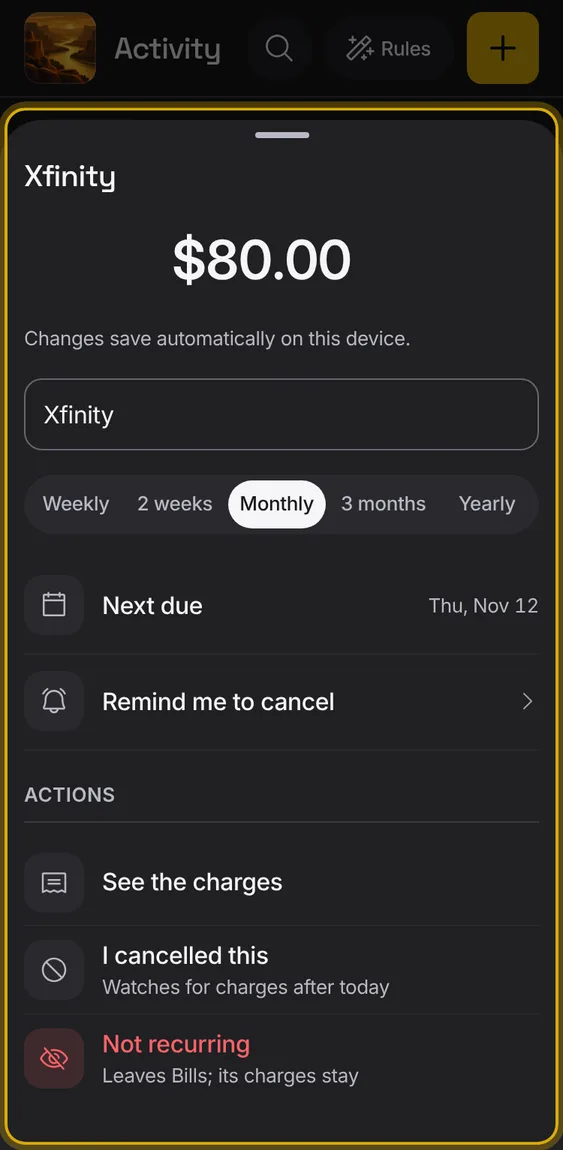
Tell Alluvium a found bill isn't a bill; it moves to Not recurring.
- In the bill's sheet, tap Not recurring.
Codes like "SQ *PHILZ COFFEE 123" show as one clean name, and different spellings of a payee show as one.
- Nothing to do: names are cleaned as entries arrive.
- Rename or group payees yourself from Payees.
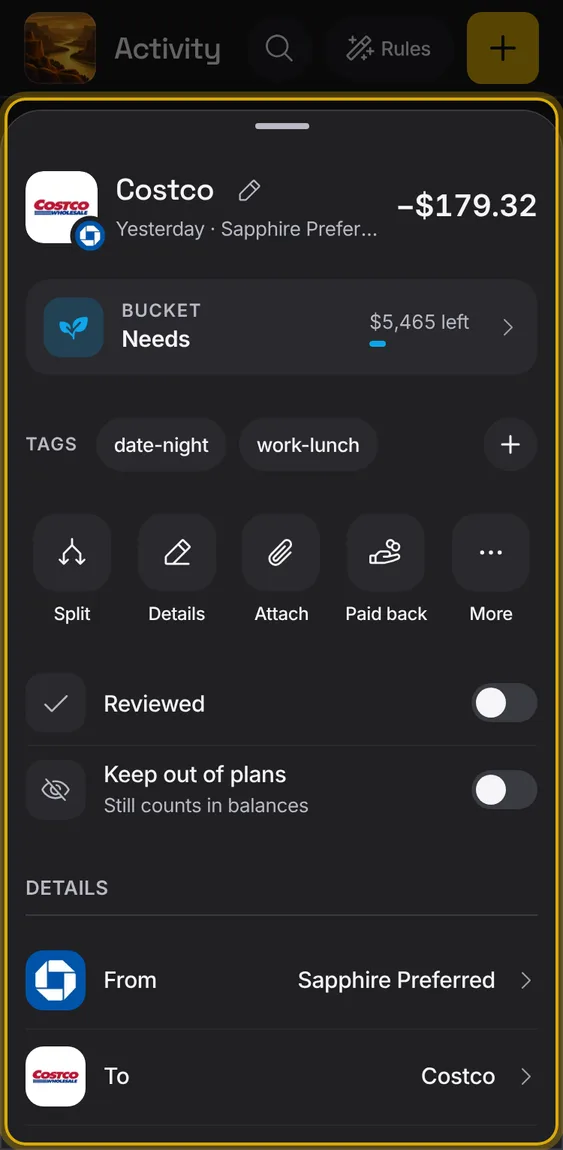
Everything about one entry, with the most-used changes first: its bucket and tags, then split, details, attach and more.
- Tap an entry anywhere it's listed.
- Changes apply at once, with Undo.
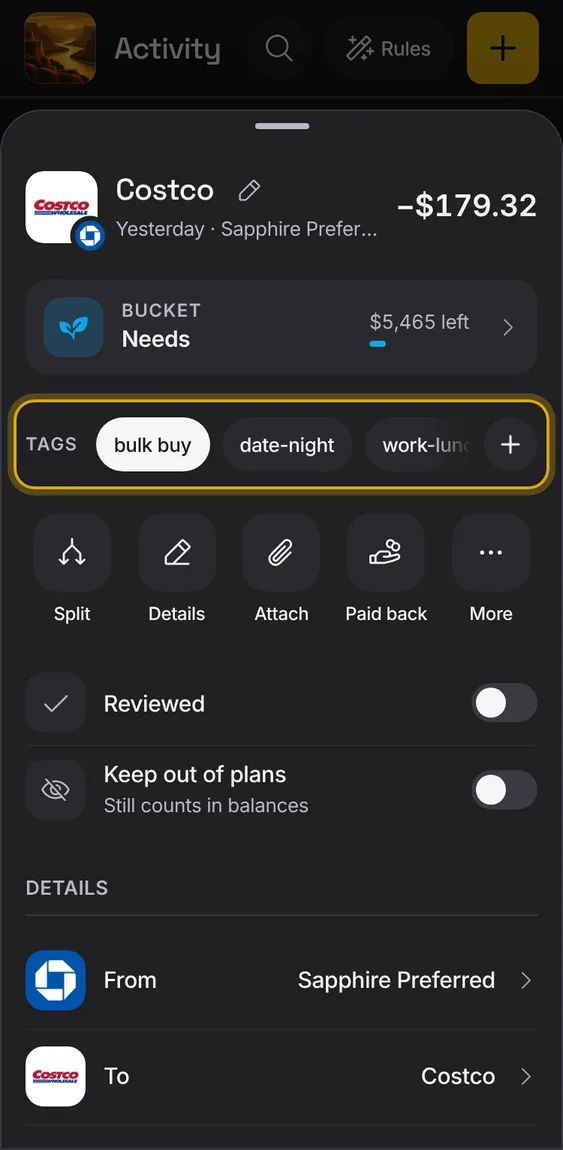
An entry's tags sit under its bucket as one row of pills, and change at once.
- Tap a tag to put it on or take it off.
- Type in Add tag to make a new one.
Add photos or PDFs of receipts to an entry; they're kept on your device and uploaded privately.
- Tap Attach and choose a photo or PDF.
- Tap one to view it; Remove takes it off every device.
- It says when a file is still waiting to upload.
Not in the demo. Needs a file from your device.
A bank entry's amount and direction come from your bank, and it can't be deleted; only the bank can change or remove it.
- Other fields, like its bucket, tags and description, are yours to change.
- A pending entry says the amount may change when it posts.
Not in the demo. Needs an account: the demo has none.
A pencil beside the name renames the entry, the same as a right swipe.
- Tap the pencil, type and close.
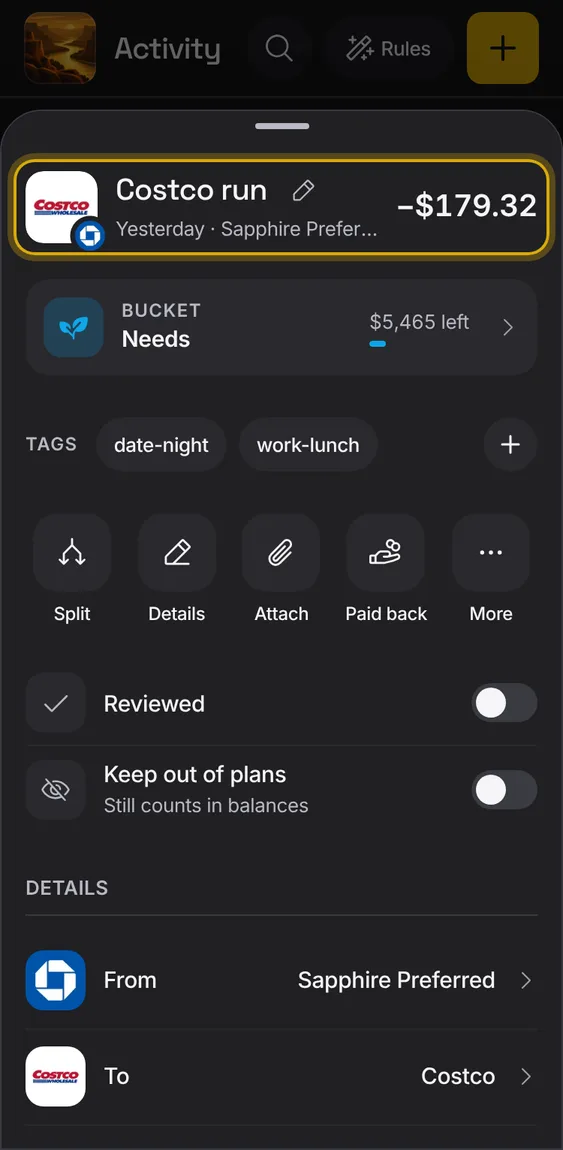
Change the amount, date, payee, notes and more in the entry's editor.
- Tap Details.
- For a bank entry you can change the date, description and notes; the amount comes from the bank.
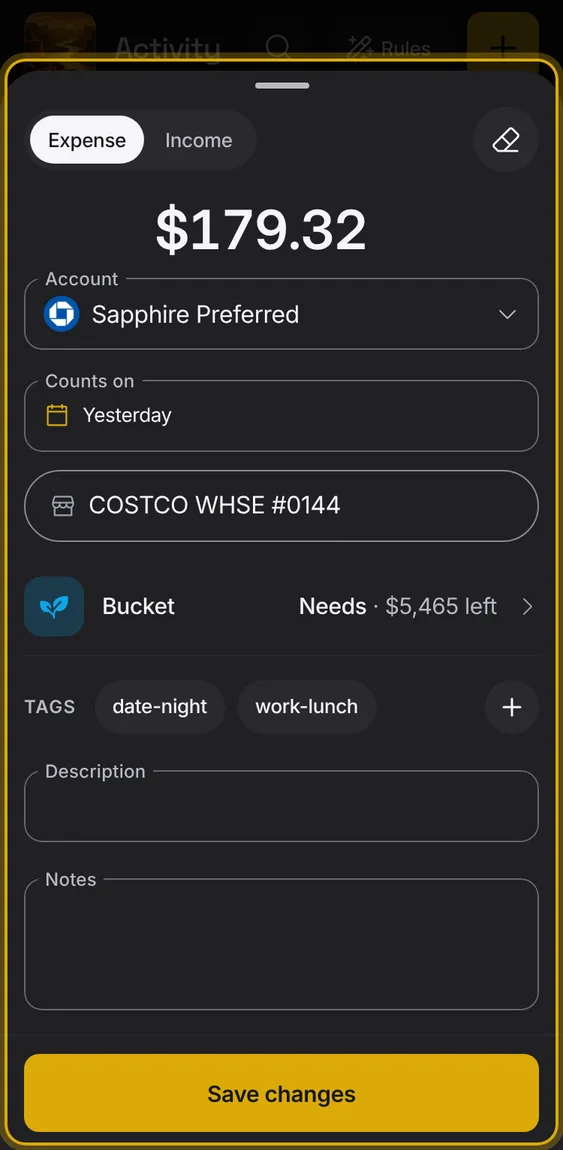
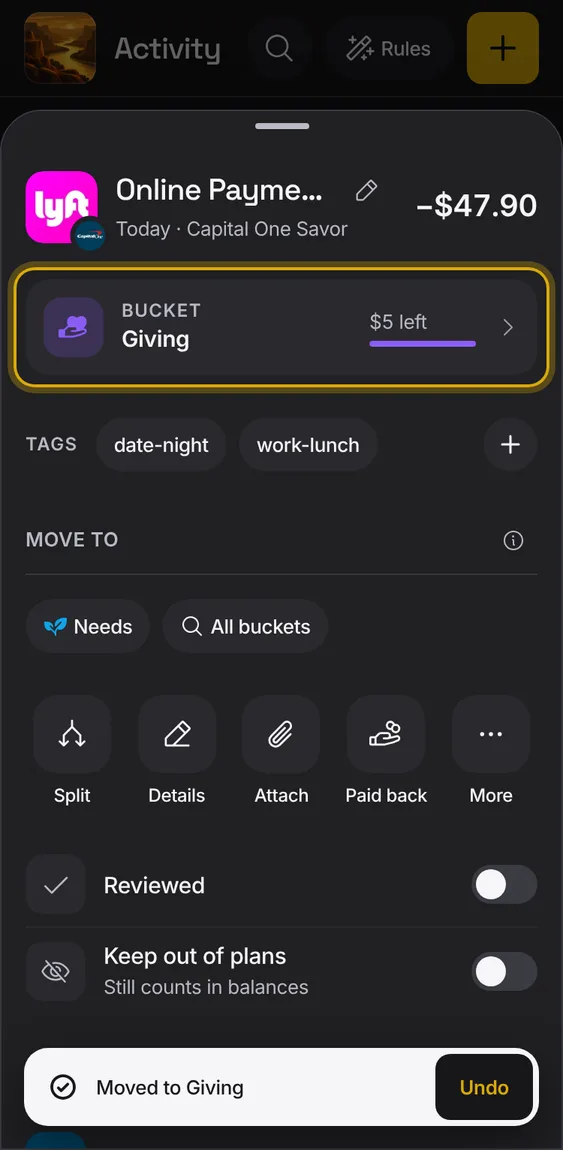
One row says which bucket the entry comes out of, with what's left in that bucket this month.
- Tap Bucket to change it.
- The (i) explains buckets and tags.
- A bucket from a month with no plan can be cleared.
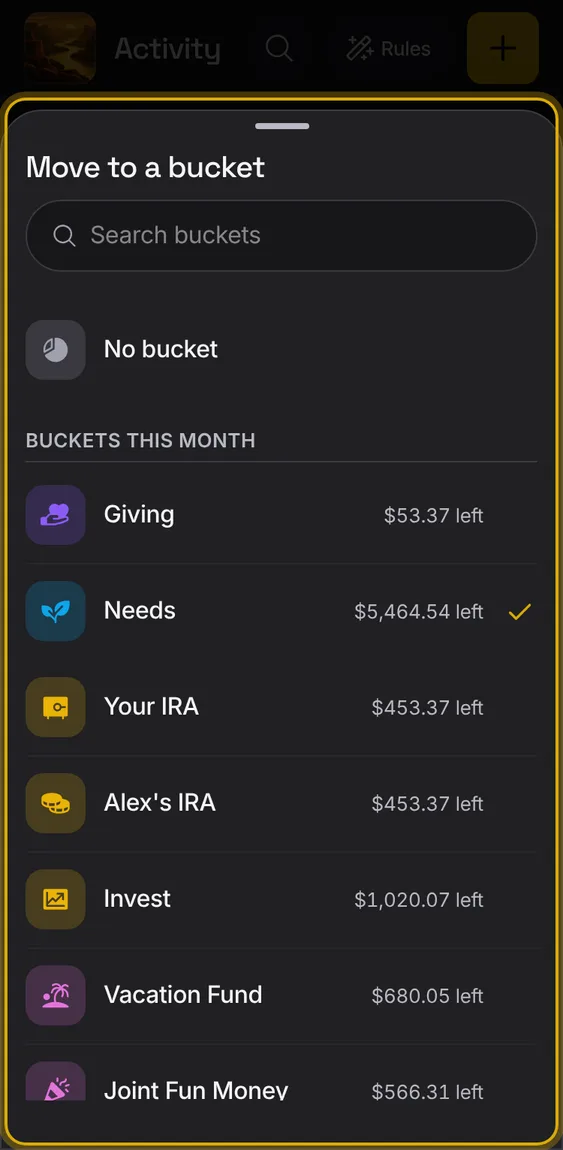
Which of your accounts the money left or reached, and the payee on the other side; each opens its own screen.
- Tap your account to open it above the entry.
- Tap the payee to open the payee.
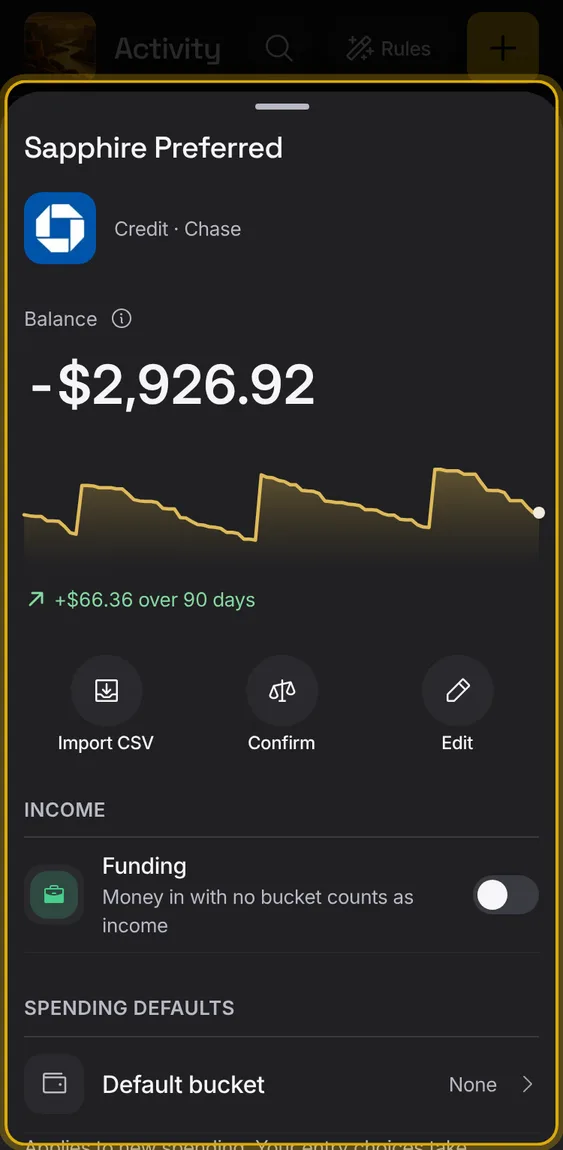
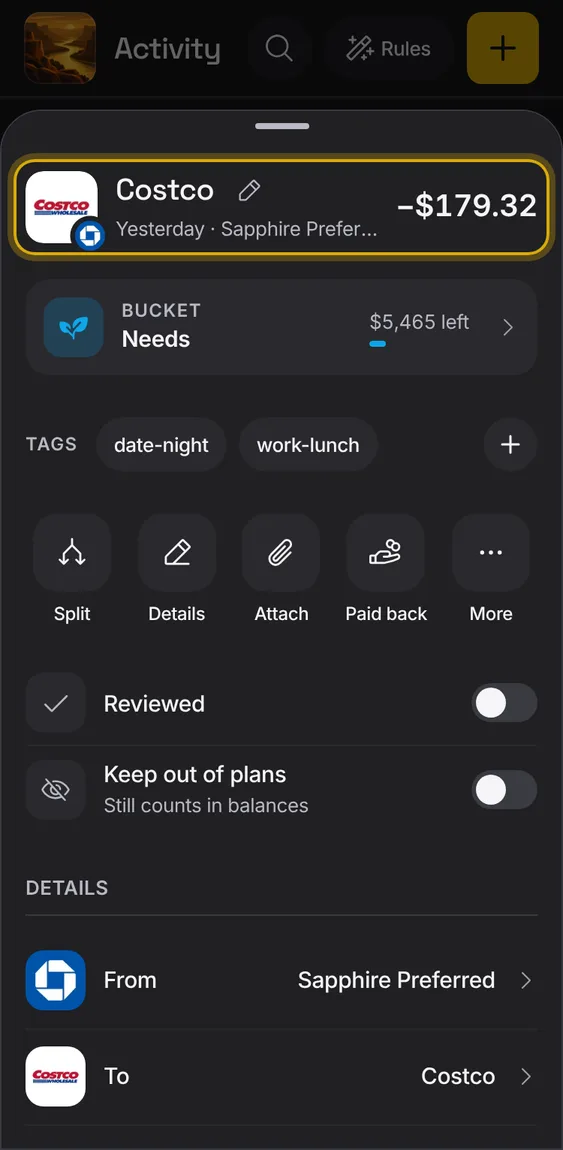
The top of an entry: its picture, name, date and account, and the amount.
- Tap the picture to change it for that payee everywhere.
- The name is cut short on one line if it's long.
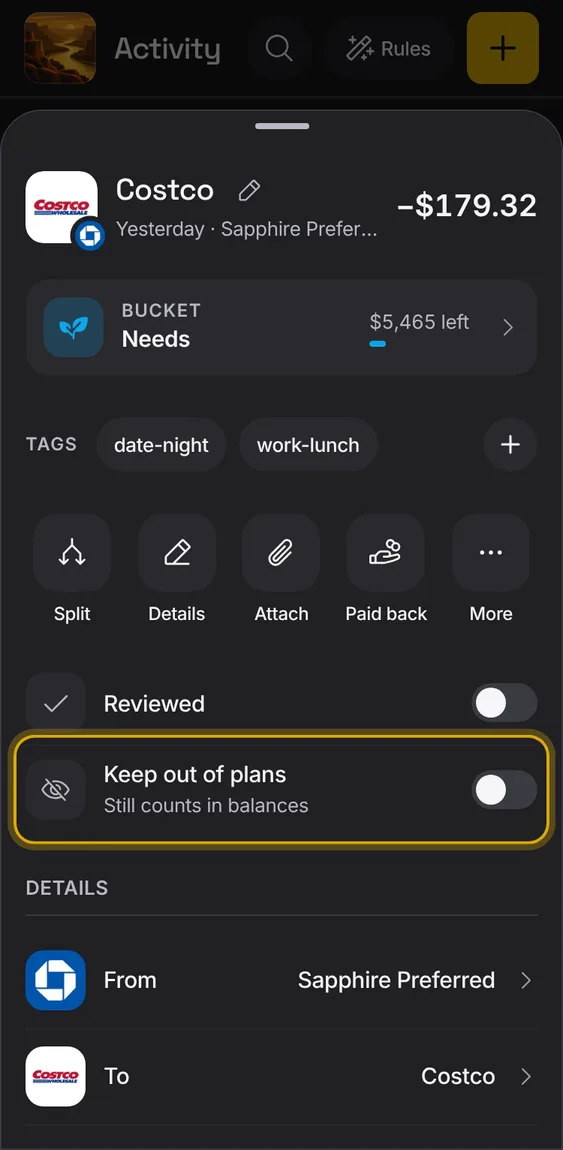
Leave an entry out of plans and buckets; it still counts in balances.
- Turn on Keep out of plans.
- Undo turns it back.
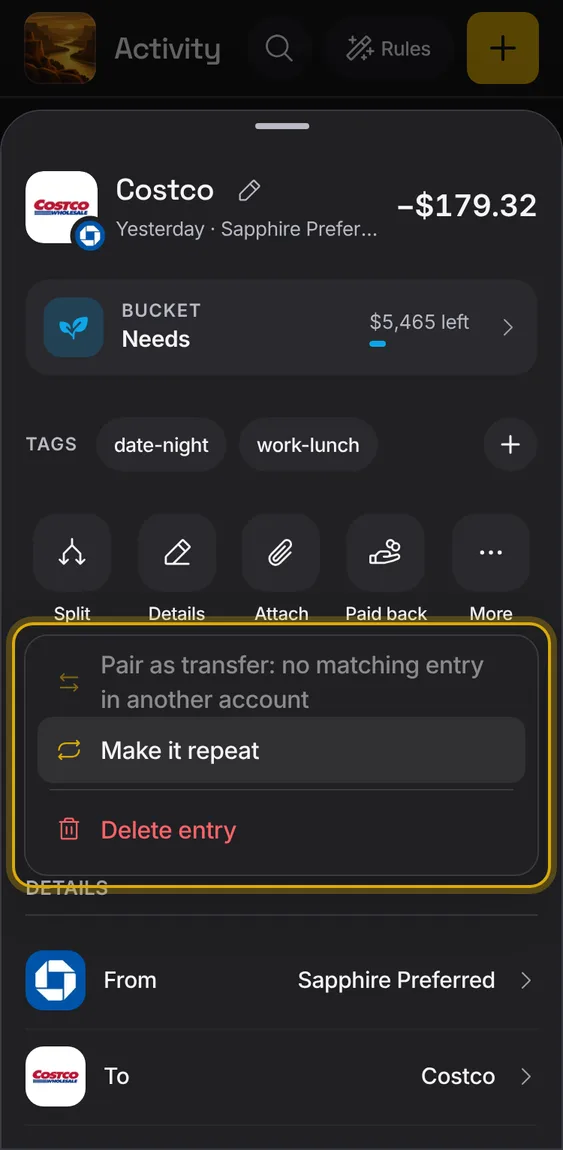
Less-used actions under More: pair as transfer, not a transfer, unlink, make it repeat, delete.
- Tap More.
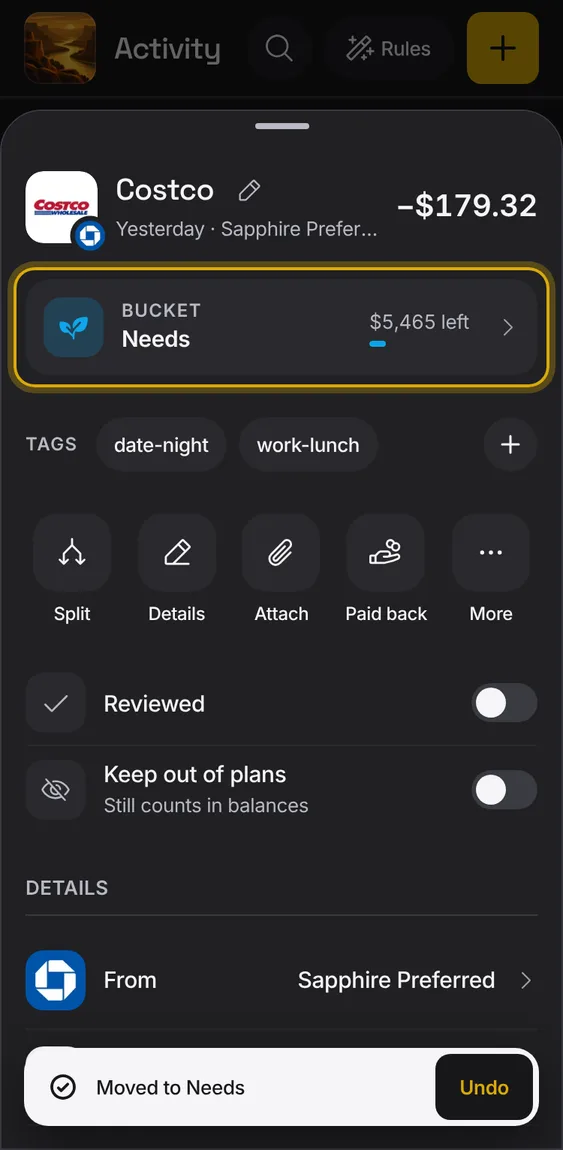
Chips for the buckets this payee's spending usually goes to, to move the entry in one tap.
- Tap a chip: the entry moves, with Undo.
- Only shown when the payee has used other buckets.
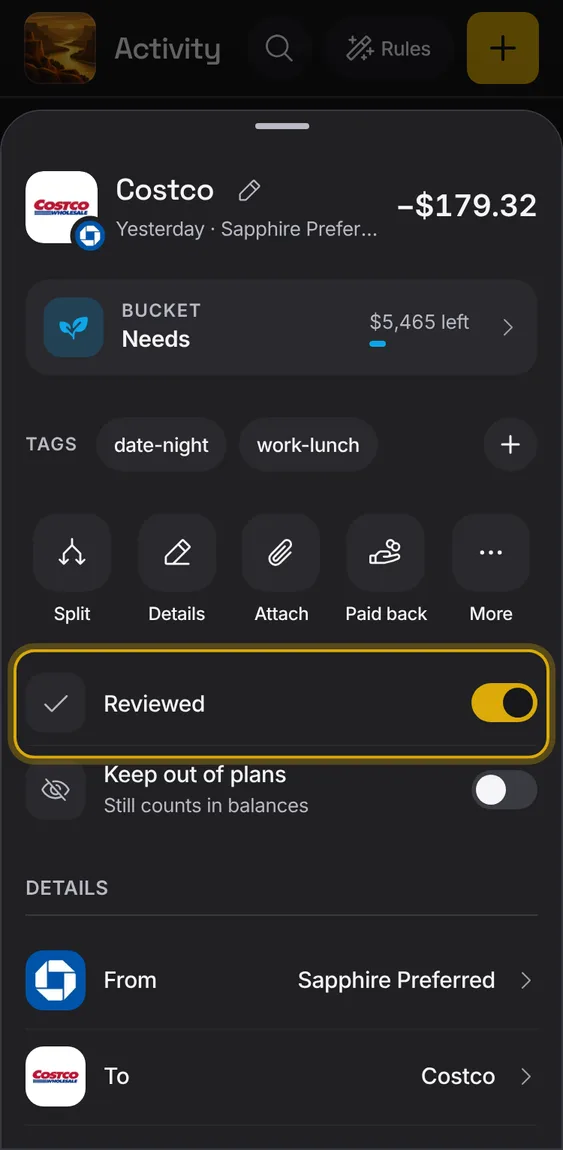
A switch to mark the entry reviewed.
- Turn on Reviewed.
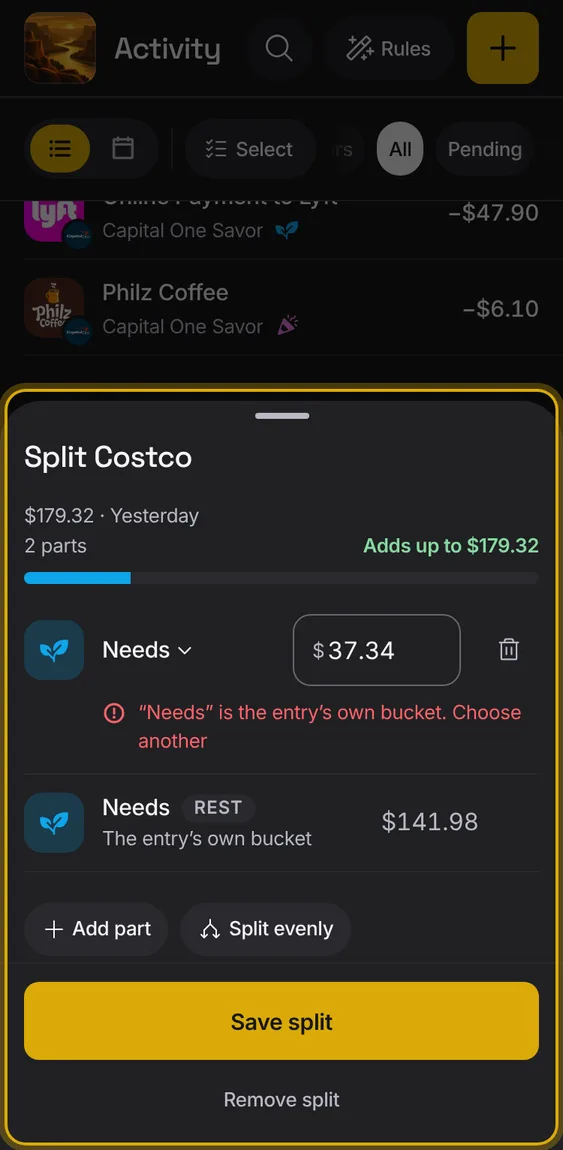
Divide one entry into parts, each in its own bucket with its own amount.
- Tap Split, then Add part or Split evenly.
- What no part takes stays with the entry.
- It tells you if the parts don't add up.
An entry of a bill shows the bill, how often it repeats and the next one, and opens it.
- Tap This bill.
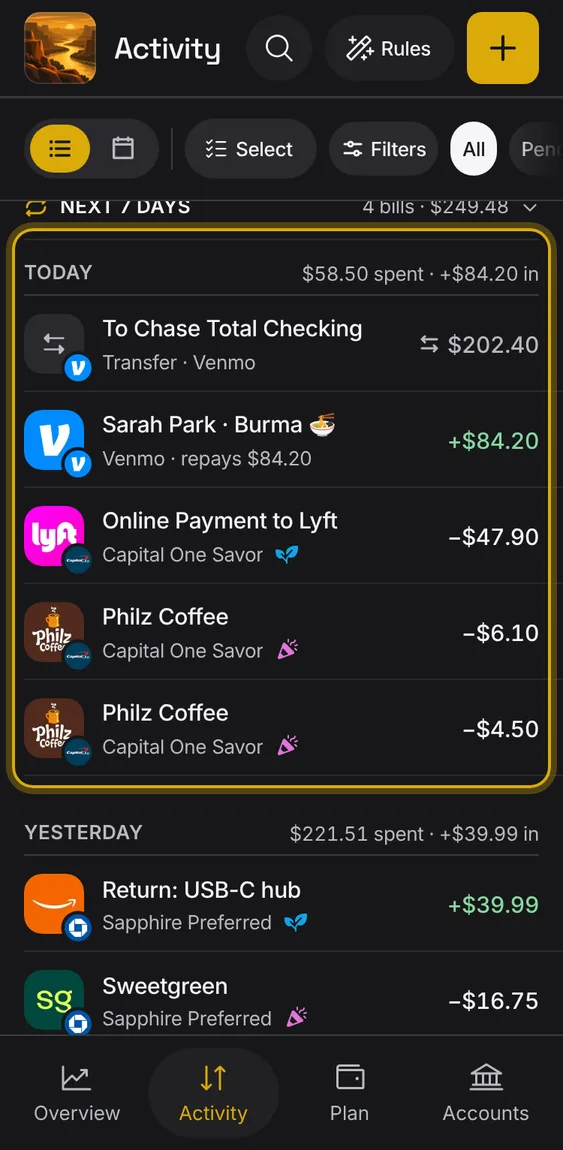
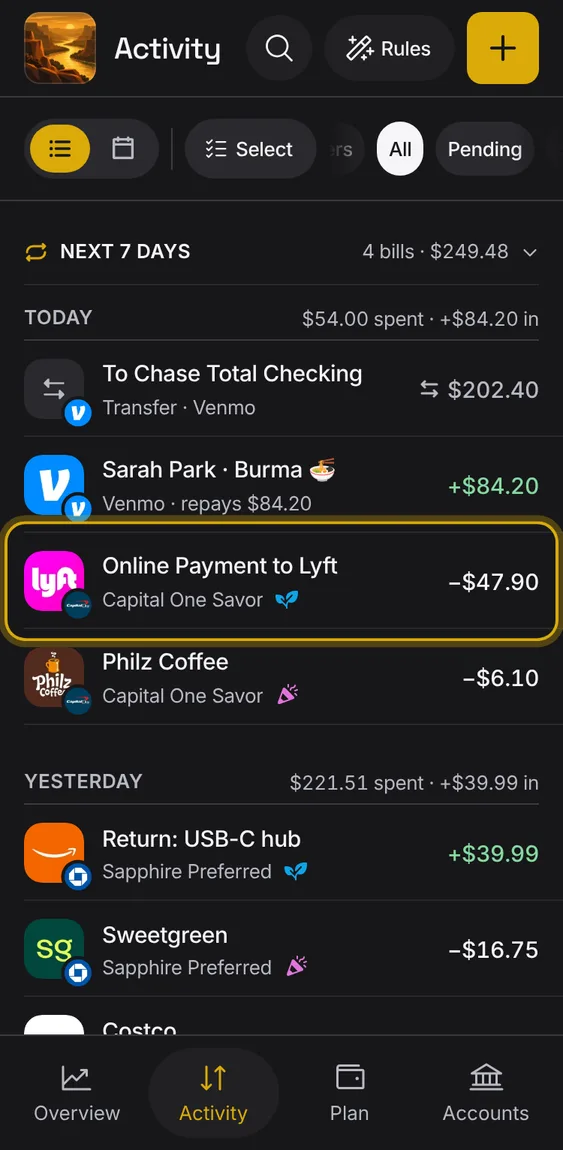
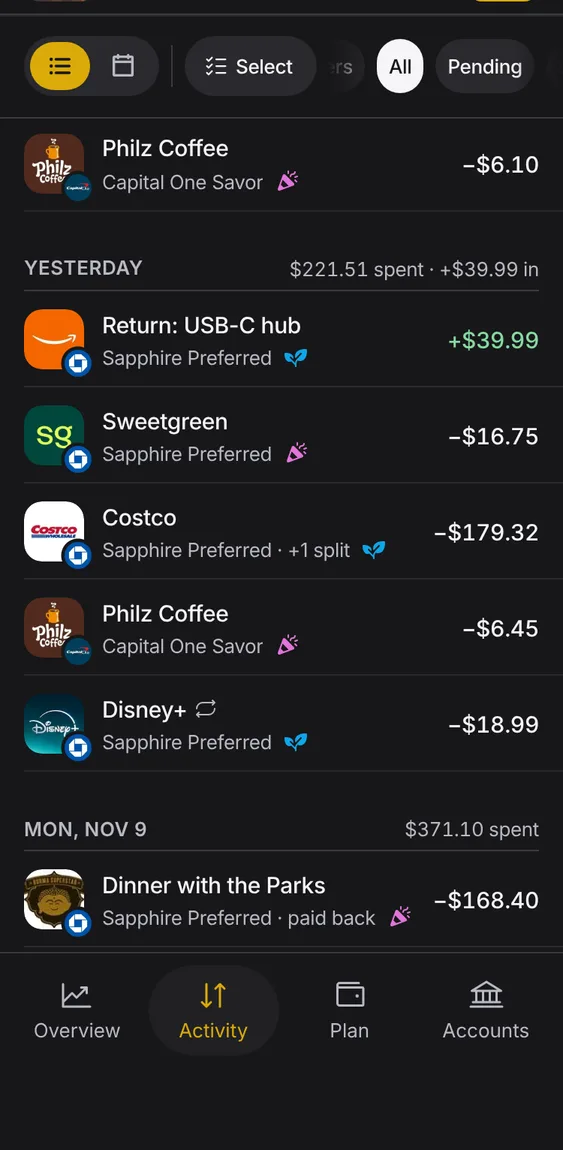
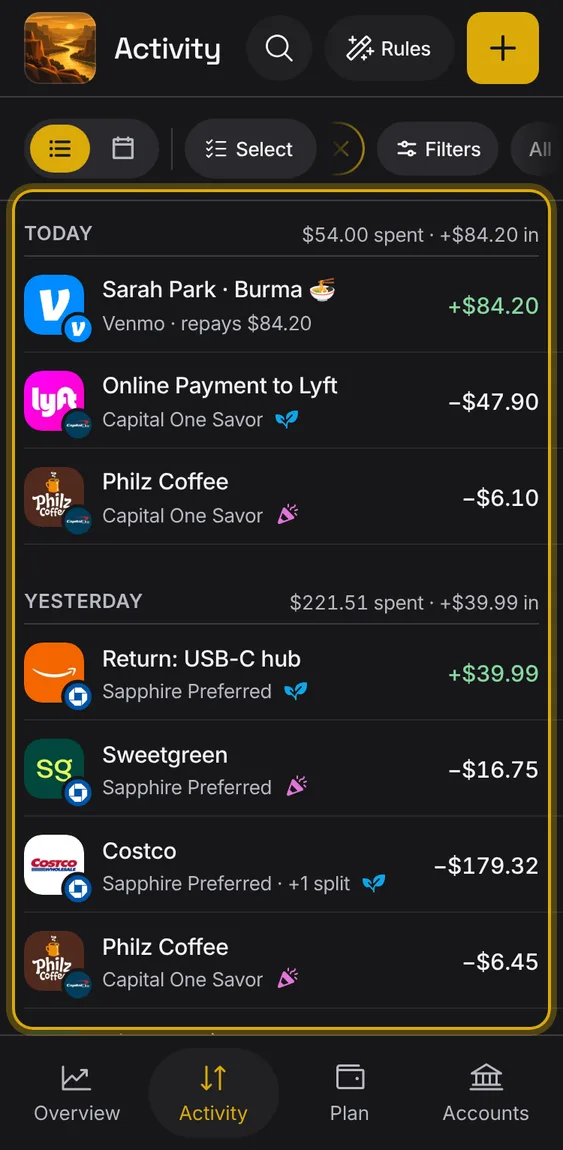
All your entries grouped by day, newest first, with each day's spending.
- Scroll to go back in time; older entries load by themselves.
- Tap an entry to open it.
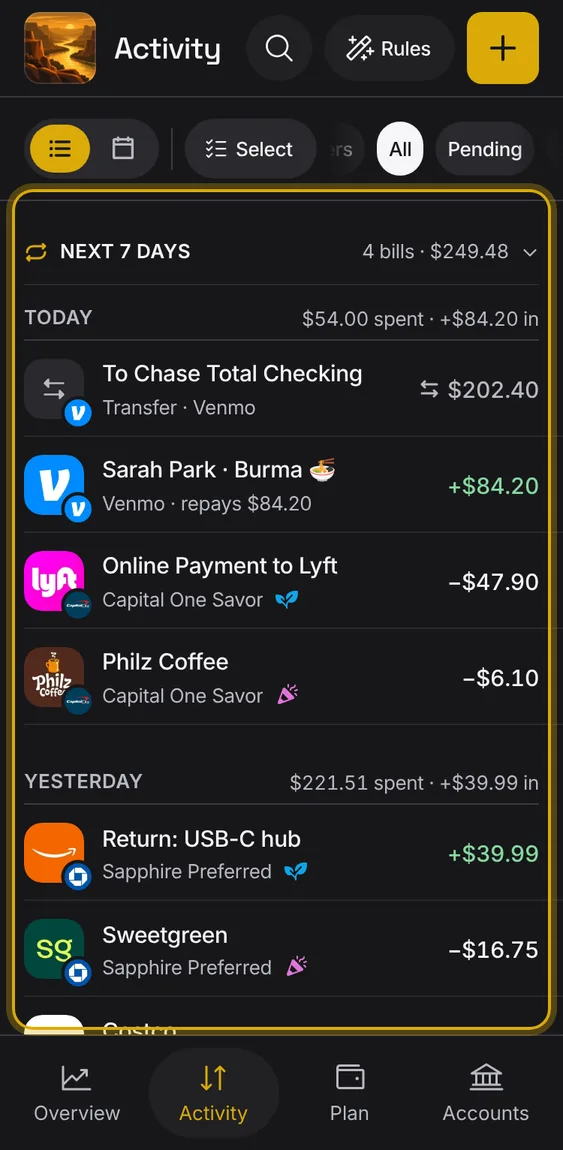
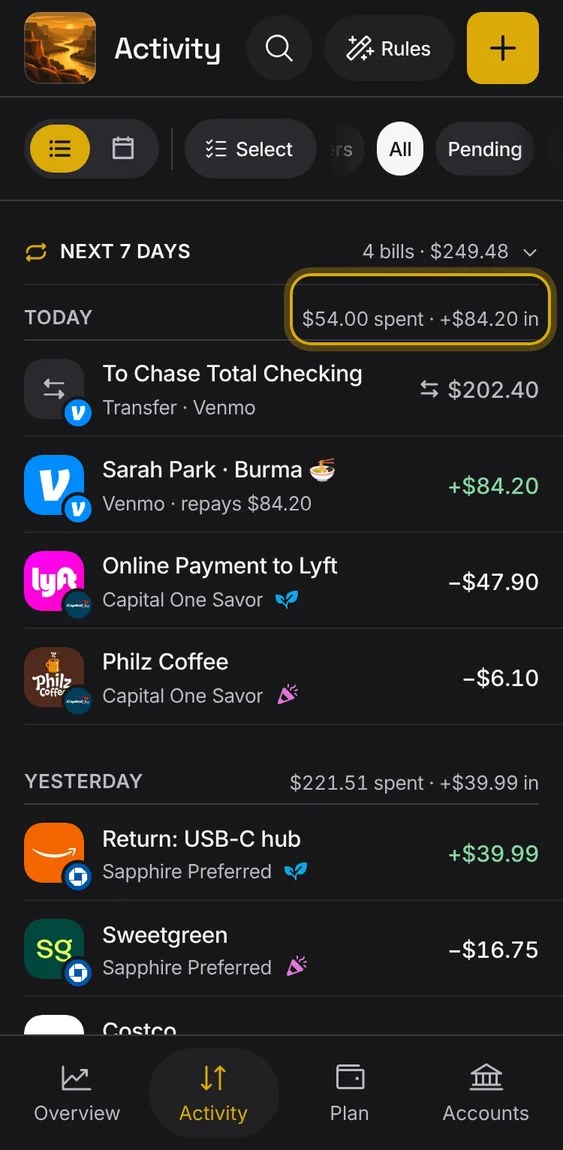
Each day's heading says what was spent and what came in that day.
- Pending entries are listed but not counted.
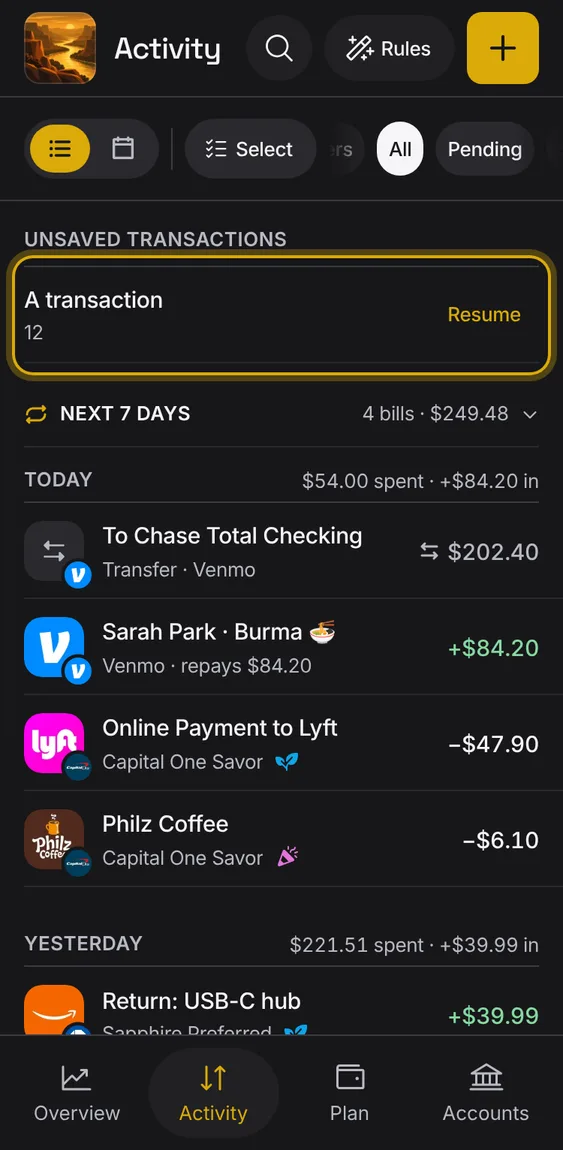
An entry you started but didn't save waits at the top of Activity so you can finish it.
- Tap Resume to pick up where you left off.
An empty ledger shows one line and one button to add the first entry.
- Tap Add entry.
Not in the demo. Shows before anything is saved; the demo has sample data.
Older entries load on their own as you reach the end of the list, with no limit on how far back.
- If a page doesn't load, the list keeps what it has and offers Try again.
- Changing a filter starts the list again.
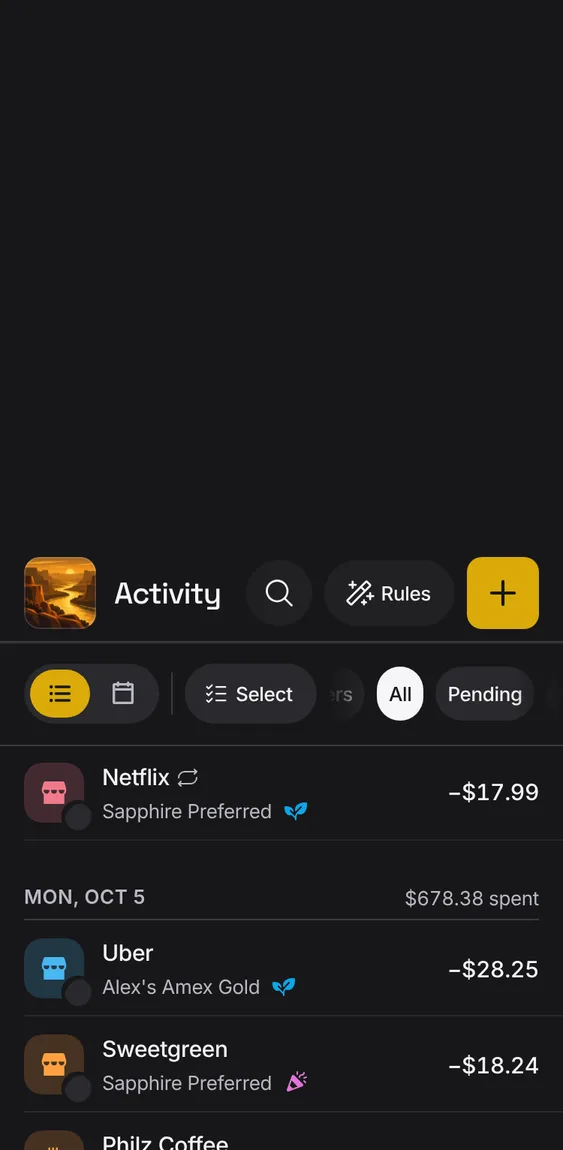
Entries your bank hasn't posted yet show an amber dot and a muted amount, and count toward nothing until they post.
- The dot sits in the row's line under its name.
- Your bank decides when it posts; there's no cleared switch.
- A pending entry moves to its posting day when it posts.
Not in the demo. Needs an account: the demo has none.
Each row shows the payee's picture, its name, the account, its bucket as a small icon, and the amount.
- Money in is green; a pending amount is muted.
- A transfer is titled by where the money went.
- Hover an icon to see its name.
On a wide screen the list and the chosen entry sit side by side.
- The newest entry opens first.
- Choose another entry to see it beside the list.
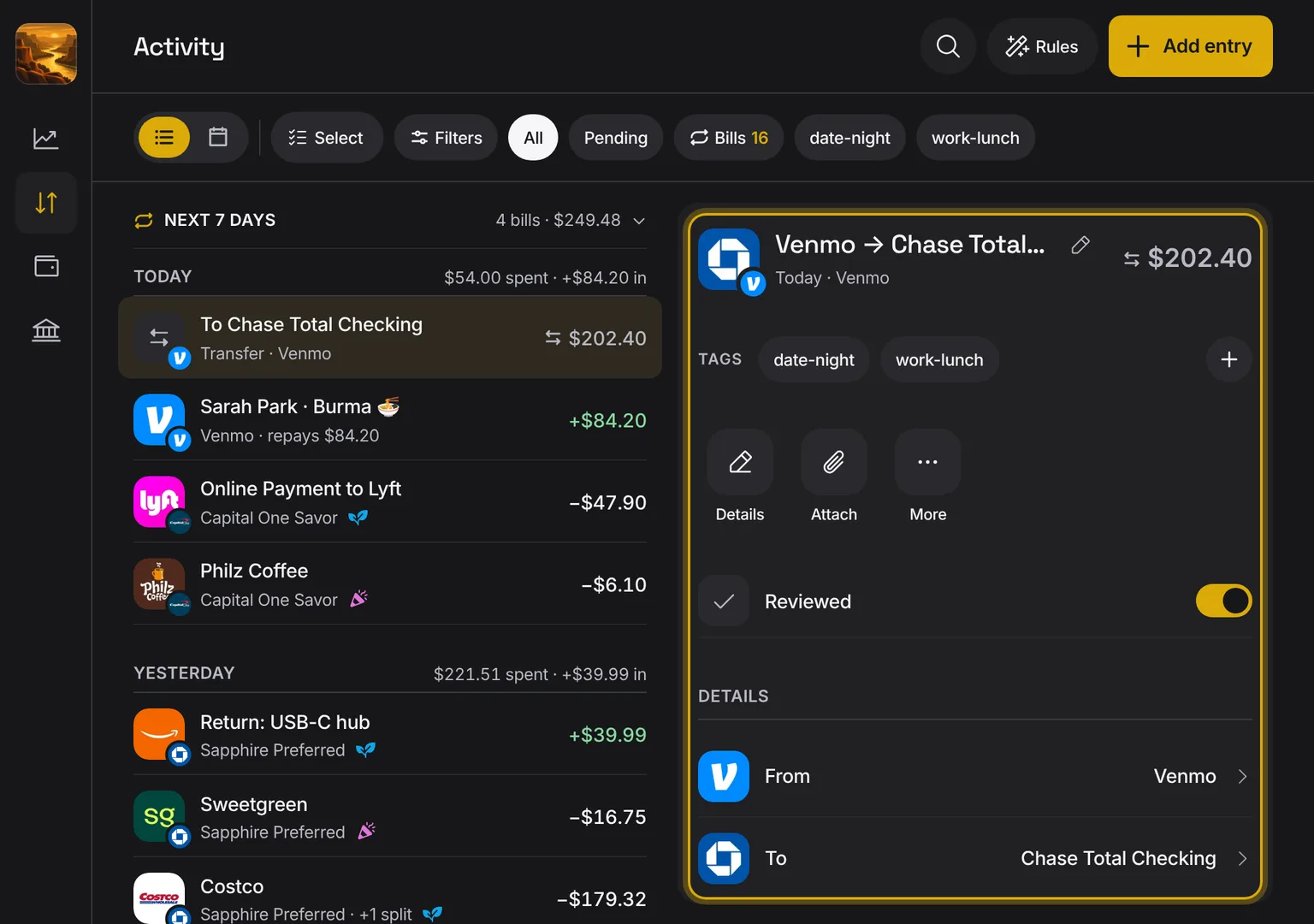
Shown at a computer’s width.
Payees and accounts show their company's logo, found for you; you can choose another picture or upload your own.
- Tap a payee's or account's picture to change it.
- Turn off Look up logos in Preferences to stop lookups.
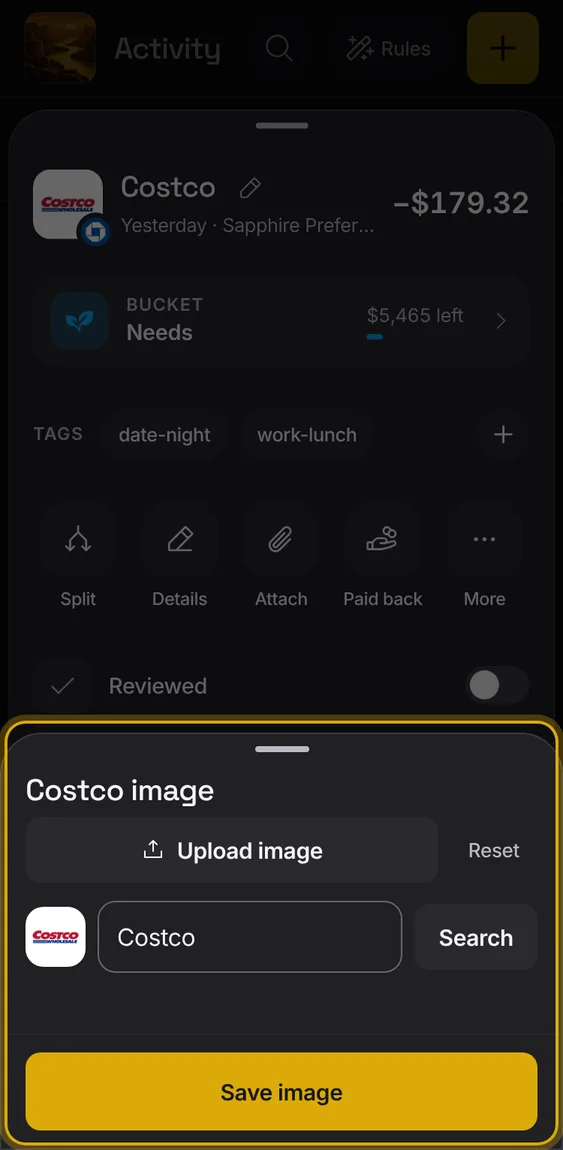
A payee's logo is found by its name, only from real brands, and never replaces one you chose.
- Nothing to do.
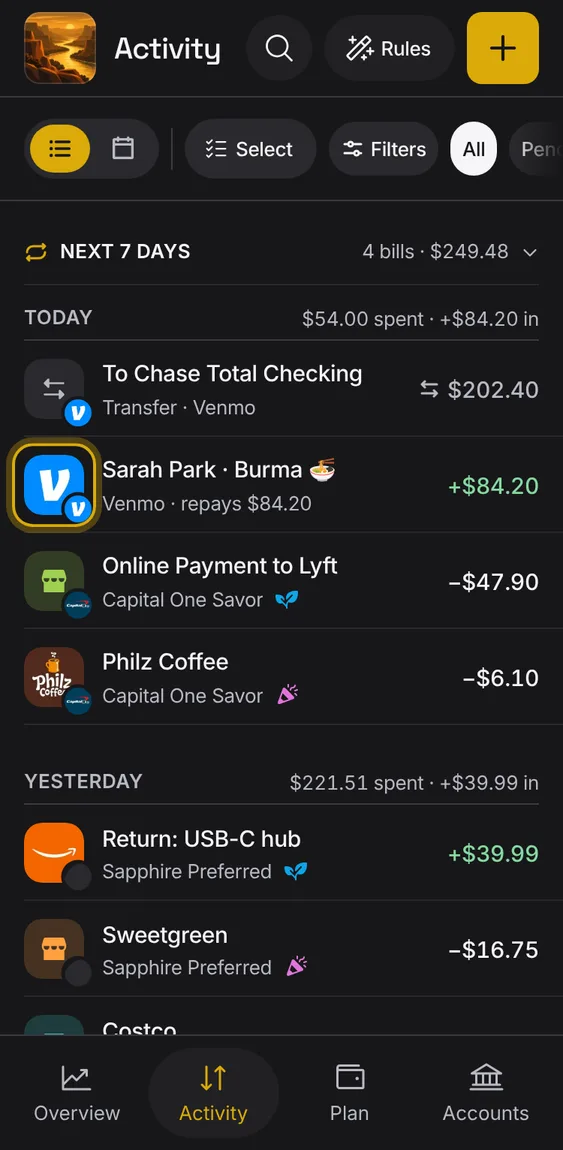
Give a payee or account an emoji shown while there's no picture.
- In the picture sheet, set the glyph.
Until a picture loads, its tile shows a colour and icon from the payee's name.
- Nothing to do.
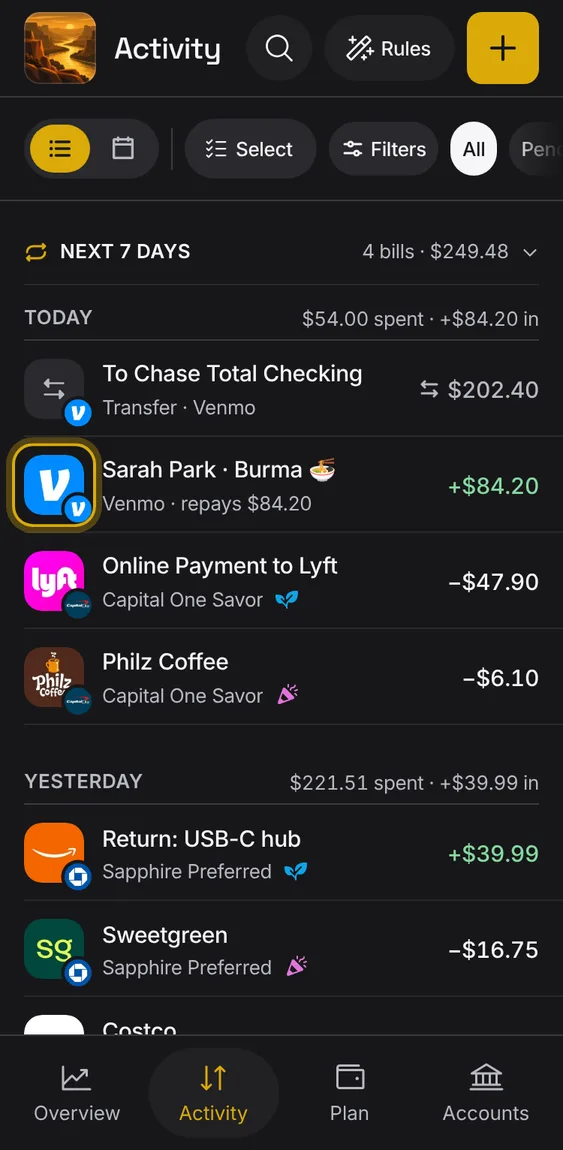
Logos fill their tile or sit centred, with a white backing only when they'd vanish on the dark tile.
- Nothing to do.
Turn logo lookups off: tiles show initials and no logo service is asked.
- Hub Preferences → Look up logos.
Not in the demo. Needs an account: the demo has none.
Go back to no picture, or the logo found for you.
- Tap Reset in the picture sheet.
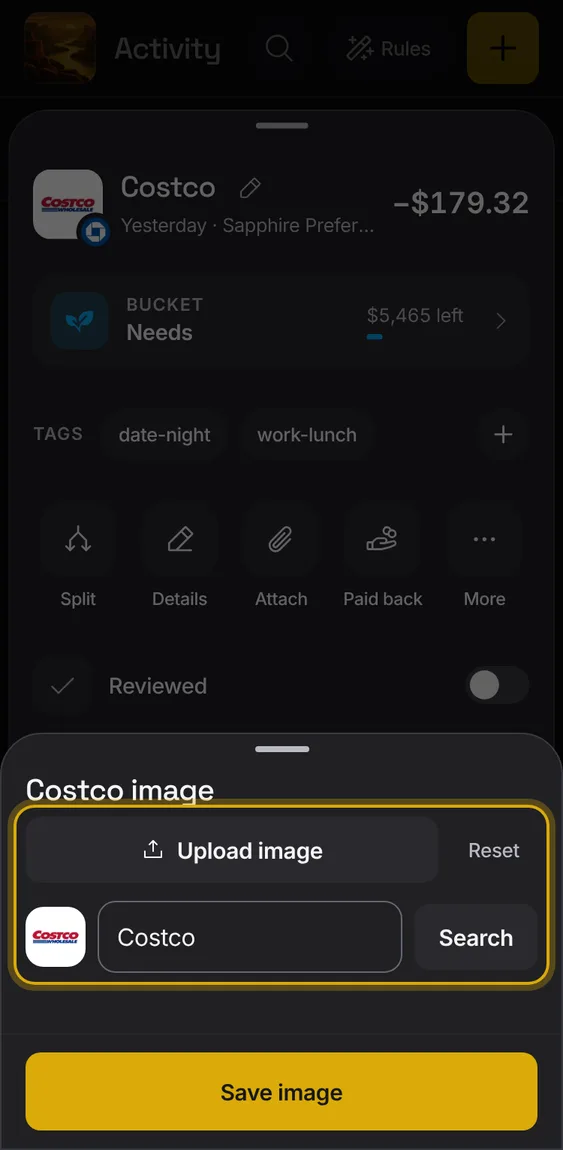
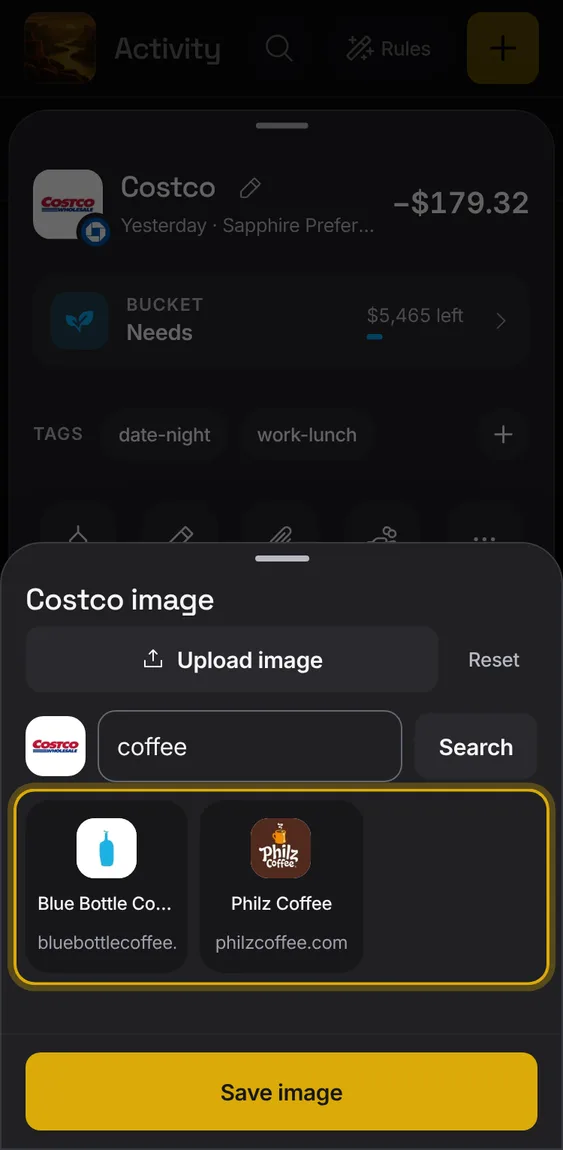
Search brands by company name and pick a logo from the results.
- In the picture sheet, type a name and tap Search.
- A failed search says so, with Try again.
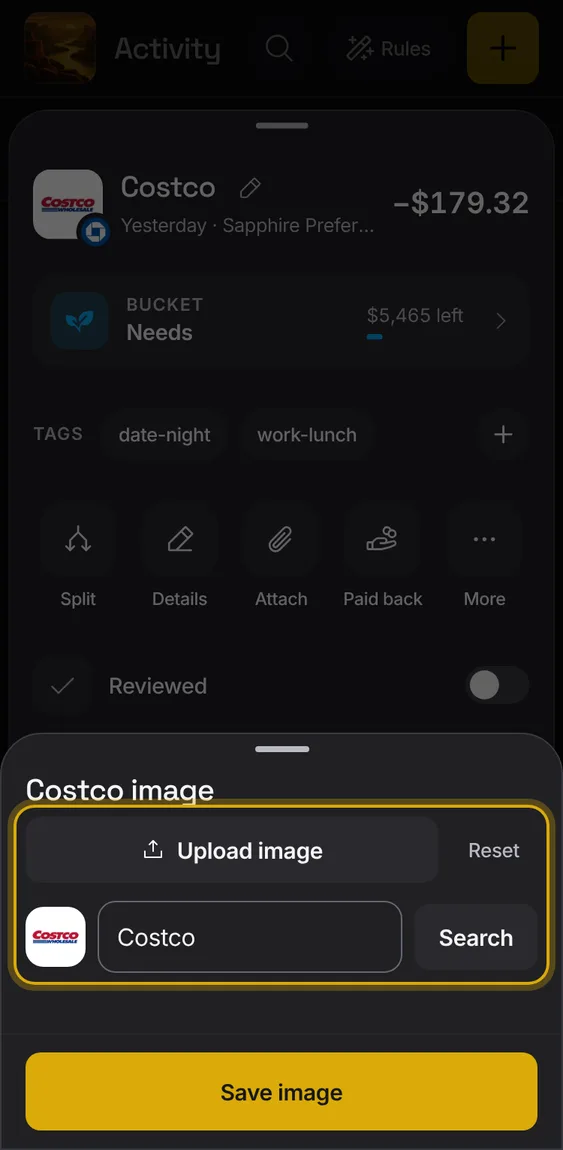
Upload your own picture and crop it to a square before saving.
- Tap Upload image, then drag and zoom.
- Use image, then Save image.
Not in the demo. Needs a file from your device.
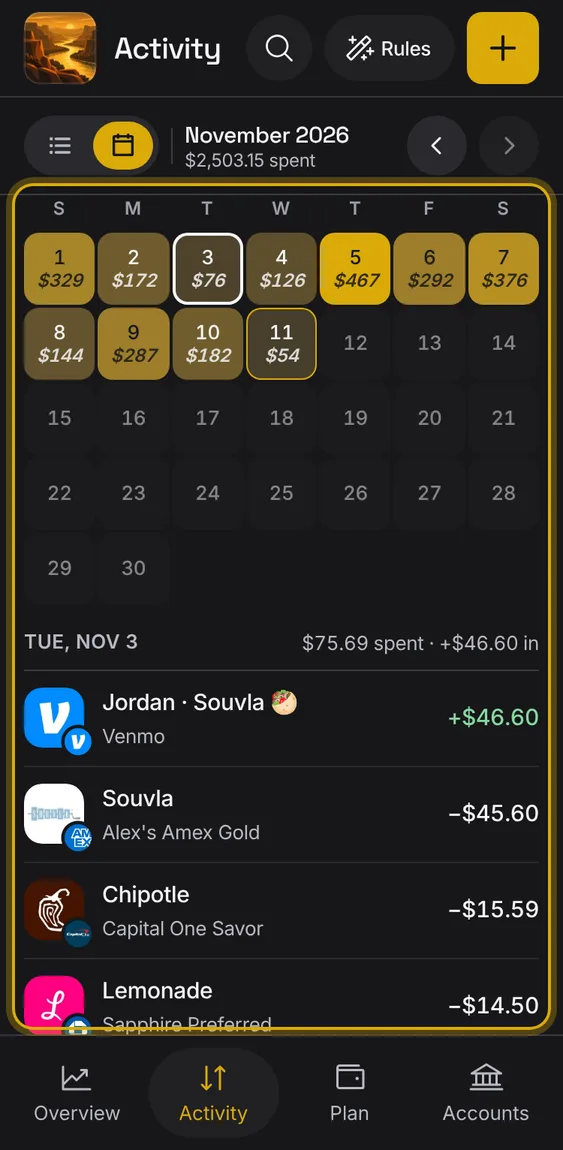
The month as a calendar, each day shaded by its spending, with the month's total.
- Switch between the list and the month with the view switch.
- Step to earlier months with the arrows.
- Tap a day to see its entries.
Track money you expect back for something you paid, like a shared dinner, and link the repayments when they come.
- In a spending entry, tap Paid back.
- Say how much you expect back, then link each repayment.
- The repaid part leaves your spending; the repayment isn't income.
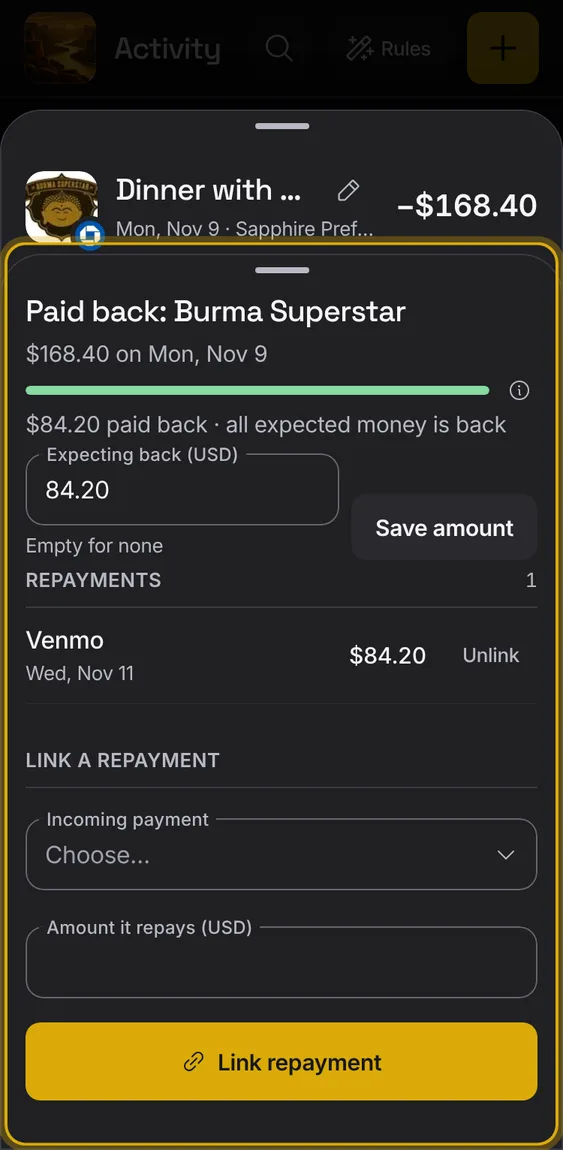
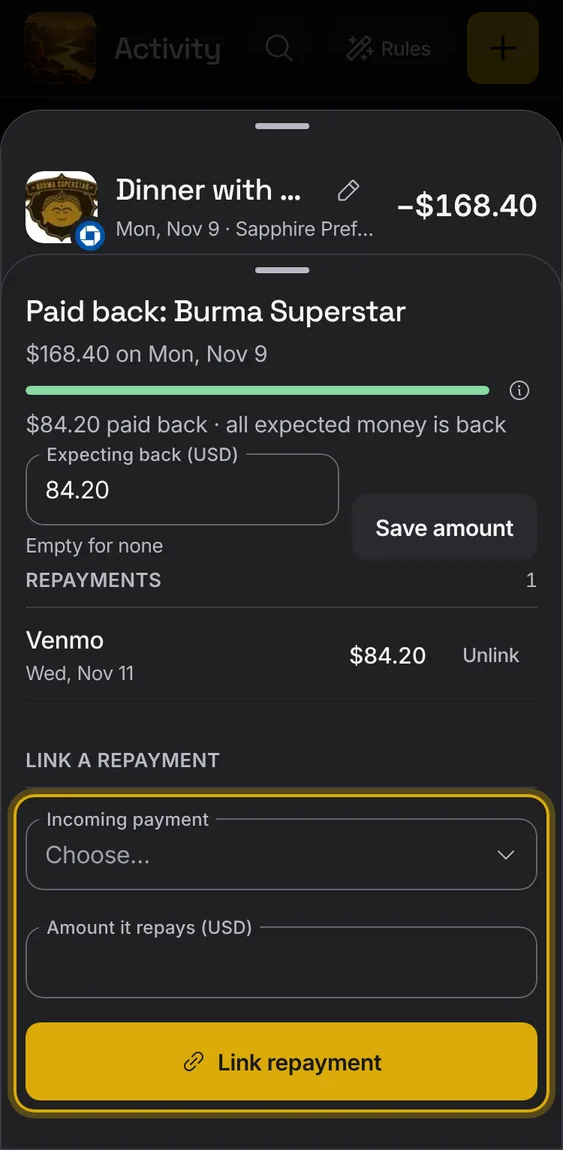
Link one or more repayments, in part or in full, to the expense they pay back.
- Choose the incoming payment and how much of it repays this.
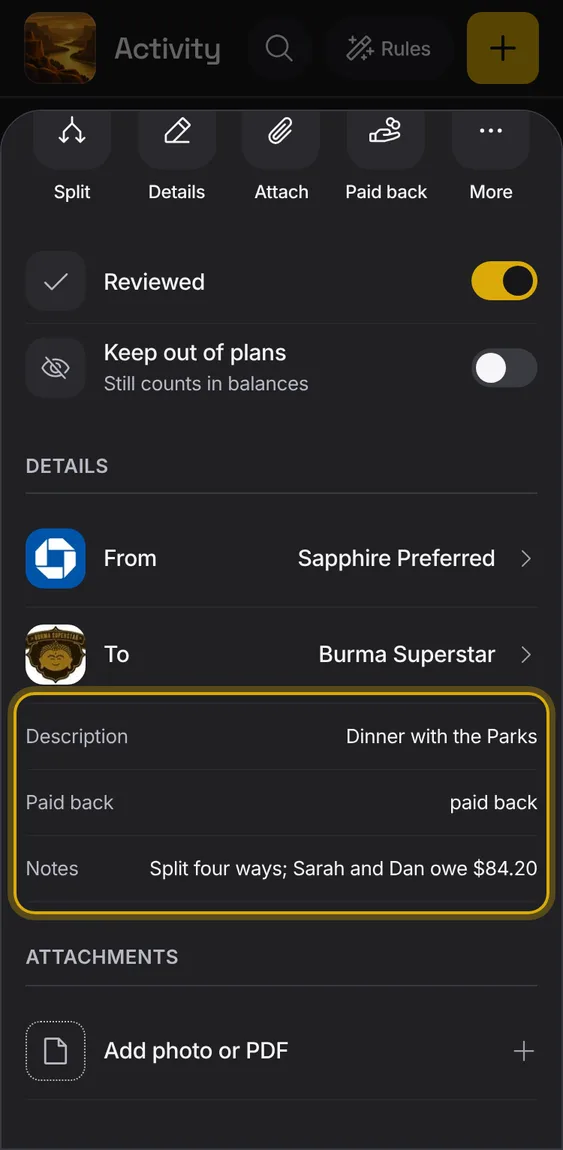
The expense shows what's been paid back and what's still owed.
- Shown in the entry and its Paid back sheet.
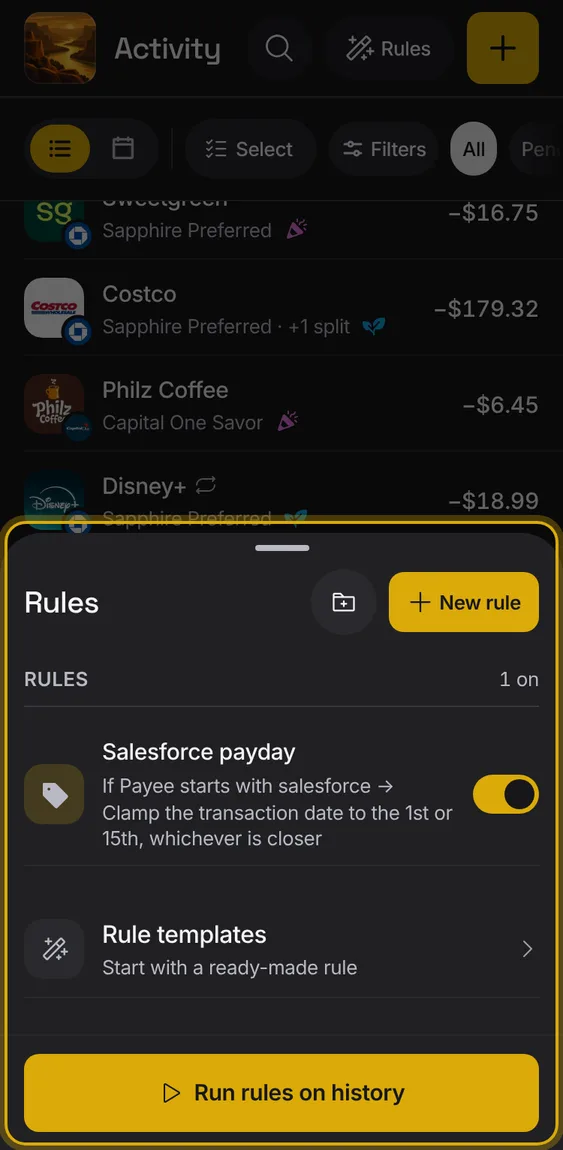
Rules file your entries for you: when an entry matches, they set its bucket, name, tags and more.
- Tap Rules in Activity.
- New rules apply to new entries by themselves; Run rules on history changes past ones.
What a rule does to a matching entry. Each rule can have up to ten.
- Under Then, add an action and fill it in.
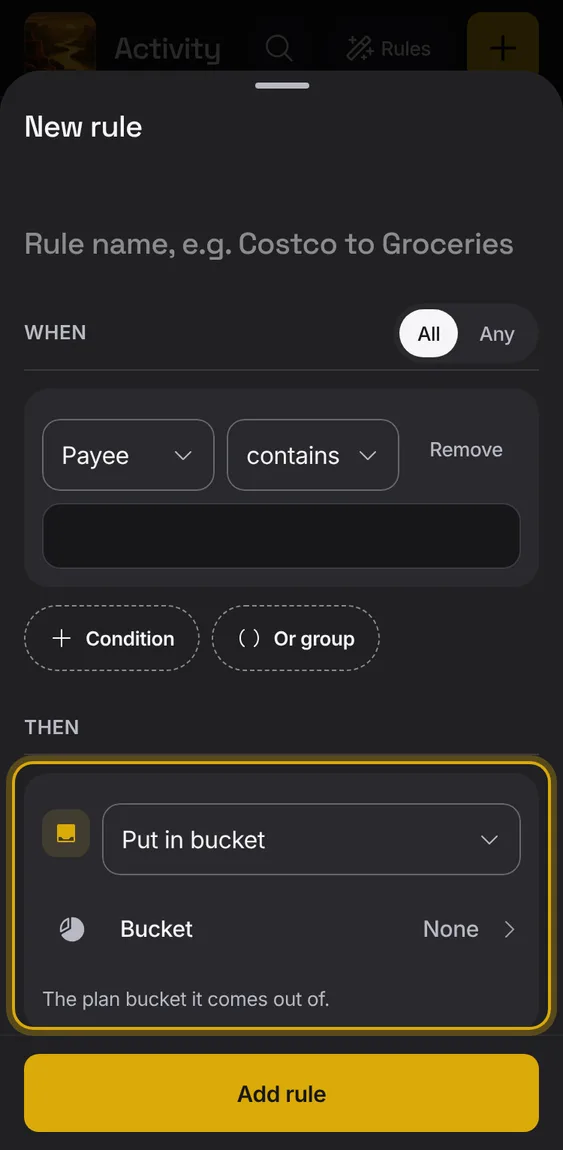
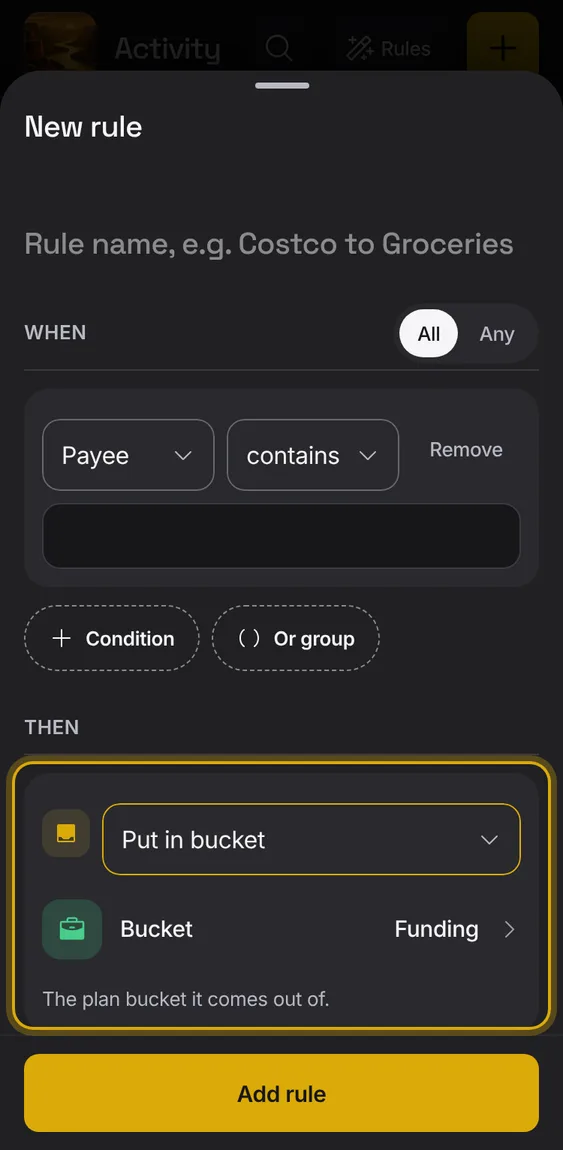
Put the entry in a plan bucket.
- Under Then, choose Put in bucket.
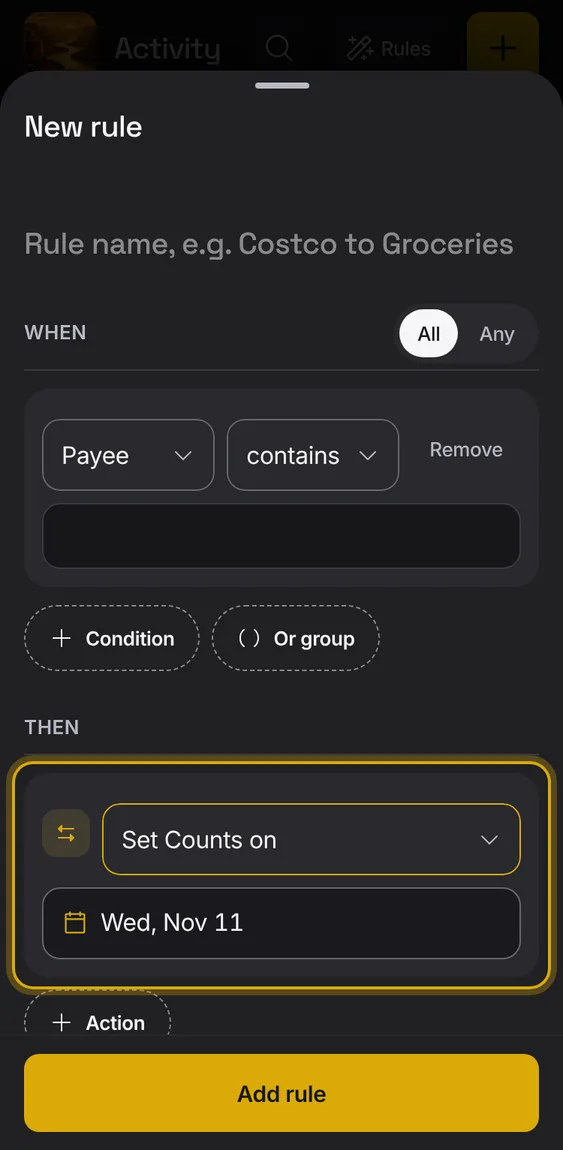
Set the day the entry counts in plans.
- Under Then, choose Set Counts on.
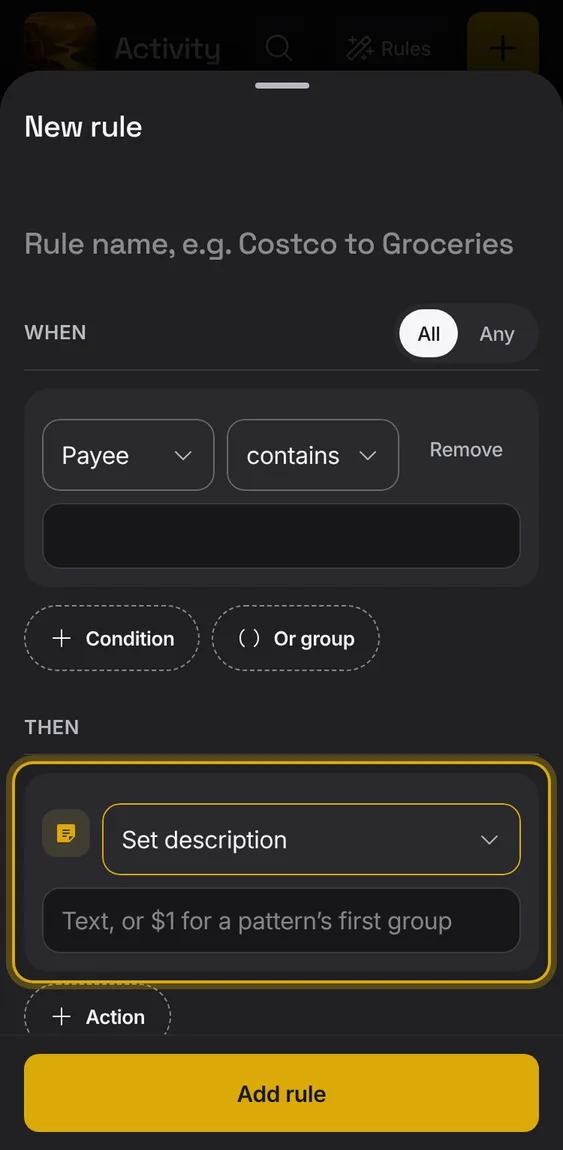
Set the description, using parts of the bank's text if you like.
- Under Then, choose Set description.
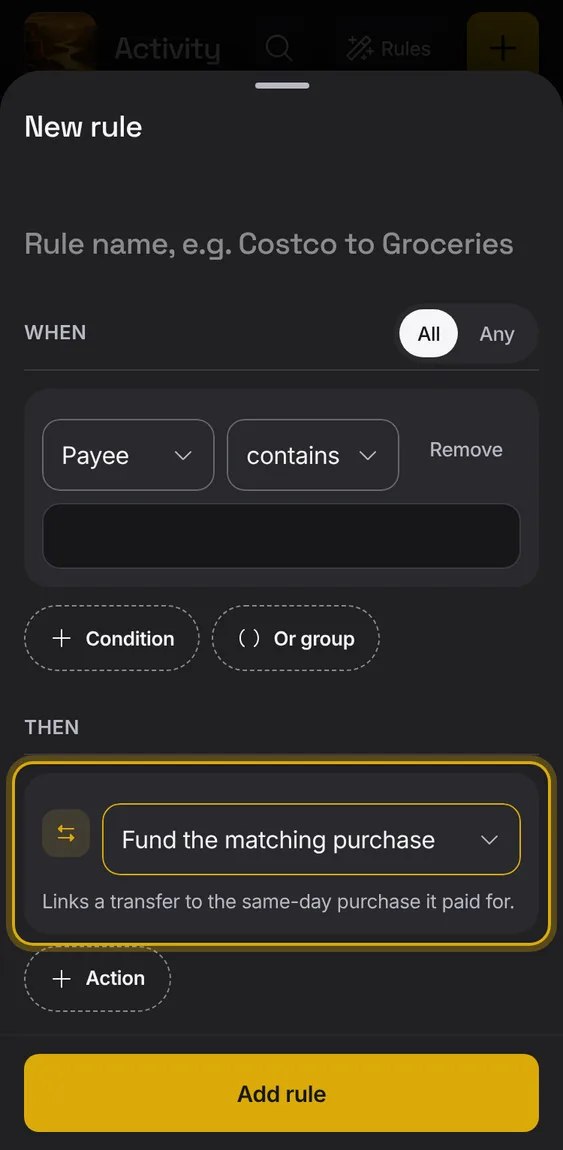
Link a transfer to the same-day purchase it paid for.
- Under Then, choose Fund the matching purchase.
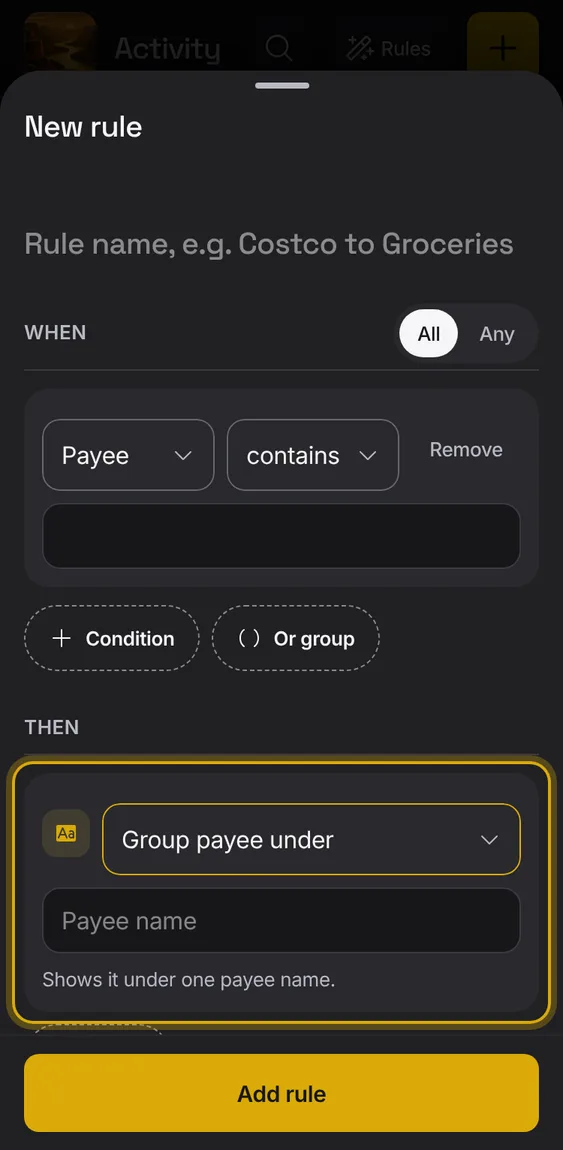
Show the entry under one payee name, without changing the bank's text.
- Under Then, choose Group payee under.
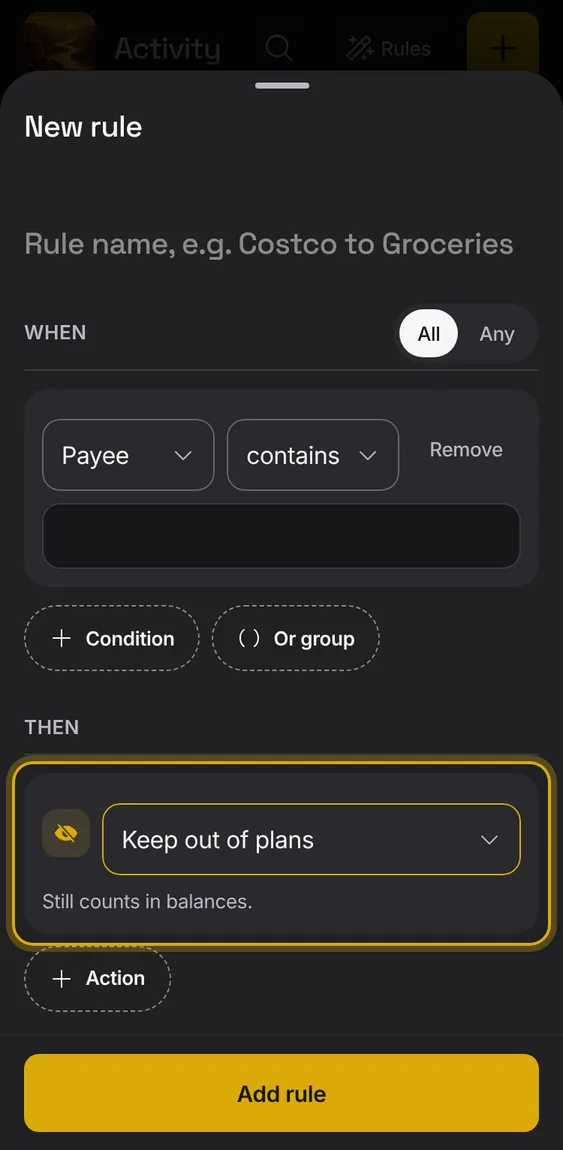
Keep the entry out of plans; it still counts in balances.
- Under Then, choose Keep out of plans.
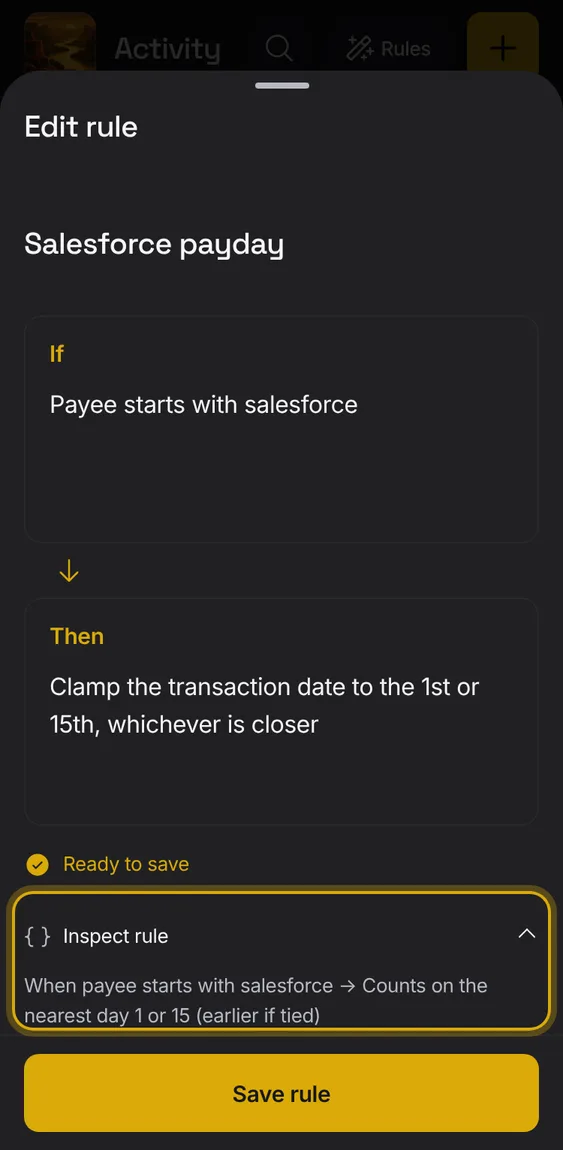
Rules written in your words can also shift Counts on, set or append notes, format the payee, replace text, and clear or remove tags, buckets and splits.
- Write it in Then; Inspect rule shows the action.
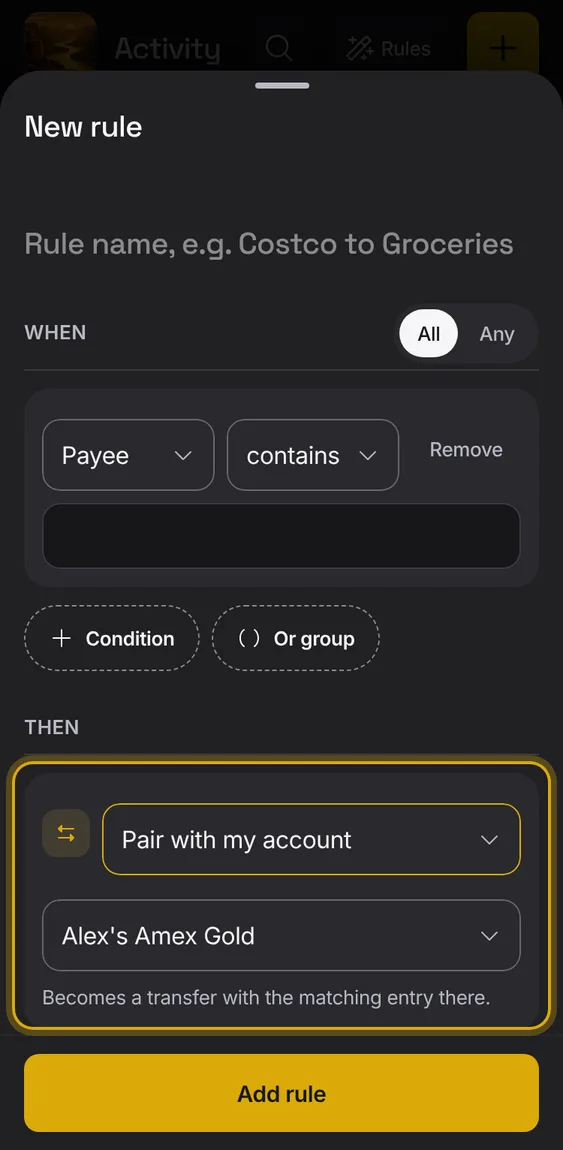
Make the entry a transfer with the matching entry in one of your accounts.
- Under Then, choose Pair with my account.
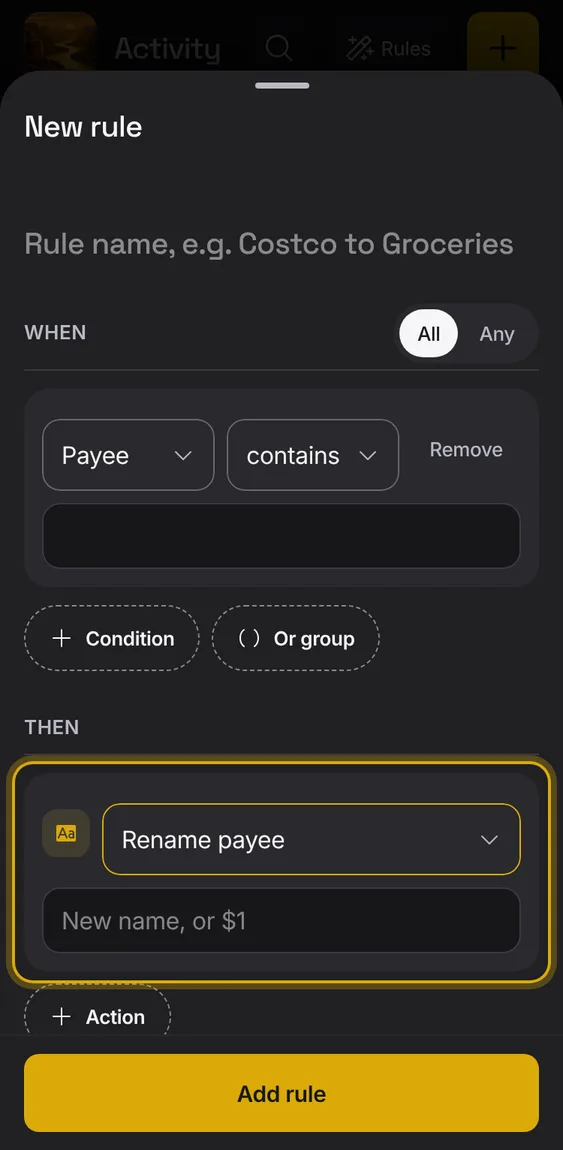
Give the payee a new name, using parts of the bank's text if you like.
- Under Then, choose Rename payee.
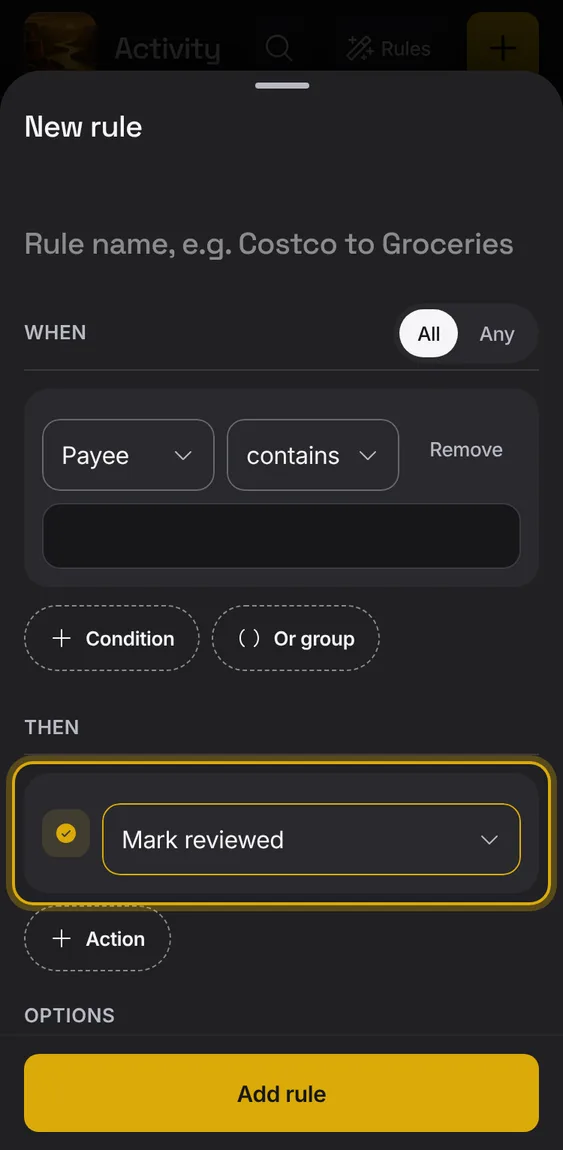
Mark the entry reviewed.
- Under Then, choose Mark reviewed.
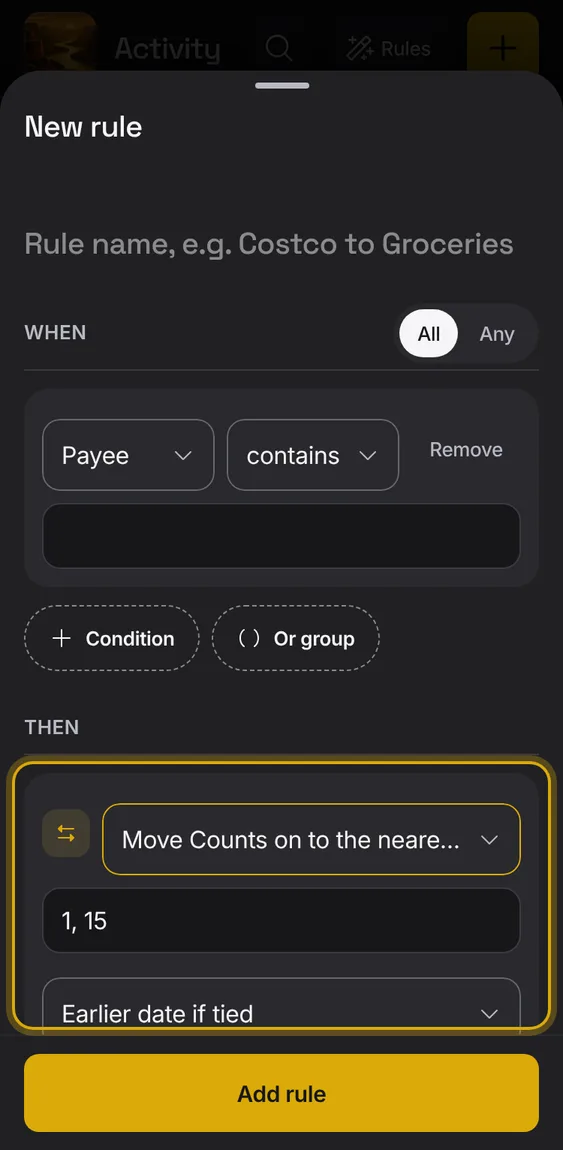
Move Counts on to the nearest of chosen days of the month, like the 1st or 15th.
- Under Then, choose Move Counts on to the nearest day.
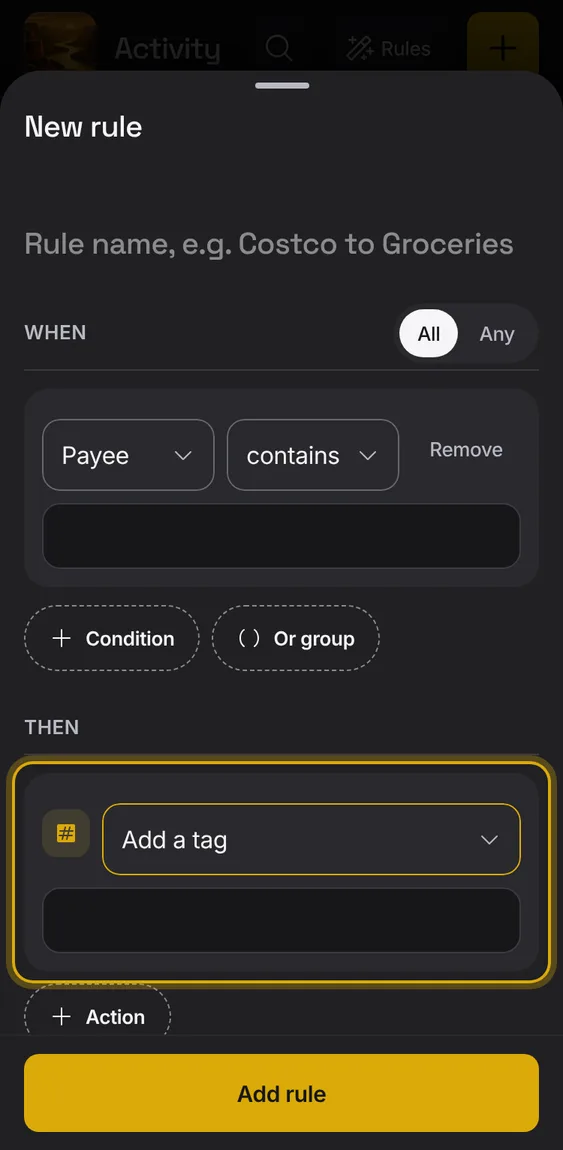
Add a tag to the entry.
- Under Then, choose Add a tag.
What Alluvium tidied for you lately, each with Undo.
- Under Recent cleanups in Rules, tap Undo.
Not in the demo. Shows with more than the demo holds.
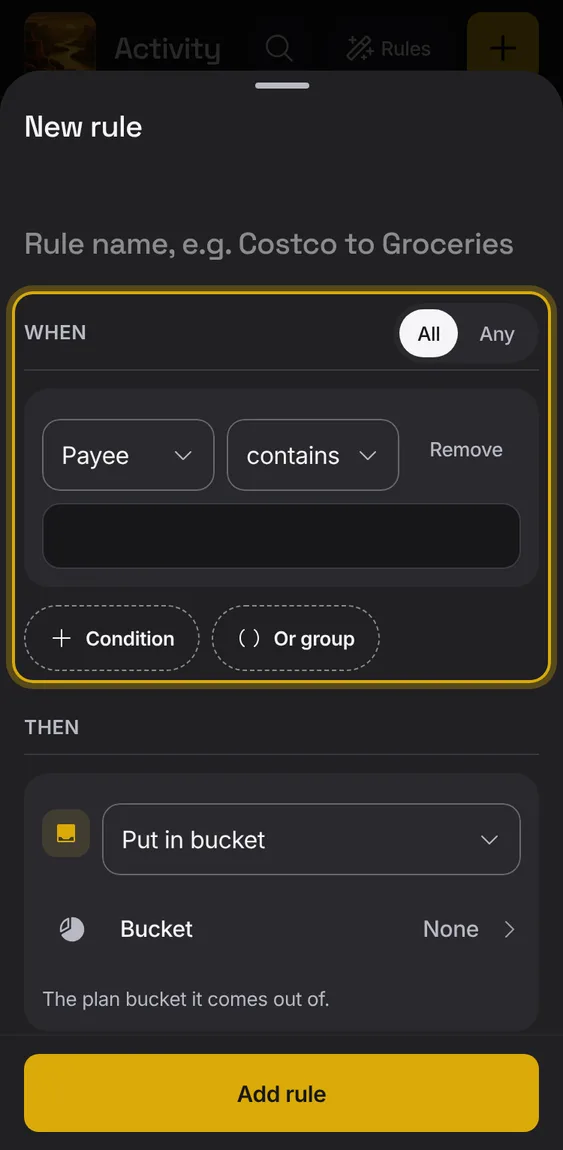
What a rule matches: payee, description, any text, notes, the bank's label, amount, type, account or date.
- Combine conditions with all or any, and nest groups.
- Text can contain, be, start or end with, be one of a list, or match a pattern.
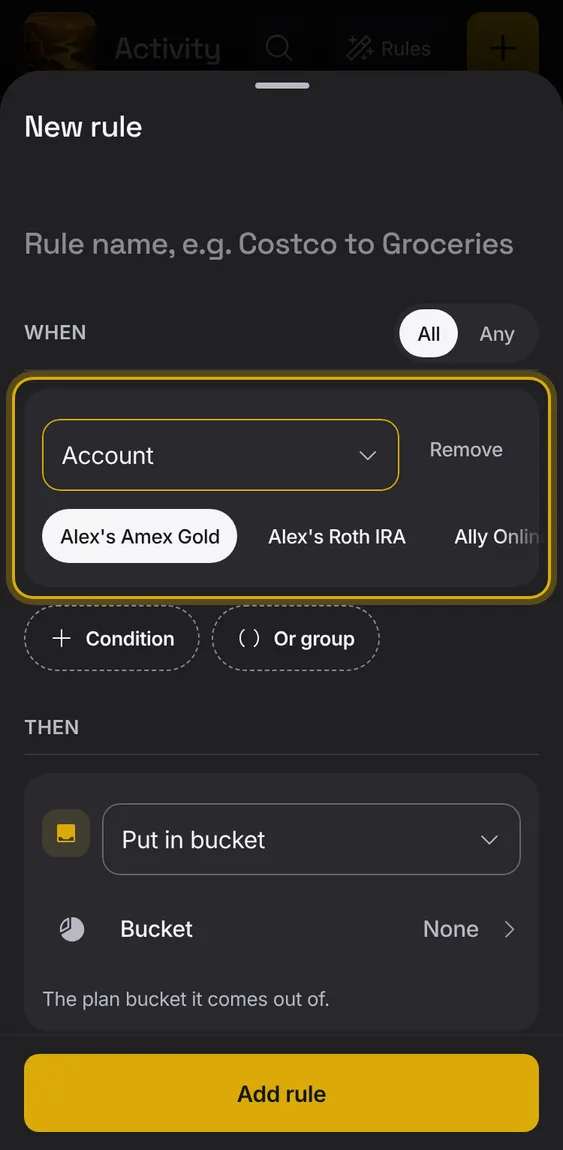
Match entries on chosen accounts.
- Under When, choose Account.
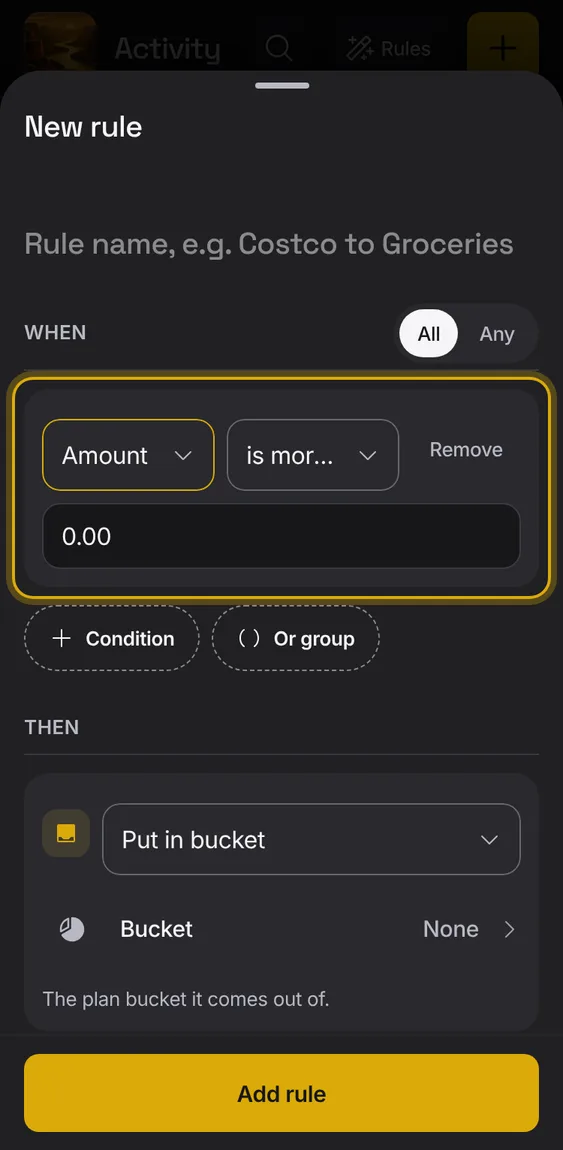
Match amounts that are exactly, more than, at least, less than, at most or between figures.
- Under When, choose Amount.
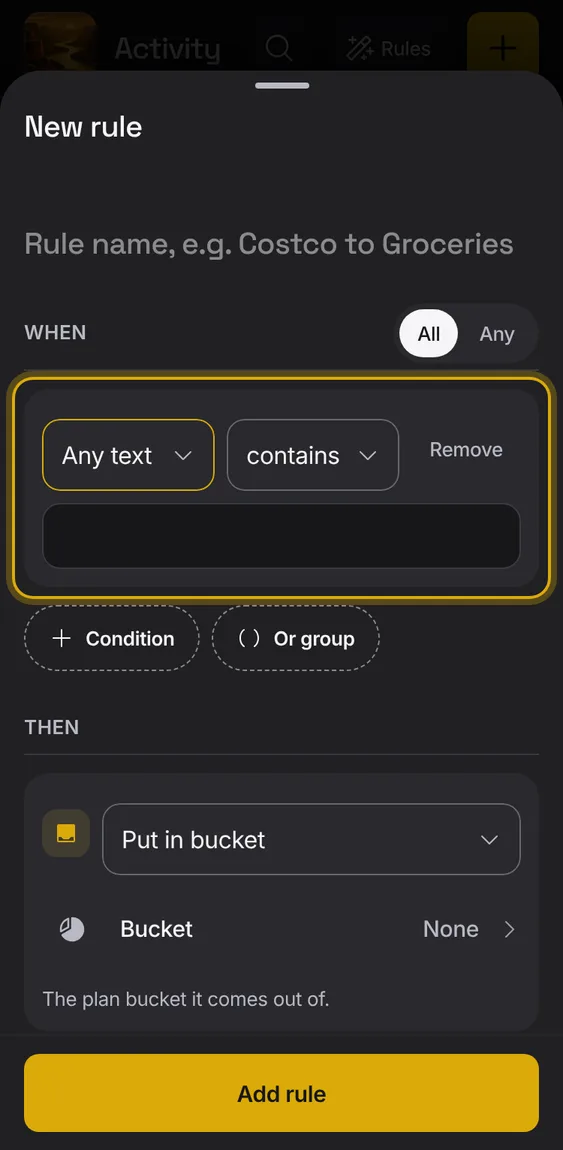
Match words anywhere in the entry.
- Under When, choose Any text.
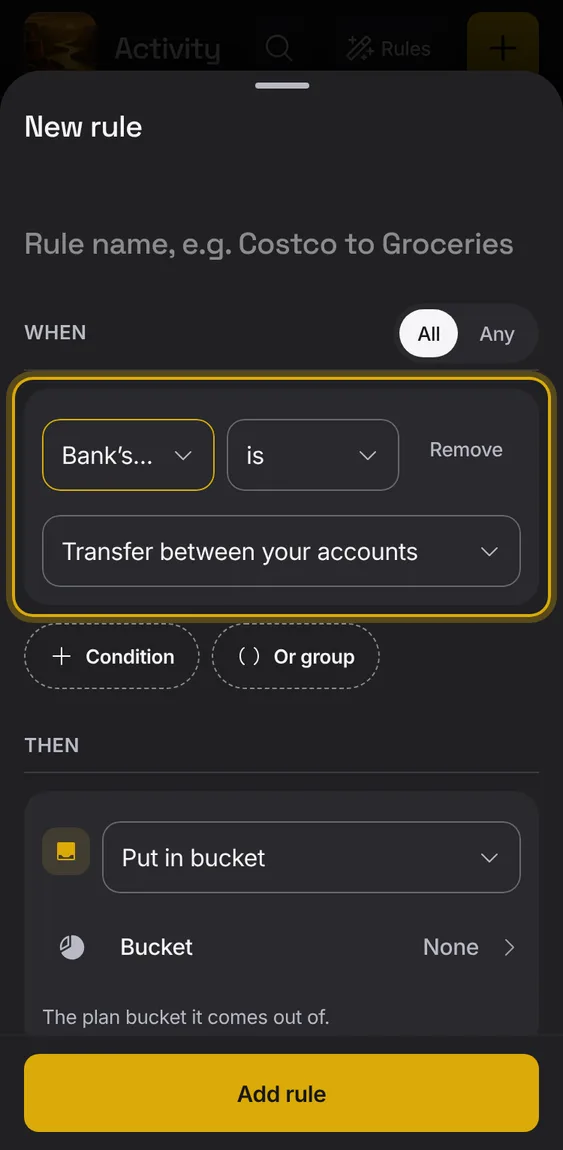
Match by the label your bank gave, like Paycheck or Credit card payment.
- Under When, choose Bank's label.
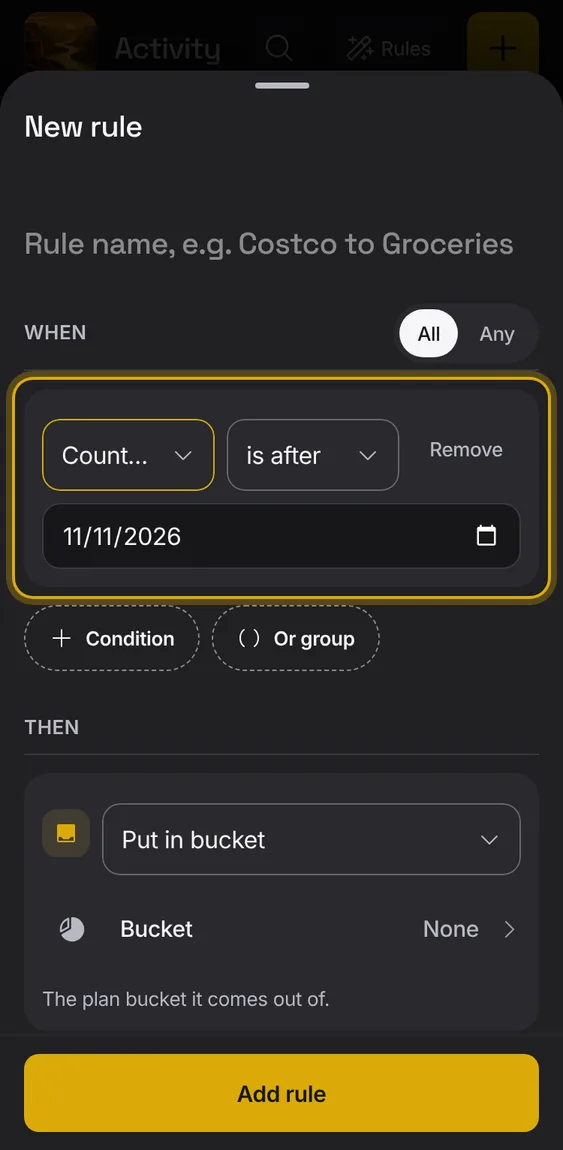
Match entries before, after or on a date.
- Under When, choose Counts on date.
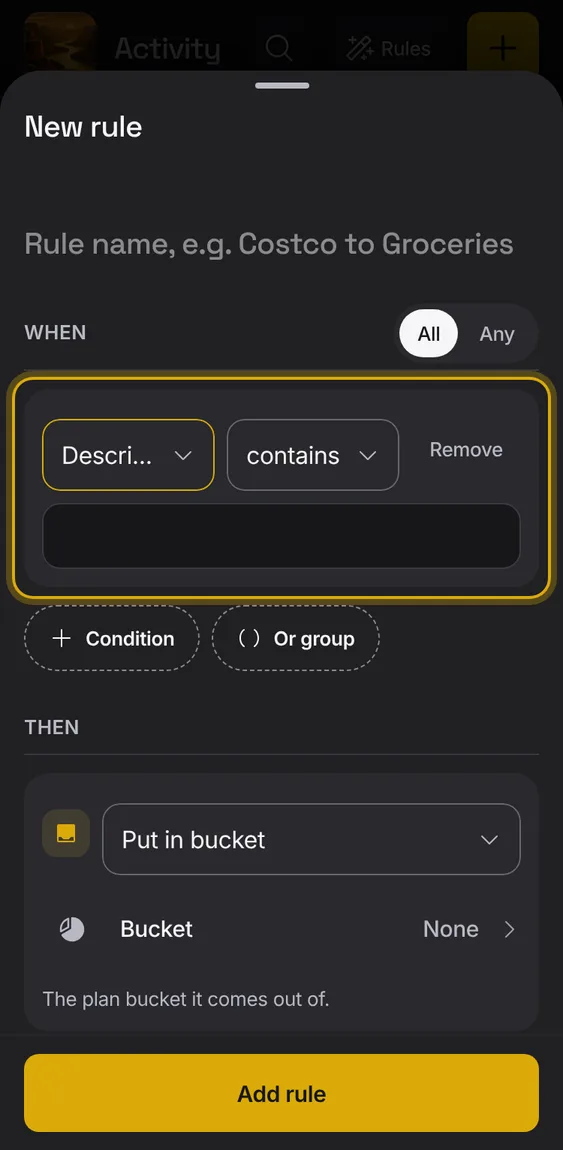
Match by the entry's description.
- Under When, choose Description.
Group conditions so all of them, or any of them, must match; groups can sit inside groups.
- Add an And group or an Or group.
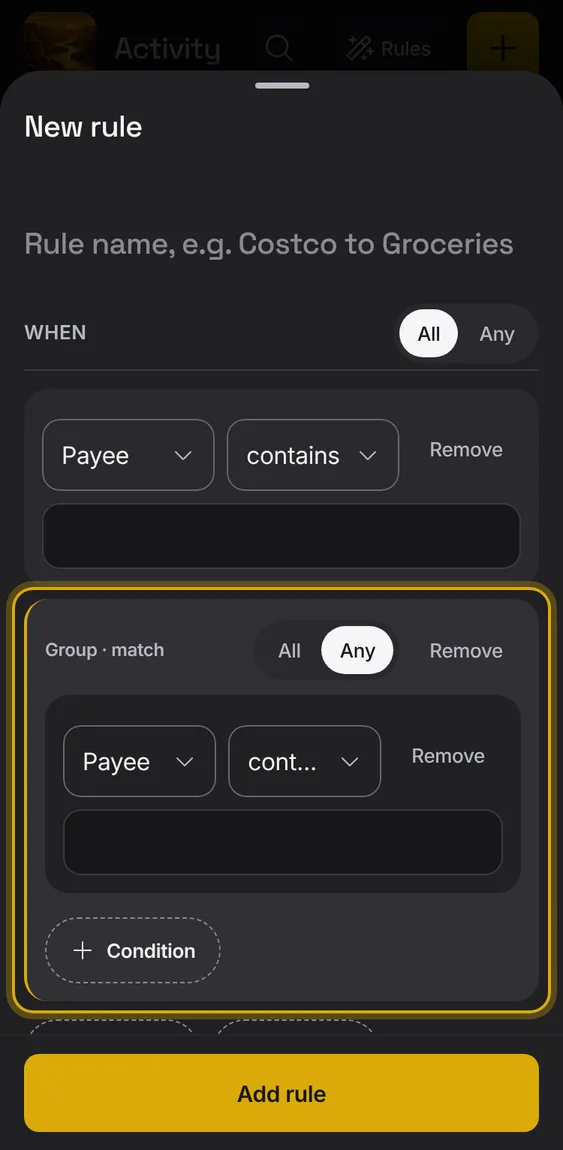
Rules written in your words can also match the bank date, weekdays or days of the month, tags, currency, bucket, reviewed, kept out, splits or a bucket.
- Write it in If; Inspect rule shows the condition.
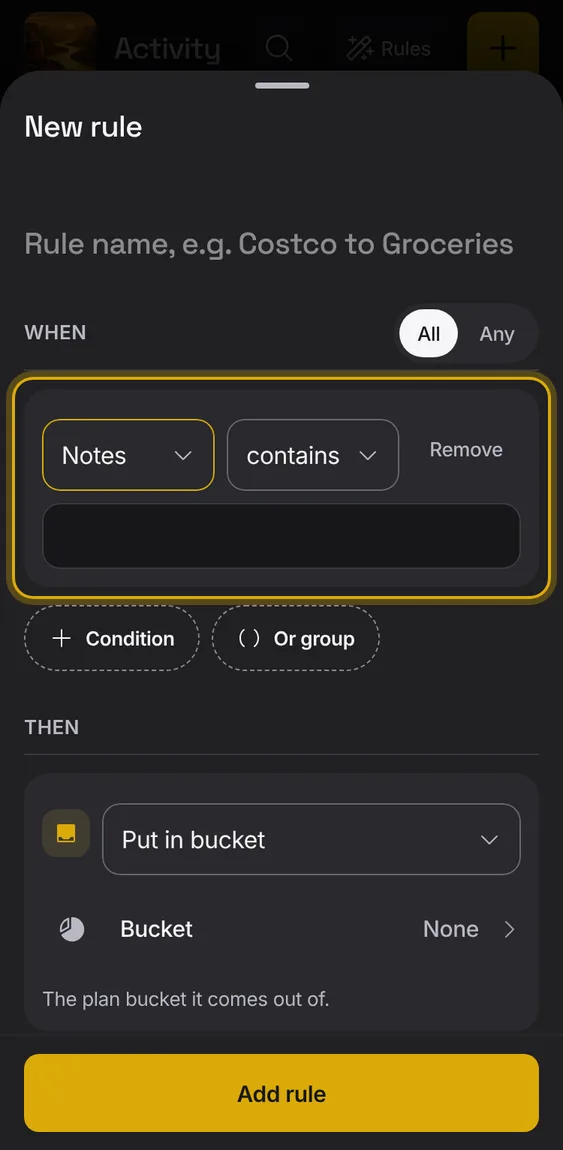
Match words in the entry's notes.
- Under When, choose Notes.
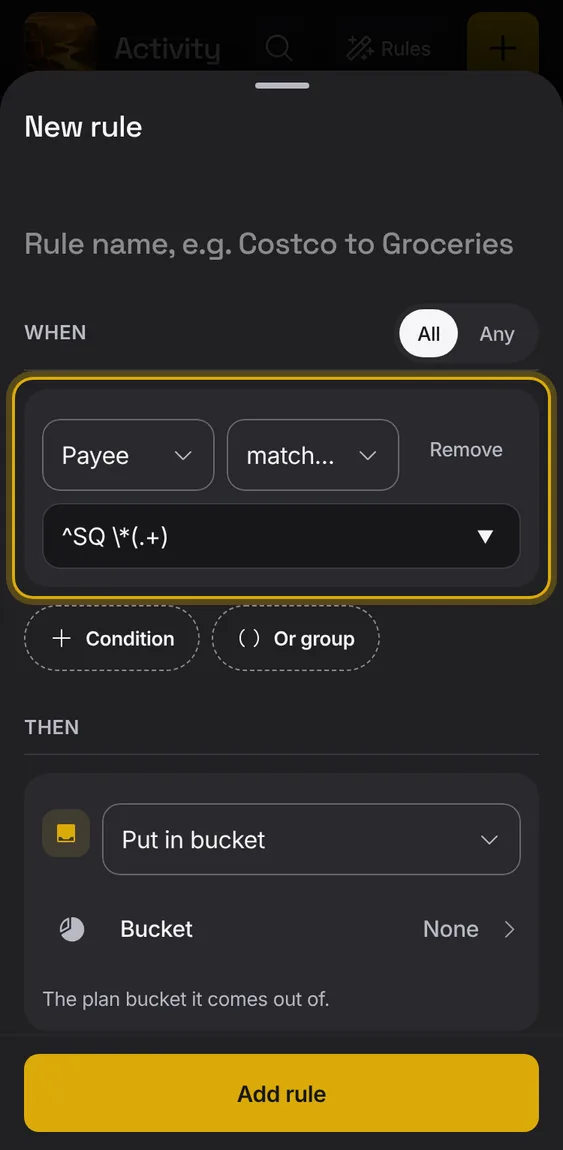
A pattern can pick parts of a name to reuse, and patterns that could run slowly are refused when saved.
- Use $1 in an action for a pattern's first group.
- A saved pattern that can't run is skipped and the rules after it still run.
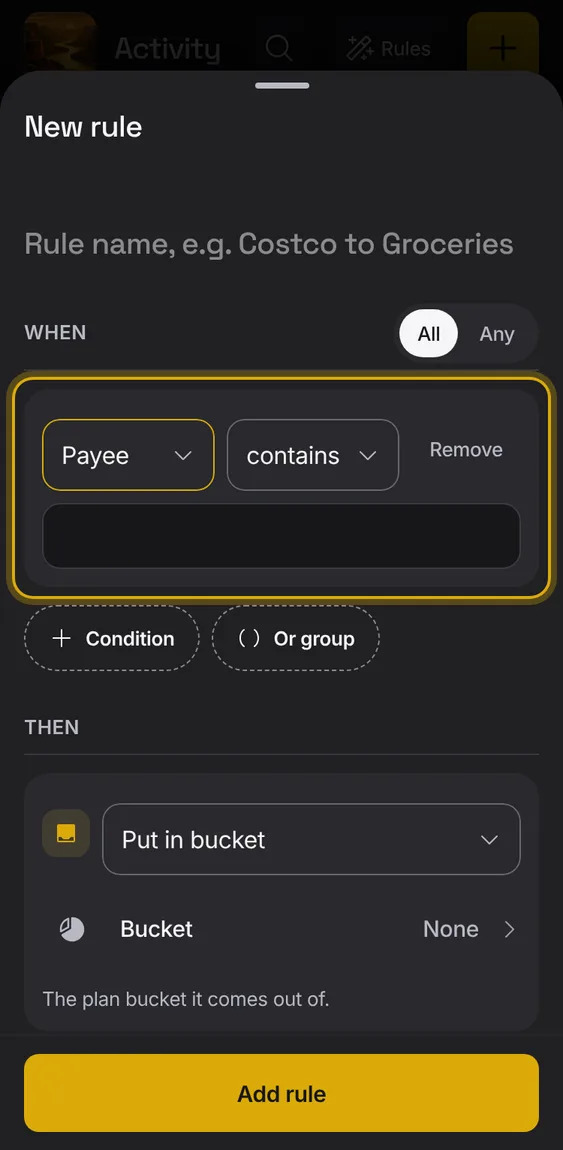
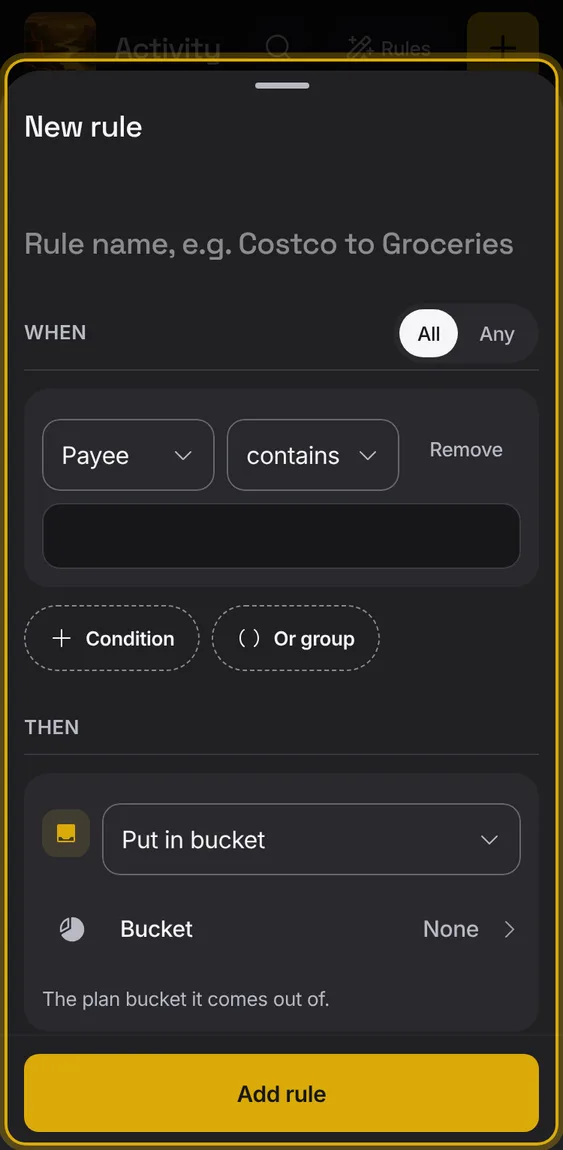
Match by who the money went to or came from.
- Under When, choose Payee.
Match spending, income or transfers.
- Under When, choose Type.
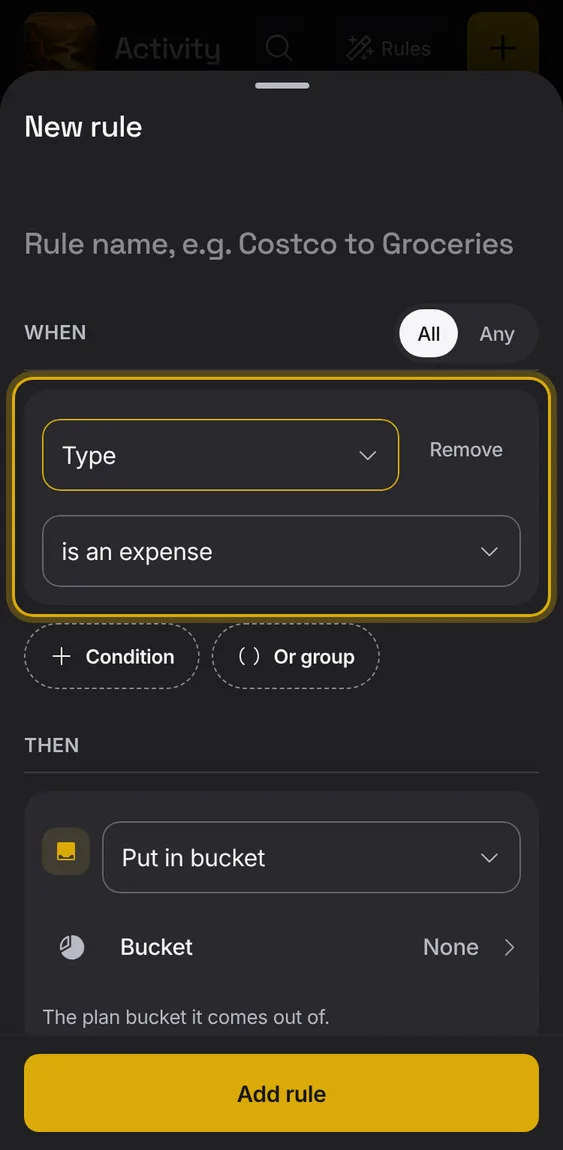
Build a rule step by step: When (conditions), Then (actions), its folder, and whether it's on.
- Add conditions and groups under When.
- Add up to ten actions under Then.
- Test it, then Save rule.
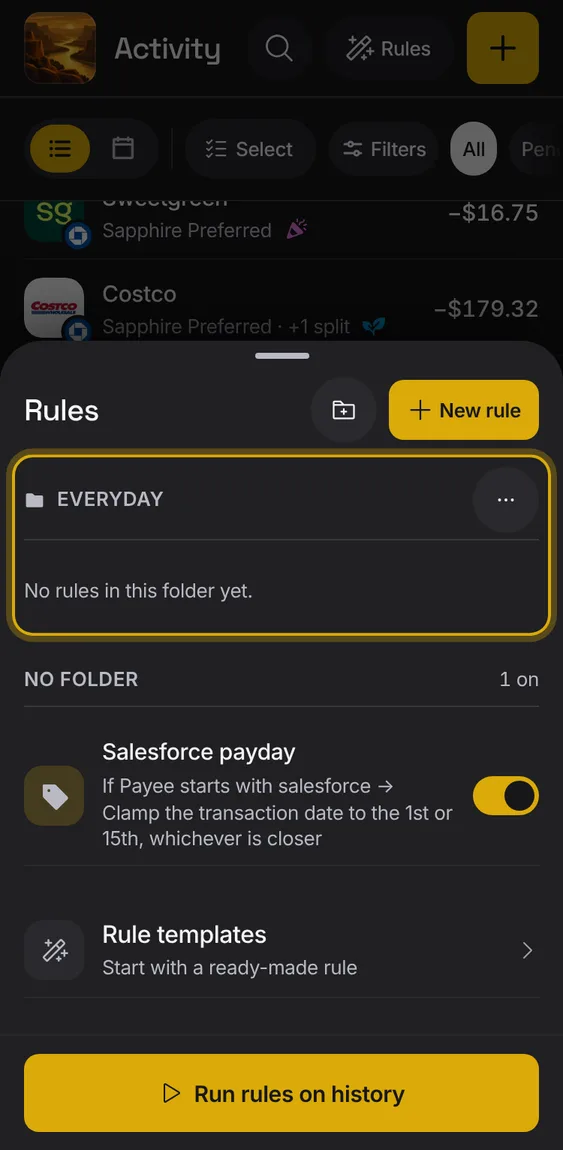
Keep rules in folders, and run one folder on its own.
- Tap the folder button to make a folder.
- A folder's options: rename it, add a rule in it, run it, or delete it (its rules stay).
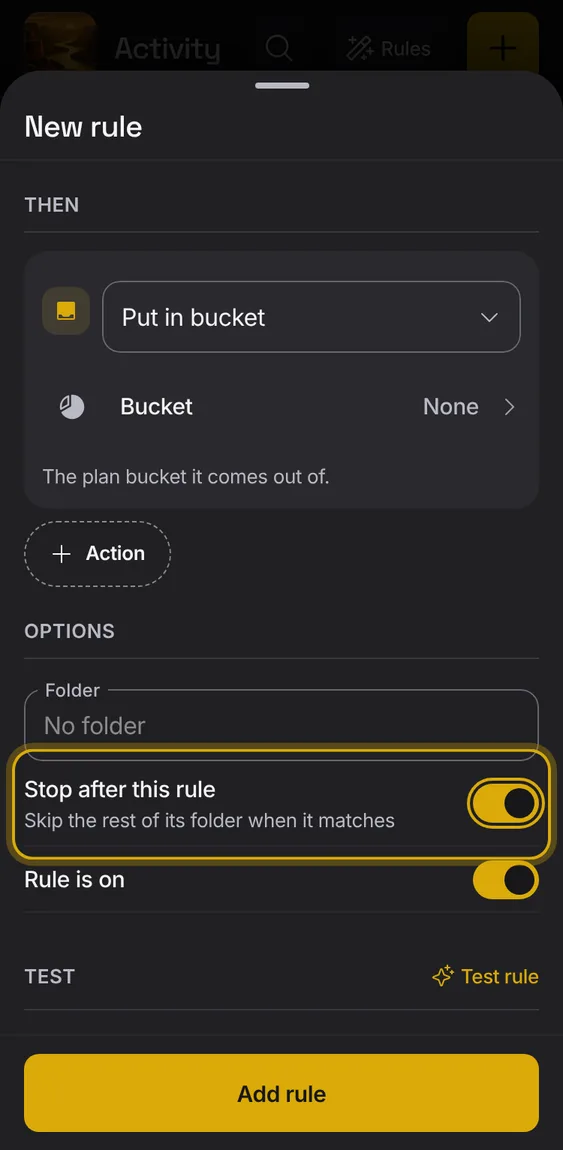
A rule can stop the rest of its folder from running on an entry it matched.
- Turn on Stop after this rule in the editor.
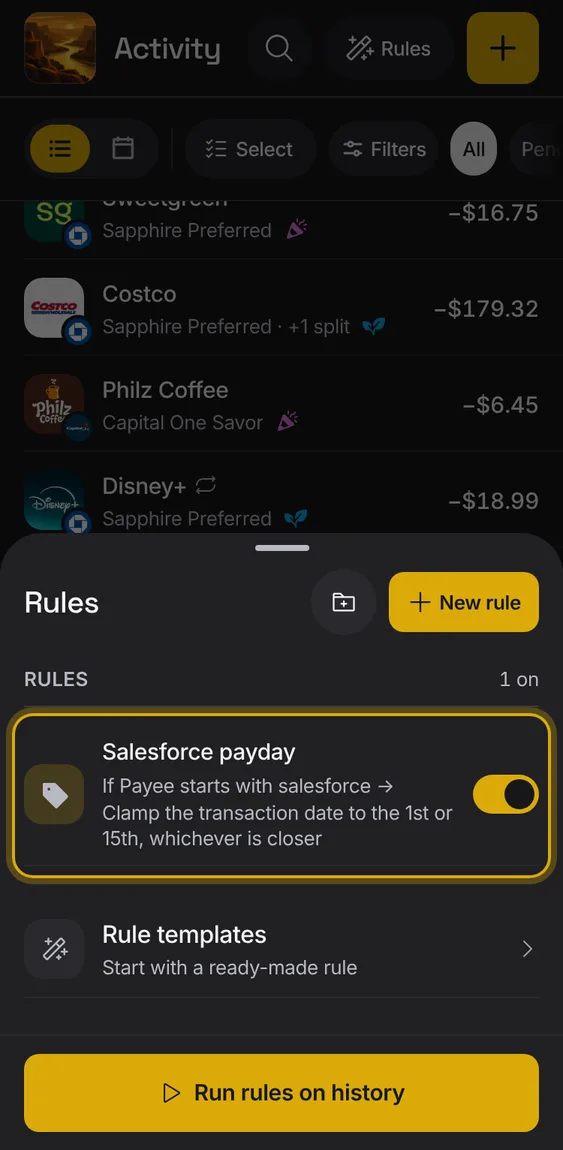
Each rule shows what it matches and what it does, in words, with a switch to turn it on or off.
- A rule you wrote in words shows your words.
- A rule whose pattern can't run says so.
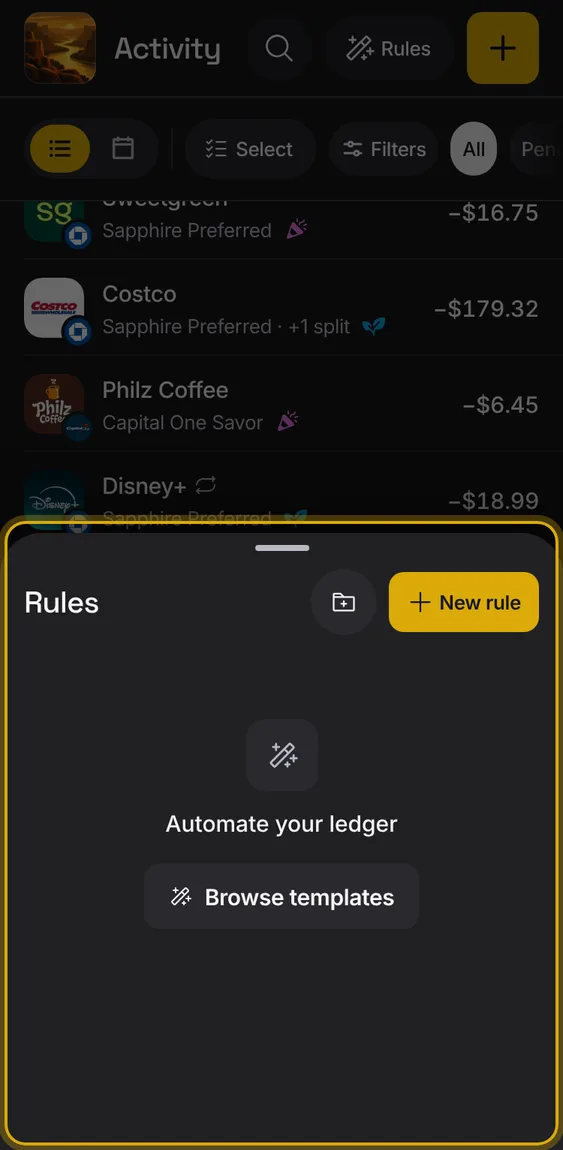
Delete a rule; entries it already changed stay as they are.
- Open the rule and tap Delete rule, then confirm.
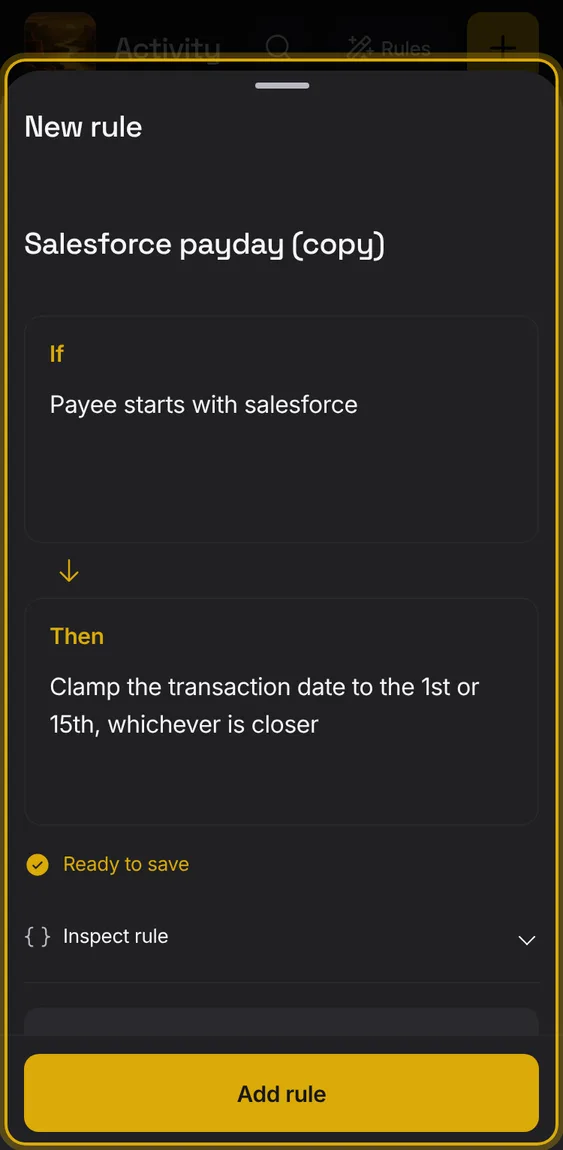
Copy a rule to start a similar one.
- From a rule's options, tap Duplicate.
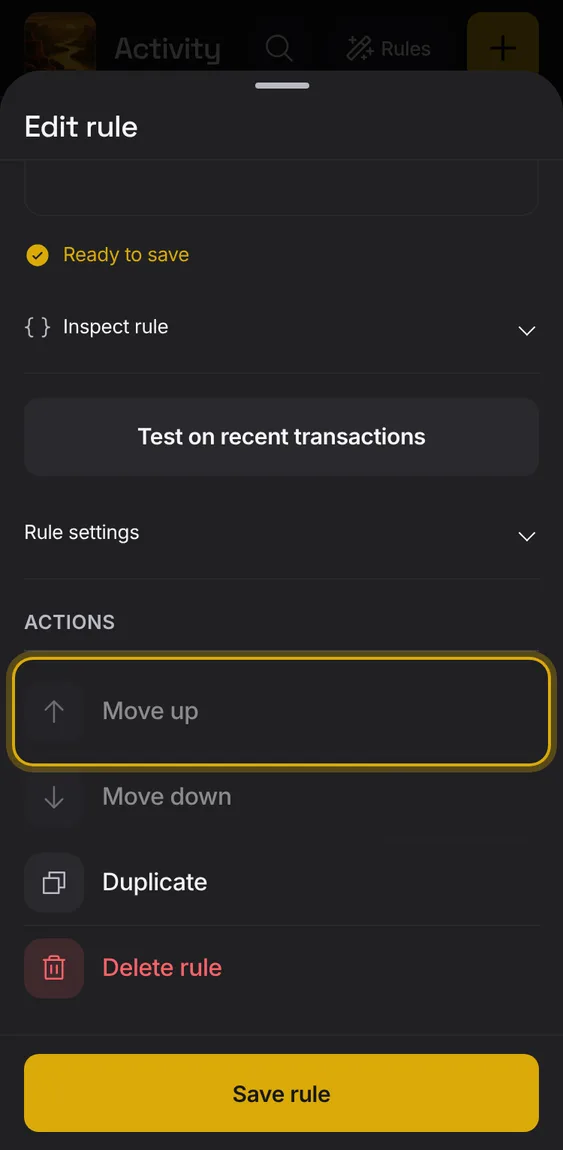
Rules run in order, and the first rule to set something wins it.
- Move a rule up or down from its options.
A switch beside each rule; a rule that's off shows Paused.
- Tap the switch.
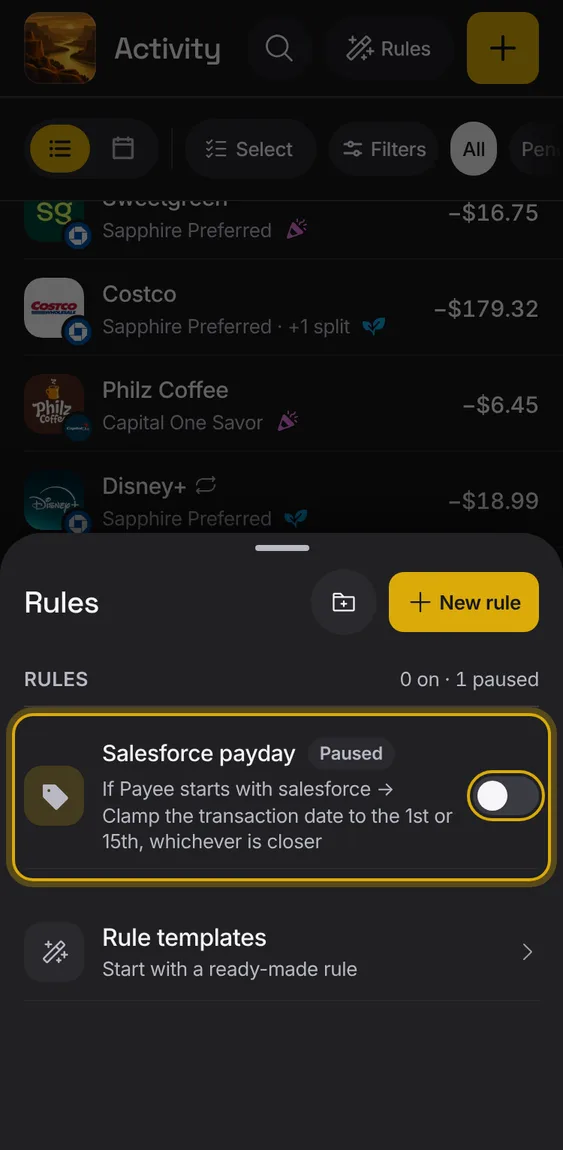
Rules apply by themselves to each new entry, whether typed, imported or from your bank.
- Nothing to do: save a rule and it runs on what comes next.
- A rule never re-runs on a bank entry already here.
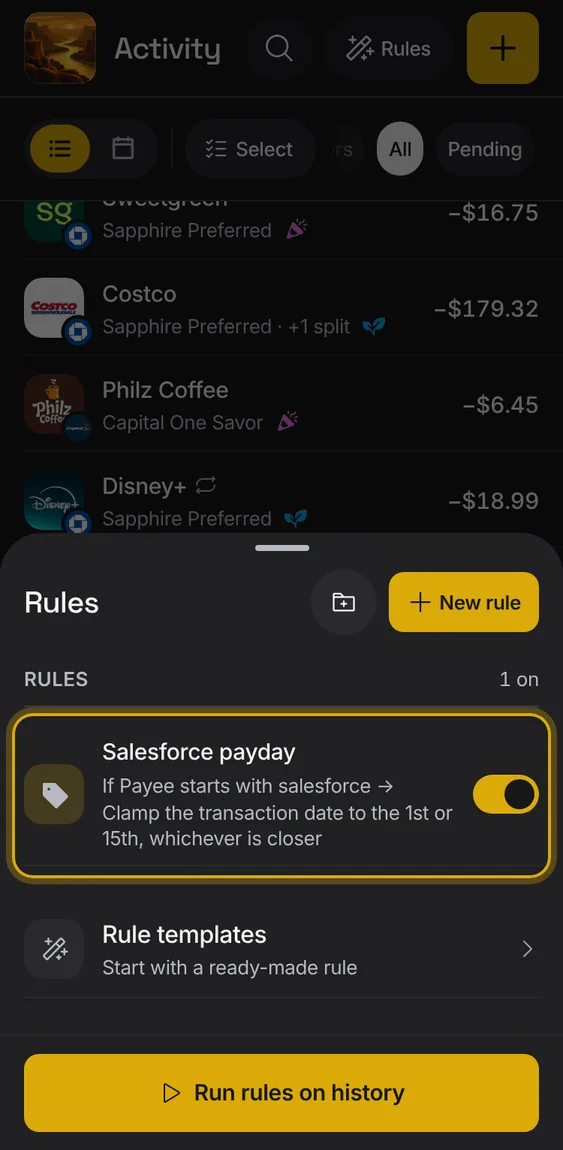
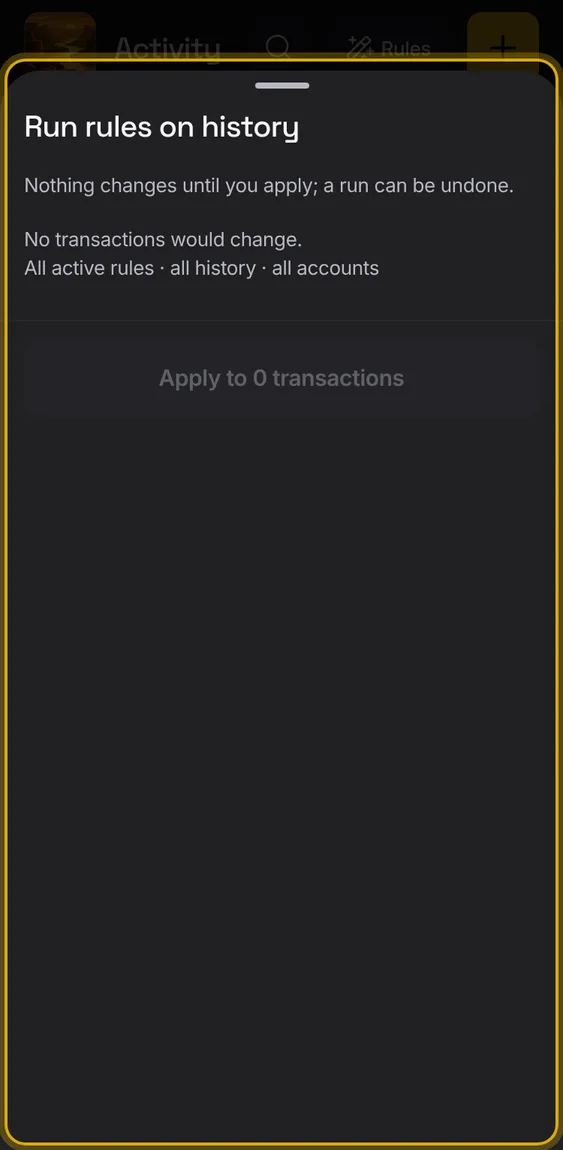
Apply your rules to past entries: first a preview of each change, then Apply, with Undo.
- Tap Run rules on history (or Run folder).
- Check the before → after list, then Apply.
- Undo takes the whole run back, keeping later edits.
Past runs of your rules, each with Undo.
- Under Recent runs in Rules, tap Undo.
Not in the demo. Shows with more than the demo holds.
Ready-made rules to start from: put a payee in a bucket, tidy a name, tag an account and more.
- Tap New rule, or Rule templates under the list.
- Pick one; it opens in the editor to finish.
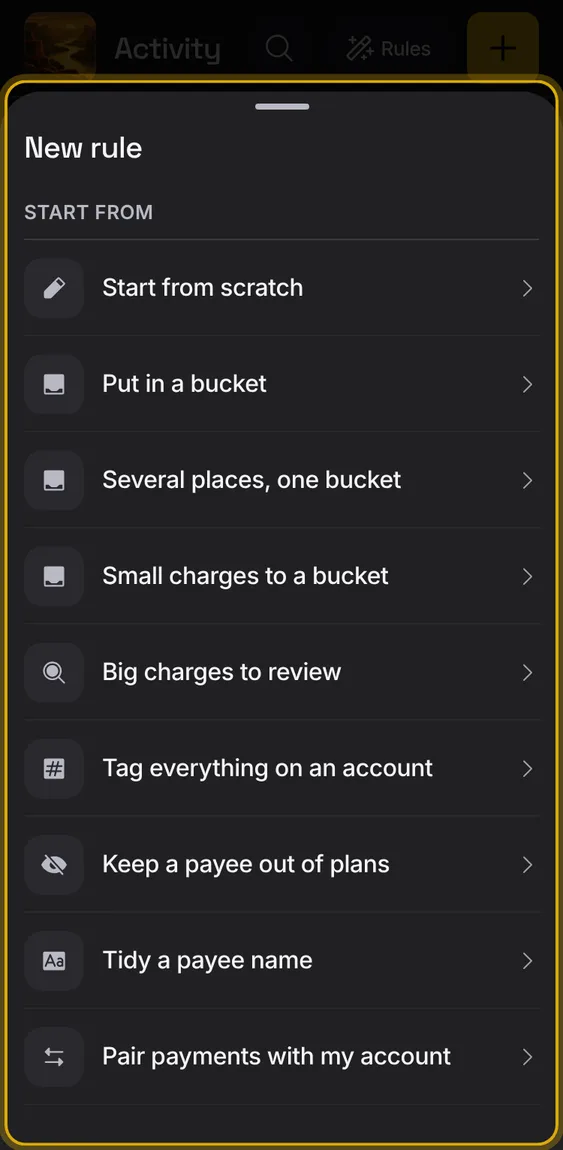
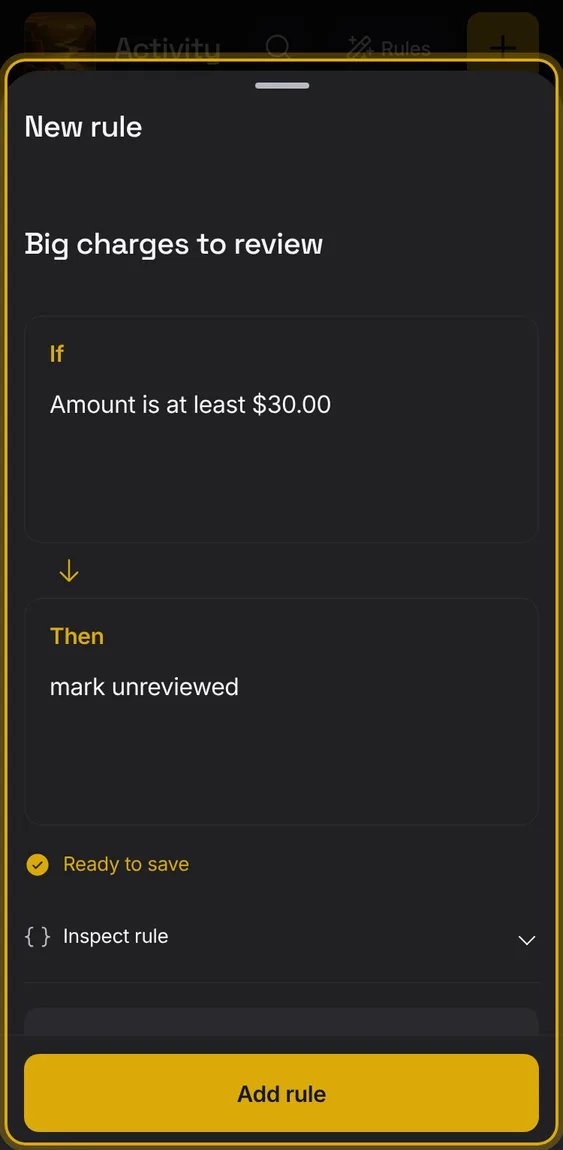
Charges of $30 or more wait in To review for a look.
- New rule → Big charges to review.
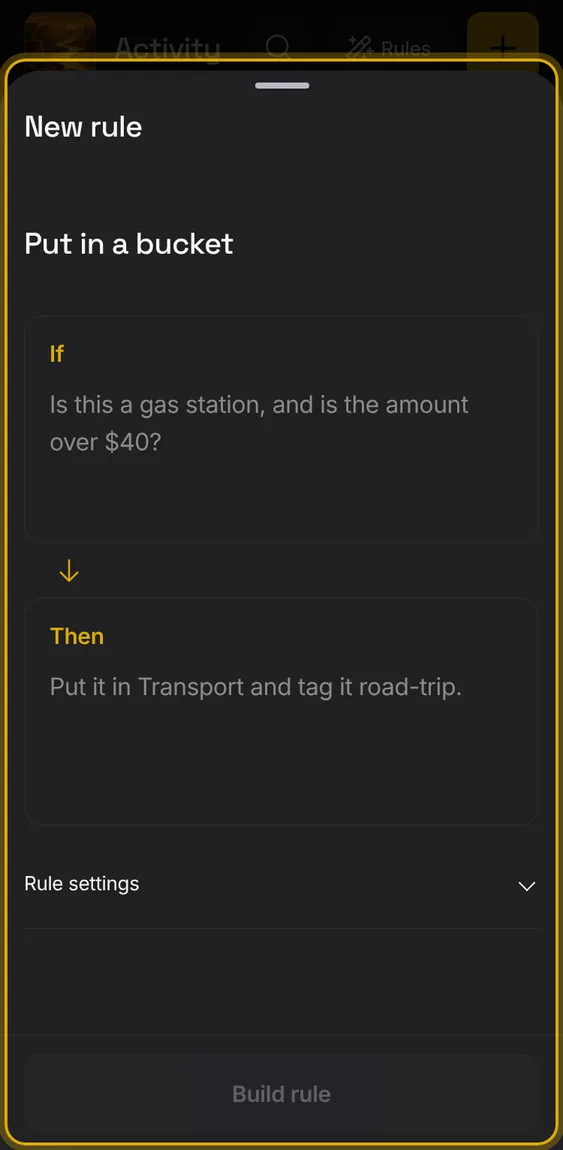
A payee's spending goes to one plan bucket.
- New rule → Put in a bucket.
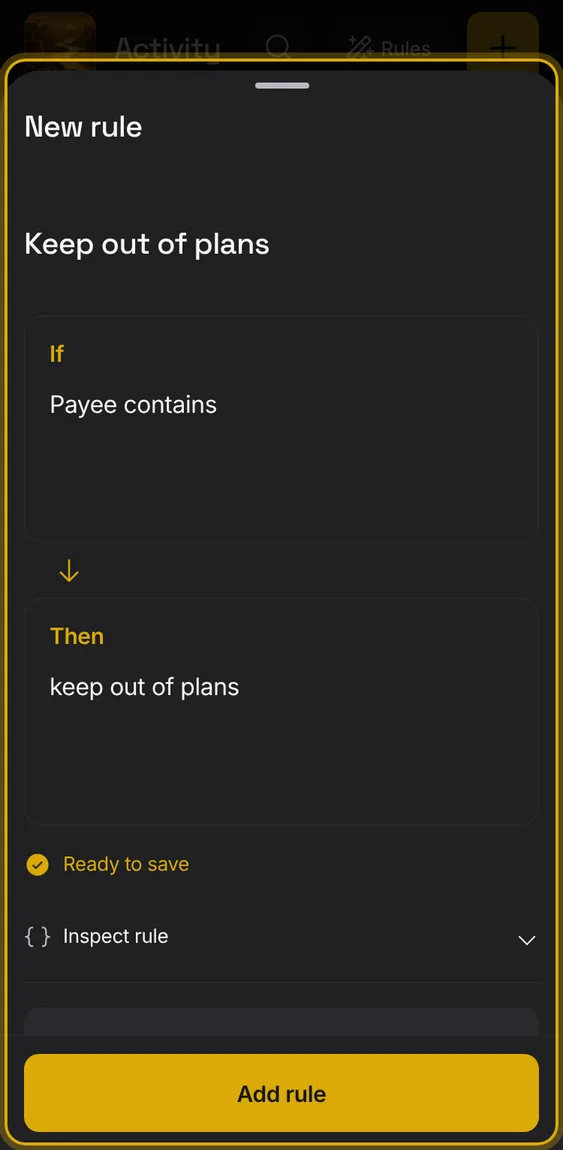
A payee's entries stay out of plans but count in balances.
- New rule → Keep a payee out of plans.
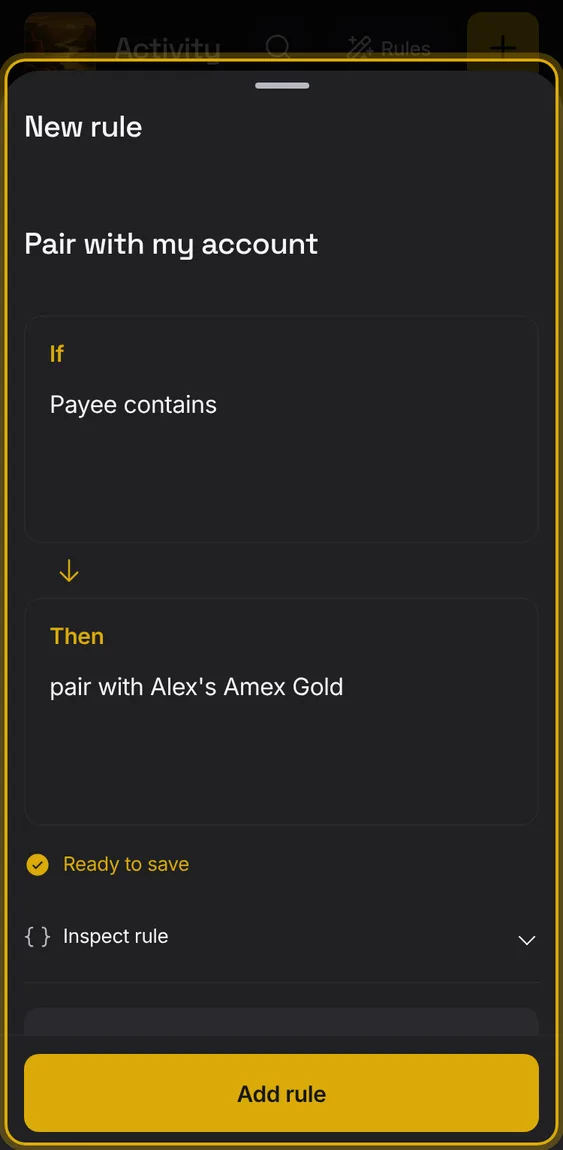
Venmo or PayPal top-ups become transfers.
- New rule → Pair payments with my account.
An empty rule to fill in.
- New rule → Start from scratch.
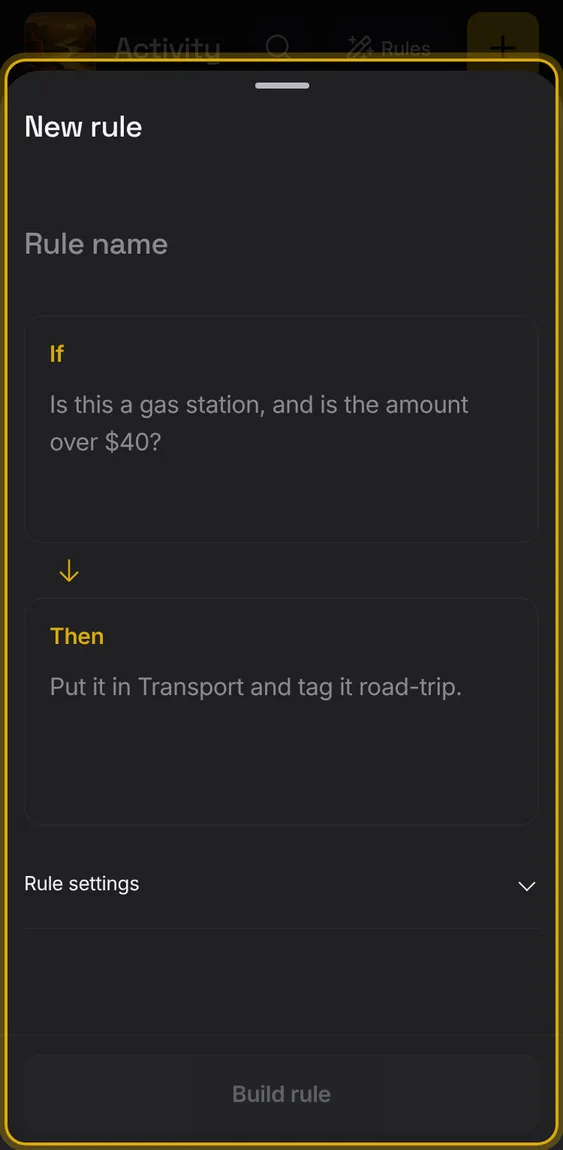
Any of a list of payees goes in one bucket.
- New rule → Several places, one bucket.
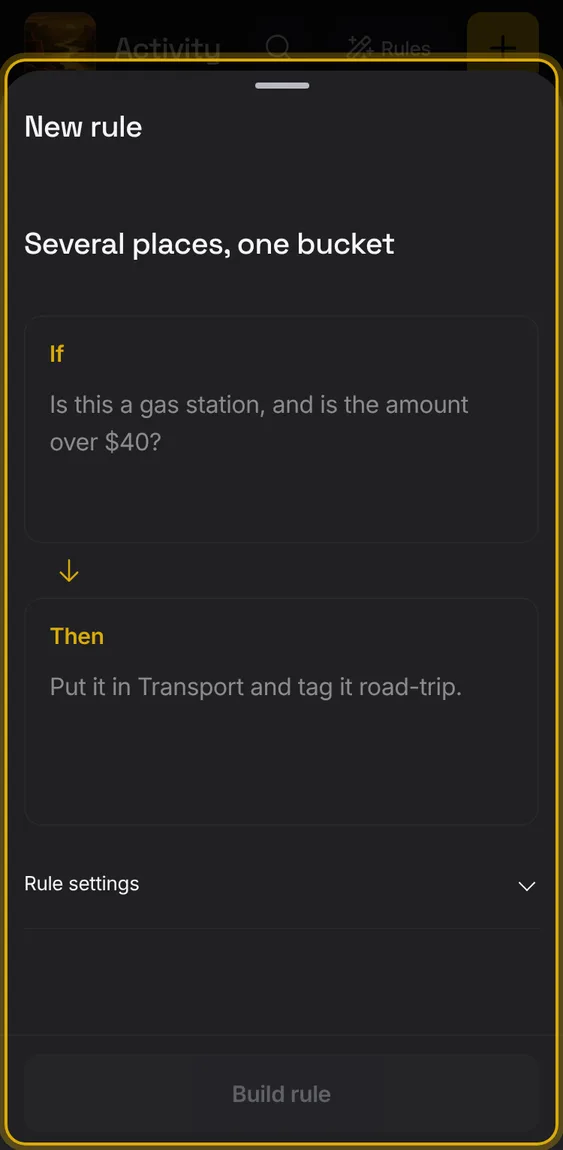
Charges under an amount at certain places go in one bucket.
- New rule → Small charges to a bucket.
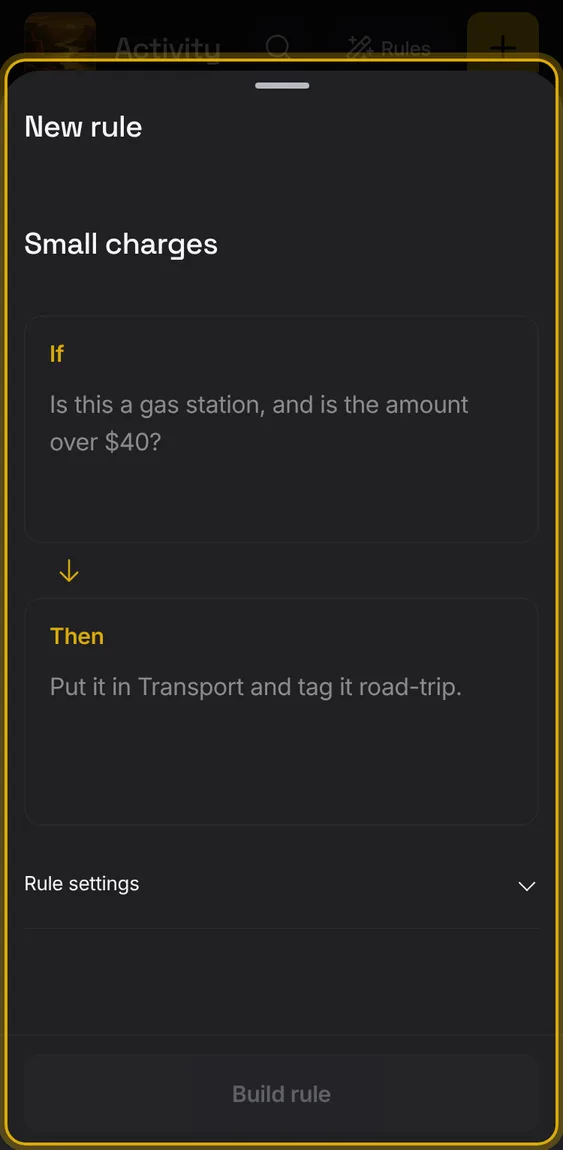
Every entry on an account gets a tag.
- New rule → Tag everything on an account.
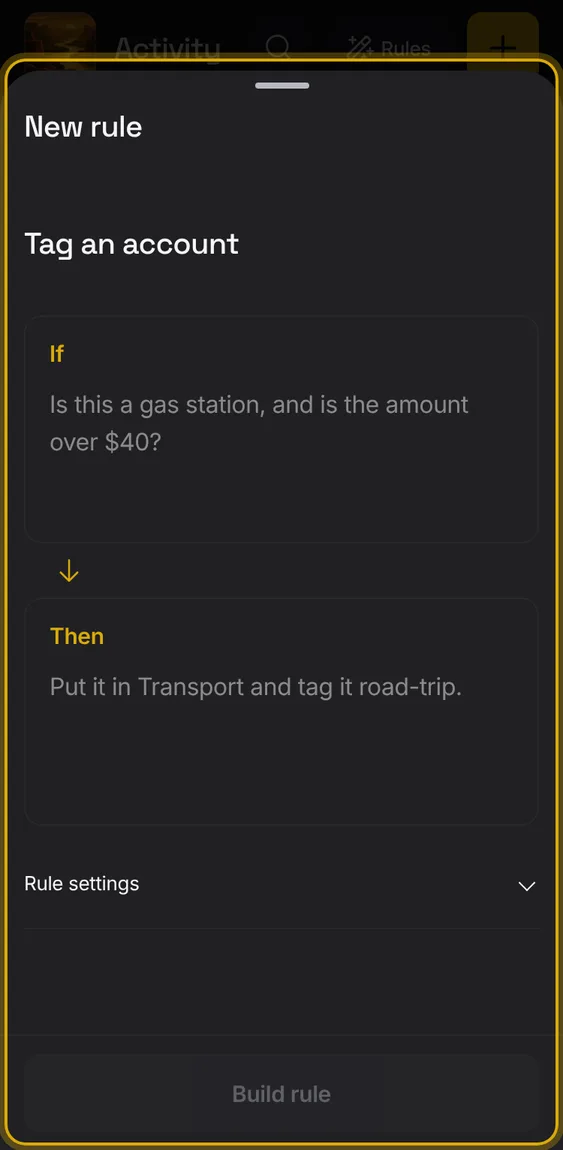
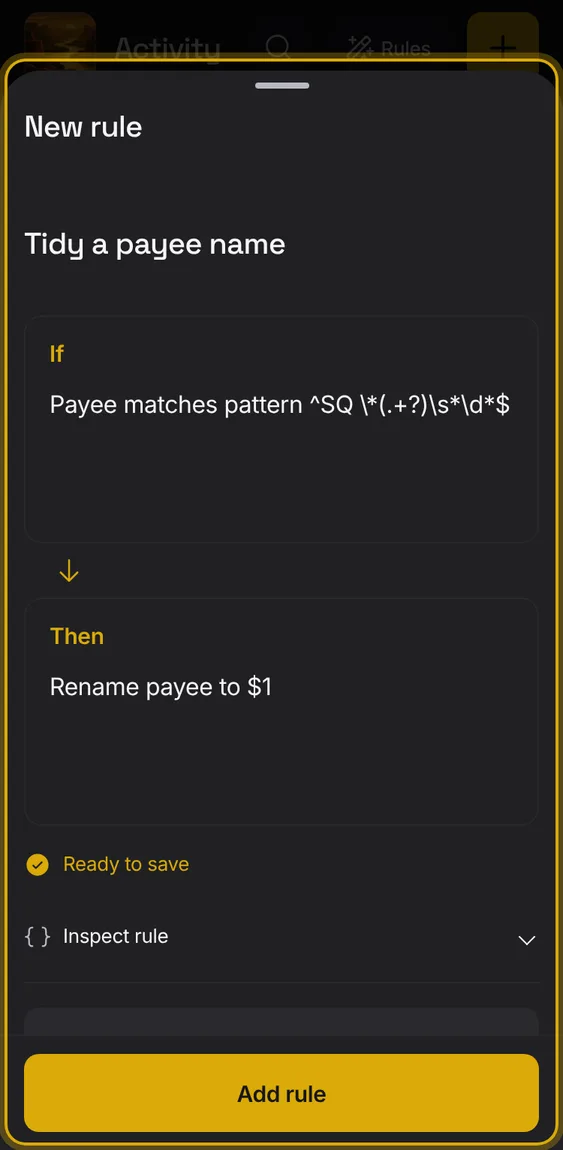
"SQ *BLUE BOTTLE 123" becomes "Blue Bottle".
- New rule → Tidy a payee name.
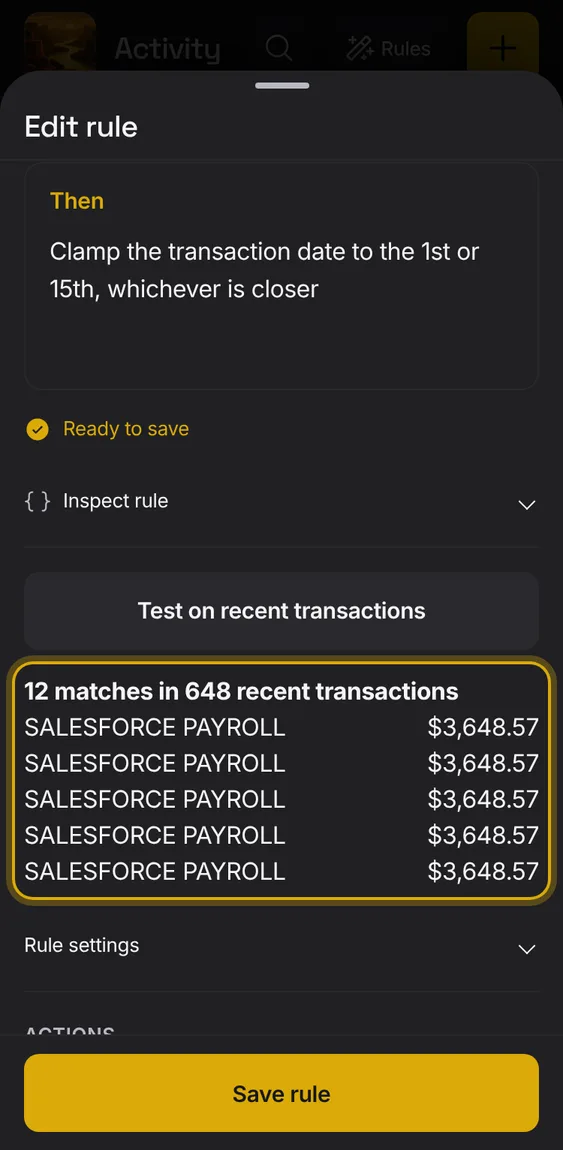
See which recent entries a rule would change, and how, before saving it.
- Tap Test on recent transactions in the editor.
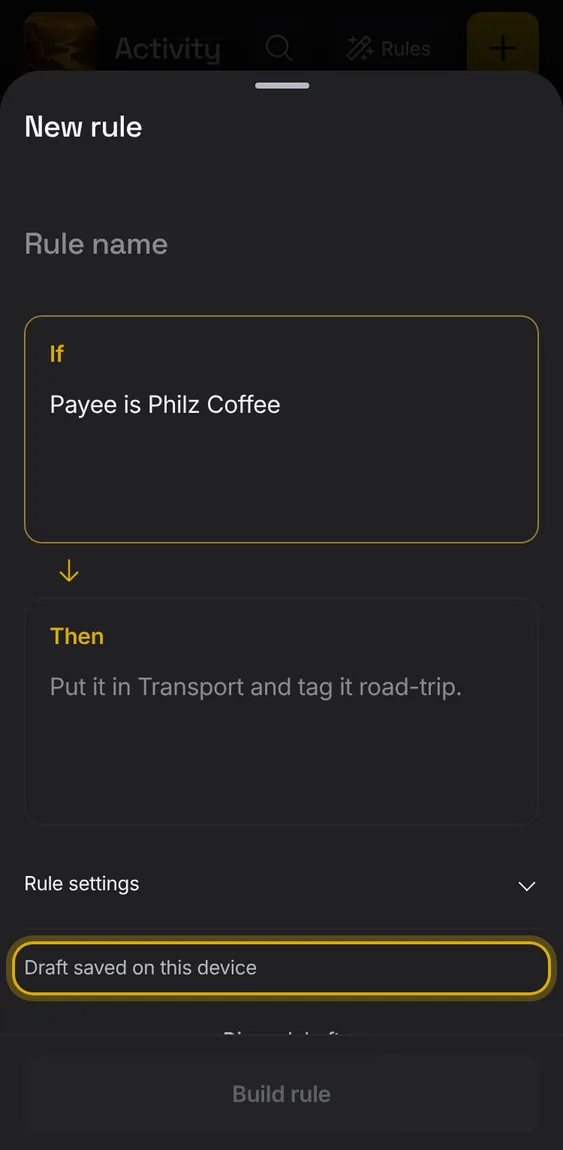
Write If and Then in your own words; Alluvium builds the rule, asks at most two questions if it's unsure, and you check it before saving.
- Tap New rule and write If… and Then….
- Tap Build rule, answer any question, then Test and Save.
- The rule list shows your words.
Not in the demo. Asks Apollo’s server, which the tour site doesn’t reach.
All 3 in Write a rule in your wordsA rule you're writing is kept on this device, so you can come back to it.
- It says Draft saved on this device.
- Unfinished rules wait at the top of Rules.
The built rule's exact conditions and actions, kept out of the way under Inspect rule.
- Tap Inspect rule to see them.
When a rule is unclear, the editor asks at most two questions, right in place.
- Answer and tap Continue.
Not in the demo. Asks Apollo’s server, which the tour site doesn’t reach.
Find any entry in your whole history by words, and narrow the list by account, type, period, payee or tag.
- Tap the magnifier to search.
- Use the chips under the bar, or Filters for more.
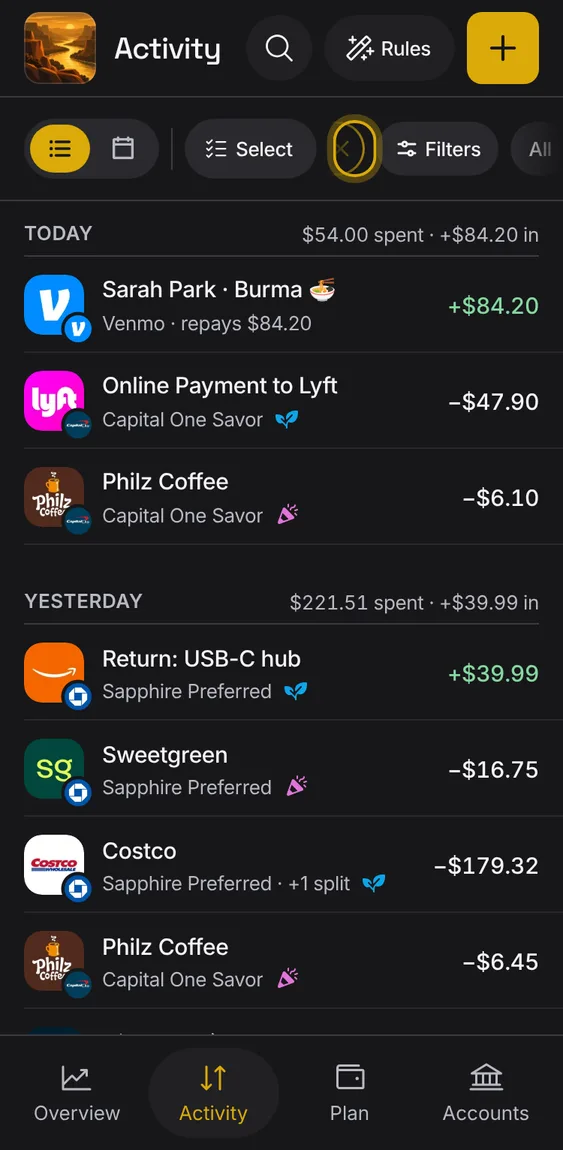
From a Plan bucket, All in Activity opens Activity filtered to exactly what that bucket counts.
- A chip names the bucket; its × takes the filter off.
- It stays while you change other filters.
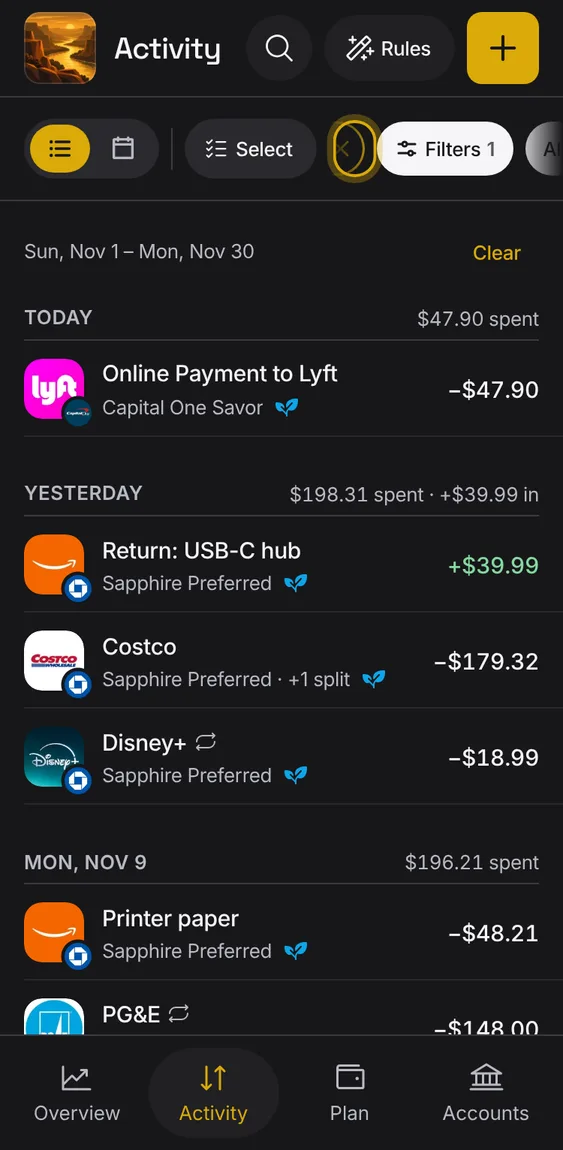
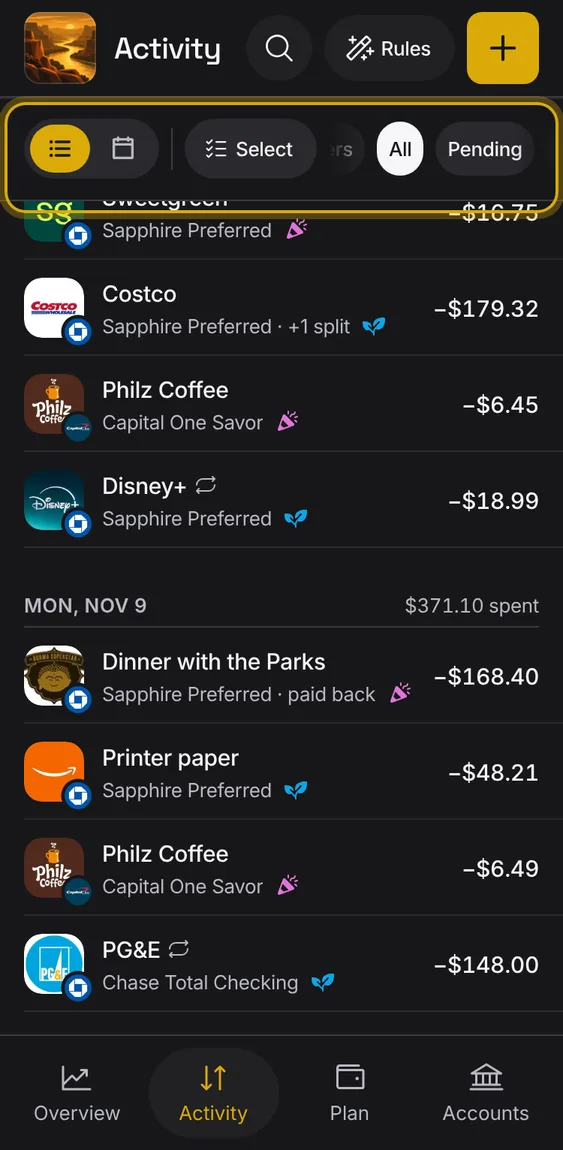
Chips under the bar: All, Pending, Bills, then your tags, one pill each.
- Pending shows only entries your bank hasn't posted.
- Tap a tag to see only its entries; tap it again to take it off.
- Bills shows your bills instead of the days.
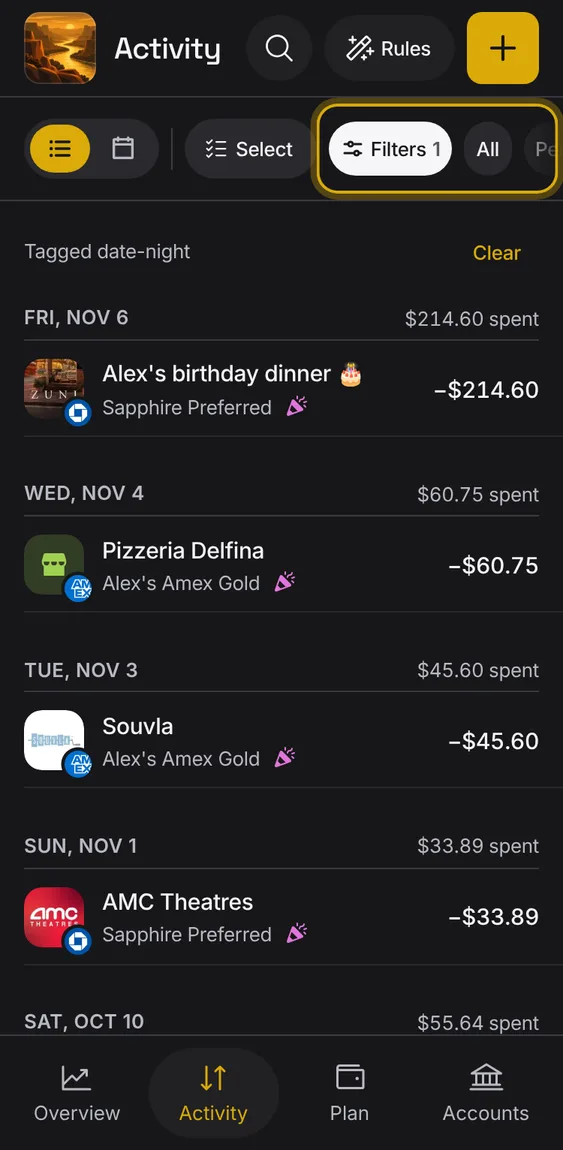
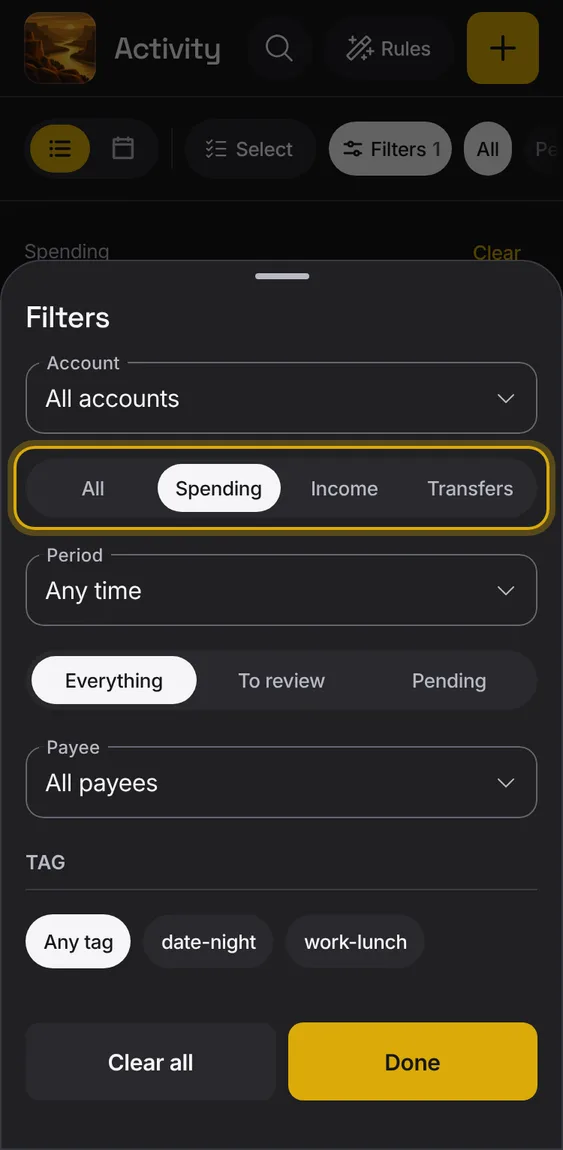
A sheet of filters: account, type, period, what to show, payee and tag.
- Tap Filters; the chip shows how many are on.
- Clear all resets them; Done closes the sheet.
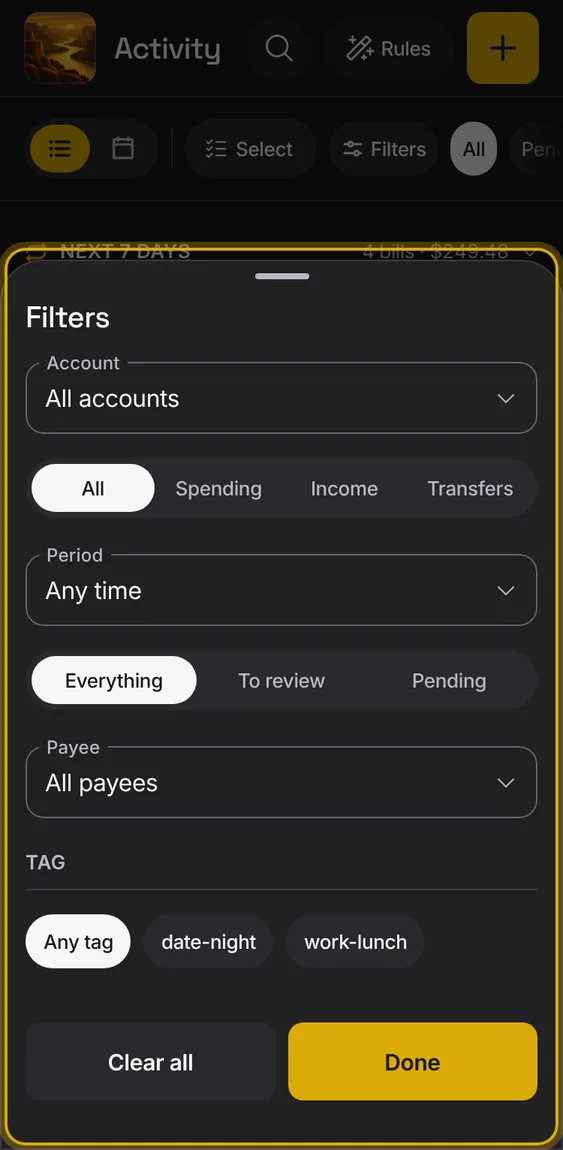
Show the entries of one account.
- Choose it under Account.
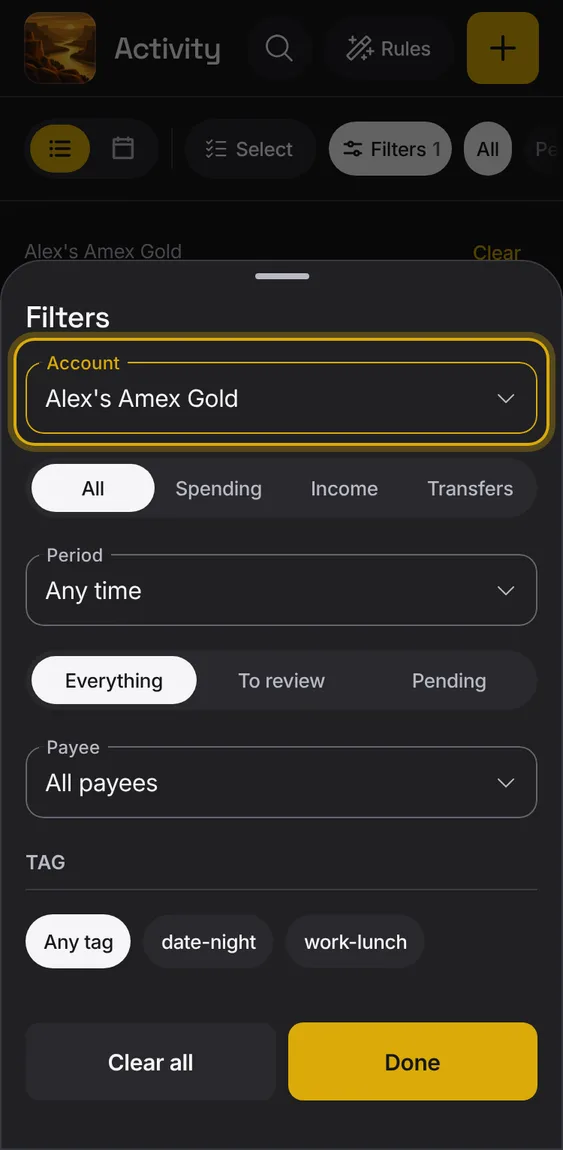
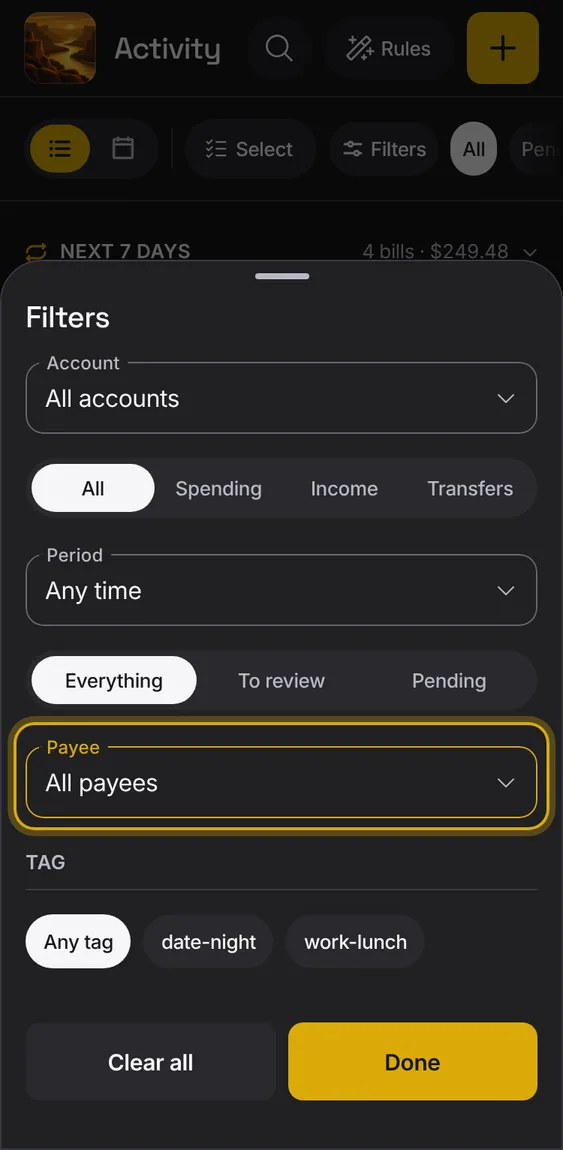
Show one payee's entries, whatever name the bank used.
- Tap Payee and pick from every payee, busiest first.
- A payee's other names are included.
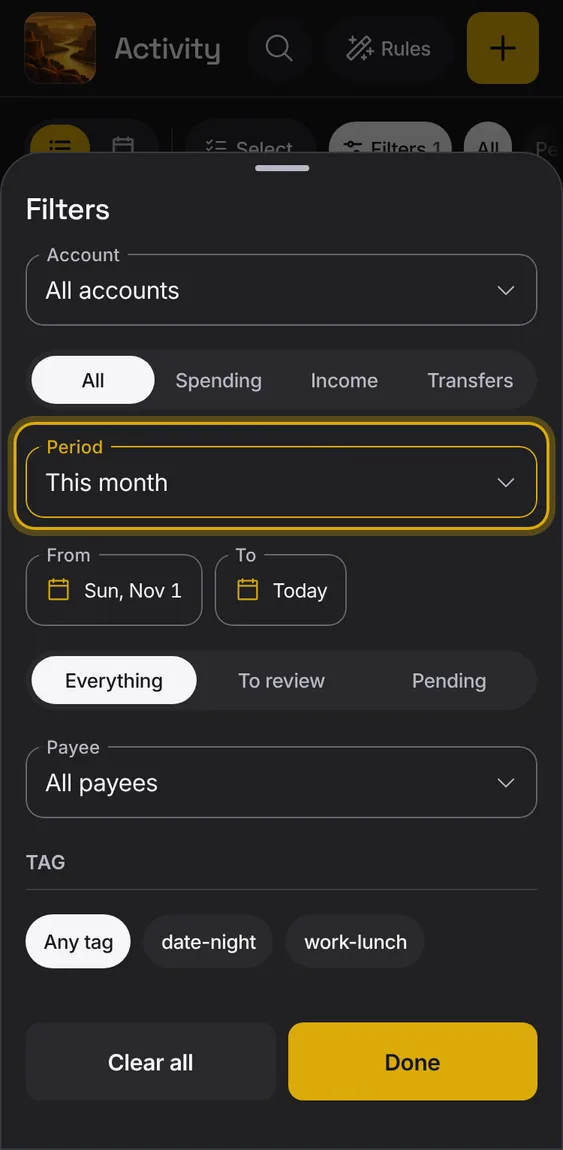
Show this month, last month, the last 90 days, this year, or dates you choose.
- Choose a period, or Choose dates for a From and To.
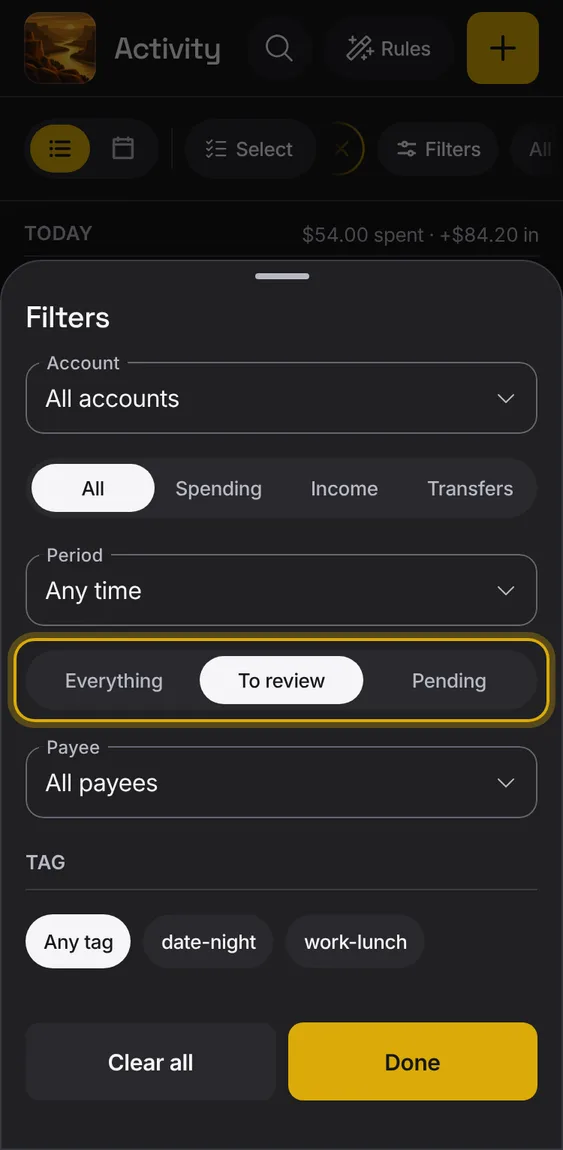
Show everything, only entries to review, or only pending ones.
- Pick Everything, To review or Pending.
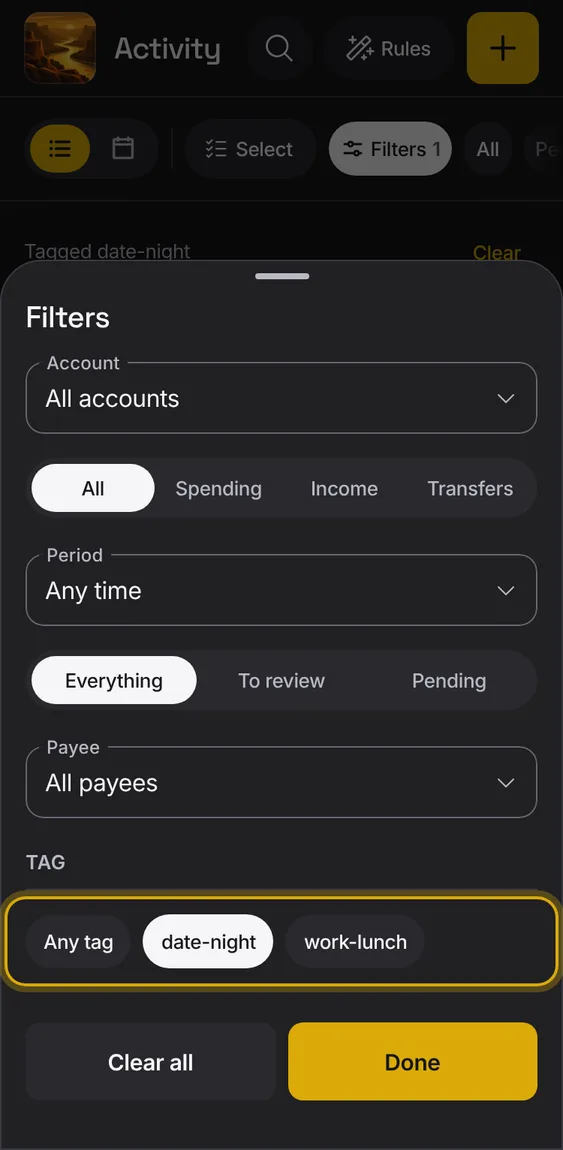
Show the entries with one tag.
- Shown when some entry has a tag.
- Pick a tag chip; Any tag clears it.
Show only spending, income or transfers.
- Pick All, Spending, Income or Transfers.
Rows elsewhere open Activity already filtered: a bucket above usual, entries to review, a day on the calendar, a bill.
- The filter a link put on leads the chips, with its ×.
- Old links still open the right place.
Entries can be marked reviewed, and the list can show only those still to review.
- Turn on Reviewed in an entry, or mark many at once.
- Bank entries come in reviewed as the bank sent them.
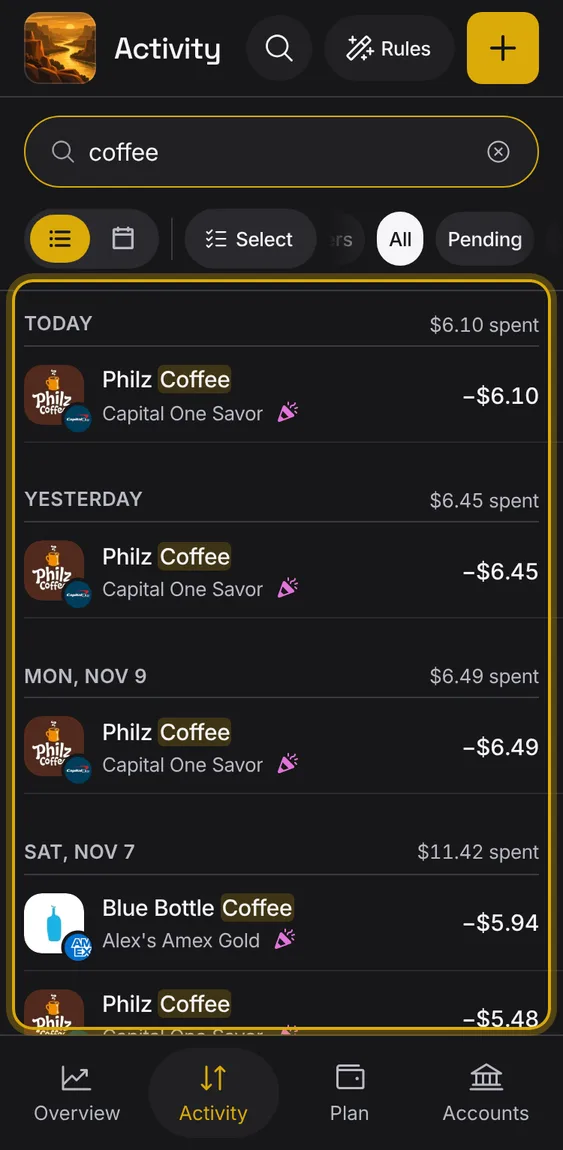
Search every entry by payee, note or tag, and see the words marked in the results.
- Tap the magnifier and type.
- No results says so, with Clear search.
Choose several entries and change them together: tag, bucket, reviewed, keep out, delete, or make a rule.
- Tap Select in the bar, then tick entries (up to 50) or Select all.
- Pick a change; it applies to all of them as one, with Undo.
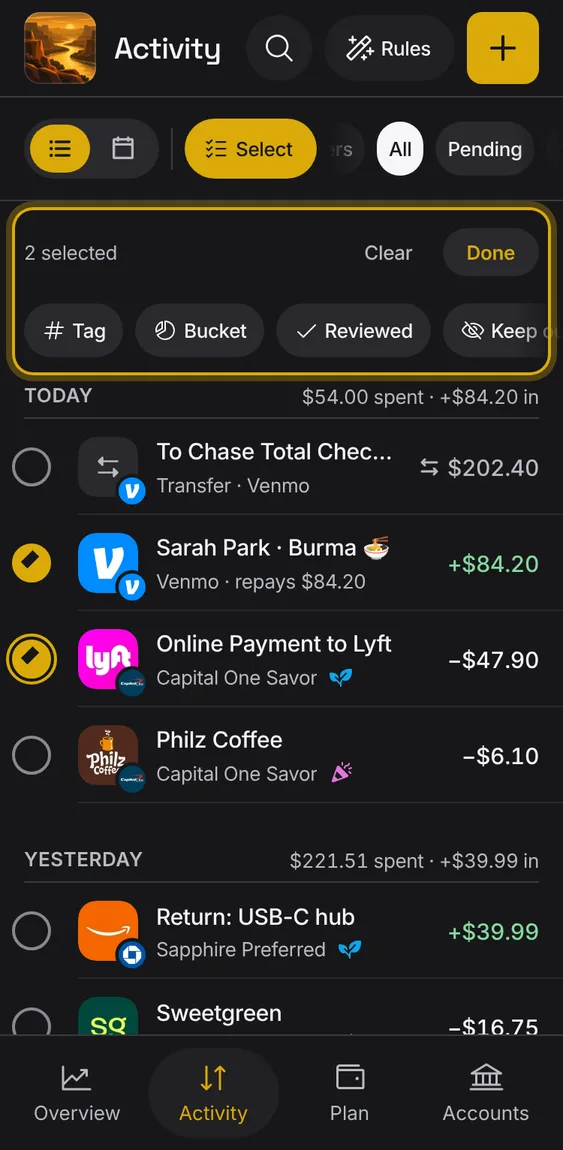
Put every selected entry in one bucket.
- Tap Bucket and pick one.
Delete the selected entries you entered by hand or imported.
- Not offered when a bank entry is selected.
- Undo brings them all back.
Keep every selected entry out of your plans; they still count in balances.
- Tap Keep out.
Mark every selected entry reviewed.
- Tap Reviewed.
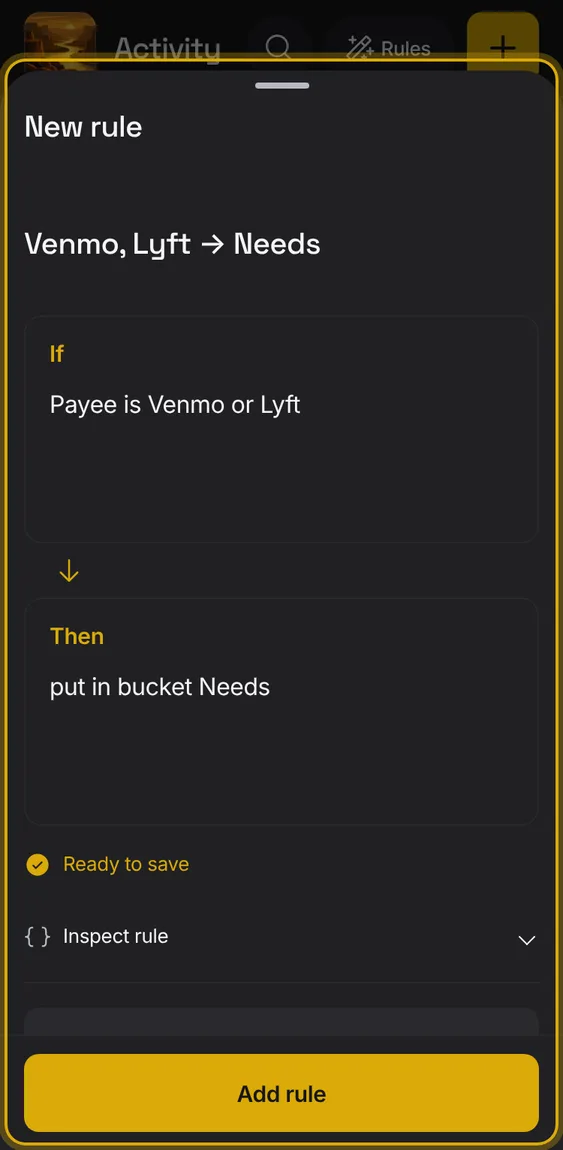
Start a rule from the selected entries' payees and bucket.
- Tap Rule: the rule editor opens filled in.
- Save it, then run it on history if you like.
Add one tag to every selected entry.
- Tap Tag, type the tag and Apply tag.
Swipe an entry for quick changes: right to rename it, left for its bucket and delete.
- Short or up-and-down drags do nothing.
- While selecting, swipes are off.
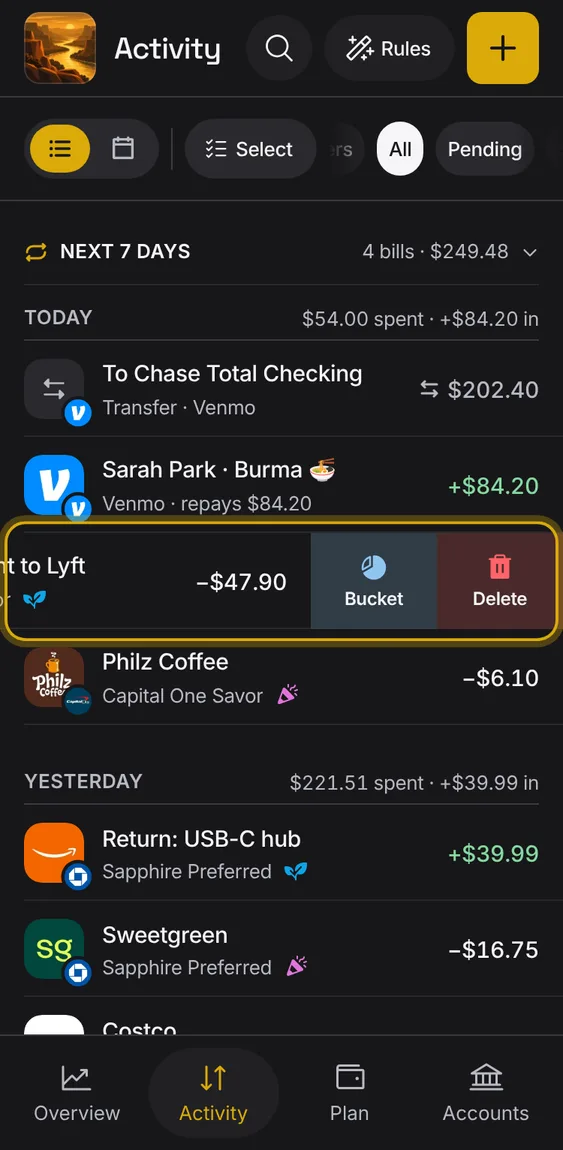
Entries you entered by hand or imported can be deleted with a left swipe, with Undo.
- Bank entries have no Delete.
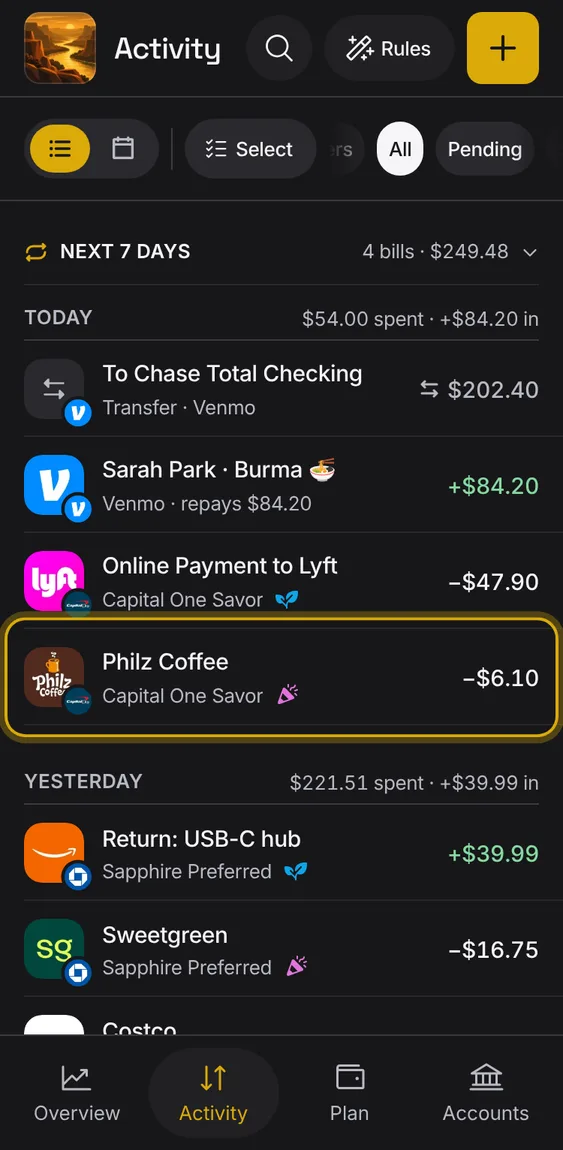
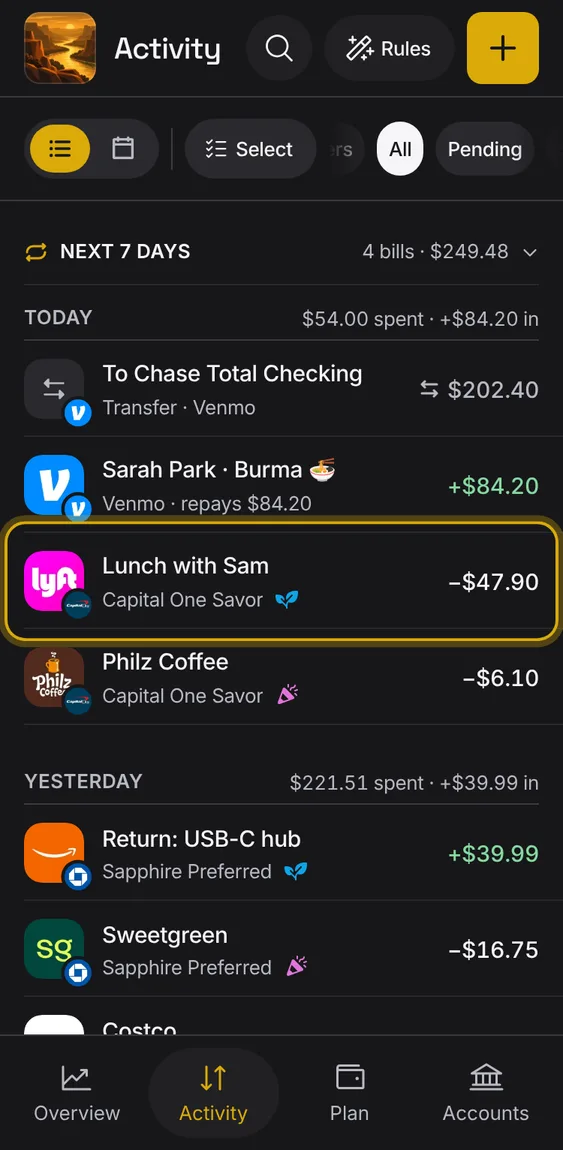
Swipe right to change the entry's description: one field, saved when you close it.
- Swipe right, type, then tap outside, press Enter or pull down to save.
- The cancel icon throws the change away.
- The bank's own name is kept.
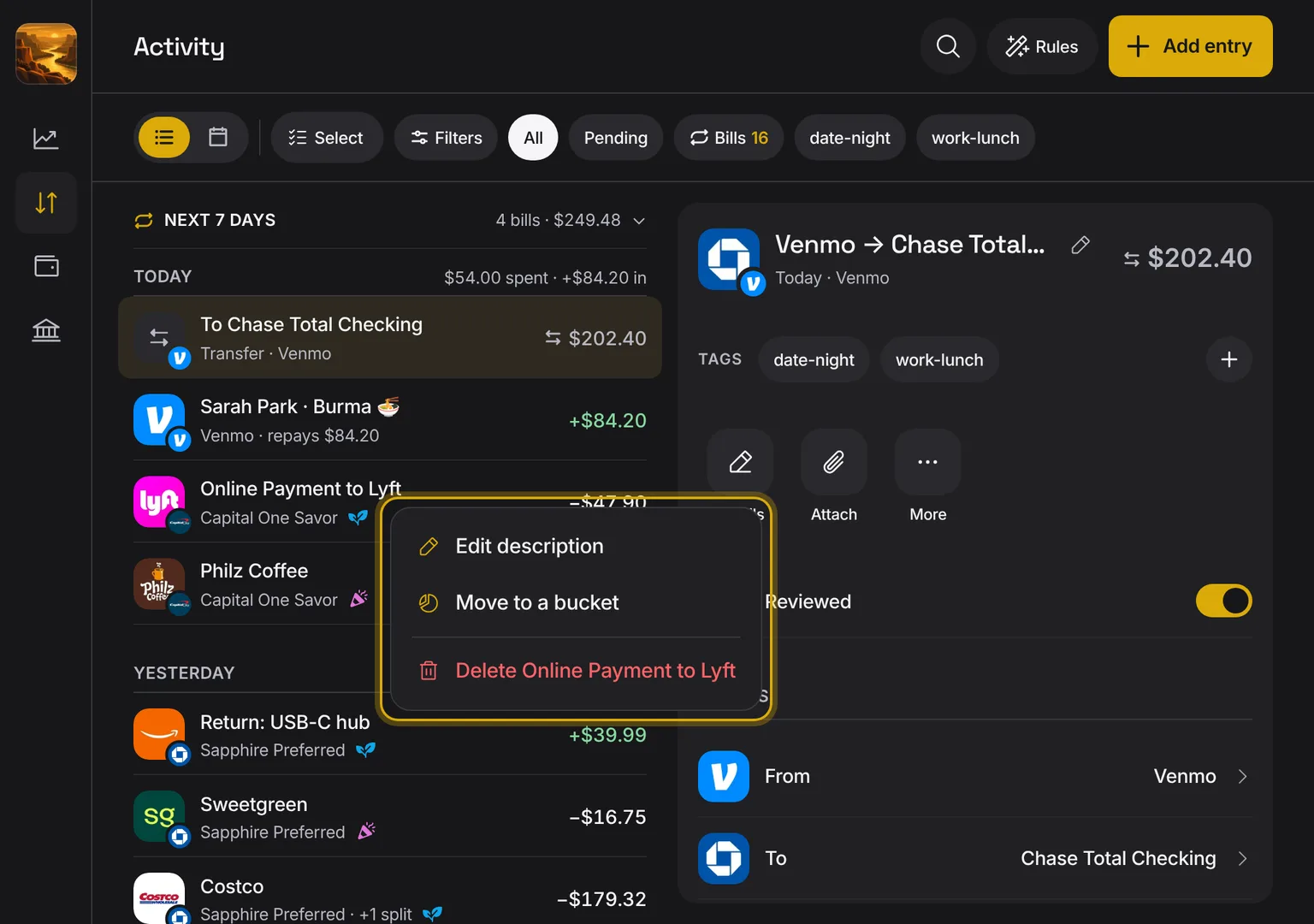
With a mouse, a row shows Edit description and Delete on hover, and its menu adds Move to a bucket.
- Hover or focus a row, or right-click it.
- The Delete key deletes a row you entered by hand.
Shown at a computer’s width.
Swipe left for Bucket; the change applies at once with Undo.
- Swipe left and tap Bucket.
- A tap elsewhere closes the row.
Money moved between your own accounts, and card payments, are transfers: never counted as spending or income.
- Transfers are found and paired for you as entries arrive.
- Pair or unpair them by hand from an entry.
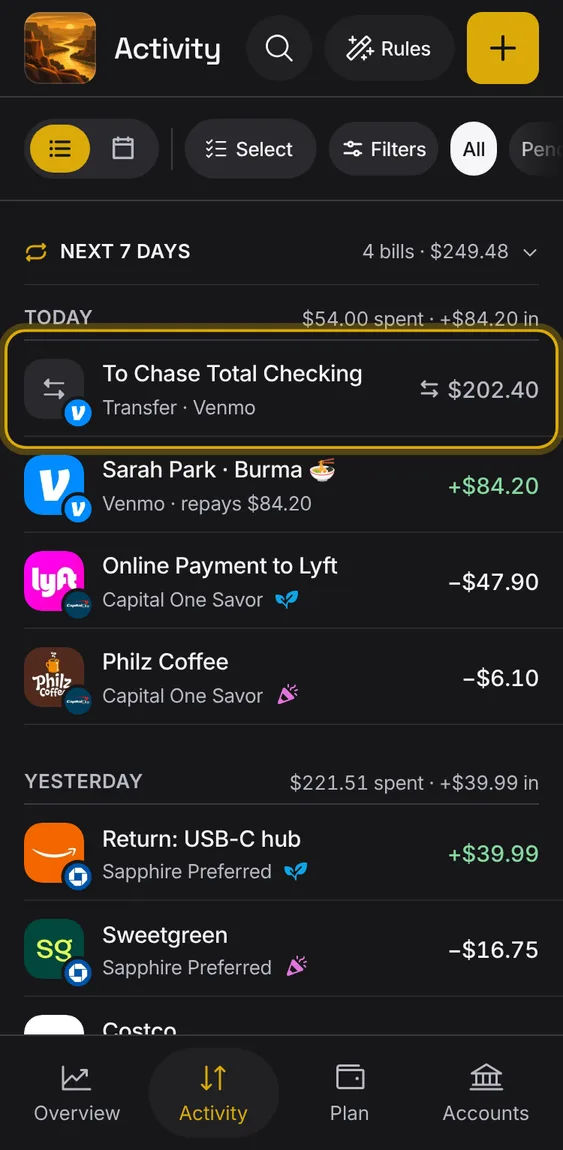
A transfer is always shown and found as a transfer, never as spending or income.
- Pairing makes both sides a transfer.
- Search “transfer” to find them.
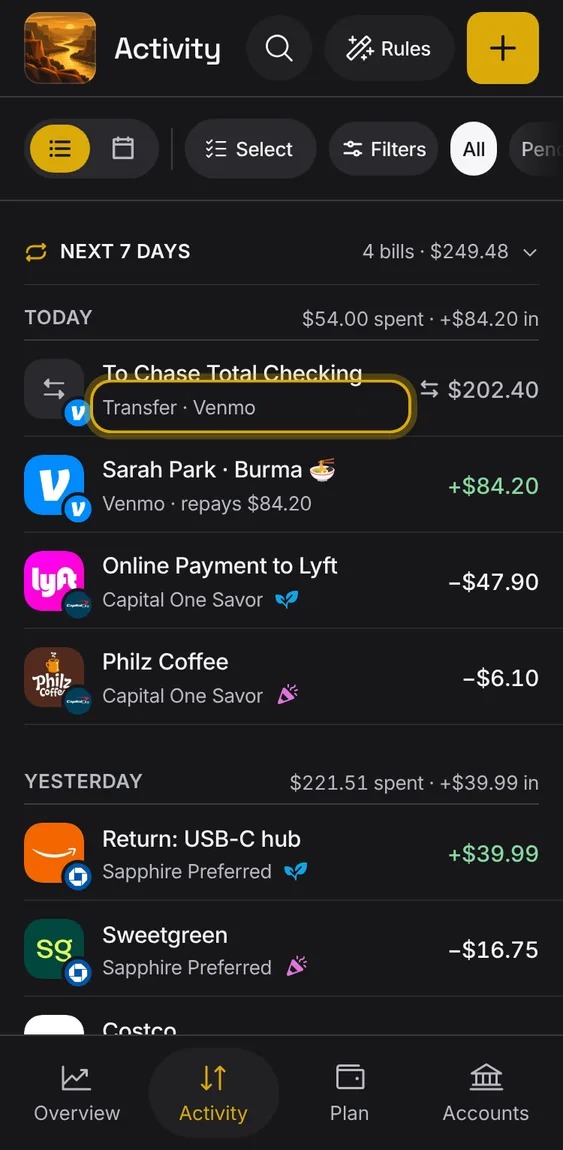
When a transfer paid for a purchase in another account, the purchase shows what funded it, and the transfer isn't counted twice.
- Open the purchase to see its funding underneath.
- The transfer's own rows stay out of the list.
Not in the demo. Shows with more than the demo holds.
A transfer to one of your accounts is named for it even before the other bank sends its side.
- It reads "Waiting for other bank" until both sides arrive.
Not in the demo. Needs an account: the demo has none.
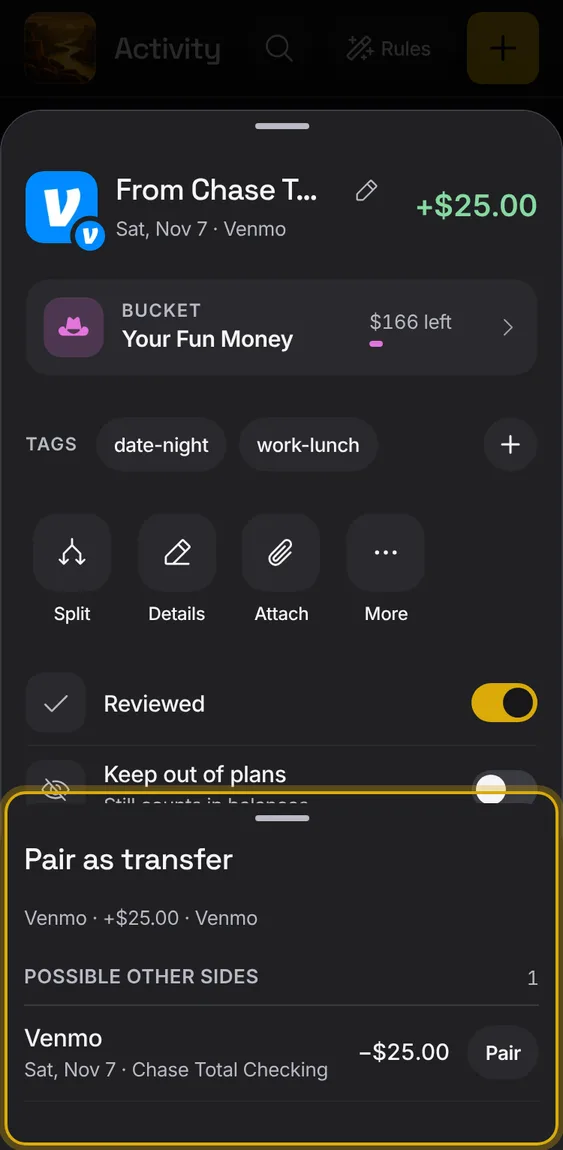
Pair an entry with its other side in another account, so the two count as one transfer.
- In an entry, More → Pair as transfer, then choose the other side.
- If nothing could pair, it says why.
Undo a pairing: Unlink transfer splits the two sides apart, Not a transfer makes a lone side ordinary again.
- In an entry, More → Unlink transfer or Not a transfer.