Alluvium
An entry's screen
Everything about one entry, with the most-used changes first: its bucket and tags, then split, details, attach and more.
Every An entry's screen feature
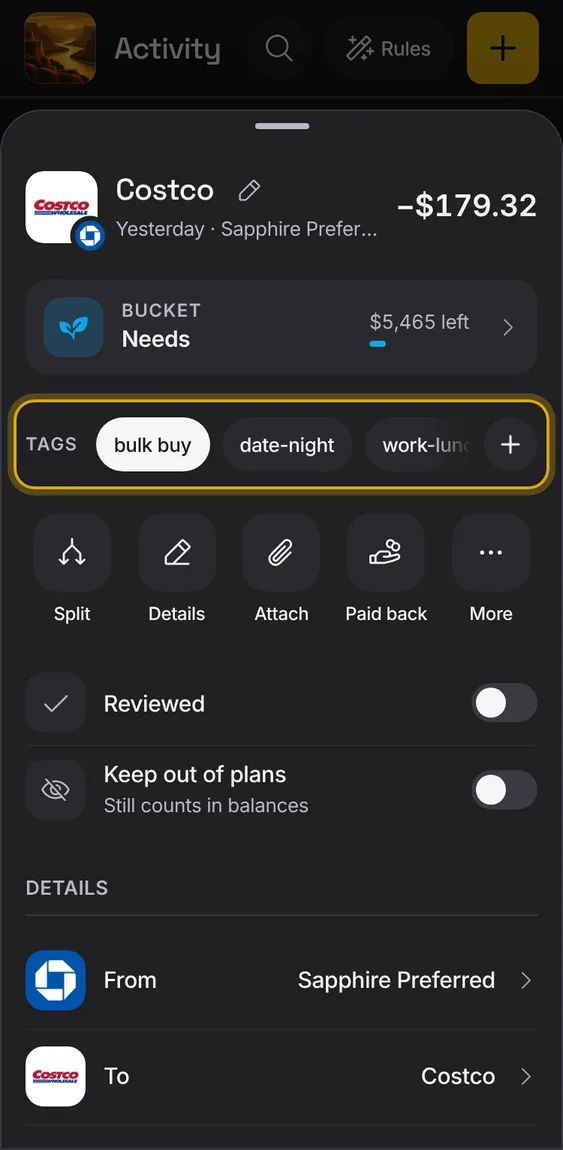
An entry's tags sit under its bucket as one row of pills, and change at once.
- Tap a tag to put it on or take it off.
- Type in Add tag to make a new one.
Add photos or PDFs of receipts to an entry; they're kept on your device and uploaded privately.
- Tap Attach and choose a photo or PDF.
- Tap one to view it; Remove takes it off every device.
- It says when a file is still waiting to upload.
Not in the demo. Needs a file from your device.
A bank entry's amount and direction come from your bank, and it can't be deleted; only the bank can change or remove it.
- Other fields, like its bucket, tags and description, are yours to change.
- A pending entry says the amount may change when it posts.
Not in the demo. Needs an account: the demo has none.
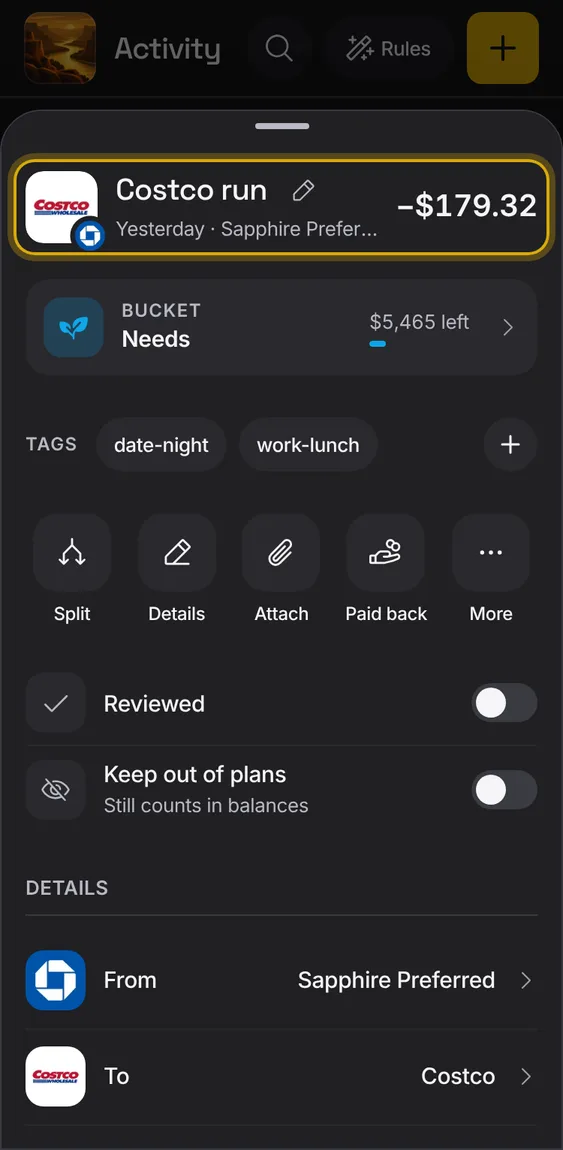
A pencil beside the name renames the entry, the same as a right swipe.
- Tap the pencil, type and close.
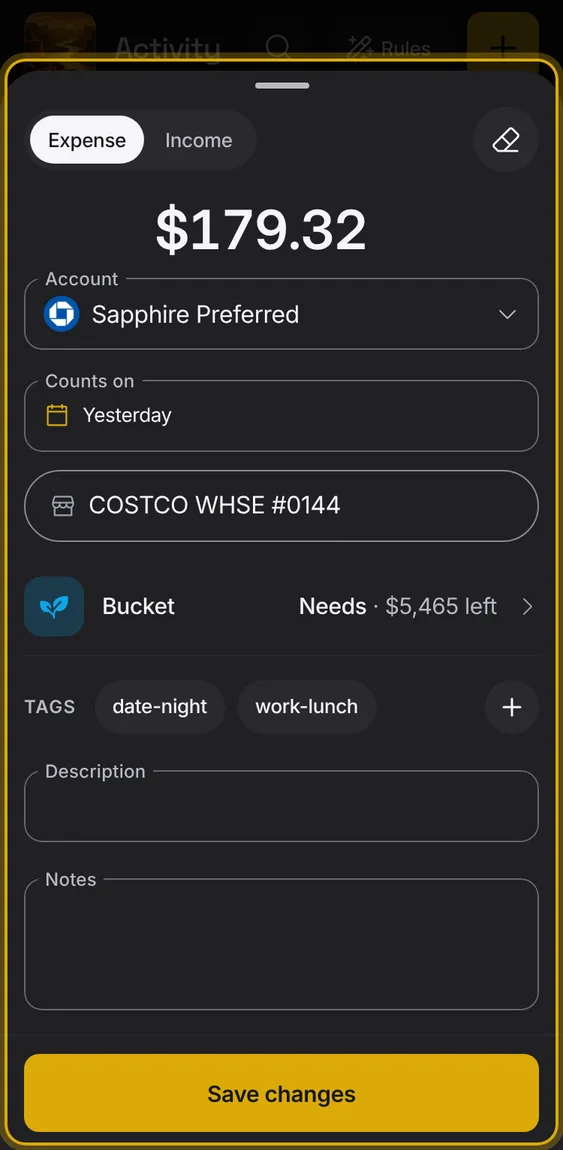
Change the amount, date, payee, notes and more in the entry's editor.
- Tap Details.
- For a bank entry you can change the date, description and notes; the amount comes from the bank.
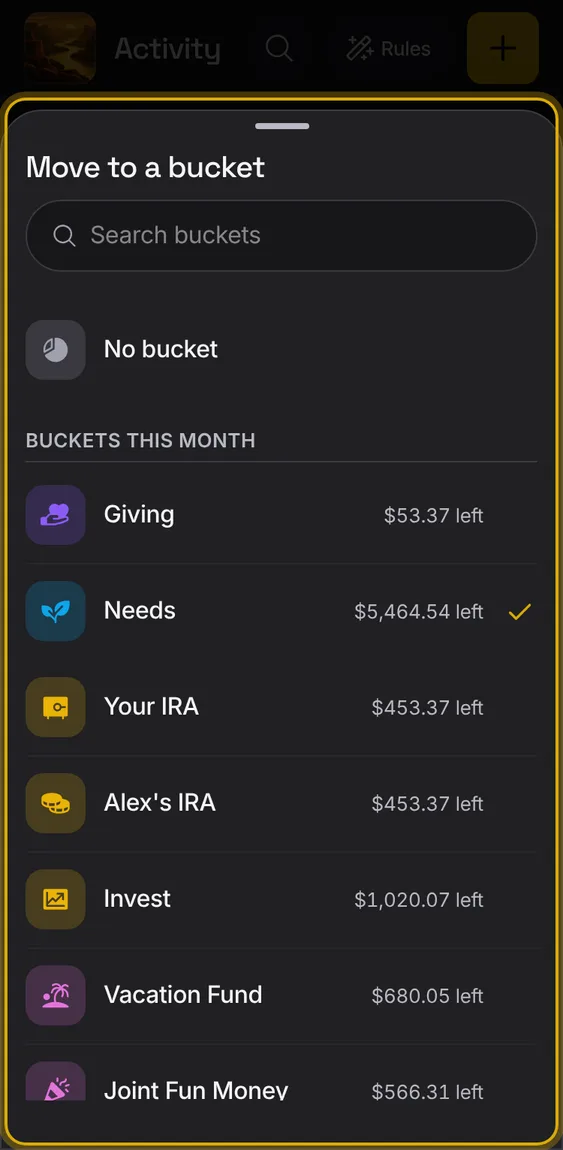
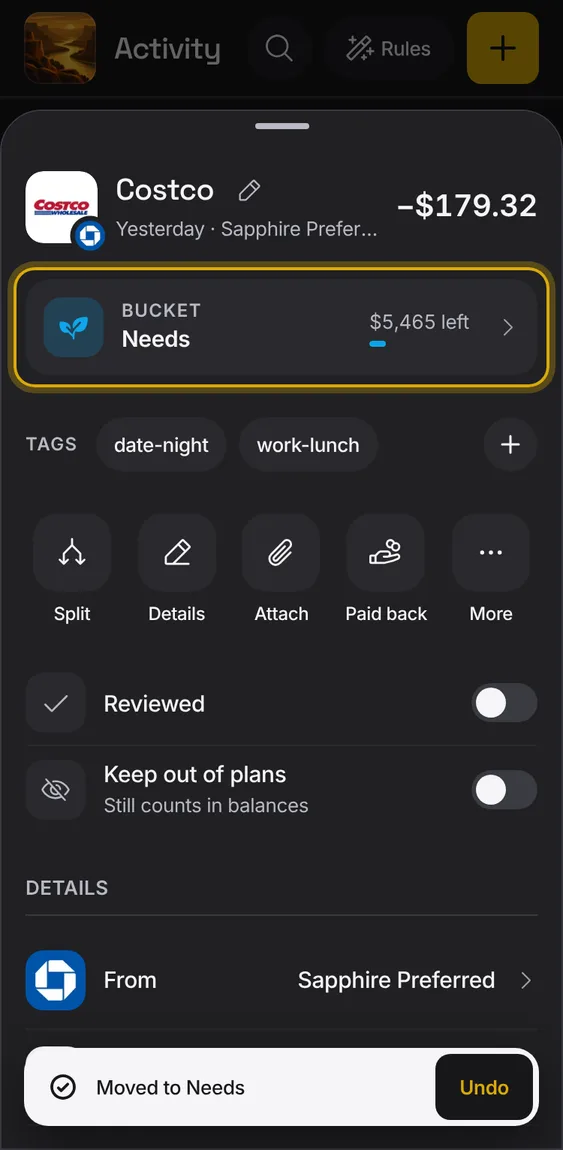
One row says which bucket the entry comes out of, with what's left in that bucket this month.
- Tap Bucket to change it.
- The (i) explains buckets and tags.
- A bucket from a month with no plan can be cleared.
Which of your accounts the money left or reached, and the payee on the other side; each opens its own screen.
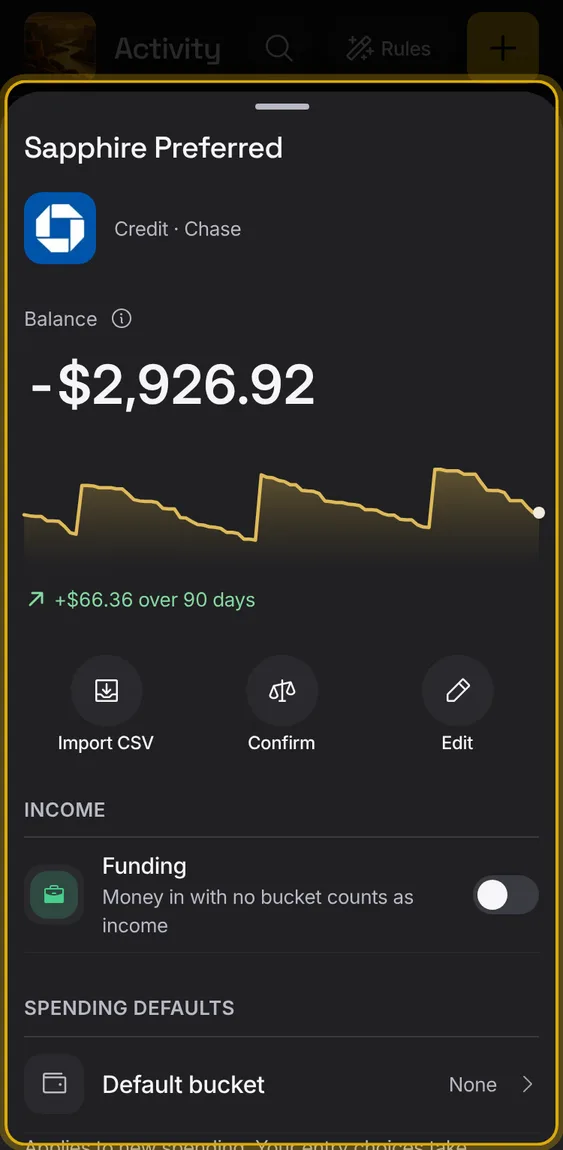
- Tap your account to open it above the entry.
- Tap the payee to open the payee.
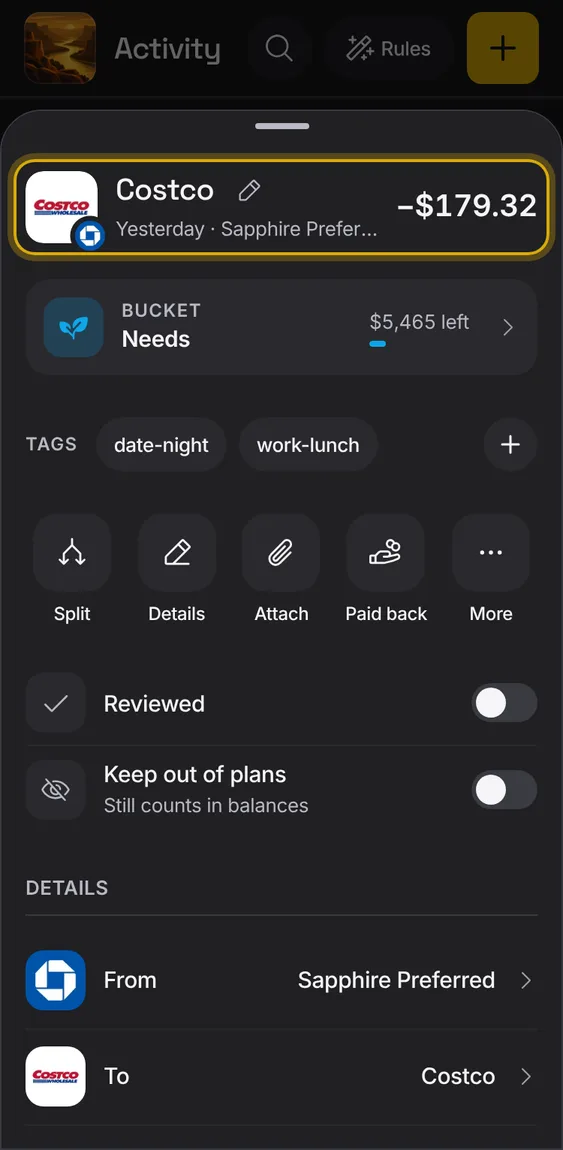
The top of an entry: its picture, name, date and account, and the amount.
- Tap the picture to change it for that payee everywhere.
- The name is cut short on one line if it's long.
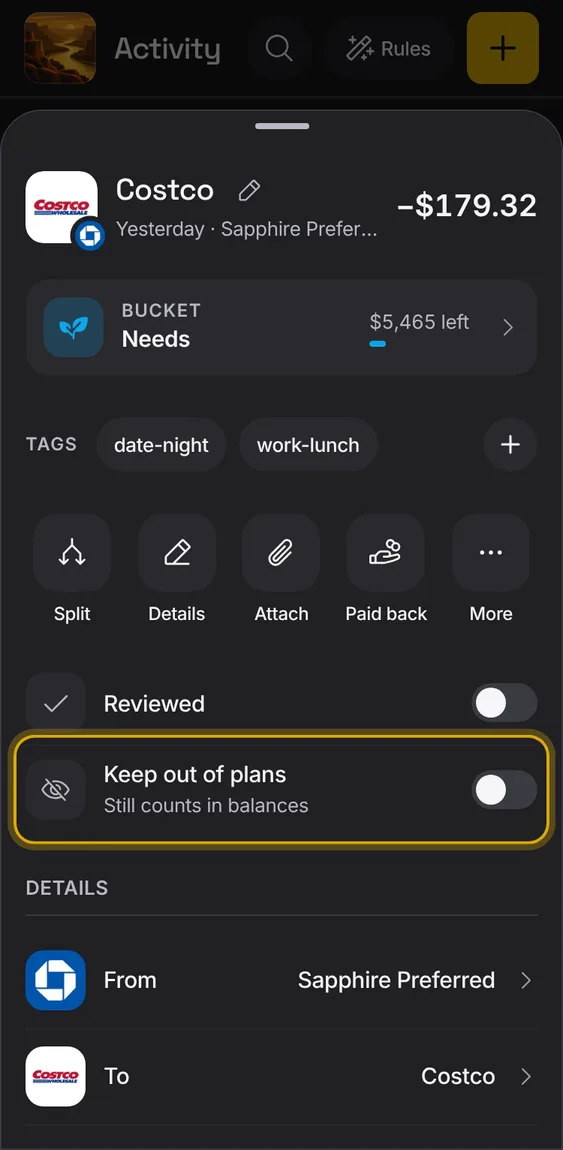
Leave an entry out of plans and buckets; it still counts in balances.
- Turn on Keep out of plans.
- Undo turns it back.
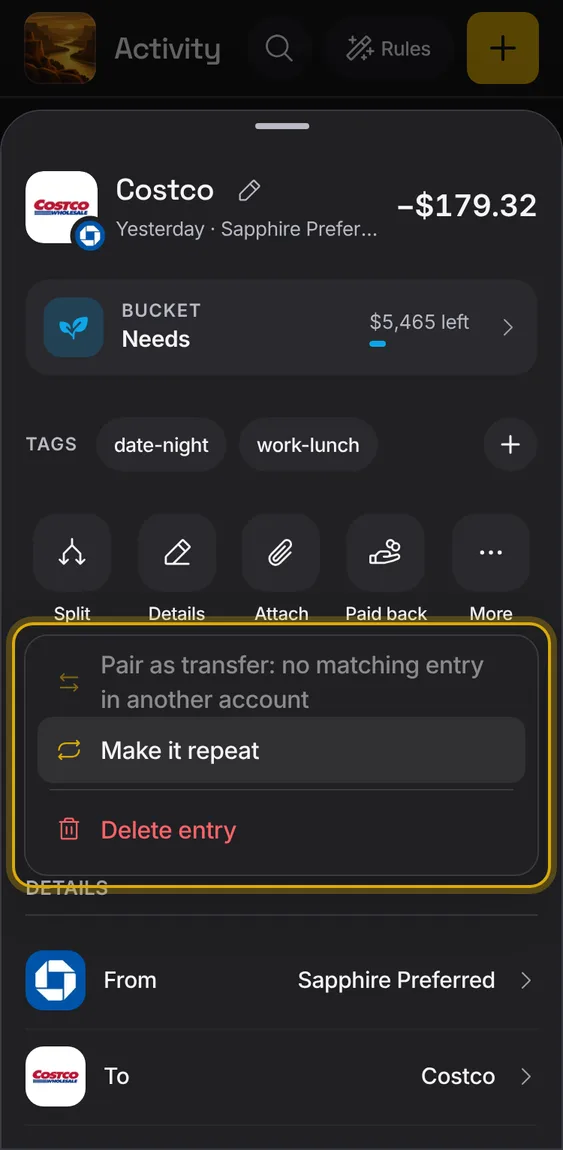
Less-used actions under More: pair as transfer, not a transfer, unlink, make it repeat, delete.
- Tap More.
Chips for the buckets this payee's spending usually goes to, to move the entry in one tap.
- Tap a chip: the entry moves, with Undo.
- Only shown when the payee has used other buckets.
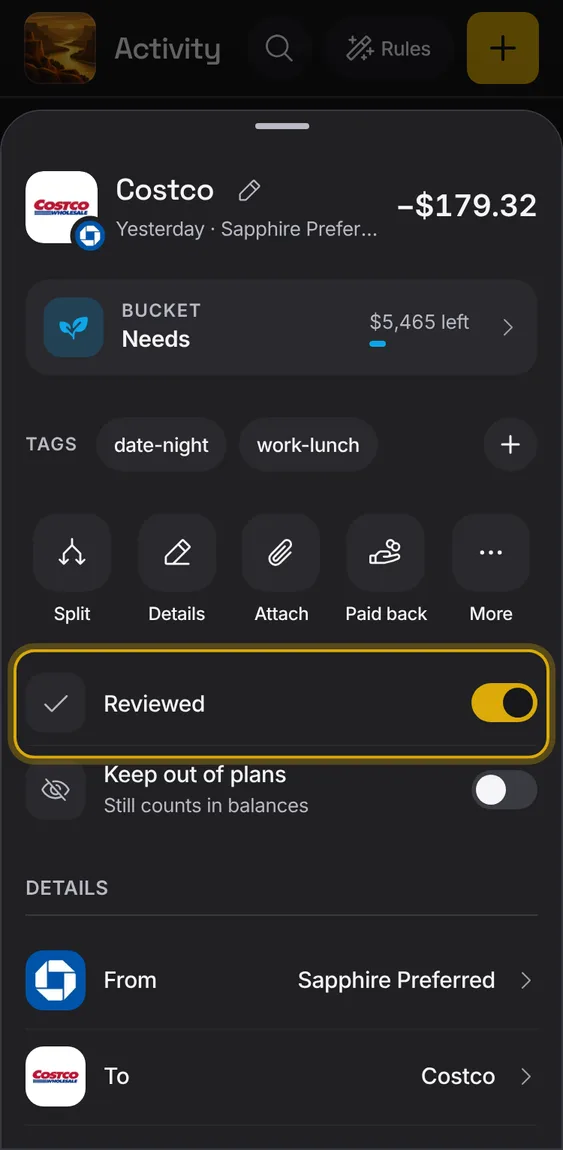
A switch to mark the entry reviewed.
- Turn on Reviewed.
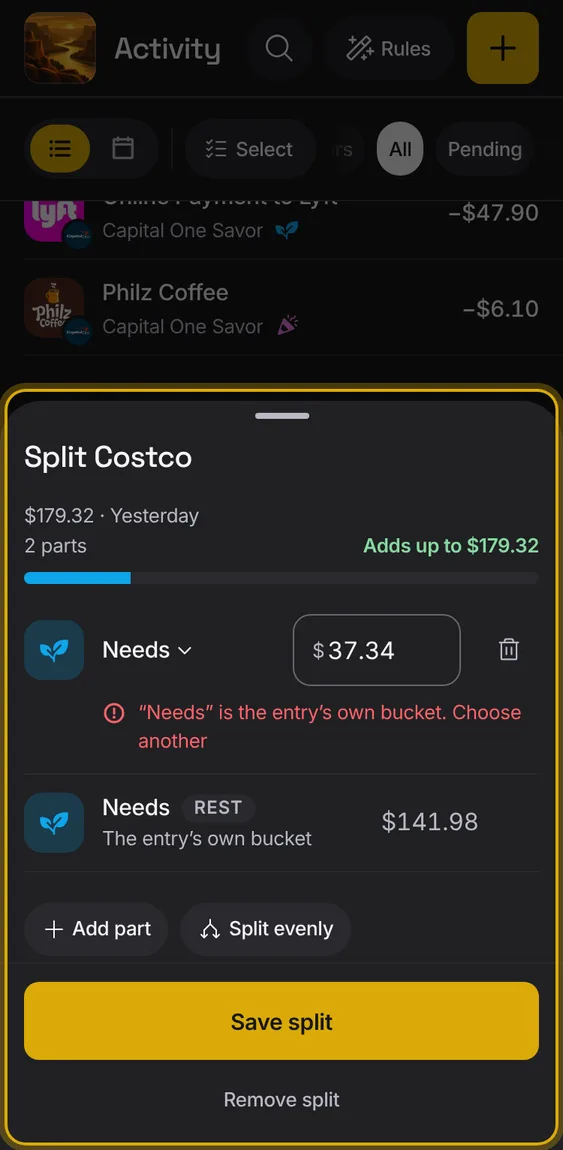
Divide one entry into parts, each in its own bucket with its own amount.
- Tap Split, then Add part or Split evenly.
- What no part takes stays with the entry.
- It tells you if the parts don't add up.
An entry of a bill shows the bill, how often it repeats and the next one, and opens it.
- Tap This bill.