 Alluvium
Company logos
Payees and accounts show their company's logo, found for you; you can choose another picture or upload your own.
Every Company logos feature
A payee's logo is found by its name, only from real brands, and never replaces one you chose.
- Nothing to do.

Give a payee or account an emoji shown while there's no picture.
- In the picture sheet, set the glyph.
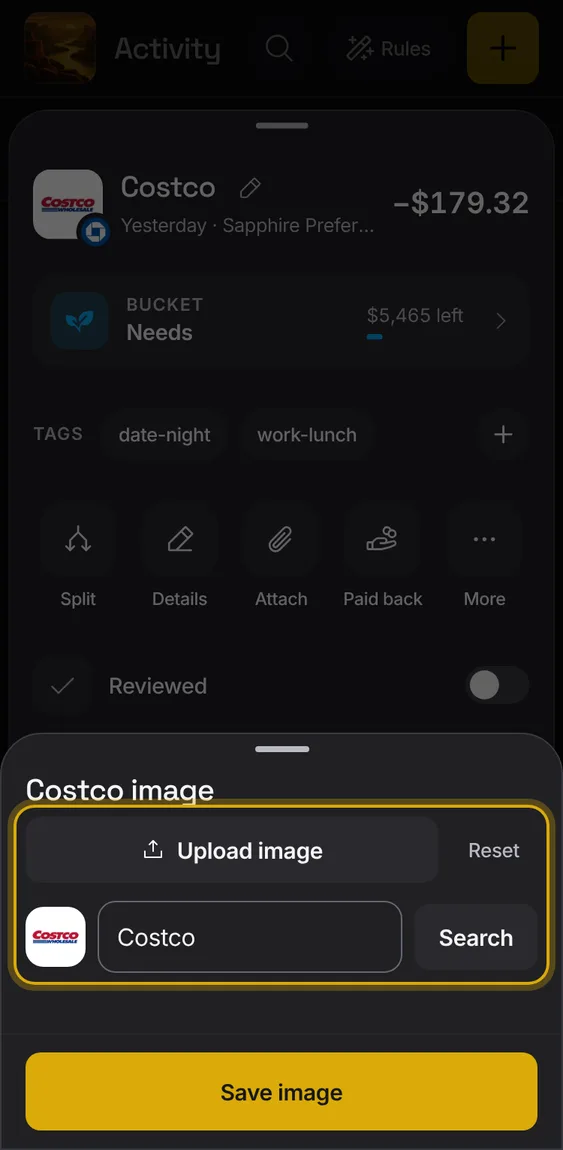
Until a picture loads, its tile shows a colour and icon from the payee's name.
- Nothing to do.

Logos fill their tile or sit centred, with a white backing only when they'd vanish on the dark tile.
- Nothing to do.
Turn logo lookups off: tiles show initials and no logo service is asked.
- Hub Preferences → Look up logos.
Not in the demo. Needs an account: the demo has none.
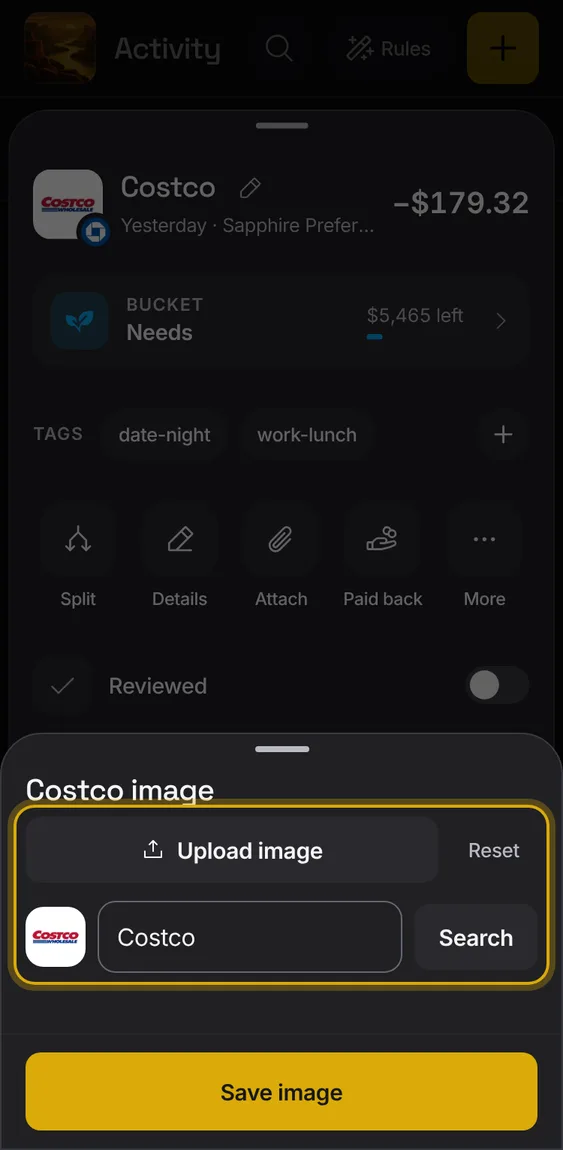
Go back to no picture, or the logo found for you.
- Tap Reset in the picture sheet.
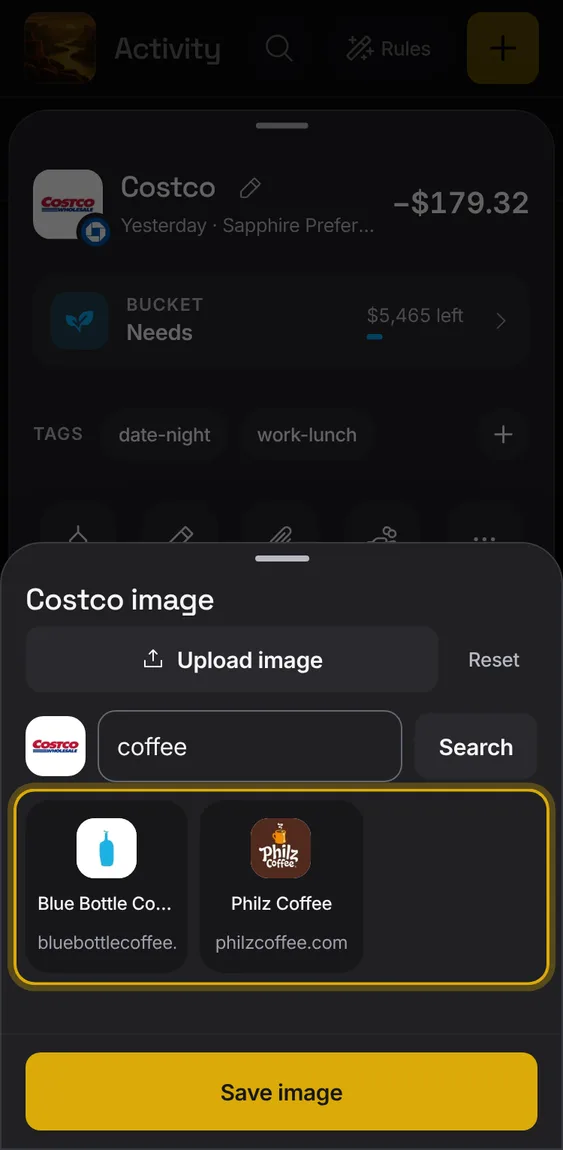
Search brands by company name and pick a logo from the results.
- In the picture sheet, type a name and tap Search.
- A failed search says so, with Try again.
Upload your own picture and crop it to a square before saving.
- Tap Upload image, then drag and zoom.
- Use image, then Save image.
Not in the demo. Needs a file from your device.