Alluvium
Plan
Your monthly plan: income in Funding, buckets for spending, what's left to spend, goals and what's coming up.
Every Plan feature
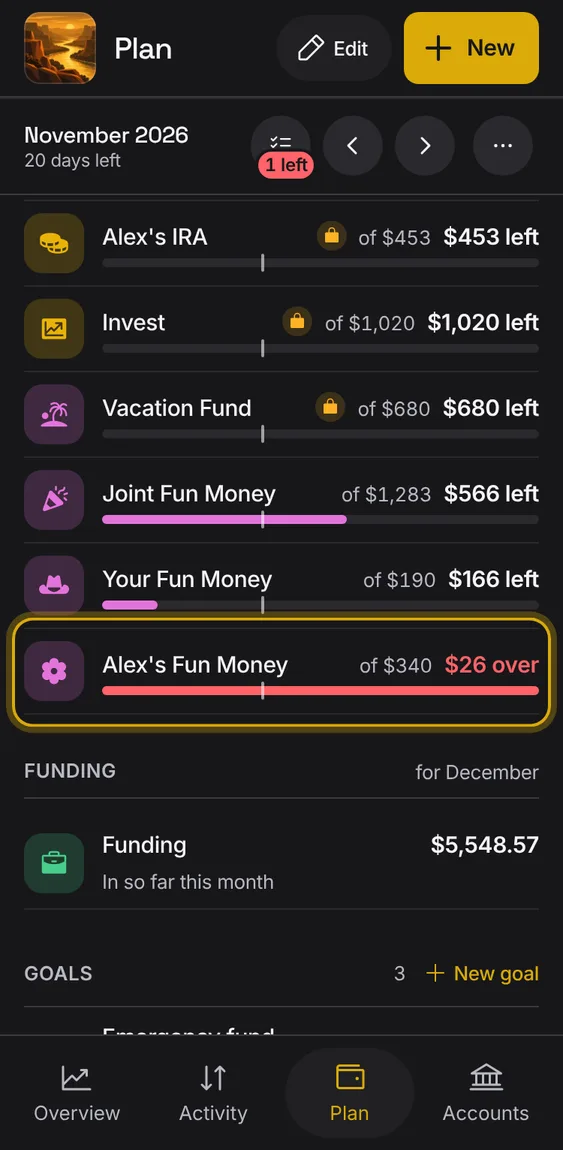
Each month is funded by the income of the month before; what comes in this month is in Funding, for next month.
- Left to spend is last month's income less what's spent and set aside.
- Funding has its own section under your buckets.
- A month with no funding lists the ways to fund it.
A new ledger sets up in order: your accounts, then your transactions, then the budget and what its first month starts with.
- Add your accounts first.
- Let your bank's history come in, or add and import entries.
- Tap Set up budget: choose what the month starts with and a split to begin from.
Not in the demo. Shows before anything is saved; the demo has sample data.
A short check before you approve the month together: everything spent has a bucket, nothing is overdrawn, then approve.
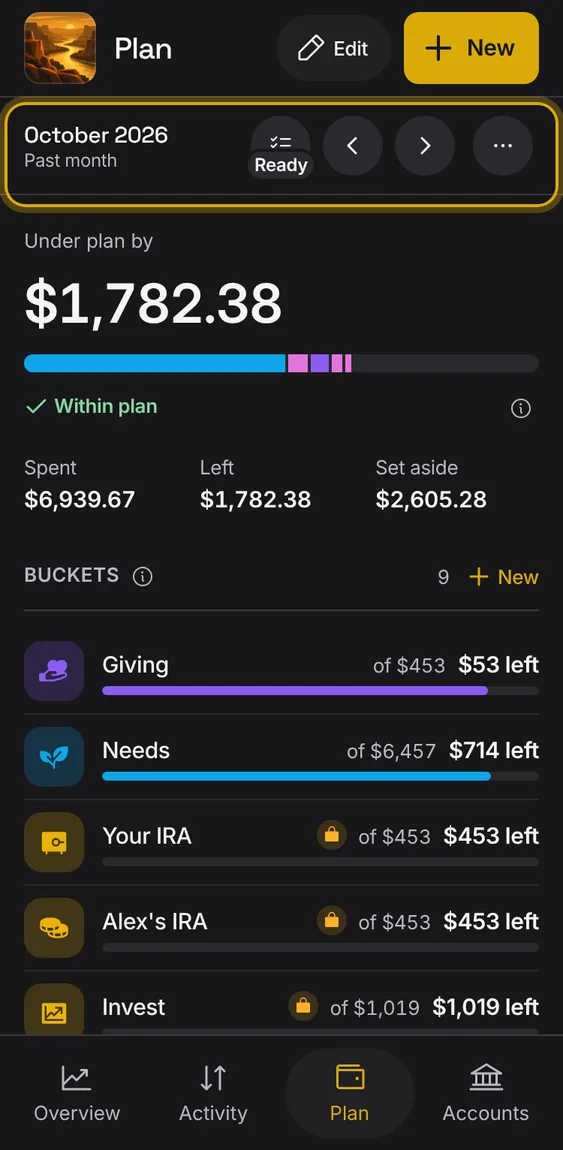
- Tap Close <month> on Plan's bar; its badge says Ready or how many checks are left.
- Fix what's open from the check itself.
- Approve; any later change to the month's money marks the approval out of date.
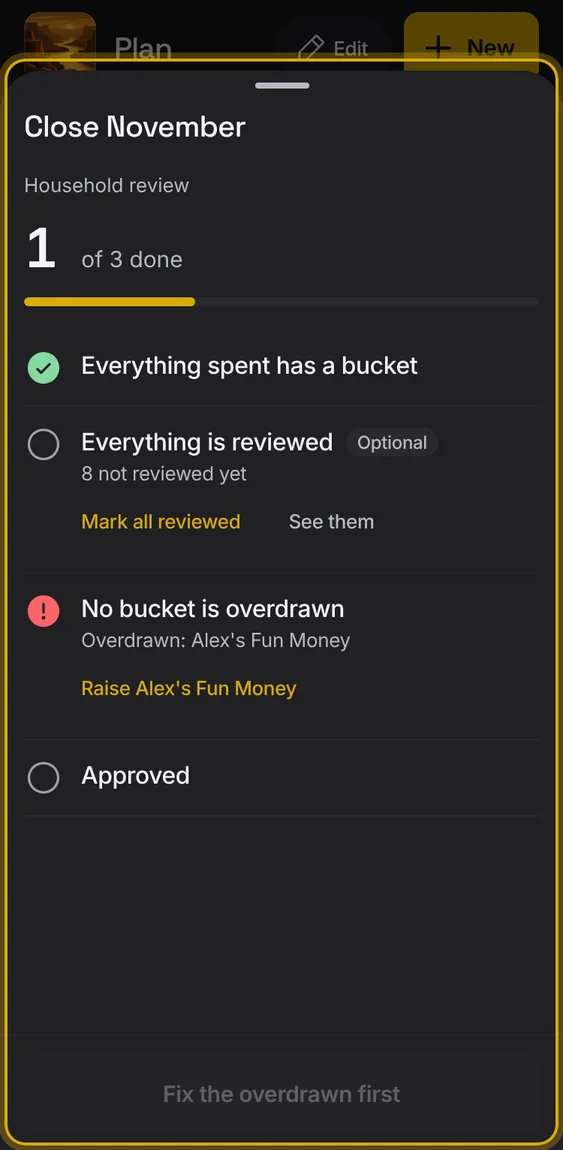
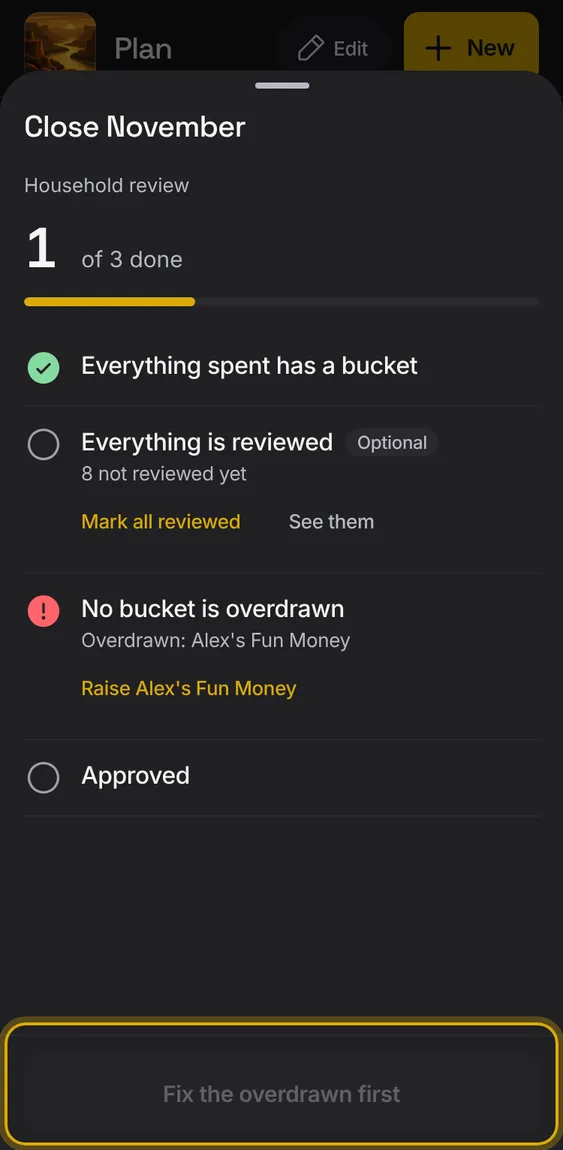
Each member approves the month; a bucket overdrawn blocks approval until it's fixed.
- Tap Approve, or Fix the overdrawn first.
Everything spent has a bucket, no bucket is overdrawn, and the household's approval; reviewing everything is optional.
- Each check shows its state and what's still open.
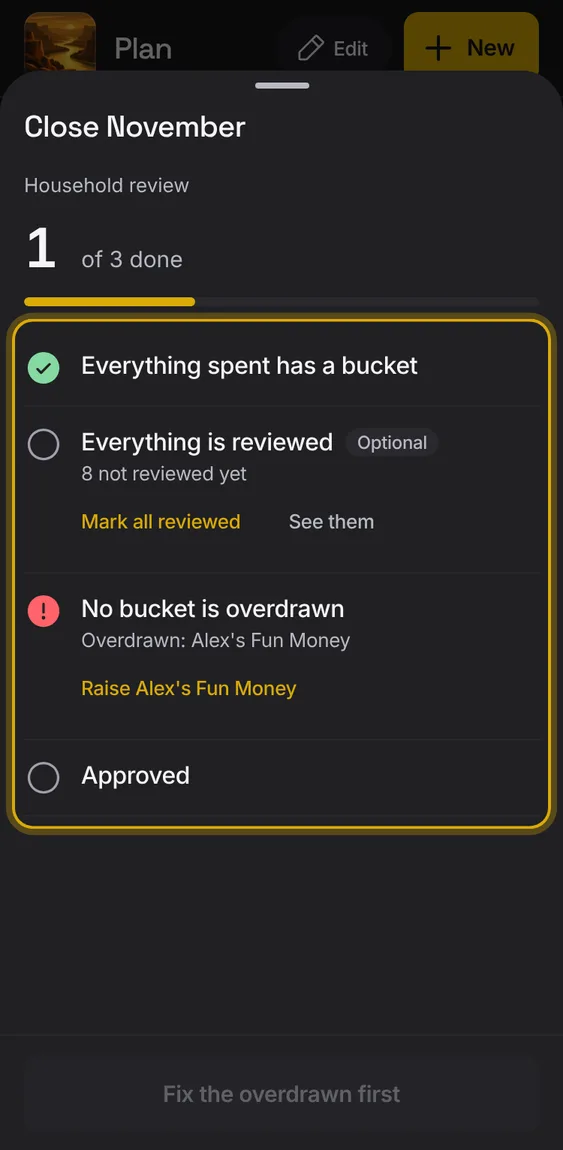
Mark the month's entries reviewed in one go.
- Tap Mark all reviewed in the review check.
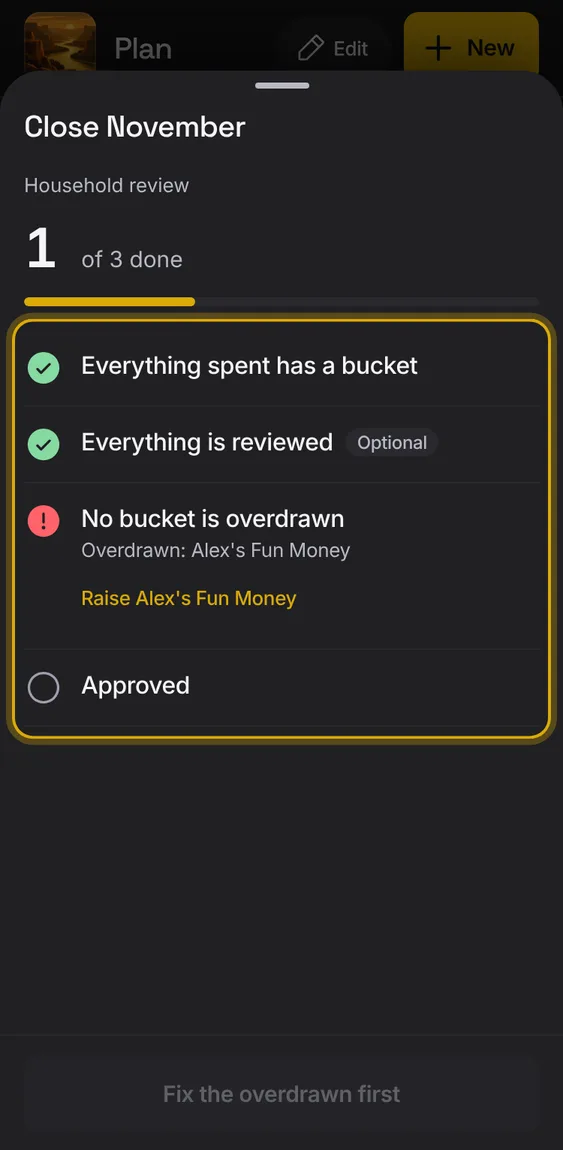
When the month's money changes after approving, the approval says it was for an earlier version.
- Tap Approve again.
Not in the demo. Shows with more than the demo holds.
From the check, raise an overdrawn bucket: Edit plan opens on it.
- Tap Raise beside the bucket.
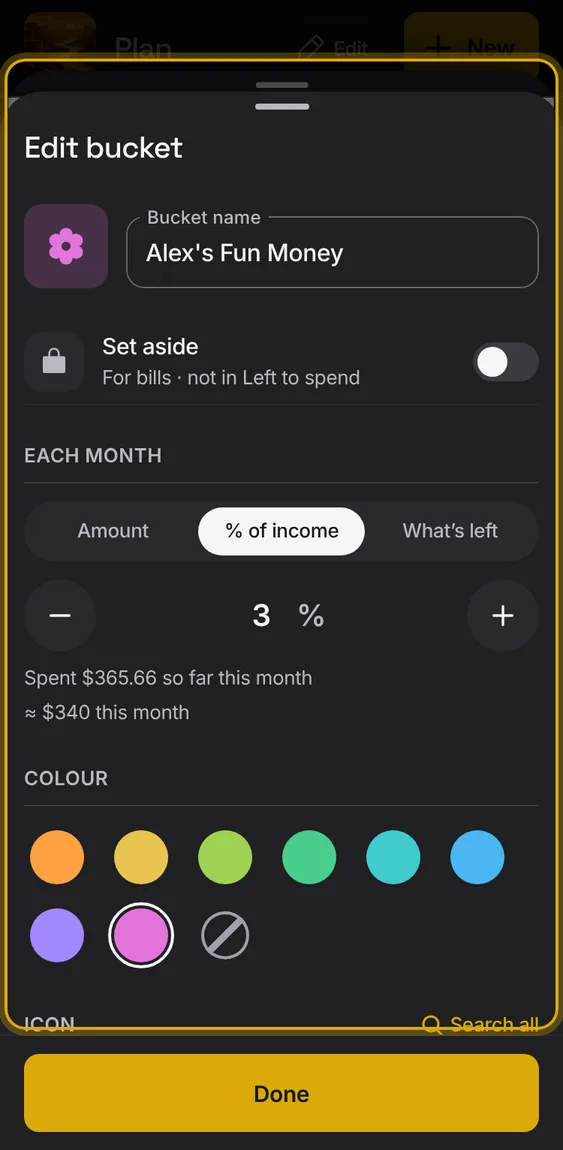
Plan each month with buckets: amounts or shares of income, groups, set-aside buckets, and one that takes what's left.
- Start a plan, copy last month's, or start from a split.
- Edit plan changes the buckets.
- Each month keeps its own plan.
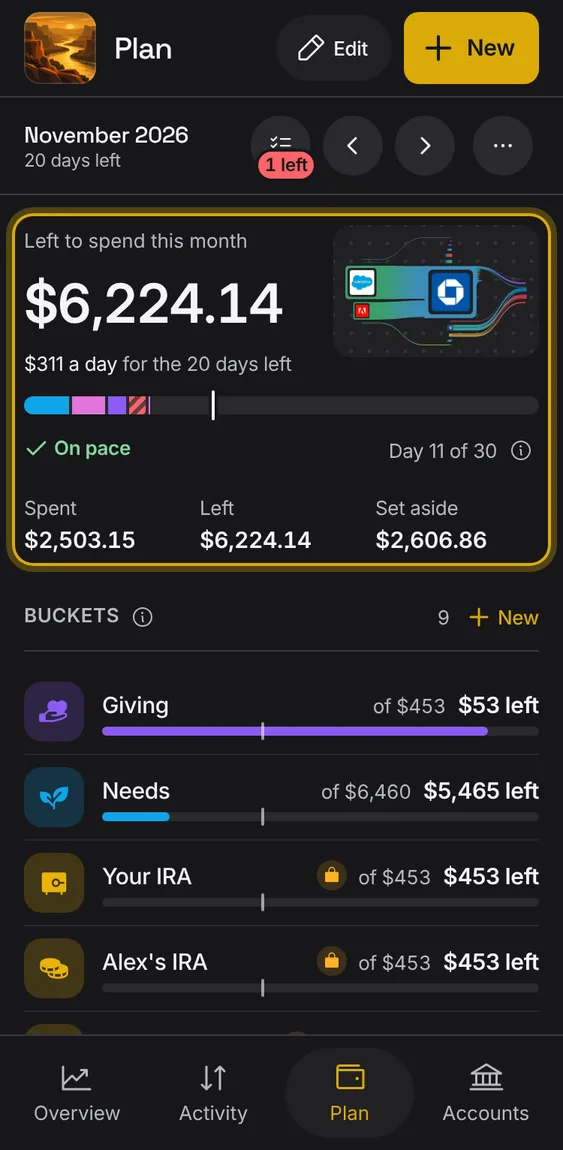
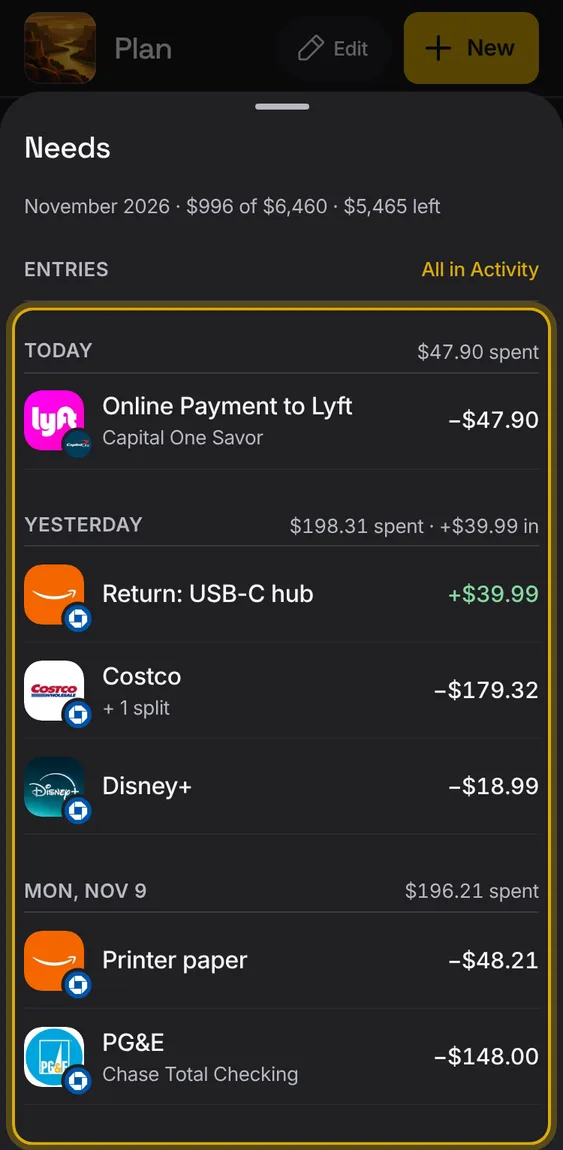
Tap a bucket to see the month's entries it counts, adding up to its figure.
- Tap a bucket or group.
- All in Activity opens them in Activity.
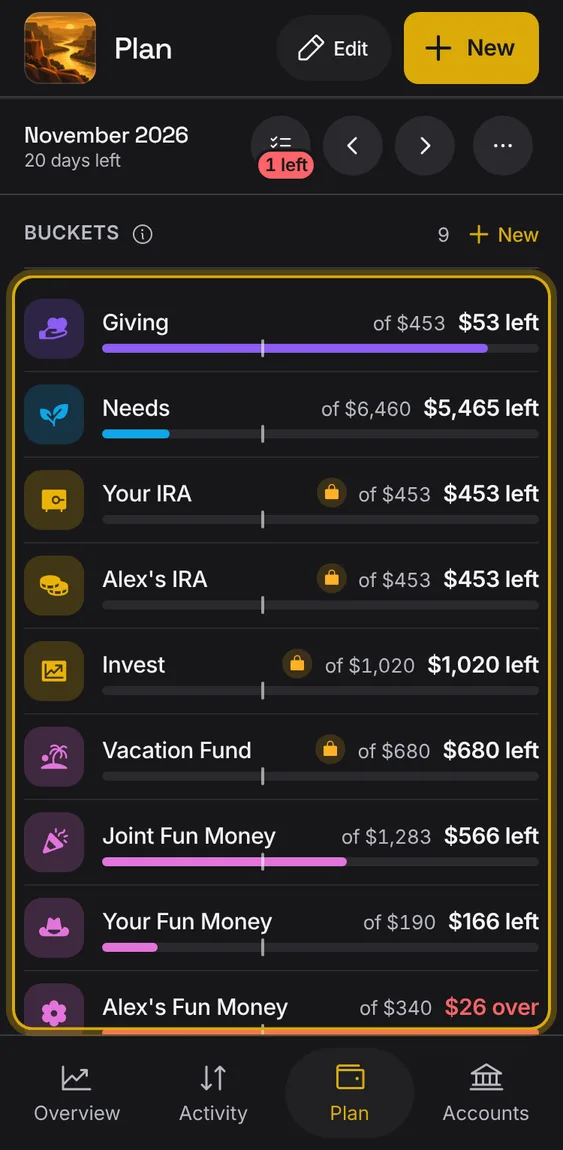
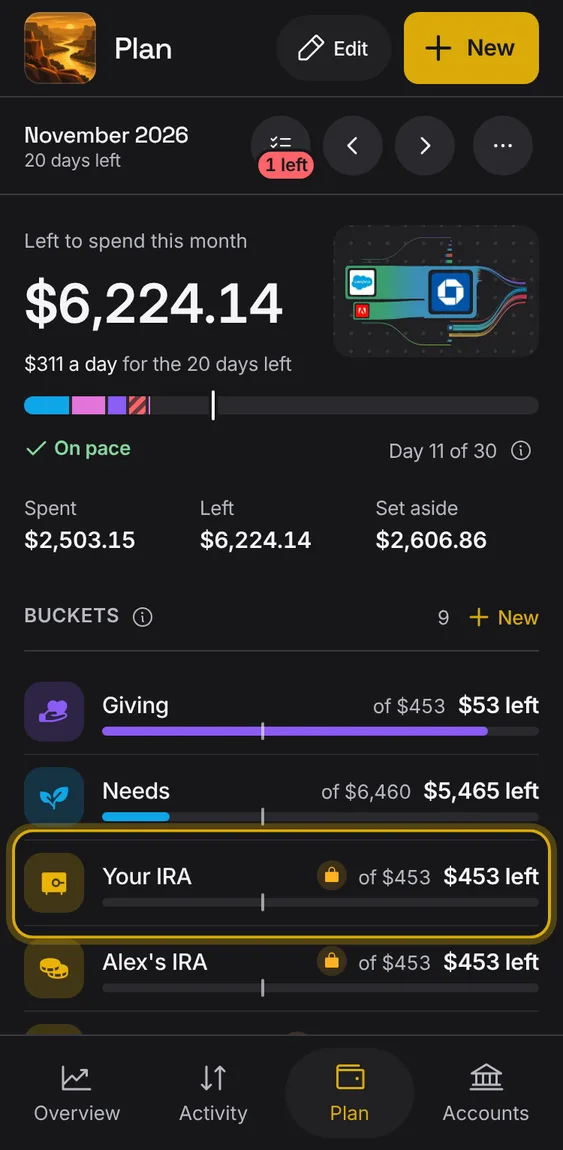
Each bucket is a monthly budget with its own colour and icon, showing what's spent and what's left.
- Tap a bucket to see its entries.
- Change buckets in Edit plan.
- The (i) on Buckets explains what a bucket is.
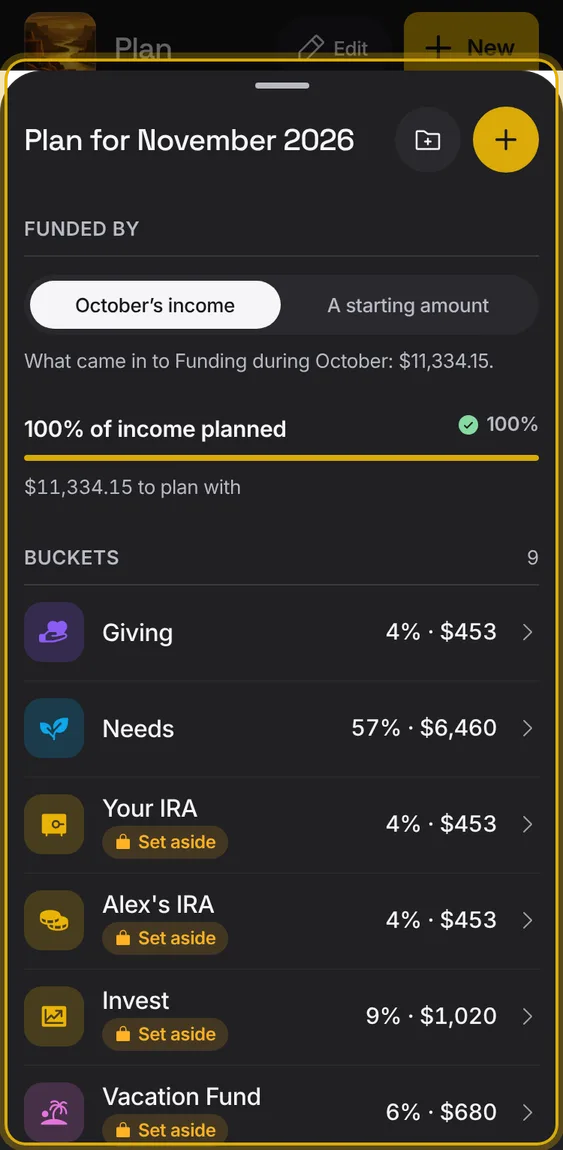
Change the month's plan: income, every bucket and group, with the total planned against income.
- Tap Edit on Plan.
- Tap a bucket to change it; Add bucket and Add group are at the top.
- Save plan saves; leaving asks before throwing changes away.
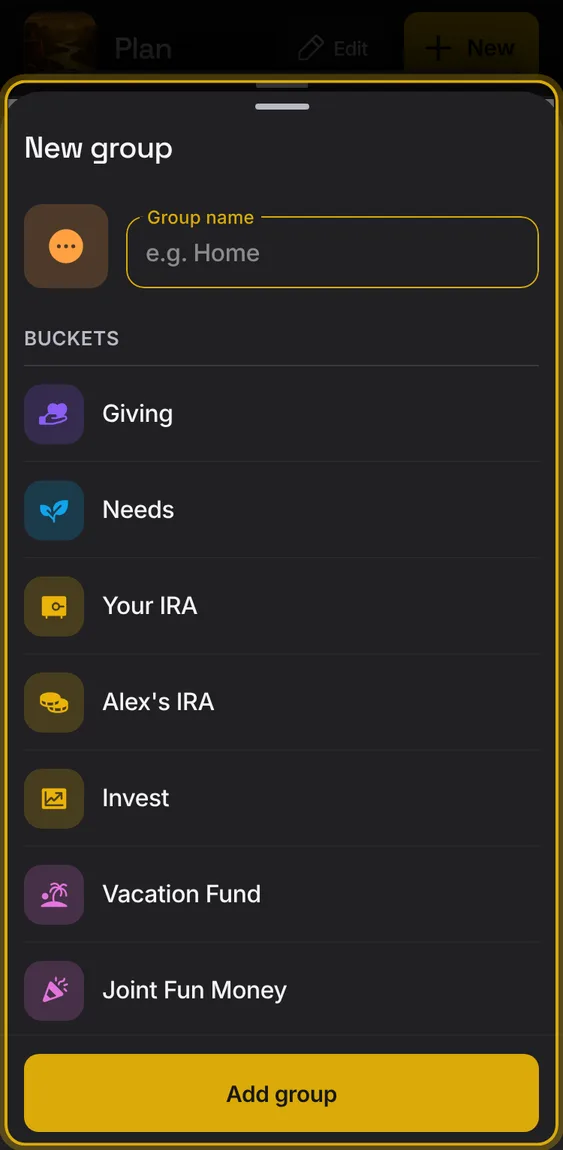
Add a bucket or a group from Plan's + or from Edit plan.
- Tap + → New bucket or New group.
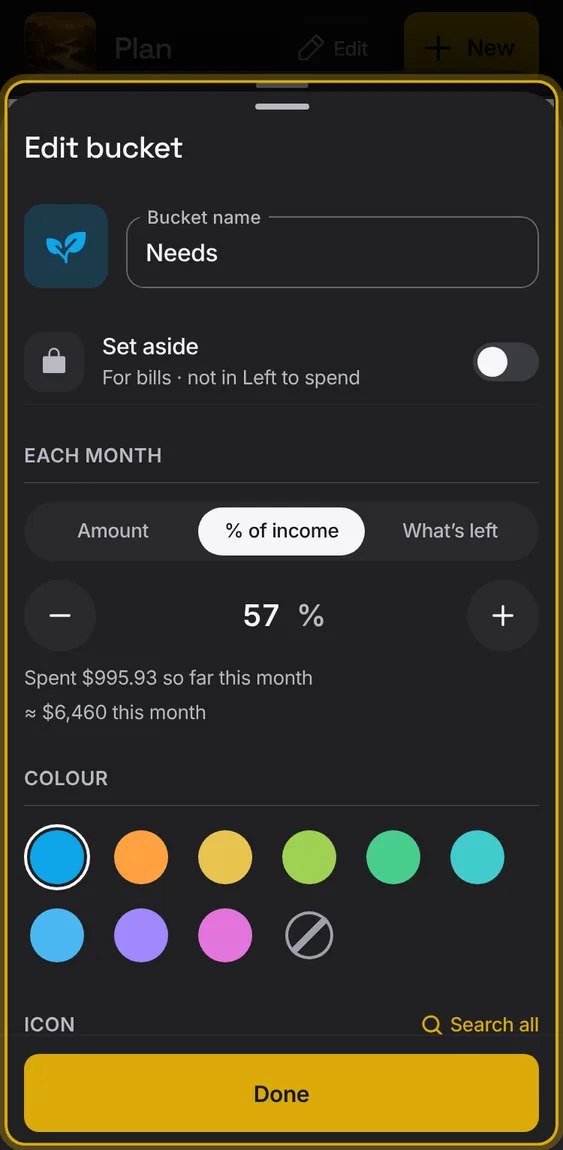
A bucket's name, amount (dollars, % of income or what's left), Set aside, group, colour and icon.
- Tap a bucket in Edit plan.
- Delete it from its sheet, with Undo.
- Search all finds any icon by name or meaning.
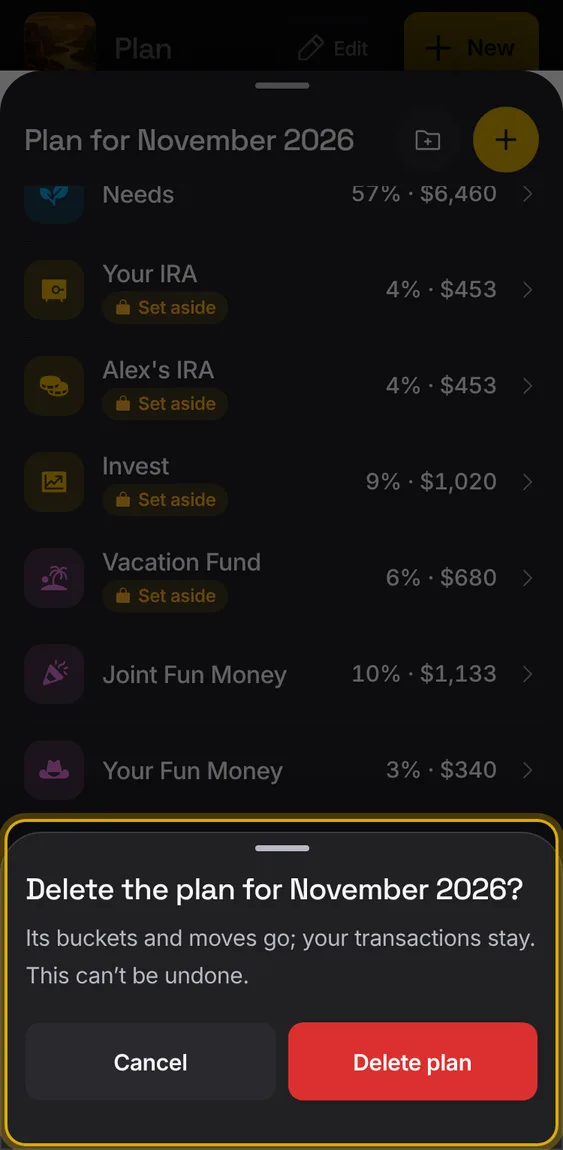
Delete this month's plan; its buckets and moves go, your entries stay.
- Last row of Edit plan, then confirm.
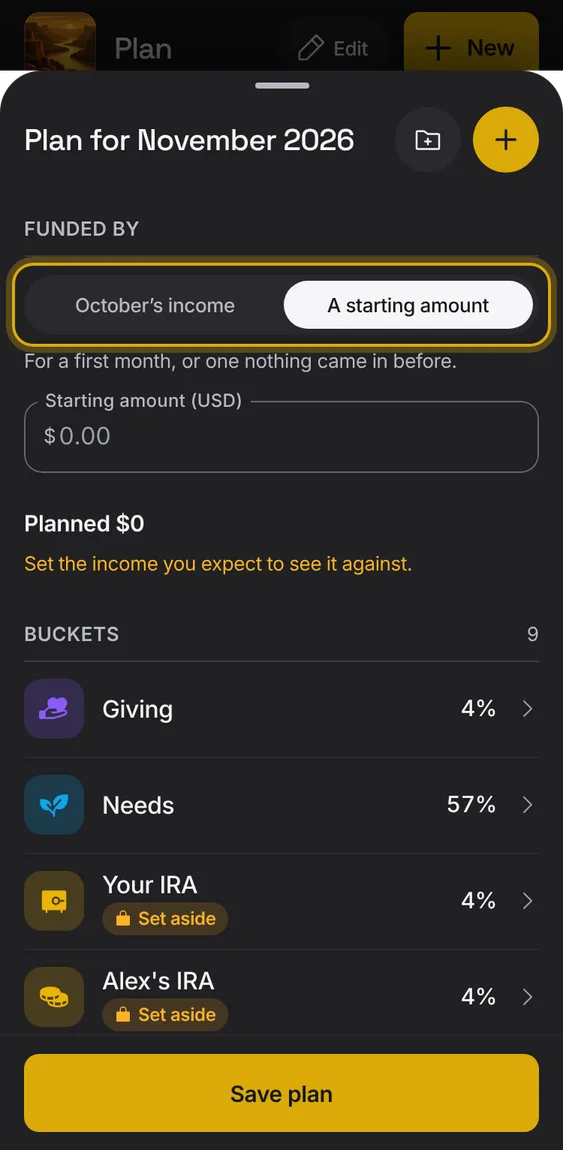
A month is funded by last month's income, or starts from an amount you set.
- In Edit plan, under Funded by, choose last month's income or A starting amount.
- A starting amount is for a first month, or one nothing came in before.
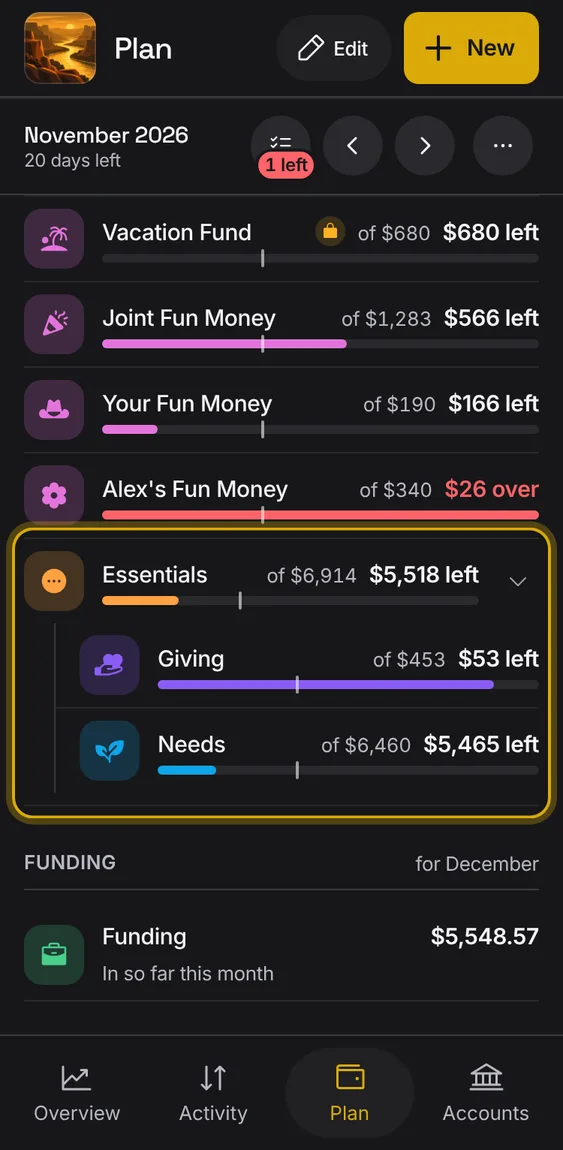
Several buckets under one name, folded until you open them.
- Make a group from + → New group.
- Tap the caret to unfold it.
The month's headline: what's left to spend, what was spent of income, per day, and what's set aside.
- The caption reads like "Spent $3,364 of $11,097 income · $269/day".
- This month, a tick marks today on the bars.
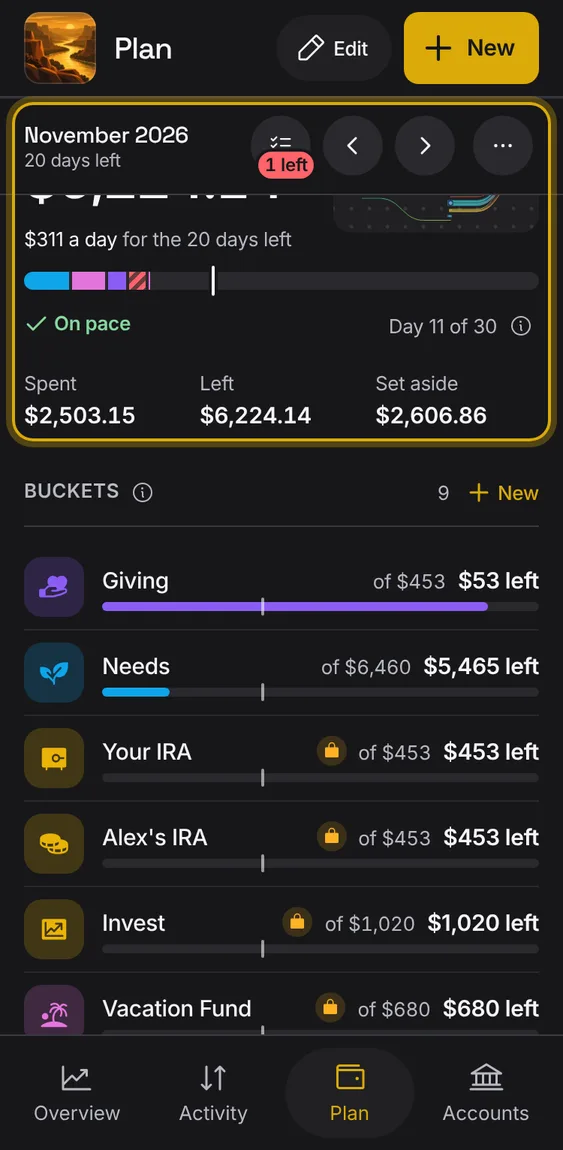
Each month owns its plan; a new month starts from the one before, and nothing rolls over by itself.
- Use the arrows to see other months.
- With no plan yet: Start plan, or Copy last month.
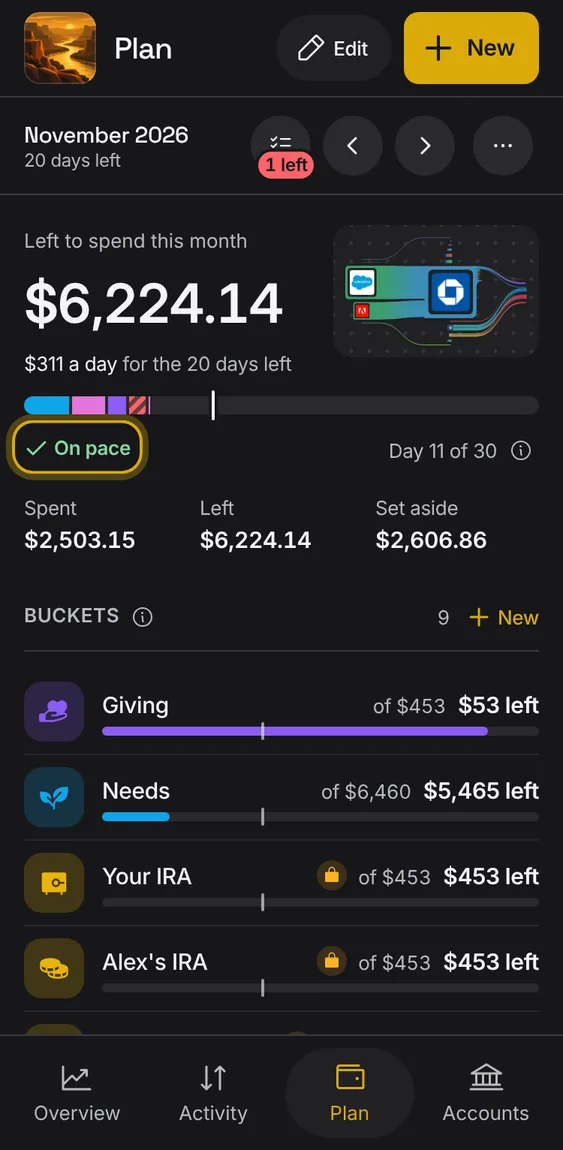
Under the month's bar: On pace, Spending fast or Over plan, with the day of the month.
- Shown on Plan's bar and on a bucket's row.
Start a plan from a ready split of income, such as 50/30/20.
- With no plan yet, pick a split under Or start from a split.
Not in the demo. Shows before anything is saved; the demo has sample data.
All 4 in Start from a splitGiving 10%, needs 50%, savings 20%, wants 20%.
- Tap 10/50/20/20, then adjust and save.
Not in the demo. Shows before anything is saved; the demo has sample data.
Needs half, wants 30%, savings 20%.
- Tap 50/30/20, then adjust and save.
Not in the demo. Shows before anything is saved; the demo has sample data.
Needs, wants and savings, in amounts you set.
- Tap Dollar amounts, then adjust and save.
Not in the demo. Shows before anything is saved; the demo has sample data.
10% given, then 50/30/20 of the rest.
- Tap Giving first, then adjust and save.
Not in the demo. Shows before anything is saved; the demo has sample data.
A bucket kept for bills; what it still holds is left out of Left to spend.
- Turn on Set aside in the bucket's sheet.
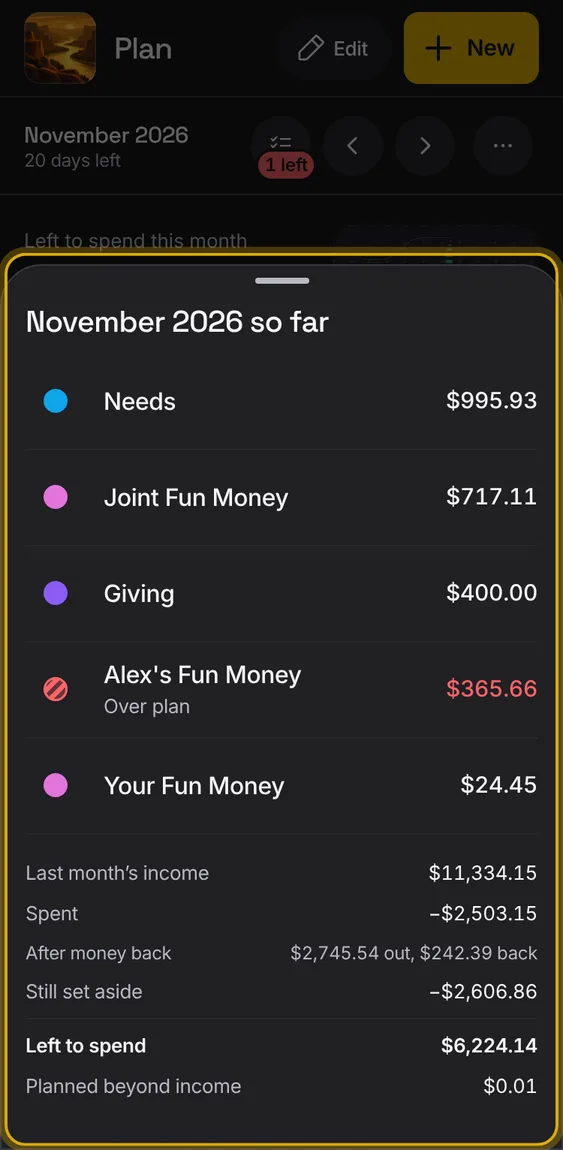
A breakdown of what the month has spent, bucket by bucket, with each one's colour, exact amount and the total.
- Tap the Overview's ring or Plan's figure.
- Income with no bucket is said under the sums.
A new household gets a plan from its own income and spending, shown as one split; it stops changing once you edit it.
- Tap the pencil to make it yours.
- It never invents income.
Not in the demo. Shows before anything is saved; the demo has sample data.
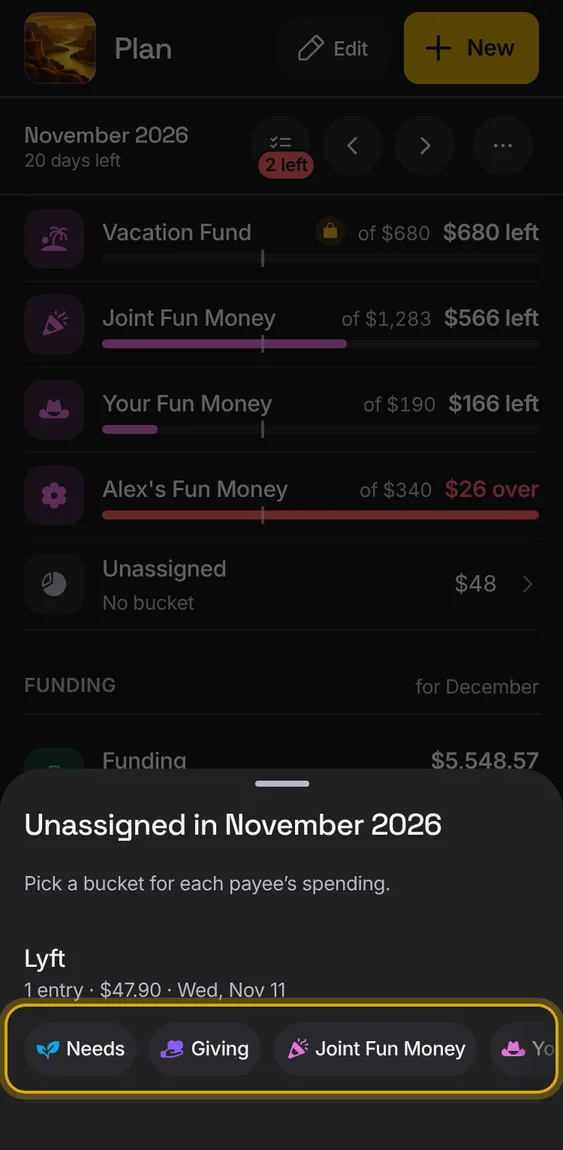
Spending with no bucket is counted and listed by payee, to file into buckets.
- Tap Unassigned.
- Pick a bucket for each payee: their usual one is offered first.
- Filing has Undo.
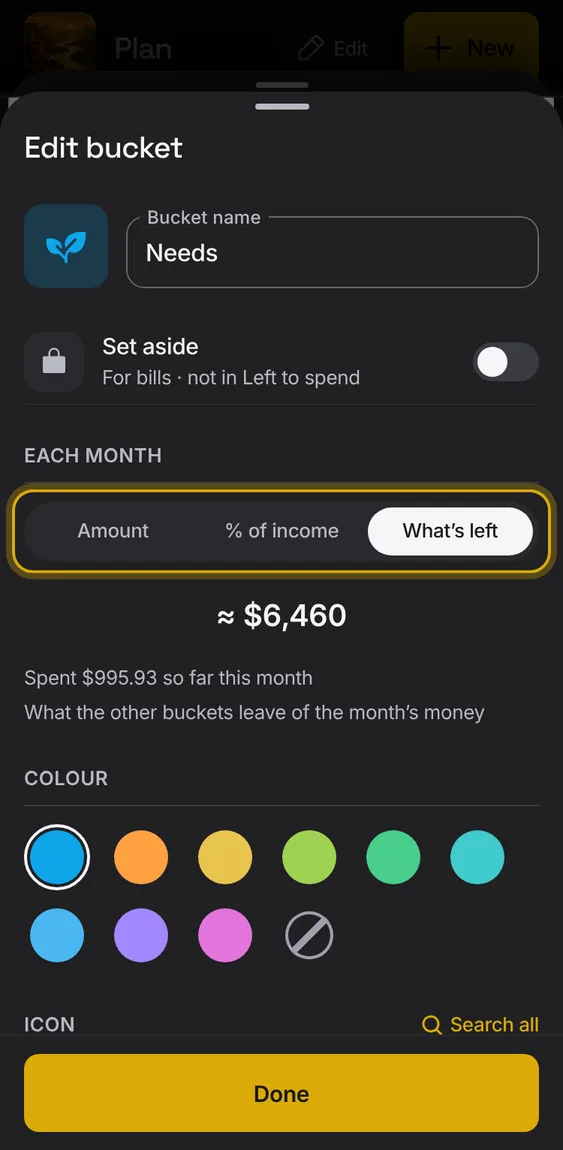
One bucket can take whatever the other buckets leave of the income.
- Choose What's left as a bucket's amount.
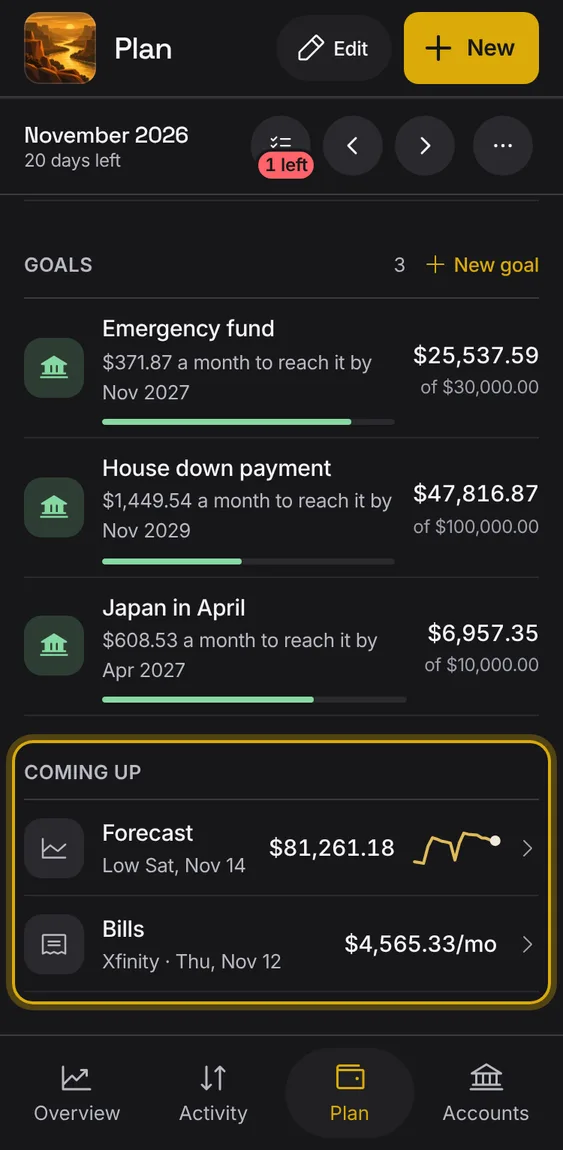
Plan's Coming up: the forecast's low point and your bills a month, one row each.
- Forecast opens the forecast.
- Bills opens Activity's Bills.
Where your balance is heading over the next weeks, from your bills and income, kept apart from Left to spend.
- Tap Forecast under Coming up.
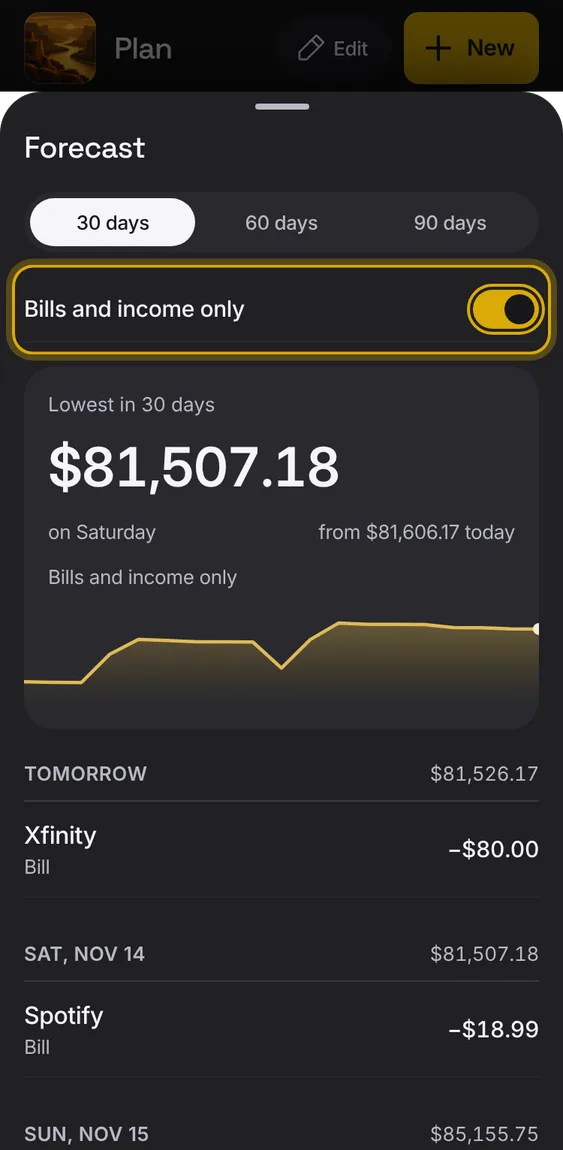
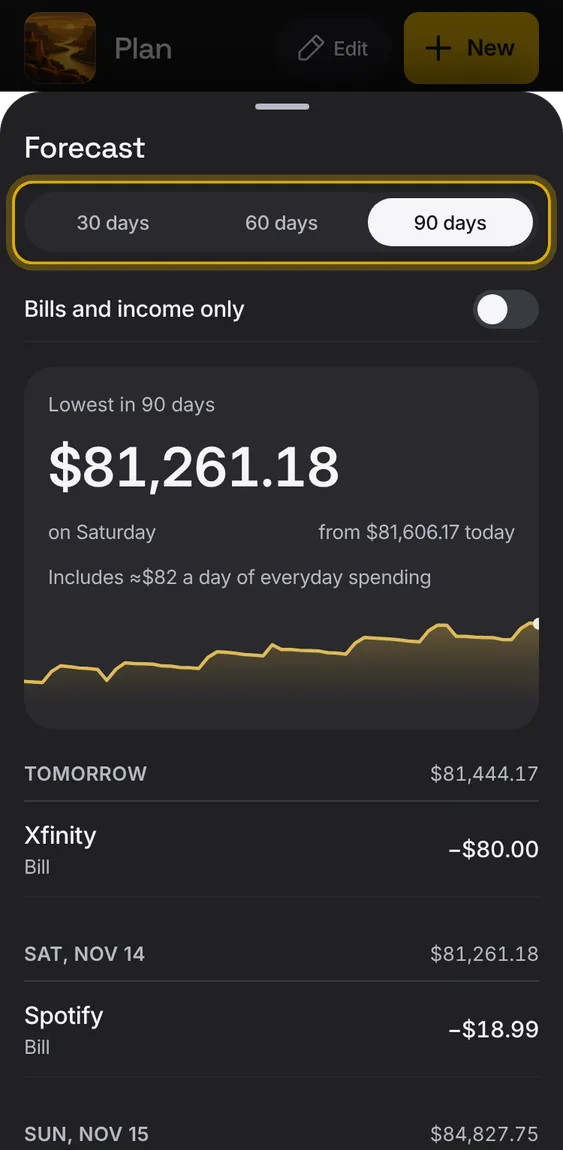
- Choose 30, 60 or 90 days; turn on Bills and income only to leave everyday spending out.
- The lowest point is called out.
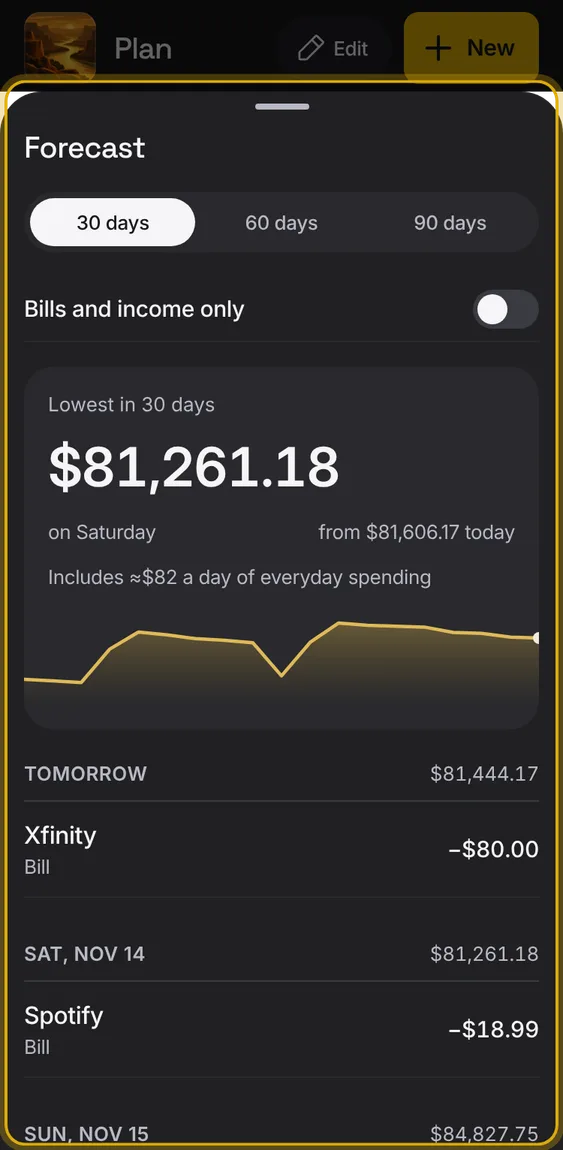
Leave everyday spending out of the forecast to see bills and income alone.
- Turn on Bills and income only.
Choose how far ahead the forecast looks.
- Tap 30, 60 or 90 days.
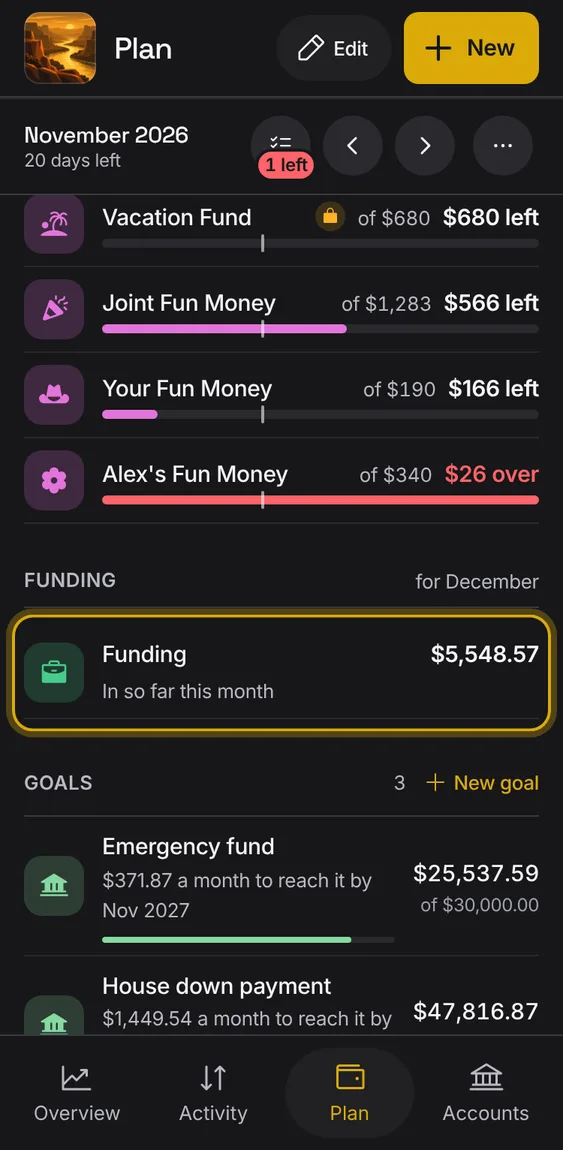
Every plan has a Funding bucket: the month's income is the money in you file there.
- Funding leads the buckets and says what was received.
- Only you file to Funding; nothing does it for you.
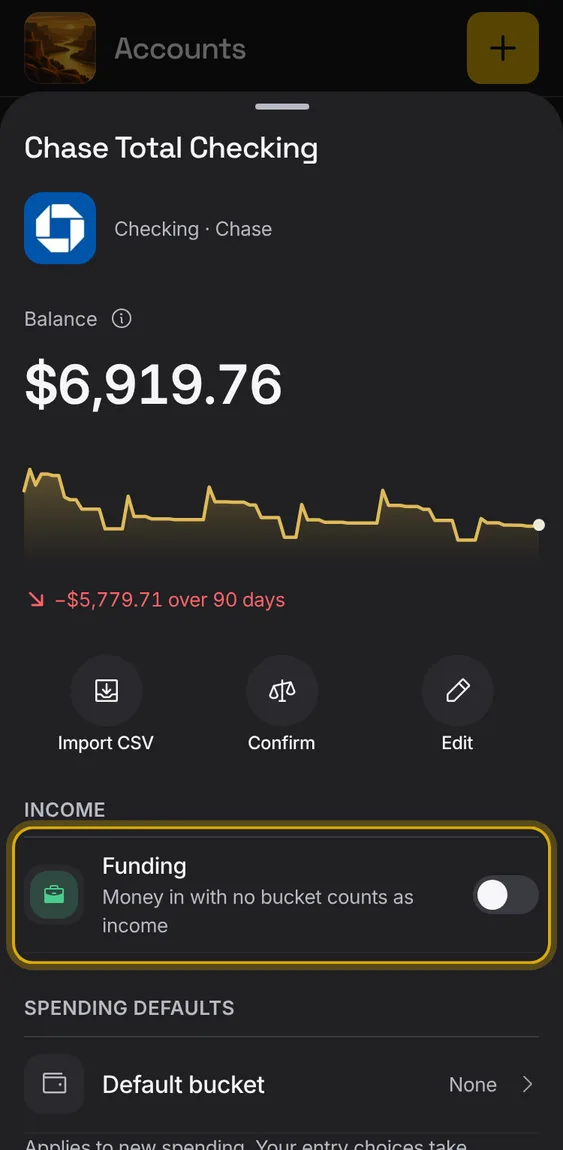
Set an account so its money in with no bucket counts as income.
- In the account's screen, turn on Funding under Income.
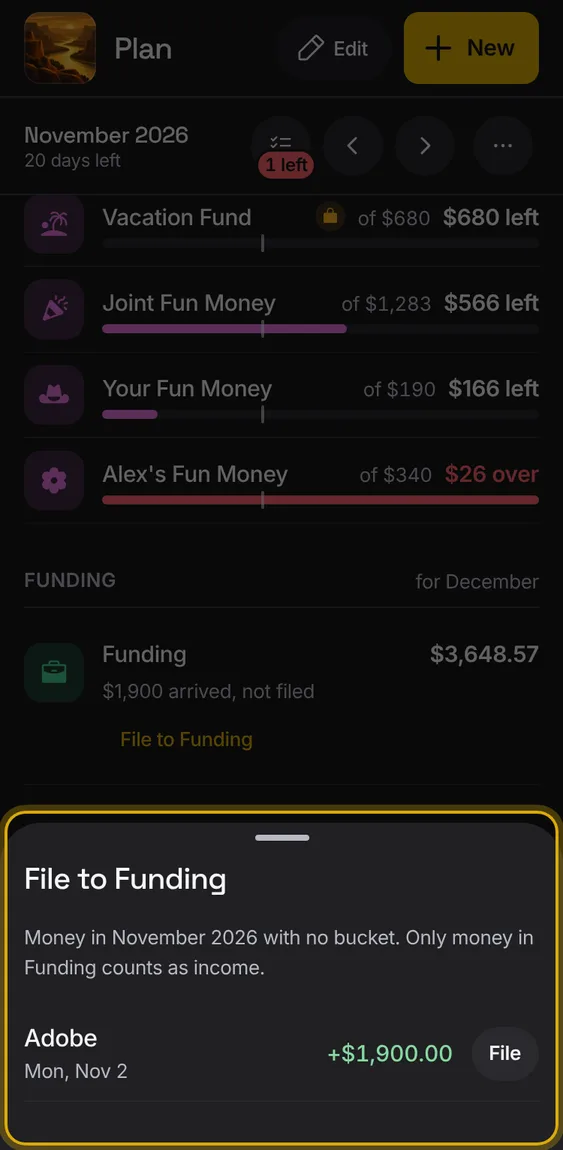
Money in that you haven't filed is listed, so you can file each to Funding, or all at once.
- Tap File to Funding under Funding's row.
- Tap File on each, or File all; Undo takes it back.
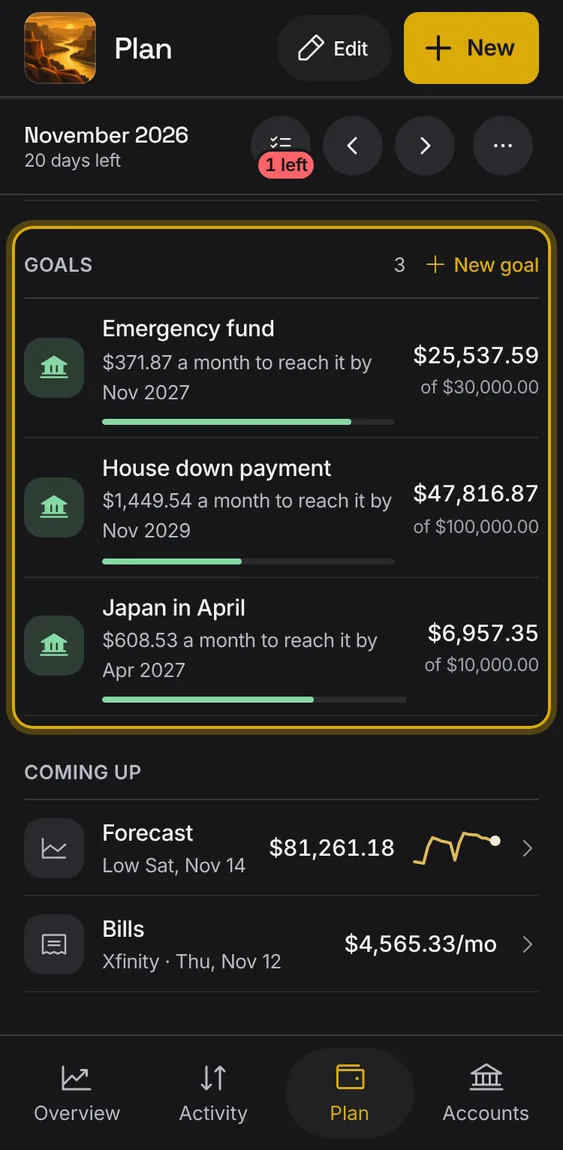
Goals with a target and a date, saved by money you add, an account or a plan bucket.
- Tap New goal under Goals (or + → New goal).
- Each goal shows how far along it is and what each month needs.
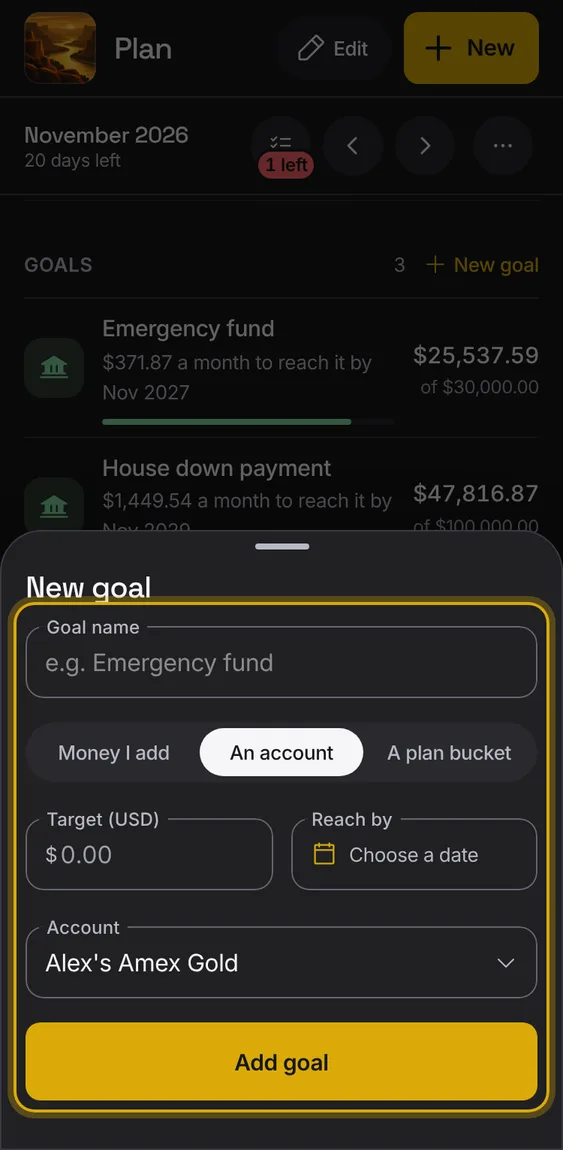
A goal that follows an account's balance, like a savings account.
- Choose Saved by: An account.
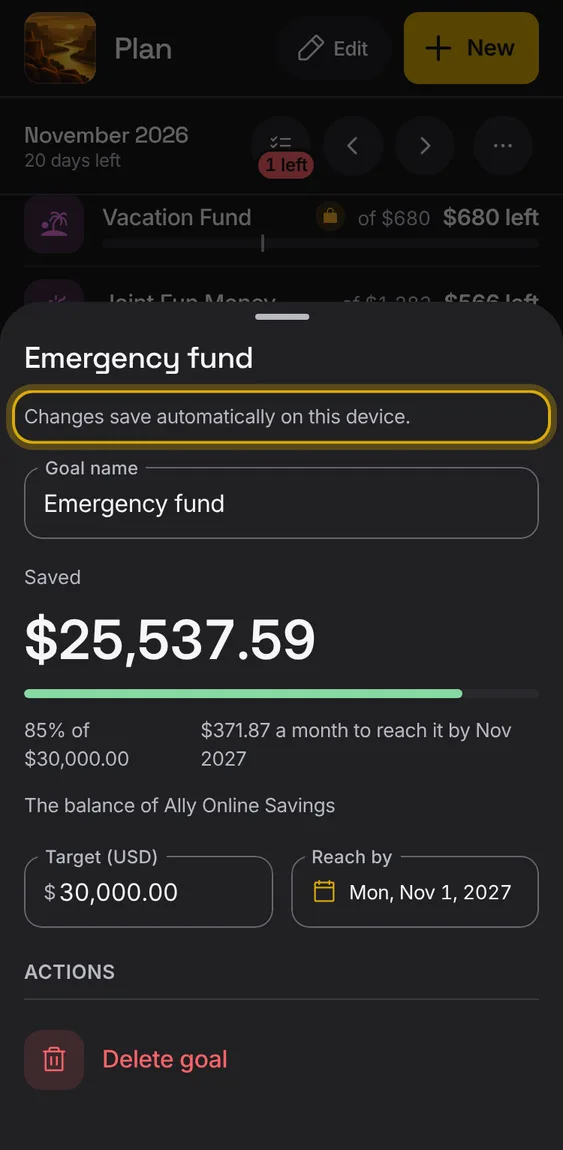
An existing goal's changes save as you make them.
- The sheet says Changes save automatically on this device.
A goal that counts what each month's plan put into a bucket, moves and borrowing included.
- Choose Saved by: A plan bucket, then the bucket.
- The goal takes the bucket's icon.
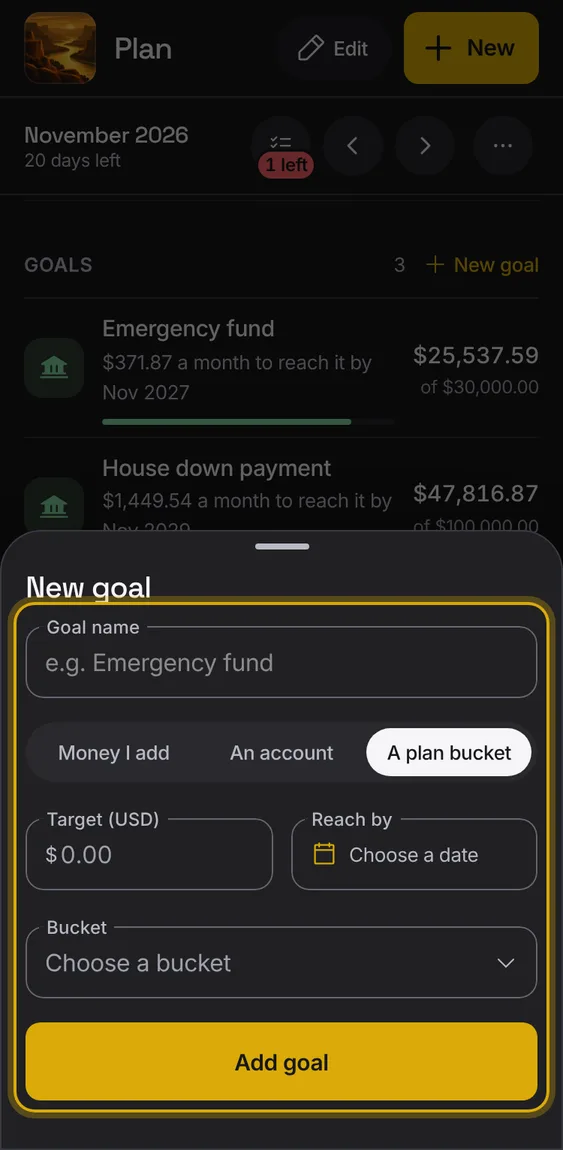
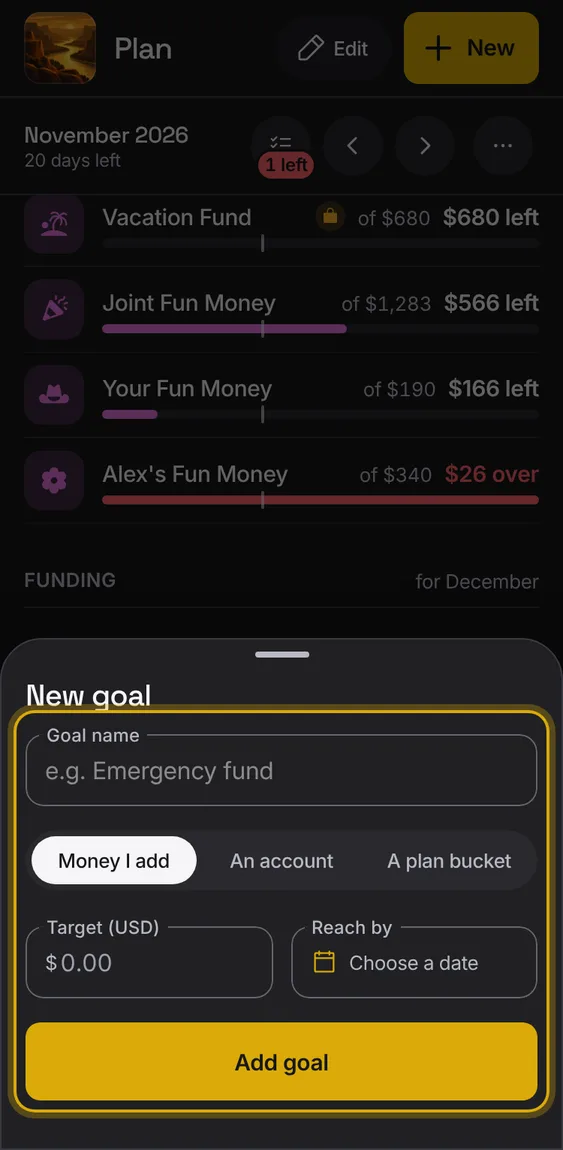
A goal you save toward by hand: add or take out money, never below zero.
- In the goal, use Amount to add.
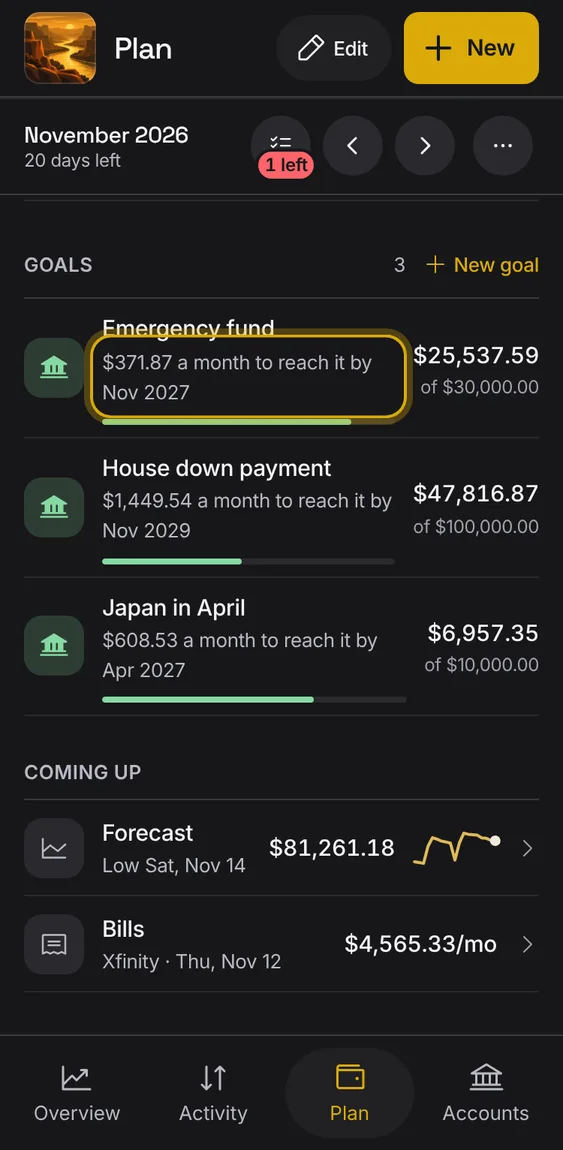
A goal says how much a month it needs to reach its target by its date.
- Shown on the goal's row.
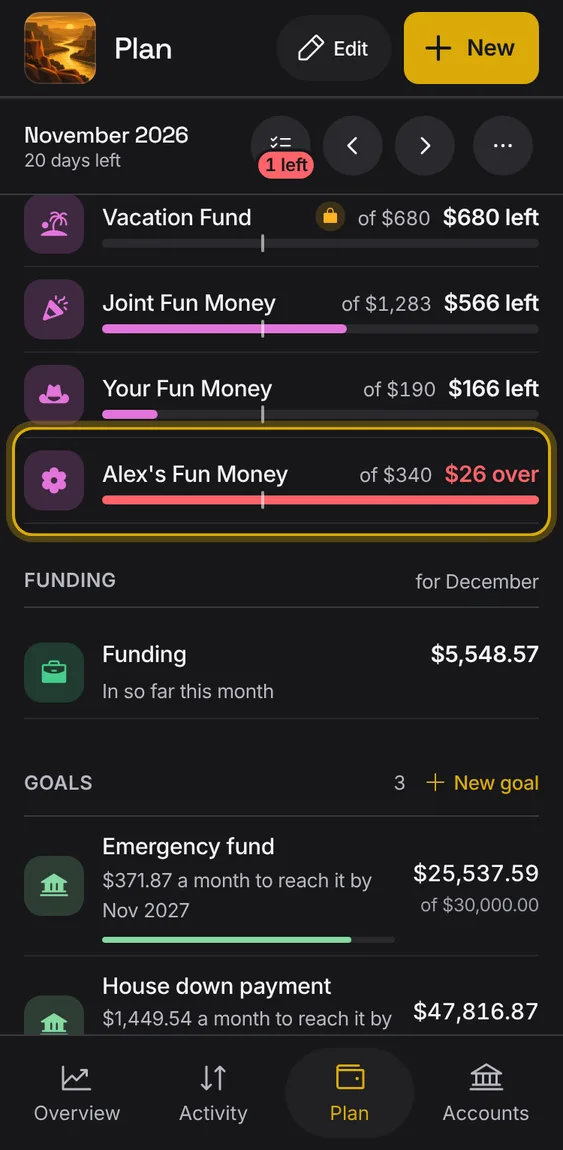
Move money between buckets when plans change, see clearly when a bucket is over, and borrow from next month if you must.
- Tap + → Move money.
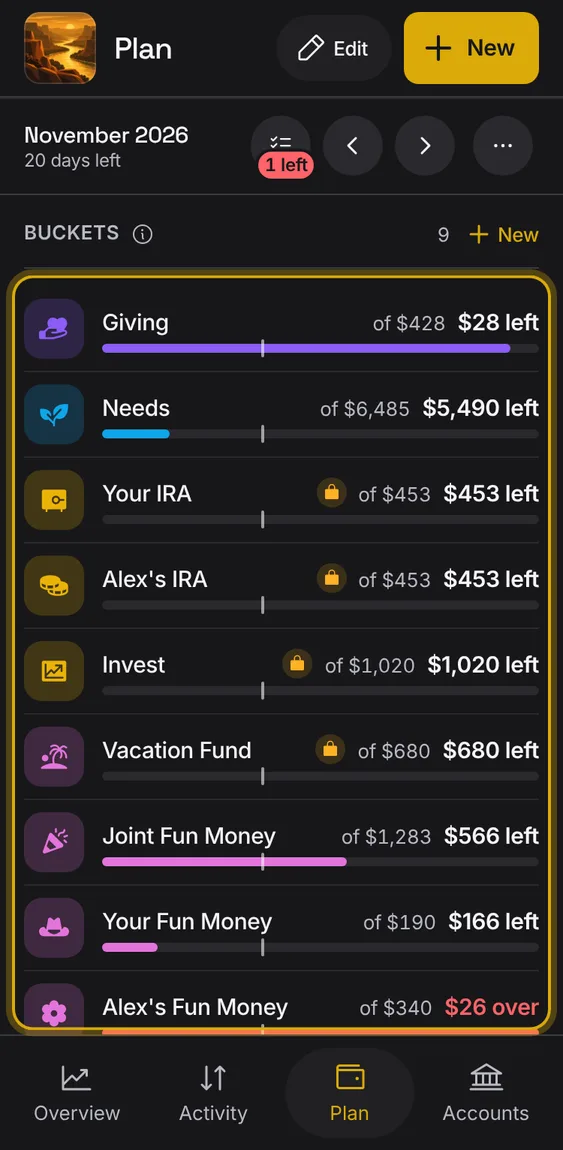
- An over-plan bucket shows how much it's over.
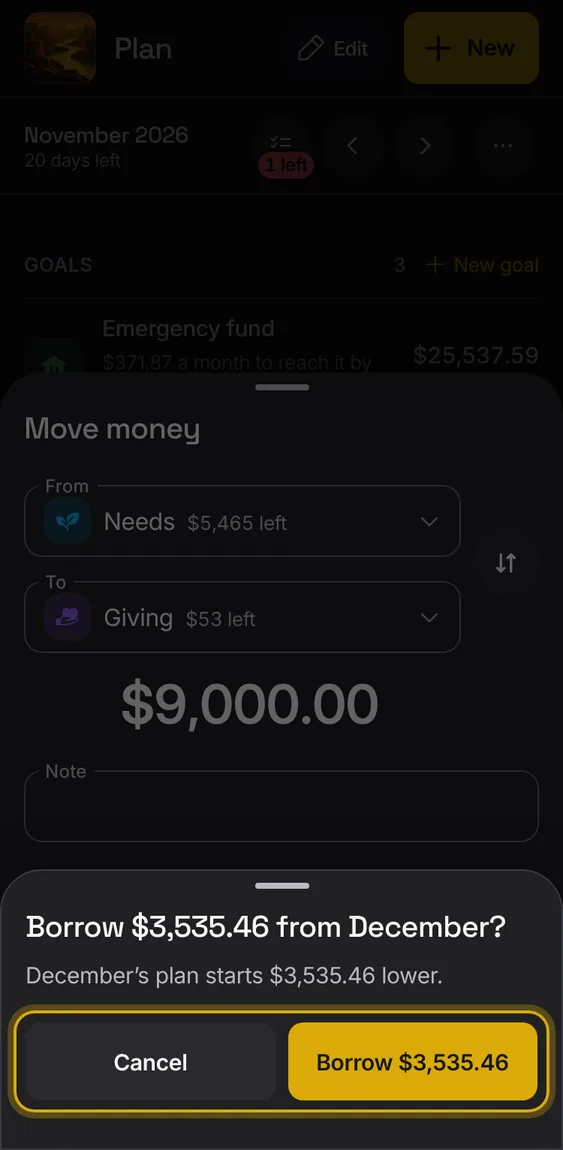
With expected income, a move or plan that needs more than is left asks to borrow the difference from next month.
- Confirm "Borrow $X from November?".
- This month says it includes the borrowed money; next month starts that much lower.
- Undo takes both back.
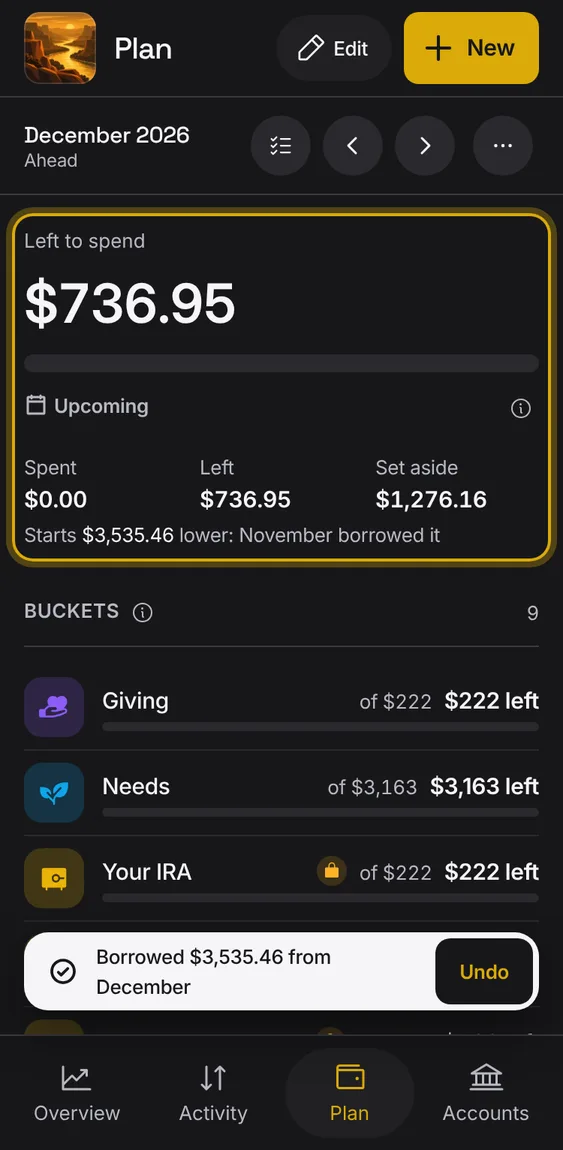
The month after a borrow says it starts lower because the month before borrowed it.
- Shown in next month's figure.
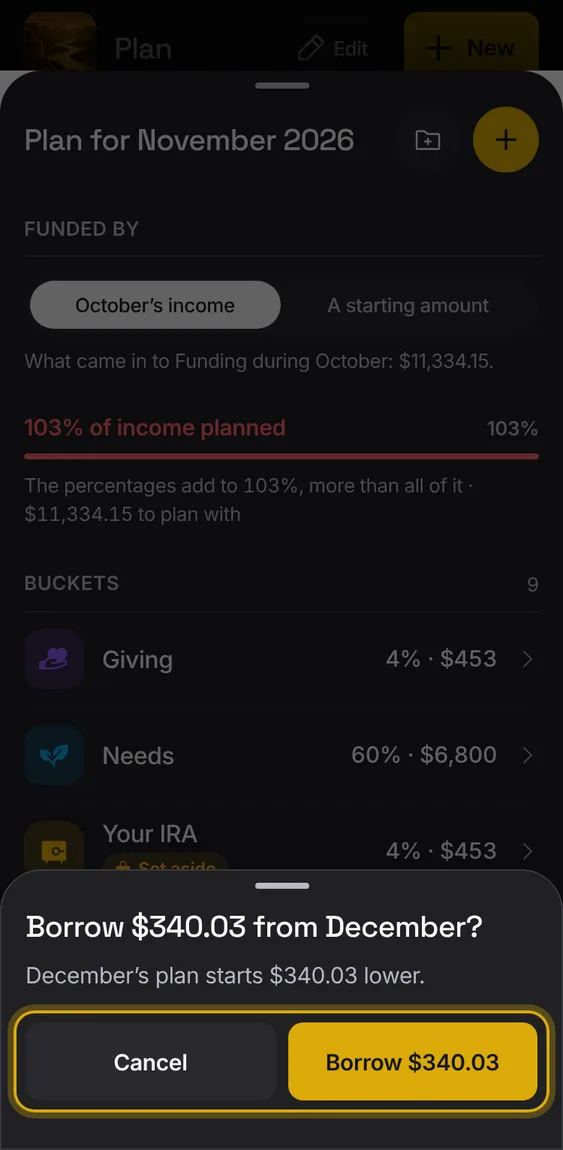
Saving a plan whose buckets need more than the expected income borrows the difference, once you confirm.
- Save plan, then confirm the borrow.
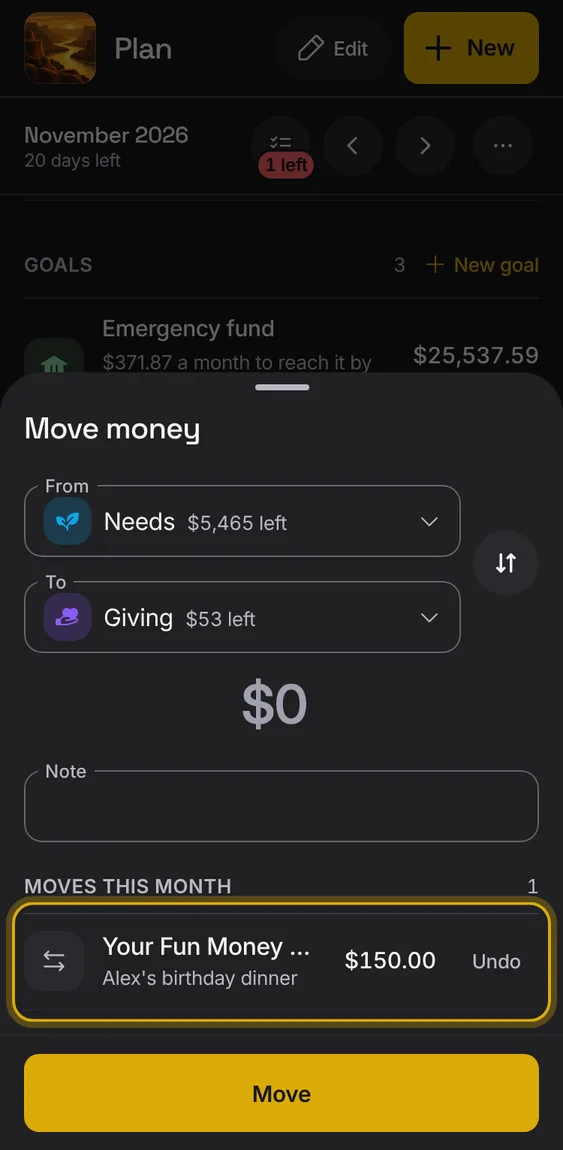
Move an amount from one bucket to another, with what's left in each shown.
- Choose From and To, the amount and a note.
- The swap button flips them.
The month's moves are listed, each with Undo, and a bucket's moved amount shows on its row.
- Tap Undo beside a move.
A bucket that spent more than planned says how much it's over, in red and stripes, everywhere it shows.
- Move money into it, or raise it in Edit plan.