 Hub
Account
Who you are, your subscription, your data, preferences, help, and signing out, on the Hub's third tab.
The Hub’s features play in its own demo, not on this page.
Every Account feature
Export what you've saved, bring data in from other apps, and see where it's stored, all from Account.
- Account › Your data: Export and Import side by side, with Sync and storage and Devices.
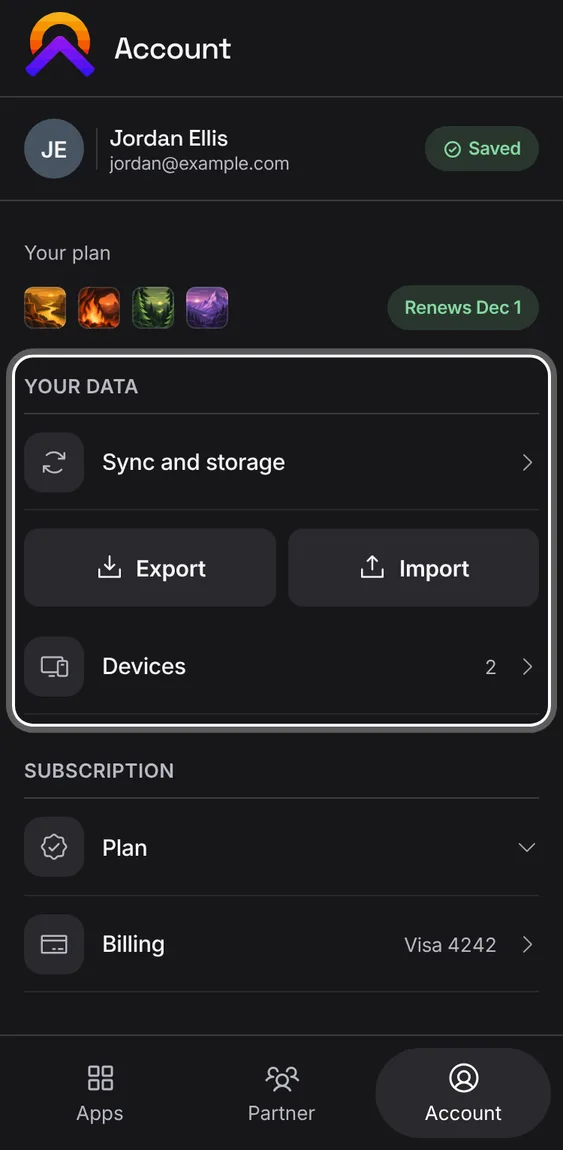
Download each app's data in an open format, or everything at once, from this device.
- Account › Export, then an app or Everything.
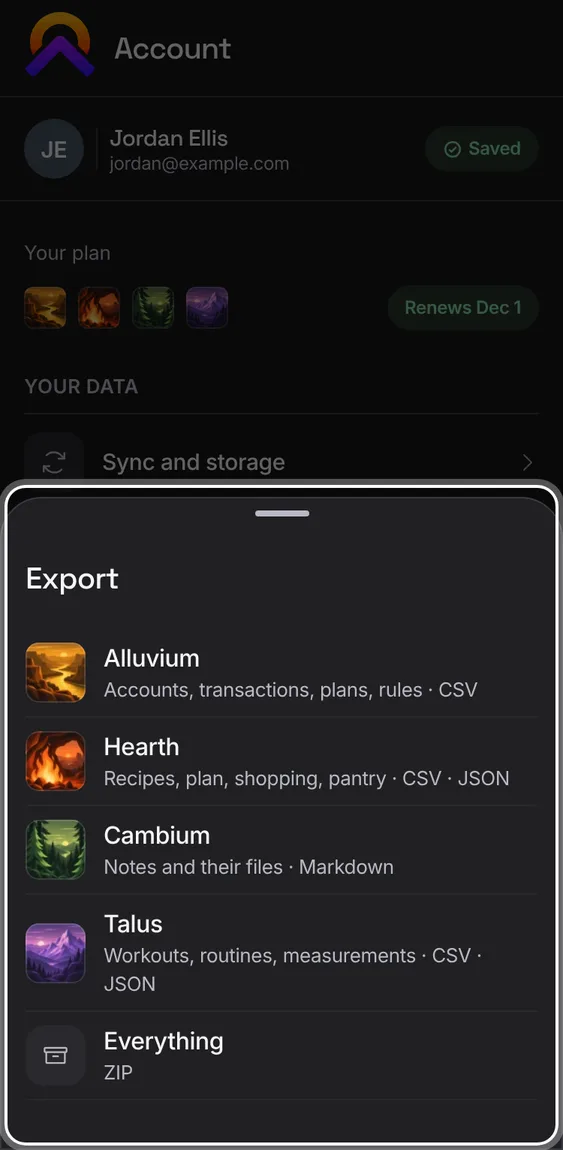
Accounts, transactions, plans and rules, as CSV.
- Export › Alluvium.
Not in the demo. Saves a file to your device.
Your notes and their files, as Markdown.
- Export › Cambium.
Not in the demo. Saves a file to your device.
One ZIP with every app's export, your notes' files and a README with the counts. You can cancel while it gathers.
- Export › Everything. If an app can't be read, it says so and downloads nothing.
Not in the demo. Saves a file to your device.
Recipes, the meal plan, shopping and pantry, as CSV and JSON.
- Export › Hearth.
Not in the demo. Saves a file to your device.
Workouts, routines and measurements, as CSV and JSON.
- Export › Talus.
Not in the demo. Saves a file to your device.
Bring data in: bank transactions, a Hearth archive, notes, or workouts from Strong or Hevy.
- Account › Import, then the app. Each opens that app's own import.
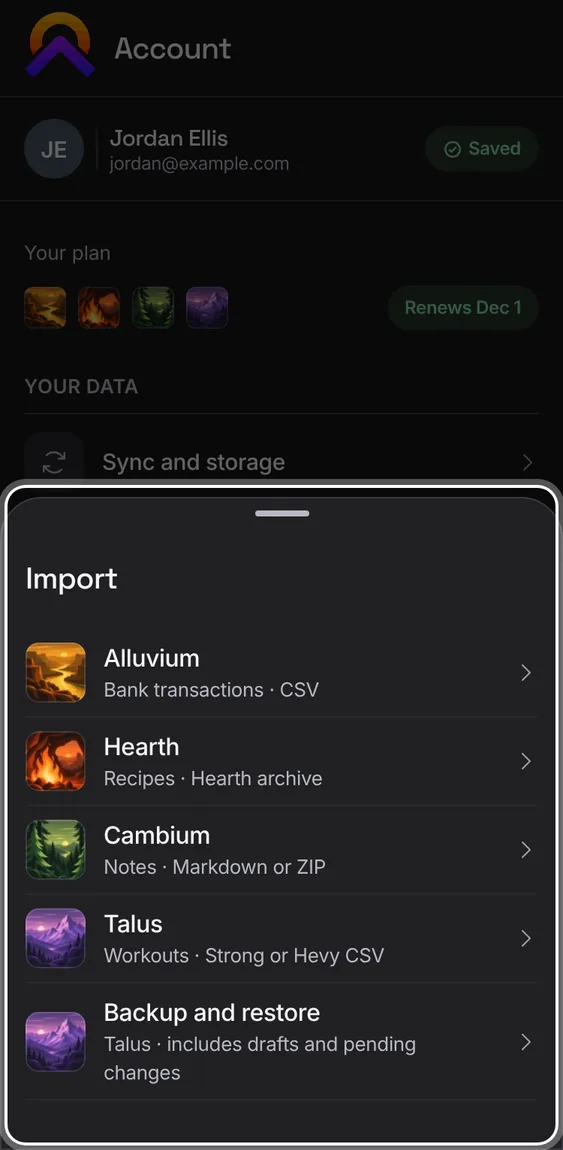
Import a bank's CSV file into Alluvium.
- Import › Alluvium, then choose the file.
Not in the demo. Needs a file from your device.
Bring recipes back from a Hearth archive.
- Import › Hearth, then choose the archive.
Not in the demo. Needs a file from your device.
Import notes into Cambium, or export the whole vault, from Cambium's data sheet.
- Import › Cambium, then Import notes or Export vault.
Not in the demo. Needs a file from your device.
Download a recovery file with every workout, draft and unsent change, and restore it on any browser, even offline.
- Import › Backup and restore, then download or restore a file.
- A damaged file is refused, and restoring never erases newer work.
Not in the demo. Needs a file from your device.
Import a Strong or Hevy CSV into Talus, or export Talus's own. An import can be undone; workouts you've changed since are kept.
- Import › Talus, choose the file, and check what it found.
- Undo removes what that file added.
Not in the demo. Needs a file from your device.
Workouts brought over from the earlier version of Apollo show in Backup and restore, and can be removed on their own, keeping anything added since.
- Import › Backup and restore › Undo the imported history, then confirm.
Not in the demo. Shows with more than the demo holds.
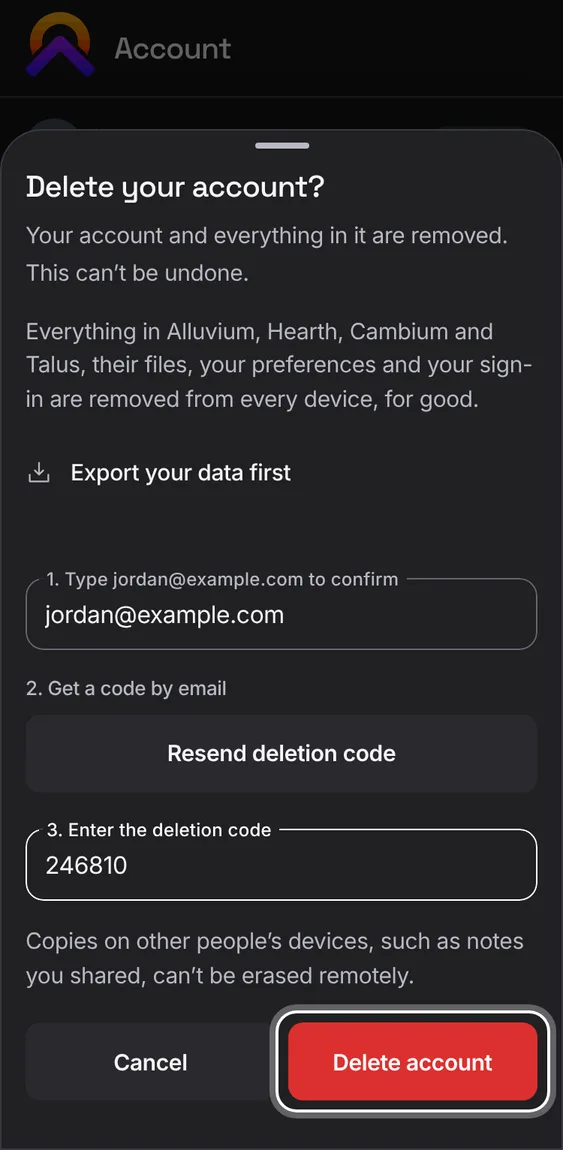
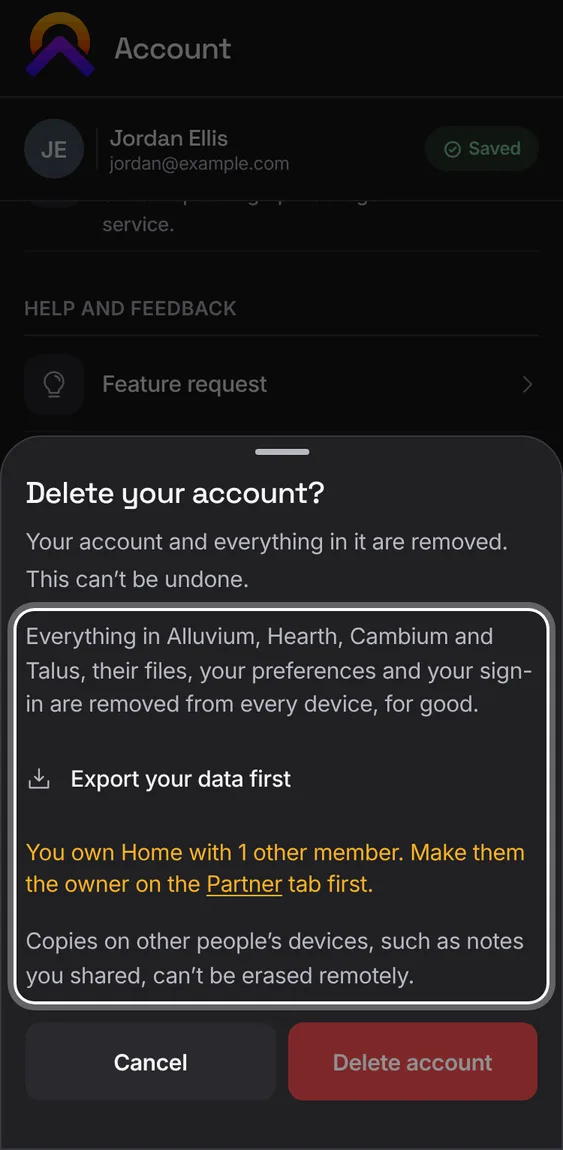
Delete your account and everything in it, from every device, for good. It first shows exactly what goes and what stays with your partner.
- Account › Delete account. Export first if you want a copy.
- Type your email, get a code by email, enter it, then Delete account.
In the installed app, deleting can also remove the copies on this device. A browser tab keeps none, so there's nothing to choose.
- Leave the switch on in Delete account to clear this device too.
Not in the demo. Shows in the installed app, not in a browser tab.
Before anything goes, the sheet lists what's removed and what stays: what you added to a shared home stays there, and an owner hands it over first.
- An owner with a partner is asked to make them owner first; an active plan is cancelled first.
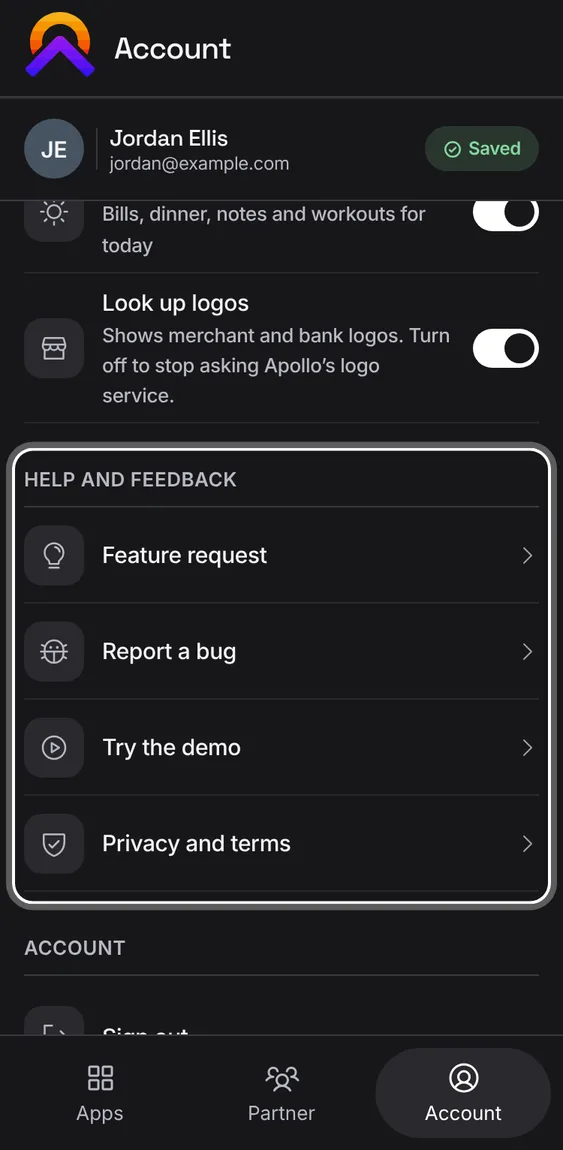
Send an idea or report a problem from inside the app, try the demos, and read the privacy policy and terms.
- Account › Help and feedback, or the app's mark in any app.
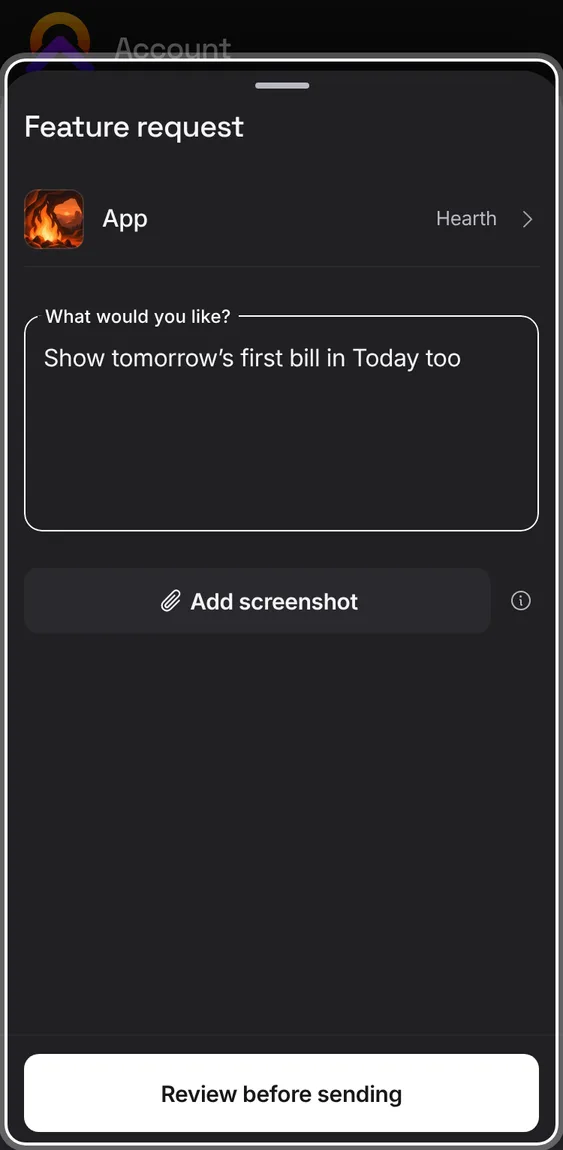
Write an idea for any app and send it. It carries no diagnostics, only what you wrote.
- Feature request, choose the app, write, then send.
- You get a reference and the address replies come from.
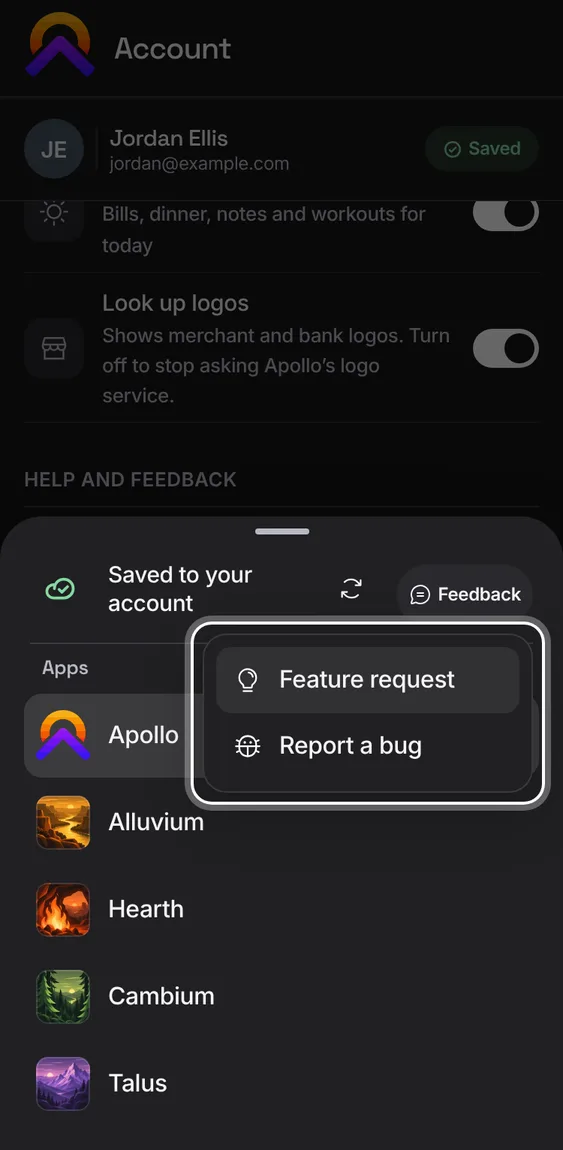
Every app's menu has Feedback, with Feature request and Report a bug, and the app you're in already chosen.
- Tap the app's mark, then Feedback.
A row in Help and feedback opens the privacy policy and terms.
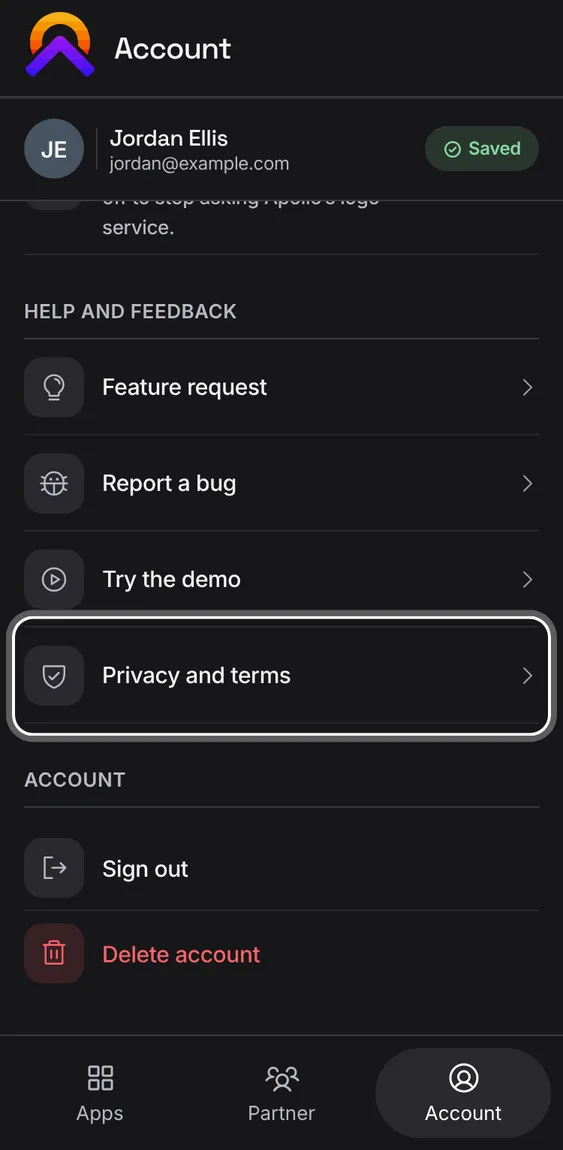
- Account › Privacy and terms.
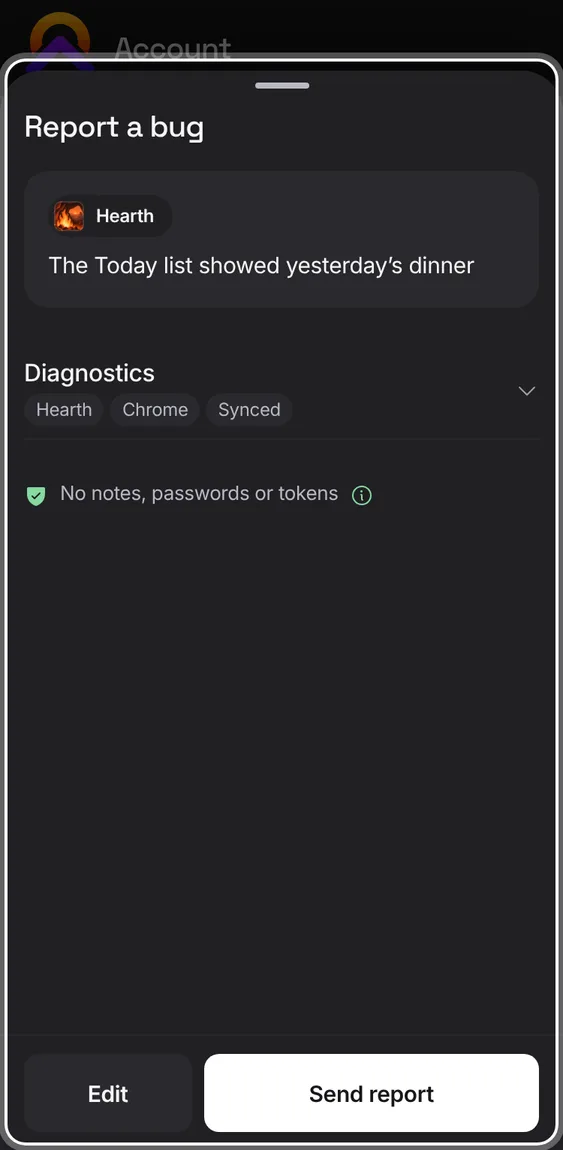
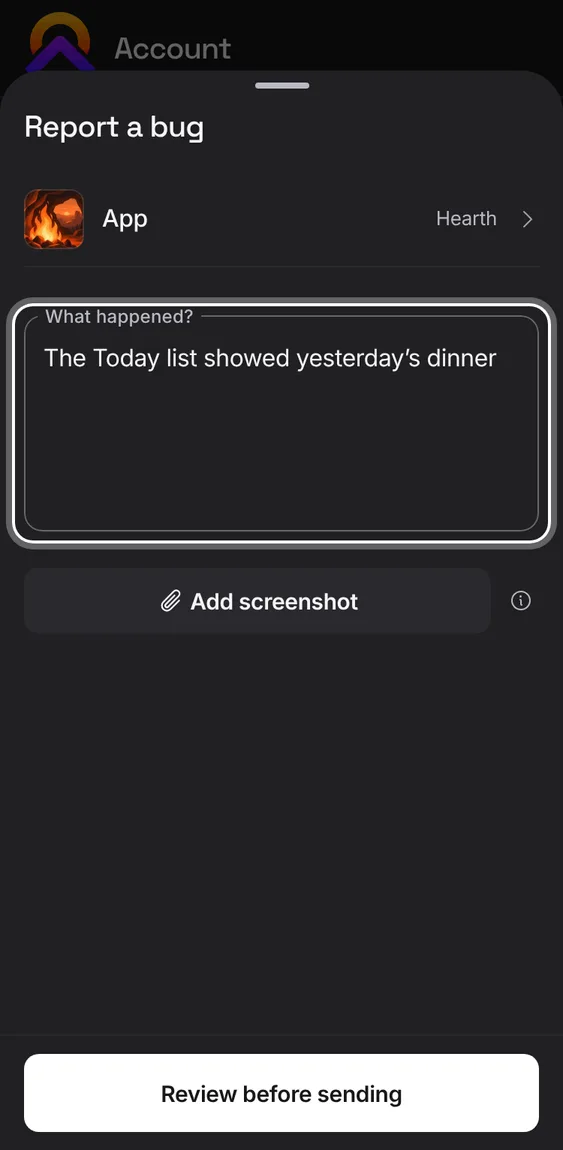
Describe a problem, review exactly what will be sent, and send it with a short diagnostic summary.
- Report a bug, write what happened, then Review.
- Check the diagnostics, then send.
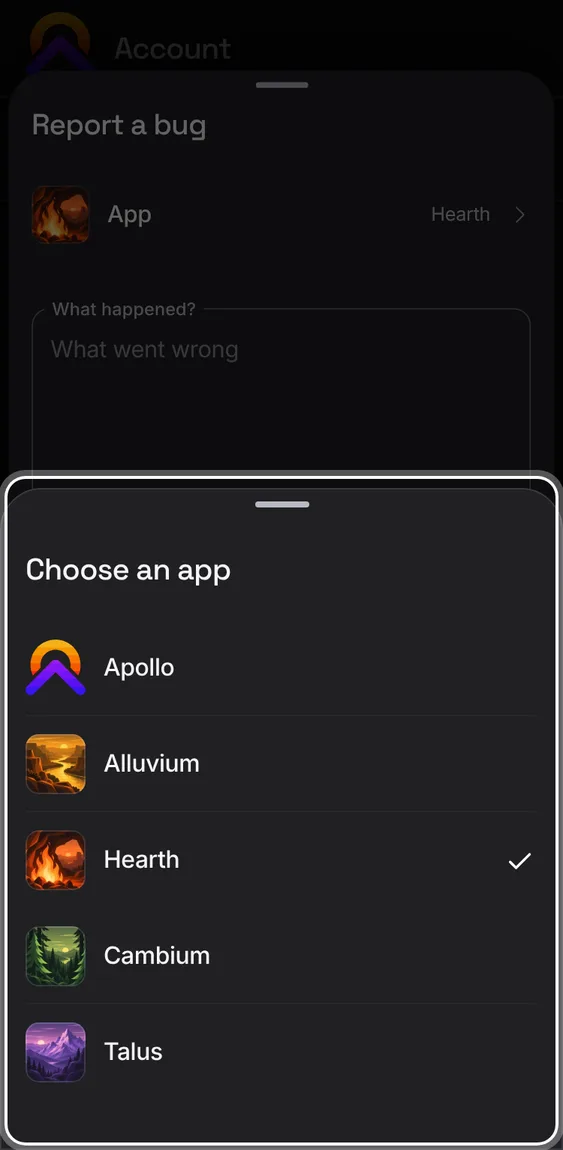
The form starts with the app you were in; change it to any of the five.
- Tap App in the form and pick one.
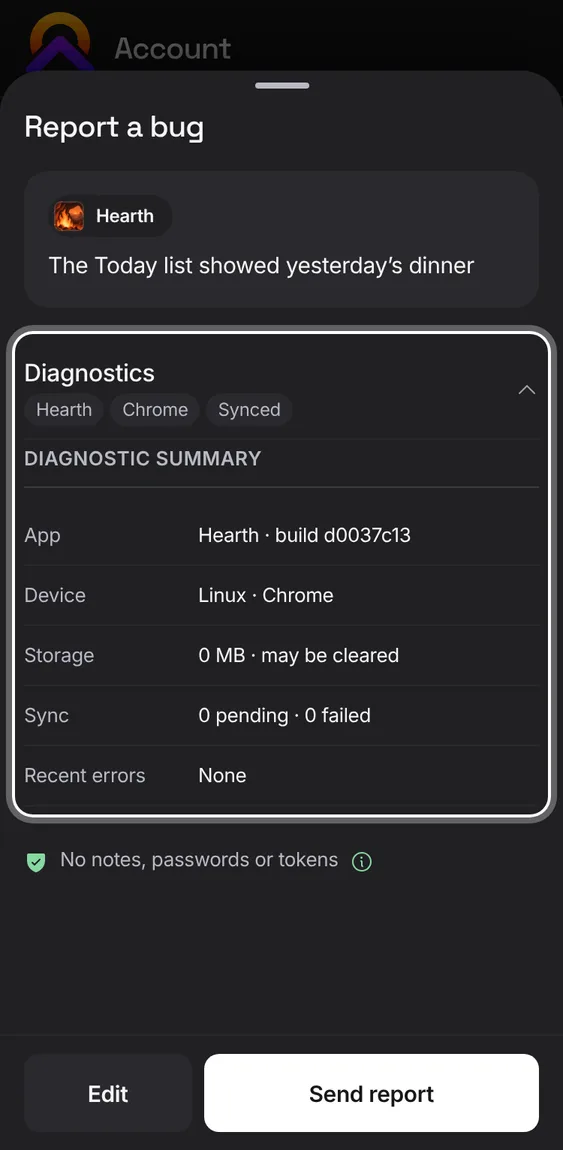
Before sending, see the app, browser and sync status that go with your report. Note text, transactions, recipes, workouts and passwords are left out.
- Open Diagnostics to see each line. The (i) lists what's left out.
What you've written is kept if you close the form or reload, separately for each account, app and form. If sending fails, you can try again or copy it to email.
- Close the form and come back; your words are still there.
Add one PNG, JPEG or WebP image up to 3 MB. It's sent exactly as shown, and you can remove or replace it.
- Tap Add a screenshot in the form.
Not in the demo. Needs a file from your device.
Once sent, you see a reference for it and the address replies will come from.
- Tap Done to close.
Not in the demo. Asks Apollo’s server, which the tour site doesn’t reach.
Signed out, the form lets you copy your message to email to support, and save a screenshot to attach yourself.
- Write it, then Copy and email it to the address shown.
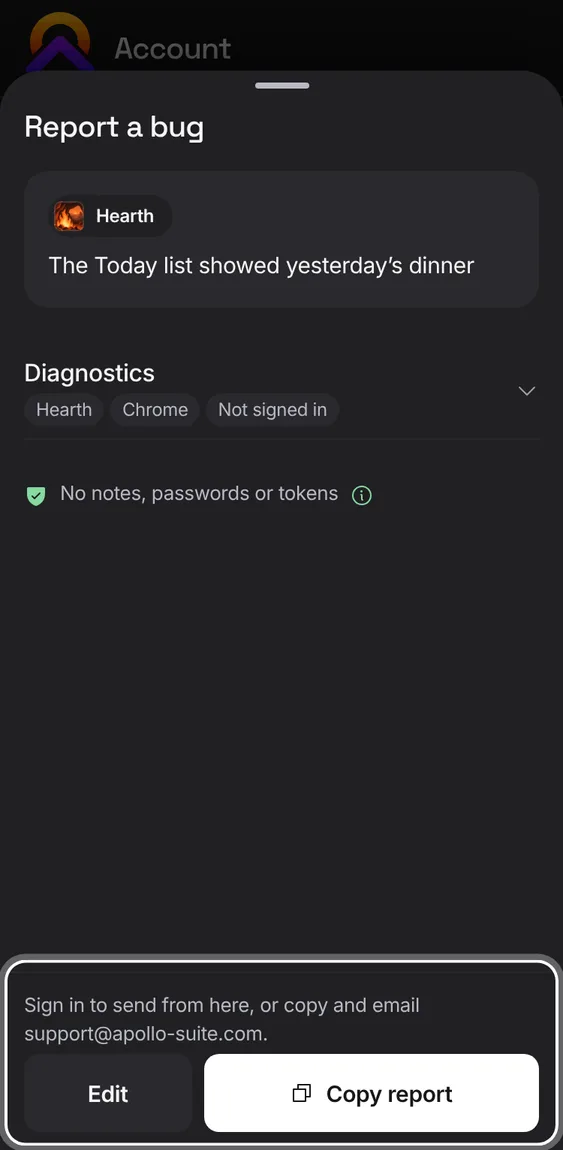
Units, language and region, the first day of the week, accessibility, Today and logo look-ups, the same on every device you sign in on.
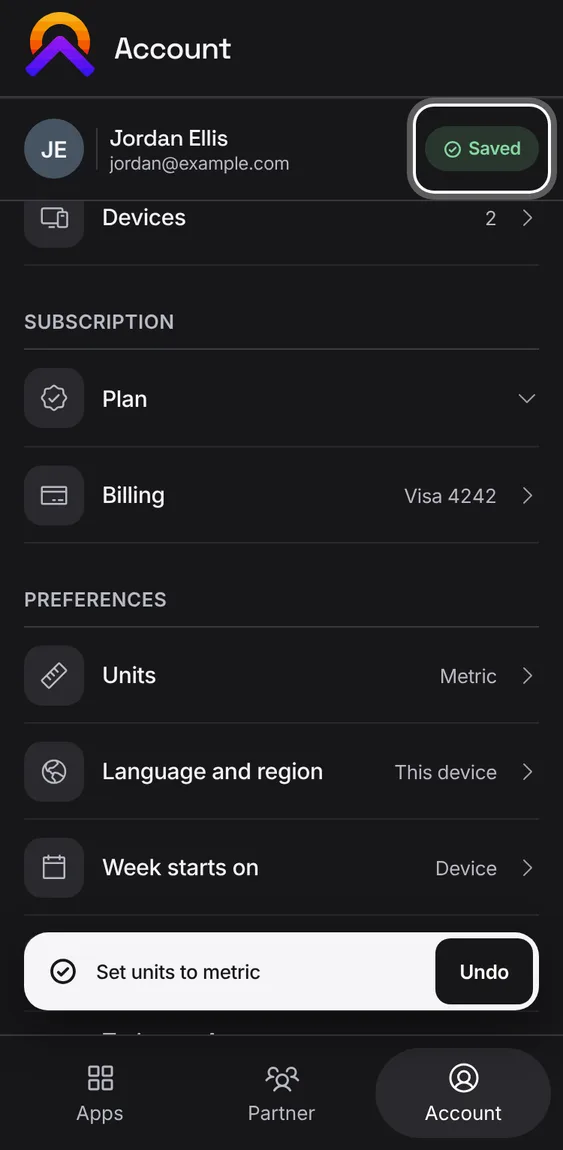
- Open a row in Account › Preferences. A change applies at once, with Undo.
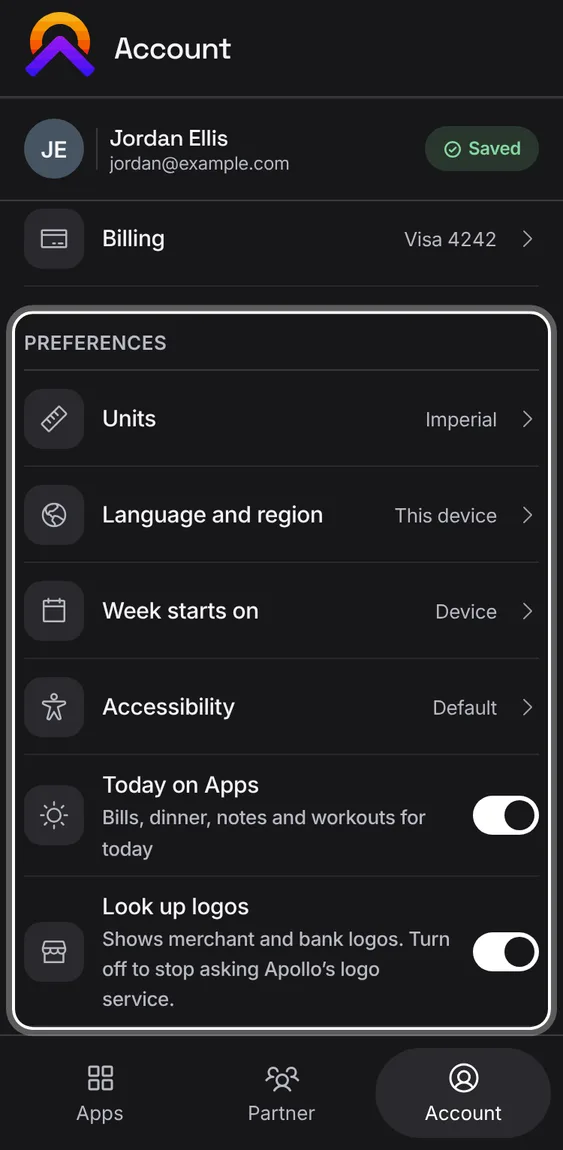
Reduce motion, larger text and more contrast, for every app.
- Account › Preferences › Accessibility, then the switches.
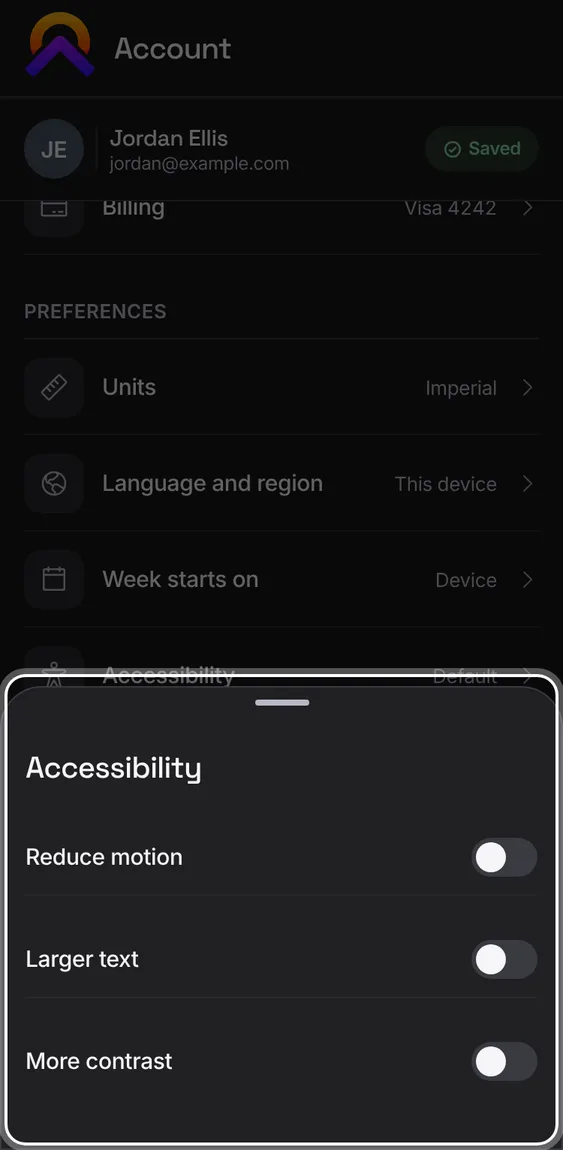
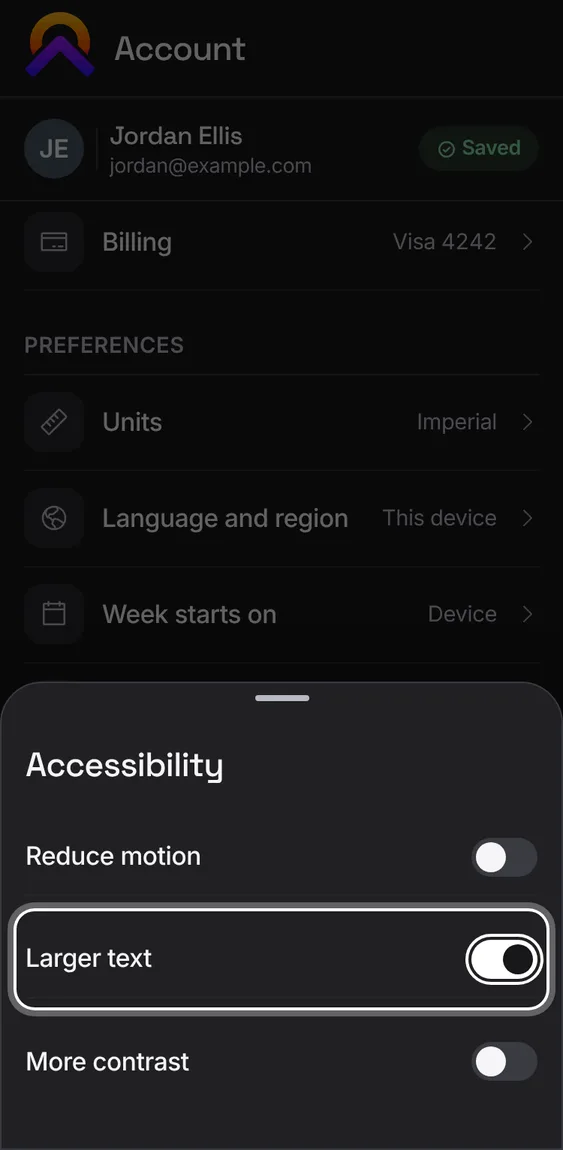
Makes text bigger everywhere in Apollo.
- Turn on Larger text.
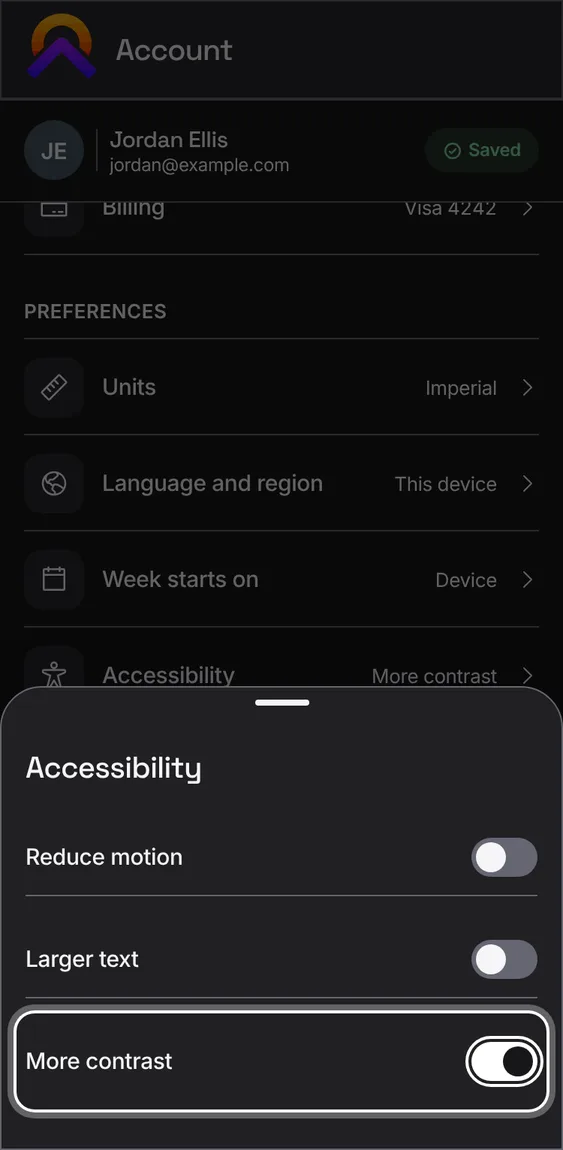
Makes text and lines stand out more against the dark background.
- Turn on More contrast.
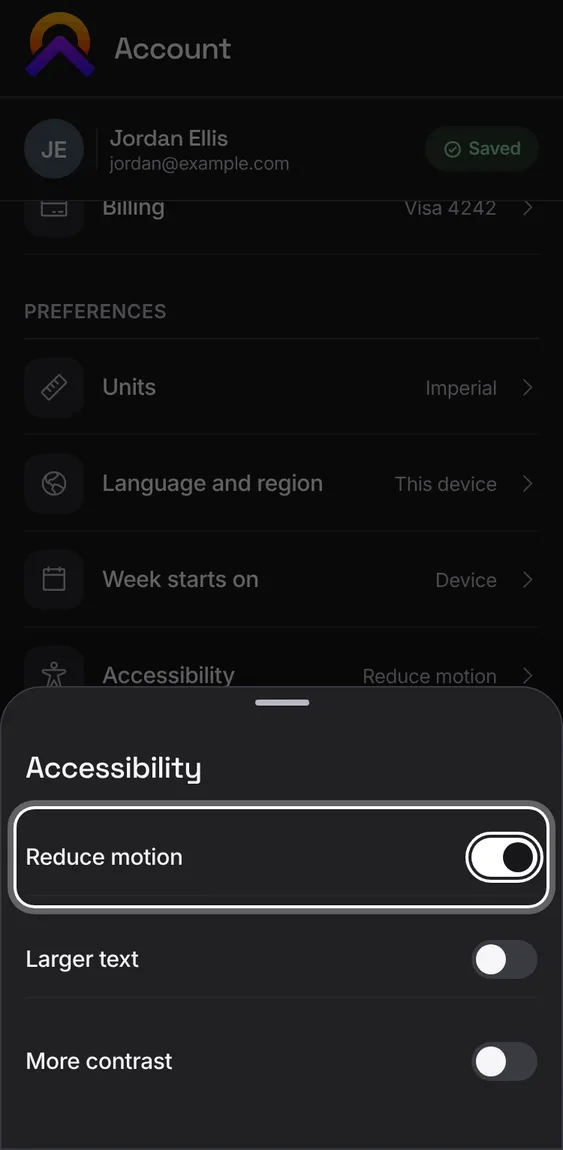
Stops sliding, tilting and moving pictures across the apps.
- Turn on Reduce motion.
Every Apollo app is dark, on every device, so there's no light or theme setting. Text size, contrast and motion settings still apply.
- Nothing to set: even a device set to light shows Apollo dark.
Signed in, your preferences sync to your other devices without overwriting a newer change made on one of them. Signed out, they stay on this device.
- Change a preference on one device and it appears on the others.
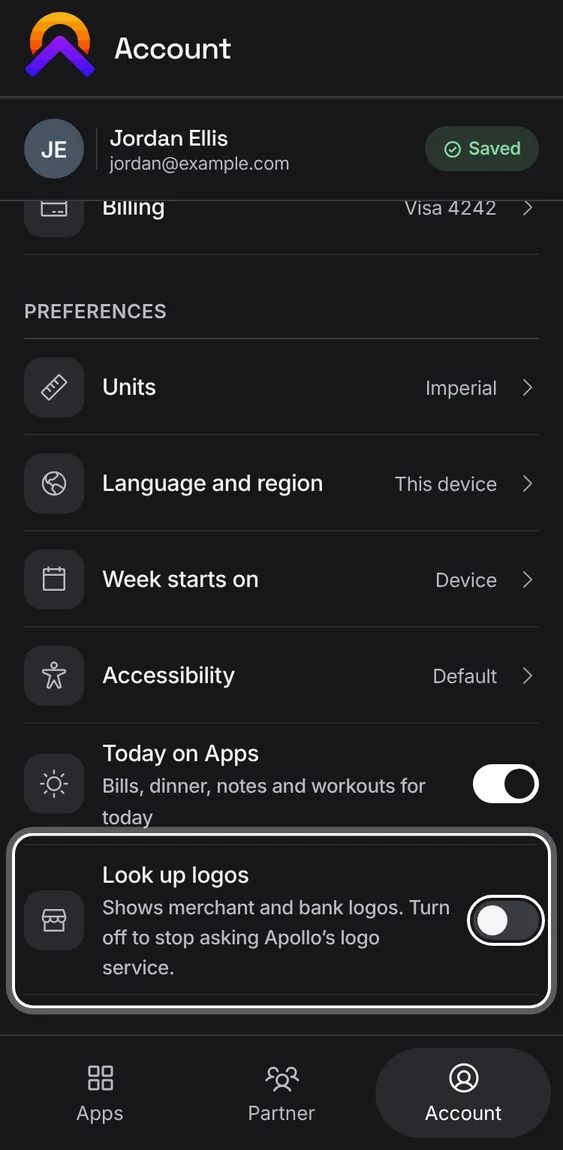
Shows merchant and bank logos in every app. Turn it off and no app asks Apollo's logo service; logos you added yourself still show.
- Account › Preferences › Look up logos.
Choose the language that dates, numbers and money are written in, and your time zone. Both can follow this device.
- Account › Preferences › Language and region. Search either list and tap a choice.
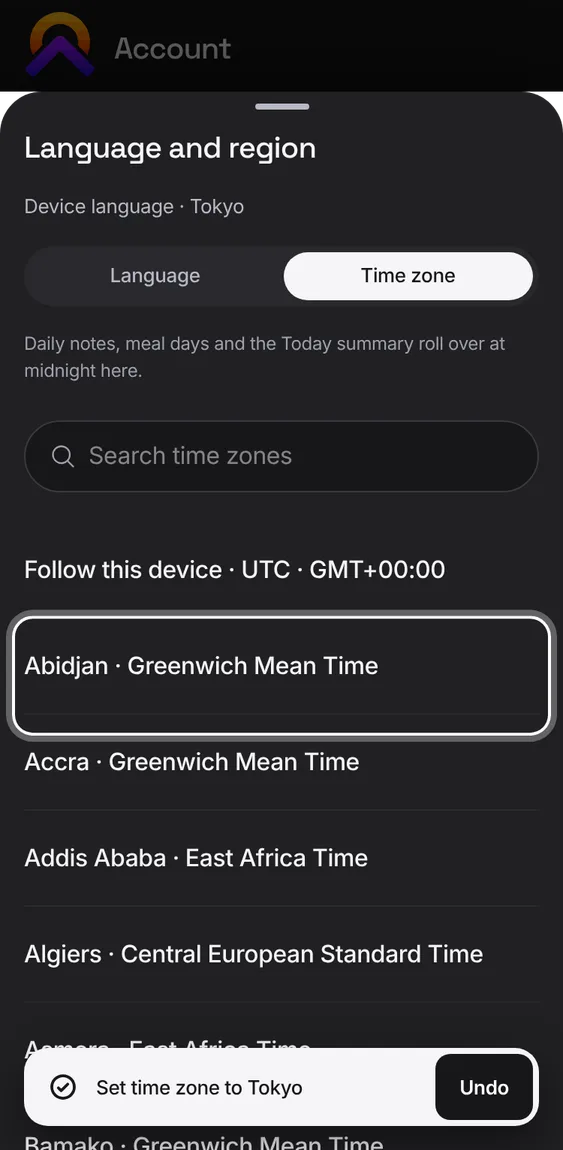
- The time zone decides when Today, daily notes and meal days roll over.
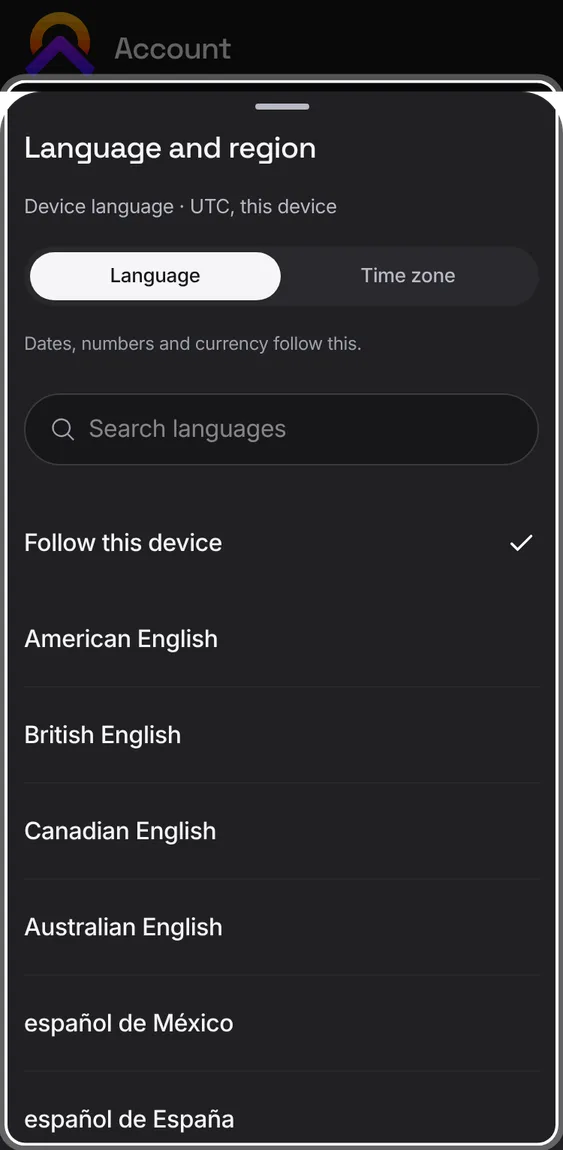
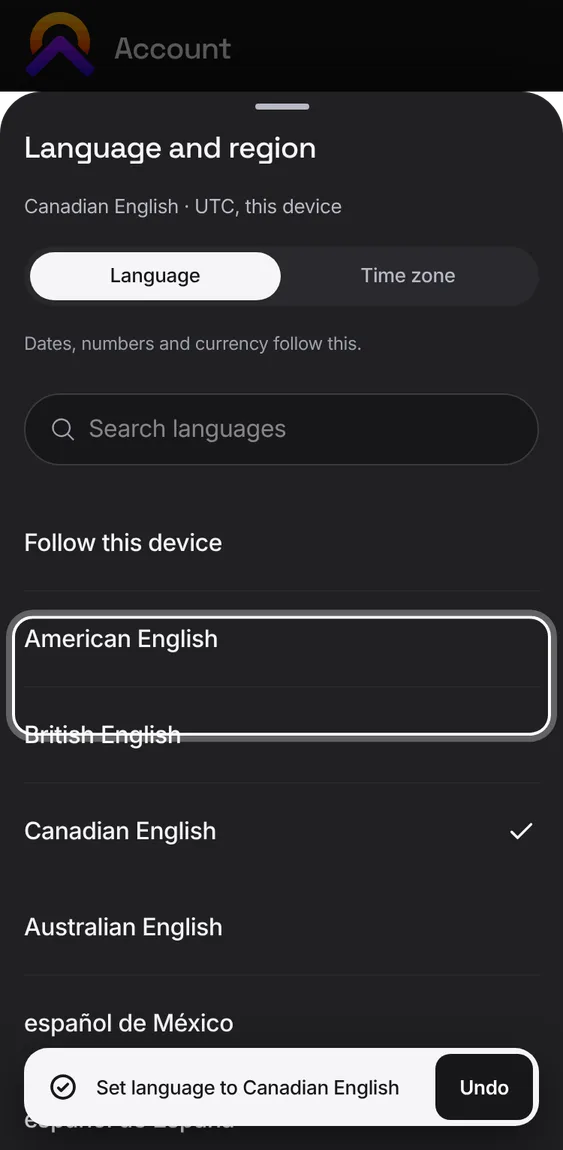
How dates, numbers and currency are written, from 16 languages, or the device's own.
- Language tab, then pick one.
Any time zone, searchable by city or name, or the device's own.
- Time zone tab, then search and pick.
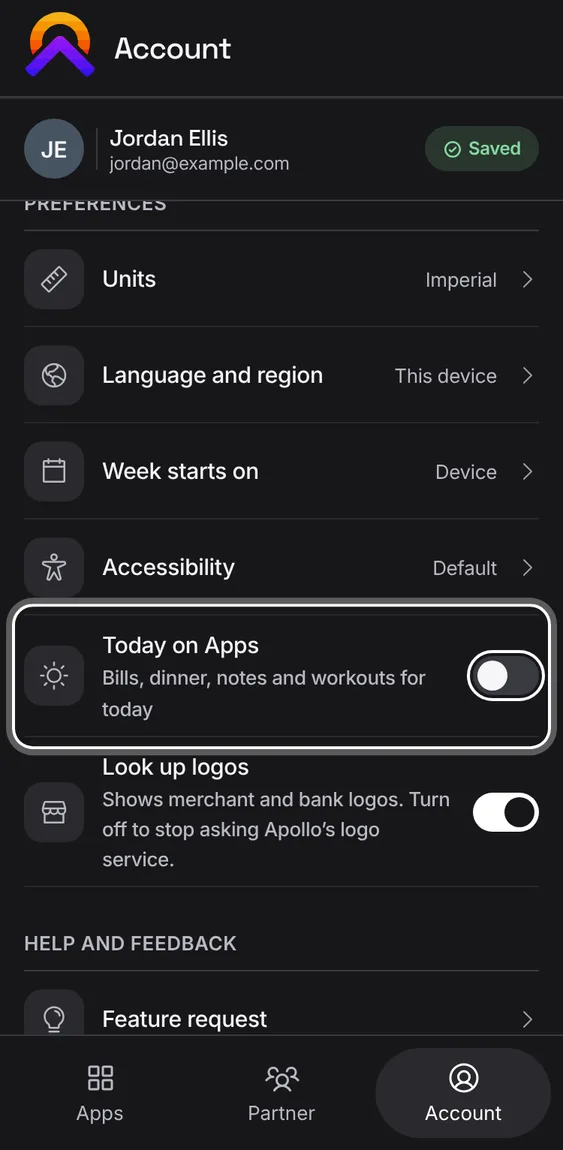
Show or hide Today on the Apps tab on this device.
- Account › Preferences › Today on Apps.
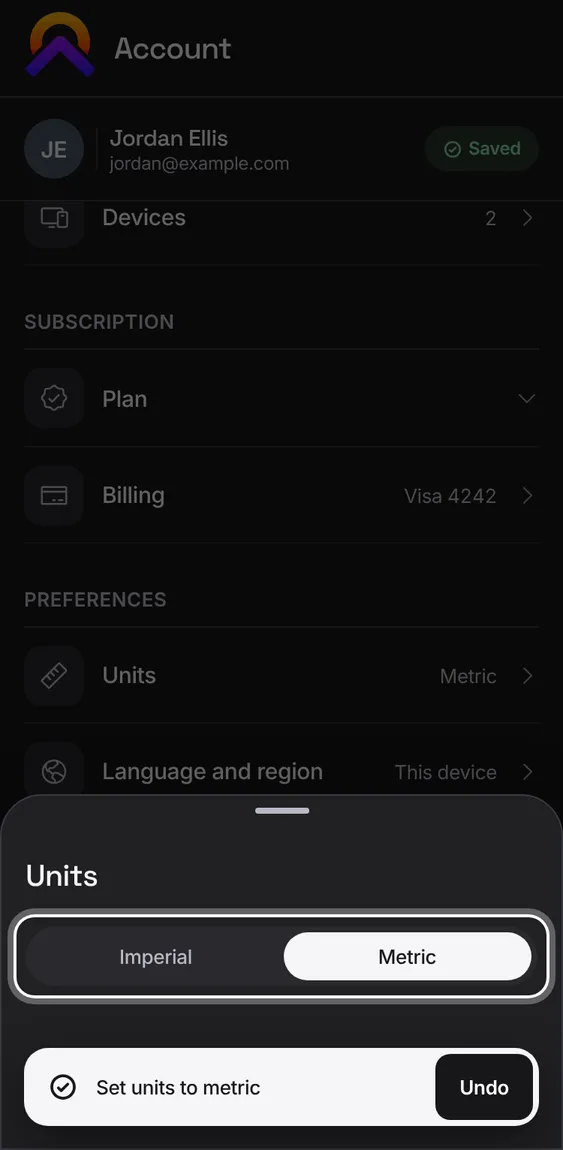
Imperial or metric for weights and lengths. Weight and length can also differ, like kilograms with inches.
- Account › Preferences › Units, then Imperial or Metric. Undo puts both back.
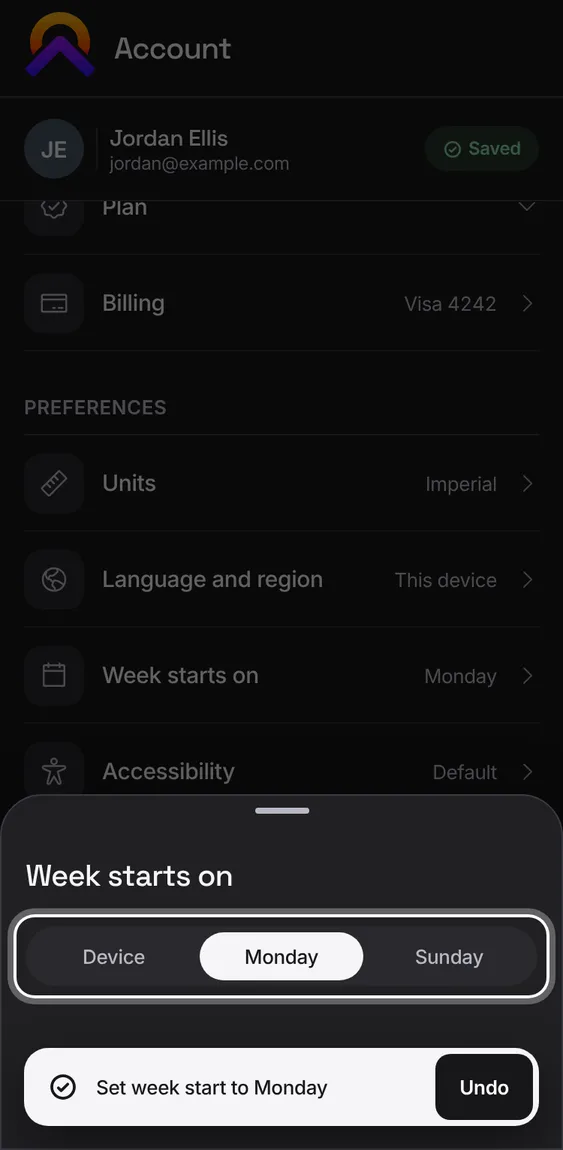
Start weeks on Monday, Sunday, or whatever the device uses, for calendars and weekly totals across the apps.
- Account › Preferences › Week starts on.
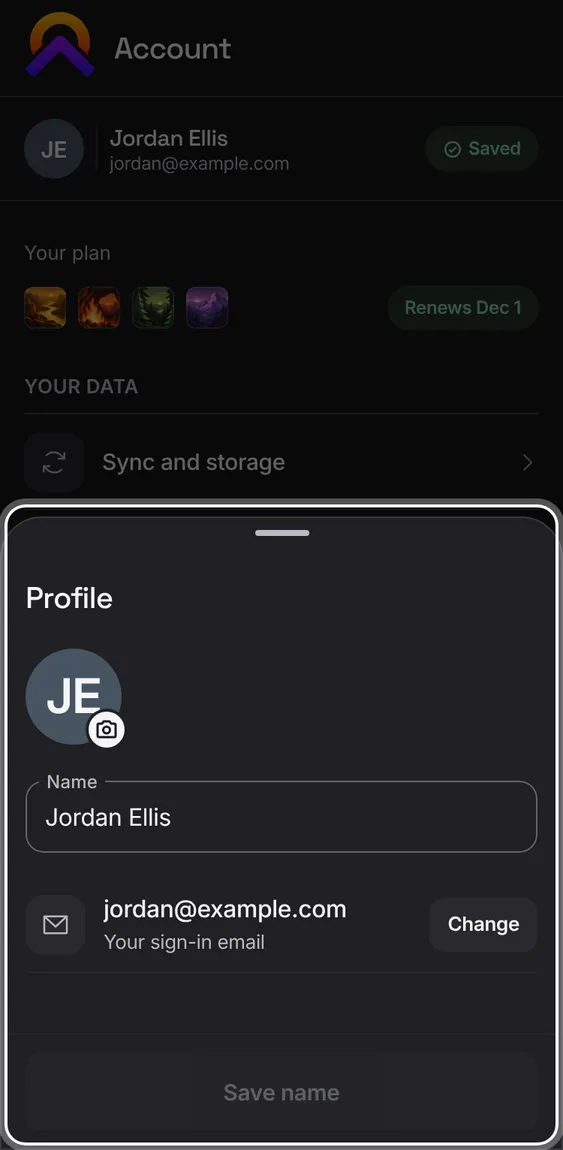
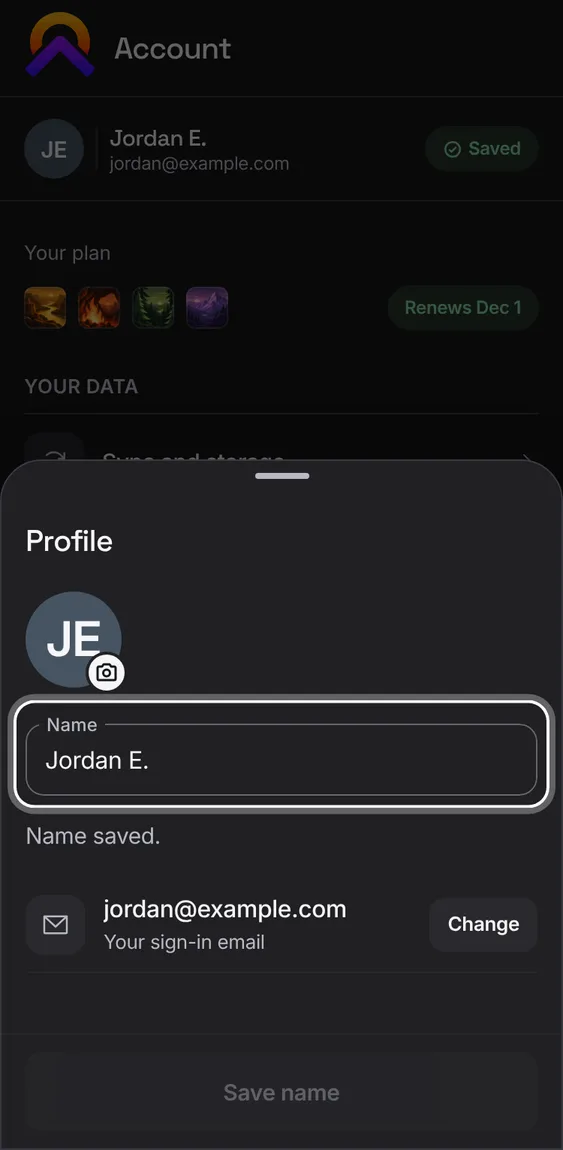
Your name, picture and sign-in email. Signed in, the name and picture follow you to your other devices.
- Tap your picture at the top of Account.
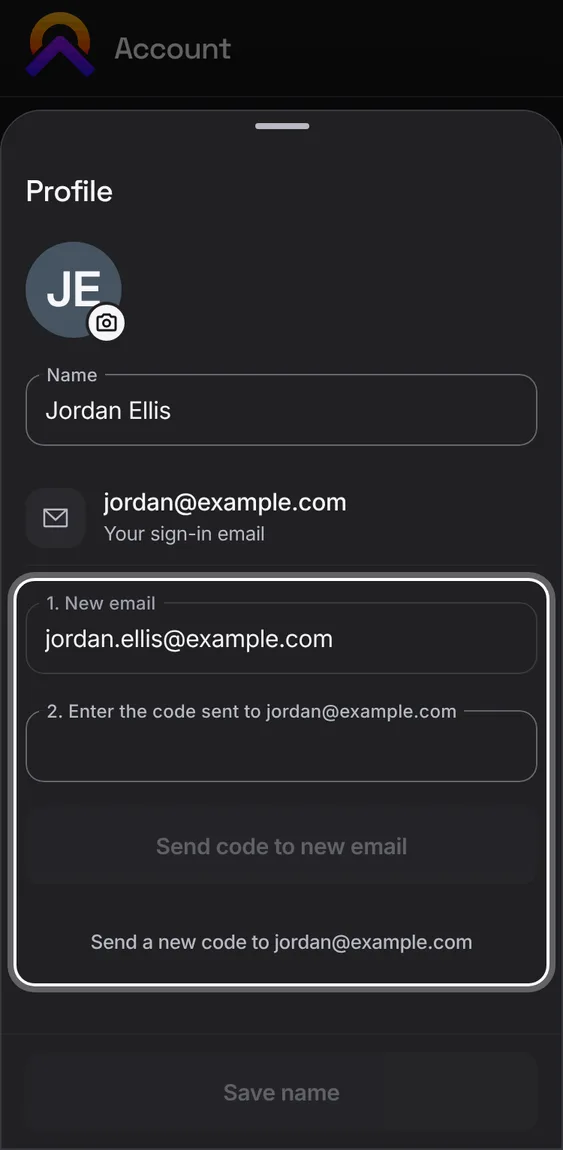
Move your account to a new email in three steps: the new address, a code sent to the old one, then a code sent to the new one.
- Profile › Change, then follow the numbered steps.
- The old address is told when it changes.
The name Apollo greets you by and shows your partner. Without one, it uses your shared-home name, then your email.
- Type your name in Profile and tap Save name.
Pick a photo; it's cropped to a square and made small enough to sync.
- Tap the picture in Profile and choose a photo.
Not in the demo. Needs a file from your device.
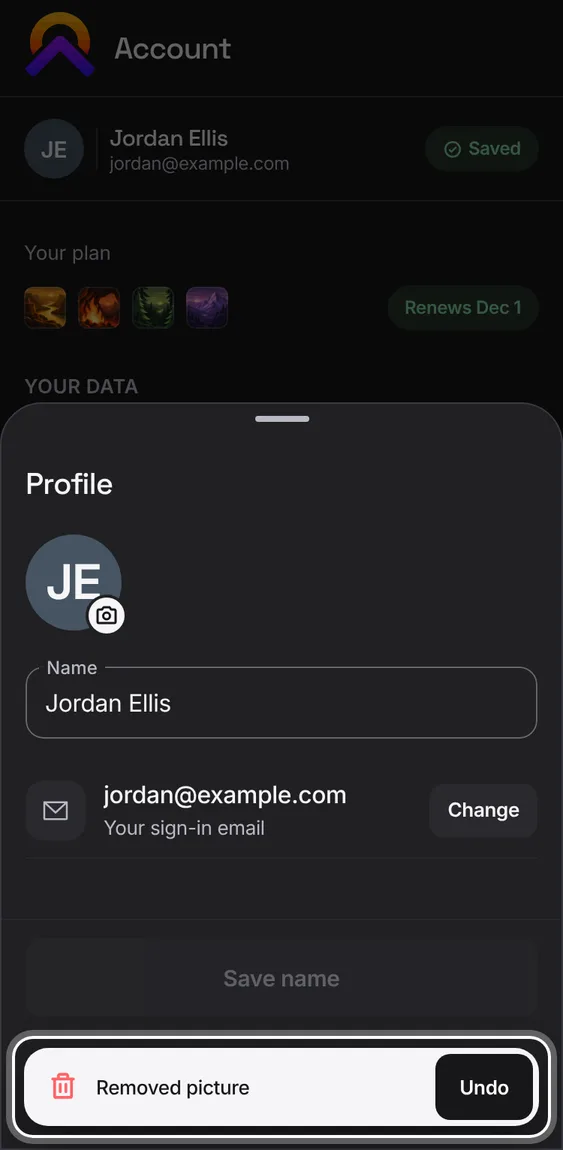
Remove the picture; Undo puts it back.
- Profile › Remove picture.
Sign out on this device. It says where your work is first: on this device in the installed app, in your account in a browser tab.
- Account › Sign out, then Sign out here.
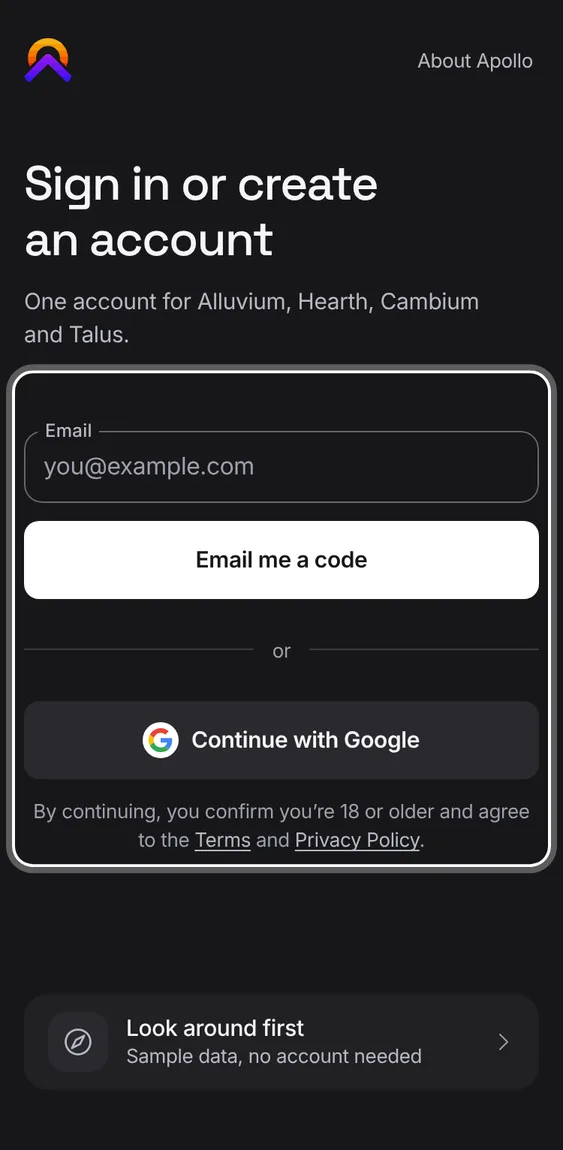
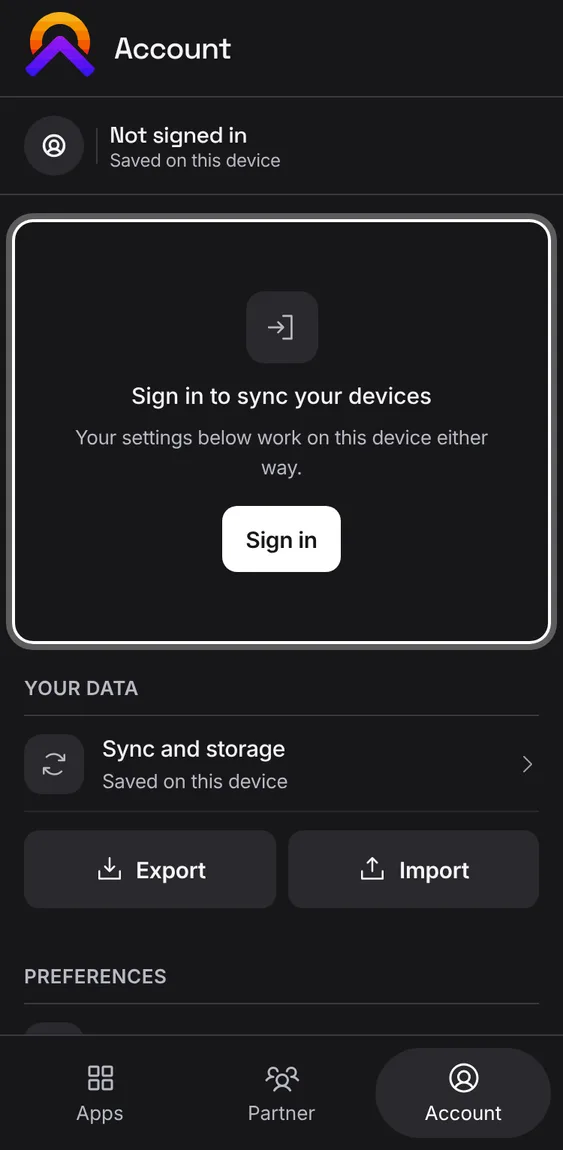
Signed out, Account says you're not signed in, offers Sign in, and keeps the settings that work on this device.
- Tap Sign in to sync your devices. Units, language and accessibility still work here.
On a wide screen, Account's groups are a list on the left and the chosen group's rows on the right.
- Click Subscription, Your data, Preferences, Help and feedback or Account.
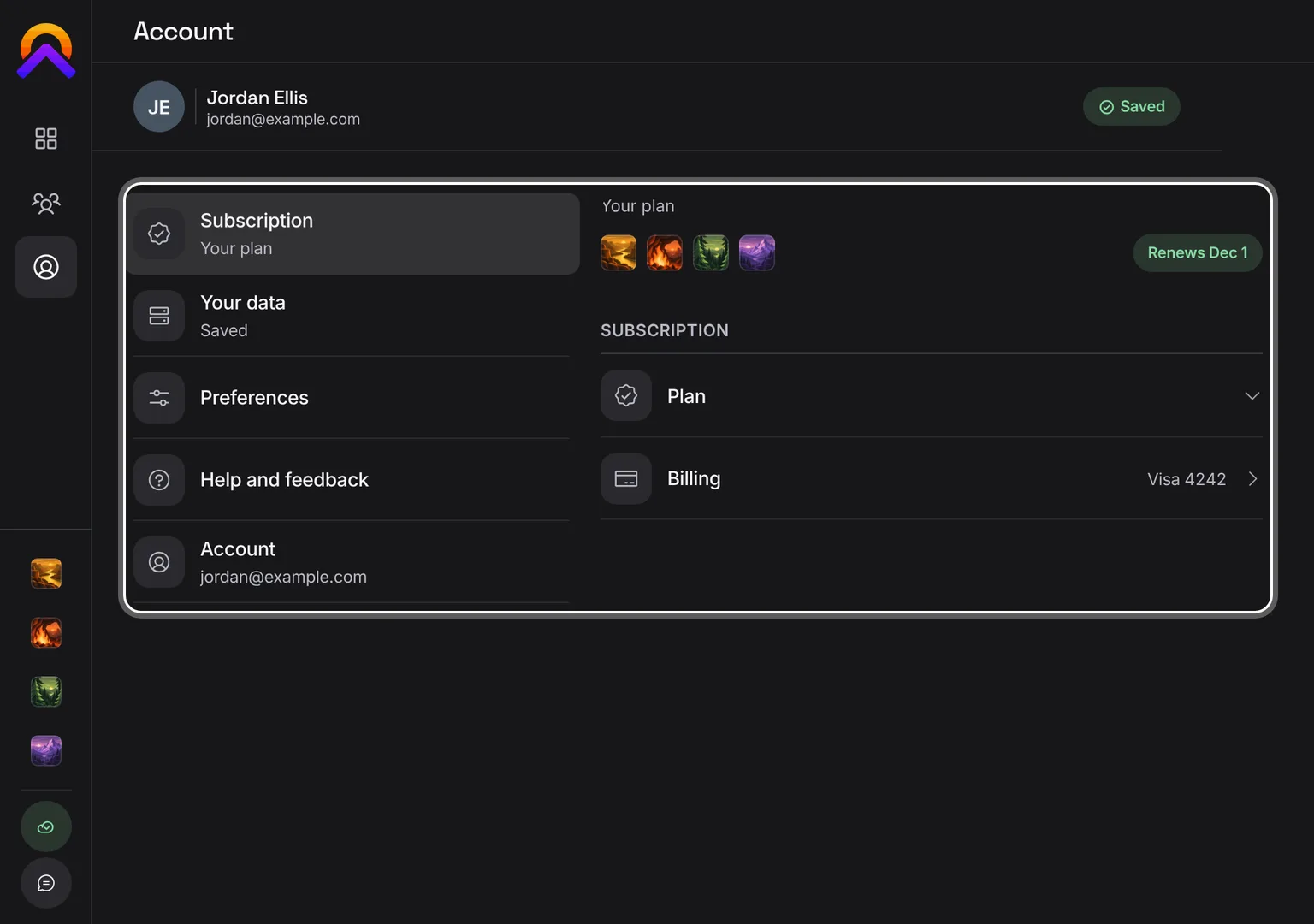
Shown at a computer’s width.