 Cambium
Notes
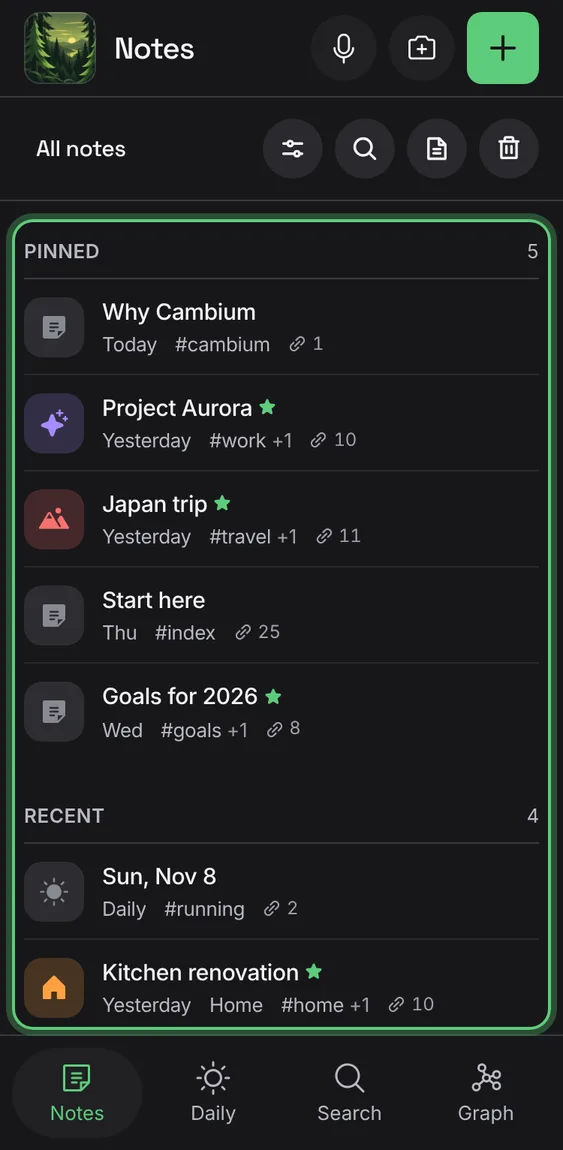
Cambium's first tab: your notes, folder by folder, with what's pinned and what you wrote last on top.
Every Notes feature
The public demo opens on an invented person's notebook: linked notes in nested folders, daily notes, templates, tables, callouts, pictures and ink.
- Open the Cambium demo.
- Changes stay on that device; Reset starts again.
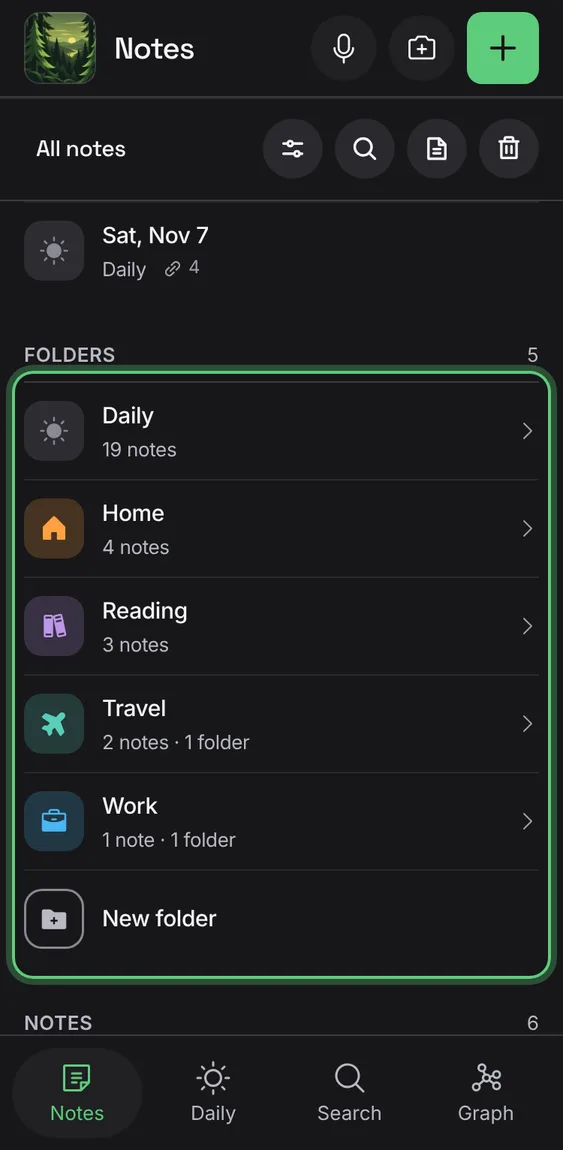
Put notes in folders, and folders inside folders, as deep as you like. A note is in one folder or none.
- Tap New folder in Notes.
- Tap a folder to go into it.
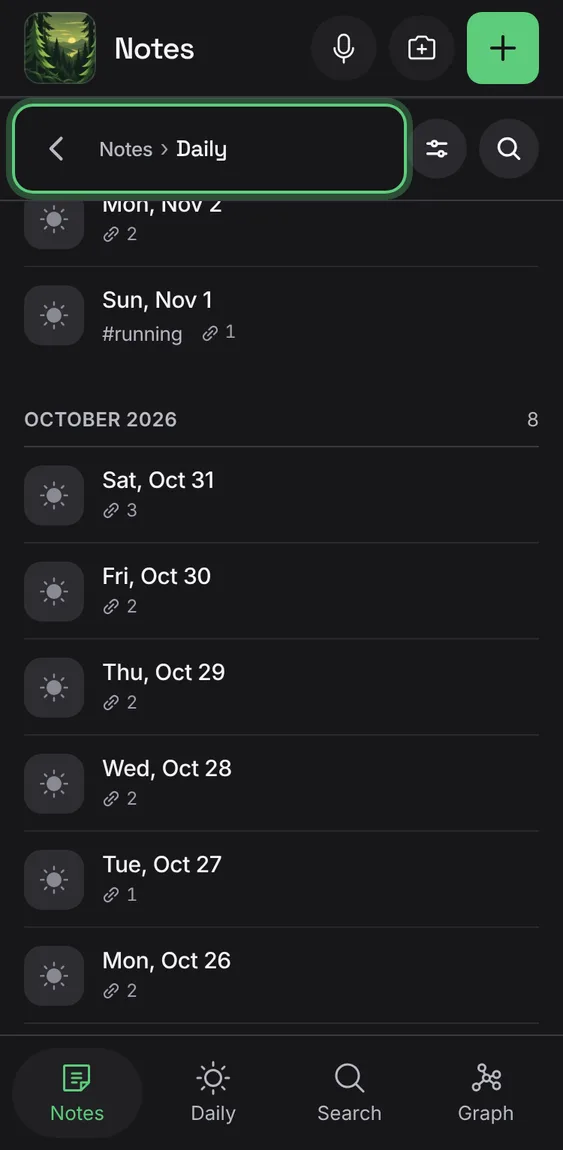
Daily notes have their own folder, first in the list, grouped by month.
- Tap Daily under Folders.
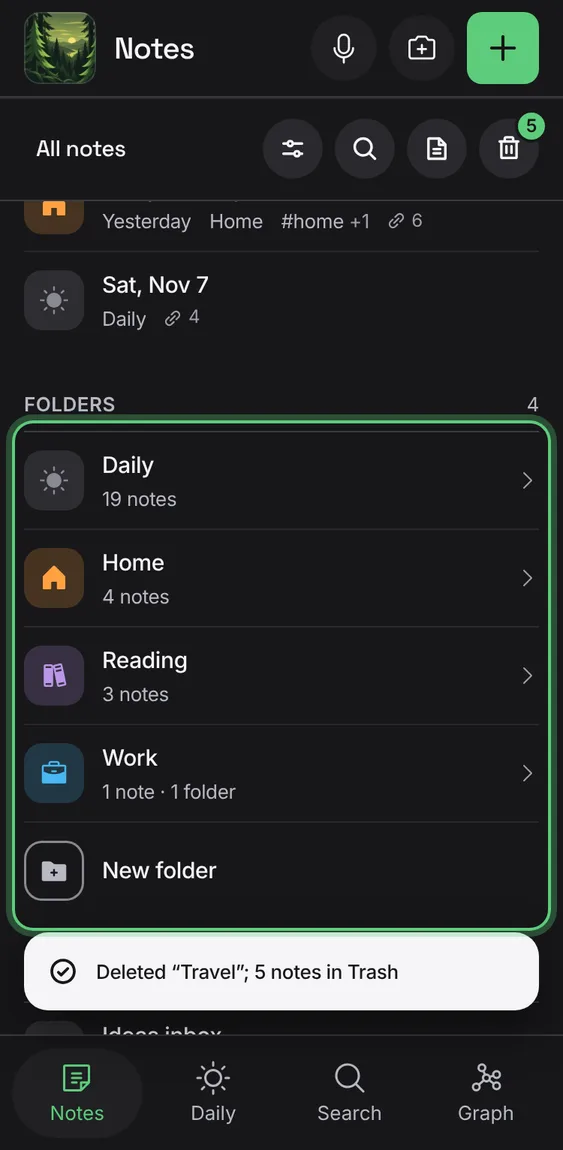
Deletes a folder and everything in it: its notes go to Trash for 30 days, and the confirmation says how many.
- In a folder, tap More → Delete folder, then confirm.
Rename a folder, move it, or change its colour and icon.
- In a folder, tap More → Edit folder; Save folder.
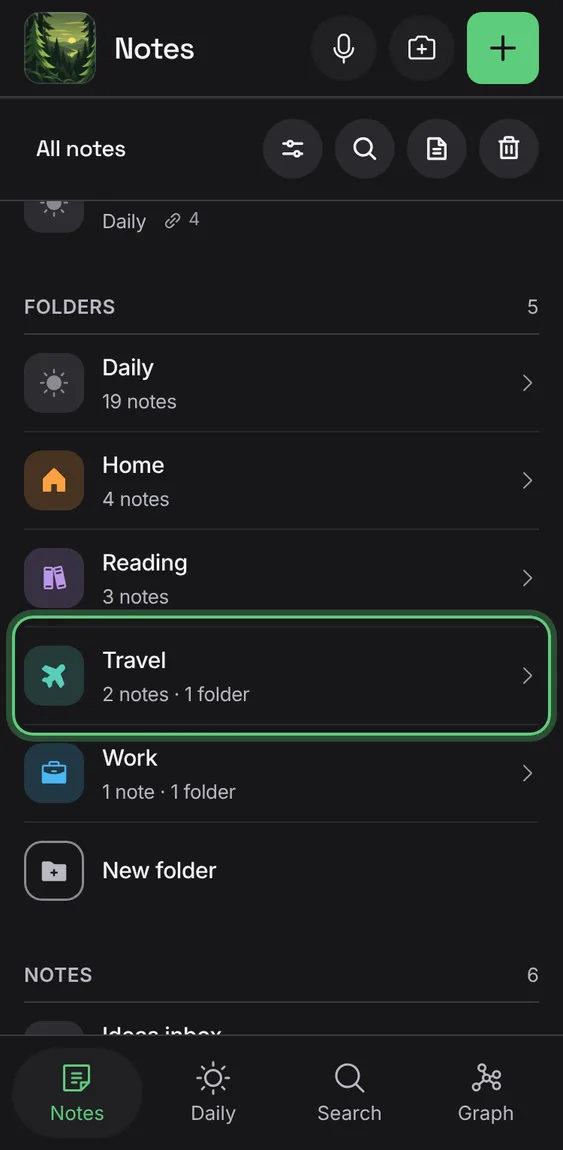
Each folder row says how many notes and folders are in it.
- Read the line under a folder's name.
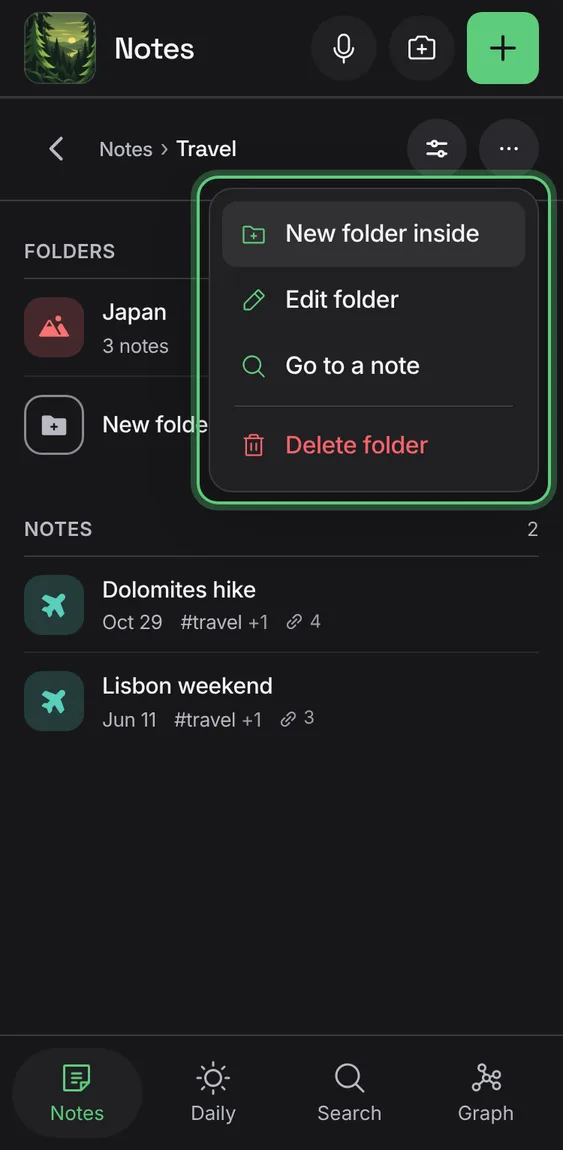
Inside a folder, its menu has New folder inside, Edit folder, Go to a note and Delete folder.
- In a folder, tap More.
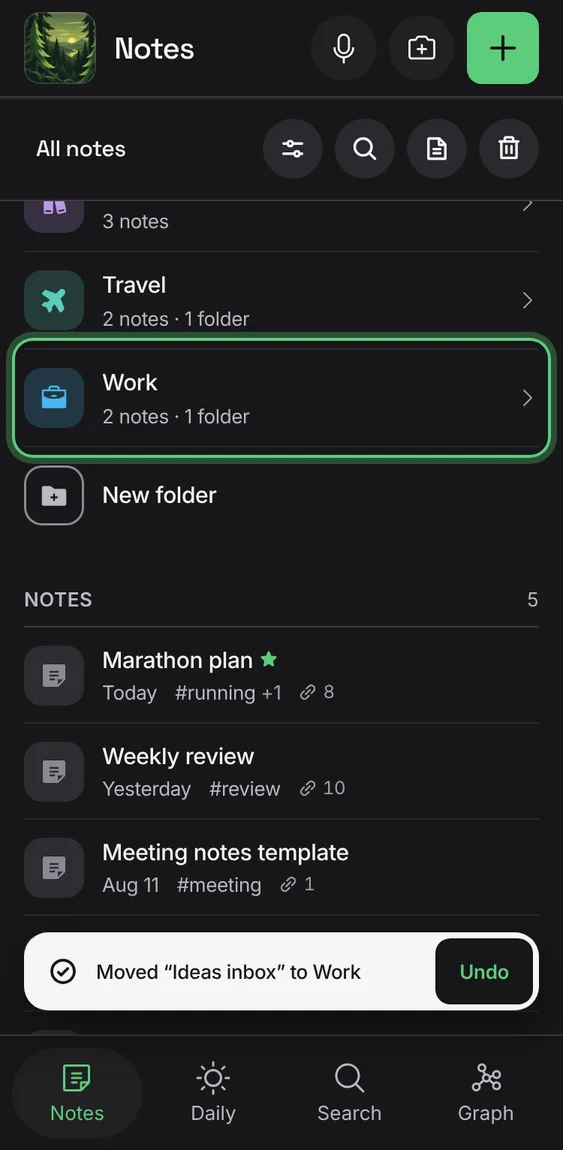
Drag a note or a folder onto a folder, or onto the path to move it up, with Undo. On a touch screen, press and hold first.
- Hold a row, drag it onto a folder and let go.
- Escape puts it back.
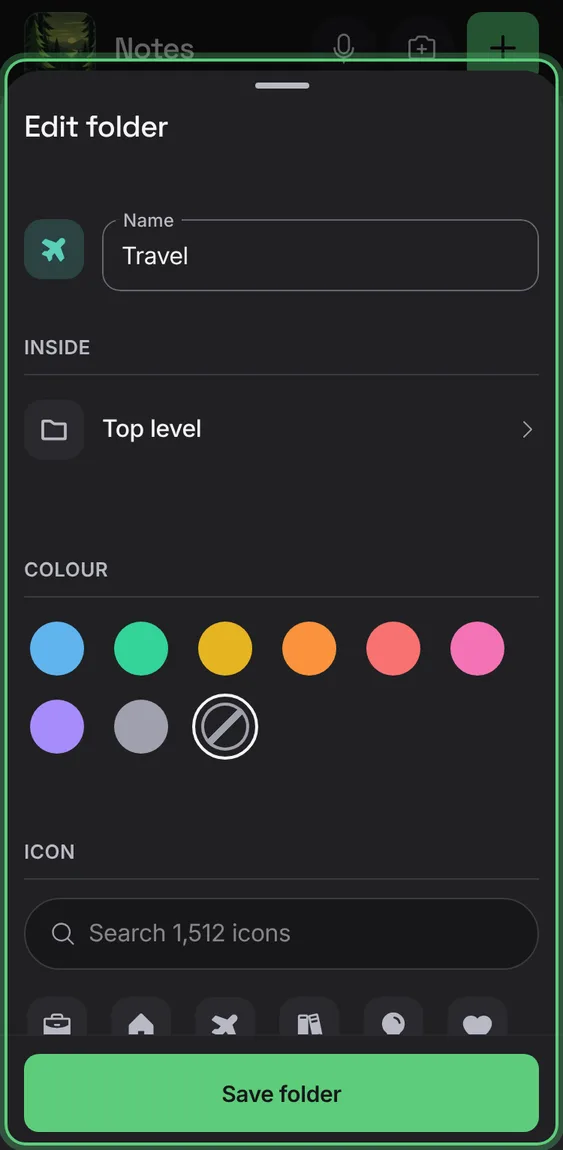
Name a folder, choose where it goes, its colour and its icon.
- Tap New folder, or New folder inside in a folder's menu.
- Fill in the name; Add folder.
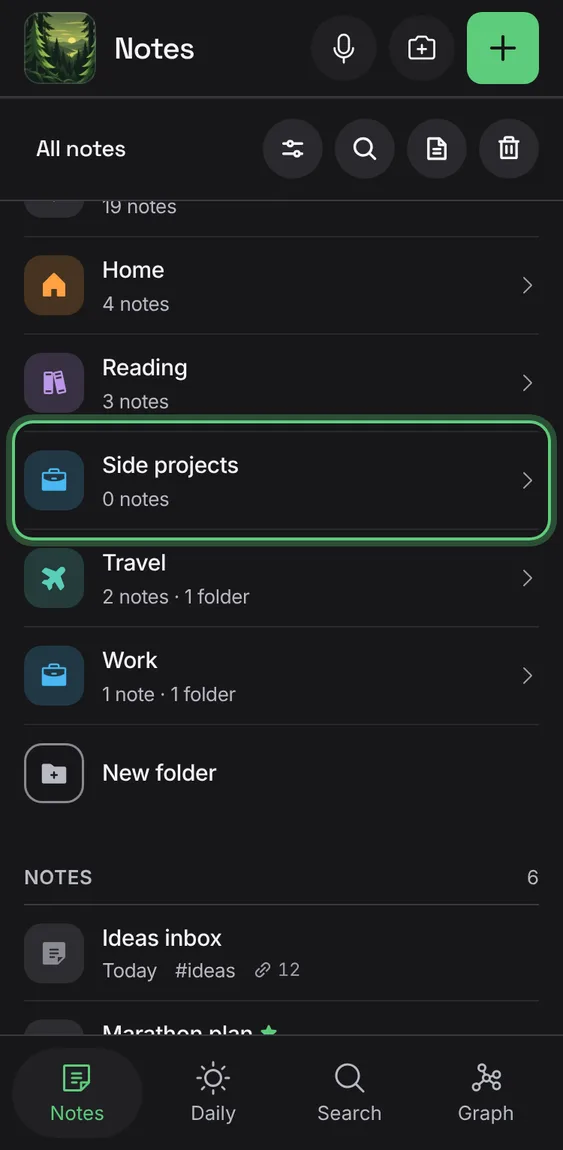
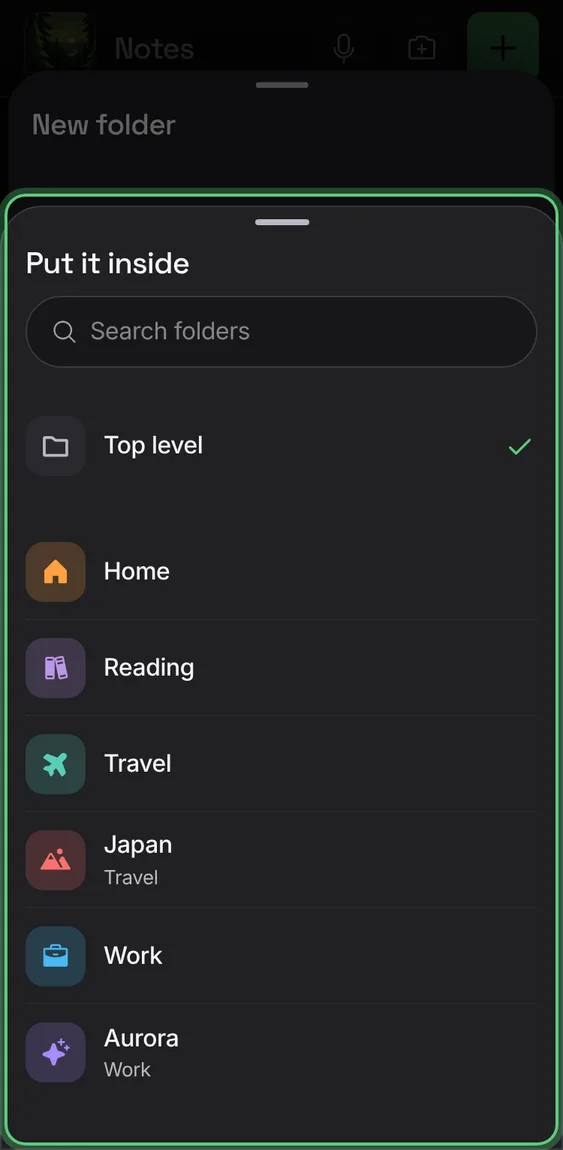
Choose the folder a folder sits in, or the top level; never inside itself.
- In the folder sheet, tap Inside and pick a folder.
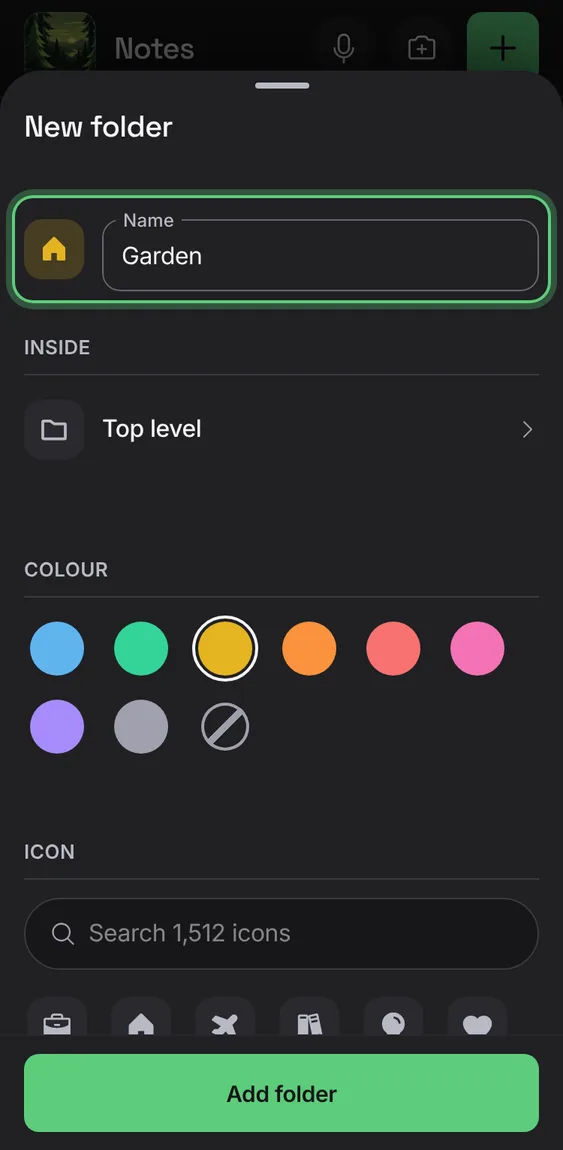
Give a folder one of eight colours and any icon, found by searching; without them its colour comes from its name.
- In the folder sheet, pick a colour and search for an icon.
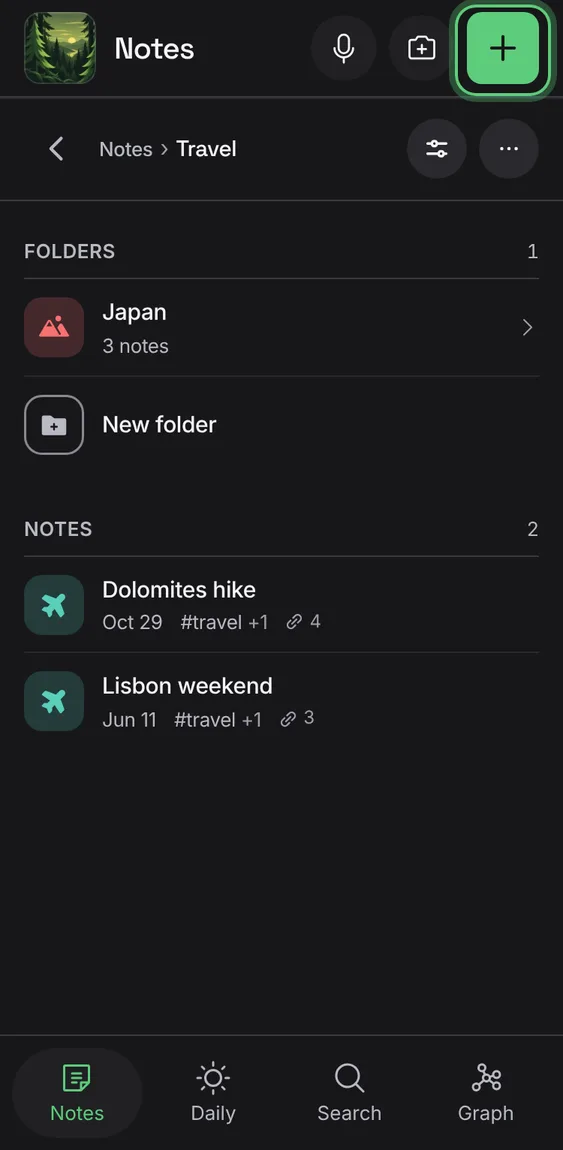
With a folder open or chosen, the + makes the new note there and says so.
- Open a folder, then tap New note in that folder.
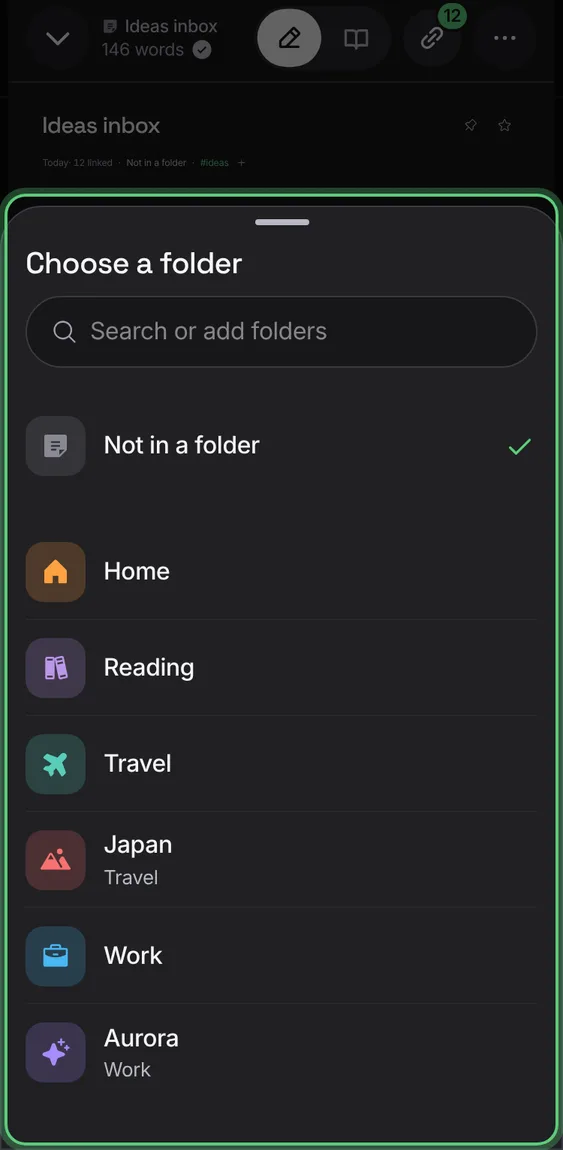
Choose a note's folder from the note itself; typing a new name makes that folder.
- In a note, tap its folder under the title.
- Pick a folder, or type a new name.
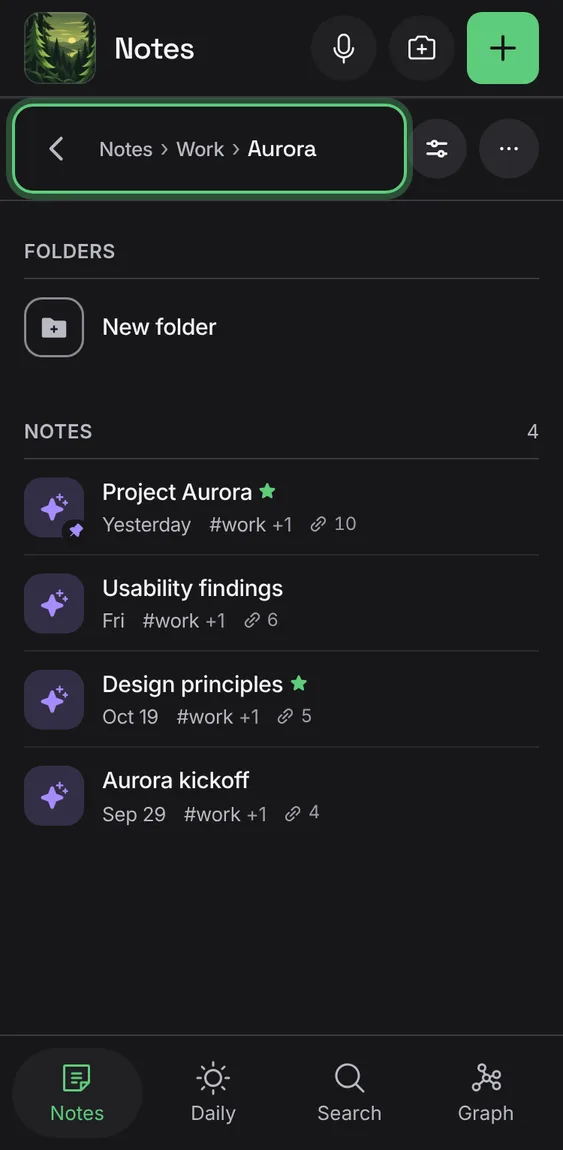
Notes opens one folder at a time. The bar shows the path; Back and Escape go up a level.
- Tap a folder; tap a step of the path, or Back, to go up.
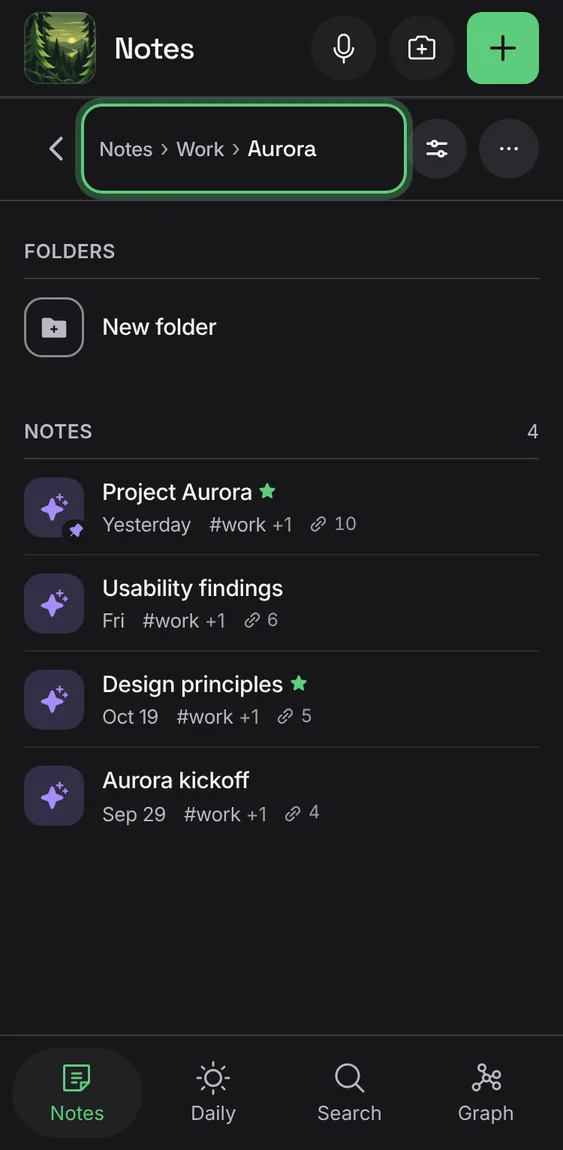
When the path doesn't fit, the folders above fold into … , which lists them.
- Tap … to go to a folder higher up.
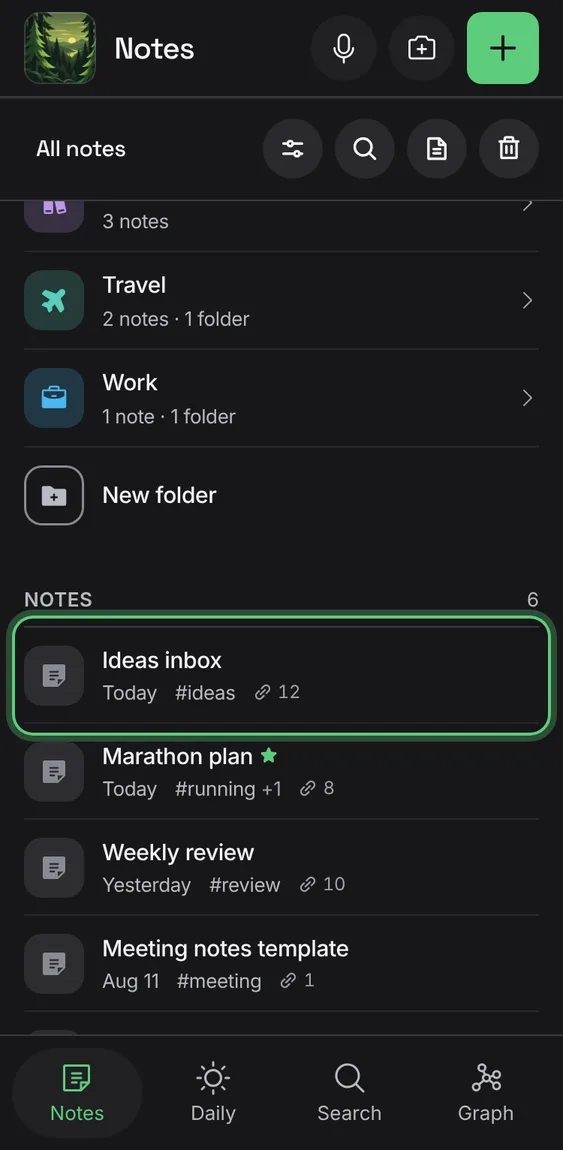
Pinned notes first, up to four you wrote in lately from inside folders, then the folders and the notes in no folder.
- Open the Notes tab.
- Tap a row to open its note.
A new notebook says so once, with New note and a way to try the demo with sample notes.
- Open Cambium before writing anything.
Not in the demo. Shows before anything is saved; the demo has sample data.
Each row says when the note was last edited, its first tag and how many notes it's linked with, never a slice of its text.
- Read the line under a note's name.
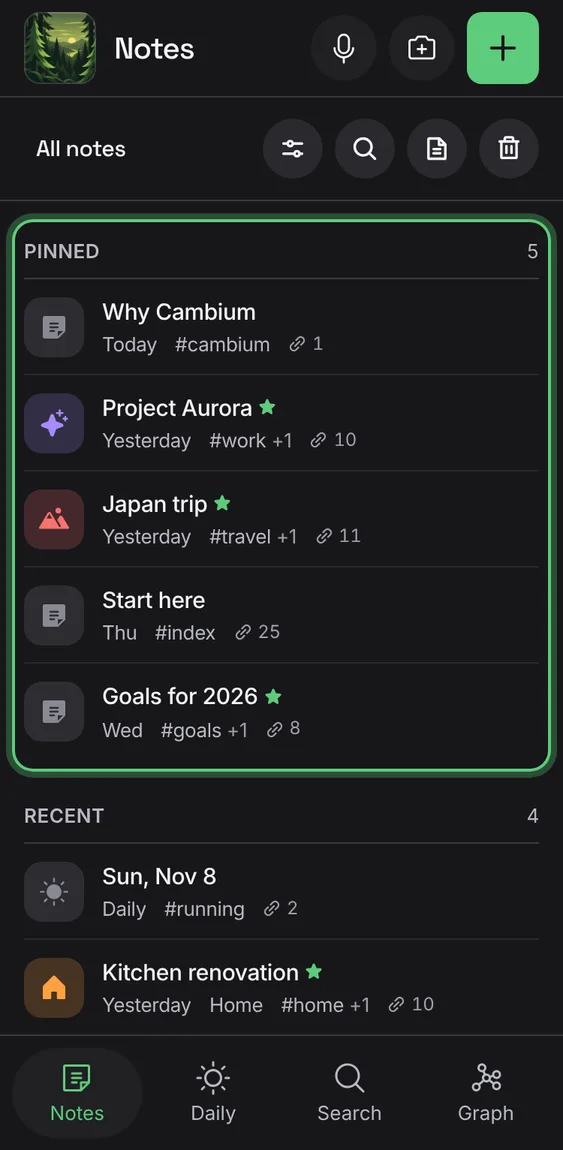
Notes you pin stay at the top of the list.
- Pin a note from its title row; it shows under Pinned.
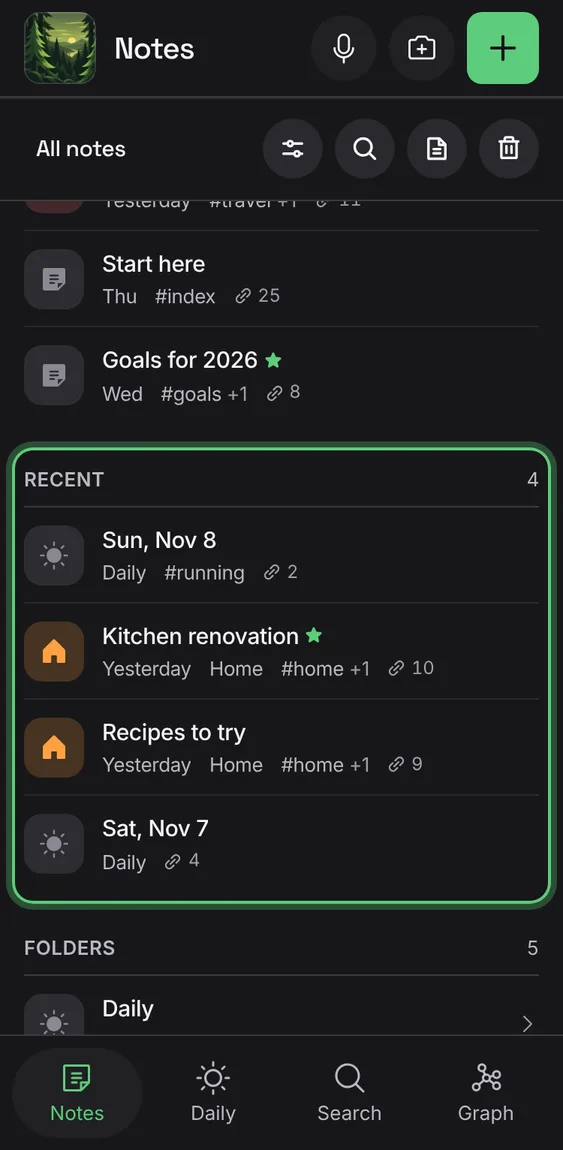
The latest few notes from inside your folders and Daily, each saying which folder it's in.
- Write in a note inside a folder; it shows under Recent.
Long lists show 80 notes at a time.
- Scroll to the end and tap Show more notes.
Not in the demo. Shows with more than the demo holds.
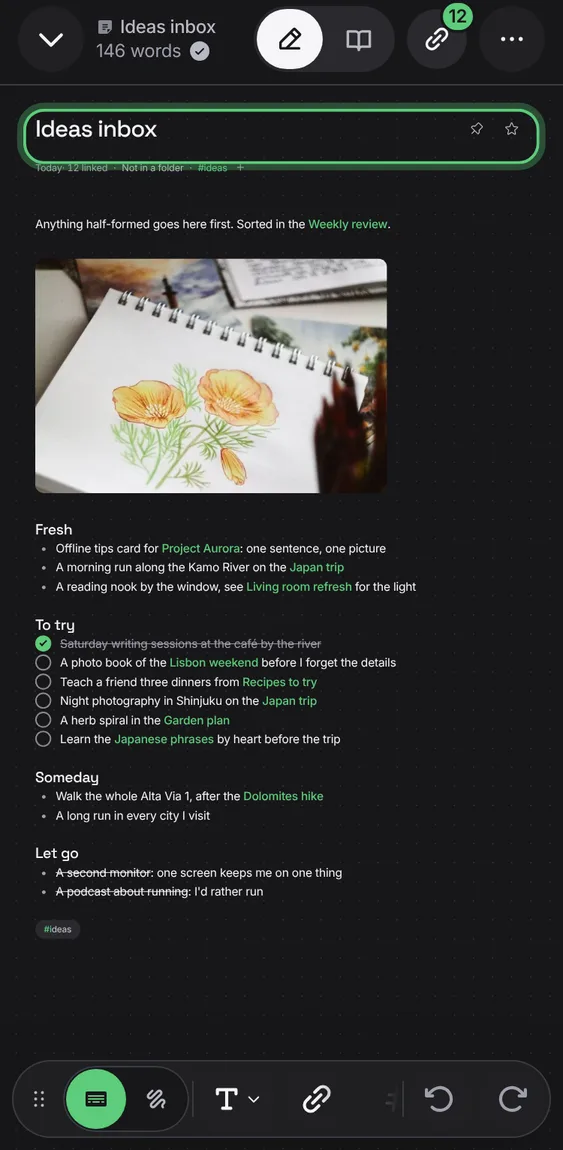
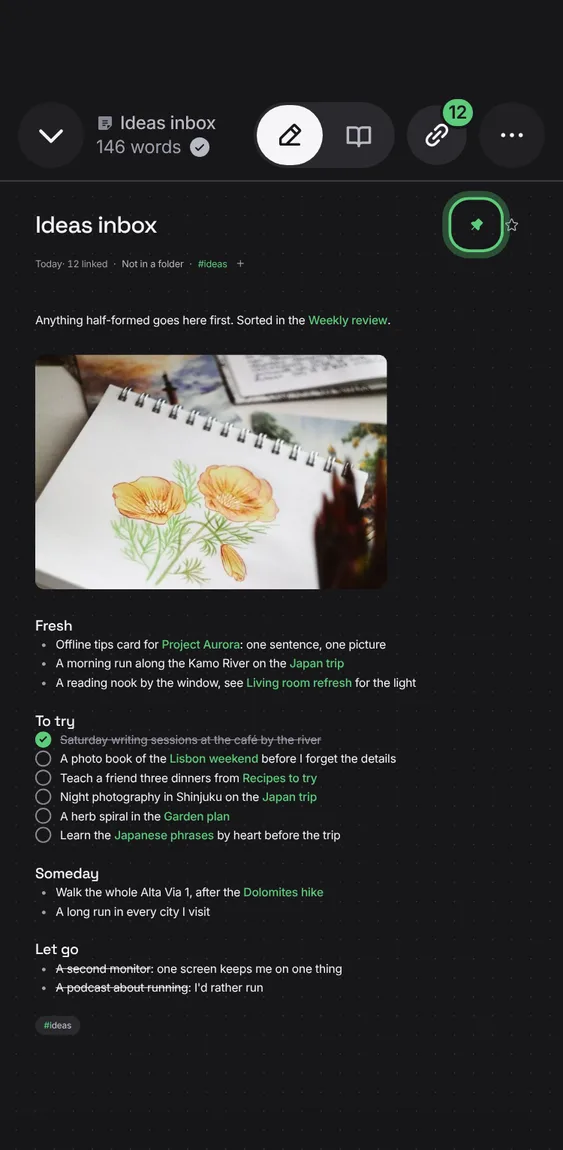
Pin a note to the top, star it as a favorite, and tag it, all optional.
- Use Pin and Favorite beside a note's title.
- Tap + after the tags to add one.
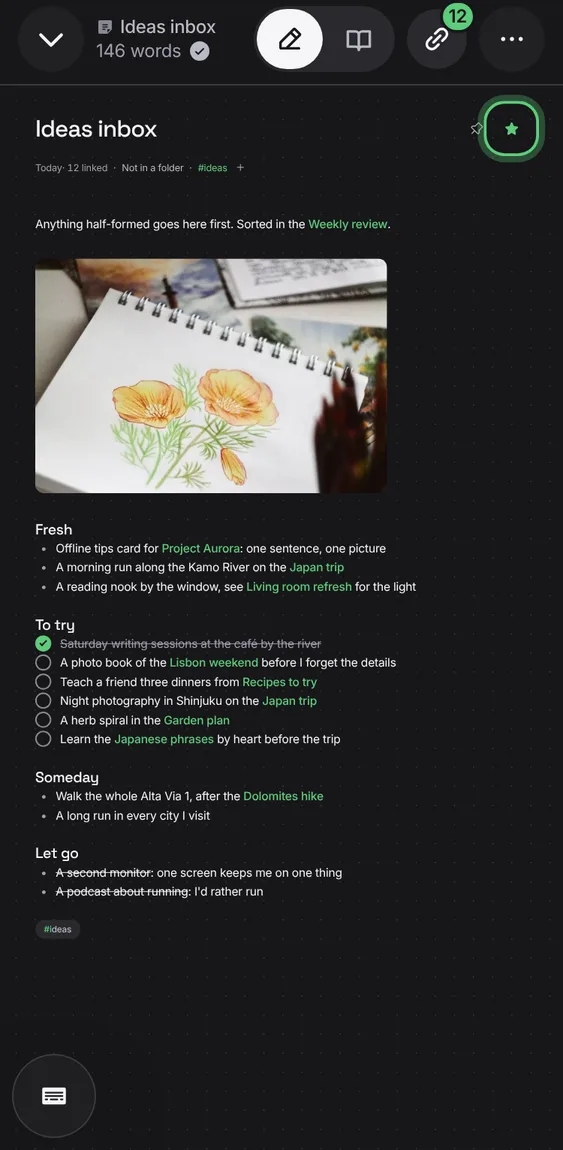
Star the notes you come back to, and show only those.
- Tap the star beside the title, or turn on Favorite in Note info.
A pinned note sits at the top of Notes.
- Tap the pin beside the title, or turn on Pin to top in Note info.
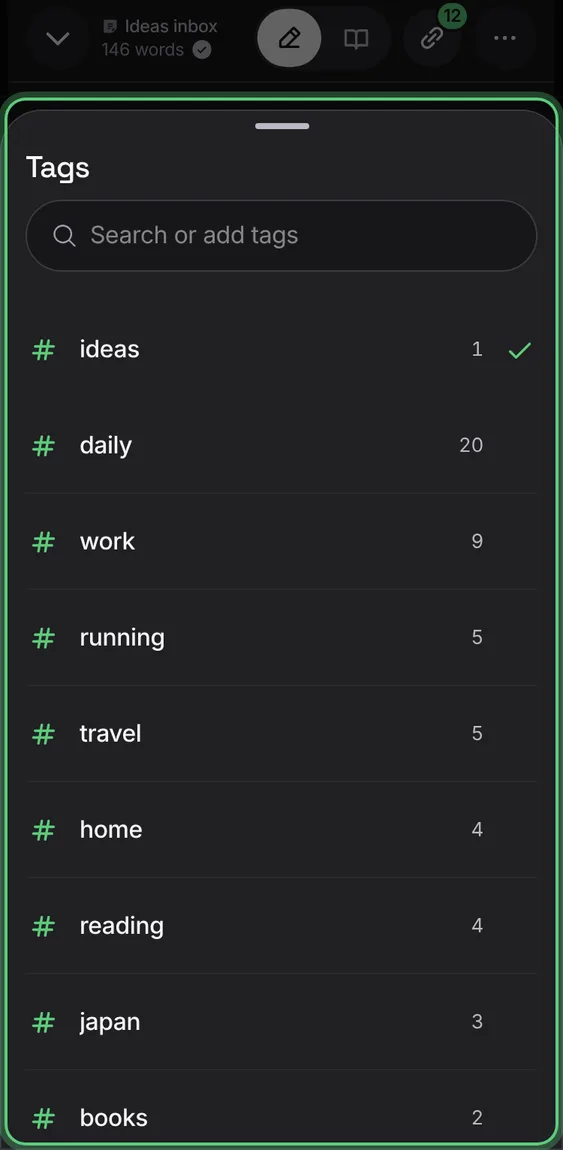
Tag a note from a list of the tags you use, or make a new one. Tags are kept where other Markdown apps read them.
- Tap + after the tags, or Tag in the toolbar.
- Type to find a tag or create it; each row adds or removes it.
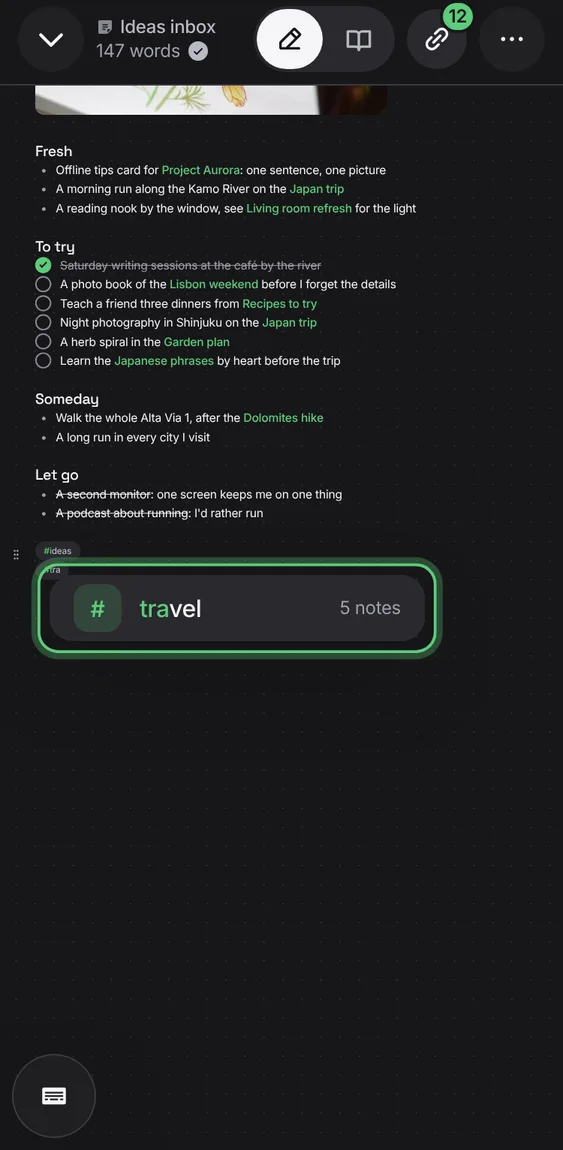
Typing #tag in a note tags it; # offers the tags you already use.
- Type # and a word, or pick from the list.
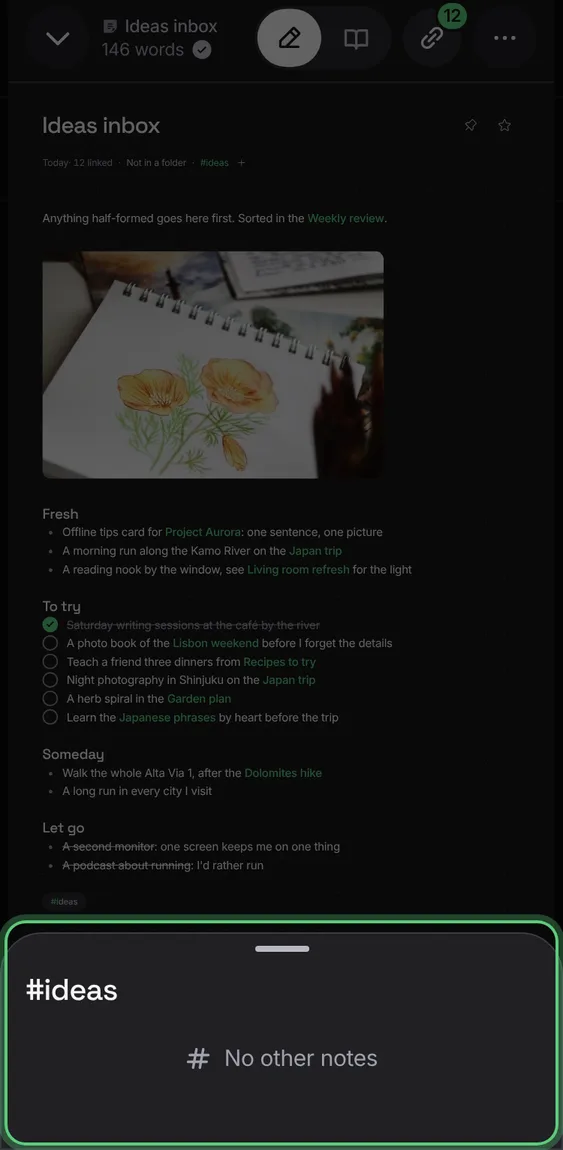
Tap a tag in a note to see every other note with it, over the note, which keeps its place.
- Tap a #tag under the title or in the text.
- Tap a row to open that note.
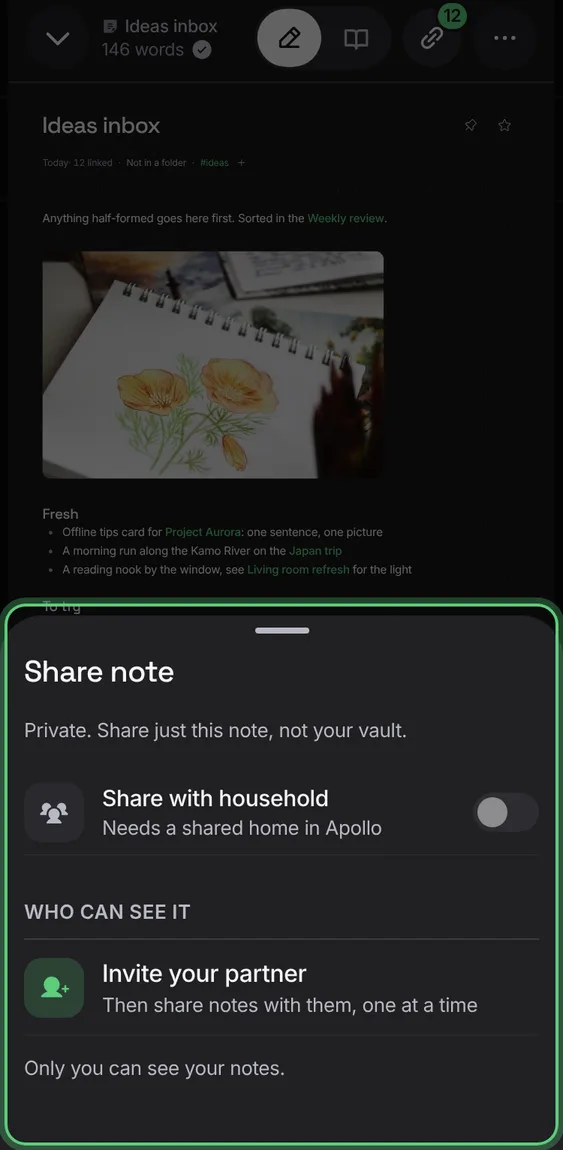
Notes are private. Share one note at a time with the people in your shared home, and stop sharing whenever you like.
- In a note, tap More → Share.
- Turn on Share with household.
Not in the demo. Needs an account: the demo has none.
All 5 in Share a note with your householdShare is always in the menu; without a shared home it says to invite your partner first.
- Open Share in a note before inviting anyone.
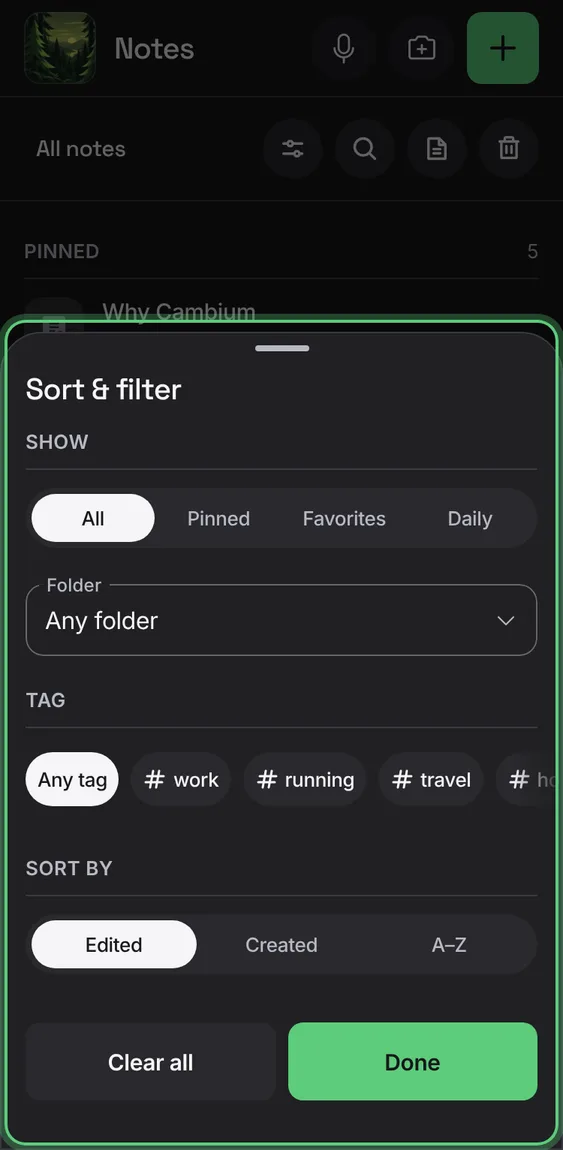
One tool narrows the list to pinned, favorite or daily notes, a folder or a tag, and sorts it by edited, created or name.
- Tap Sort & filter.
- Choose what to show, a folder, a tag and the order; Done.
- Clear all puts the filters back; the order stays.
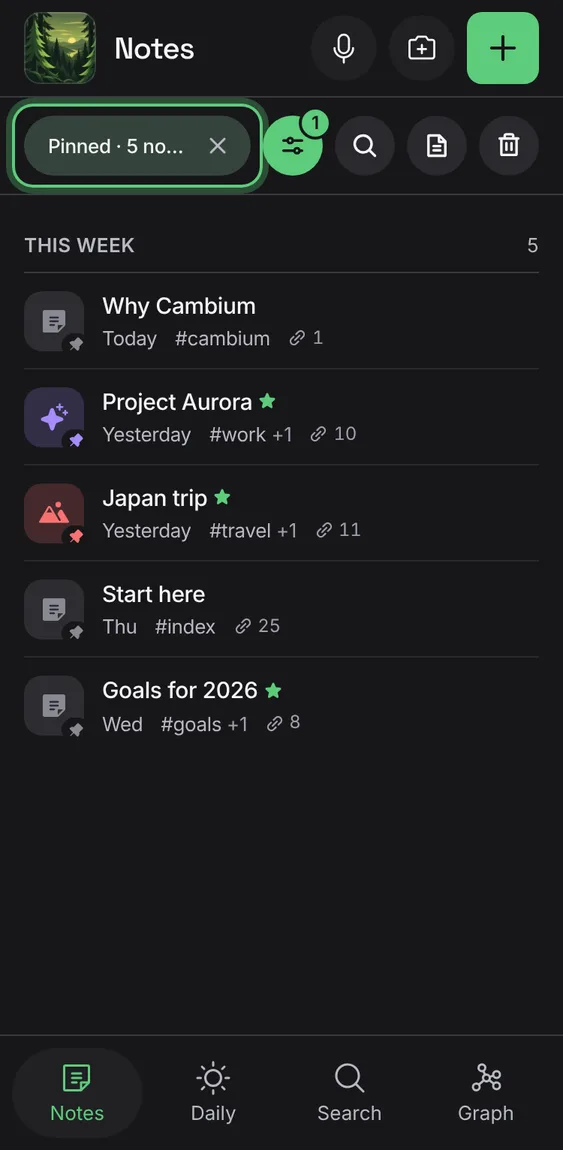
With a filter on, the bar names it and how many notes match, with × to clear it; the tool shows how many filters are on.
- Tap × in the bar to show all notes again.
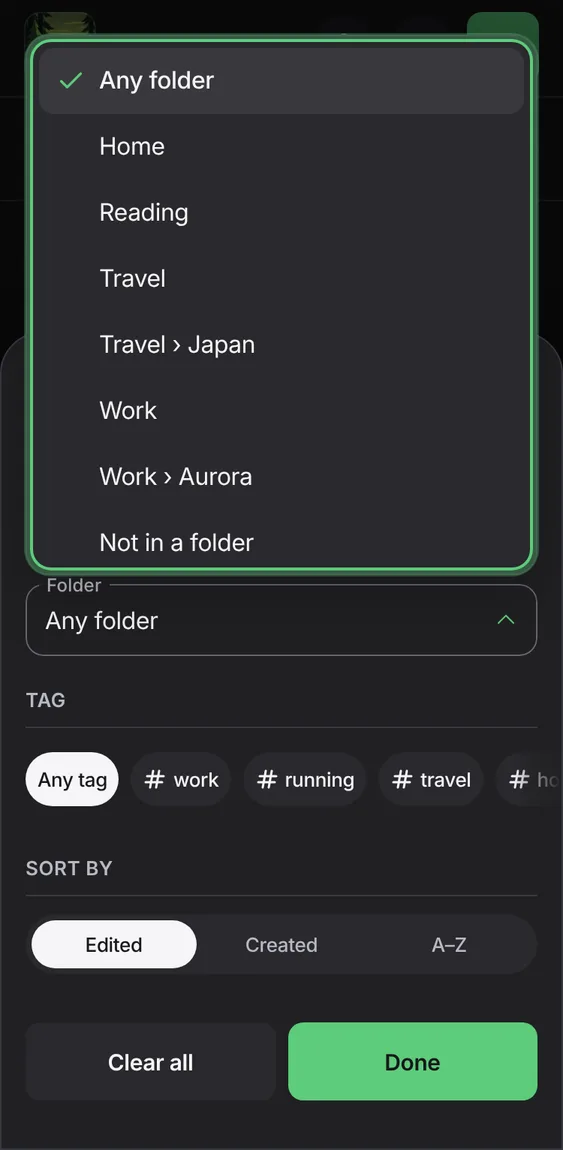
Only the notes in one folder and the folders inside it, or the notes in no folder.
- In Sort & filter, choose a Folder.
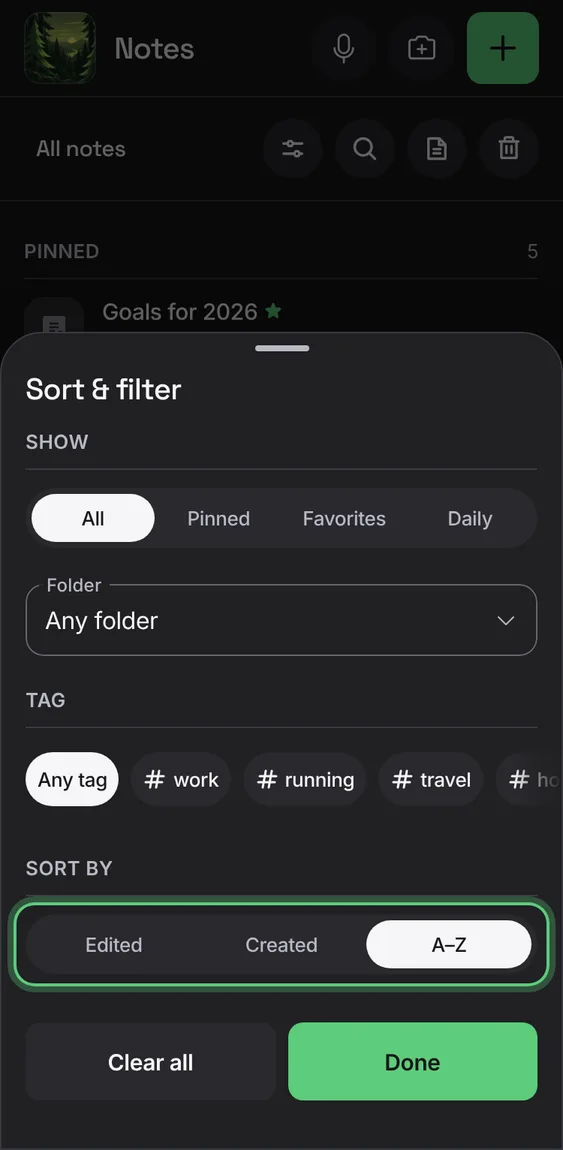
Edited, Created or A–Z.
- In Sort & filter, choose under Sort by.
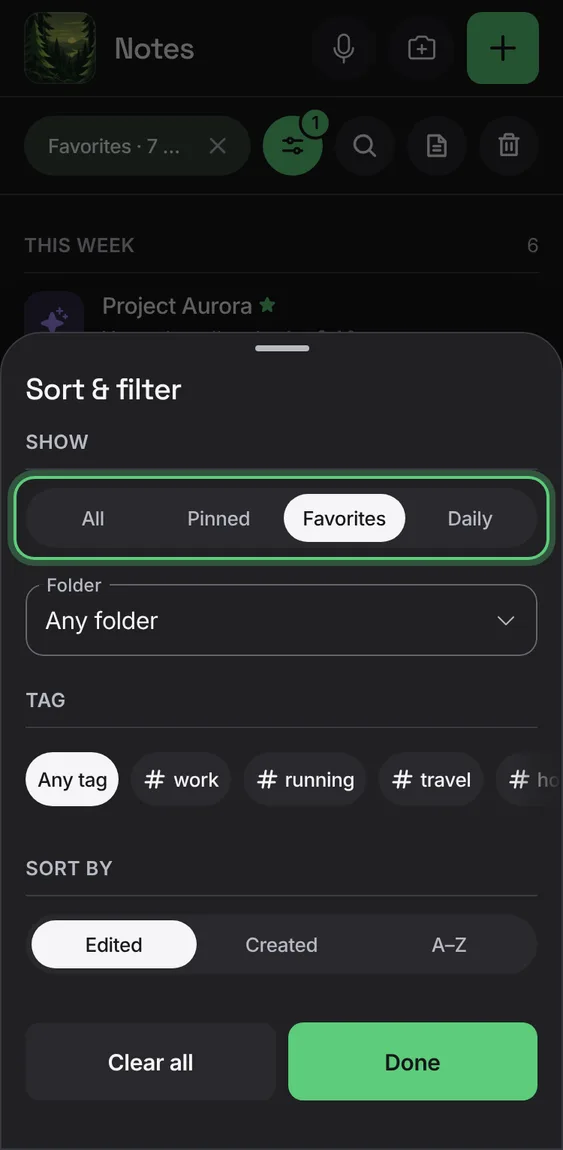
All, Pinned, Favorites or Daily.
- In Sort & filter, choose under Show.
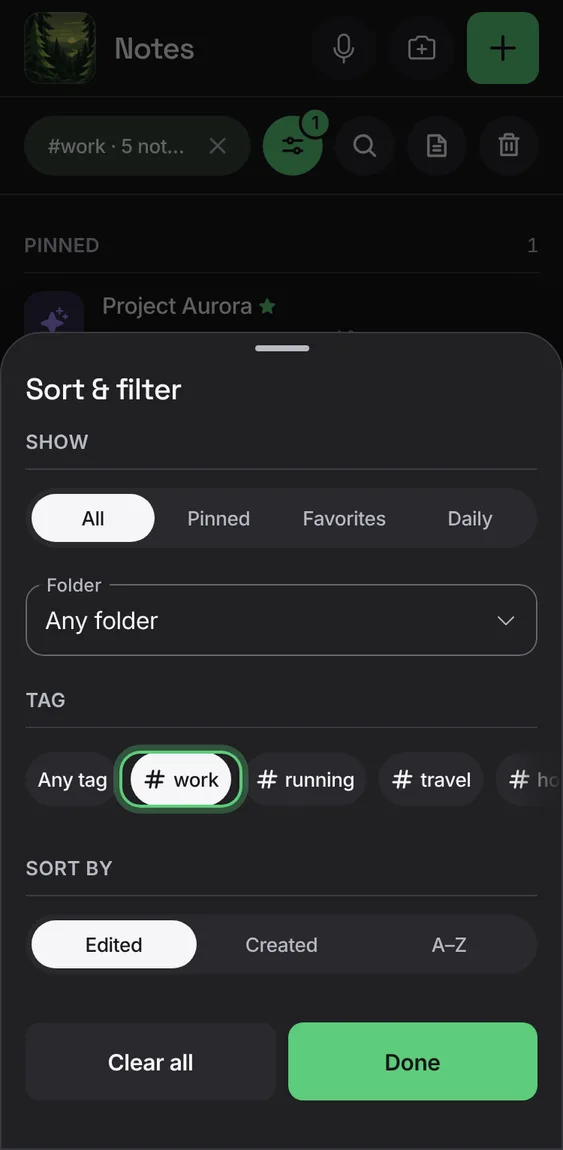
Only the notes with one tag.
- In Sort & filter, tap a tag.
Swipe a note left to move it to Trash, with Undo. A short drag springs back.
- Swipe a note's row to the left.
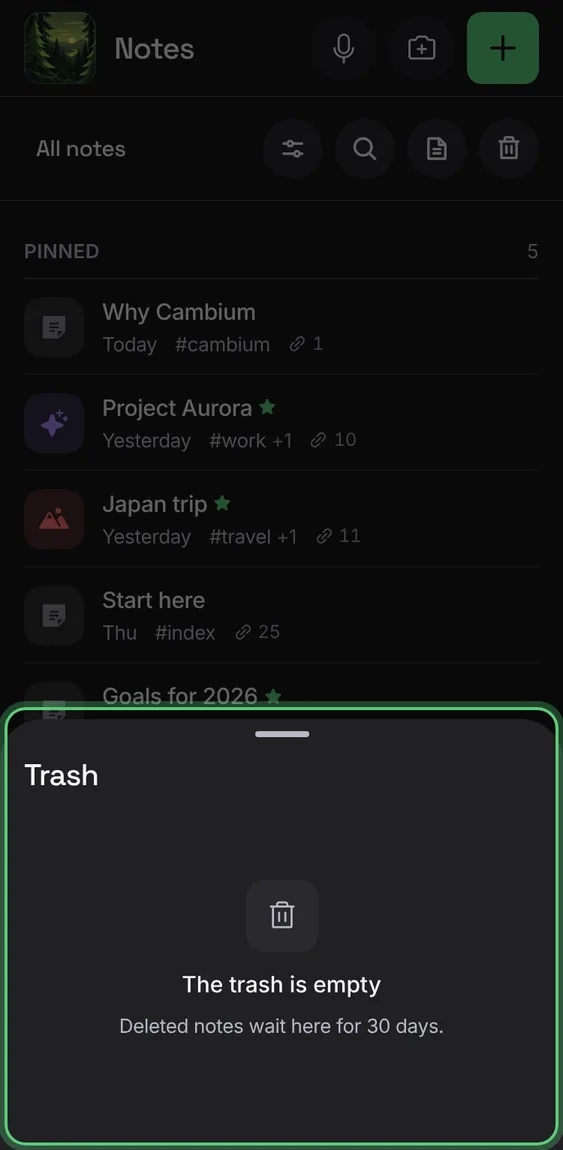
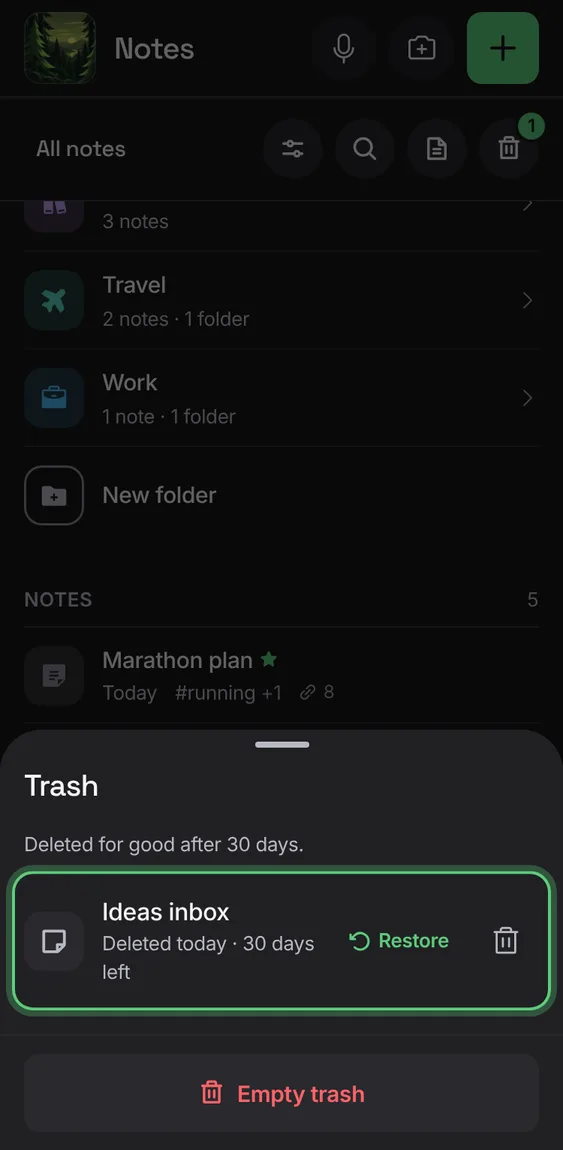
Deleted notes wait in Trash for 30 days, to restore or delete for good.
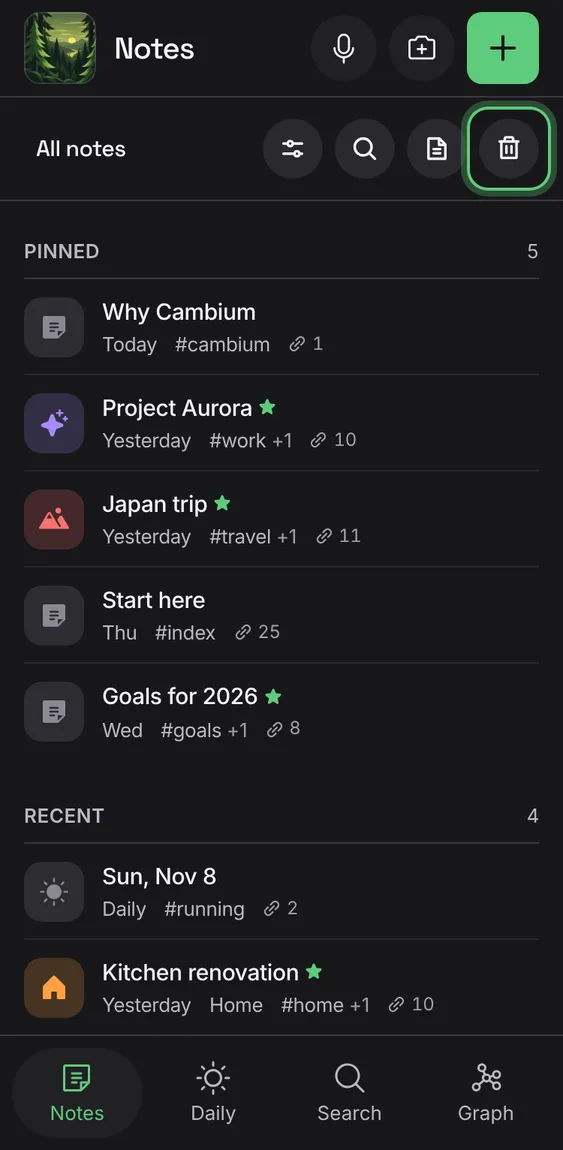
- Tap Trash in the Notes bar.
- Restore a note, delete one for good, or Empty trash.
Deletes every note in Trash and their versions, after saying how many.
- In Trash, tap Empty trash, then confirm.
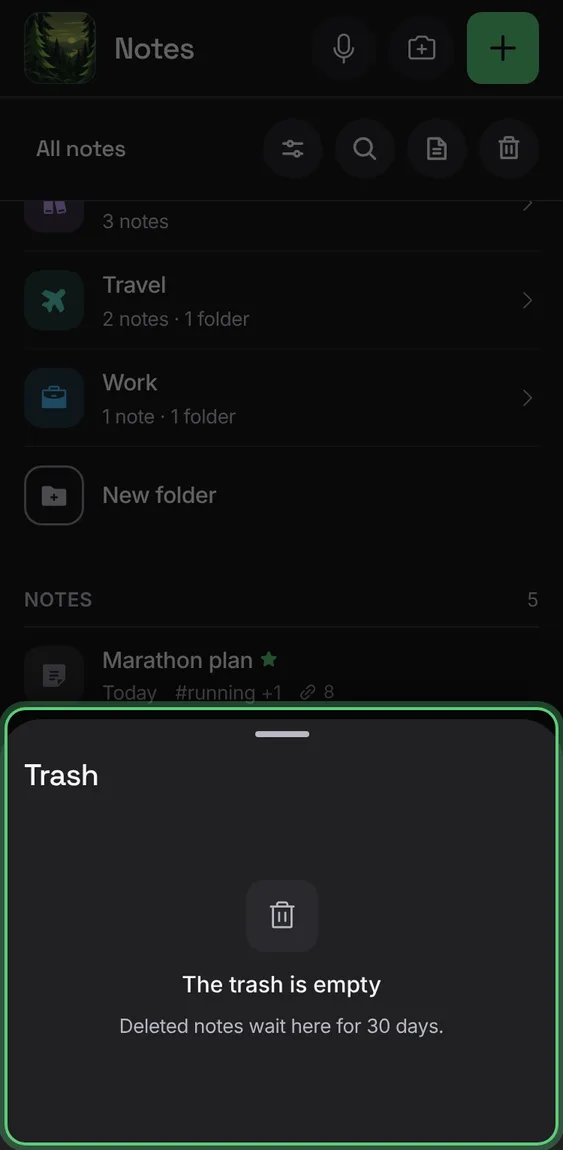
A note moved to Trash can come straight back with Undo.
- In a note, tap More → Move to trash; tap Undo in the message.
Deletes one note and its earlier versions, after a confirmation.
- In Trash, tap the bin beside a note, then confirm.
Brings a note back where it was.
- In Trash, tap Restore.
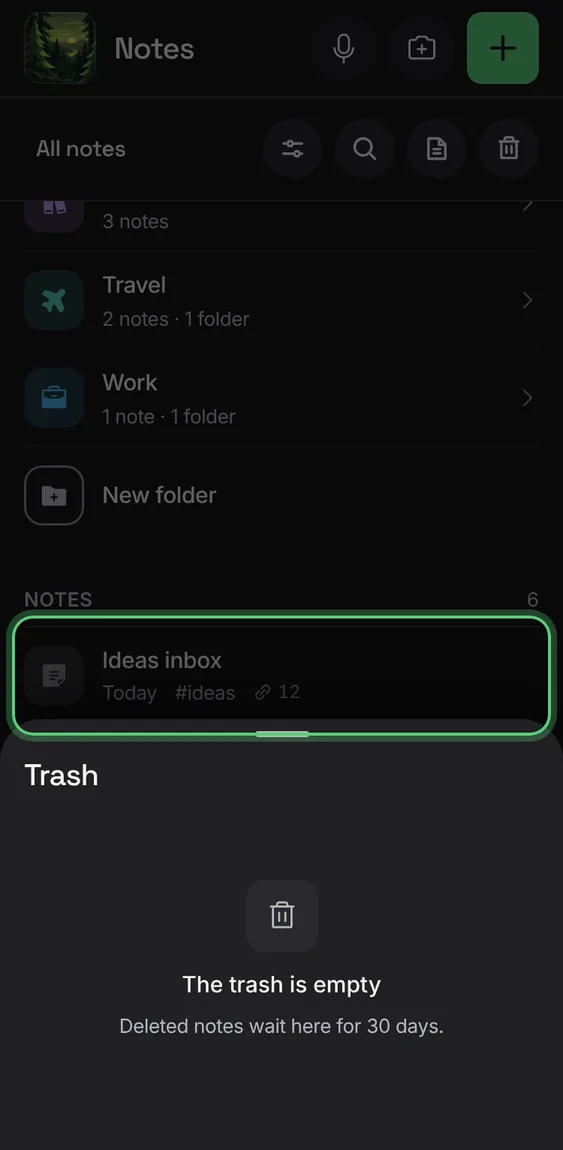
Notes in Trash for 30 days are deleted by themselves; each row says how many days are left.
- Nothing to do.
The Trash tool is always in the Notes bar, with a count while notes wait in it.
- Look for Trash in the Notes bar.
Writing that isn't saved yet waits here: note text, recordings, scans and sketches, each to resume or discard.
- Tap an Unfinished row to pick it up.
- Its menu discards it, after a confirmation.
Not in the demo. Shows for writing left unsaved when the app closed.
All 1 in UnfinishedText that couldn't be saved yet reopens in its note; Discard text puts the note back as it was saved.
- Tap the row to resume it.
Not in the demo. Shows for writing left unsaved when the app closed.