Cambium
Folders
Put notes in folders, and folders inside folders, as deep as you like. A note is in one folder or none.
Every Folders feature
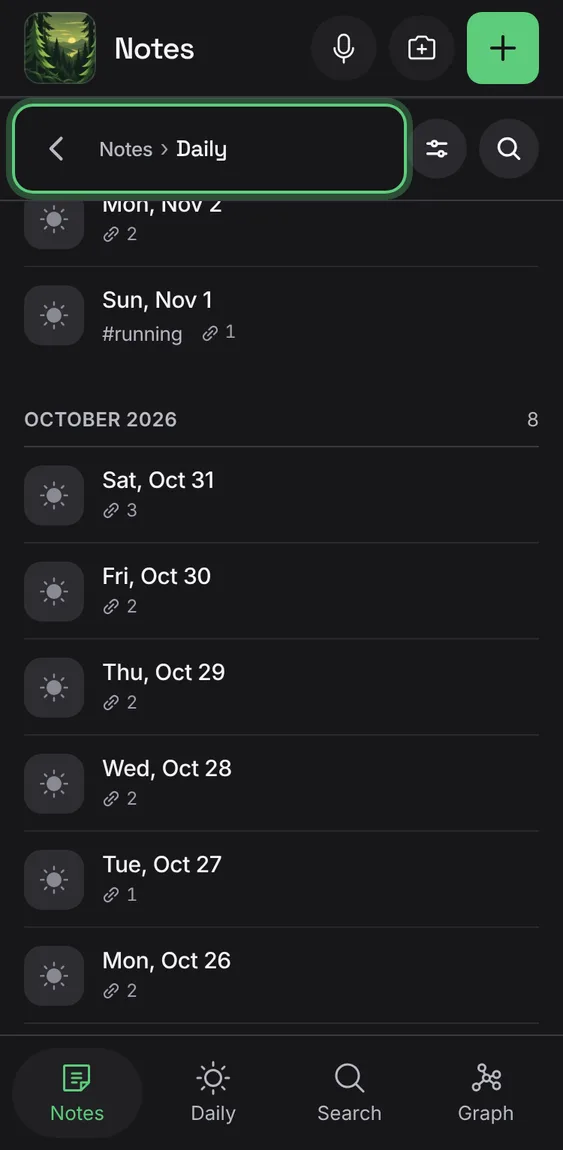
Daily notes have their own folder, first in the list, grouped by month.
- Tap Daily under Folders.
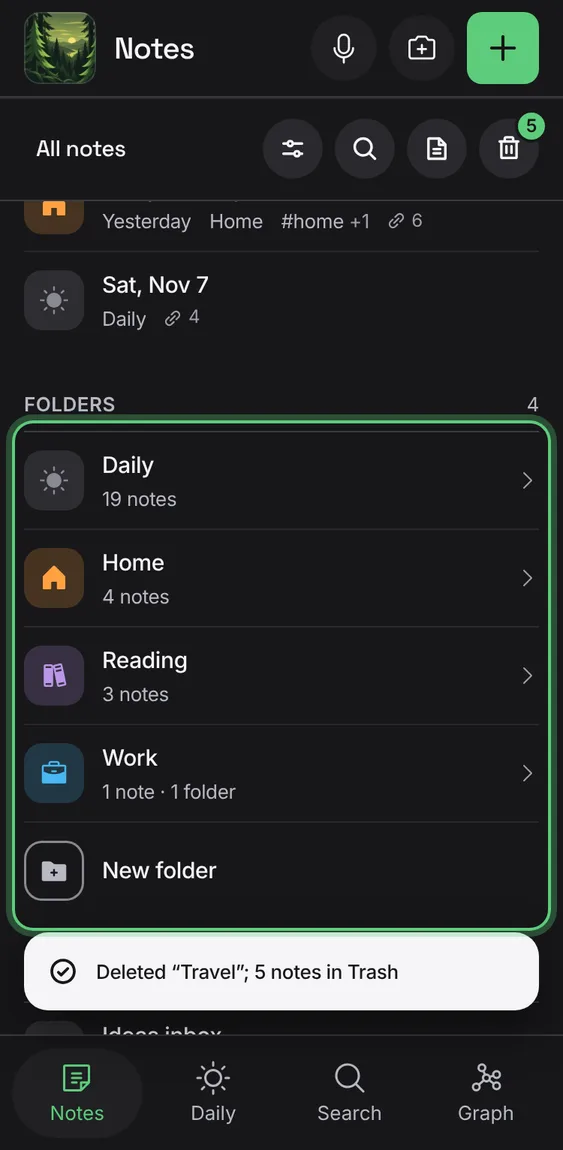
Deletes a folder and everything in it: its notes go to Trash for 30 days, and the confirmation says how many.
- In a folder, tap More → Delete folder, then confirm.
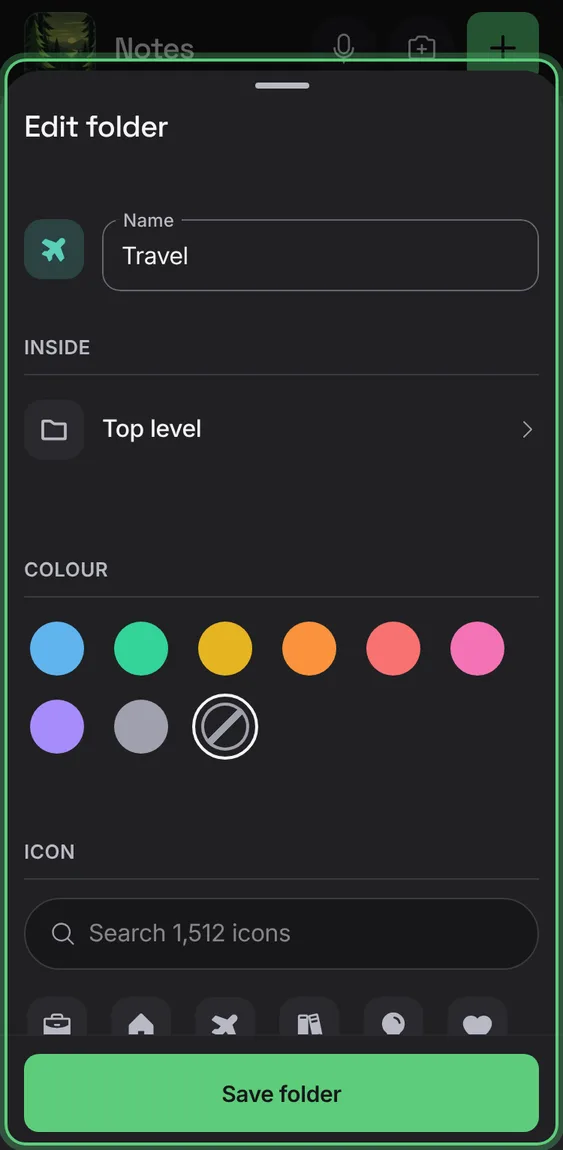
Rename a folder, move it, or change its colour and icon.
- In a folder, tap More → Edit folder; Save folder.
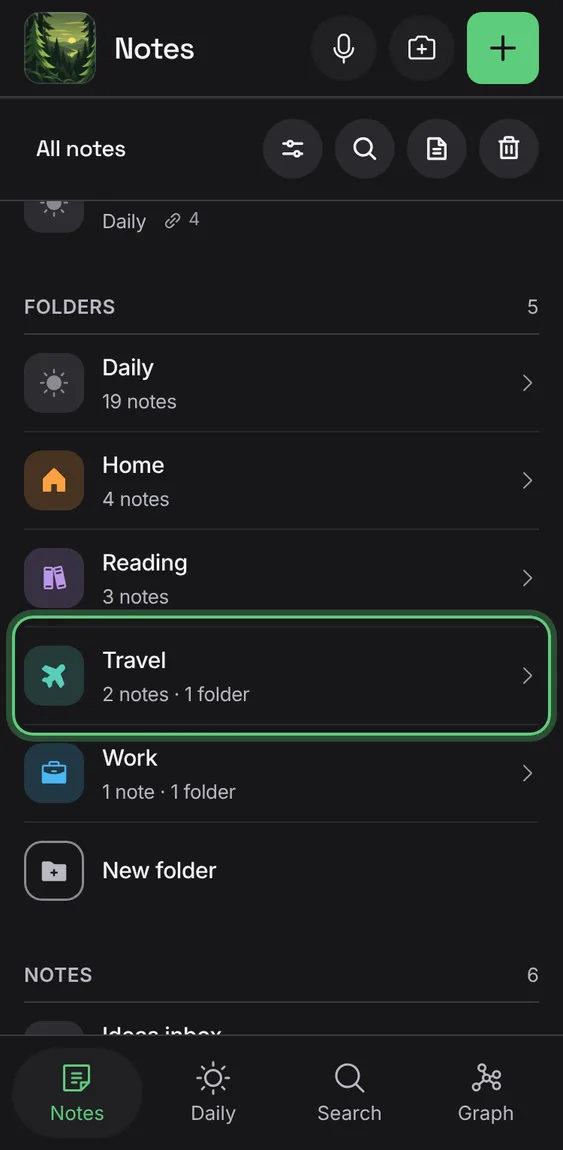
Each folder row says how many notes and folders are in it.
- Read the line under a folder's name.
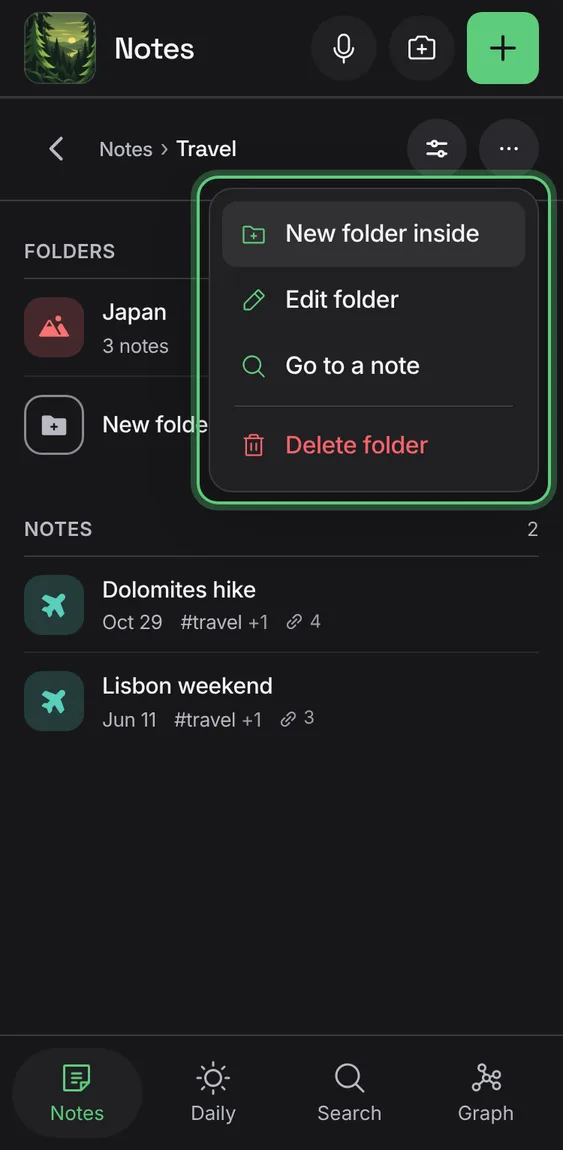
Inside a folder, its menu has New folder inside, Edit folder, Go to a note and Delete folder.
- In a folder, tap More.
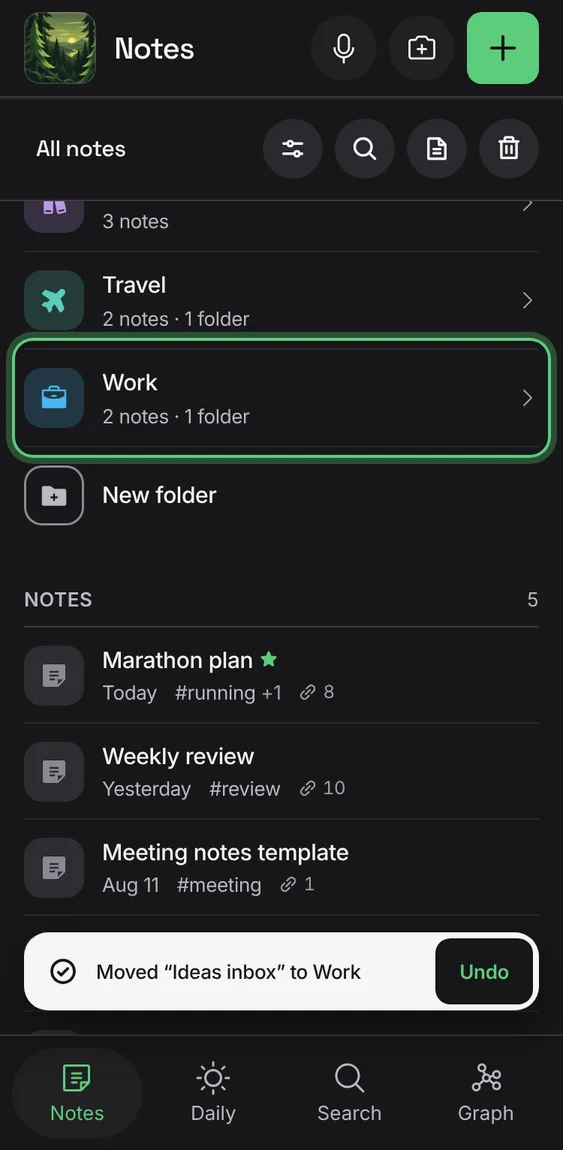
Drag a note or a folder onto a folder, or onto the path to move it up, with Undo. On a touch screen, press and hold first.
- Hold a row, drag it onto a folder and let go.
- Escape puts it back.
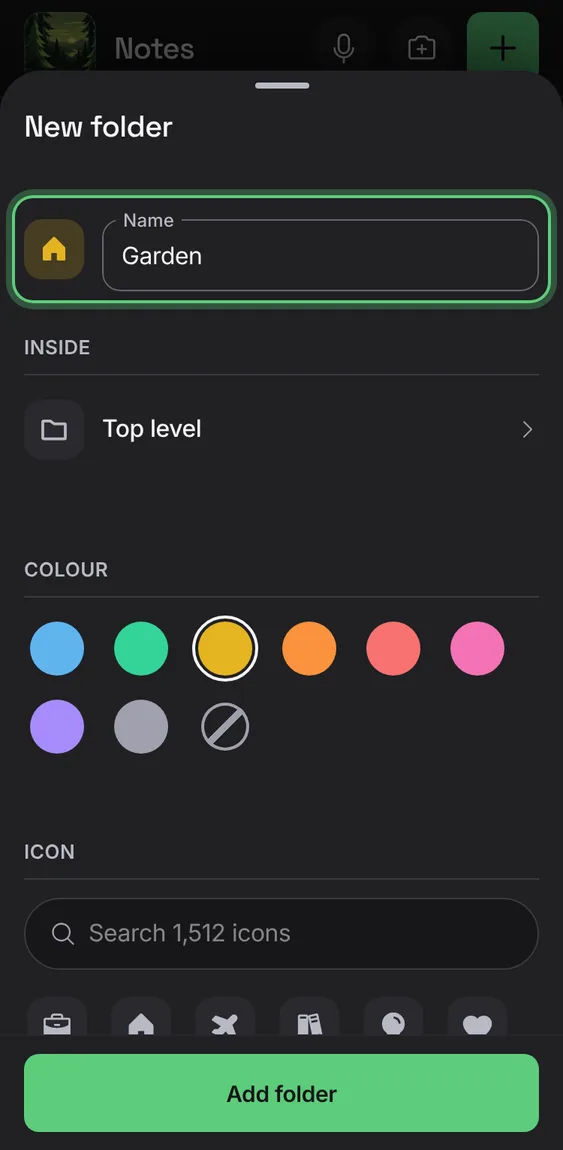
Name a folder, choose where it goes, its colour and its icon.
- Tap New folder, or New folder inside in a folder's menu.
- Fill in the name; Add folder.
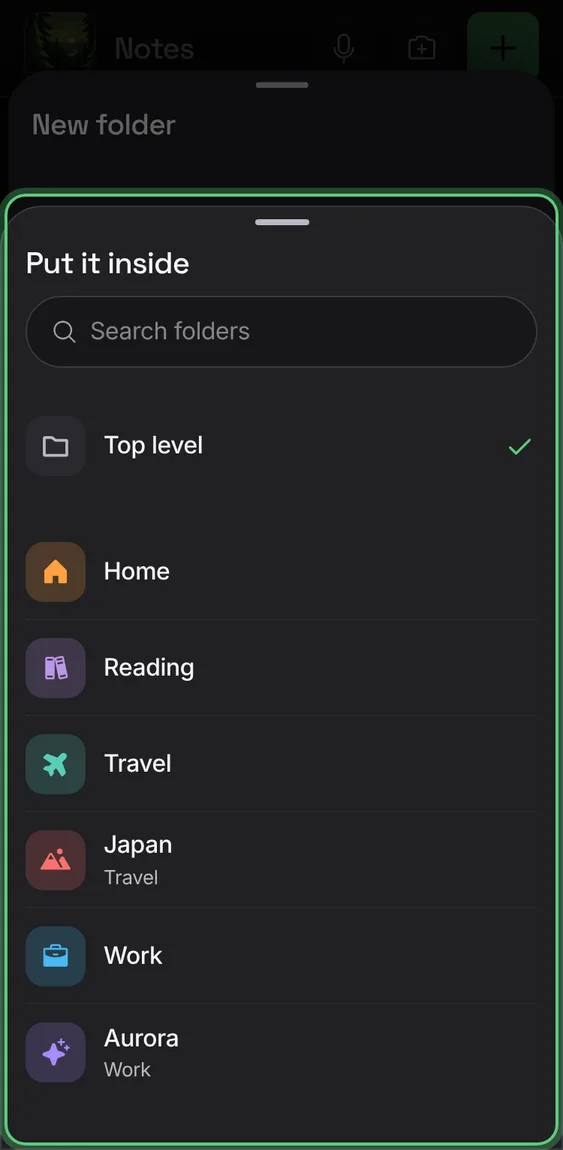
Choose the folder a folder sits in, or the top level; never inside itself.
- In the folder sheet, tap Inside and pick a folder.
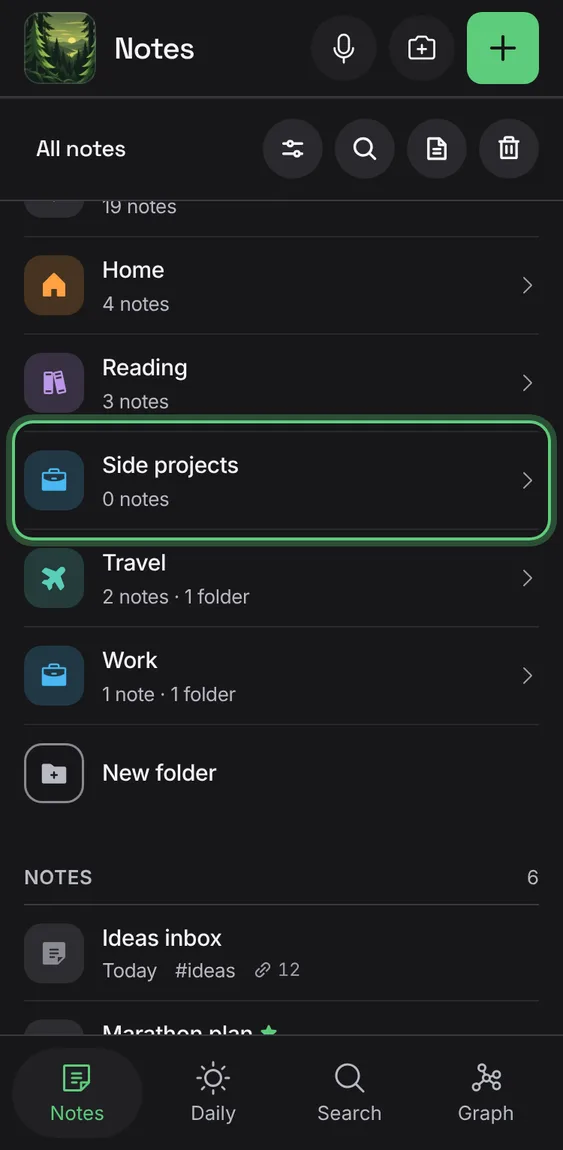
Give a folder one of eight colours and any icon, found by searching; without them its colour comes from its name.
- In the folder sheet, pick a colour and search for an icon.
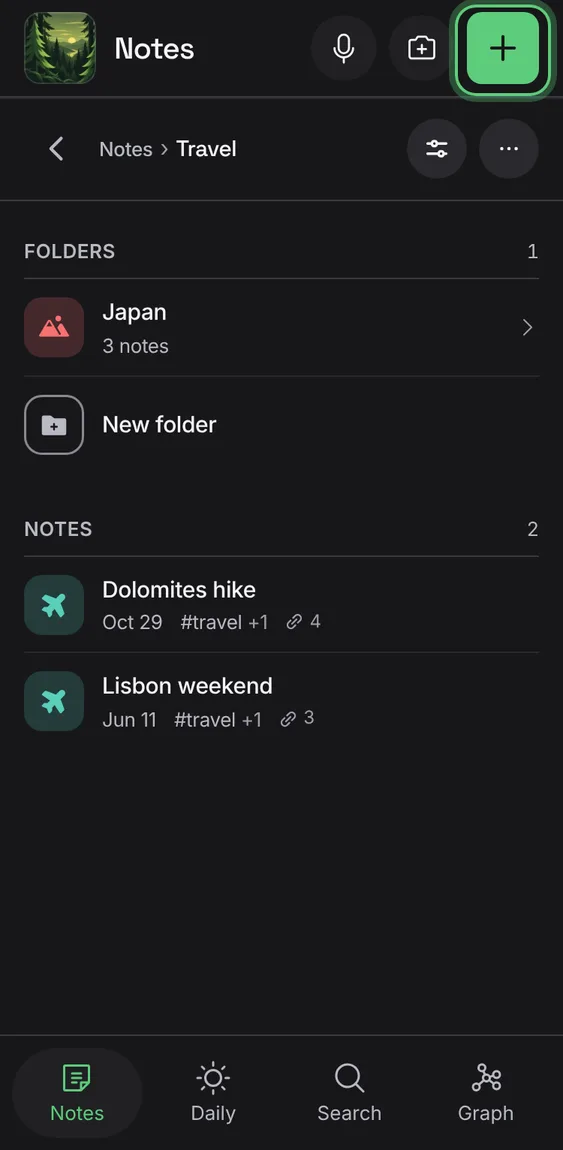
With a folder open or chosen, the + makes the new note there and says so.
- Open a folder, then tap New note in that folder.
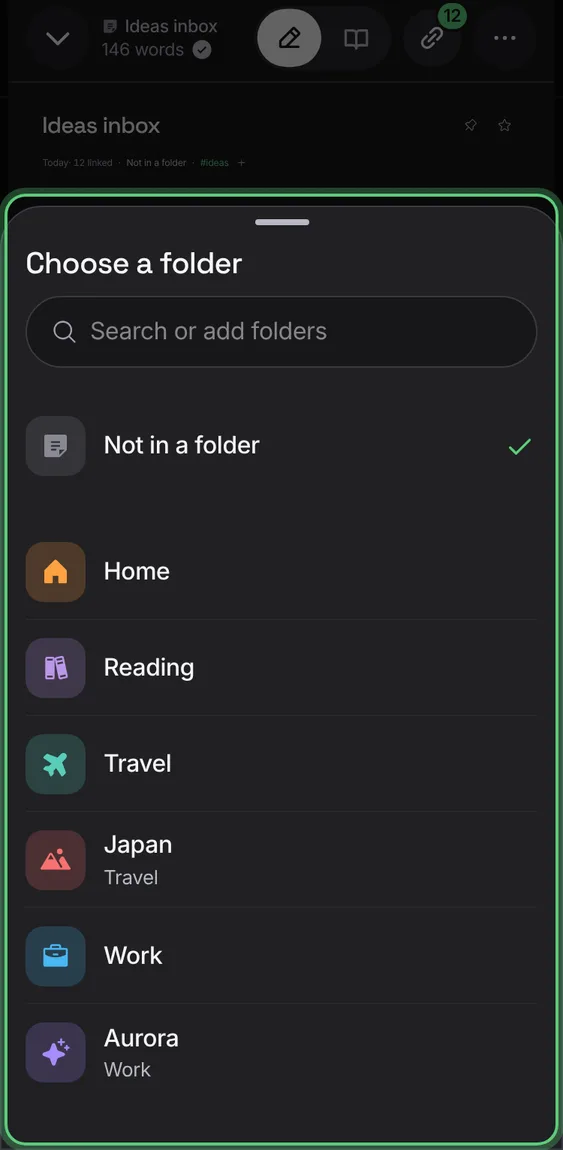
Choose a note's folder from the note itself; typing a new name makes that folder.
- In a note, tap its folder under the title.
- Pick a folder, or type a new name.
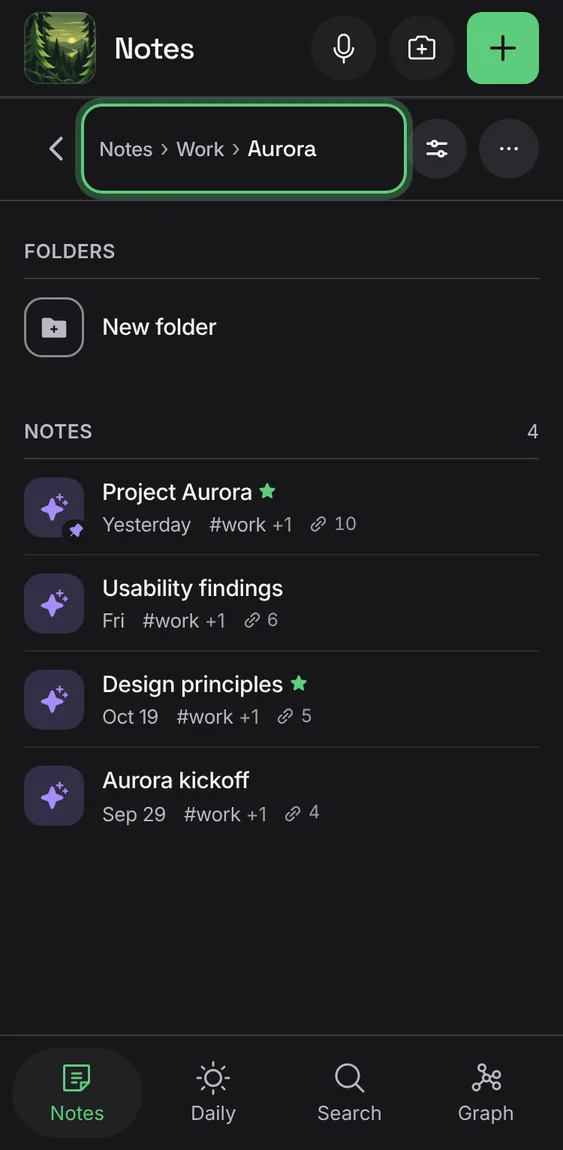
Notes opens one folder at a time. The bar shows the path; Back and Escape go up a level.
- Tap a folder; tap a step of the path, or Back, to go up.
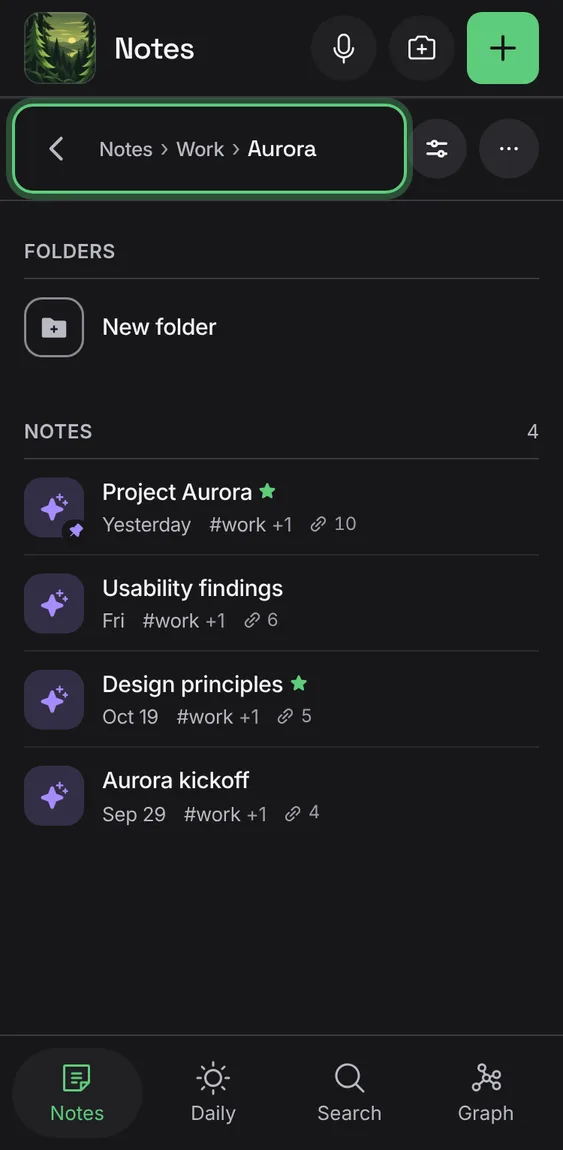
When the path doesn't fit, the folders above fold into … , which lists them.
- Tap … to go to a folder higher up.