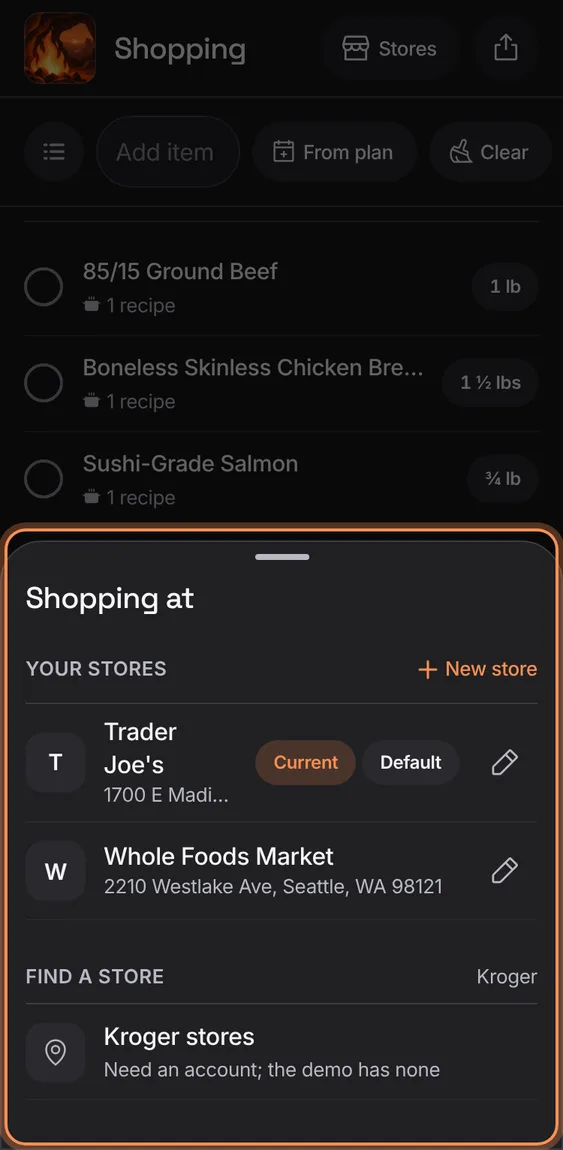
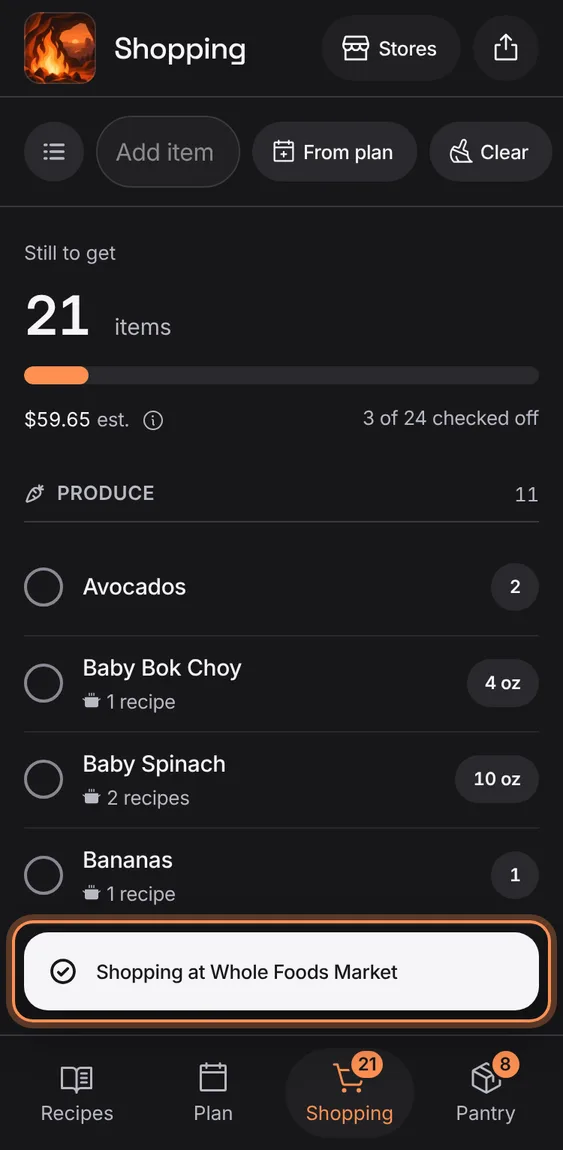
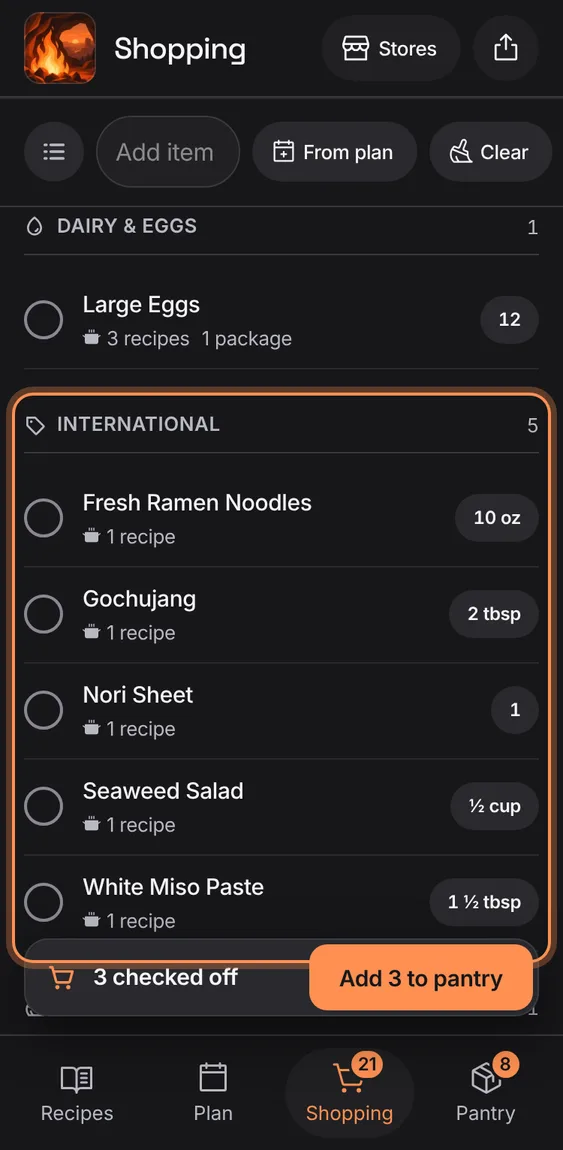
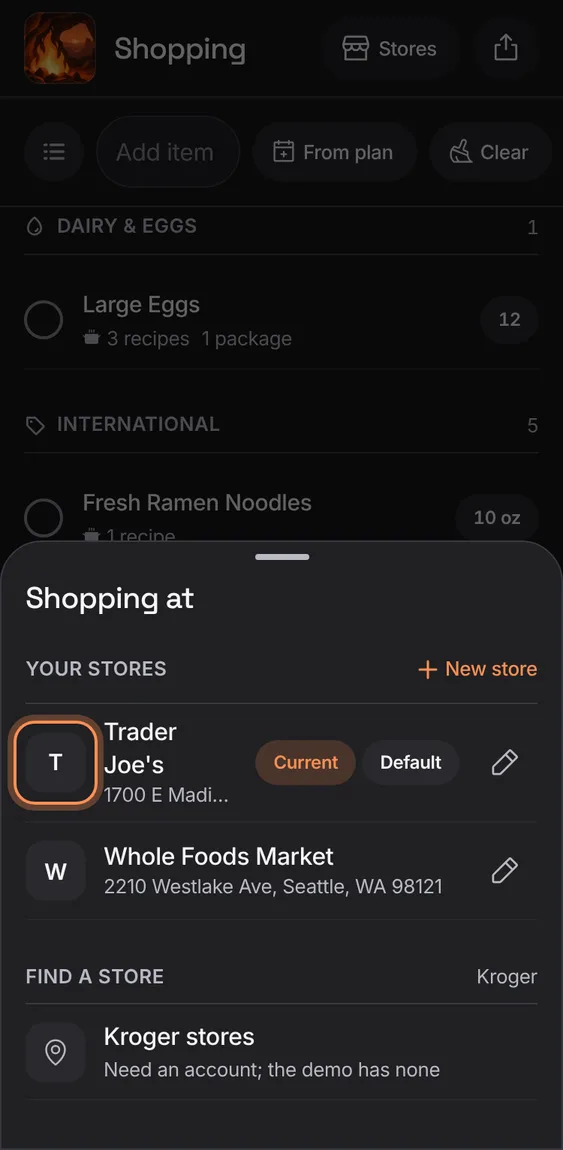
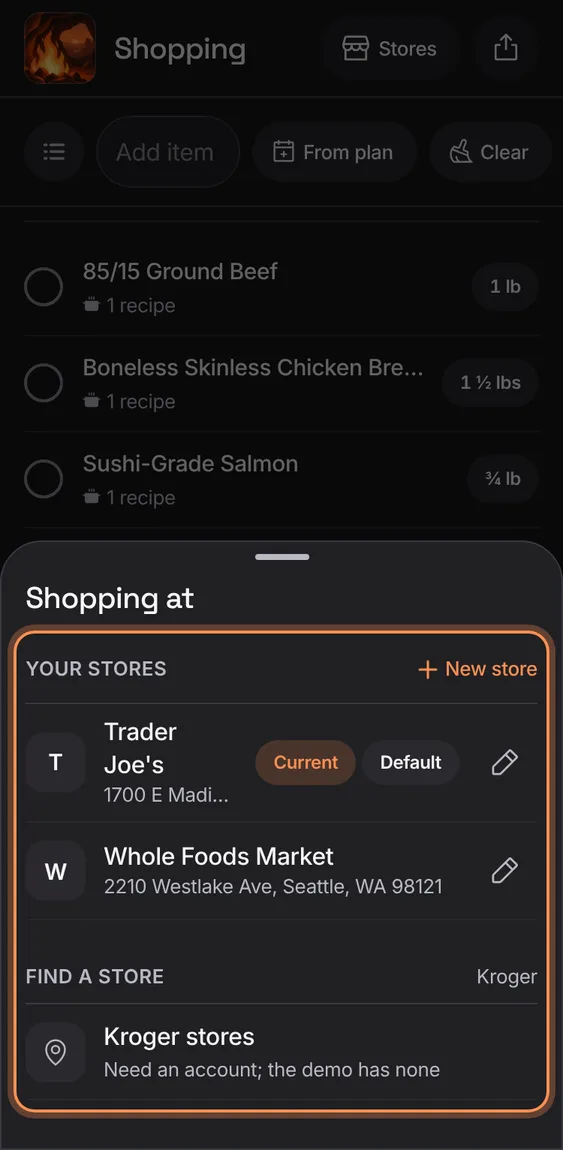
Tap a store to shop there: the list follows its aisles and Kroger matches; Current and Default show as pills.
Stores › tap a store.
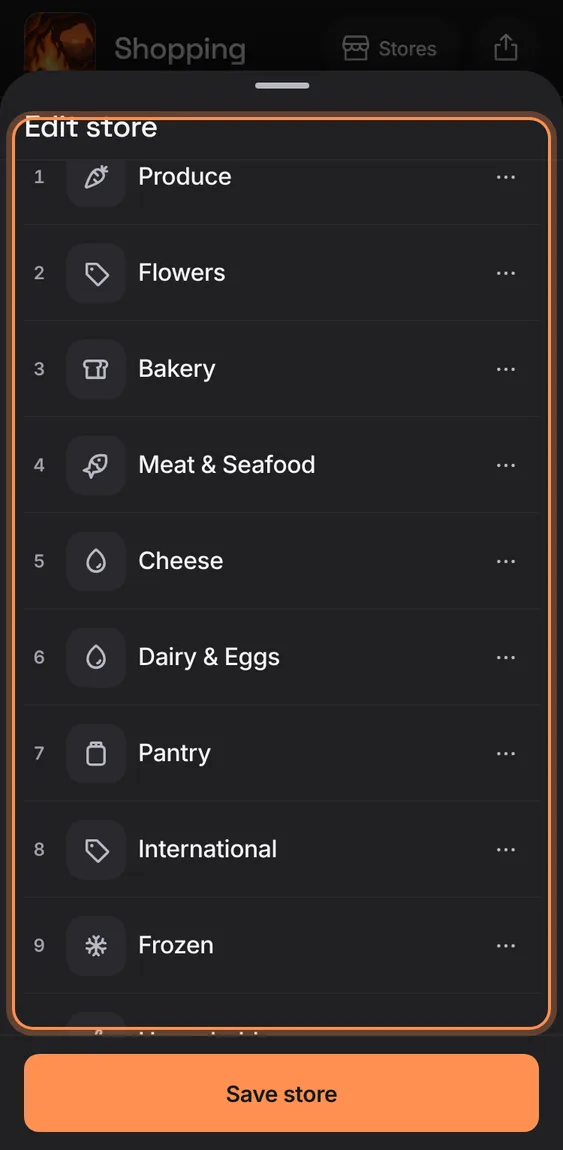
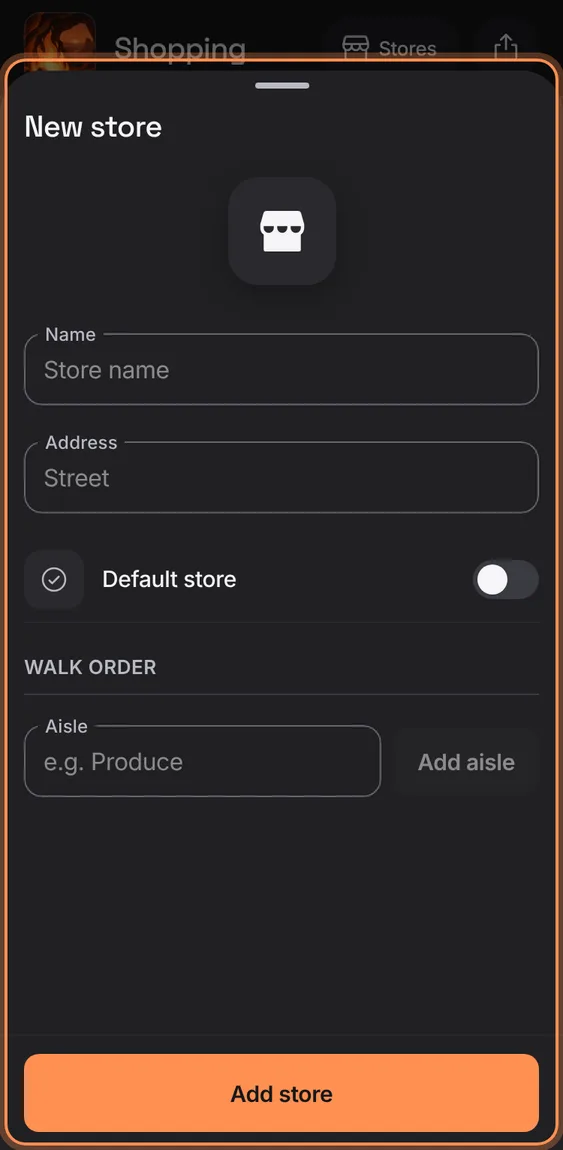
A store's name, address, whether it's your default, and its aisles in the order you walk them.
Stores › pencil, or New store.
Add aisle, then ⋯ › Move earlier, Move later or Remove aisle (with Undo).
Save store; closing with changes asks first.
Review the whole list for Kroger, include or swap each match, and send them to your own Kroger cart to check out there; nothing is bought here.
Tap Review N for Kroger at the end of the list.
Connect Kroger once; you sign in on kroger.com.
Tap Send N to cart; the demo has no account, says so and sends nothing.
Search Kroger for an item and choose a product, best fit first, each saying why: the packages needed, total, unit price.
Tap the item's thumbnail.
Search, then Choose; tap a photo to see it bigger.
Connect your Kroger account once to send items; Hearth never sees your password.
Tap Connect Kroger account.
Not in the demo. Needs an account: the demo has none.
Disconnect Kroger after a confirmation; matches and prices stay on your list.
Kroger › Disconnect Kroger.
Not in the demo. Needs an account: the demo has none.
Find a Kroger-family store near a ZIP code and use it, so items are matched to its products.
Stores › Find a store: type a ZIP and tap Search.
Tap Use on a store.
Signed out it says Sign in; the demo finds its own Kroger store, recorded once.
Each item still to get is matched to a product at your Kroger store, automatically and in parallel, with its photo, price and aisle; your own choice is kept.
Nothing to do once a Kroger store is chosen.
The item's thumbnail shows its product.
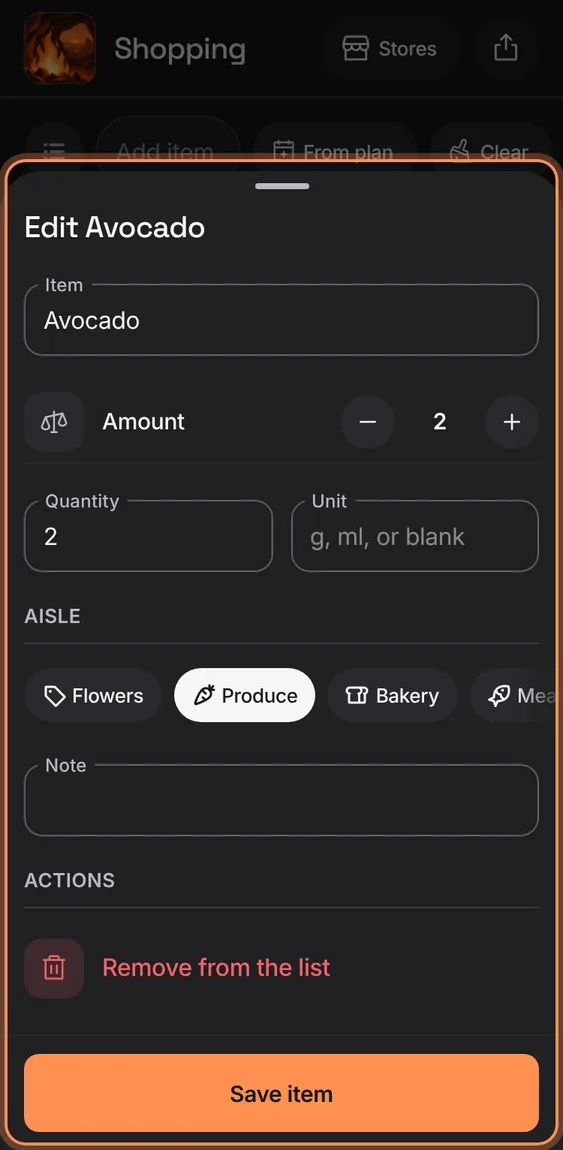
Put an item in an aisle once and it's remembered for that store.
Choose the aisle in the item's sheet.
A known chain shows its own icon; any other store shows its initial.
Nothing to do.
Stores, aisles, the list and its estimate all work with no Kroger store or when Kroger can't be reached.
Nothing to do: Kroger only adds matches.
Add a store of your own, with its walk order.
Stores › New store.
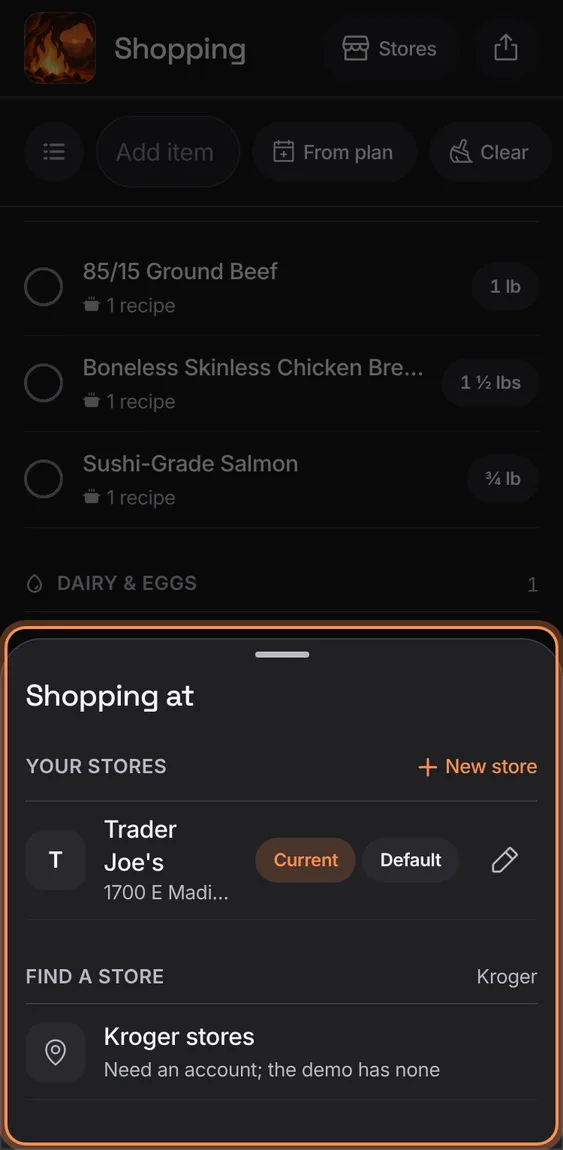
Remove a store after a confirmation; its aisle order and learned aisles go, the list stays.
Edit store › Remove store.
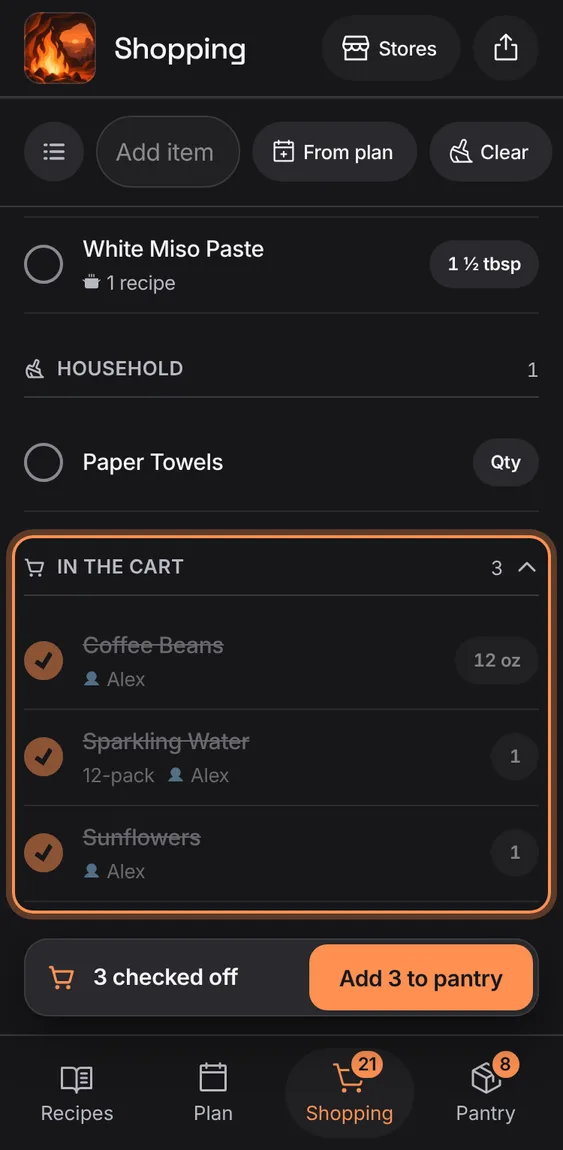
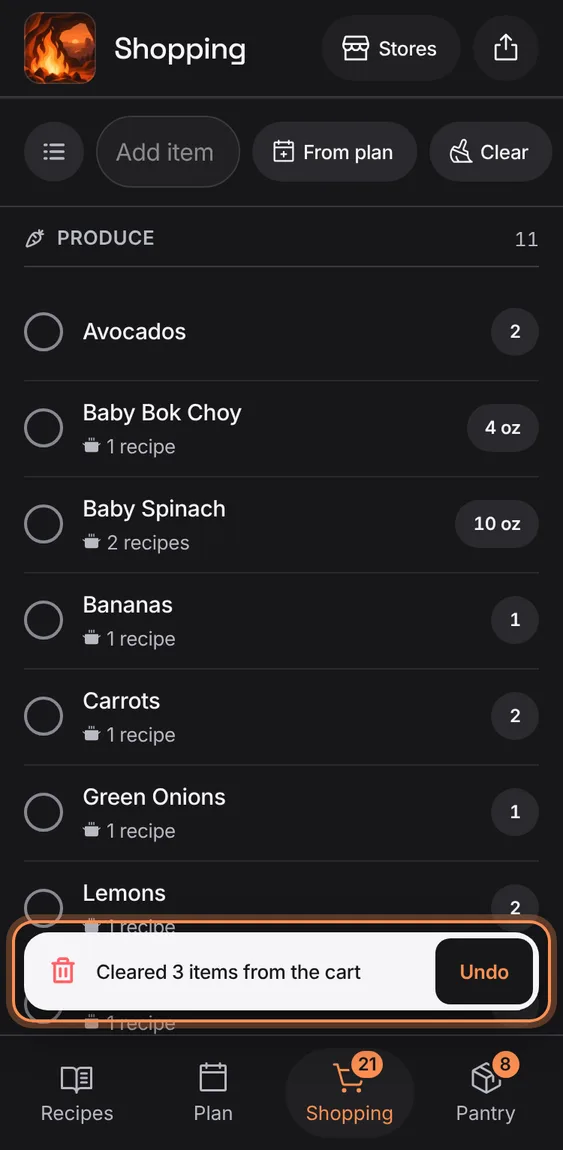
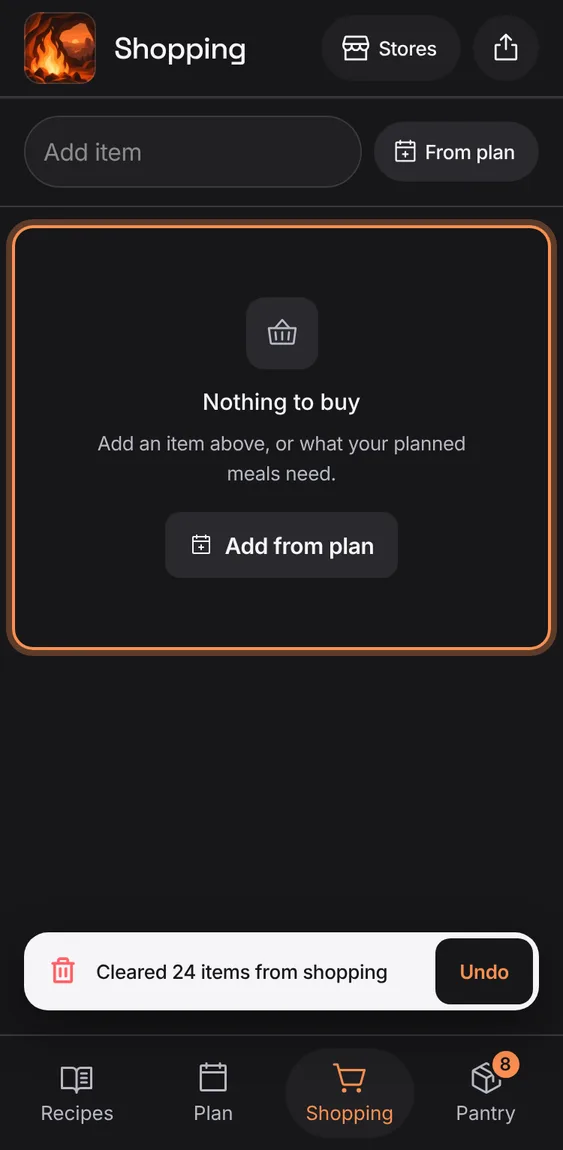
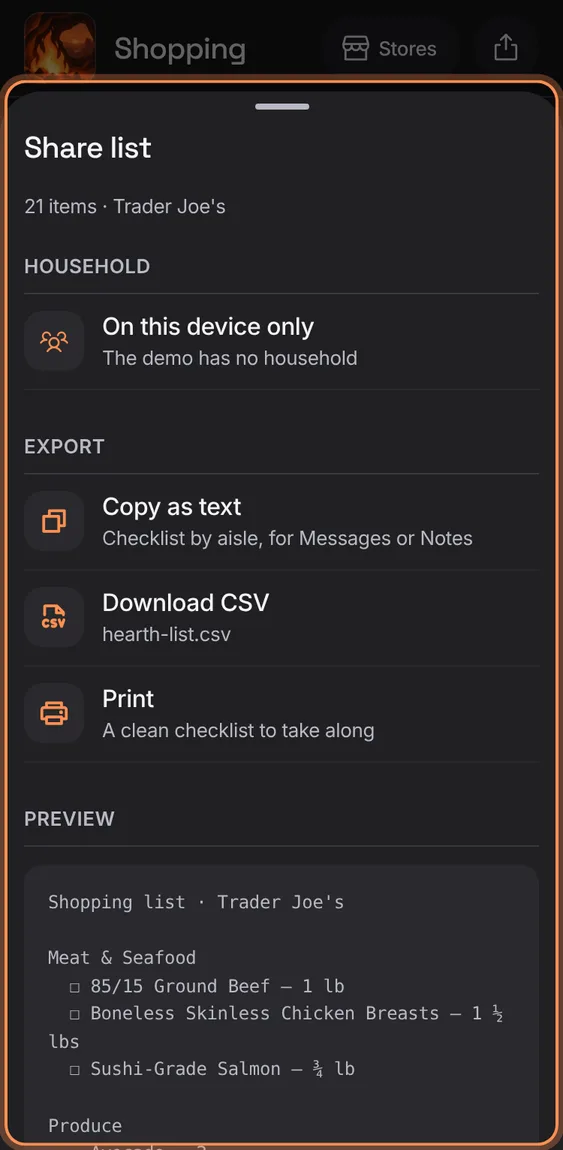
Add anything, tick it off as you shop, and share the list with your household, offline too.
 Hearth