Hearth
Shopping list
Add anything, tick it off as you shop, and share the list with your household, offline too.
Every Shopping list feature
Type an item, with an amount if you like ("2 avocados"), and it goes on the list.
- Type in Add item and press +.
- The header + brings the field back when it's scrolled away.
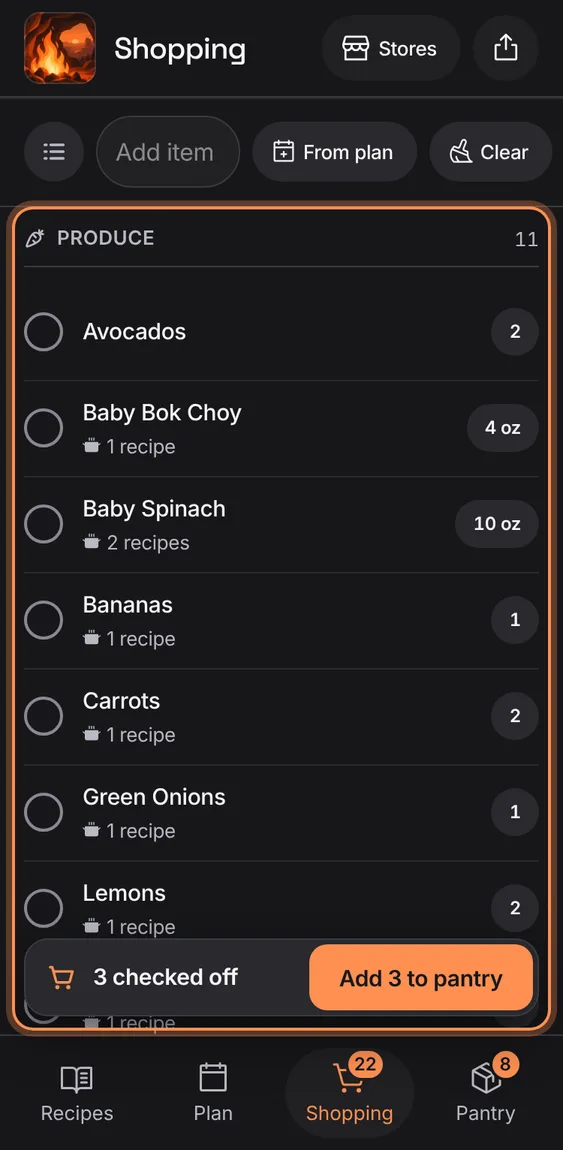
Items are grouped by aisle in your store's walk order, each aisle with its own icon.
- Aisles follow the store chosen in Stores.
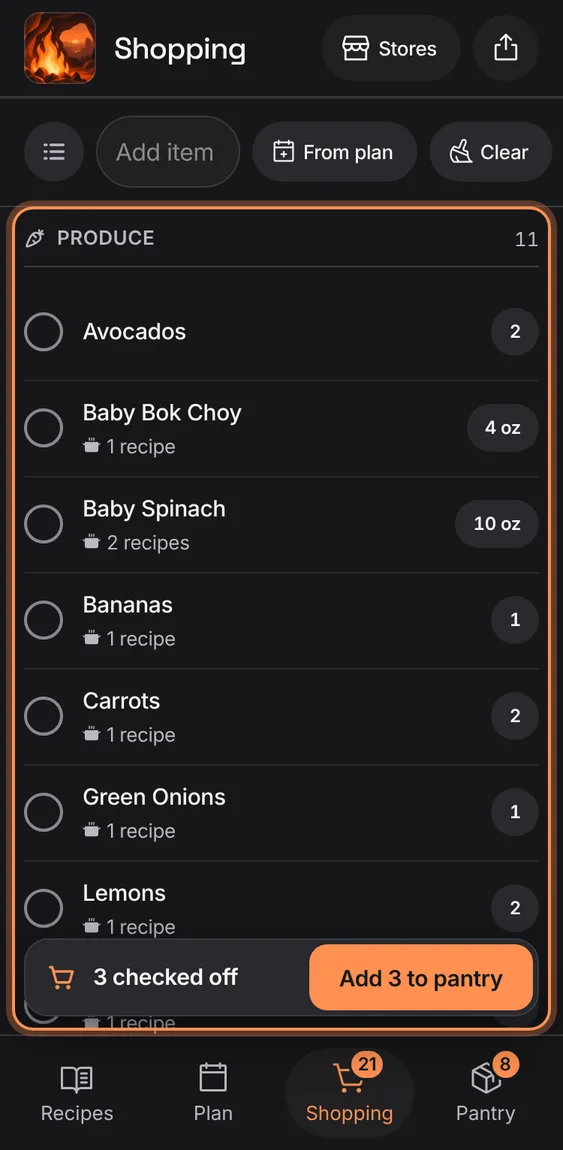
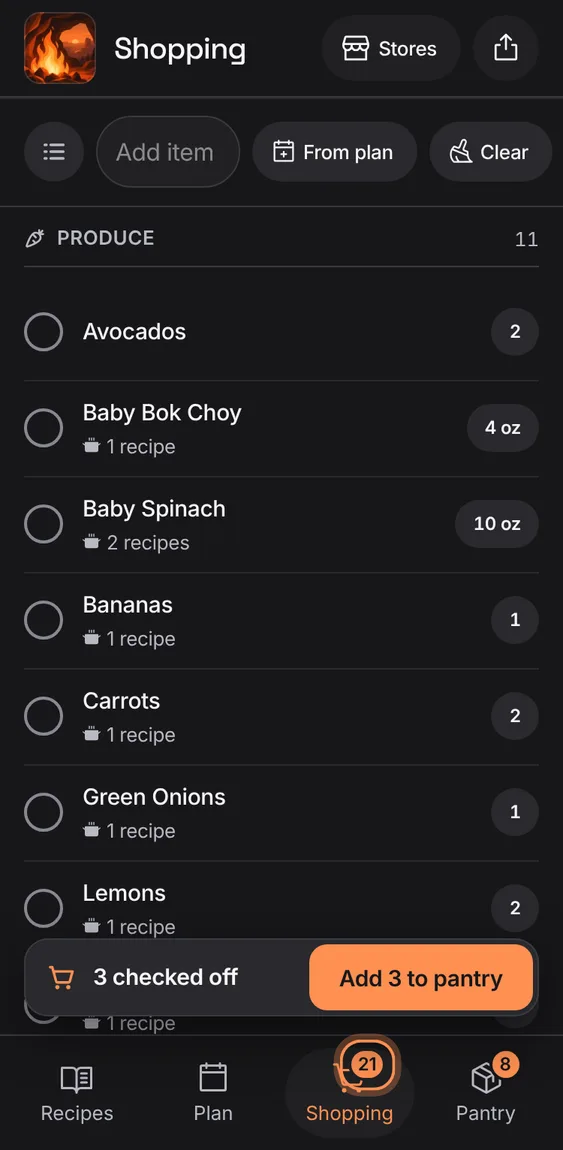
The Shopping tab counts what's still to get.
- Read the number on the tab.
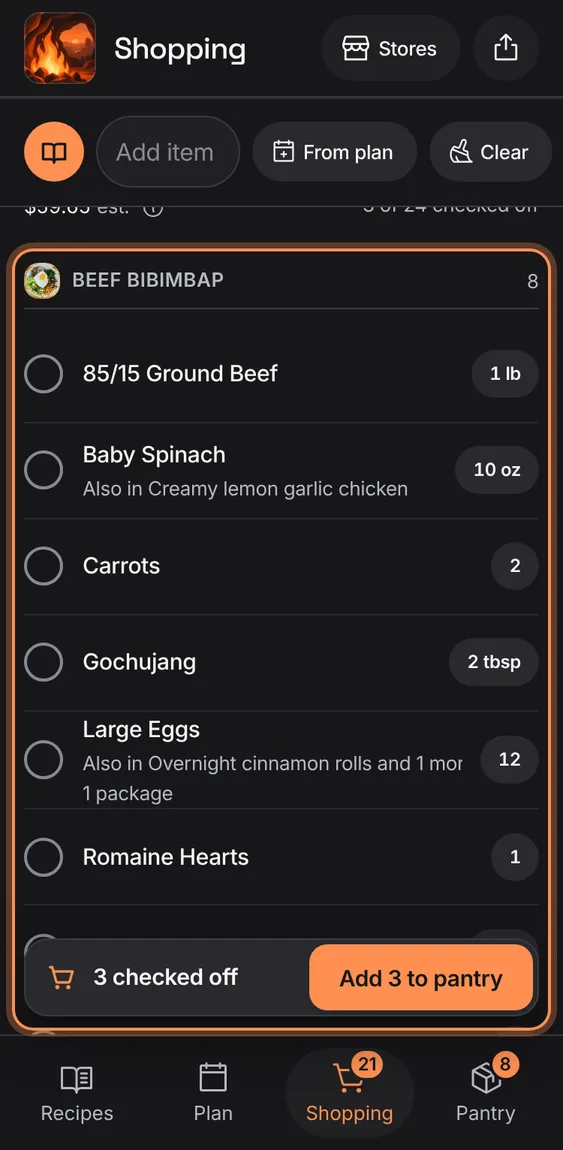
Group the list by the recipes that need each item; an item shared by two recipes keeps its one amount and names the other.
- Tap the group toggle (or By recipe on a wide screen).
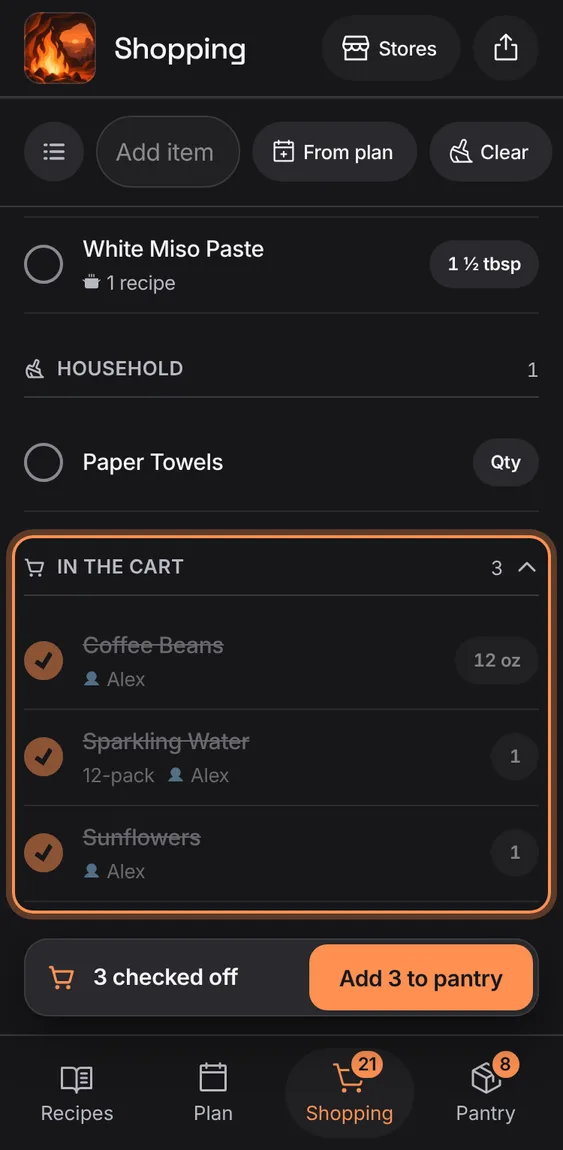
What's ticked off, folded under In the cart, with a bar at the foot: how many are checked off and their cost.
- Tap In the cart, or the bar at the foot, to open it.
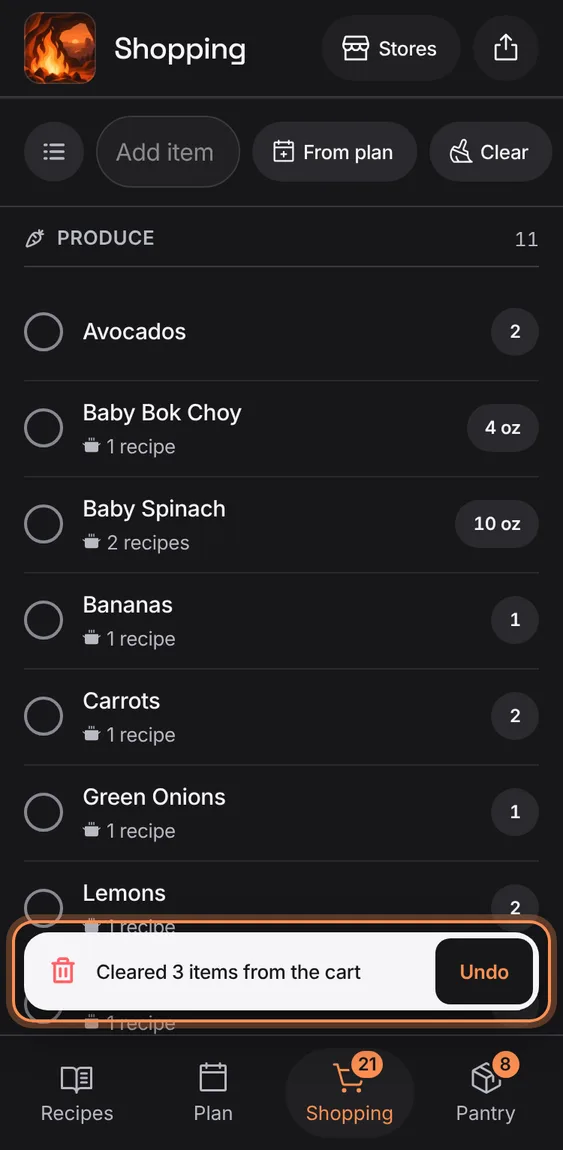
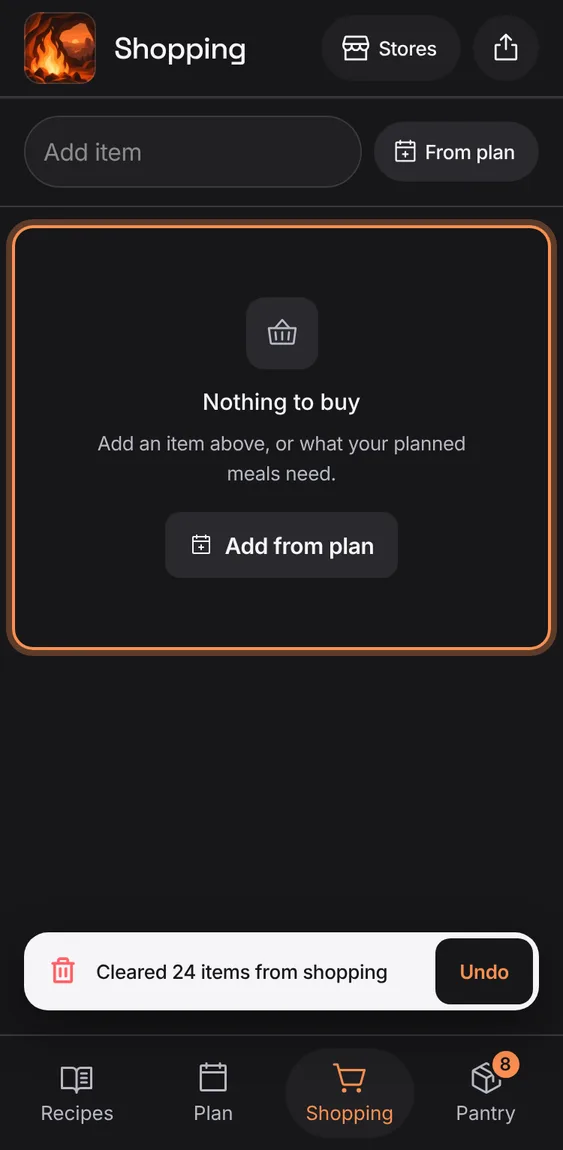
Clear the list, the cart or everything, with the counts shown first; Undo brings them back and nothing goes into the pantry.
- Tap Clear in the bar.
- Choose List, Cart or All, then the button named for it.
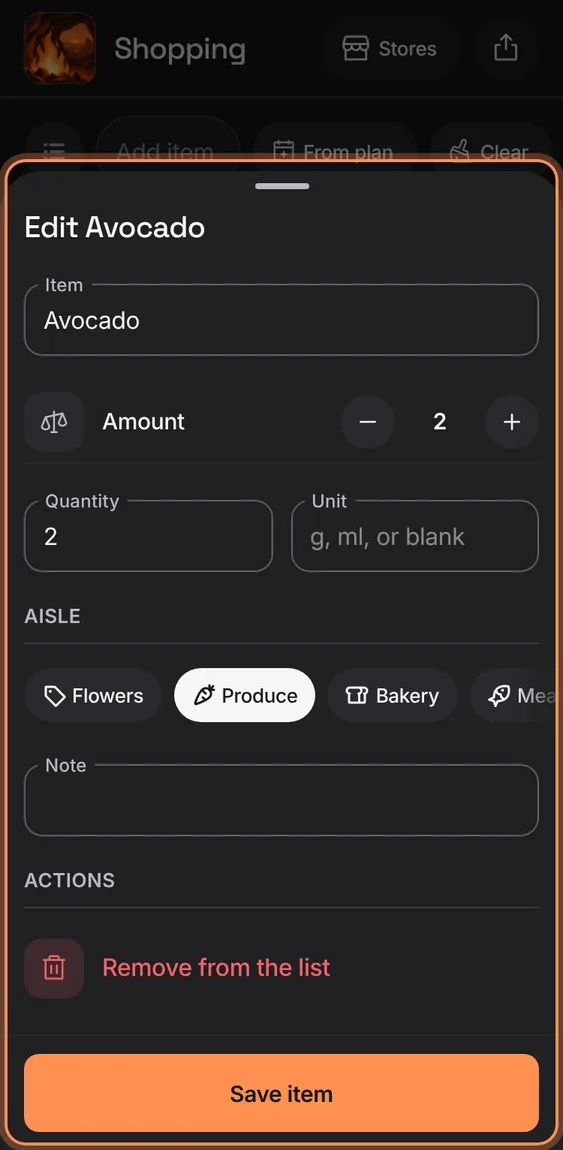
An item's sheet: its name, amount on a stepper or typed with its unit, its aisle as chips (remembered for the store), a note, and what it's for.
- Tap the item's name or amount.
- Tap Save item; closing with changes asks first.
- Tap a recipe under For to open it.
An empty list says what to do next, with Add from plan; once everything is ticked it says to put it away at home.
- Tap Add from plan, or add an item above.
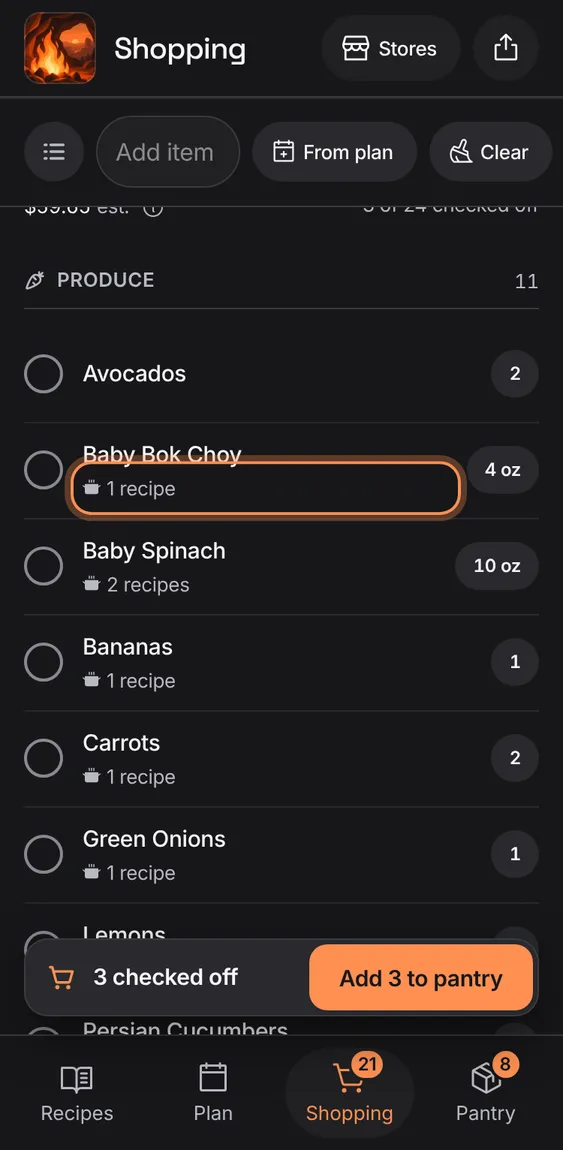
An item says how many recipes need it, Restock, its note, who added it and its Kroger match, on one line.
- Read them under the item's name.
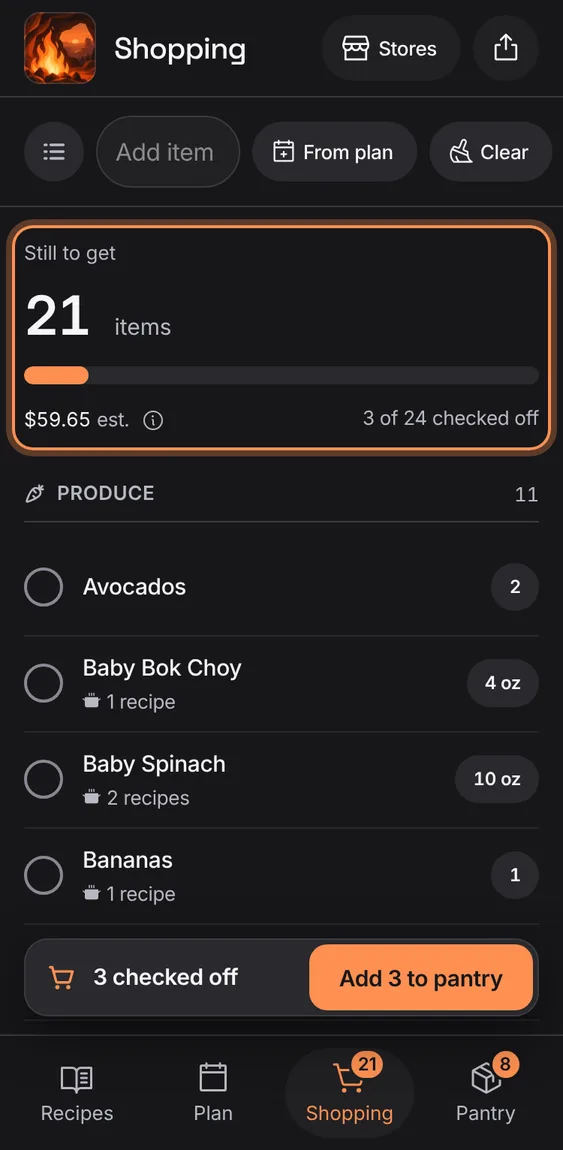
How many items are left, how many are checked off, and an estimated cost from Kroger prices or prices you've recorded.
- The (i) says where the estimate comes from.
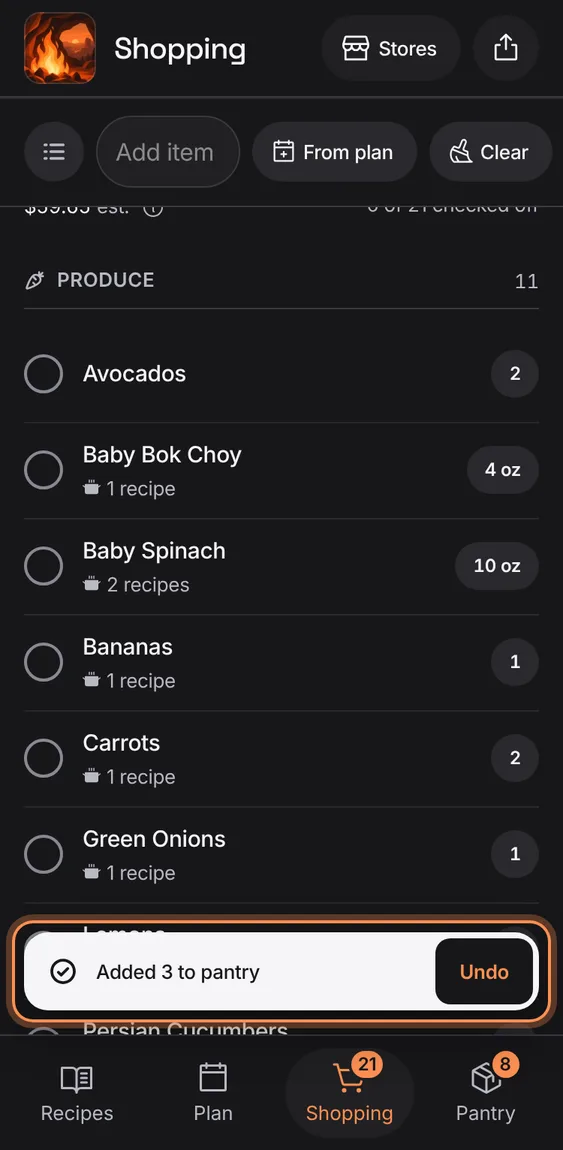
Checked-off items go into the pantry in one step, in whole packages where the size is known; Undo takes them back out and returns them to the cart.
- Tap "Add 3 to pantry" in the bar at the foot.
- Amounts can be changed later in Pantry.
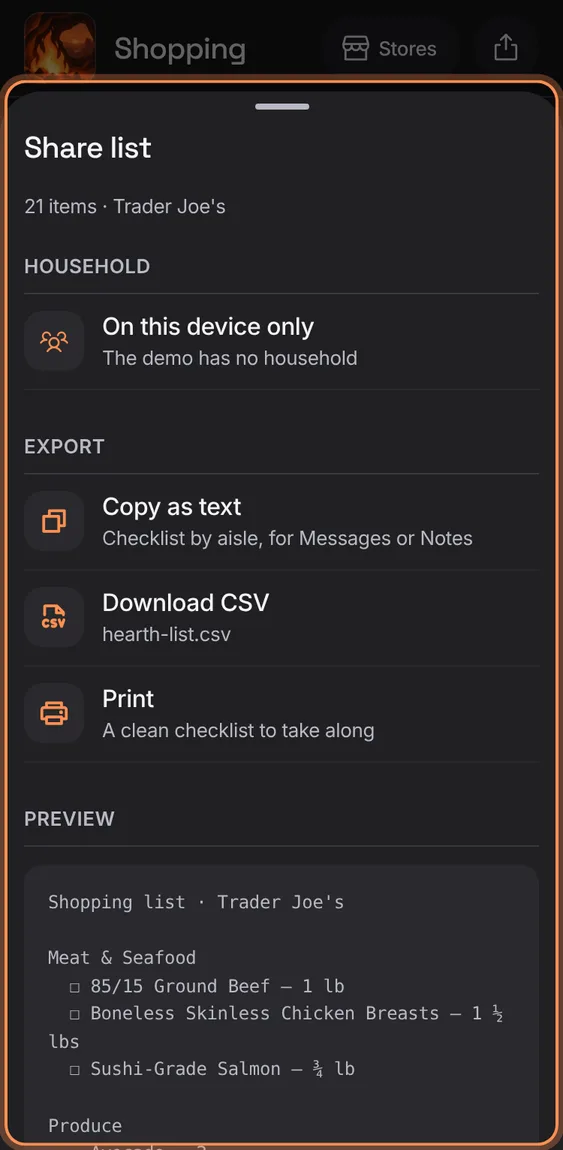
Send the list to another app, or copy it as a checklist by aisle, download a CSV, or print it.
- Tap the share icon in the header.
- Send, Copy as text, Download CSV or Print.
Swipe an item left to remove it, with Undo; a short or sideways-then-down drag leaves it. Removing is also in its sheet.
- Swipe left on a row.
- Tap Undo on the toast.
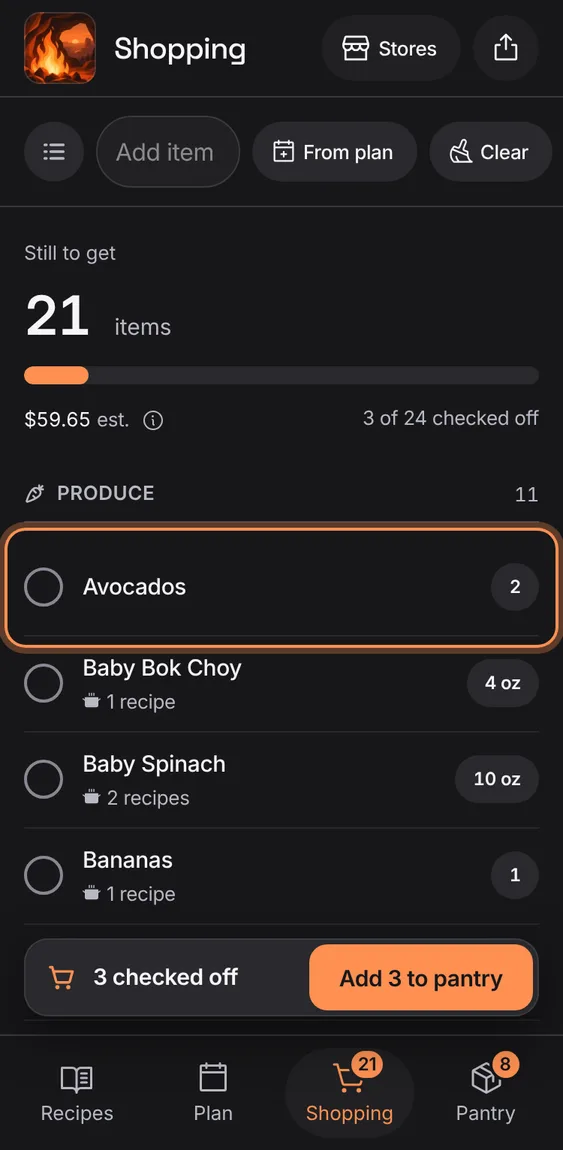
The first time you tick something on a phone, the next row peeks left once, to show it can be swiped.
- Plays once per device; never with reduced motion.
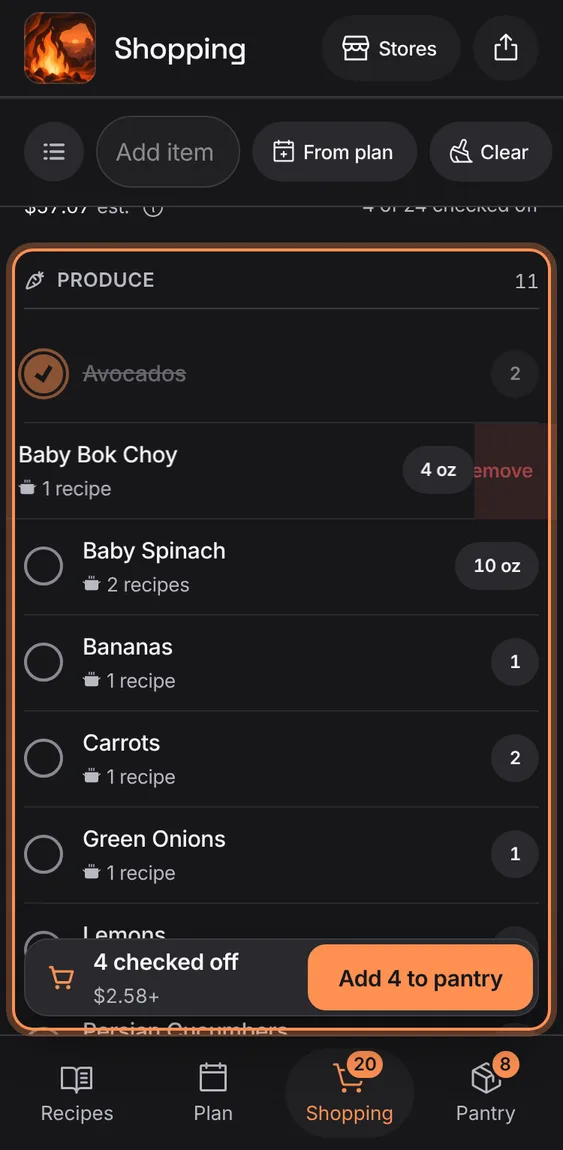
A tick stays where it is while you're shopping, so a slip is undone in place; ticked items gather in the cart when you open it.
- Tap the round check.
- Open In the cart to gather them.