 Alluvium
Accounts
Your bank accounts, cards, loans and other assets with their balances and net worth, and every payee.
Every Accounts feature
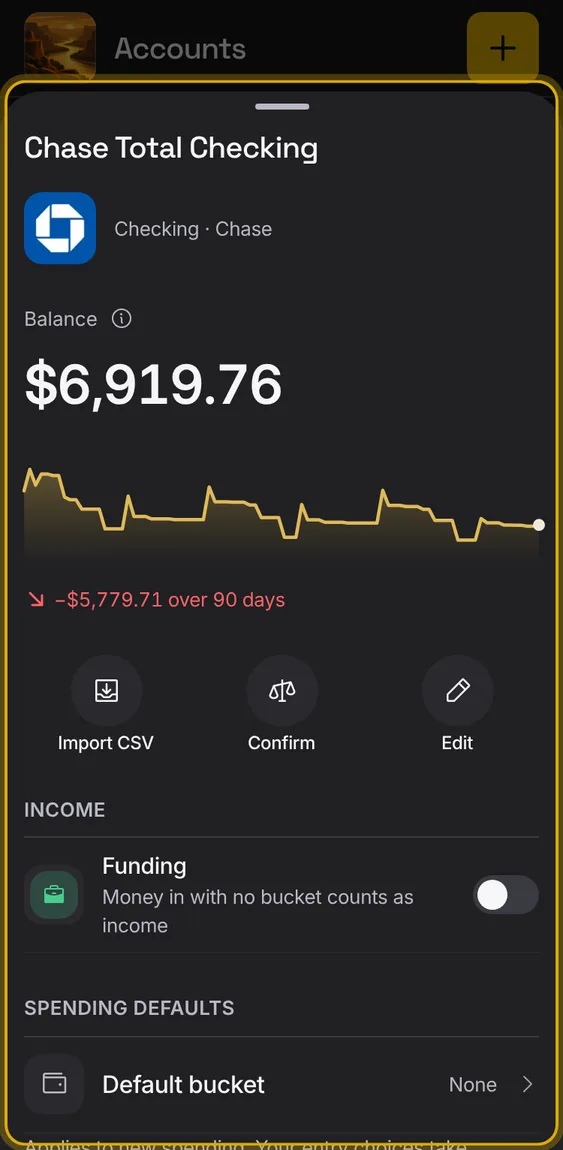
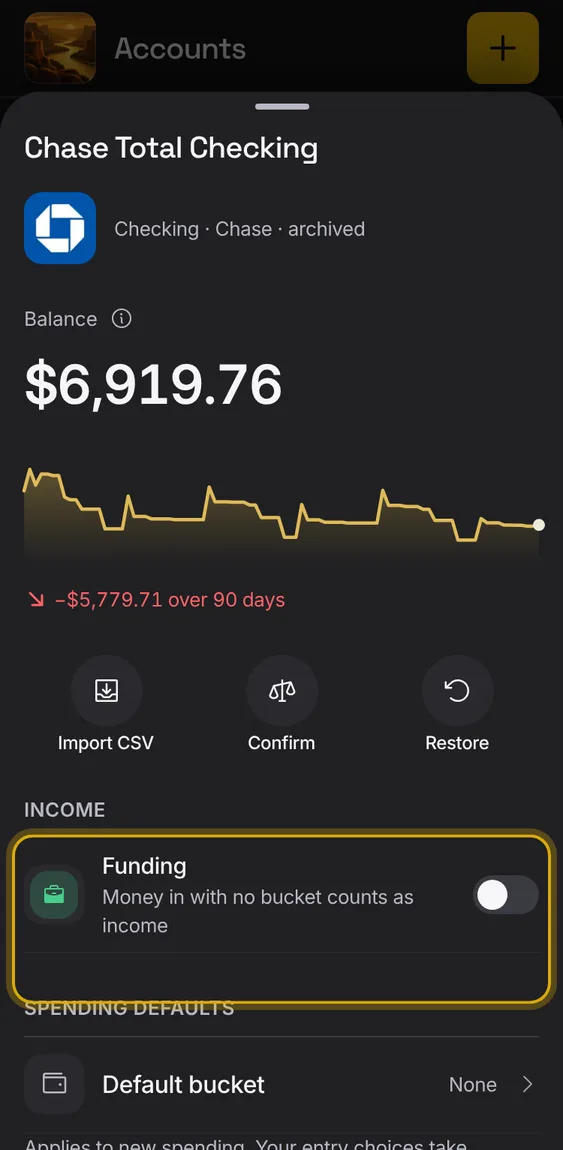
One account: its balance and history, latest entries, and its settings.
- Tap an account.
- Import CSV brings a bank file into it.
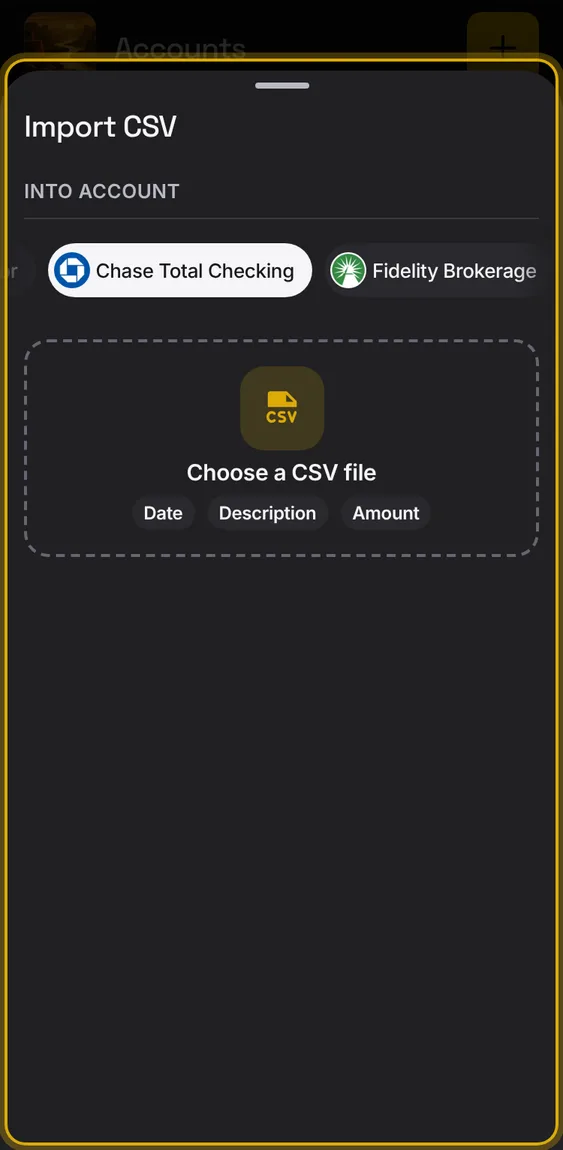
Import a bank file straight into the account you're looking at.
- Tap the Import tool in the account.
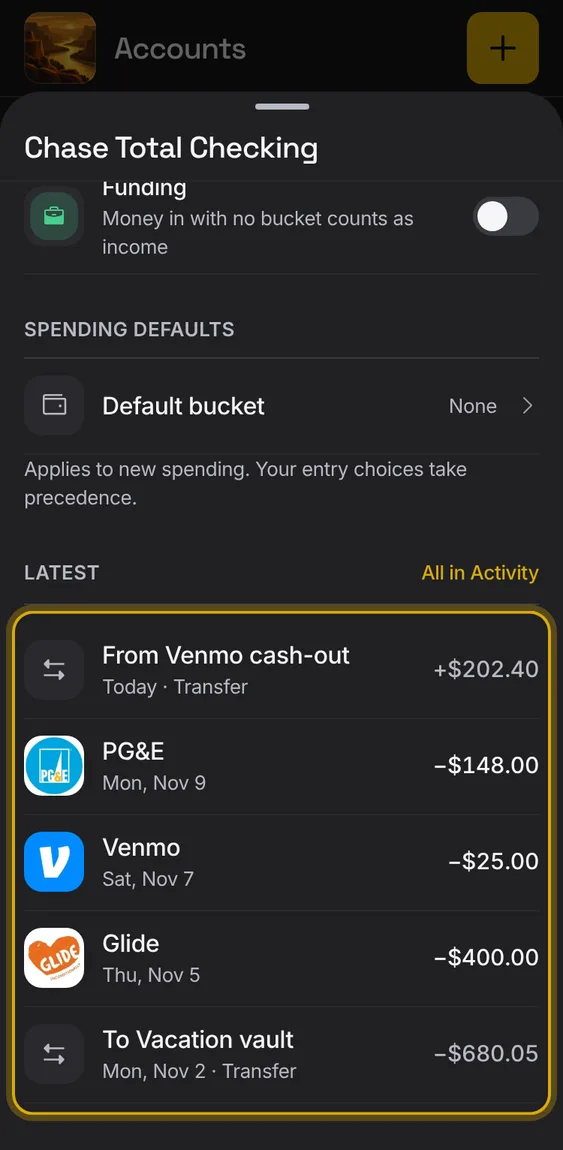
The account's latest entries, each opening the entry.
- Scroll down in the account.
The payees whose payments pair as transfers with this account.
- Shown in the account's screen.
Not in the demo. Shows with more than the demo holds.
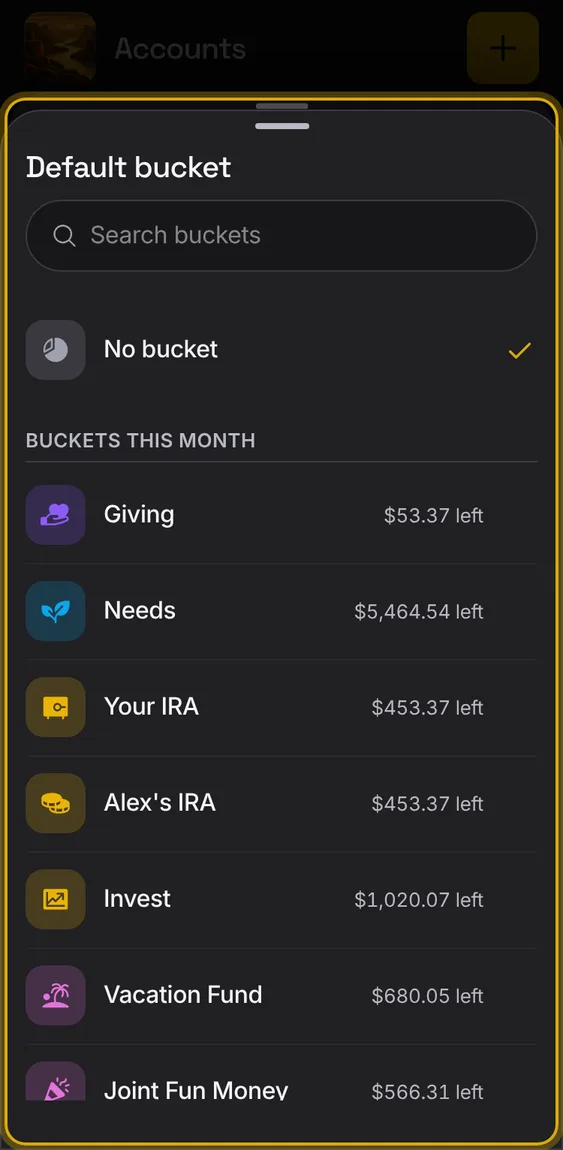
Give an account a default bucket for its new spending; your own choice on an entry still wins.
- In the account, set Default bucket.
- Clearing the default changes only future entries.
Every screen shows the same balance, worked out one way, with the date the bank last reported it.
- Open an account to see its balance and how it changed over time.
- When the bank reports an available balance, it shows under the balance with its date.
- If your entries and the bank disagree, Alluvium says so.
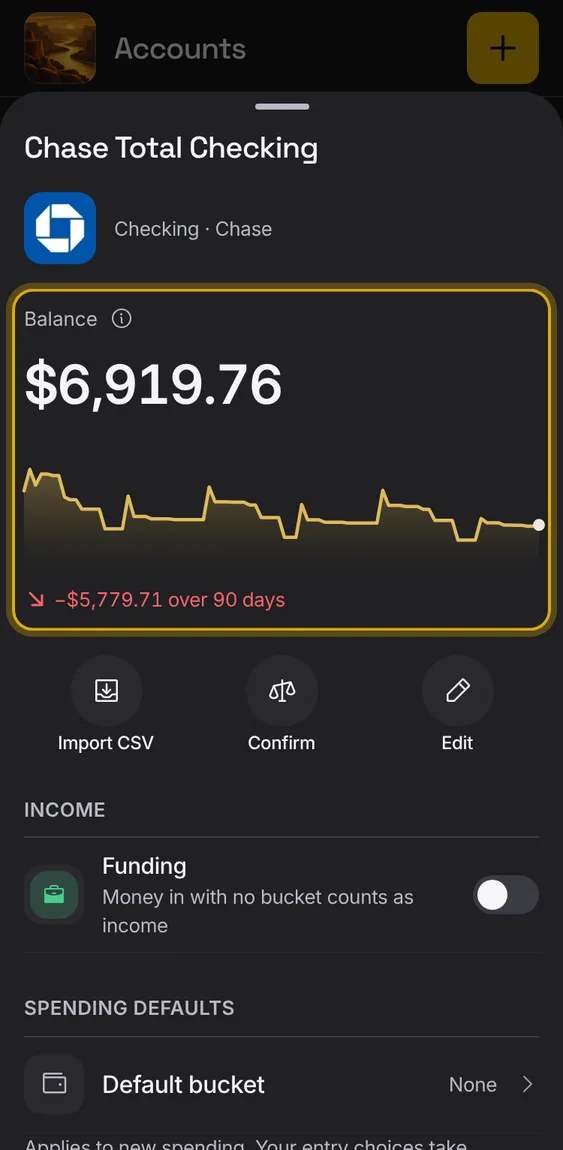
The bank's available balance, or a card's available credit, and when it was read, under the balance.
- Shown only when your bank gives one.
Not in the demo. Needs an account: the demo has none.
A connected bank's history starts at the first balance it reported, so a short feed never makes up a wrong balance.
- Nothing to do.
Not in the demo. Needs an account: the demo has none.
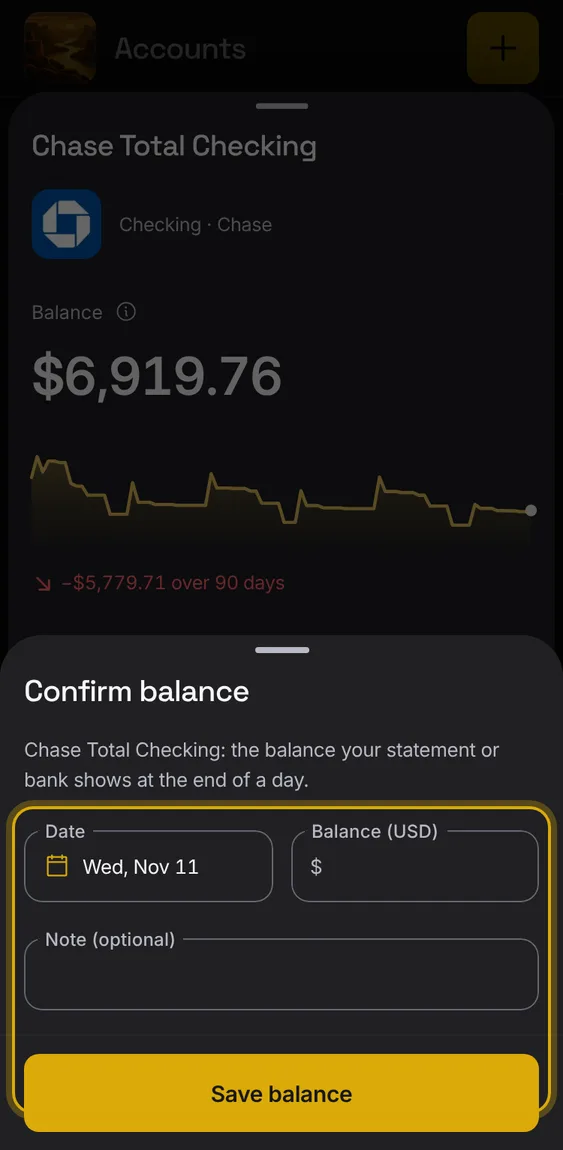
Record the balance your statement shows on a date; Alluvium checks your entries against it.
- Tap Confirm balance in the account.
- Remove a confirmed balance from the same sheet.
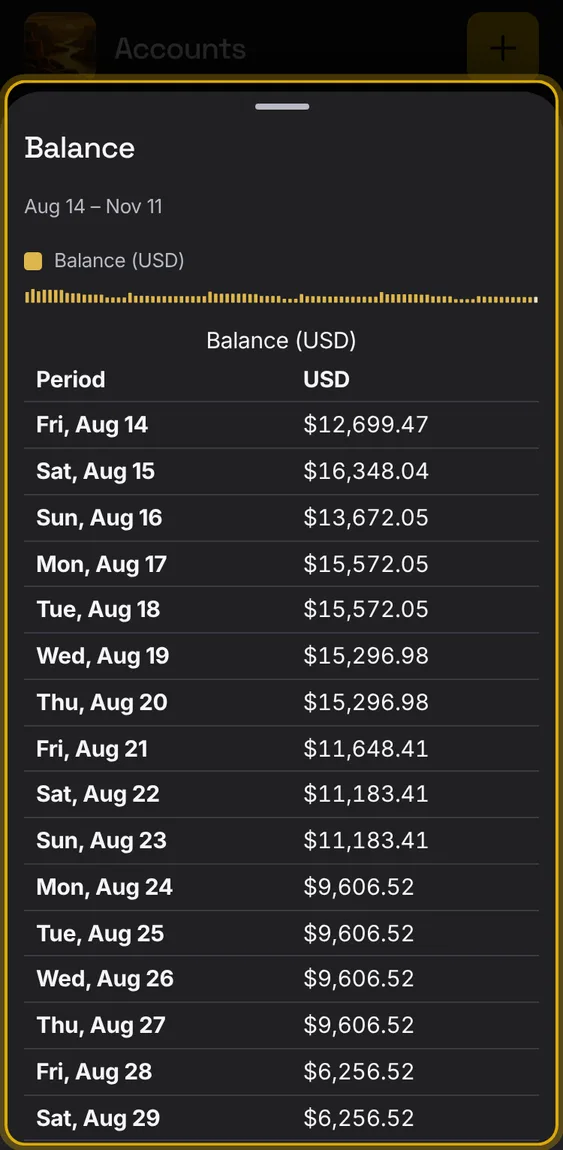
A chart of the account's balance over the last 90 days, and a table of every day's balance.
- Tap Balance details.
- The change says how much it moved since the start.
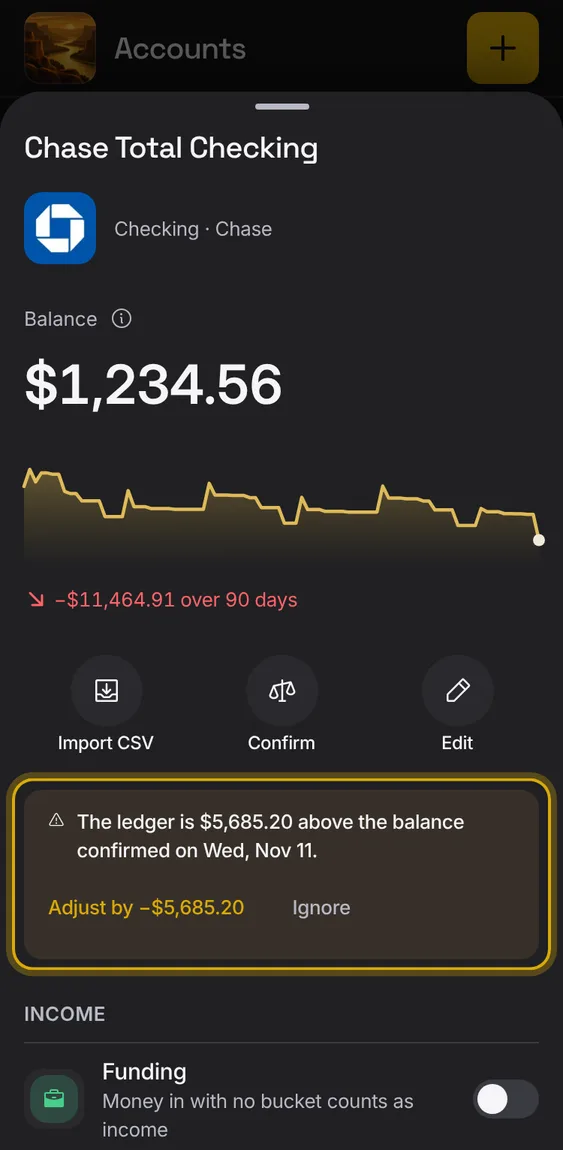
When entries and a confirmed or bank balance disagree, the account says how much it's off, with Adjust and Ignore.
- The row shows a small amber Off by line.
- Adjust adds a balance adjustment; Ignore dismisses it.
Connect a bank read-only through Plaid, and new transactions and balances come in by themselves.
- Signed in, tap + → Connect a bank.
- Pick your bank and accounts in Plaid's window.
- Each connection shows its state, with Sync and Reconnect.
- Tap + → a connected bank to add more of its accounts, stop importing one, or disconnect it.
Not in the demo. Needs an account: the demo has none.
All 8 in Bank connectionsOnly the accounts you pick are brought in; the same account is never added twice on reconnecting.
- Pick accounts in Plaid's window.
Not in the demo. Needs an account: the demo has none.
Your bank tells Alluvium when there's something new, and it comes in on its own.
- Nothing to do.
Not in the demo. Needs an account: the demo has none.
Link a bank through Plaid, read-only; Plaid is asked only when you tap Connect.
- Tap Connect a bank.
- Signed out, it asks you to sign in first.
Not in the demo. Needs an account: the demo has none.
Disconnect a bank: it loses access, and every account and transaction stays in your ledger.
- Open the connection and tap Disconnect bank, then confirm.
Not in the demo. Needs an account: the demo has none.
If your connections can't be read, it says so with Try again, never "no banks".
- Tap Try again.
Not in the demo. Needs an account: the demo has none.
When a bank needs you to sign in again, it says so here, in Needs a look and in Alerts, until you reconnect.
- Tap Reconnect.
Not in the demo. Needs an account: the demo has none.
Each connection shows its logo, name and one status line, like "Synced 43 min ago · 5 accounts".
- Tap the row for its accounts.
Not in the demo. Needs an account: the demo has none.
Bring in the latest from a bank right away.
- Tap the round Sync on its row.
Not in the demo. Needs an account: the demo has none.
Bring in a CSV file from your bank: choose the account, match its columns, check the preview, then import.
- Tap Import in Add entry, or in an account.
- Pick the file and the account.
- Check the preview and import; Undo removes just that import.
Read the bank's own date format, decimal mark, how money out is shown, and rows before the header.
- Set Date format, Decimal mark, A negative amount is, and Rows before the header.
Not in the demo. Needs a file from your device.
Say which column is the date, payee, amount and more; the first rows show how it reads.
- Pick each column under Column mapping.
Not in the demo. Needs a file from your device.
Before importing, each row shows what it will become; rows already imported are skipped and possible duplicates are held back.
- Import row anyway lets a real second purchase in.
- Rows it couldn't read are listed.
Not in the demo. Needs a file from your device.
Save a bank's mapping and it's recognised the next time.
- Name it under Save this mapping as.
Not in the demo. Needs a file from your device.
Each import is listed with its file; download the original or undo just that import.
- Under Past imports, tap Undo import, then confirm.
Not in the demo. Needs a file from your device.
Each account keeps its own currency; totals in different currencies are never added together without a rate you give.
- Set an account's currency in its details.
- Add an exchange rate with its source and date to see a converted total.
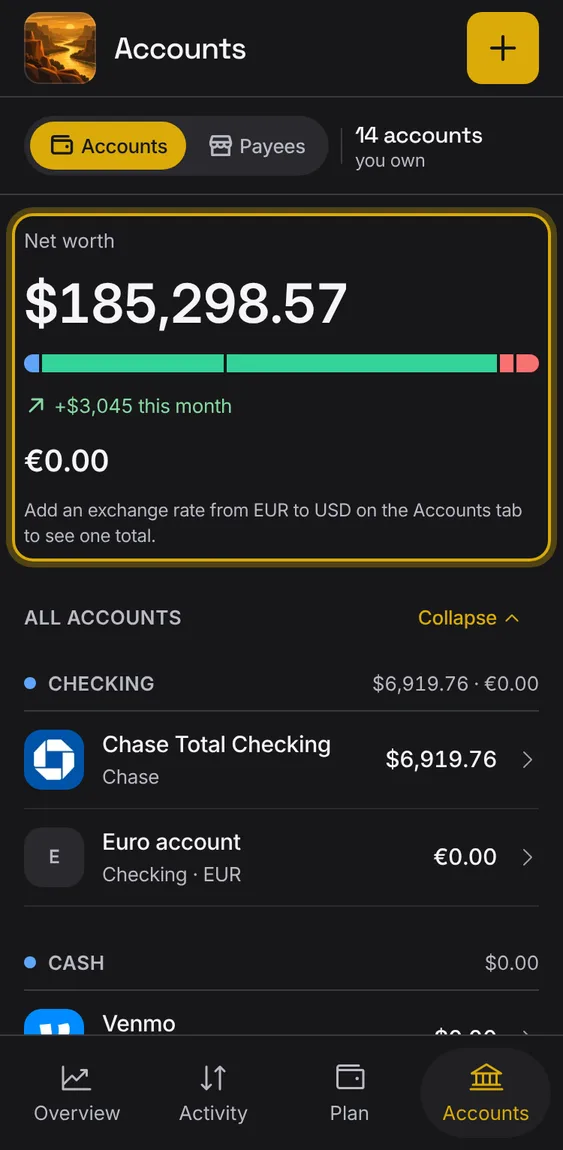
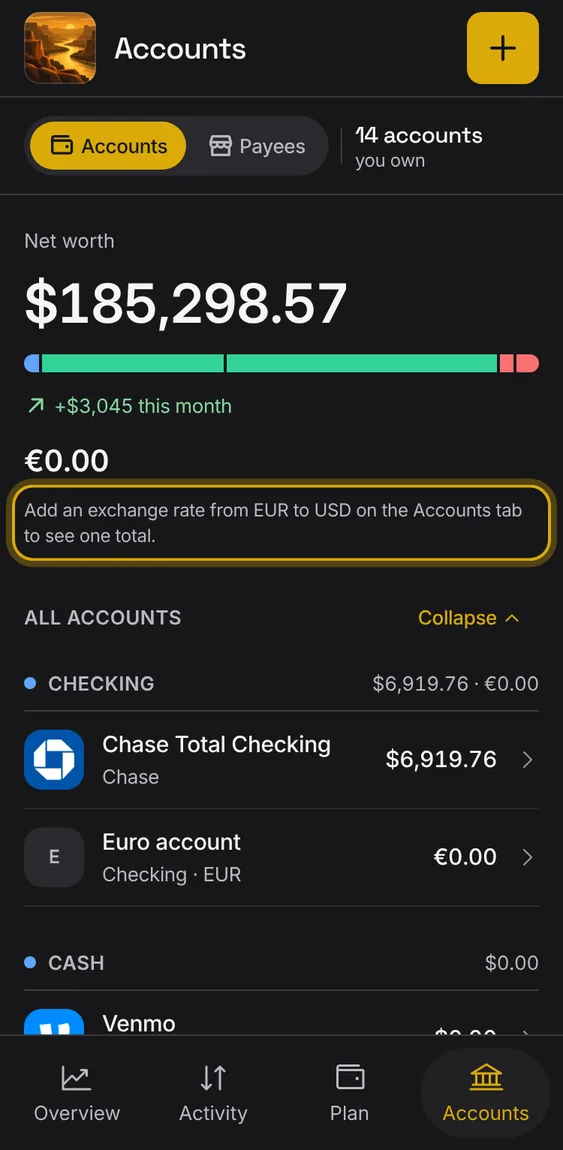
With a rate, net worth also shows a converted total; without one it asks for the rate.
- Shown under net worth.
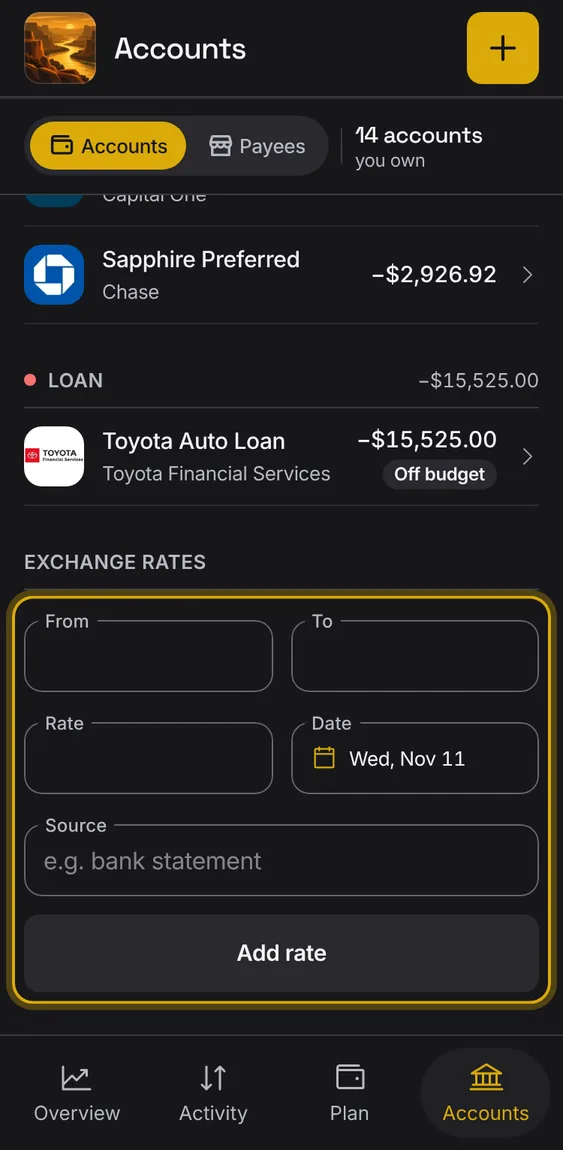
Rates you add, each with its source and date, used for converted totals.
- Under Exchange rates, add or delete a rate.
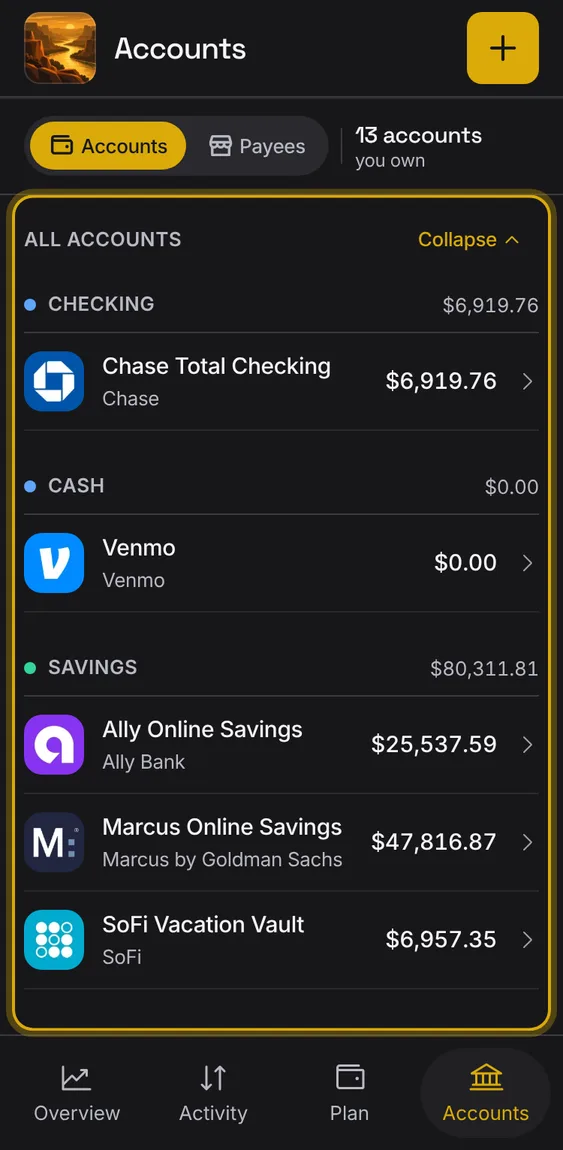
Every account in one place with its balance, grouped, with archived ones kept apart.
- Tap + to add an account by hand or connect a bank.
- Tap an account to open it.
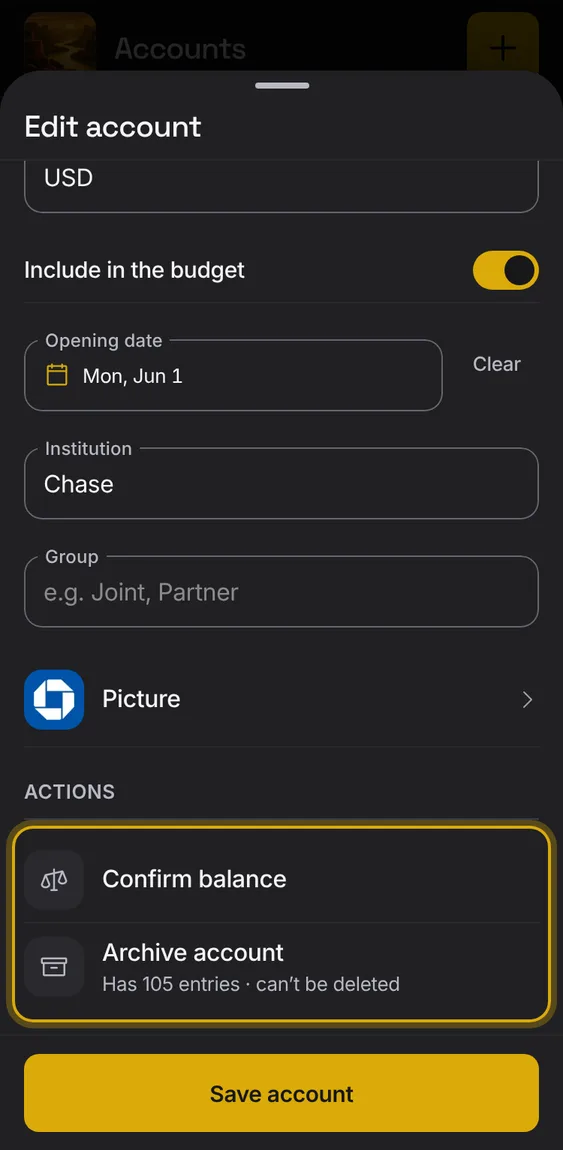
Archive an account you've closed: it leaves the lists and pickers but keeps its history, and can be restored.
- Edit account → Archive account, then confirm.
- Restore it under Archived.
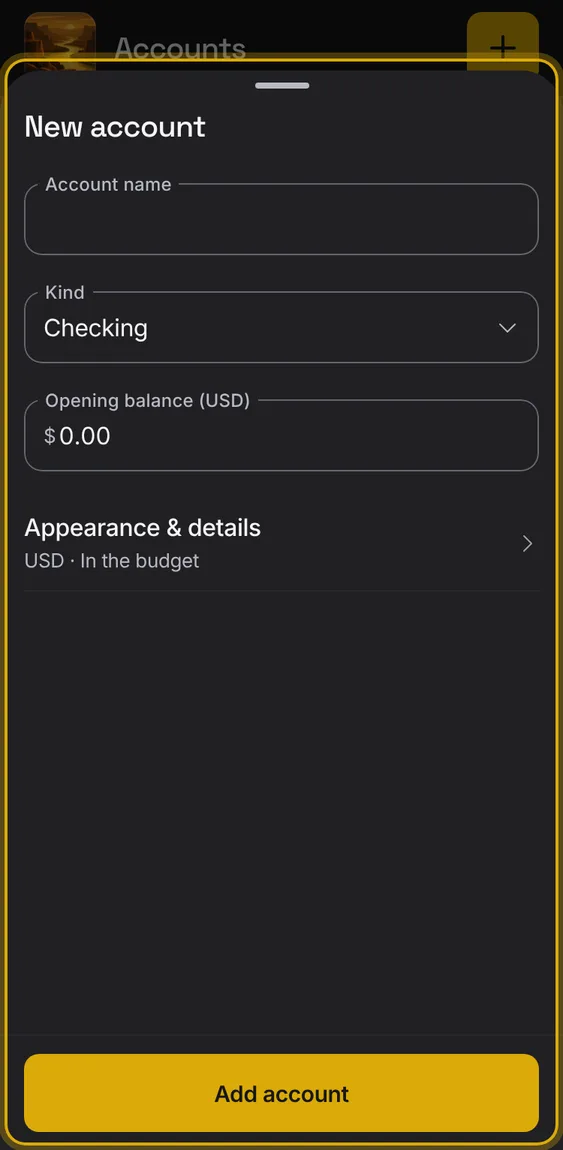
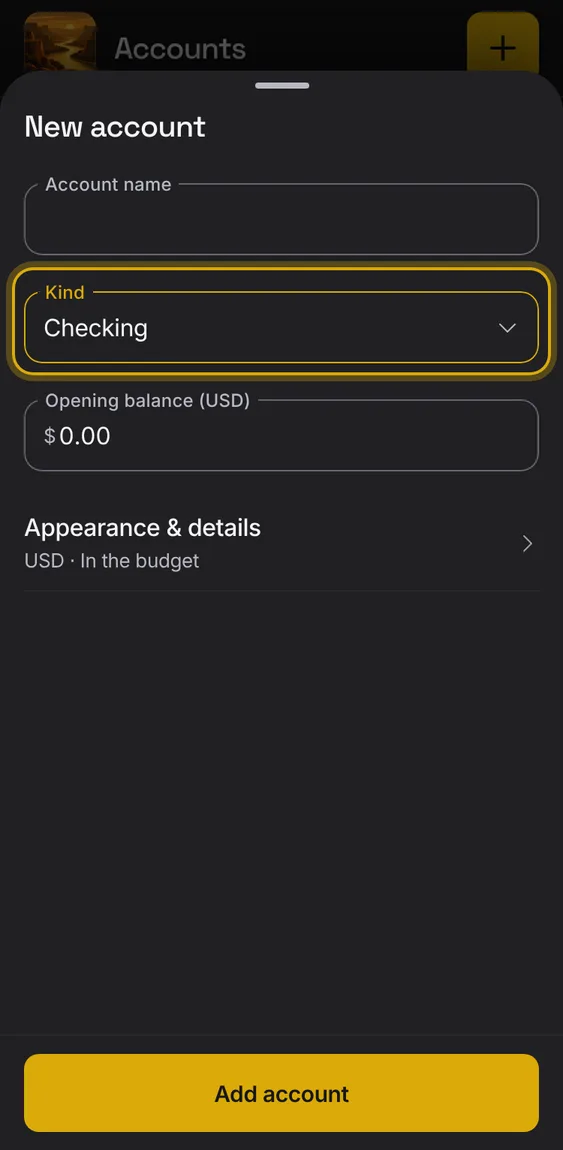
Make an account yourself: its name, kind and opening balance, with currency, budget, opening date, bank, group, picture and colour under Appearance & details.
- Tap + → Add by hand.
- Save account.
An account with no entries can be deleted; one with entries can only be archived, and says why.
- Edit account → Delete account, then confirm.
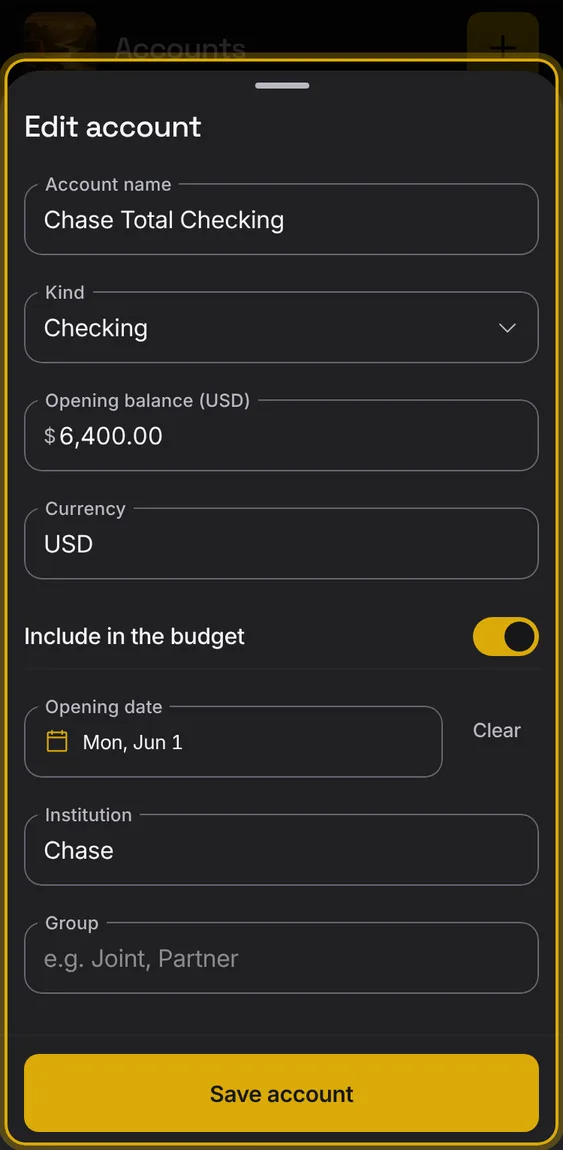
Change an account's name, bank, group, picture, colour, currency, opening balance and whether it counts in your plan.
- Open the account and tap Edit account.
Group accounts under names you choose; net worth shows each group's share.
- Set an account's group in its details.
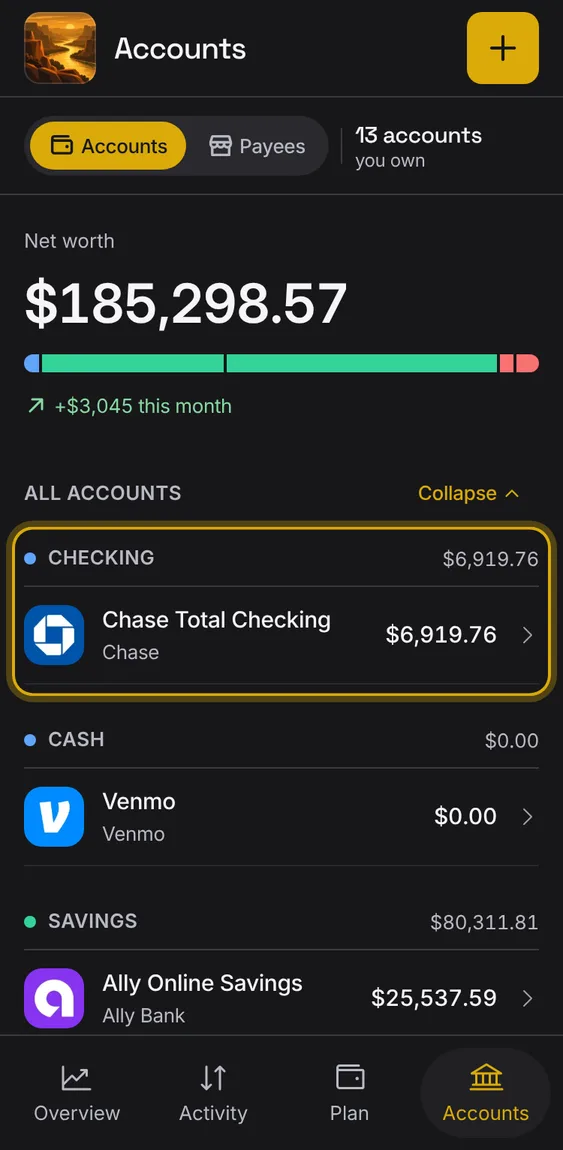
Checking, savings, credit cards, loans, cash, investments, and any other asset or debt.
- Choose the kind when you add the account.
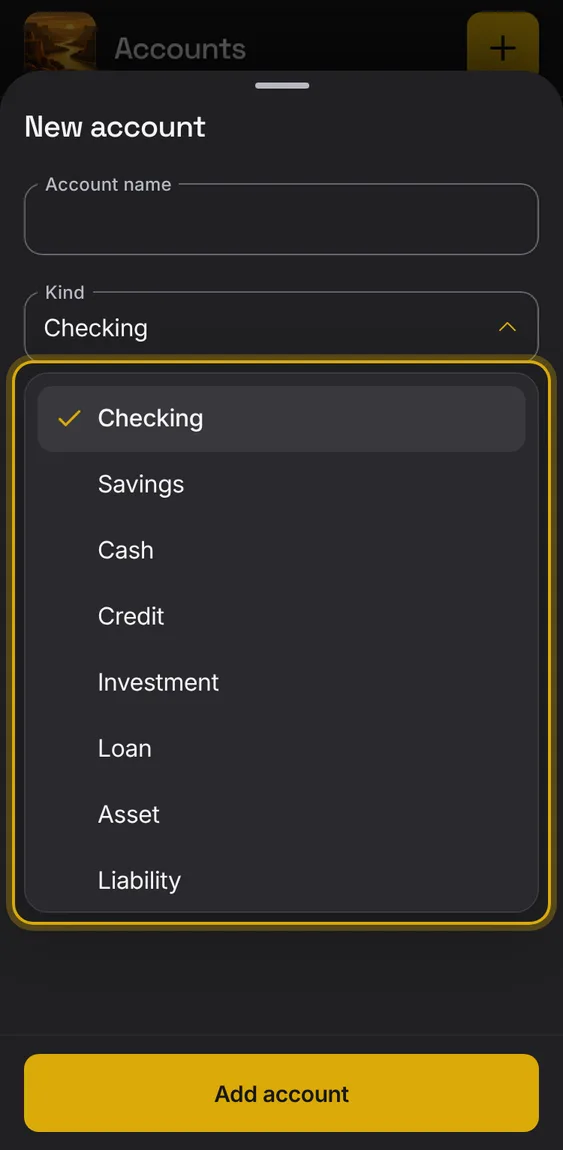
Anything you own with a value, like a house.
- Choose asset as the kind.
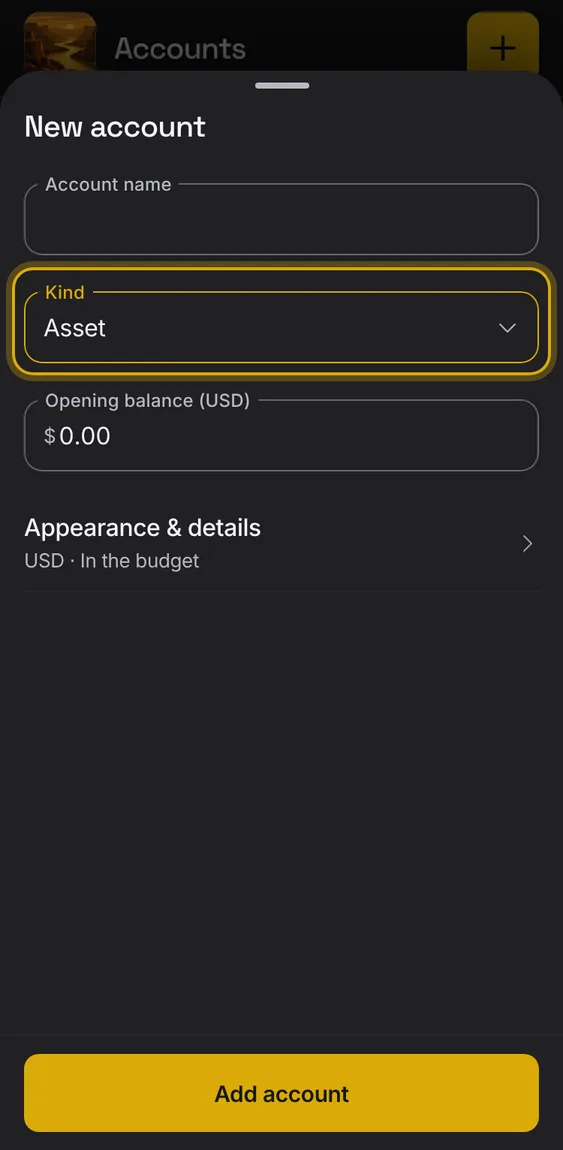
A wallet of cash.
- Choose Cash as the kind.
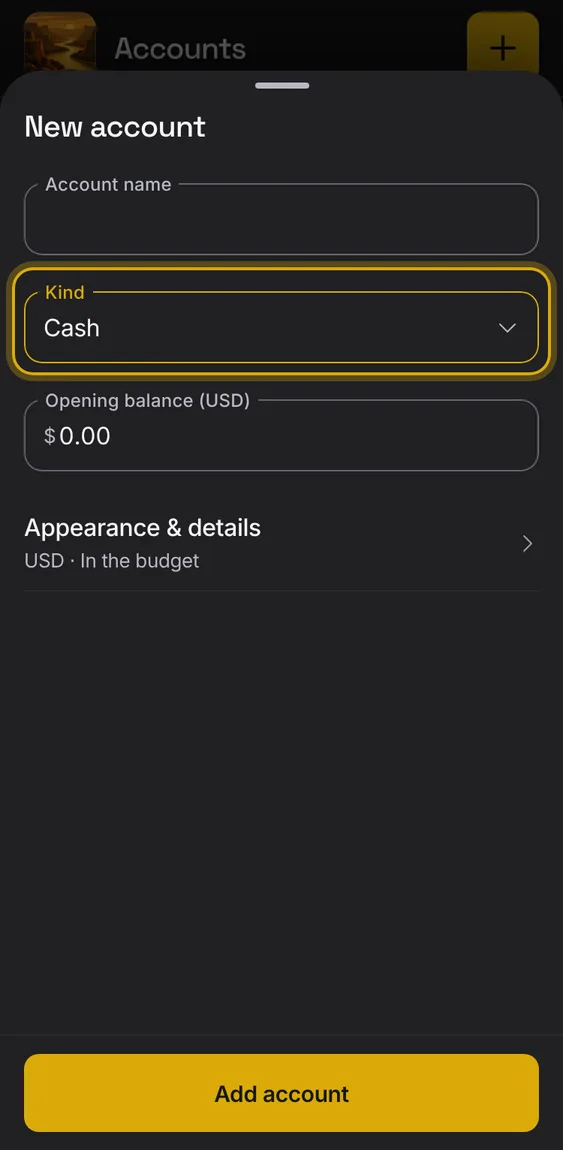
An everyday bank account.
- Choose Checking as the kind.
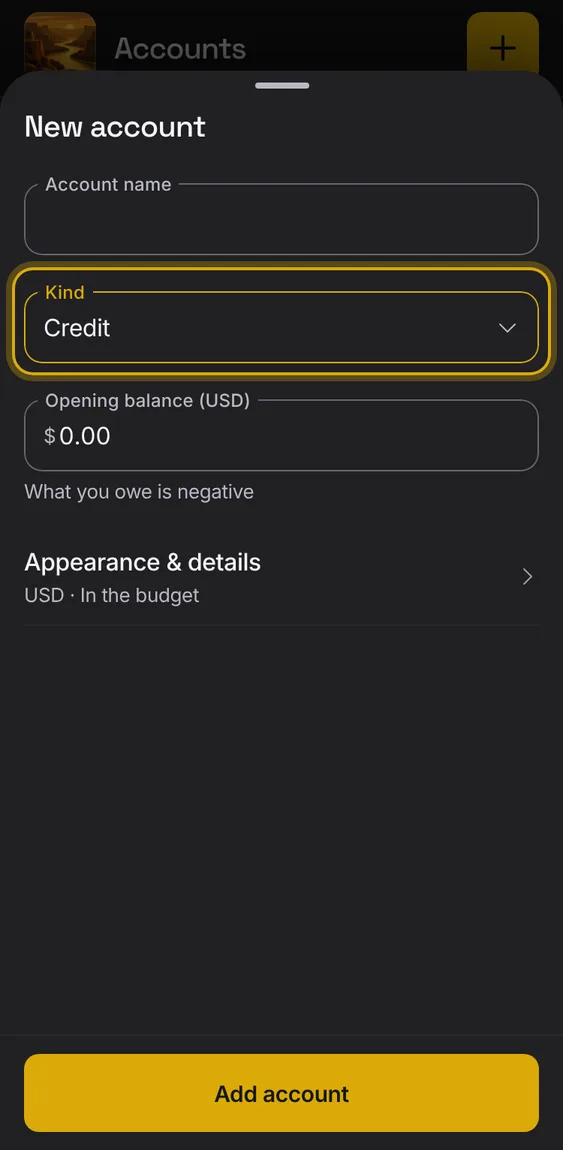
A card; its balance is what you owe.
- Choose Credit card as the kind.
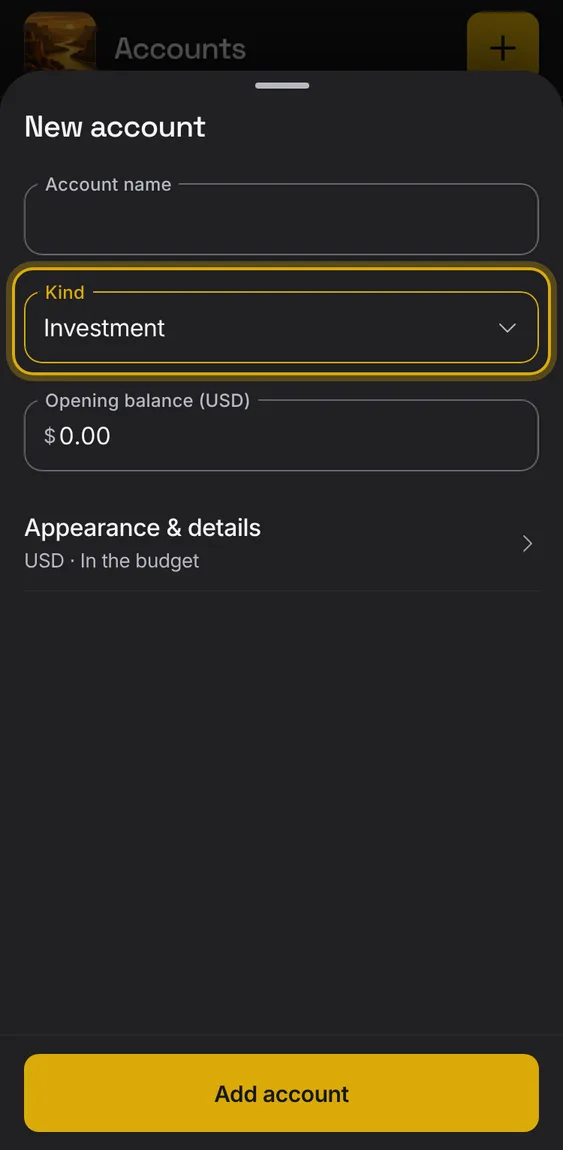
An investment or retirement account's balance.
- Choose Investment as the kind.
Anything you owe that isn't a card or loan.
- Choose debt as the kind.
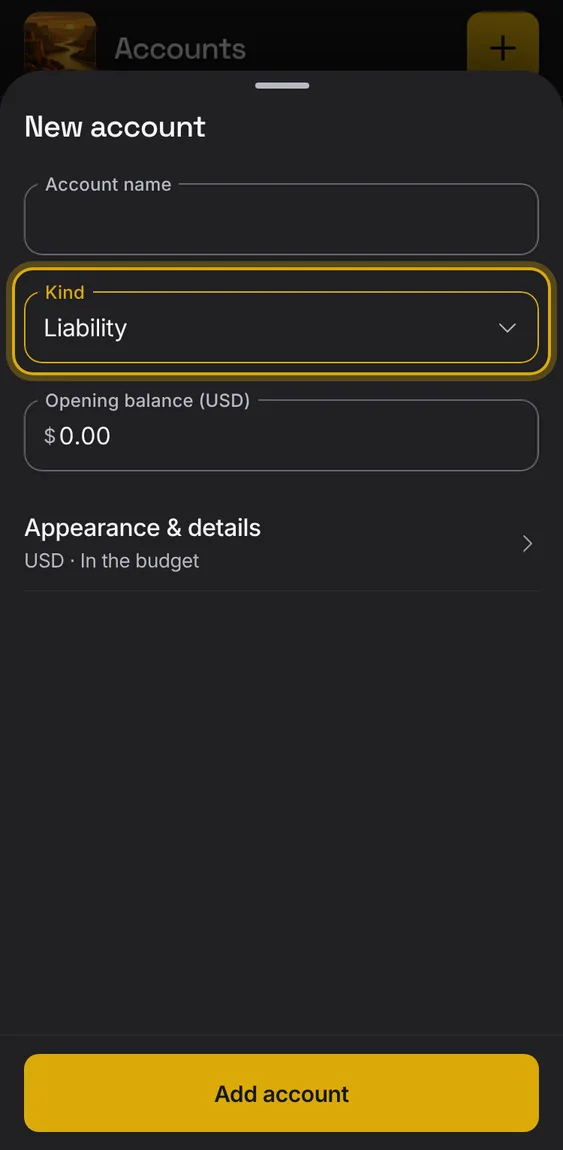
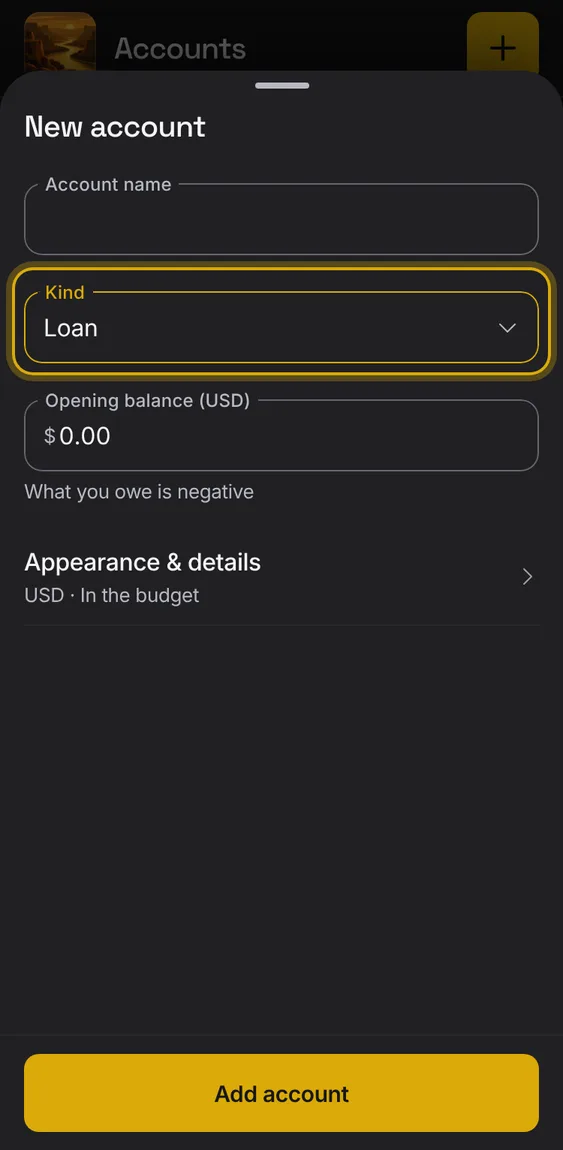
A loan; its balance is what you owe.
- Choose Loan as the kind.
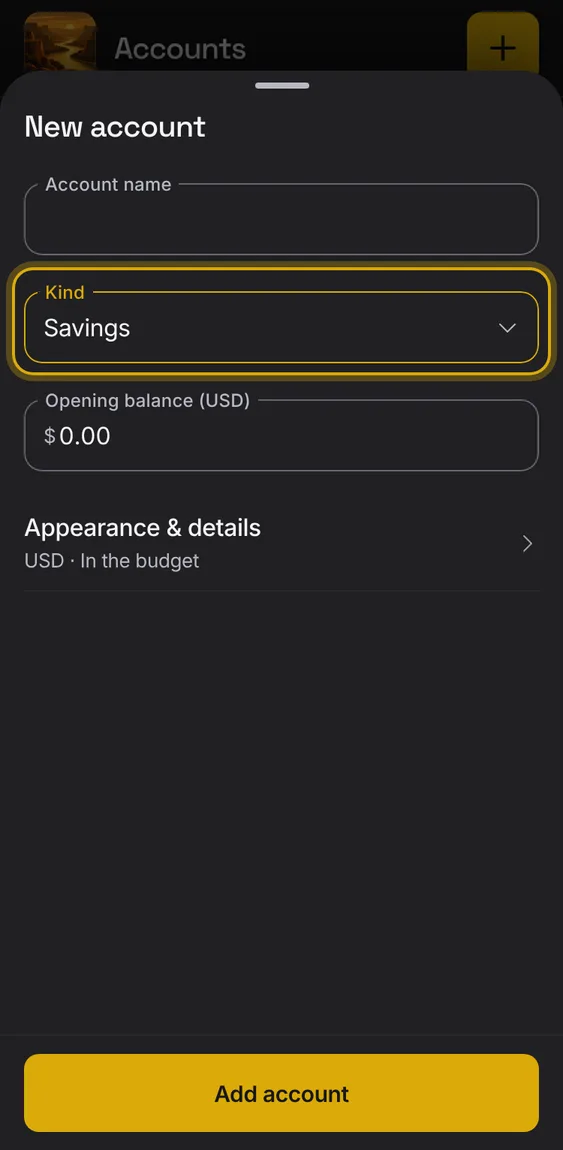
A savings account.
- Choose Savings as the kind.
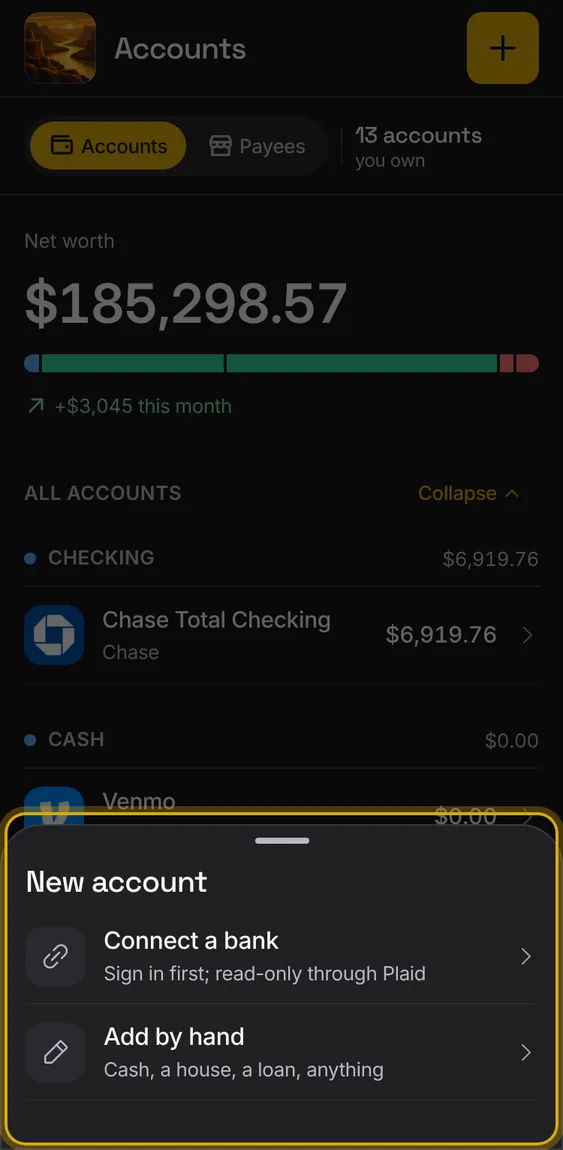
Add an account: connect a bank (read-only) or add one by hand.
- Tap + on Accounts.
- Pick Connect a bank or Add by hand.
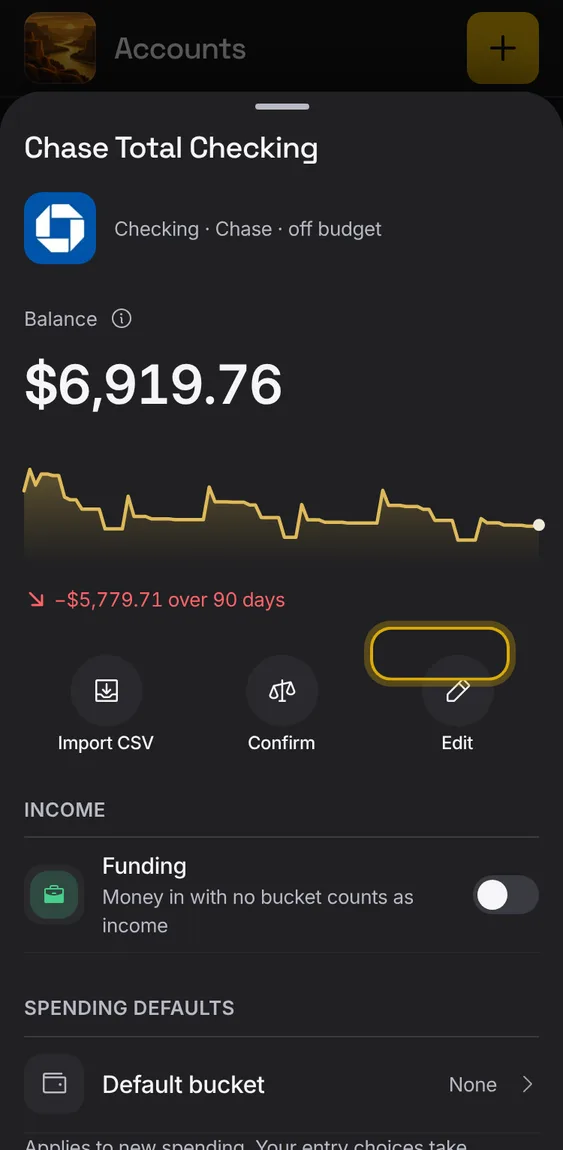
An account left out of your plan shows an Off budget label; it still counts in net worth.
- Turn off Include in the budget in its details.
On a wide screen your accounts and the chosen account sit side by side.
- The first account opens beside the list.
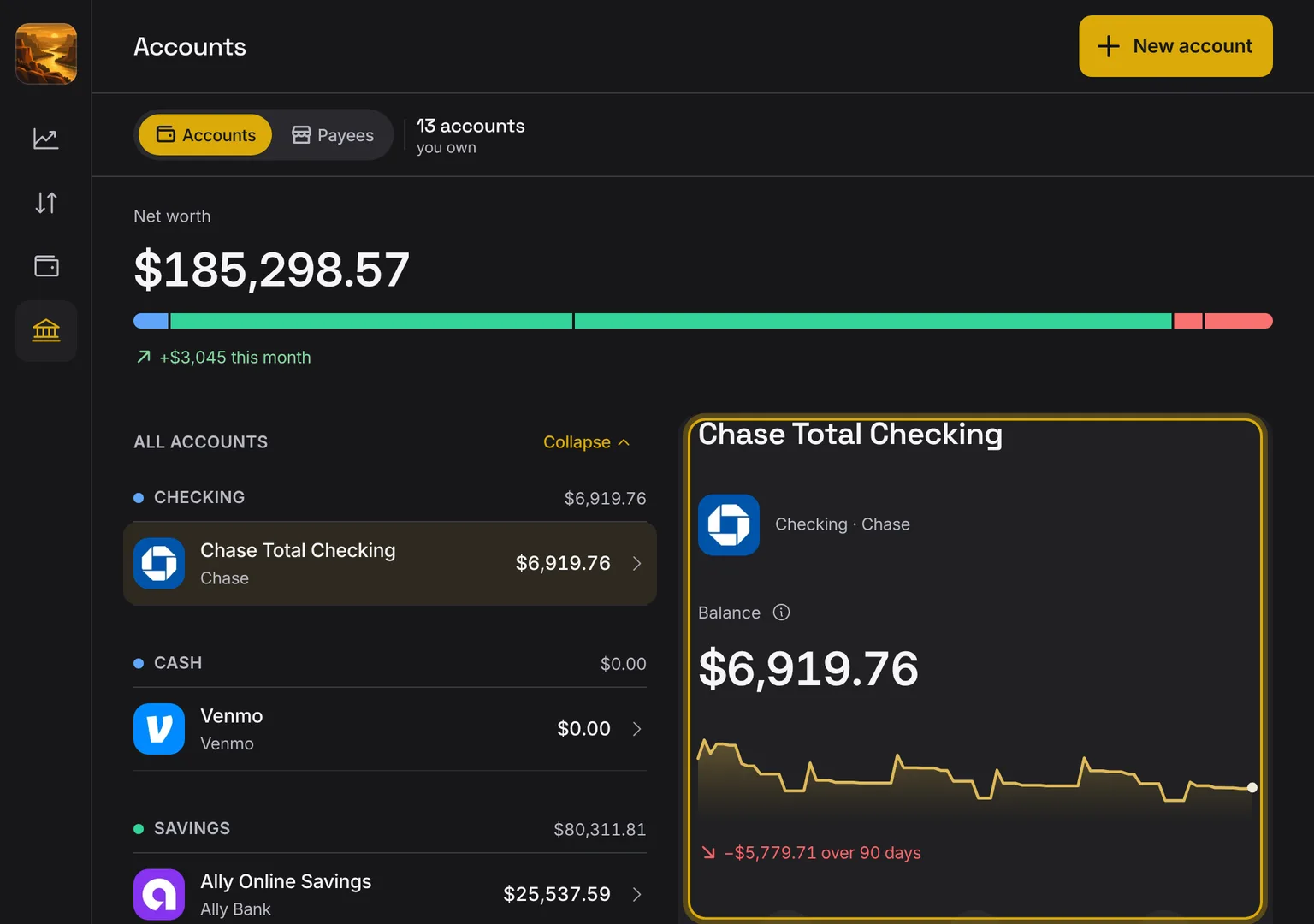
Shown at a computer’s width.
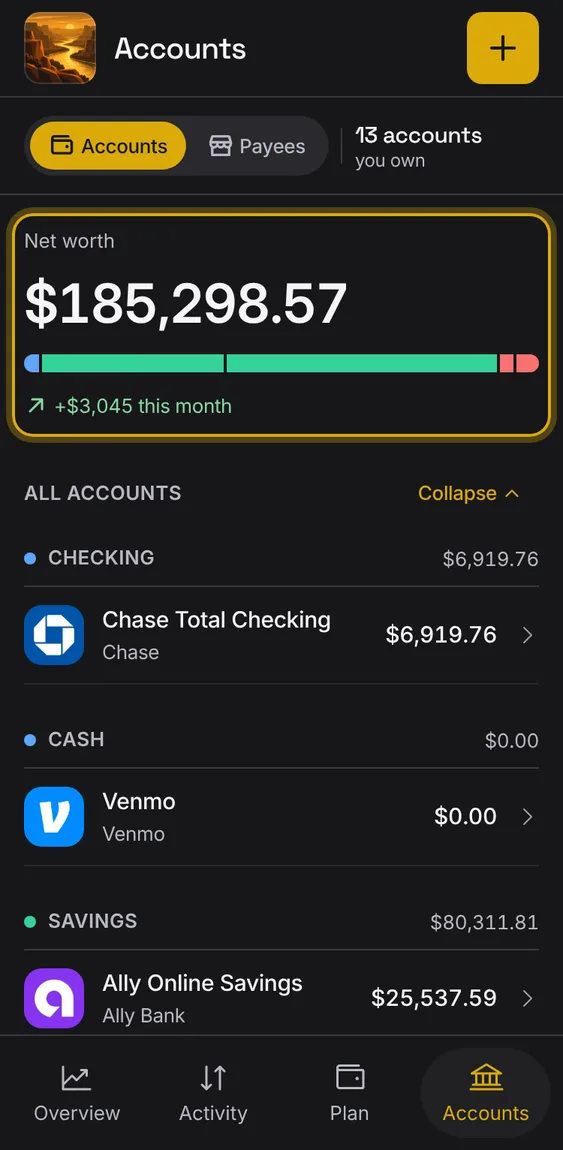
What you own minus what you owe, with its trend this month and a bar of each group's share.
- Shown at the top of Accounts.
- Several currencies show each total, and the converted one when there's a rate.
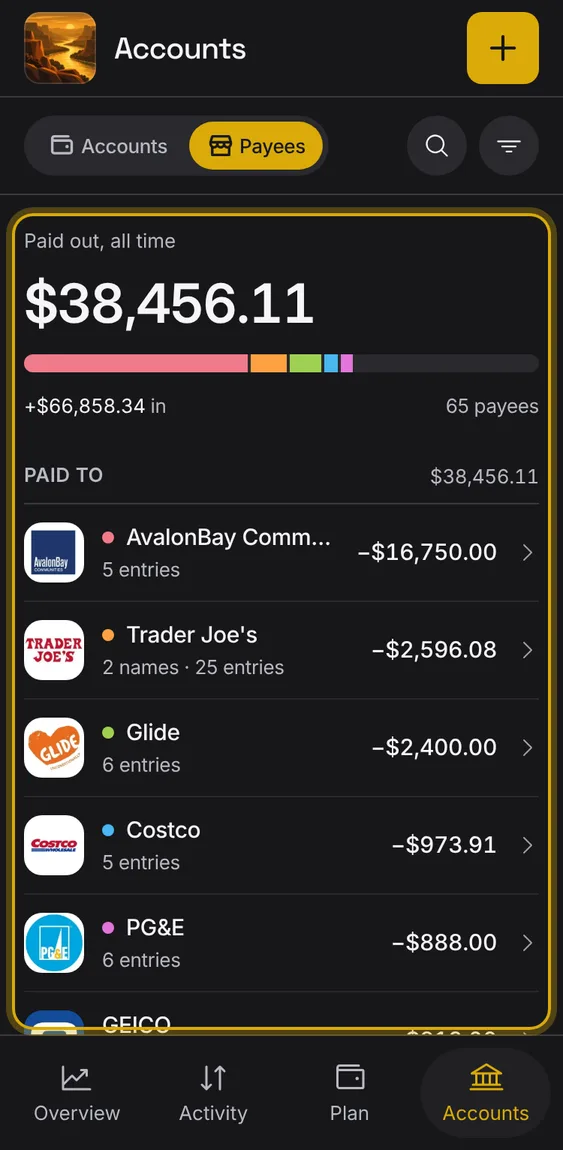
Everyone you pay or who pays you, each once, with what you paid them and their entries.
- On Accounts, switch to Payees.
- Tap a payee to open it.
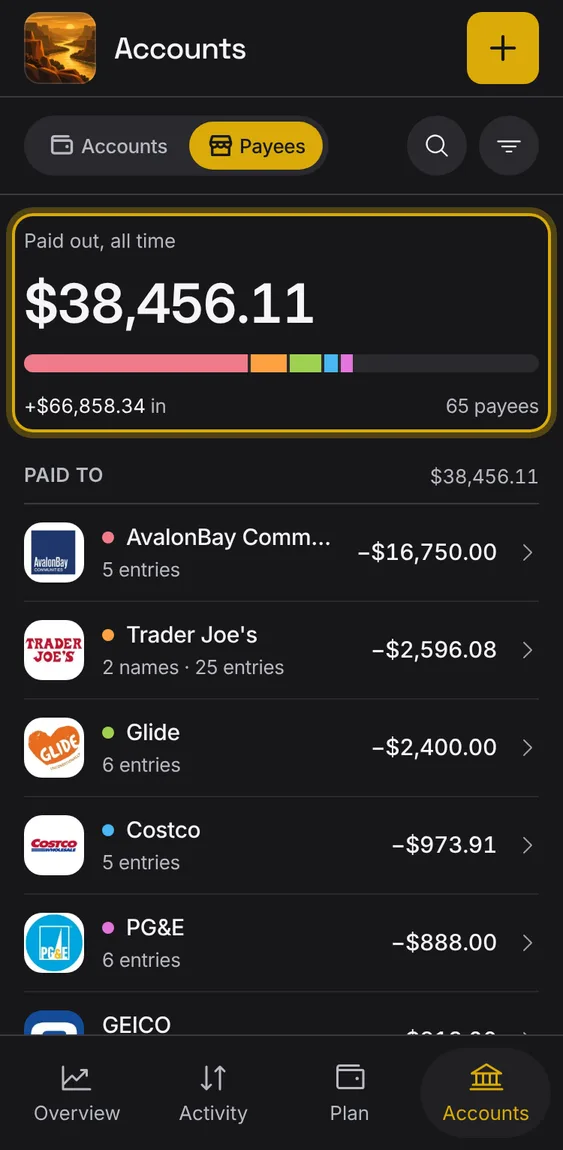
A bar of who you paid most in the period, with each one's share.
- Shown at the top of Payees.
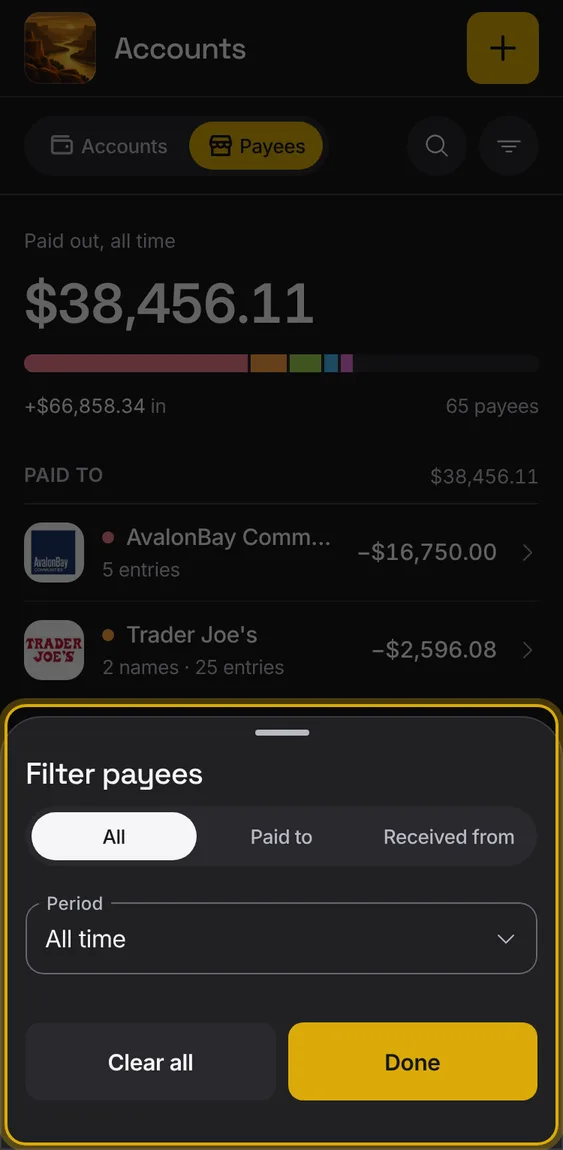
Show who you paid or who paid you, over a period.
- Tap the filter on Payees.
- Pick Show and Period.
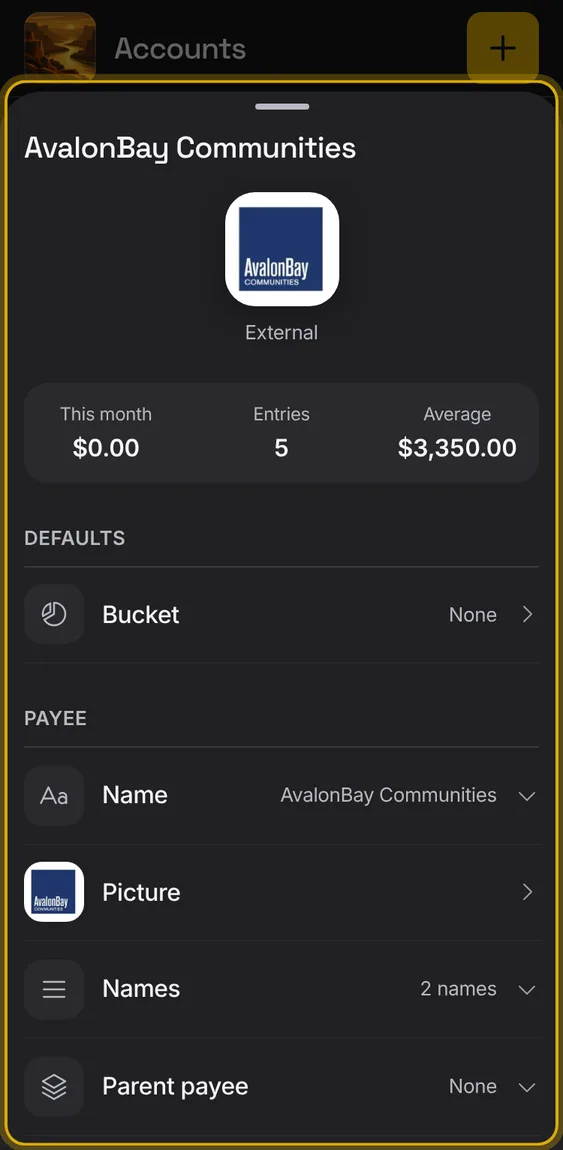
One payee: their entries, totals, defaults, names and linked account.
- Tap a payee.
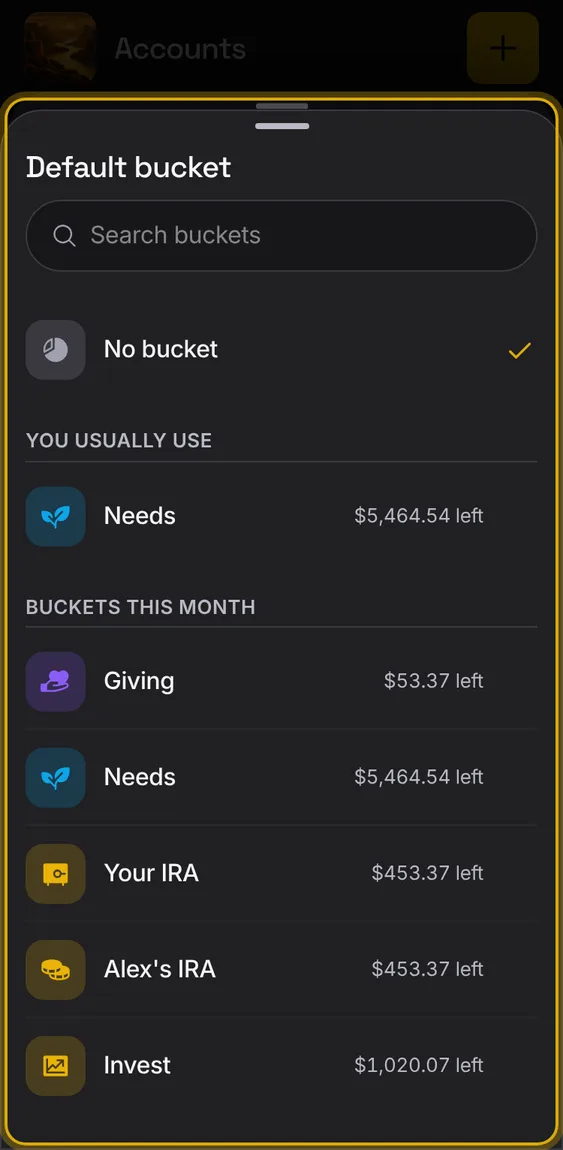
A payee's default bucket, used for its new entries and kept as its one rule.
- Under Defaults, pick Bucket.
- Funding can be a payee's bucket, set only by you.
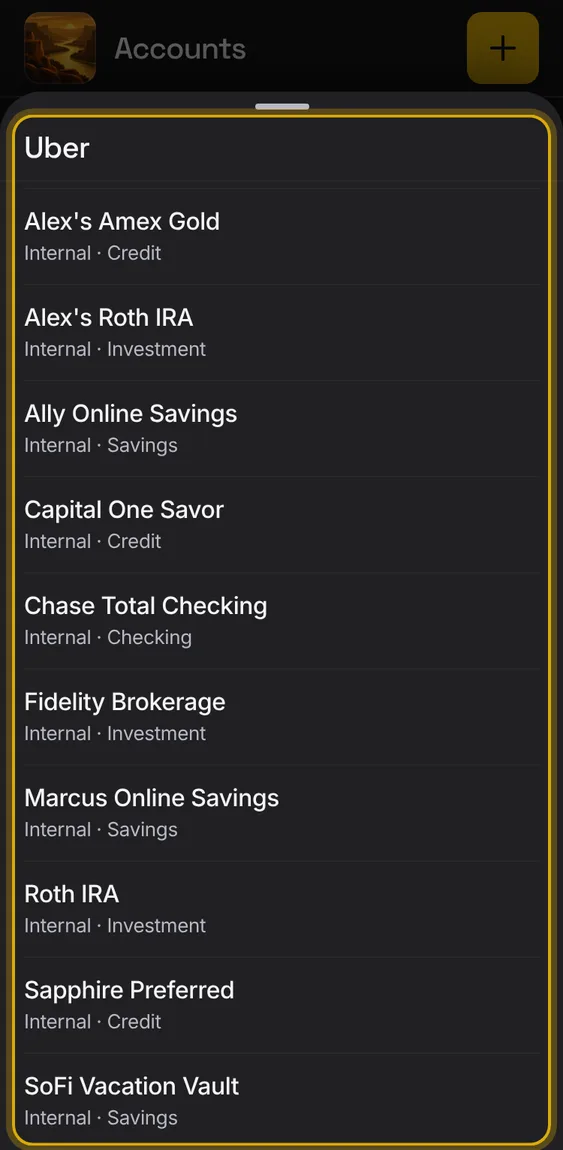
Link a payee to one of your accounts, so its payments pair as transfers with it.
- Pick the account under Linked account.
- Undo puts it back as it was.
- Past entries stay as they are.
A payee's other names, each with Remove, and Ungroup all.
- Remove takes one name out.
- Ungroup all undoes the grouping.
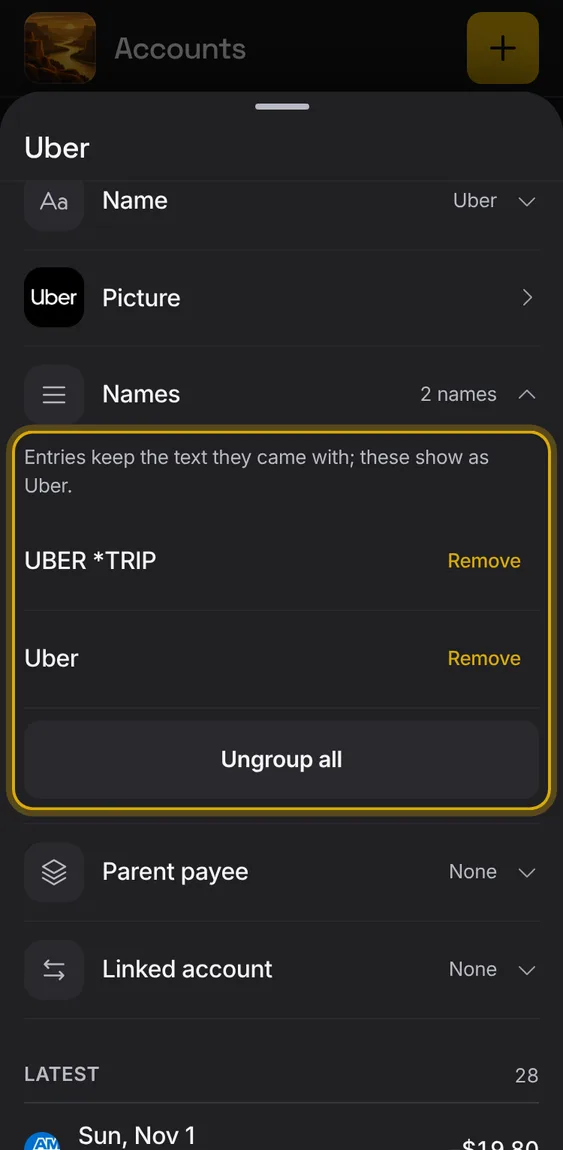
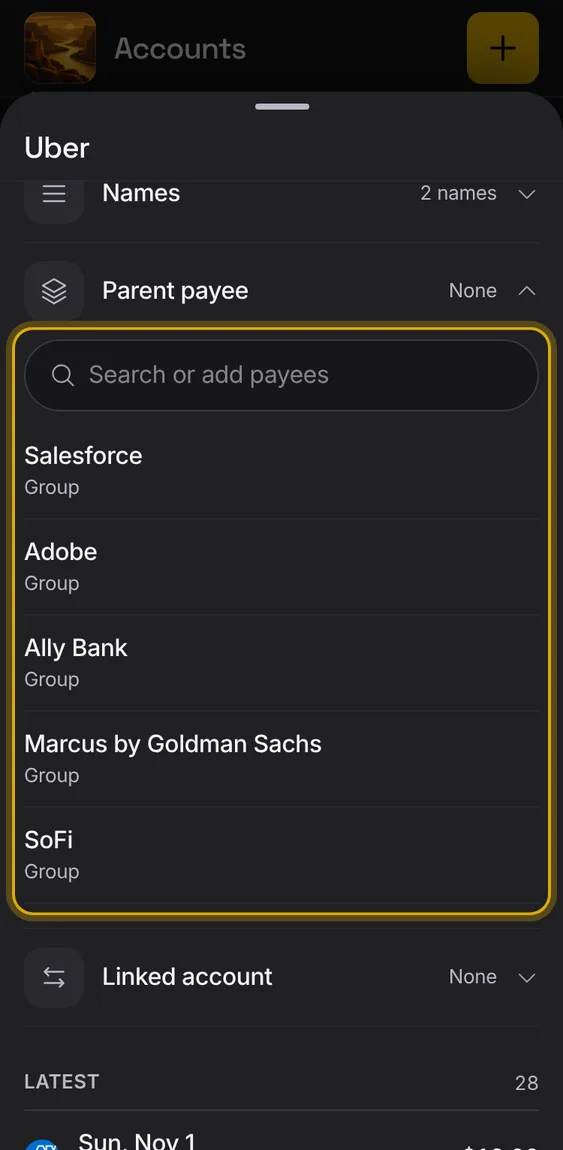
Show this payee as another one, so several names count as one.
- Set Parent payee.
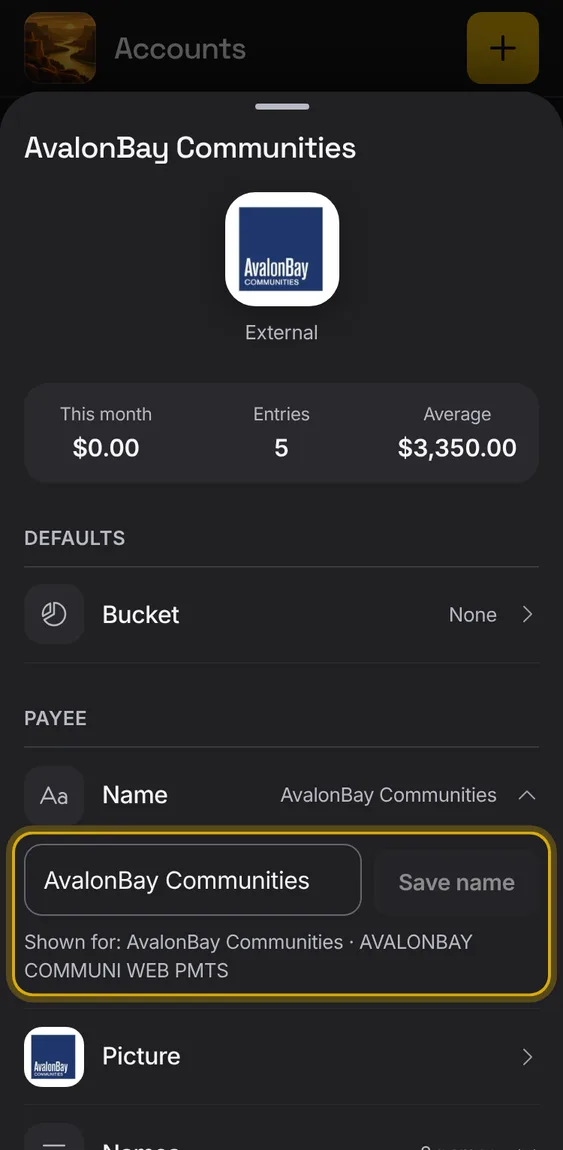
Give a payee a clearer name; the bank's texts stay as they were.
- Tap the payee's name.
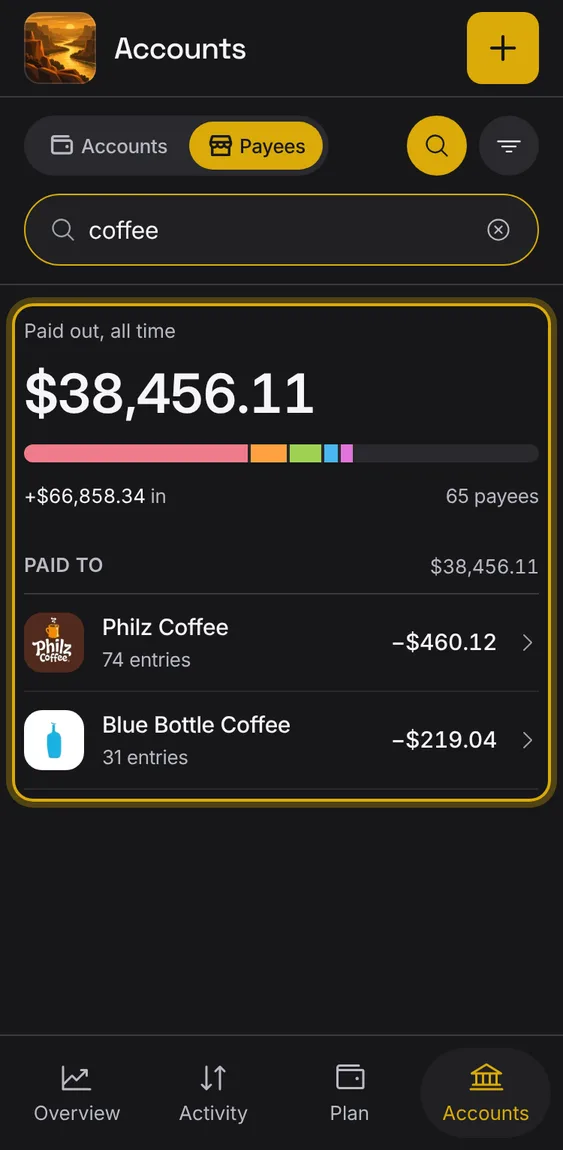
Find a payee by name.
- Tap the magnifier on Payees and type.
If the ledger on your device is damaged, it's restored by itself from your synced copy, keeping unsent changes and drafts.
- Nothing to do.
Not in the demo. Needs an account: the demo has none.