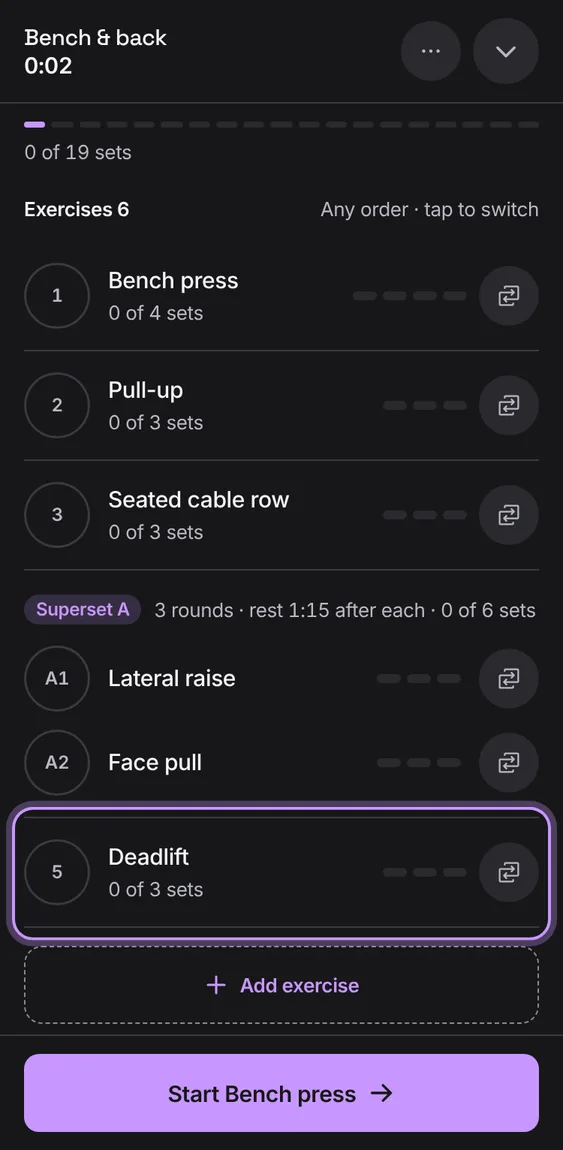
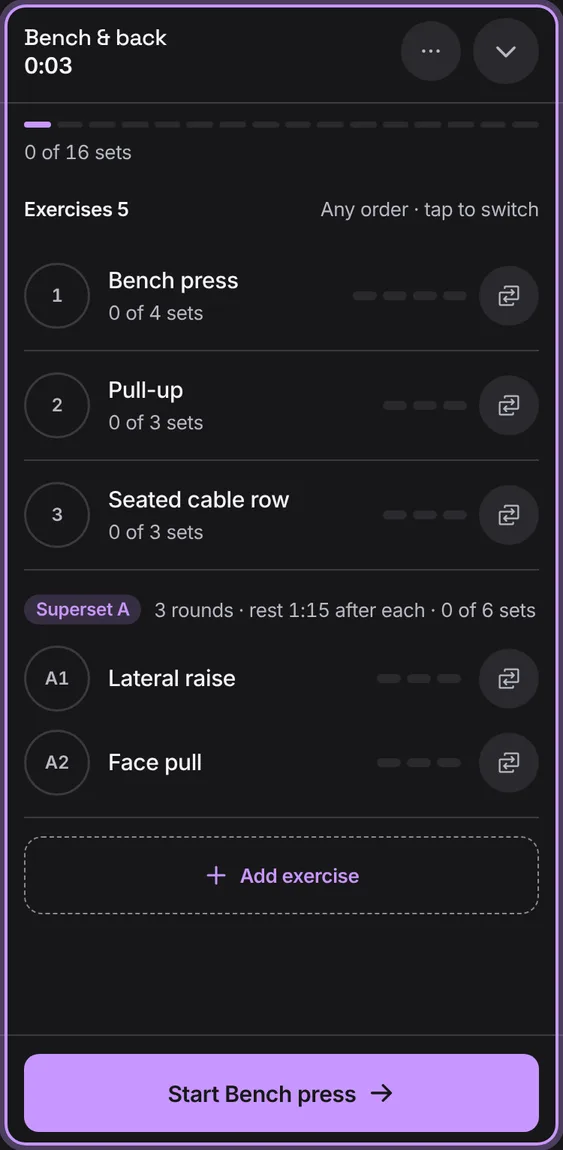
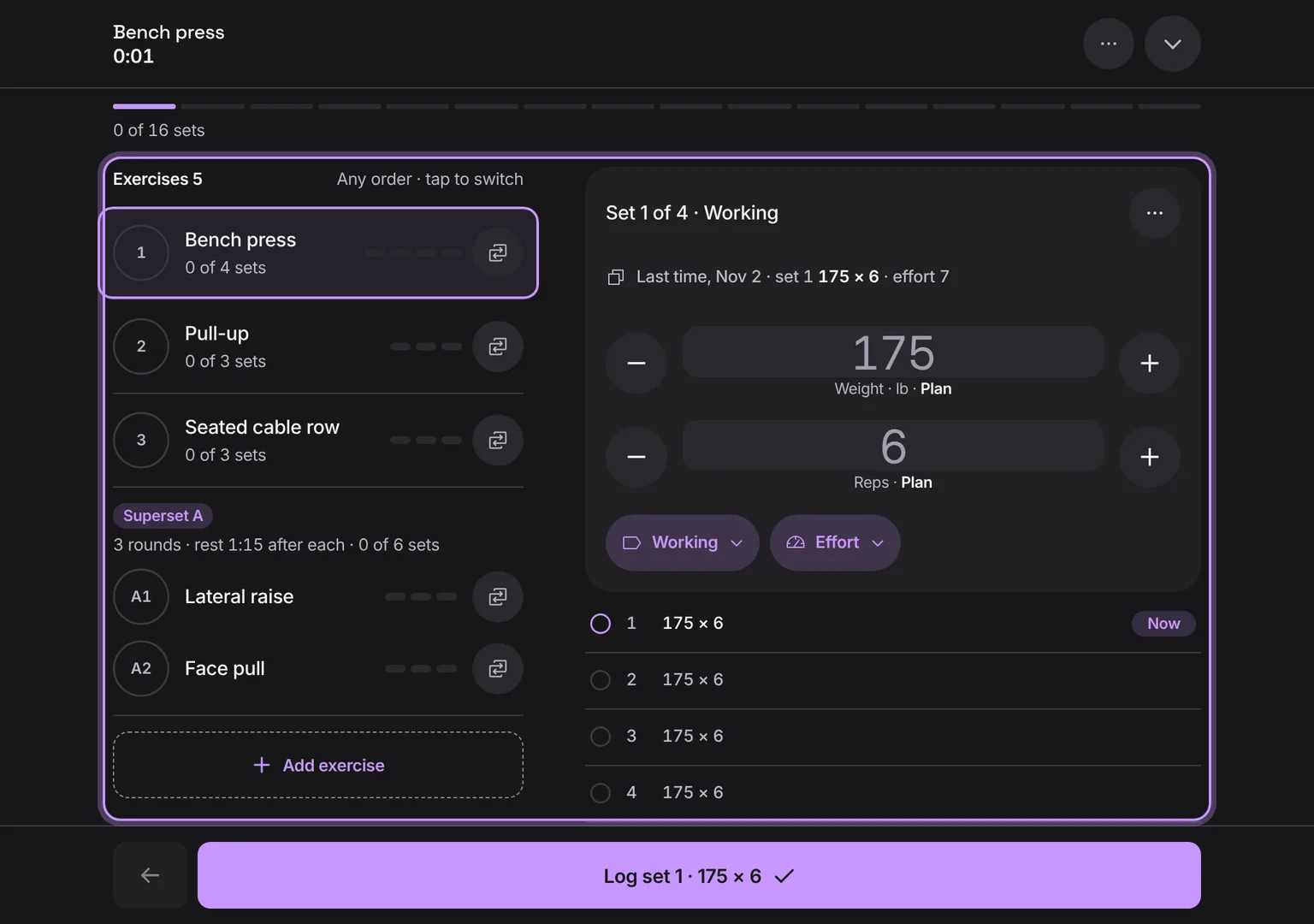
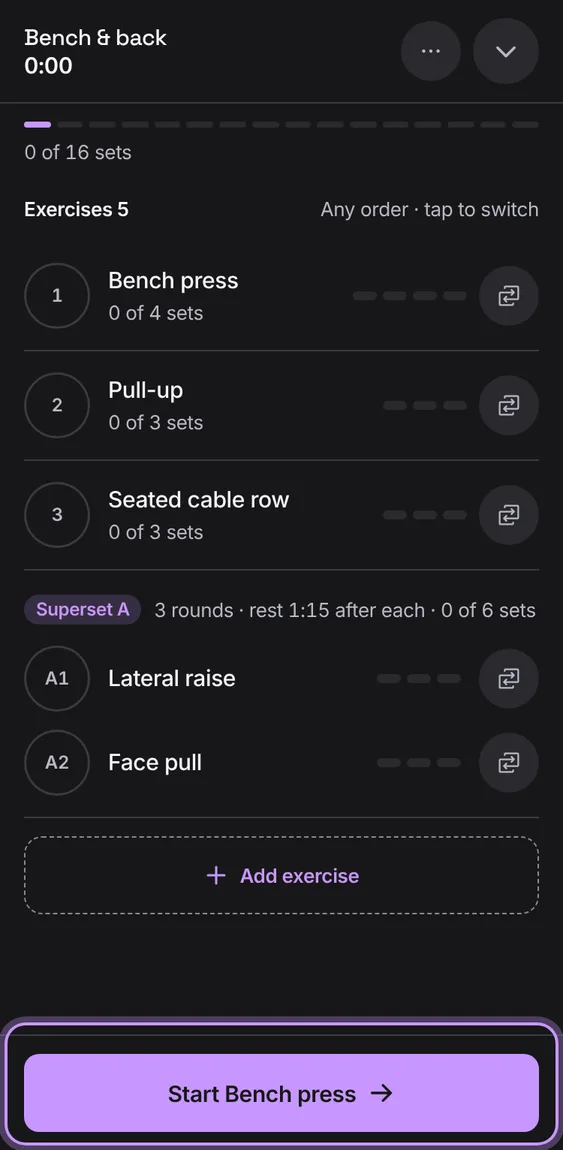
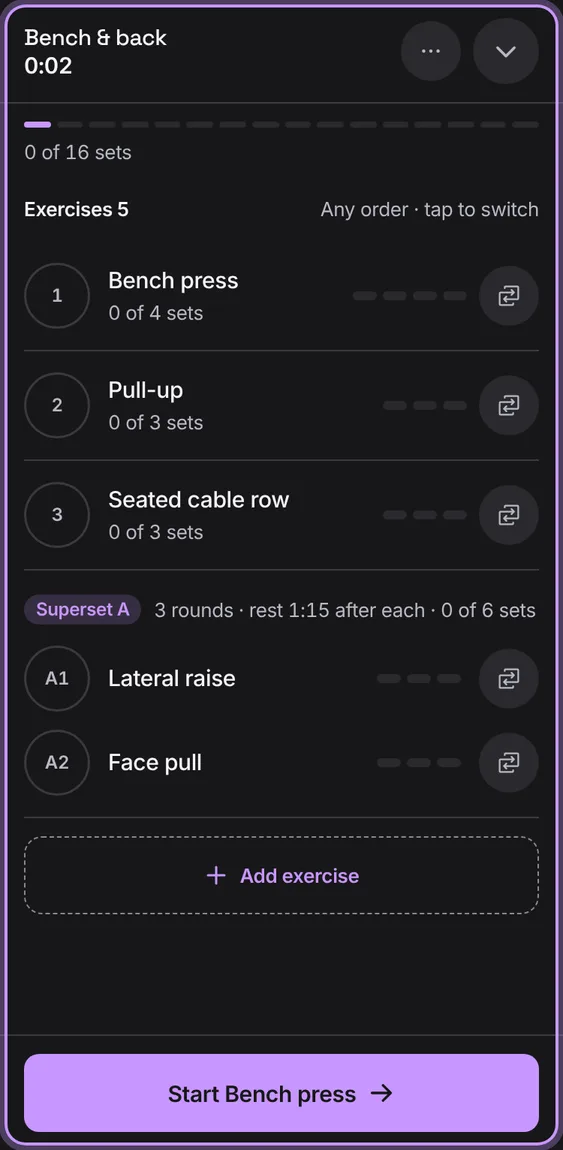
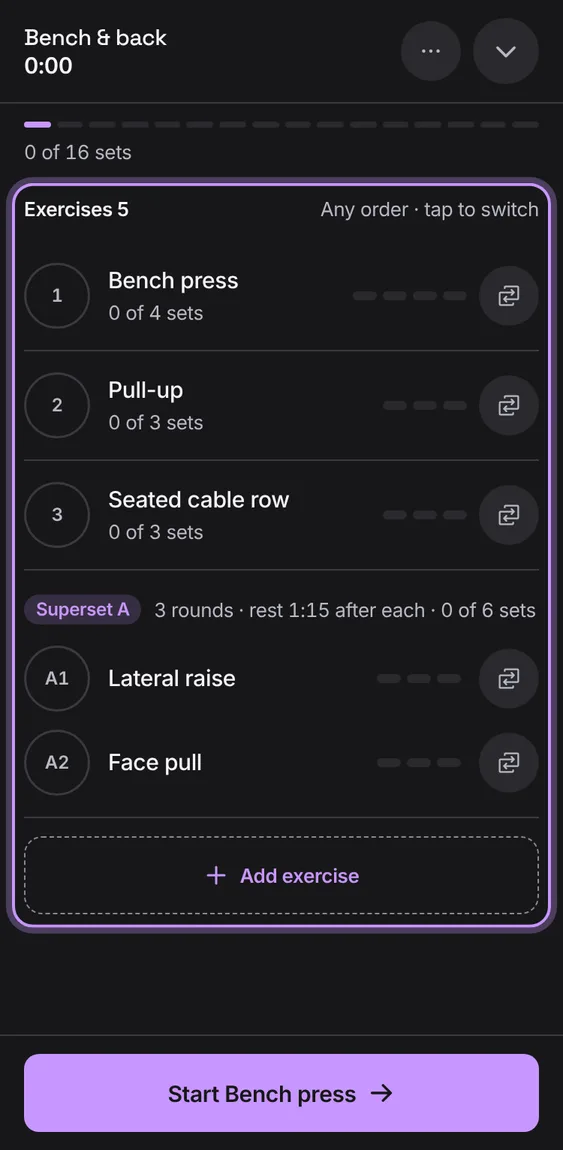
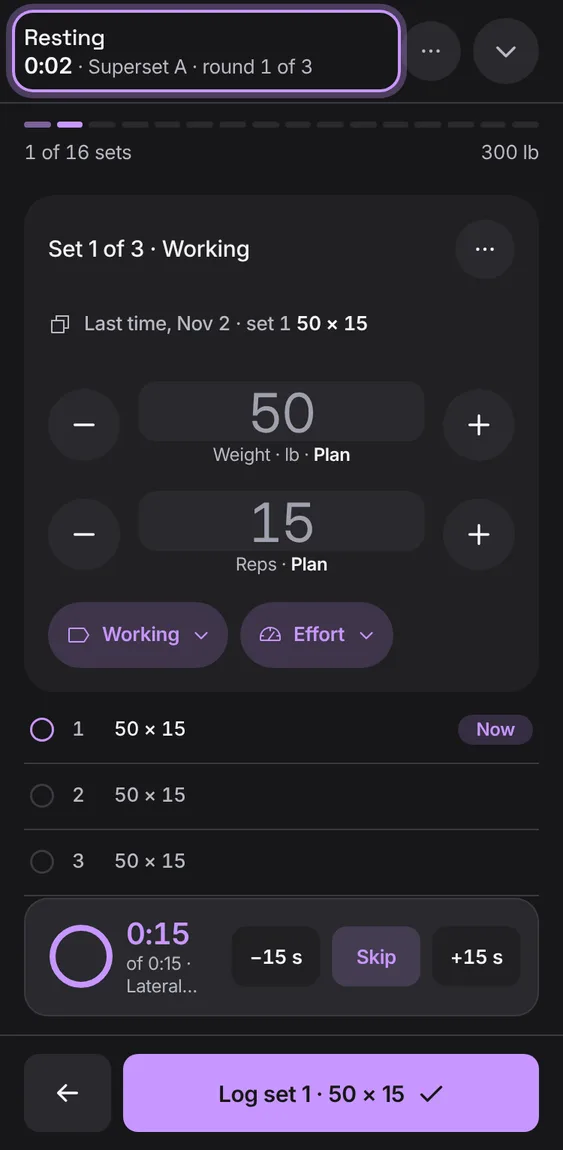
A workout fills the screen one exercise at a time, with its time and sets in the header. It keeps going if you leave it, reload or lose the connection.
Every The workout feature
25
Add any exercise mid-workout, from yours or the library, or a new name after the matches. It starts with as many sets as last time.
Tap Add exercise under the exercises.
Throw a workout away from Workout options, after confirming. Undo brings it back with every set and the rows you were typing.
Open Workout options, tap Discard workout, then Discard workout again.
Tap Undo in the message to bring it back.
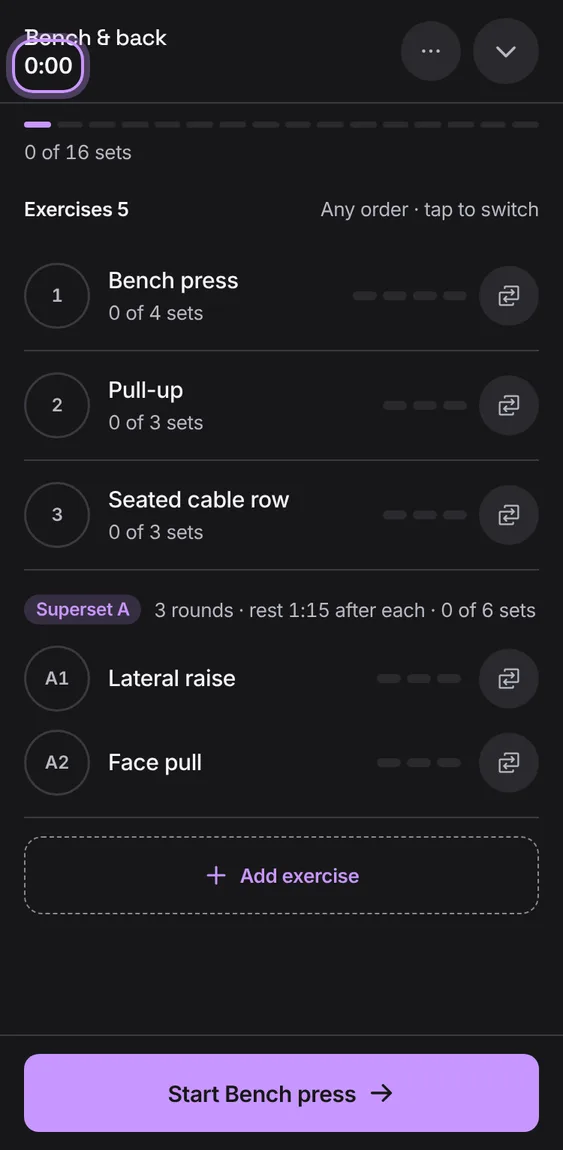
The header counts from when you started, from the start time itself, so it's right after a reload or a sleeping phone.
Shown in the workout's header.
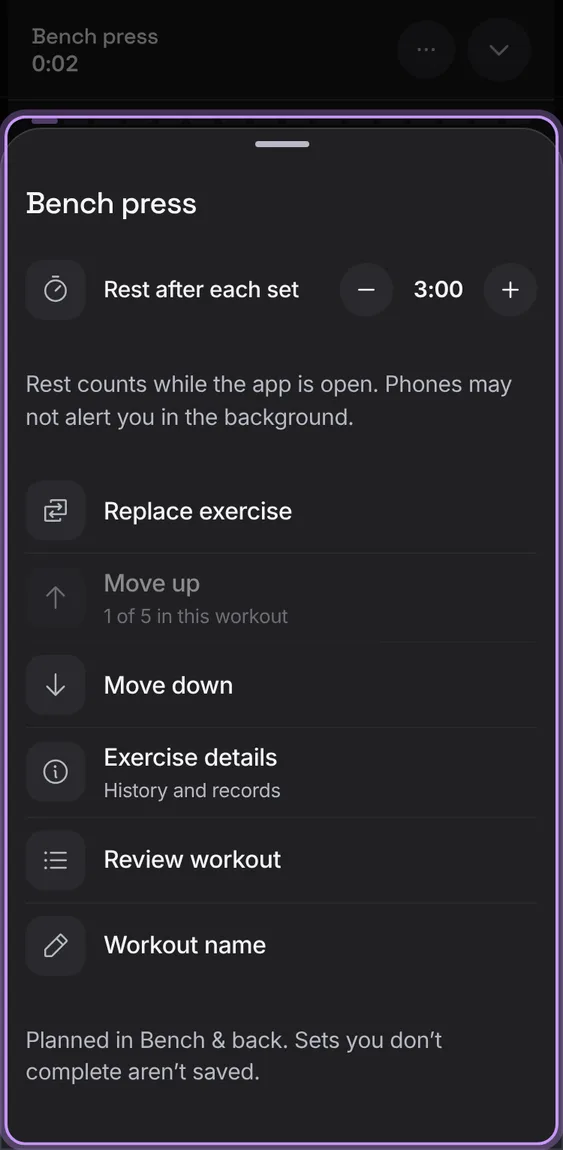
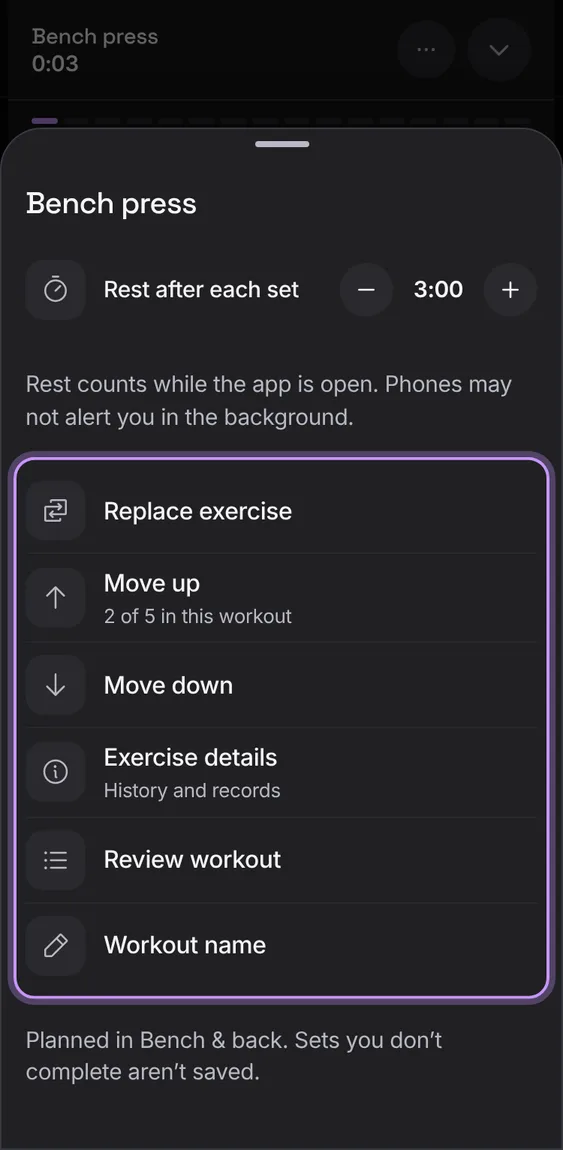
Each exercise's options: its rest, Replace exercise, Move up or down, Exercise details, Review workout, Workout name and Remove exercise.
Change the workout's order: Move up or Move down, or Alt and the arrow keys on its options button. The order is kept and syncs.
Tap Move up or Move down in the exercise's options.
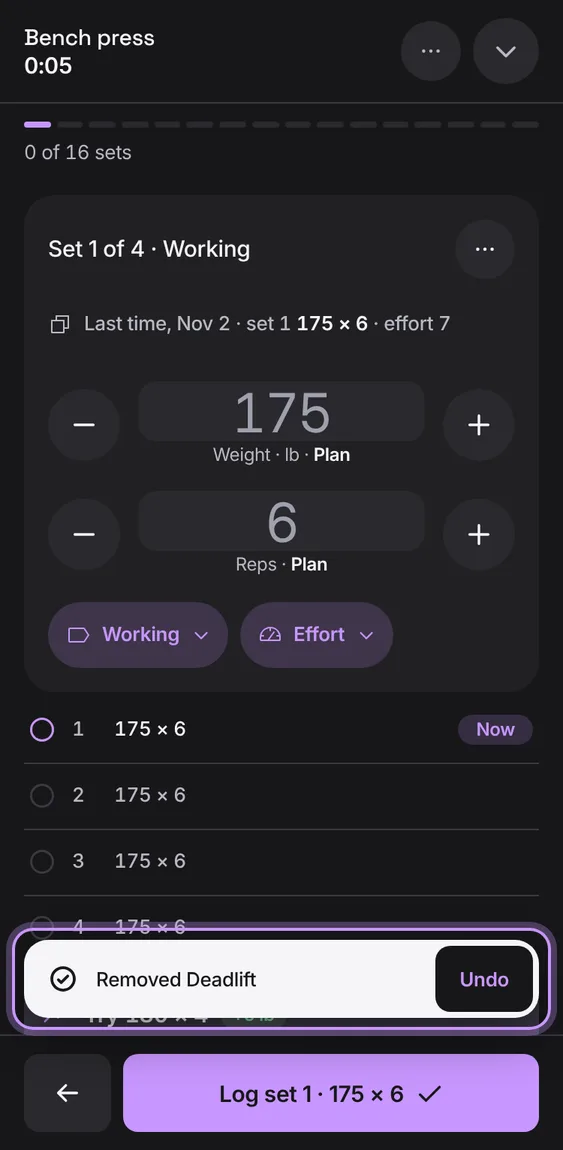
Remove an exercise you added, with its sets. Undo puts back exactly those sets.
Tap Remove exercise, then Undo in the message if you change your mind.
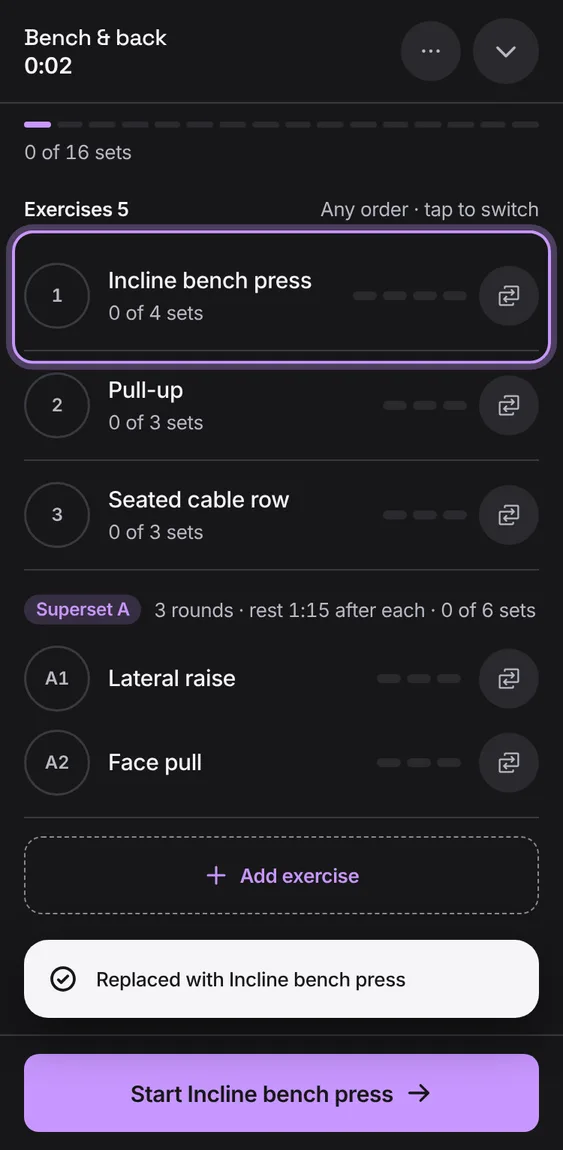
Swap an exercise for this workout only: the routine stays as it was, and the set says "In place of" the planned one. Lifts for the same muscle come first.
Tap Replace exercise (or the swap icon on its card) and pick another.
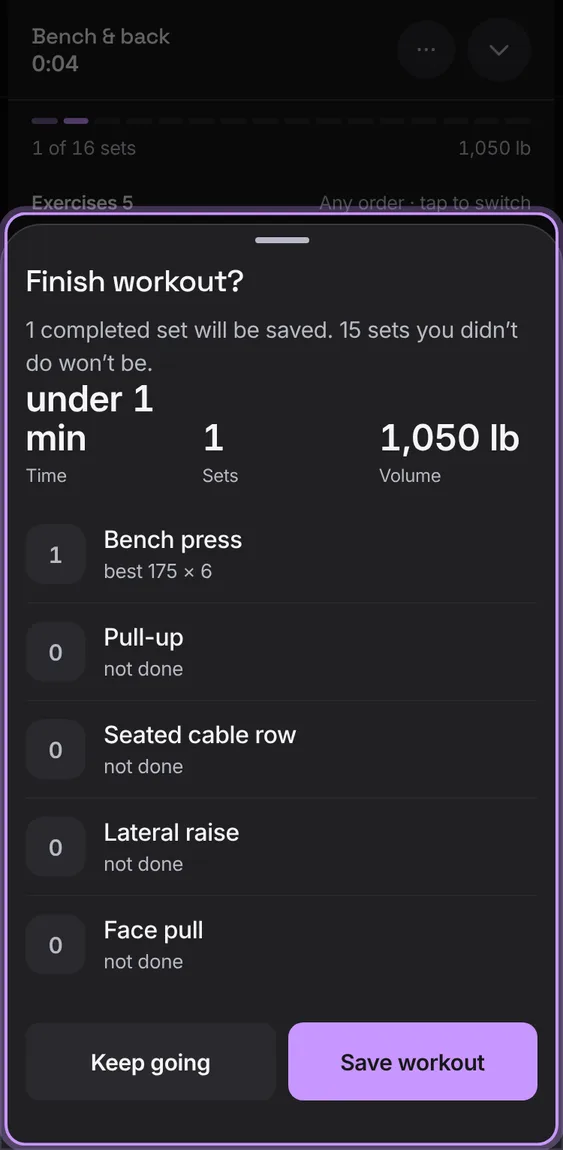
Finish workout shows what you did before it's saved: time, sets, volume and each exercise's best, and what won't be kept. Save workout saves it once.
Tap Finish workout, check it, then Save workout (or Keep going).
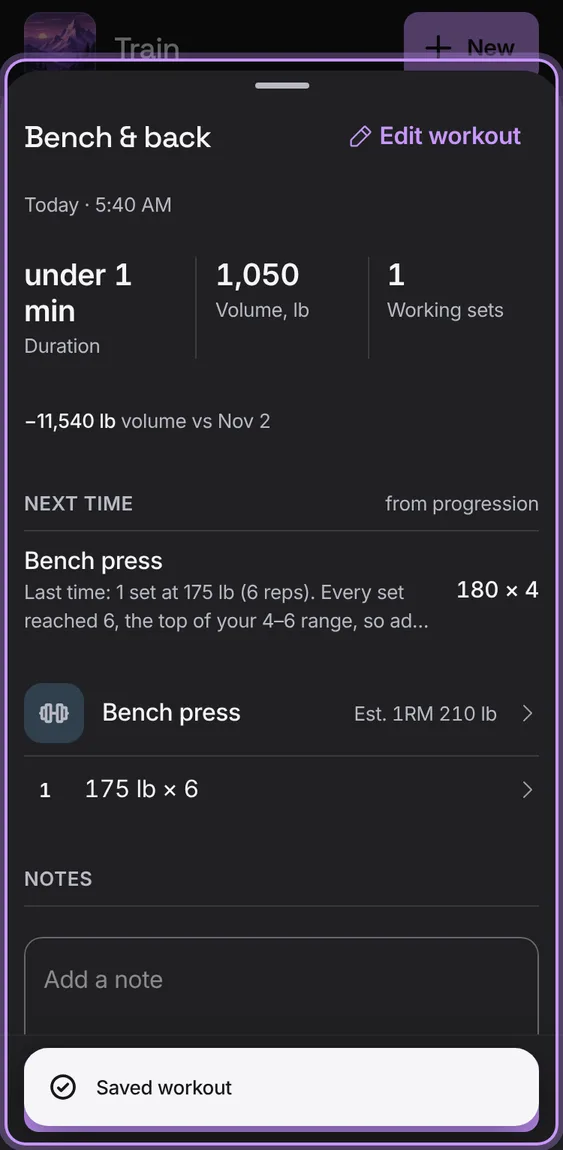
A saved workout opens at once with its records, its volume against last time and what to try next time. The message counts any new records.
Tap Save workout.
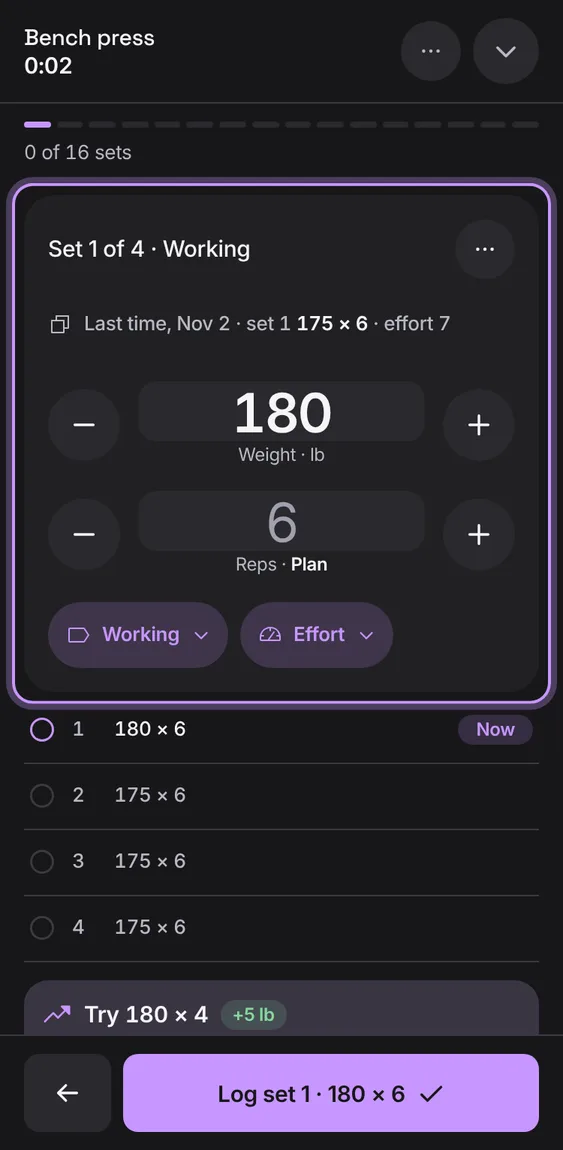
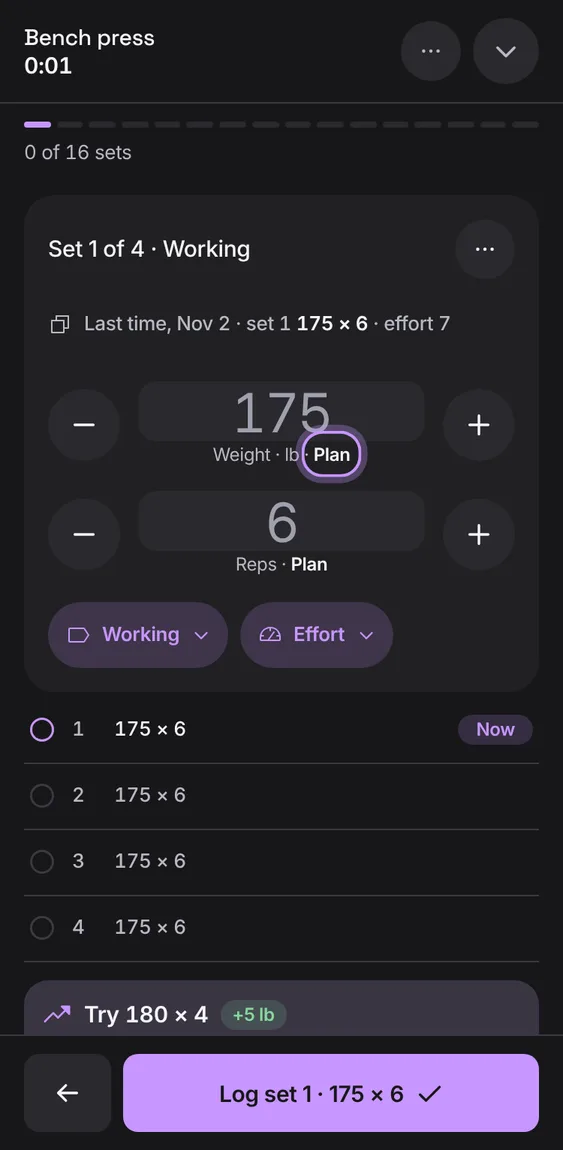
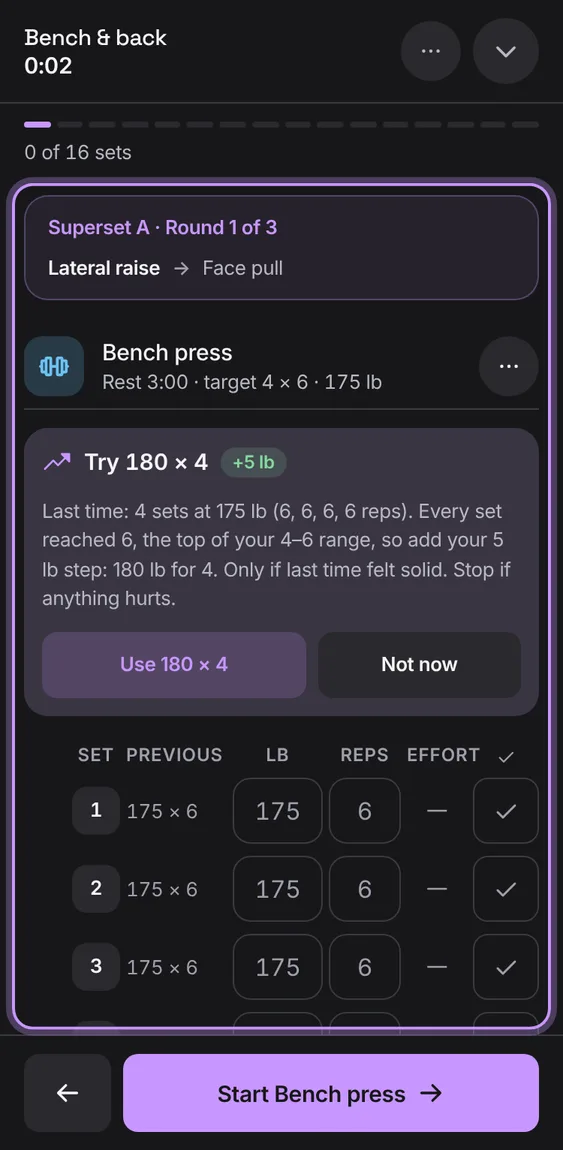
The exercise's set fills the screen: Set 2 of 4, its weight and reps with steppers, and the set list under it. The button says what it will log: Log set 2 · 185 × 5.
Go back to the exercises early; the sets you haven't done stay there for later. When every set is done it says what's up next.
Tap Finish exercise (Finish superset).
Until you change them, the weight and reps are a guess shown in a lighter tone and labelled: Plan, Last time, From set 1 or Suggestion.
Read the small label under the weight and reps.
On a wide screen the exercise list stays beside the set, so you never go back to choose.
Open a workout on a computer or tablet.
Shown at a computer’s width.
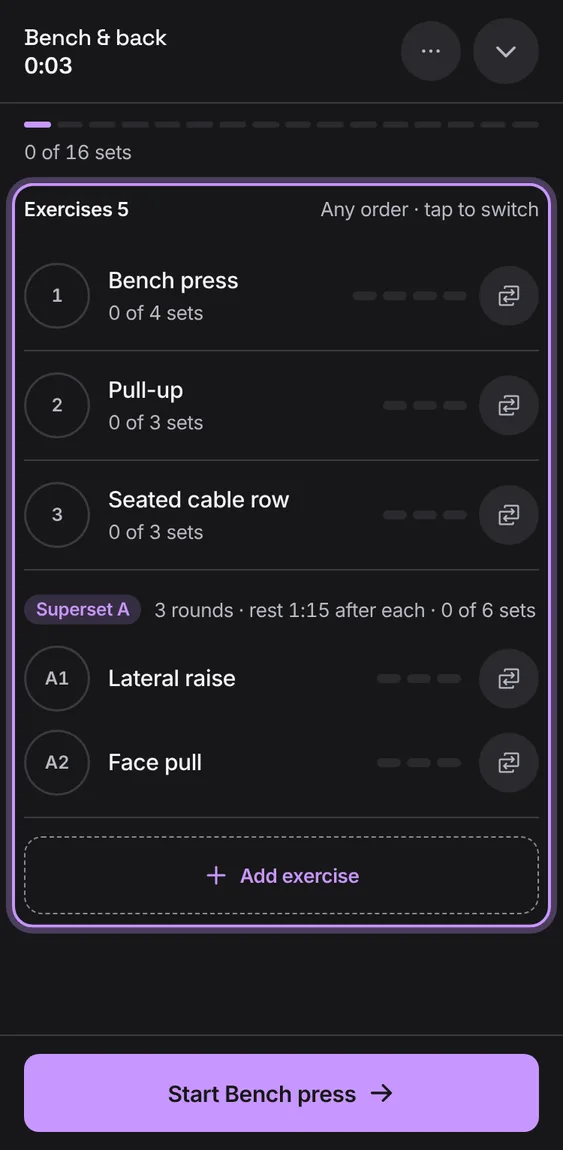
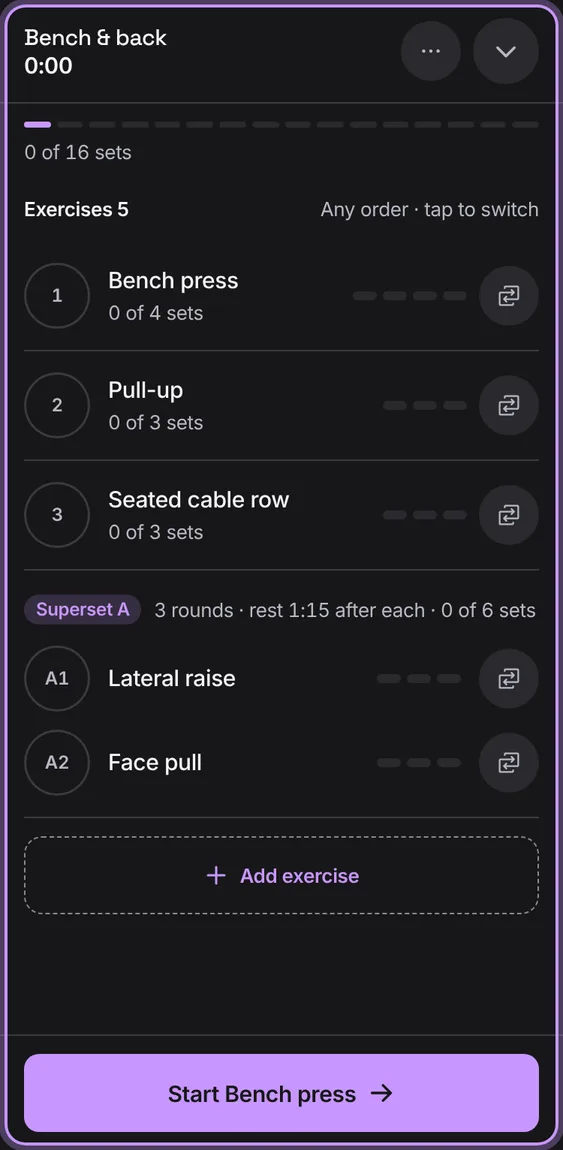
The footer's main button starts the next exercise ("Start Bench press"), says Continue once it's under way, and Finish workout once a set is done.
Tap the footer's button to keep going.
The workout can take the whole screen, hiding the browser's bars.
Tap Full screen in the workout's header.
Not in the demo. Needs the full screen.
In your first workout, a short note under the exercises says Talus logs and suggests but isn't medical advice.
Tap the (i) beside Not medical advice.
Not in the demo. Shows before anything is saved; the demo has sample data.
Minimise the workout to use other tabs. A bar above the tabs shows its name, time, sets or rest, with Resume.
Tap Minimise (the down arrow) in the workout.
Tap Resume to go back.
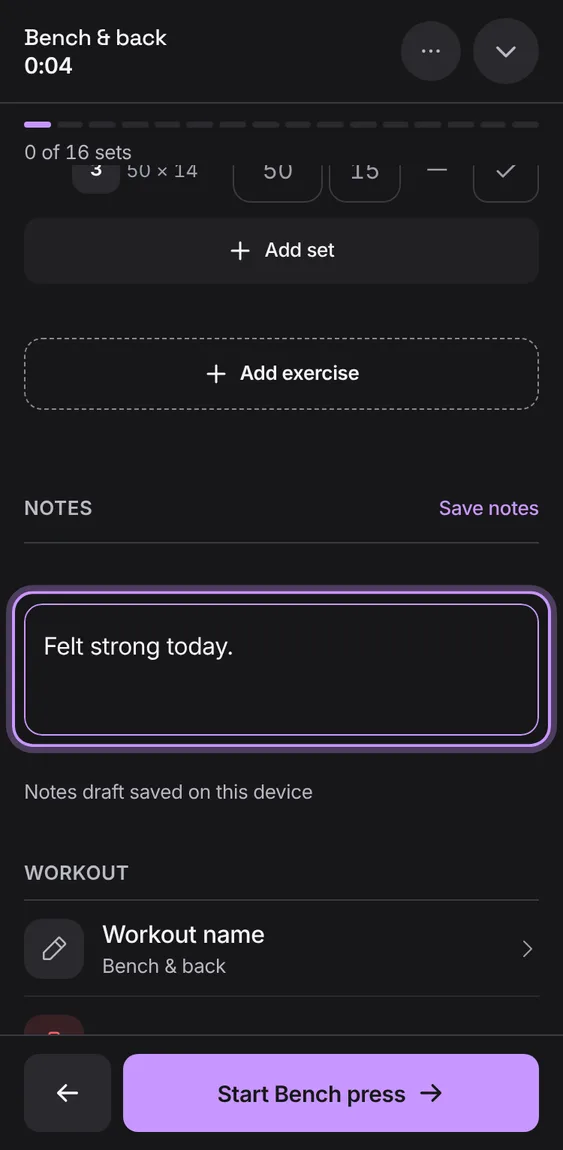
Notes for the workout ("How did it feel?"), saved on this device as you type and kept through a reload.
Open Review workout and write under Notes.
Two tabs see the same workout. A set changed in another tab shows its latest values instead of being overwritten.
Nothing to do: open Talus in two tabs and both stay in step.
Not in the demo. Needs a second device editing at once.
The workout's exercises as cards in order, each with its sets done and best so far. Pick any one, in any order.
Tap an exercise's card to start it.
A finished one opens for review.
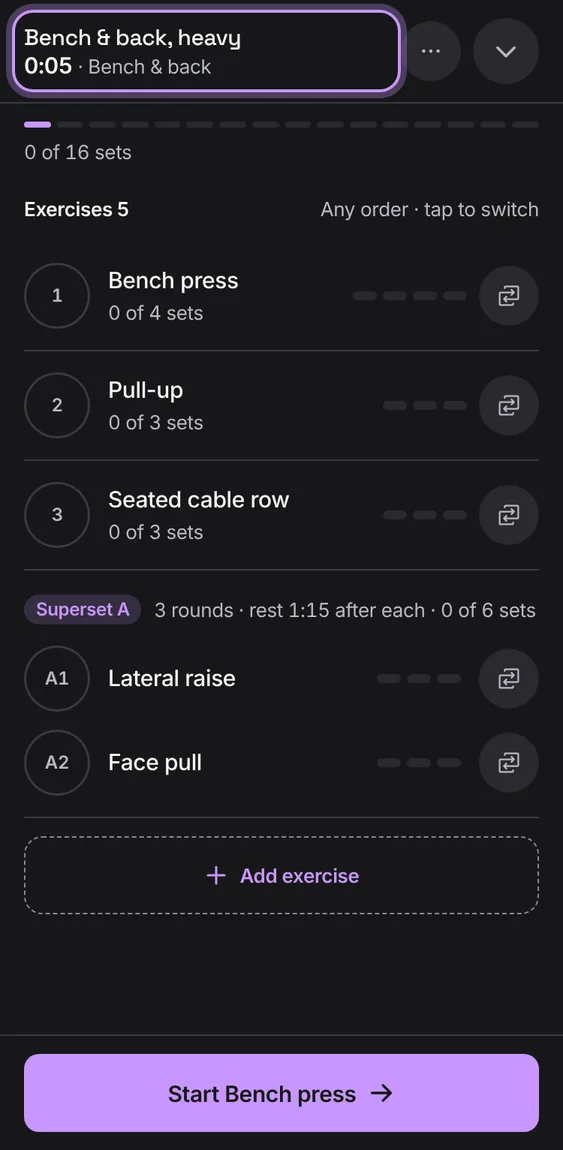
Rename the workout while you're in it.
Open Workout options and tap Workout name, then Save name.
Every exercise and set of the workout as one list, with last time's sets beside each, notes, the name and Discard.
Open an exercise's options and tap Review workout.
Back to exercises returns to one set at a time.
While the workout is open the screen doesn't dim; it's let go when you minimise or close it. There's no switch for it.
Nothing to do: it's automatic where the browser allows it.
Start a routine or an empty workout from Train, Routines, History or Progress. With a workout going, Start takes you back to it instead.
Tap Start beside a routine, or Empty workout.
Only one workout runs at a time.
A superset is one card. The workout alternates its exercises, shows the round (Superset A · round 2 of 3) and uses its rest between exercises and after each round.
 Talus