Hearth
Edit a recipe
Write or fix a recipe: photo, name, servings and times, tags, source, each ingredient and step, and notes.
Every Edit a recipe feature
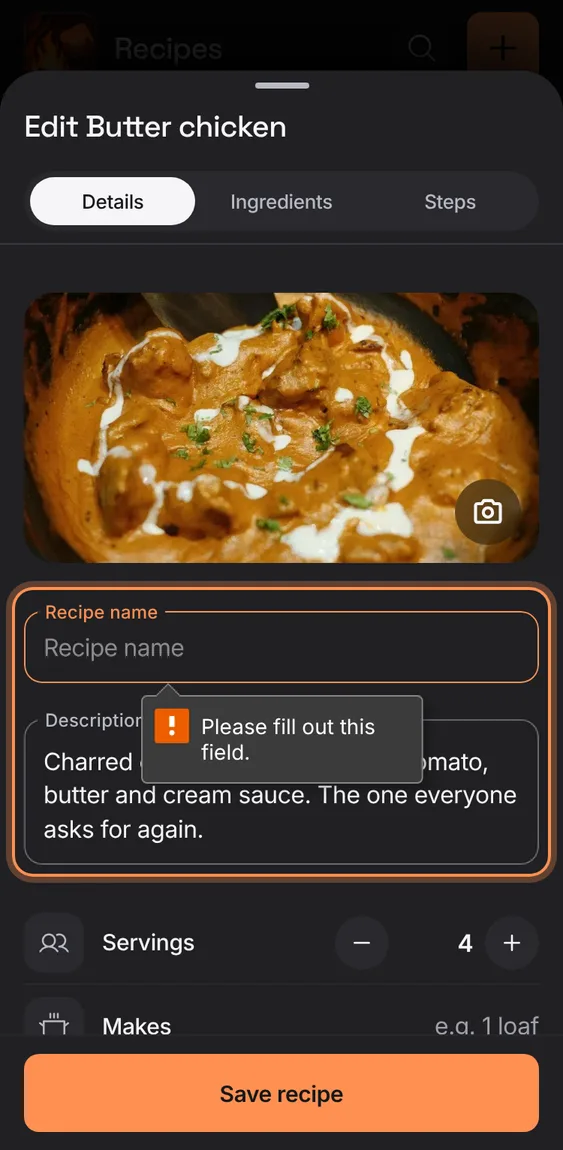
Save points at what's missing: a name, an ingredient, a step, a complete web address, or a step using more than the whole amount.
- The message shows by the field, or above Save.
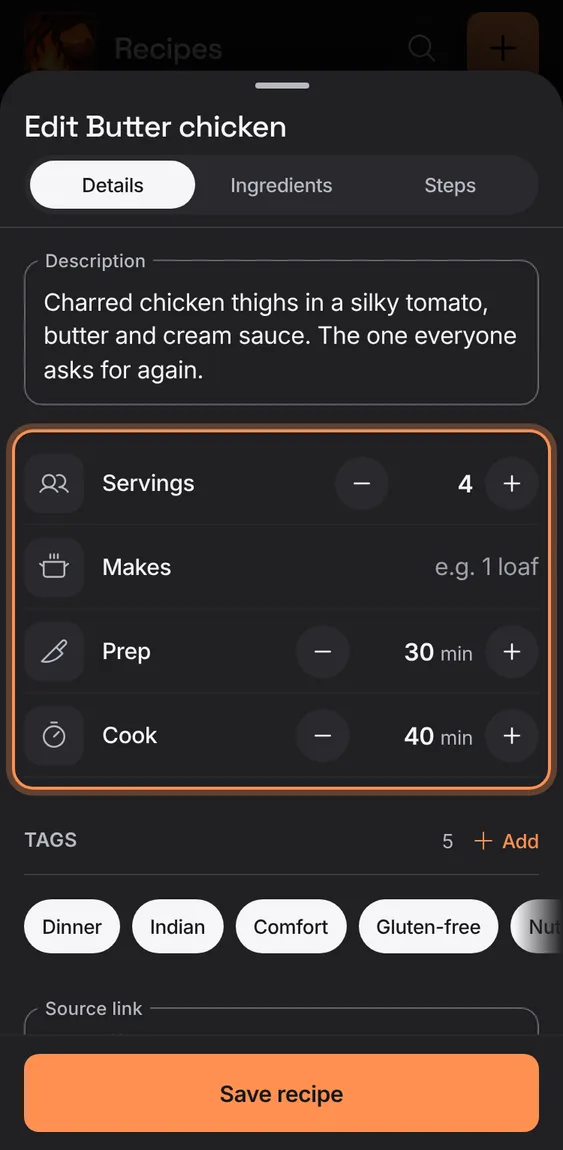
The recipe's name and description, servings, what it makes, and prep and cook time in 5-minute steps (or typed).
- Only the name is required.
- Leave servings empty if you don't know them.
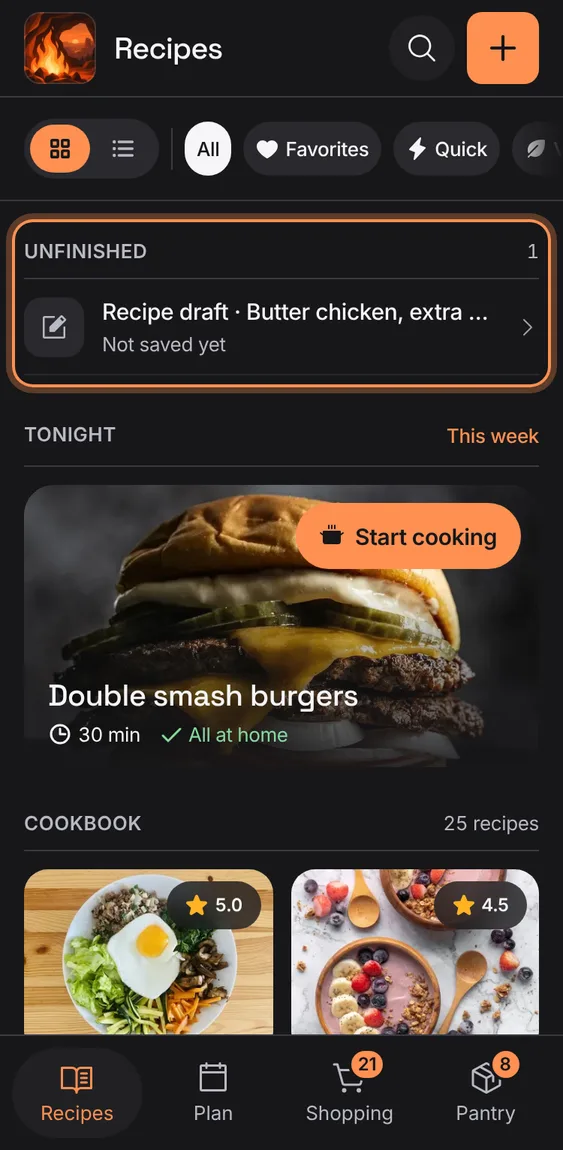
Everything you type is kept on this device as you go, so closing or a crash never loses it; Discard draft lets it go.
- Close and reopen the recipe: Unfinished on Recipes brings it back.
- Discard draft asks first.
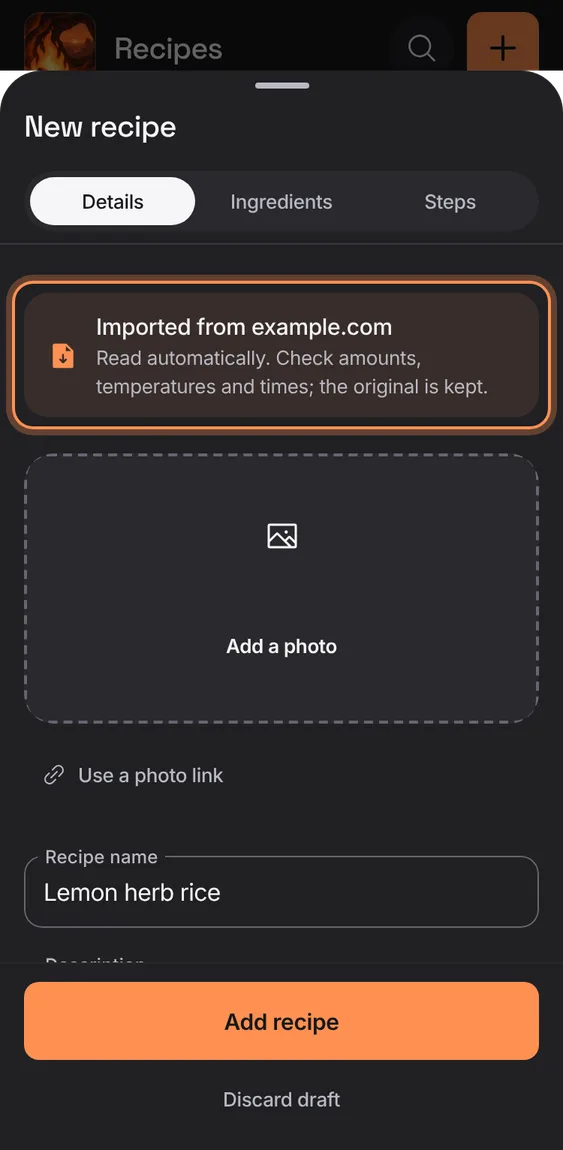
An imported recipe's editor says where it came from and to check its amounts, temperatures and times; the original is kept.
- Read the line at the top of Details.
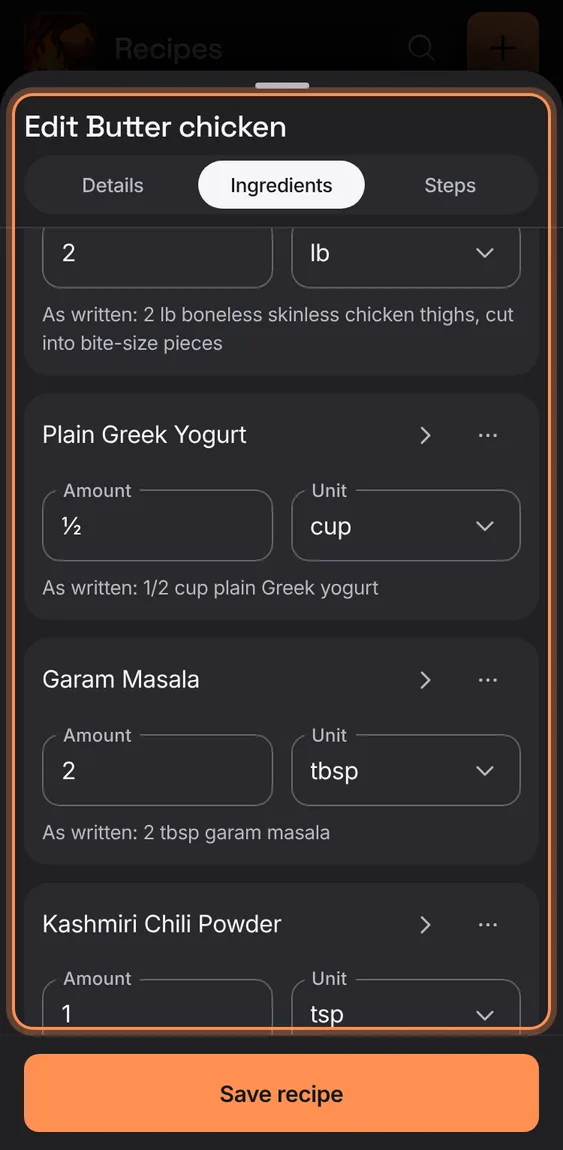
One card per ingredient: the food, then its amount and unit; move or remove a line from its ⋯, and Undo a removal.
- Tap Add by Ingredients.
- Type the amount as 3/4, 1 1/2 or ¾.
- ⋯ › Move up, Move down or Remove ingredient.
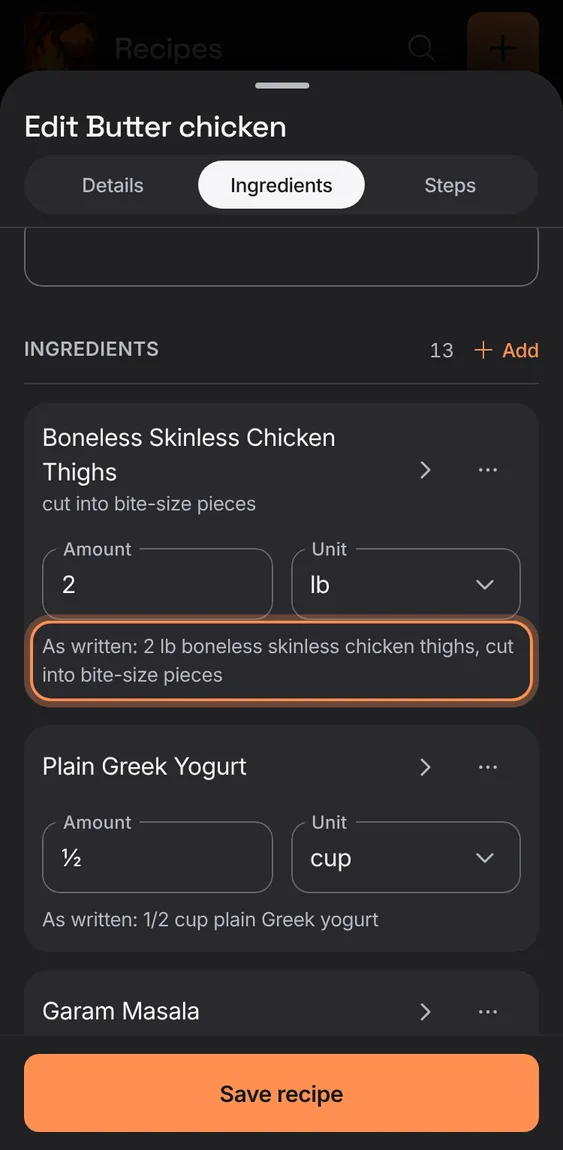
Under each ingredient, the line exactly as the recipe wrote it.
- Read "As written: …" under the line.
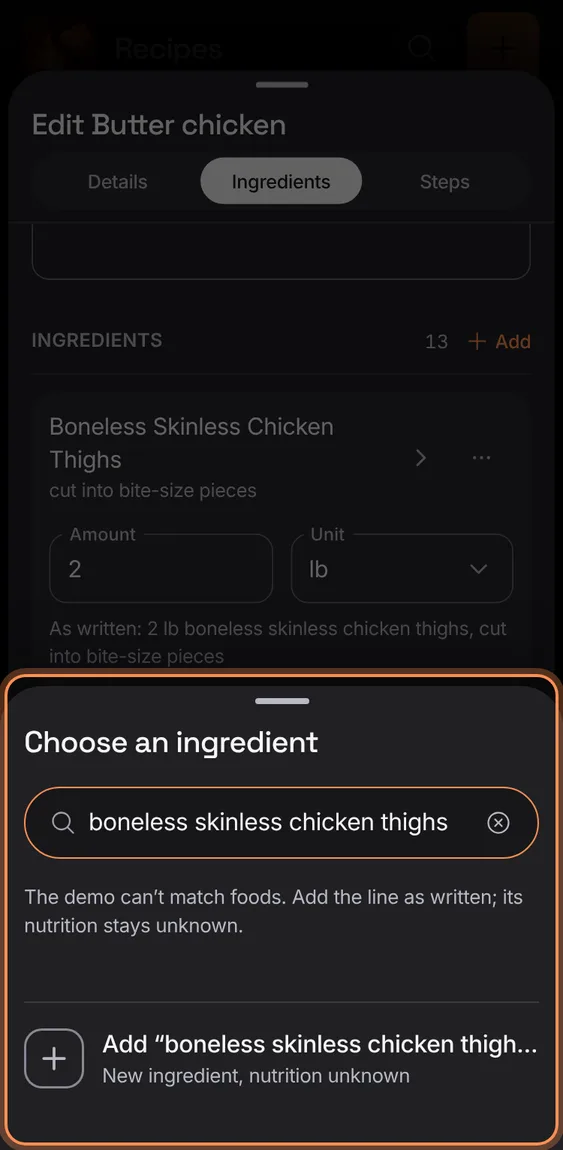
Each line is matched to a food so its nutrition counts; a line without one shows "Match food" and Save names what's left to fix.
- Tap the food's name to choose it from USDA.
- Offline, signed out or in the demo, a line saves as written and is matched later.
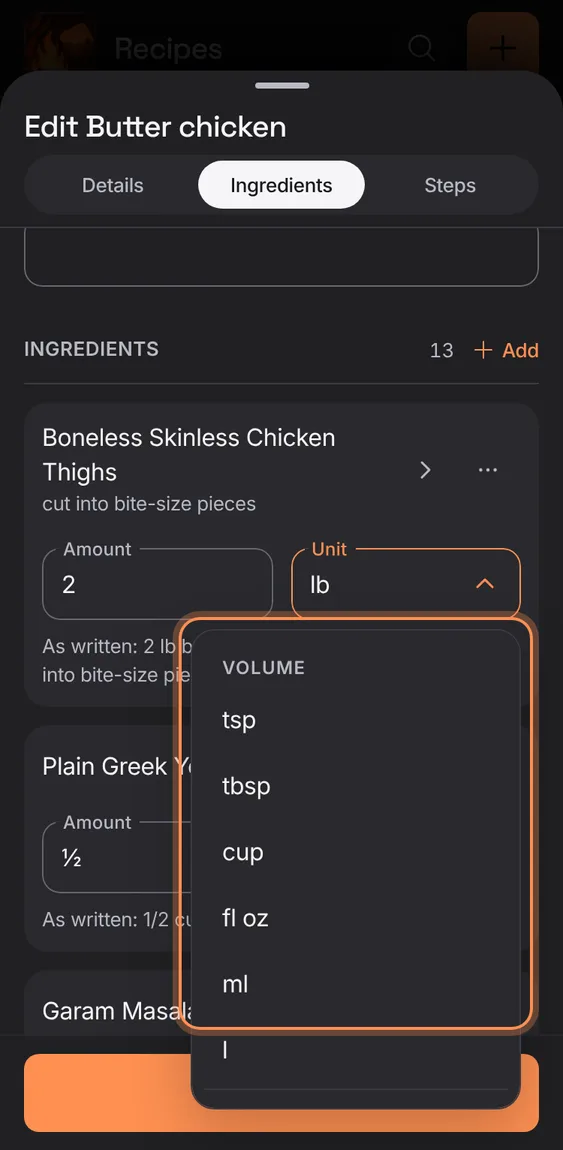
Pick a usual unit (cup, tbsp, g, clove, can…) or type your own.
- Tap the Unit field's arrow for the list.
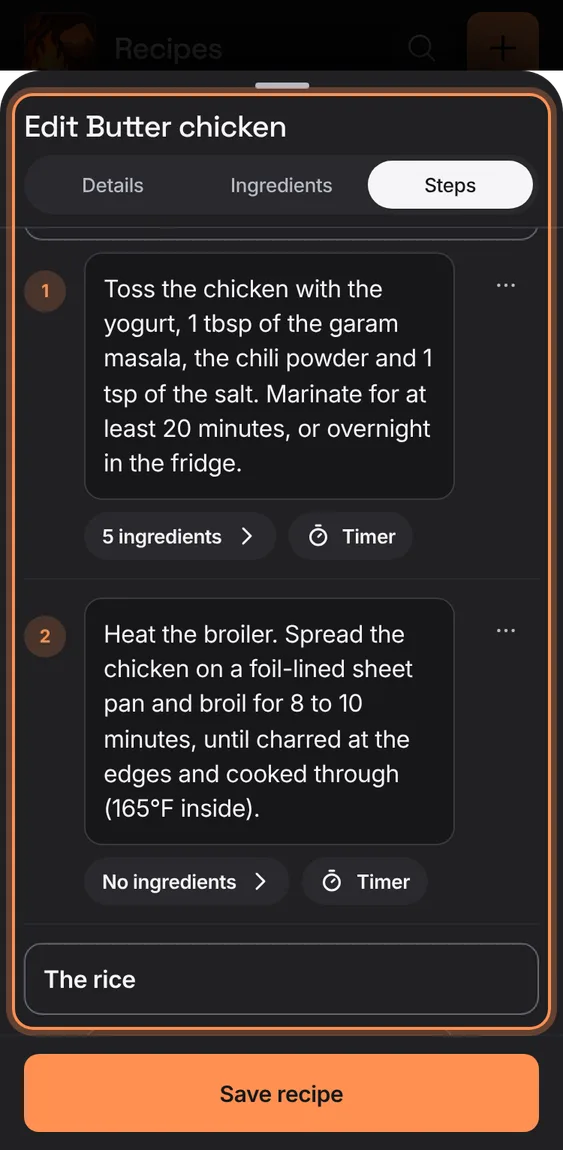
A bar under the title jumps to each part and follows the part you're in.
- Tap Ingredients or Steps to scroll there.
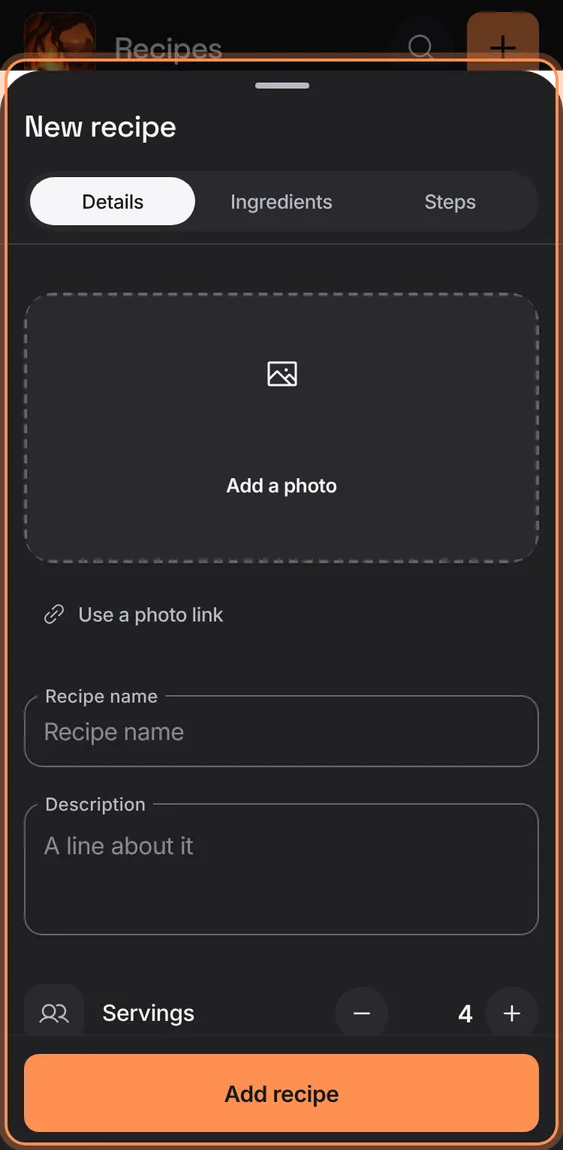
Start a blank recipe and type it in yourself.
- + › Write.
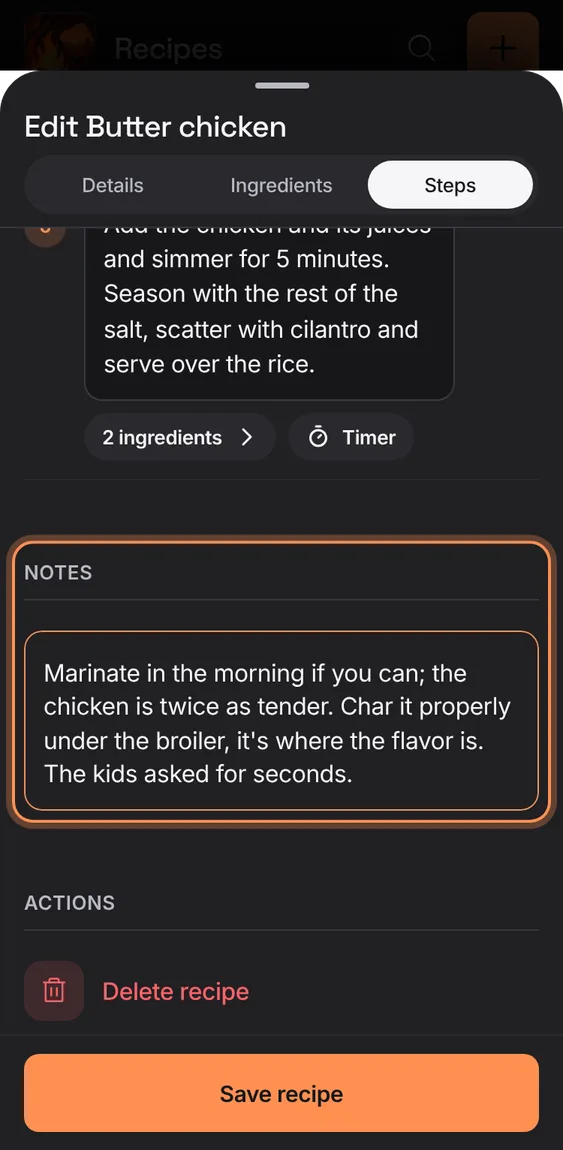
Your own notes on the recipe: swaps, tips, what the kids thought.
- Type in Notes near the end.
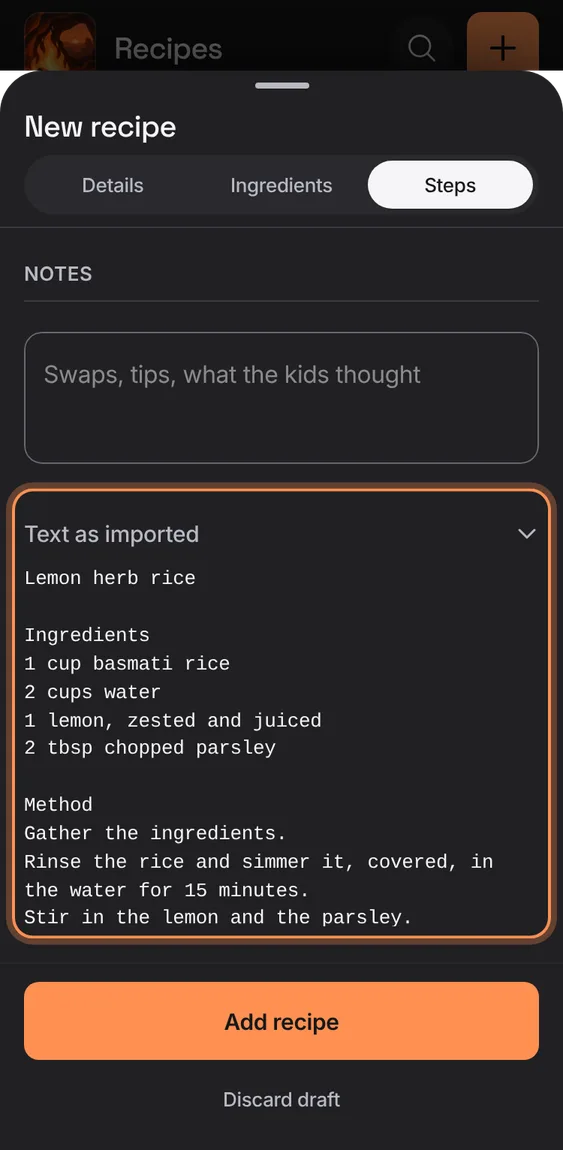
An imported recipe keeps the text it was read from, so you can check what the app read.
- Tap Text as imported at the end of the editor.
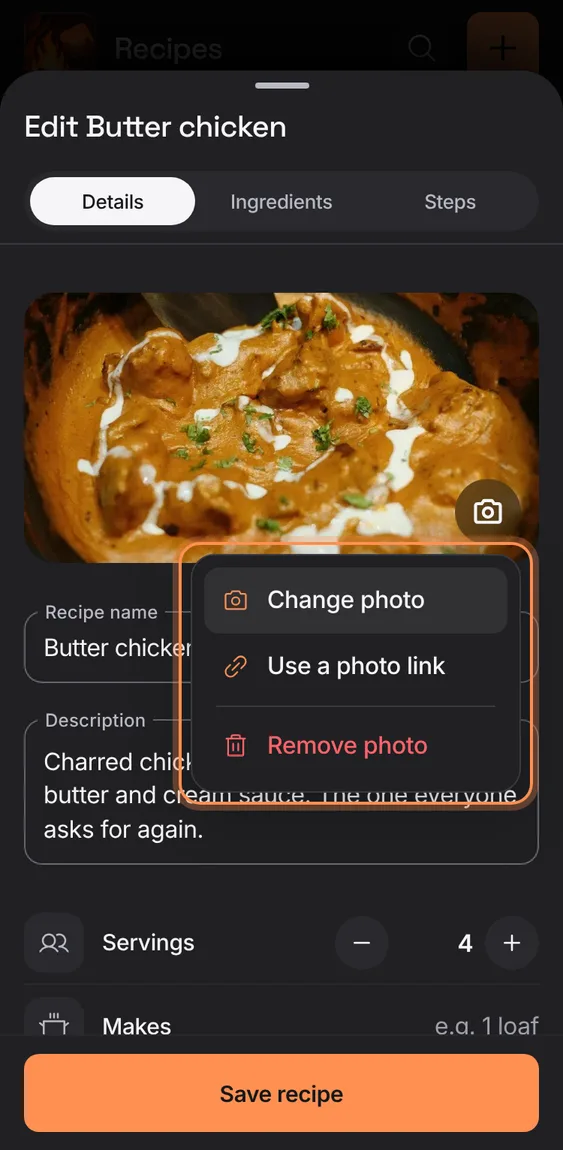
Add a photo from your device (kept privately with your household's files), use a photo link, change it or remove it.
- Tap Add a photo, or the camera on the photo for Change photo, Use a photo link and Remove photo.
- Removing asks first; the recipe is kept.
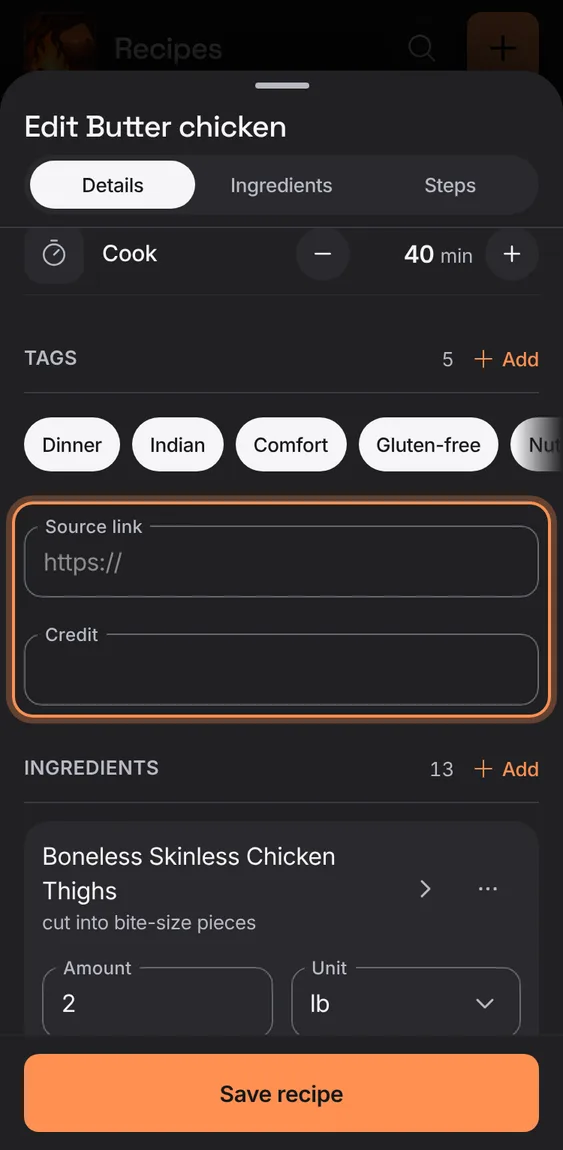
Where the recipe came from and who to credit, kept with it.
- Fill Source link and Credit under Tags.
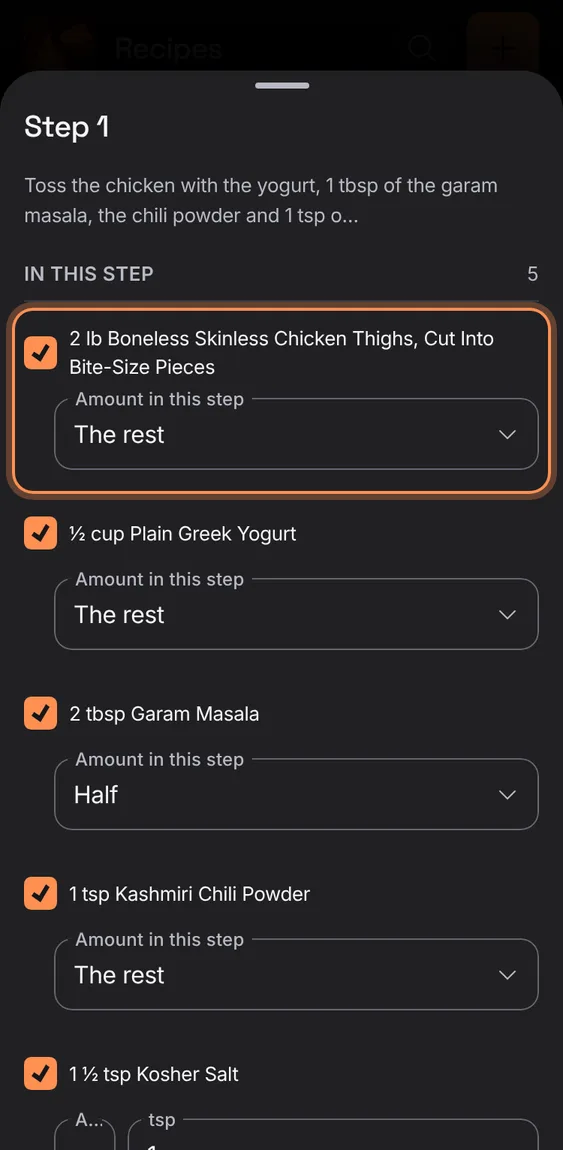
Ingredients are linked to the steps that name them, automatically; a step's chip opens its list to add or take away one by hand.
- Tap a step's "3 ingredients" chip.
- Tick what the step uses; Other ingredients holds the rest.
- The editor says what no step uses, what's only partly used, and what's used more than the whole amount.
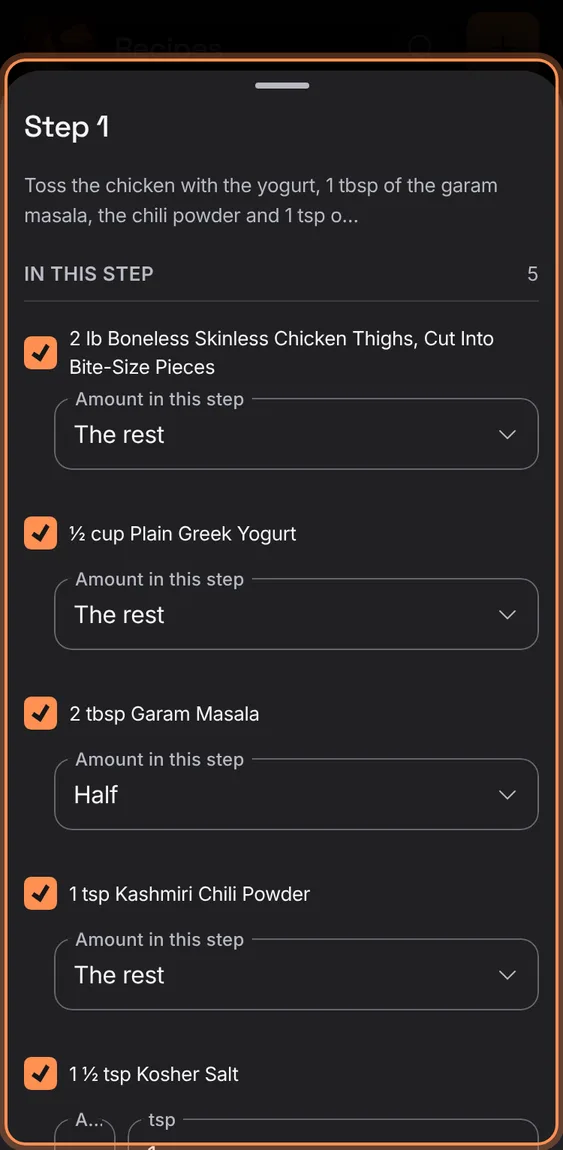
How much of an ingredient a step uses: all, half, a third, a quarter, the rest, or an exact amount.
- In a step's list, choose from Amount in this step.
- An amount can't go over the recipe's total.
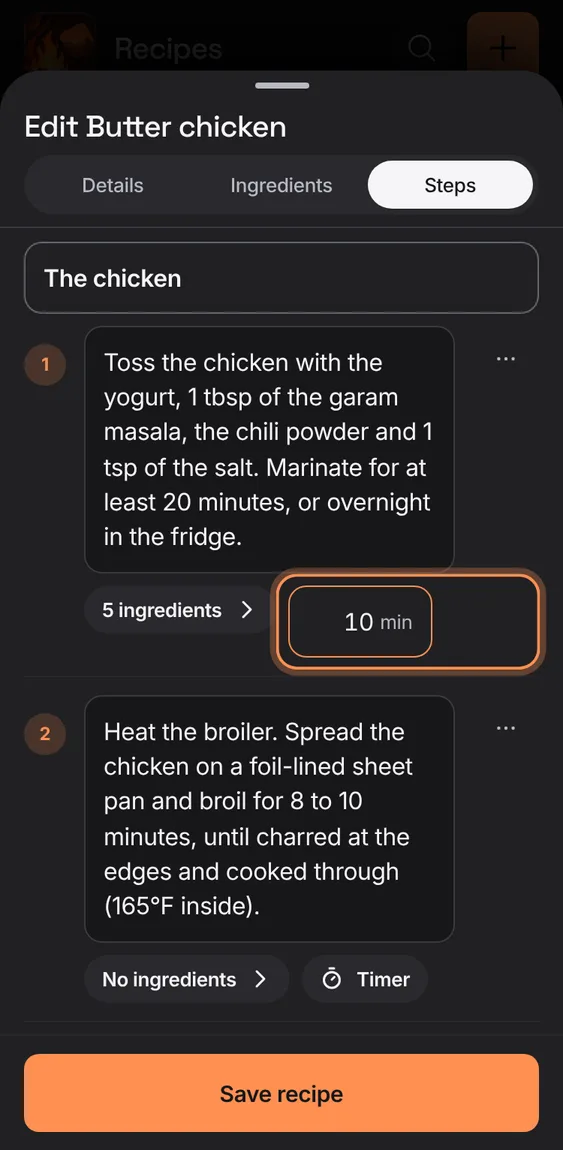
Give a step its own timer, which cook mode offers on that step.
- Tap Timer on the step and type the minutes.
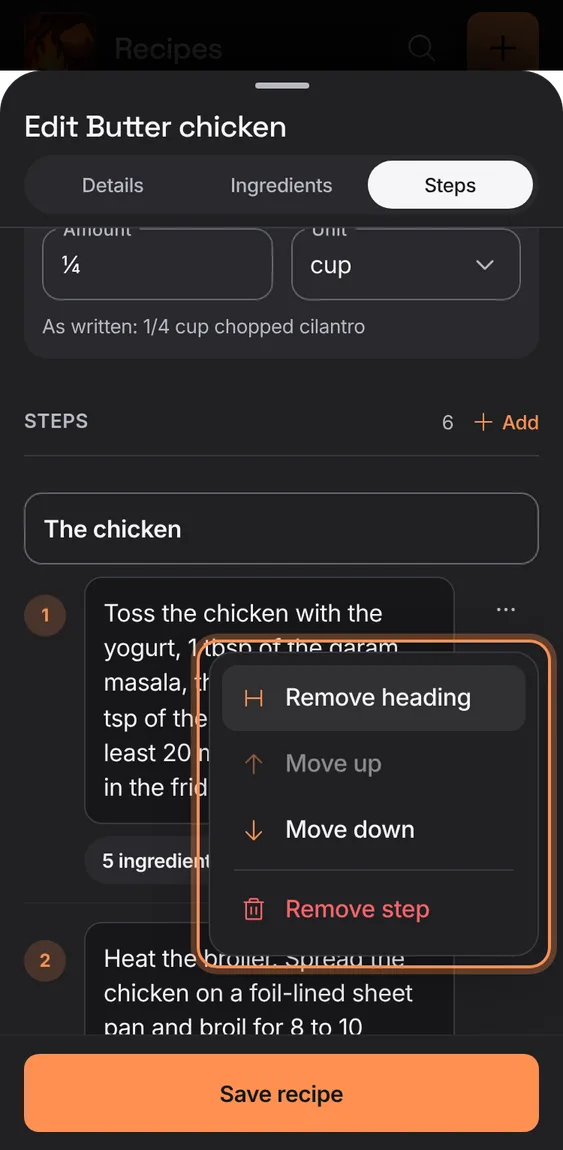
Numbered steps that grow as you type, each with a ⋯ to add a heading, move or remove it.
- Tap Add by Steps.
- ⋯ › Add heading ("For the sauce"), Move up, Move down, Remove step.
- A removed step comes back with Undo.
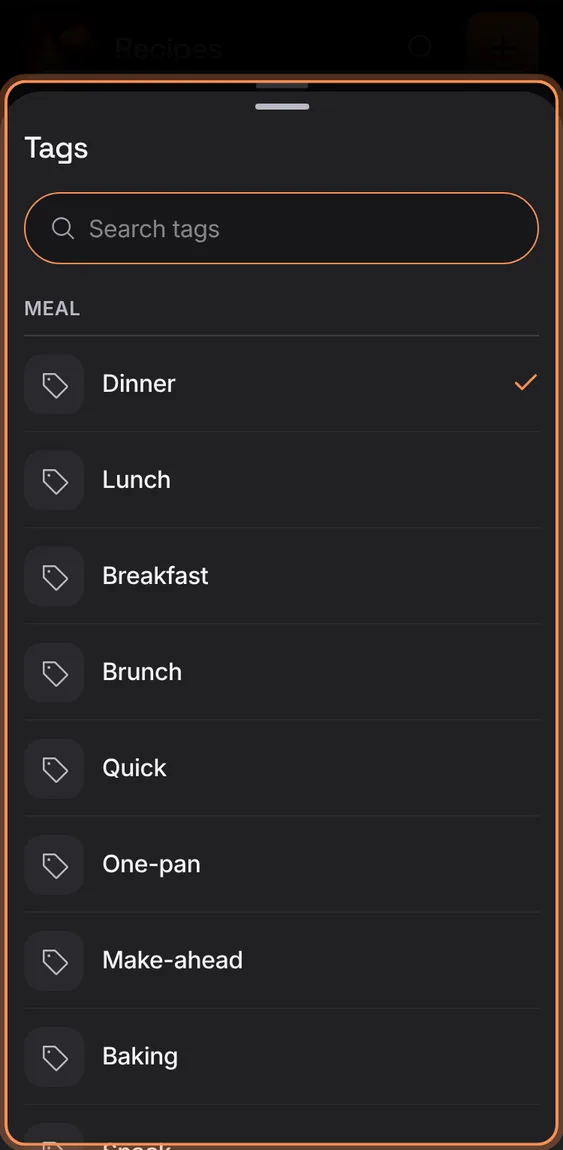
Pick tags by meal, diet or your own, or type a new one; what's chosen shows as one row of chips.
- Tap Add by Tags.
- Search, tap to choose, or type a new tag and tap New tag.
- Tap a chosen chip to remove it.