Cambium
The Markdown editor
Write in plain Markdown that reads like the finished note as you type: headings, lists, checklists, quotes, code, tables, links and pictures.
Every The Markdown editor feature
Each paragraph, heading, list item, table or picture has a grip in the margin to drag it, or to Move up, Move down or Delete it.
- Point at a block, or write in it on a touch screen; use its grip.
- ⌥⇧↑ and ⌥⇧↓ move the block you're in.
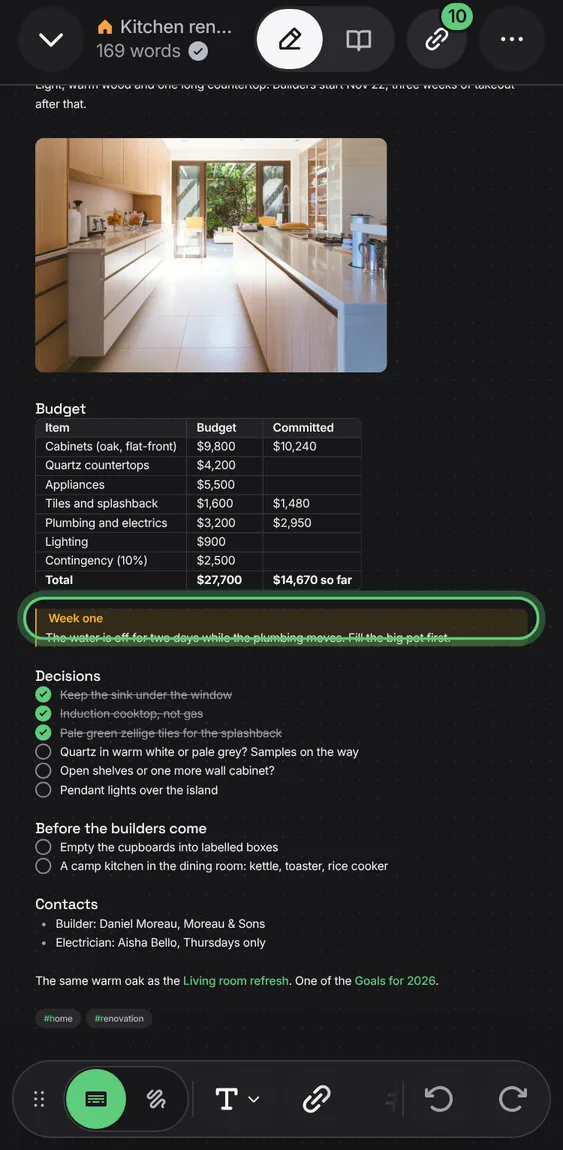
> [!tip] makes a tinted block with its icon and title: note, tip, warning, question and more, kept as Obsidian writes them.
- Type > [!tip], or pick Callout from the / menu.
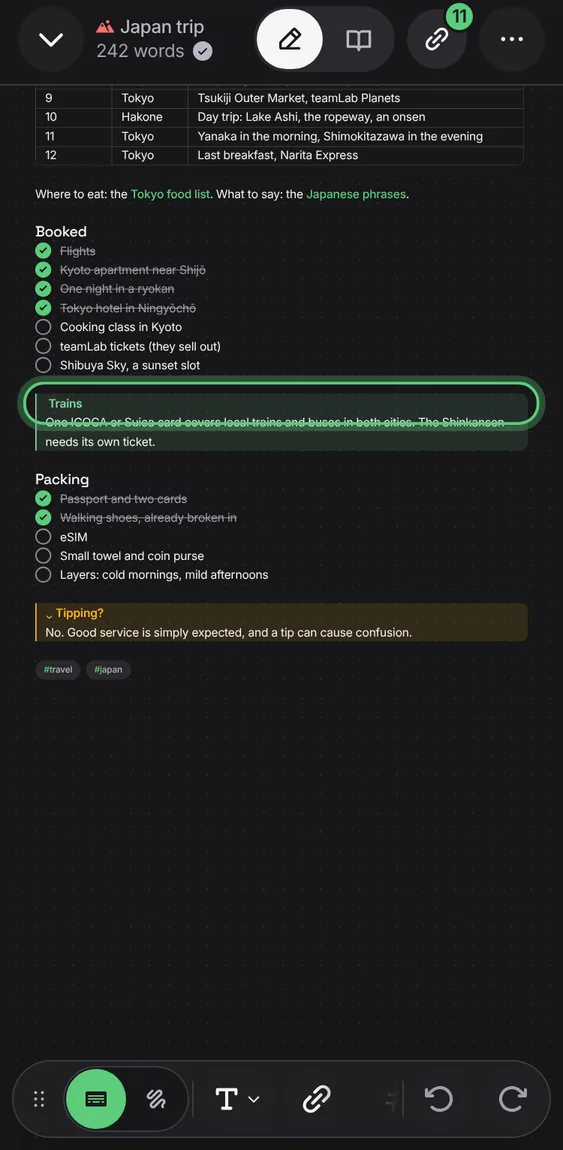
A callout written with - starts folded and says how much it holds; how you left it is kept on the device.
- Tap a folded callout's title to open it.
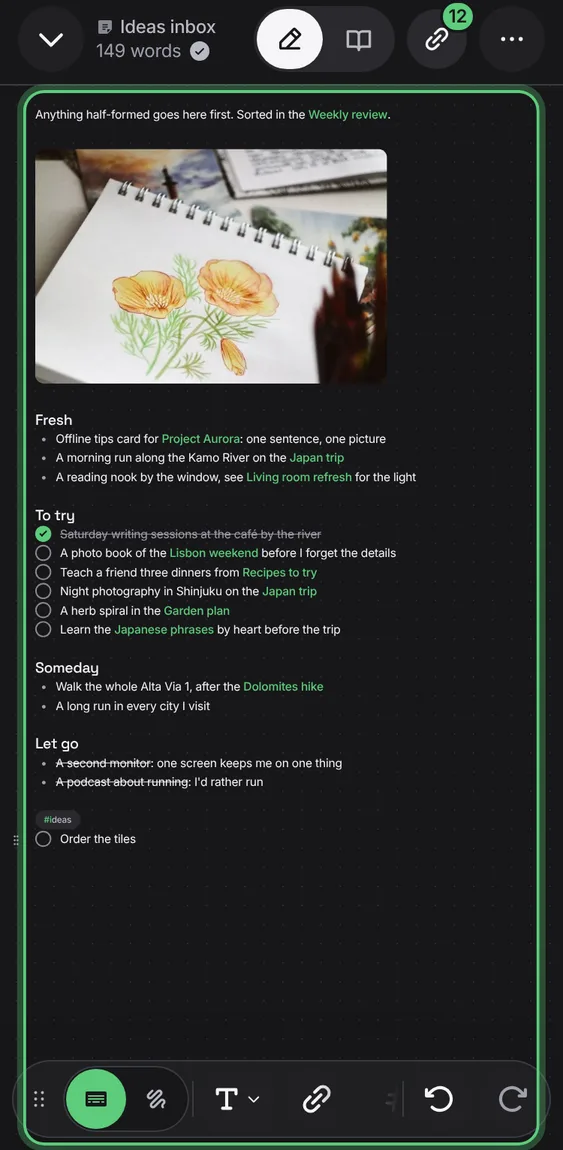
Tasks are real boxes to tick, even a template's empty one.
- Choose Checklist, or type - [ ].
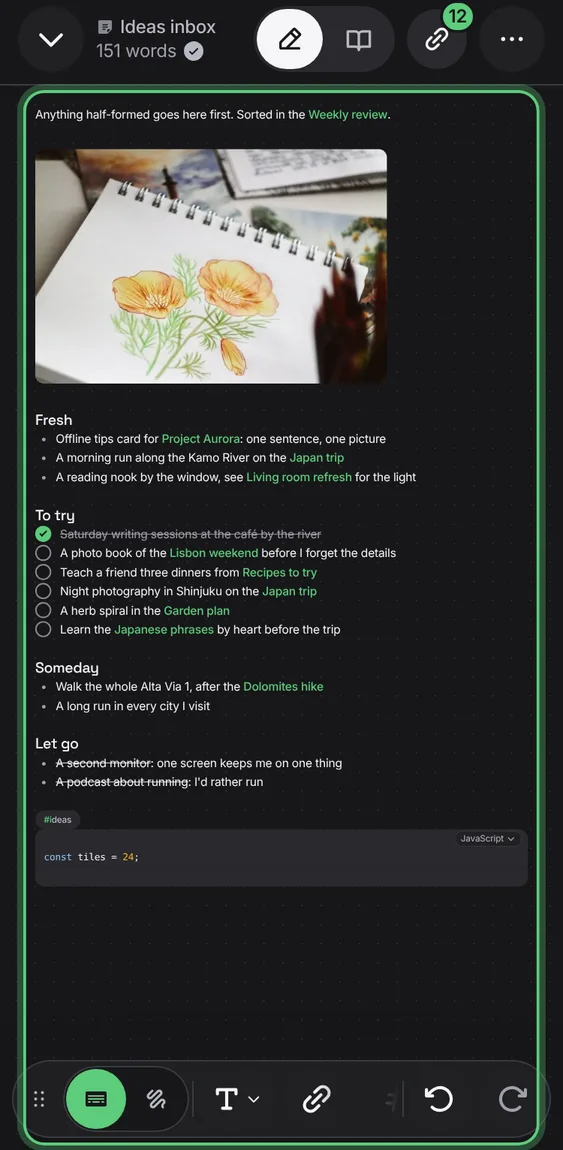
Code is coloured for its language, named at its corner, where a tap changes it; wide code scrolls.
- Type ``` and a language name.
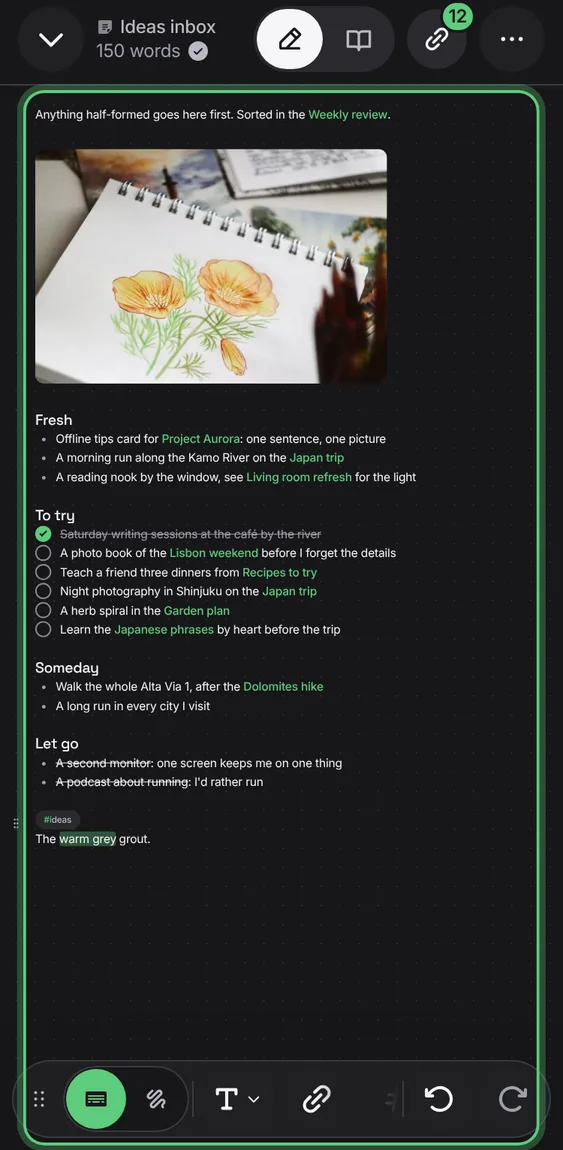
==words== read in the highlighter's yellow.
- Type ==words==, or choose Highlight on a selection.
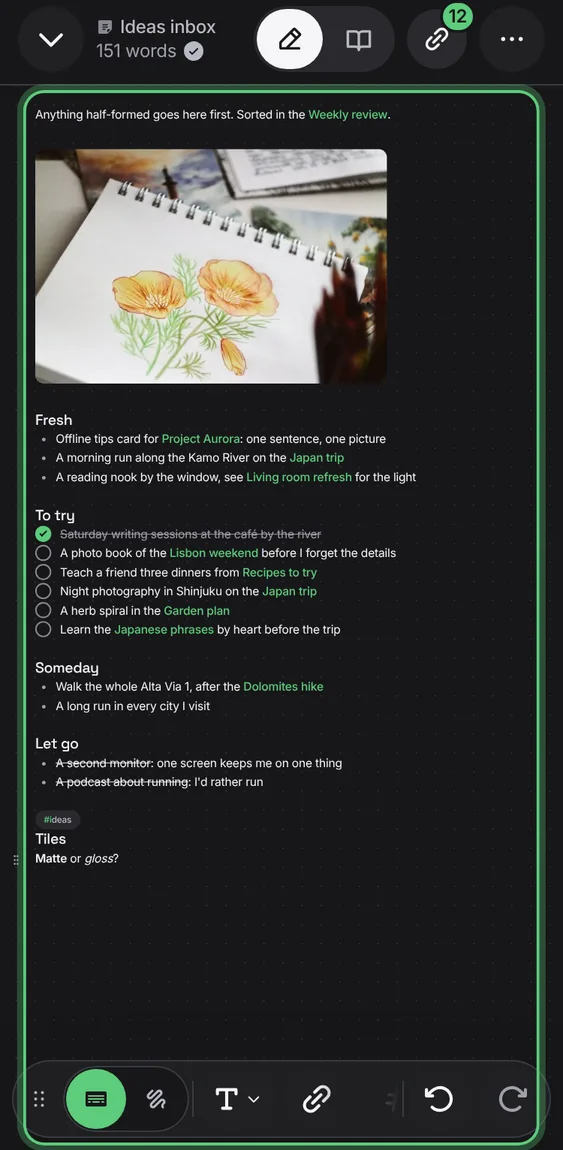
The marks that make headings, bold, quotes and links step aside, even on the line you're writing; bullets are dots and tasks are boxes.
- Type Markdown; it reads as the note.
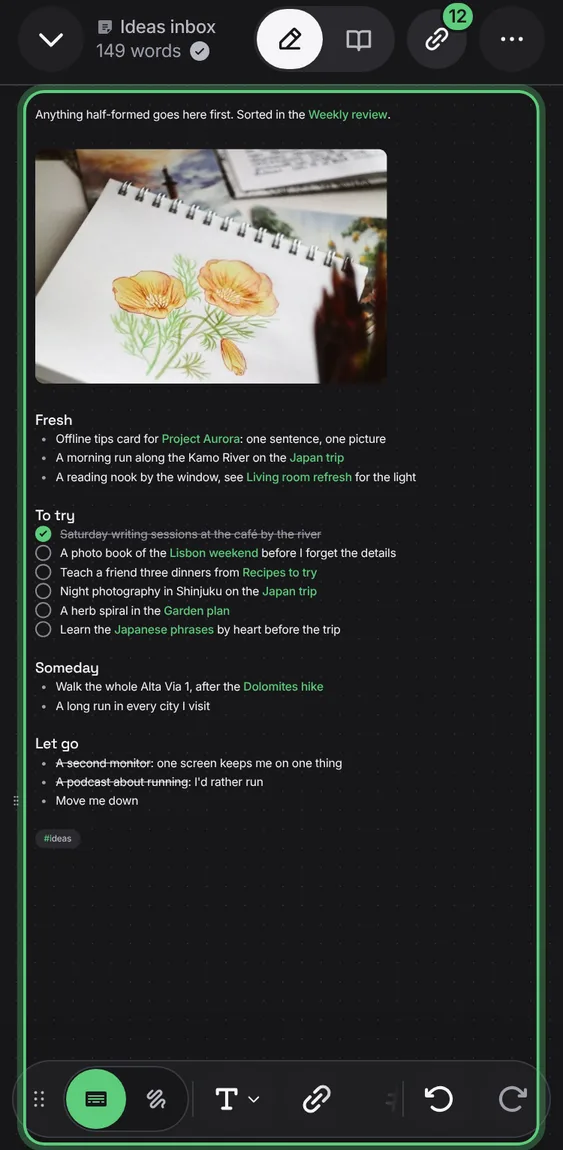
Tap a picture to resize it to a quarter, third, half or the full width, put it left, centre or right, or move it between paragraphs.
- Tap a picture; use its bar or drag a corner.
- Hold it to move it.
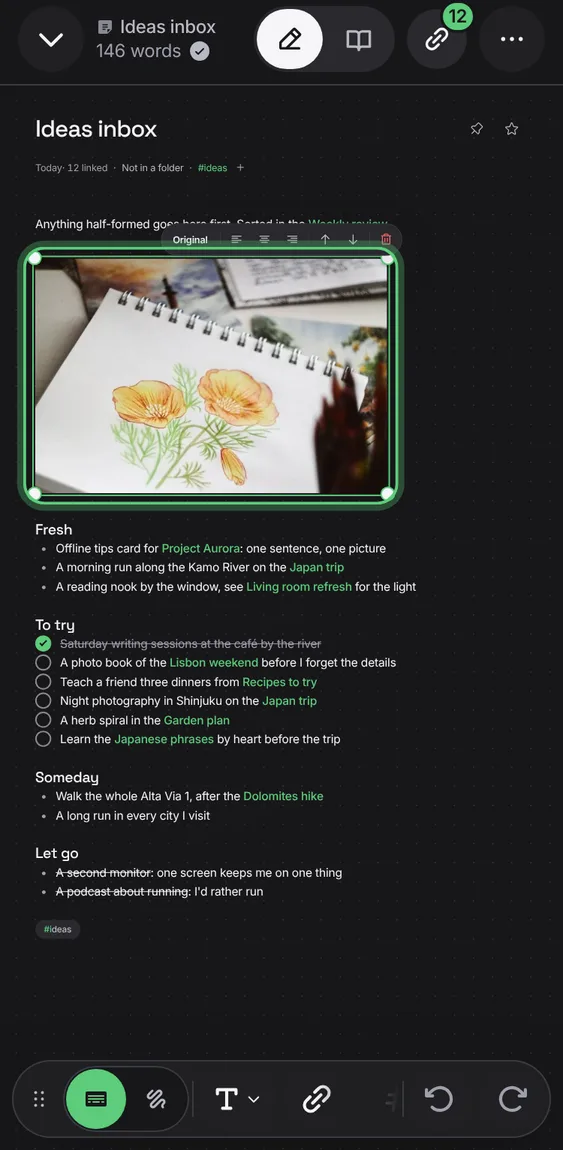
A picture shows a quiet placeholder until it loads, and Image unavailable with Retry only when it can't be shown.
- Nothing to do.
Cambium never rewrites your text: tags go in the frontmatter, and the rest of it stays exactly as written.
- Nothing to do.
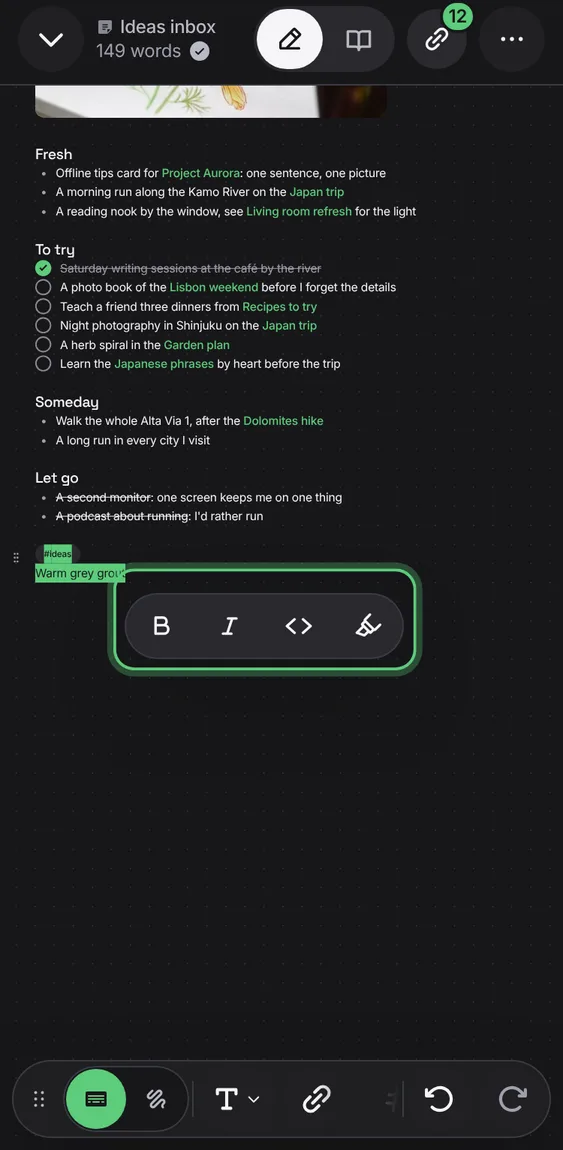
Select words for Bold, Italic, Code and Highlight under the selection; ⌘B, ⌘I and ⌘E work too.
- Select some words.
Type / at the start of a line for the text styles, tables, photos, drawings, files, callouts and notes shown inside notes.
- Type / on an empty line; pick one.
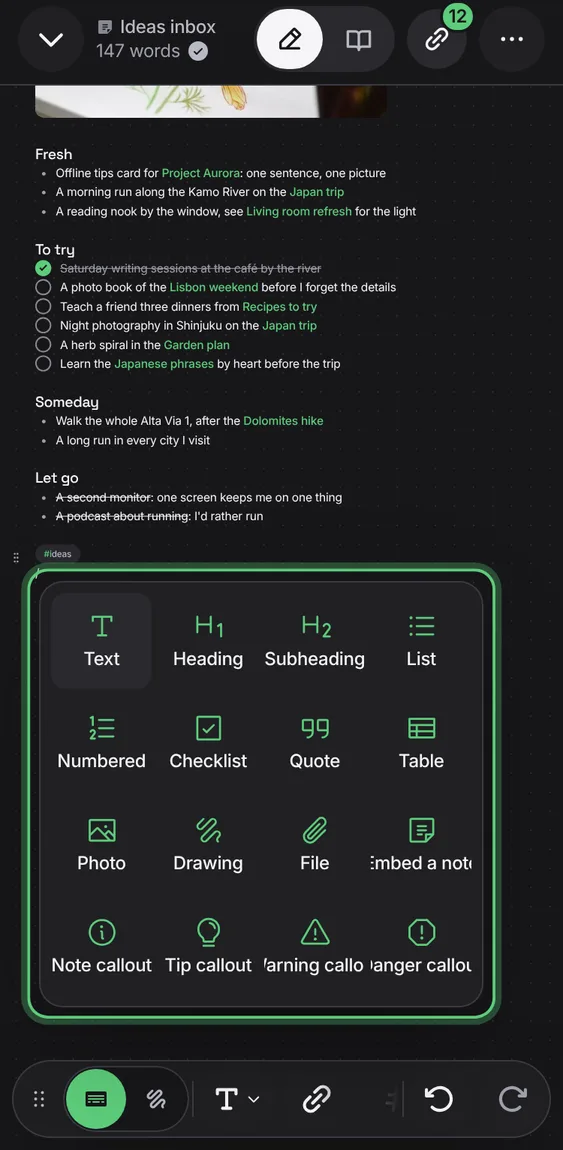
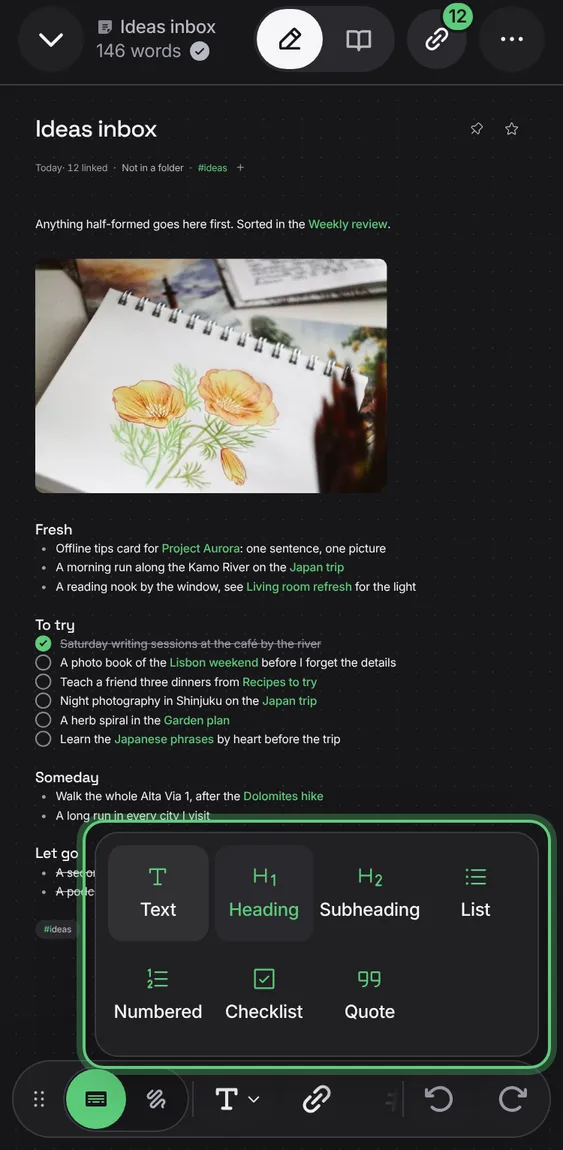
Turn a line into a heading, subheading, list, numbered list, checklist or quote, or back to text.
- Tap Text styles in the toolbar and pick a style.
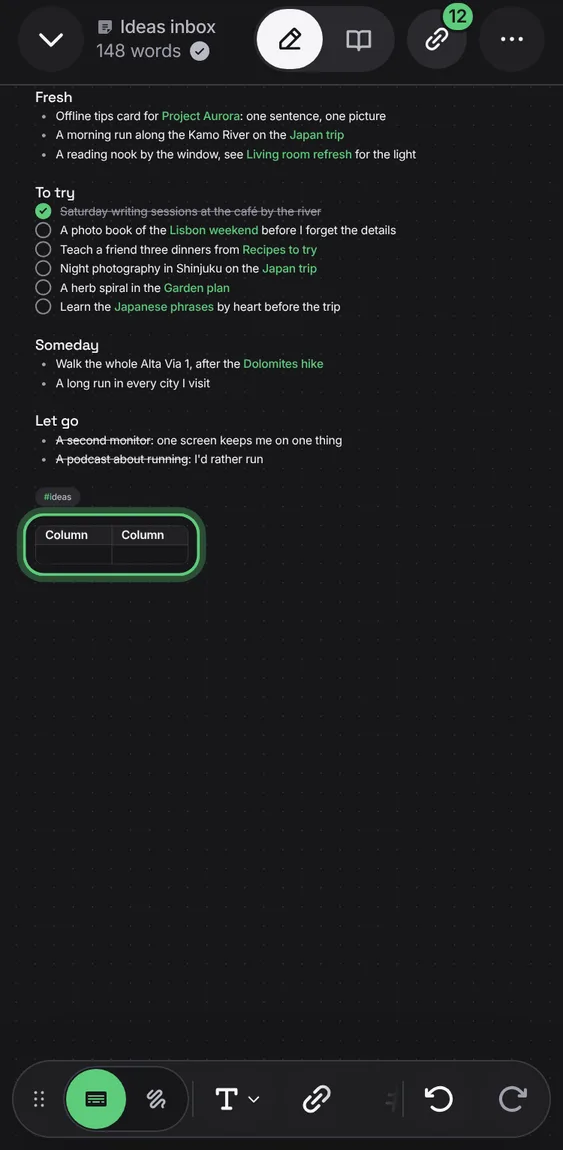
Type into a table cell by cell; grips add, move, align and delete rows and columns, and + adds one between.
- Tap Table in the toolbar.
- Tab moves to the next cell.
[[ gives [[]], ** gives **|**, and brackets and marks close for you; a selection is wrapped in the mark you type.
- Type [[ or ** as usual.
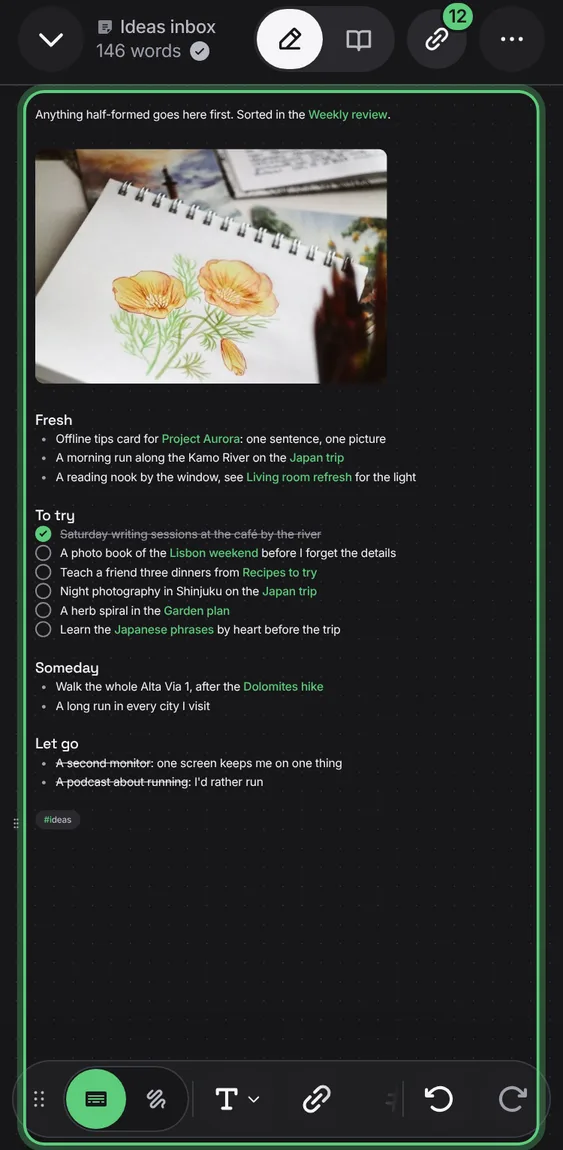
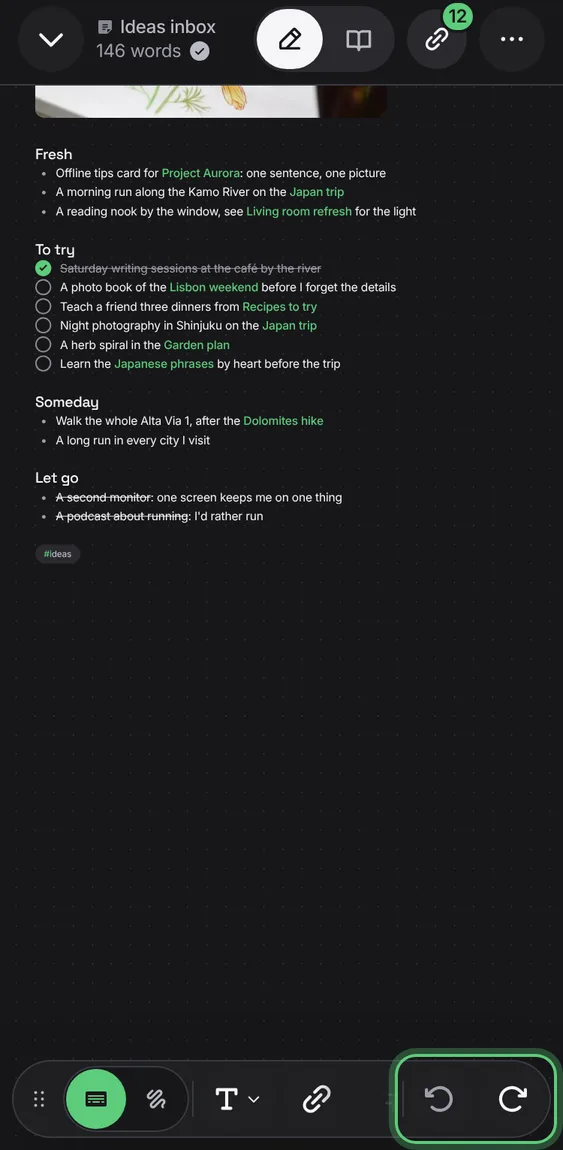
Undo and Redo are at the end of the toolbar.
- Tap Undo or Redo, or press ⌘Z.
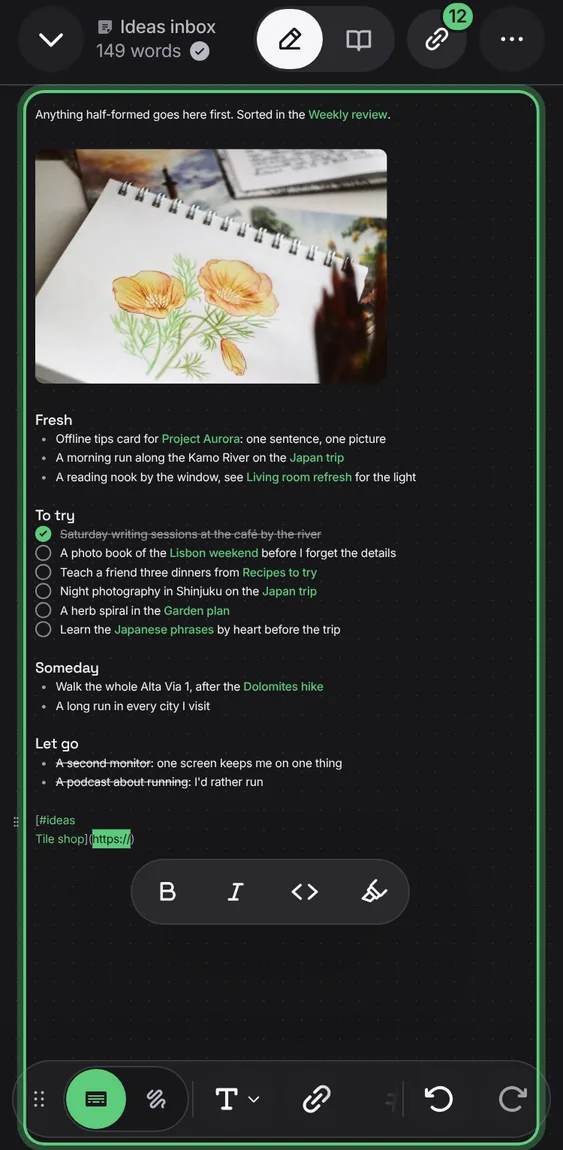
A web link reads as its words; with the caret in it, a card shows where it goes with Edit and Open. Paste an address over words to link them.
- Paste a link over selected words, or press ⌘K.