Cambium
Draw on the note
Draw, highlight and write by hand anywhere on the page, over the text, with an Apple Pencil, another pen, a finger or a mouse.
Every Draw on the note feature
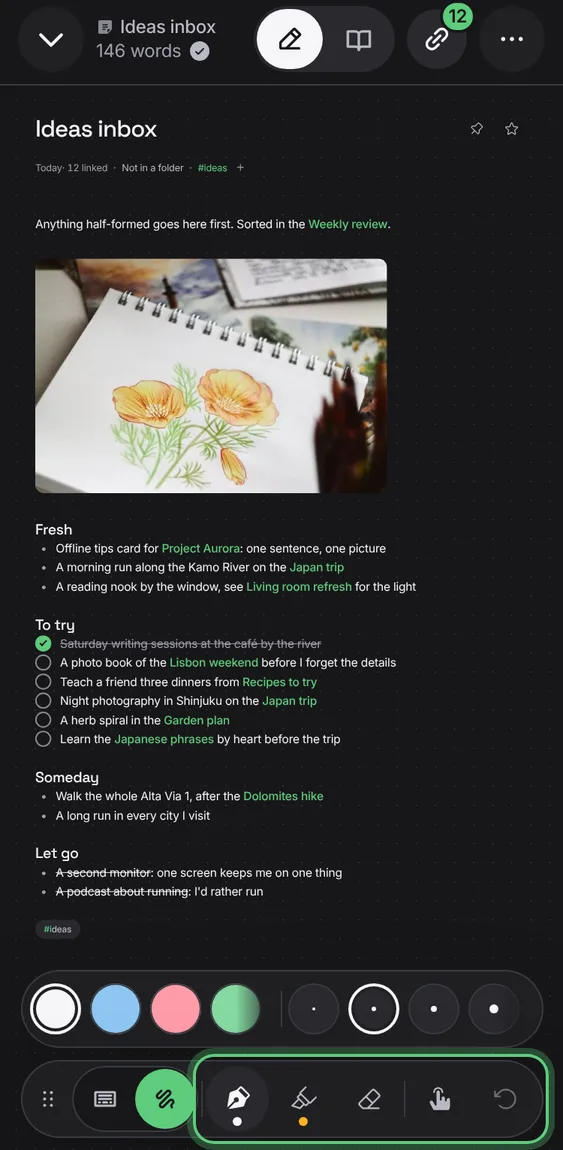
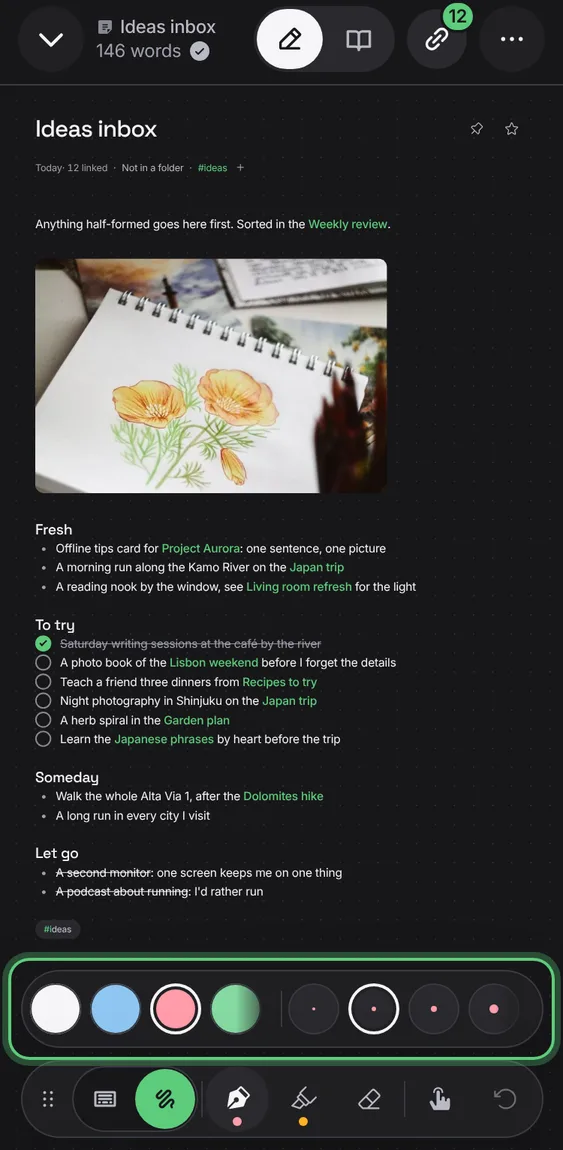
Pick a colour and a size for each pen; add your own with + and they go with your account.
- In Draw, tap a colour or size; + adds one.
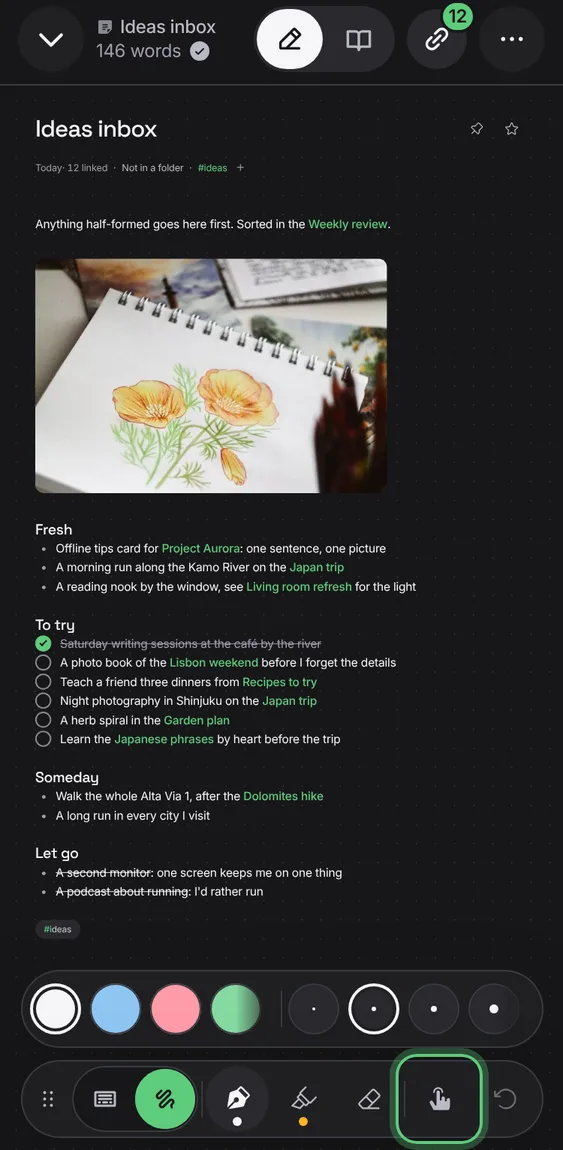
Each device draws with a finger or with the Pencil, shown by an icon you tap to switch; two fingers always move and zoom.
- In Draw, tap the finger or Pencil icon.
A highlight, underline or strike-through drawn on words stays with those words, and helps search find them.
- Highlight or underline words with the pen.
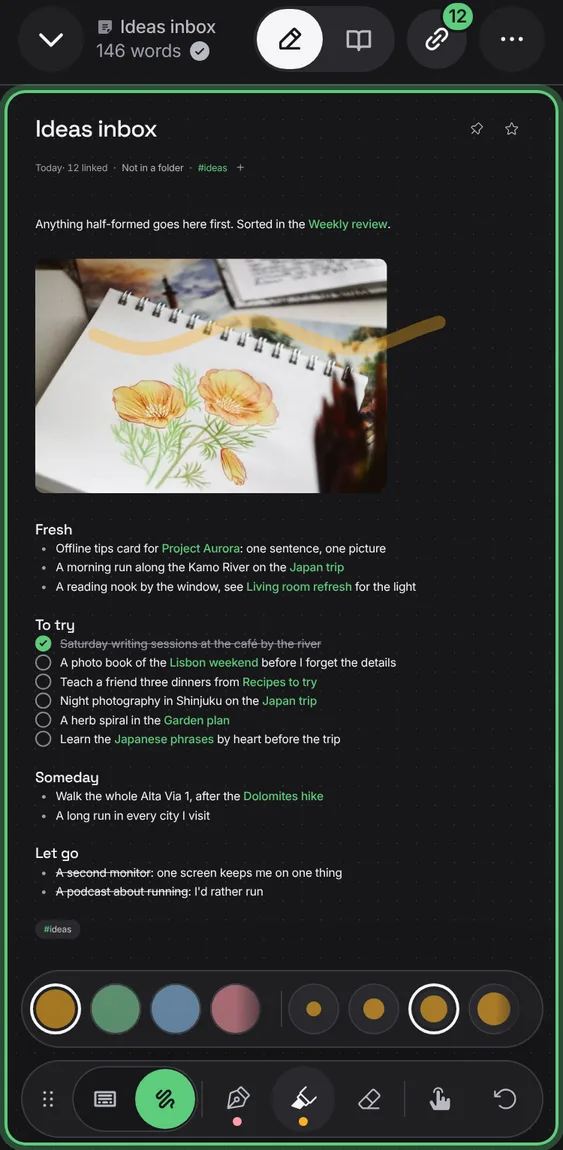
Ink stays on the page where it was drawn, over the same words on every screen, while text changes under it.
- Draw; then type, and the ink stays put.
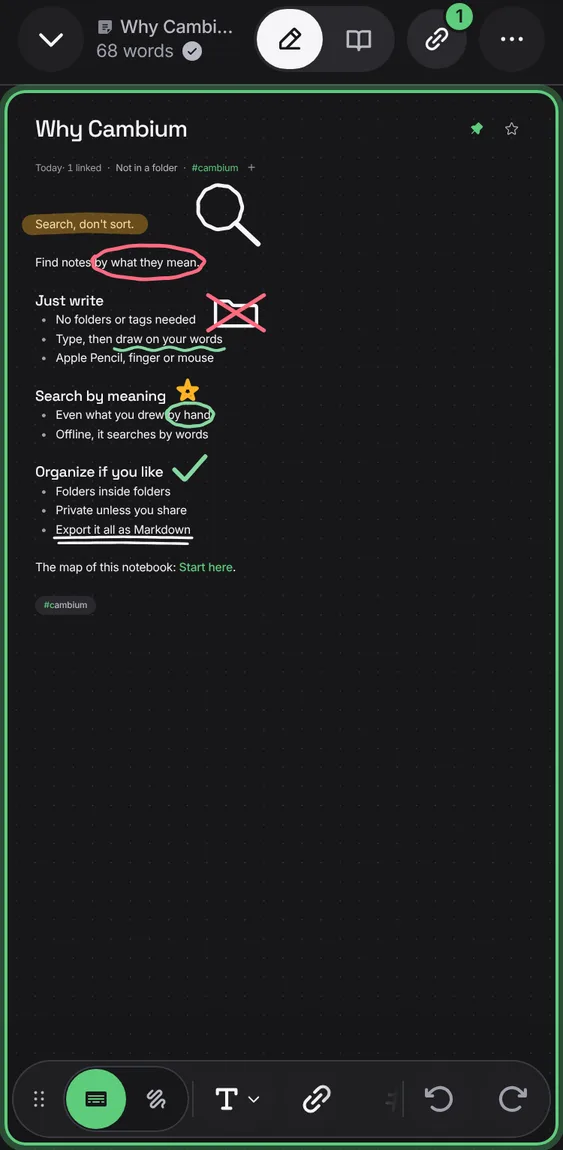
With a Pencil you just write: nothing to open first, and a resting palm draws nothing.
- Write on the note with the Pencil.
Not in the demo. Needs an Apple Pencil.
On an iPad, turn the Pencil's handwriting into typed text instead of ink, until a drawing tool is chosen again.
- In Draw, turn on Pencil writes text.
Not in the demo. Needs an Apple Pencil.
Draw with the pen, mark with the see-through highlighter, and erase whole strokes.
- In Draw, tap Pen, Highlighter or Eraser.
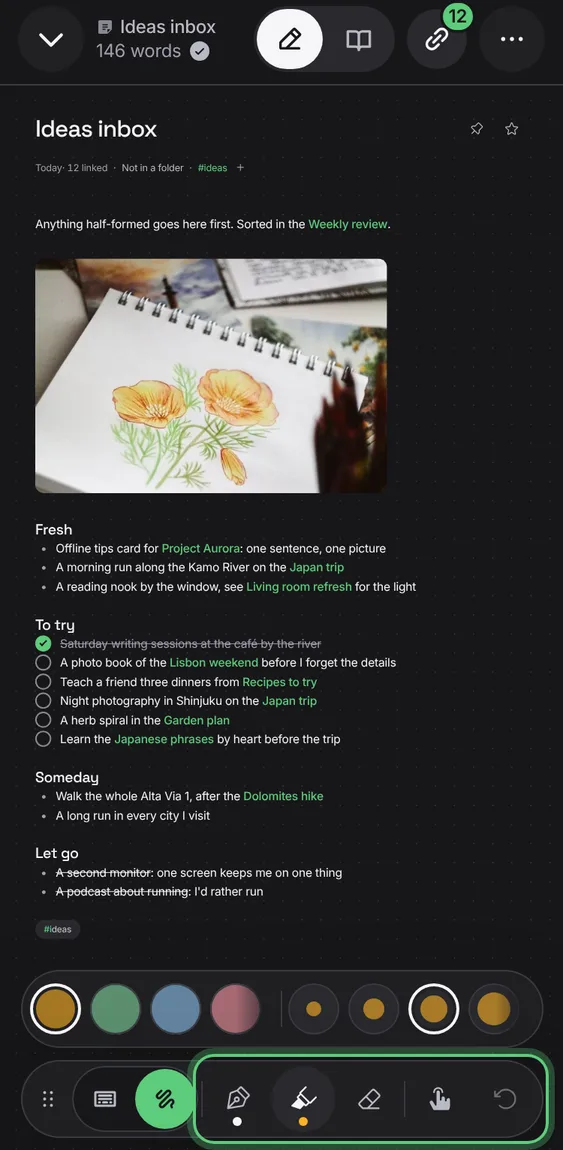
Undo ink takes back the last stroke; a quick two-finger tap does too.
- Tap Undo ink, or tap with two fingers.