 Cambium
Capture
Get something down fast: a new note in one tap, a voice note, scanned pages, a template, or text shared from another app.
Every Capture feature
Text or a link shared from another app opens Cambium's New note sheet with it filled in; links stay plain links.
- In another app, share to Apollo.
- Save note, or Open in editor.
Not in the demo. Starts in another app, from its Share button.
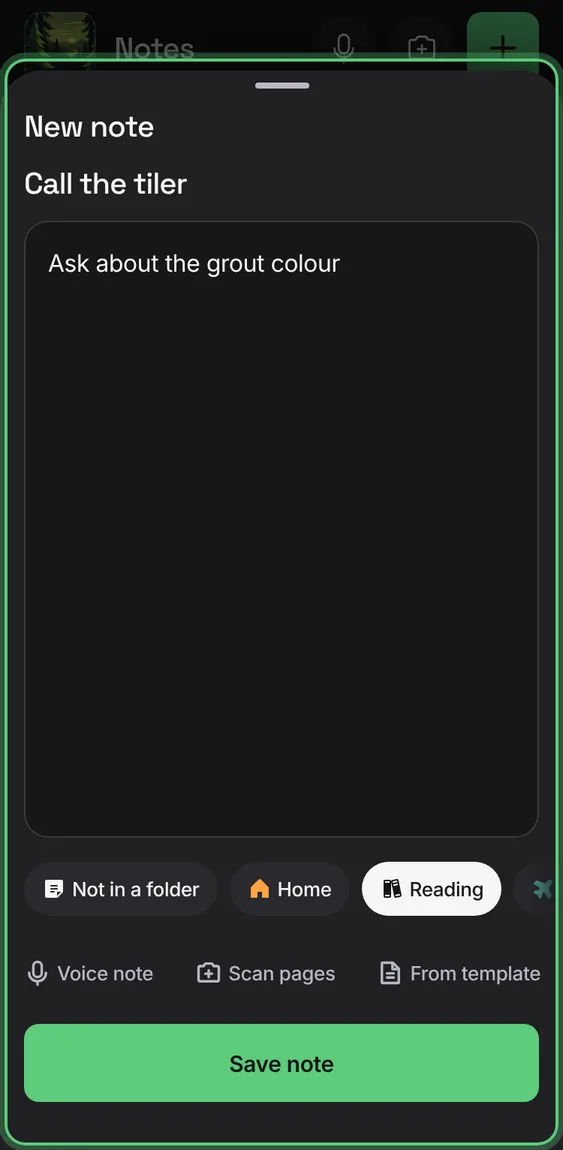
All 1 in Share to CambiumA title, the text, a folder, Save note, Open in editor, and Voice note, Scan pages or From template instead. Closed unsaved, it waits under Unfinished.
- Write, choose a folder and tap Save note.
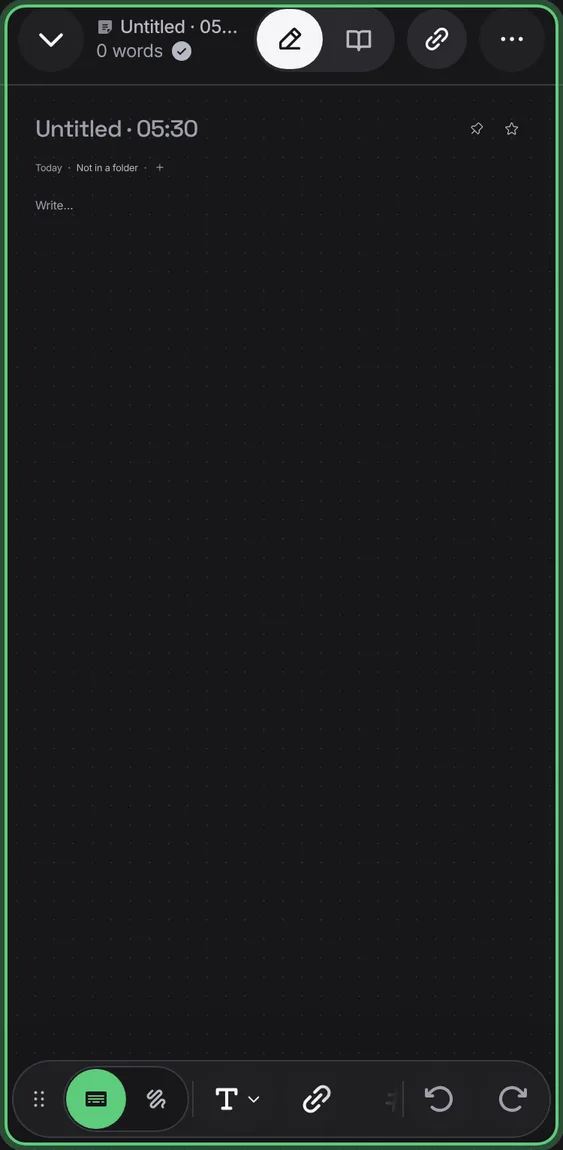
+ opens a new note at once, even offline, titled by the time until you name it. No folder, tag or setup first.
- Tap +.
- Write; it saves as you go.
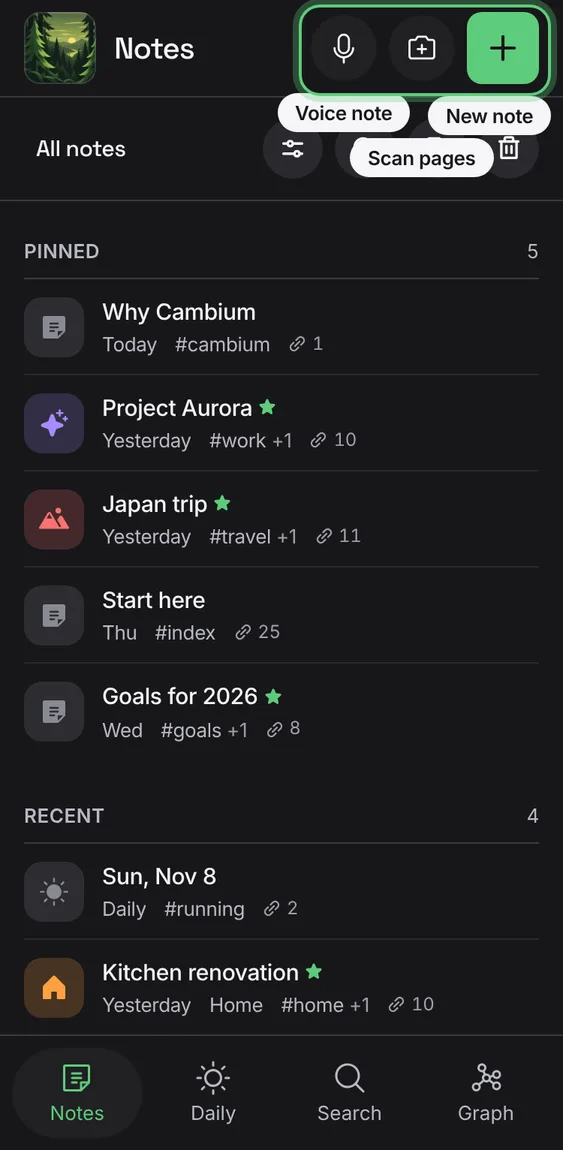
On a phone, Voice note, Scan pages and New note say their names under them the first time; Scan shows its word where there's room.
- Nothing to do.
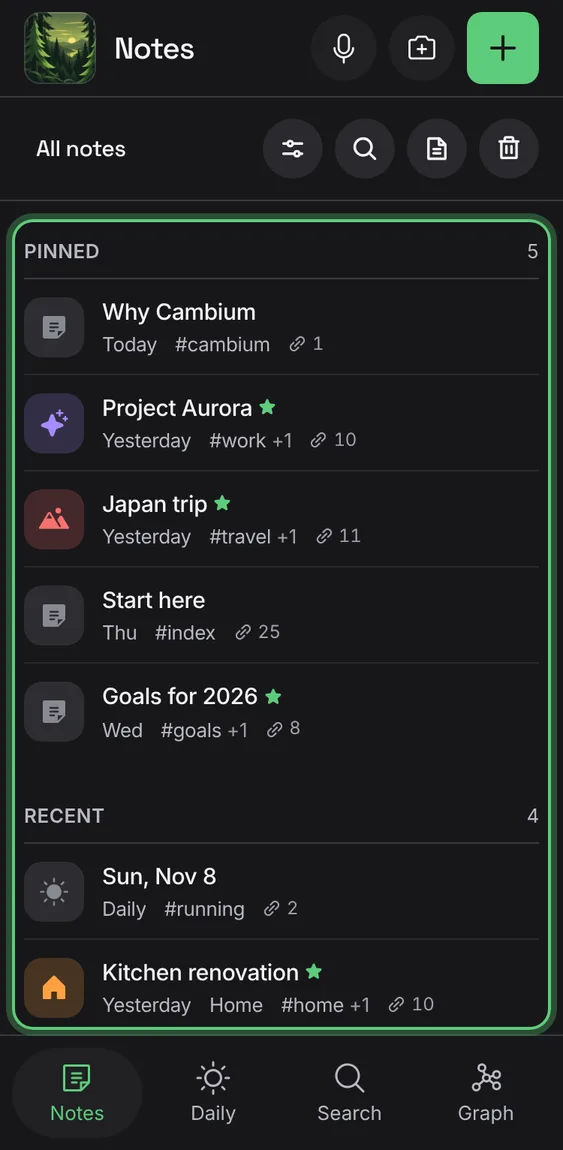
A new note closed without writing or naming it is removed again; one you only named is kept.
- Close a new note without writing.
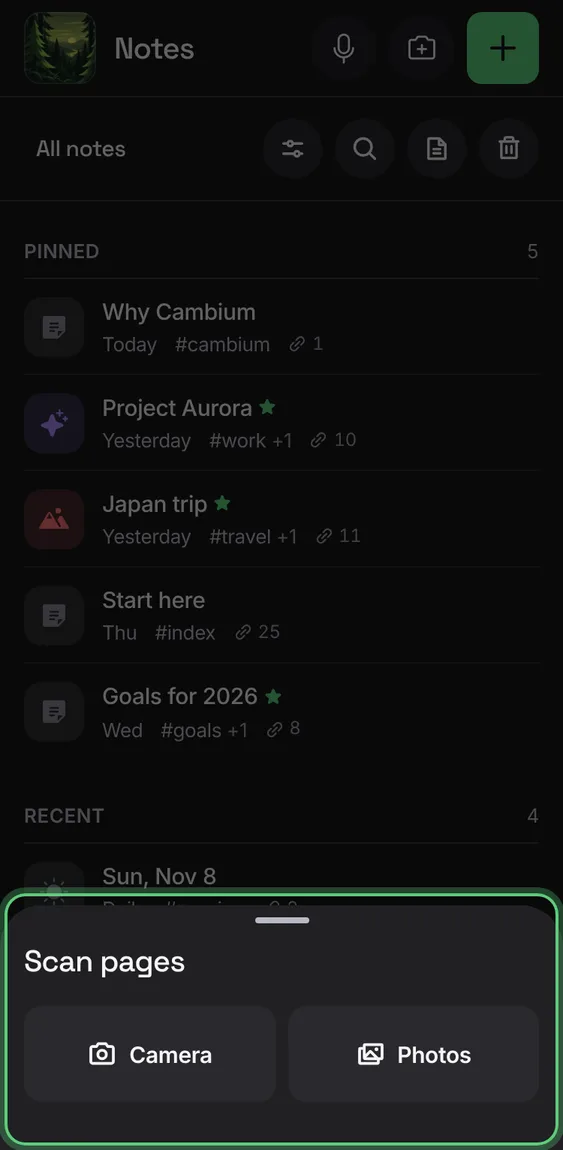
Turn photos of paper pages into notes: several pages in order, each with its text to check, and the photos kept.
- Tap Scan pages.
- Take photos or pick images; check each page's text.
- Save as one note or one per page.
Move a page earlier or later, or remove it after a confirmation.
- Use a page's arrows; Remove page asks first.
Not in the demo. Needs your camera.
Each page's text is read for you and can be corrected; a page that can't be read says so and takes typed text, never saved blank.
- Check or type each page's text; Retry reading if needed.
Not in the demo. Needs your camera.
A scan closed or interrupted waits under Unfinished with its pages, and saves each page only once.
- Tap the scan's Unfinished row.
Not in the demo. Needs your camera.
Save every page in one note, or a note for each page, with a title and tags.
- Choose One note or Note per page under Save as.
Not in the demo. Needs your camera.
Start a note from one of your templates, with its date, time and title filled in and the note named after it.
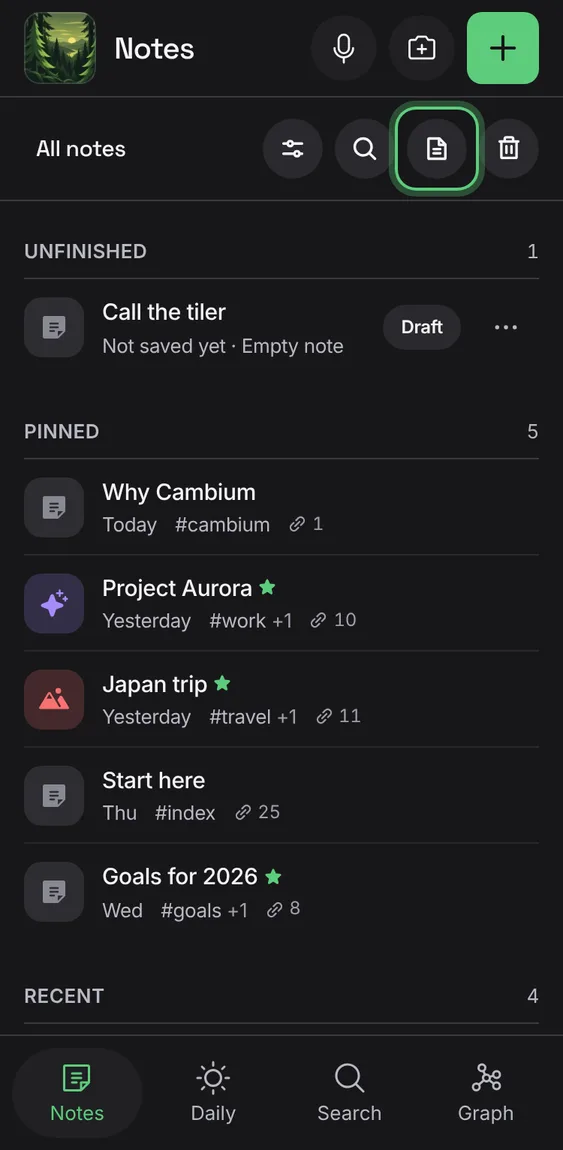
- Tap Templates in the Notes bar.
- Pick a template.
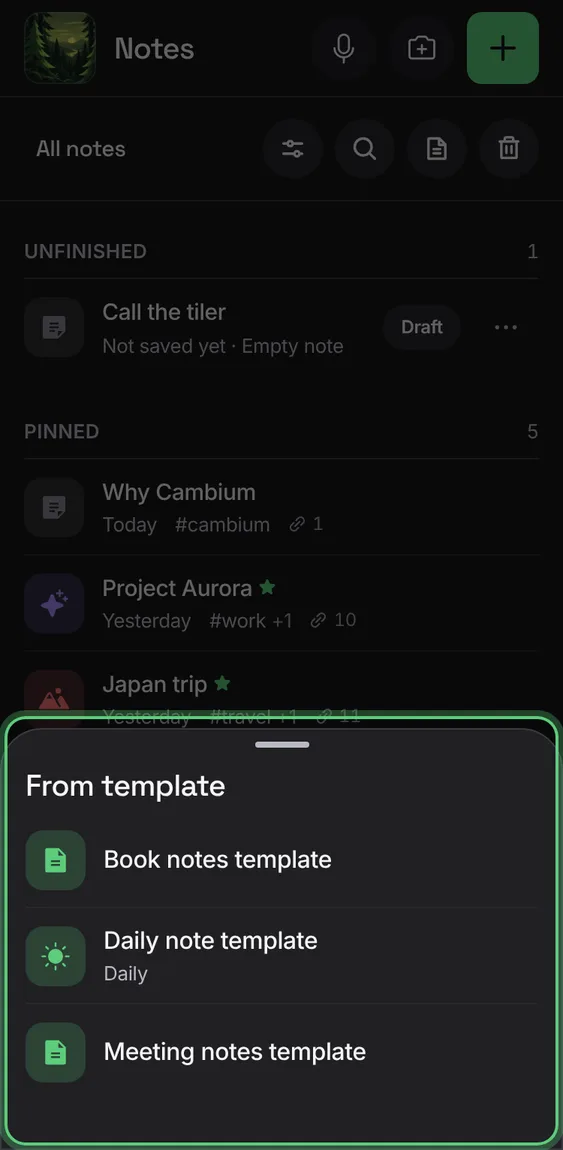
Set one note's Type to Daily template and every new daily note starts from it.
- In Note info, set Type to Daily template.
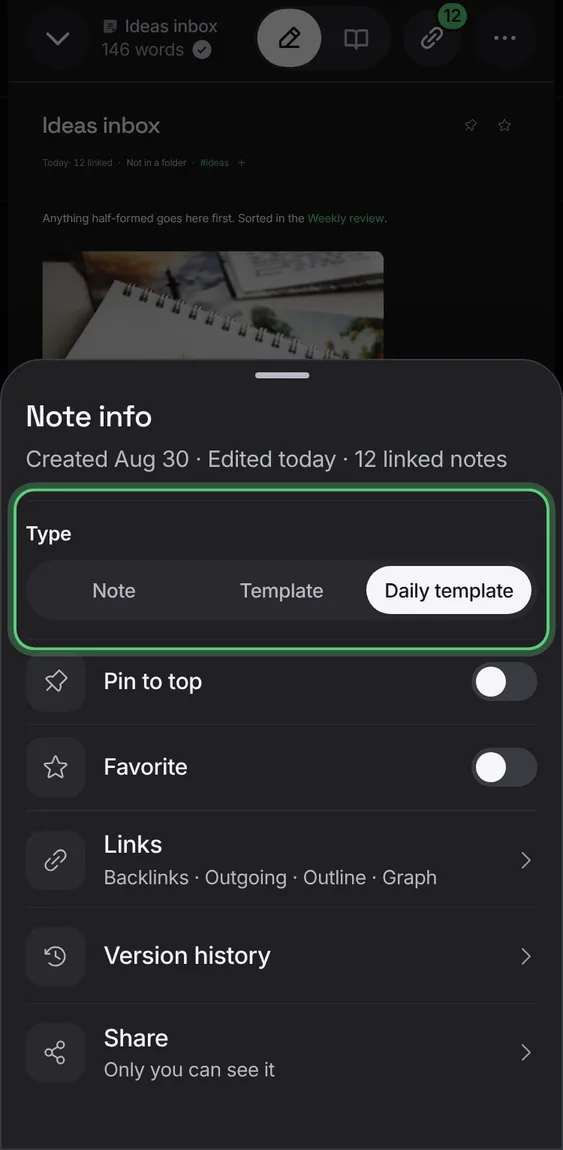
Any note can be a template: set its Type in Note info. With none yet, New template starts one.
- In Note info, set Type to Template.
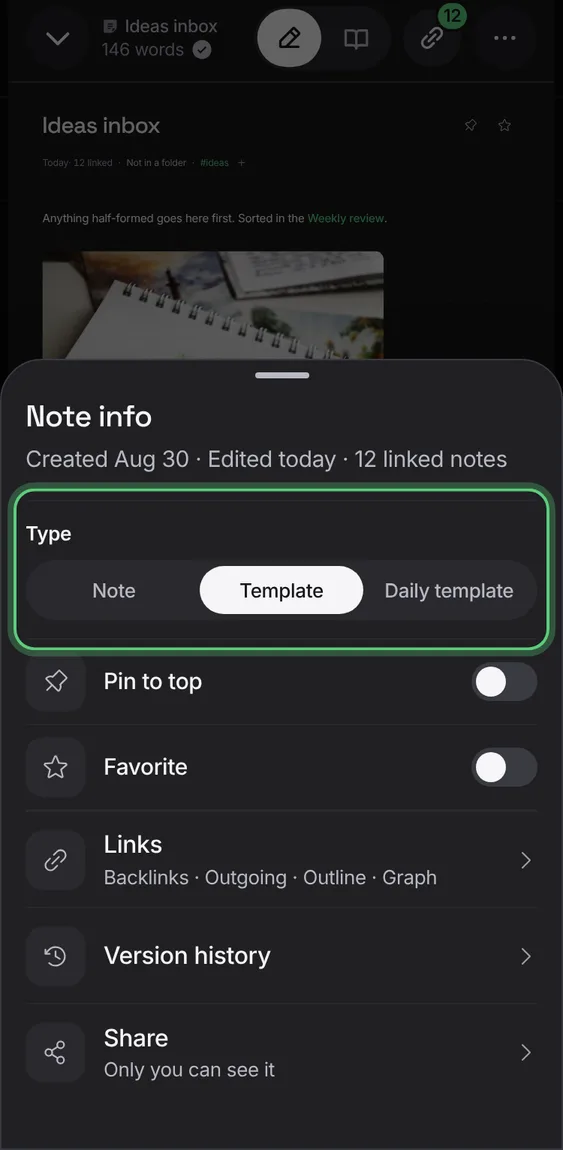
The Templates tool says its word on wider phones; on narrow ones it's a circle that says its name the first time.
- Tap Templates in the Notes bar.
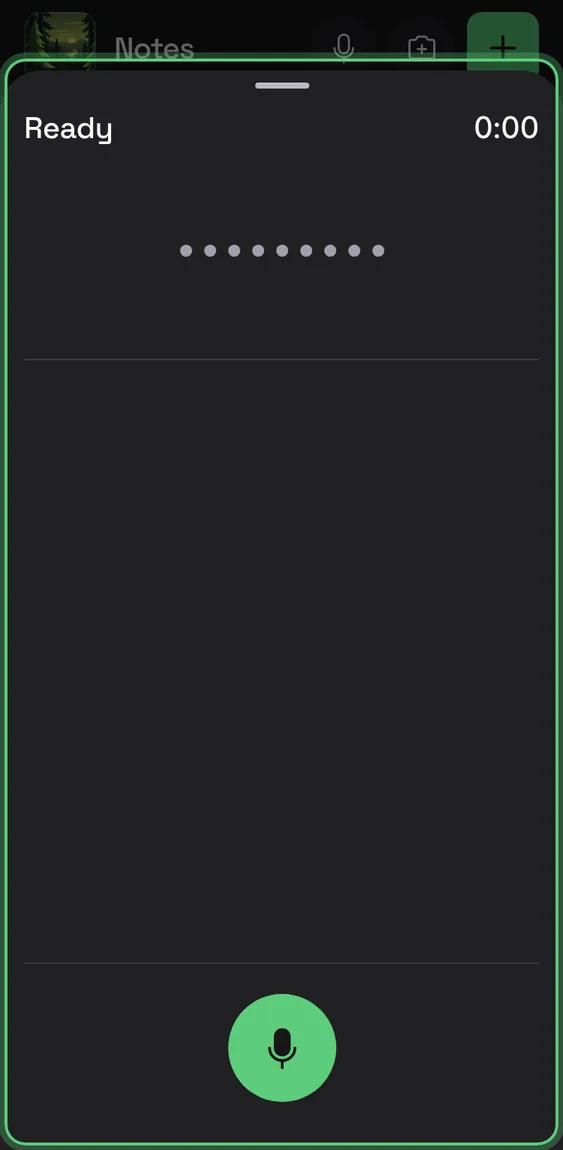
Record a voice note with a live transcript as you speak; the note keeps the audio and the words.
- Tap Voice note, then Record.
- Pause or Stop; review and Save note.
Signed in, the recording is transcribed after it's saved where the browser gave little or nothing; a voice note waiting for it shows under Unfinished.
- Nothing to do; tap the Unfinished row to try again.
Not in the demo. Needs an account: the demo has none.
When the microphone is refused, it says Mic blocked with how to allow it and Try again; nothing is made up.
- Allow the microphone, then tap Try again.
Not in the demo. Needs your microphone.
Discards the audio and transcript, after its own confirmation.
- Tap Discard, then confirm.
Not in the demo. Needs your microphone.
The header says Ready, Recording or Paused with the time; nine bars follow your voice; Discard, Record or Stop, and Pause sit at the foot.
- Tap Record; Pause and Resume as you like; Stop.
Not in the demo. Needs your microphone.
The audio is written to the device every few seconds; a closed sheet, a crash or a reload leaves it under Unfinished to save later.
- Tap the recording's Unfinished row.
Not in the demo. Needs your microphone.
After you stop, a summary, key points and action items are added for you, marked as AI's; your transcript is kept even if they fail.
- Choose whether to Add key points to note; Save note.
Not in the demo. Needs an account: the demo has none.
Your words appear as you speak where the browser can hear them; where it can't, it says so and keeps the audio.
- Speak; the words fill in.
Not in the demo. Needs your microphone.