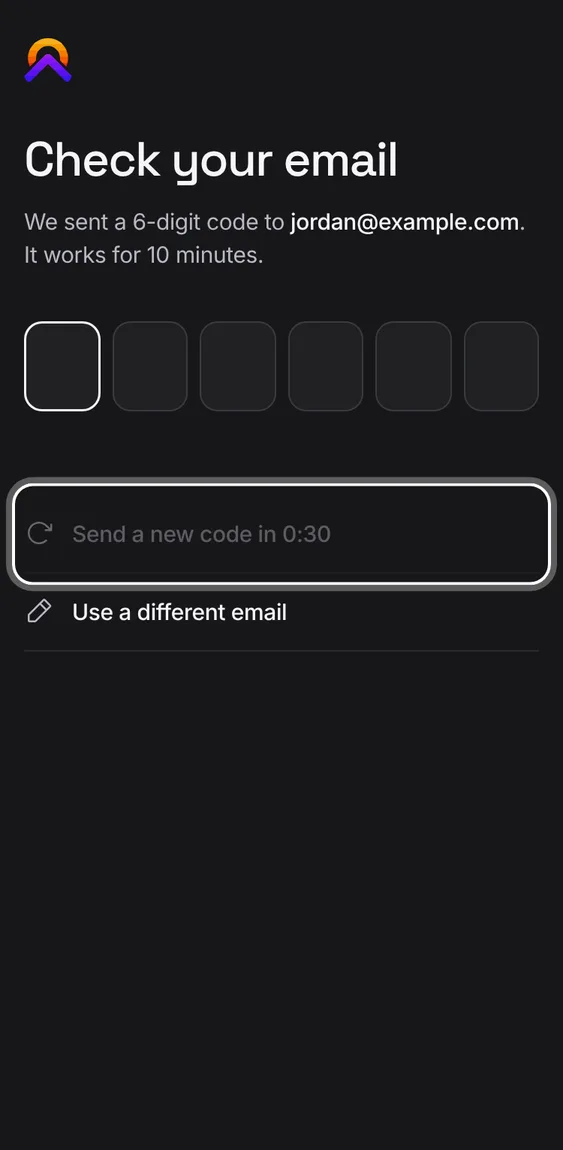
Ask for a new code any time. If you've asked too often, the button counts down until you can, and your address isn't marked wrong.
Tap Send a new code. While you have to wait, the button shows how long.
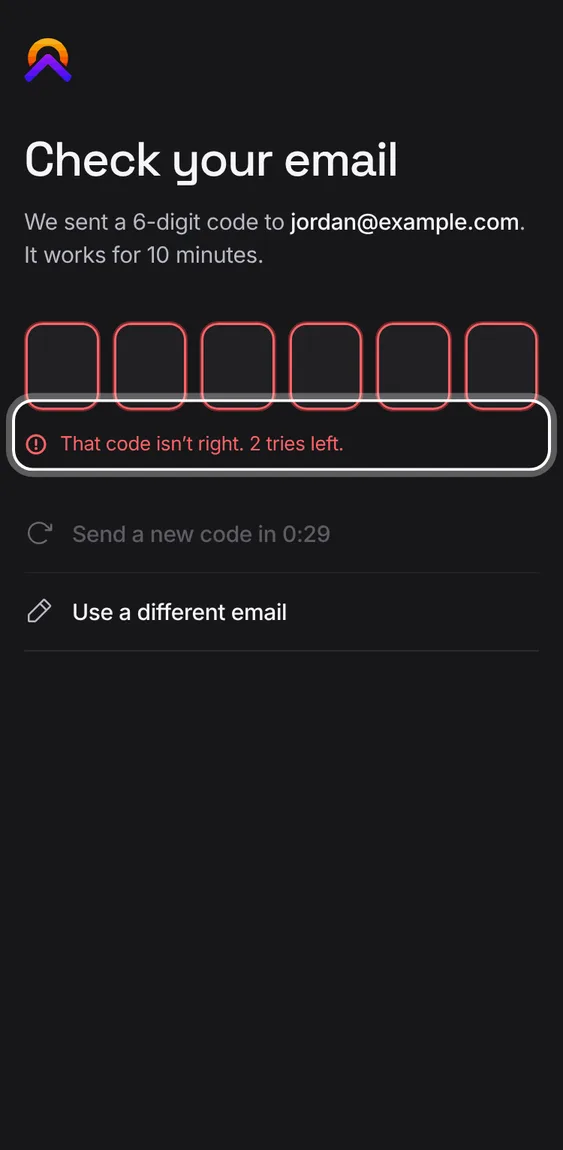
A wrong code says how many tries are left; an expired one says so. Too many tries locks the code until you send a new one.
Tap Send a new code to get a fresh one.
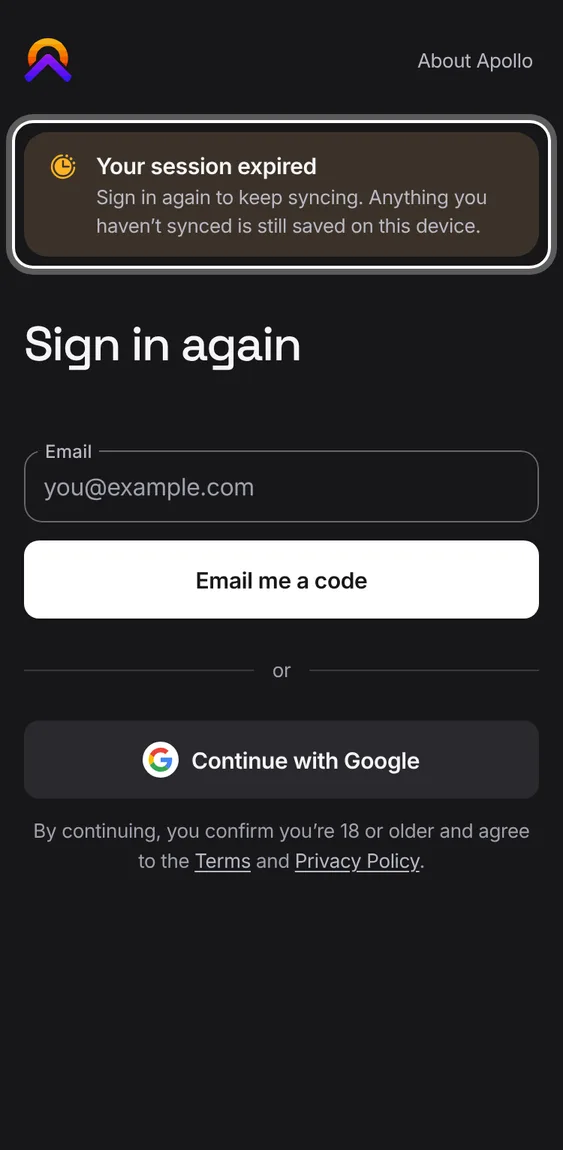
When a sign-in runs out, the page says so and fills in the address you used. Anything not yet synced stays on the device.
Type the new code to carry on where you were.
Sign in with your Google account instead of an emailed code.
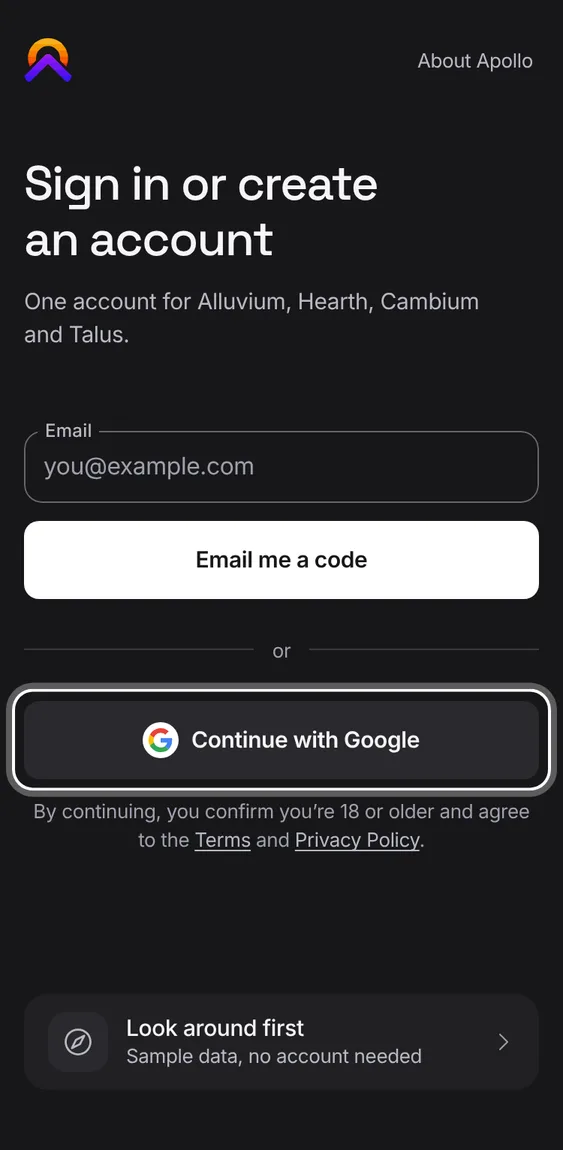
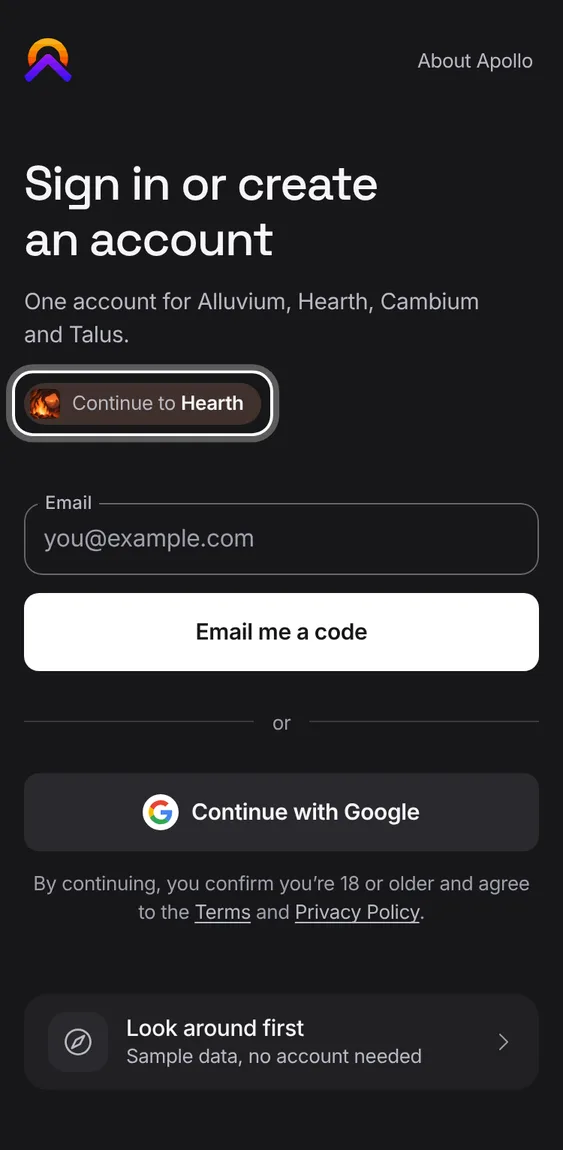
Tap Continue with Google and choose your account.
If Google can't be reached, the page says so and lets you try again.
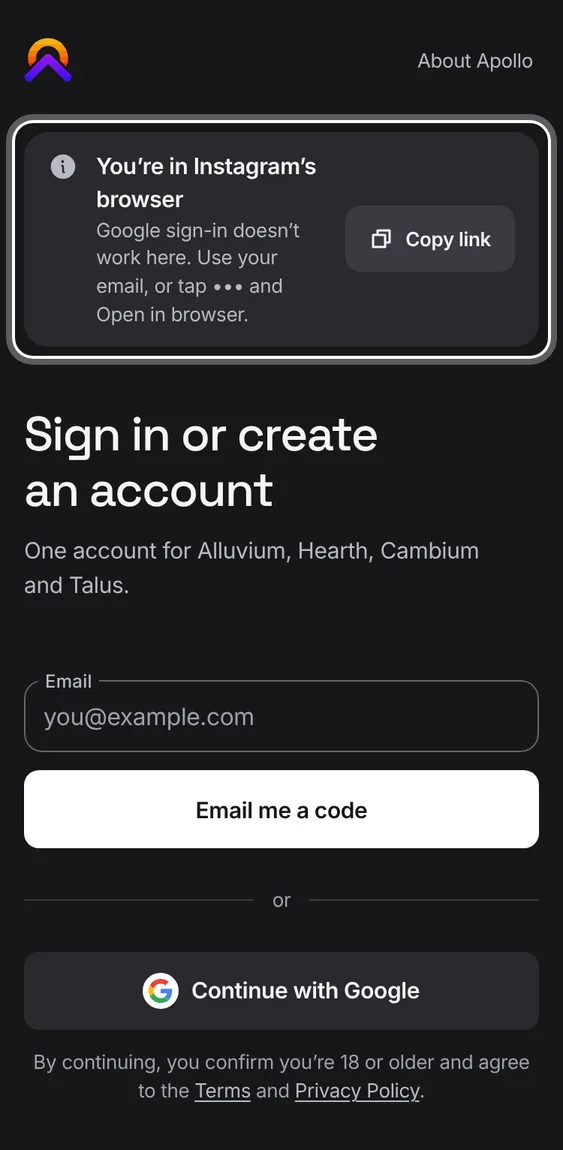
Inside Instagram's or Facebook's own browser, where Google won't sign anyone in, the sign-in page leaves Google's button out and shows the ways that work there.
Enter your email and type the code we send.
From the sign-in page, open any app's demo with sample data before making an account.
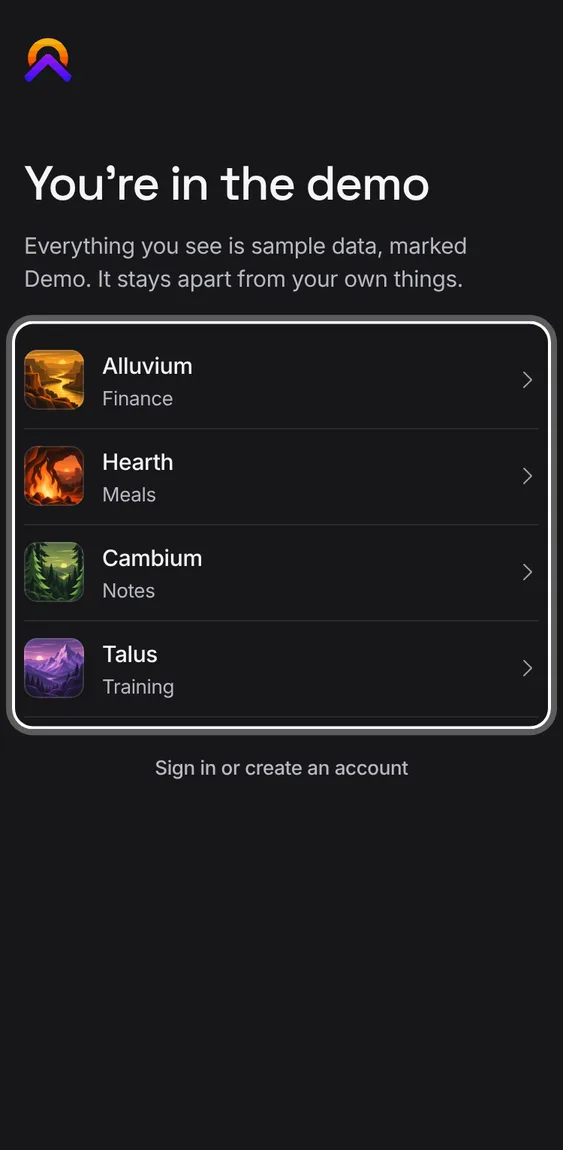
Tap Look around first, then pick an app. Its demo leads back to signing in.
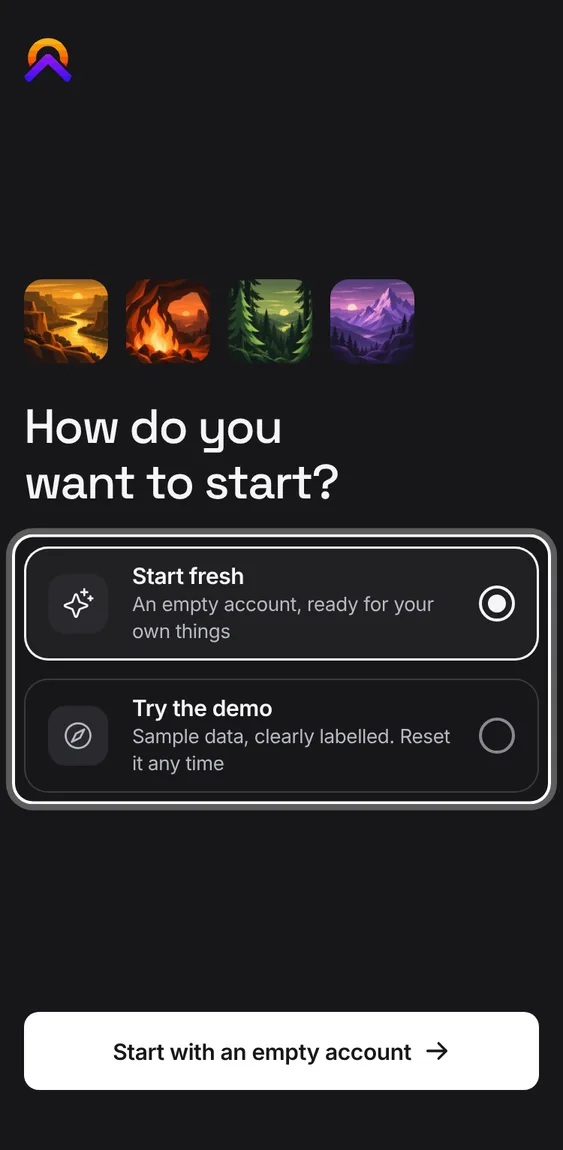
A brand-new account chooses how to begin: Start fresh with an empty account, or Try the demo with sample data.
Pick Start fresh or Try the demo, then go on.
Someone signing up on the way to checkout goes straight to paying.
Signing in from a page takes you back to that same page. If you're already signed in, you go straight on.
Open any app page signed out, sign in, and you land back on it.
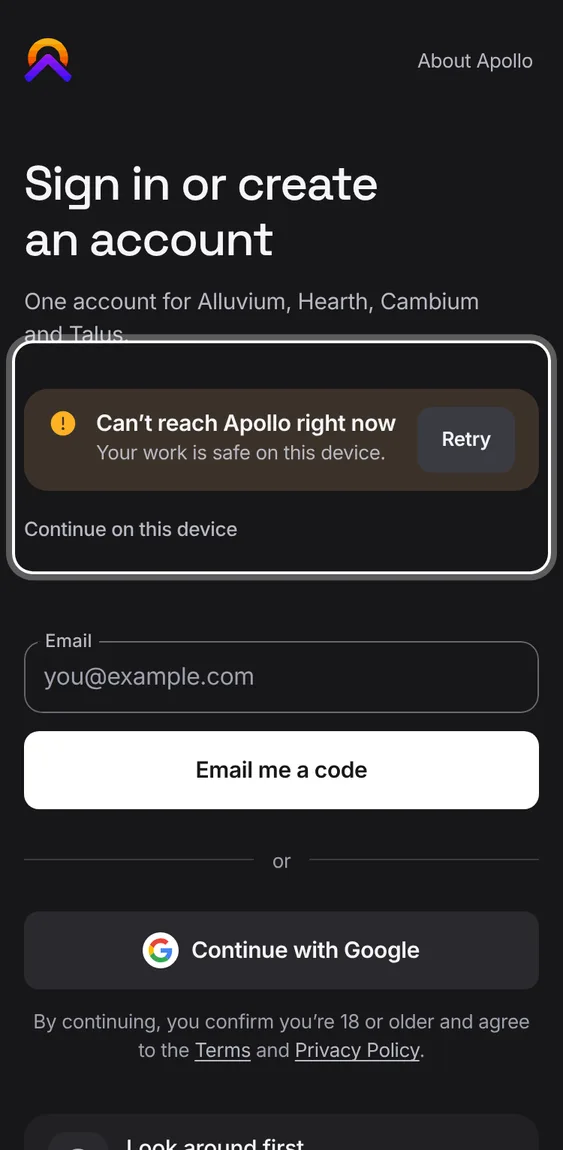
If your account can't be checked, sign-in says so, keeps trying, and offers the work already on this device.
Wait for it to retry, or carry on with what's on this device.
 Hub