 Hub
Install and updates
Install Apollo, or one app, on your phone or computer, and take updates when your work is saved.
The Hub’s features play in its own demo, not on this page.
Every Install and updates feature
Installing from the Hub offers all four apps in one icon, which switches apps instantly, or a single app with its own icon.
- Tap Install on Apps, then All four apps or an app.
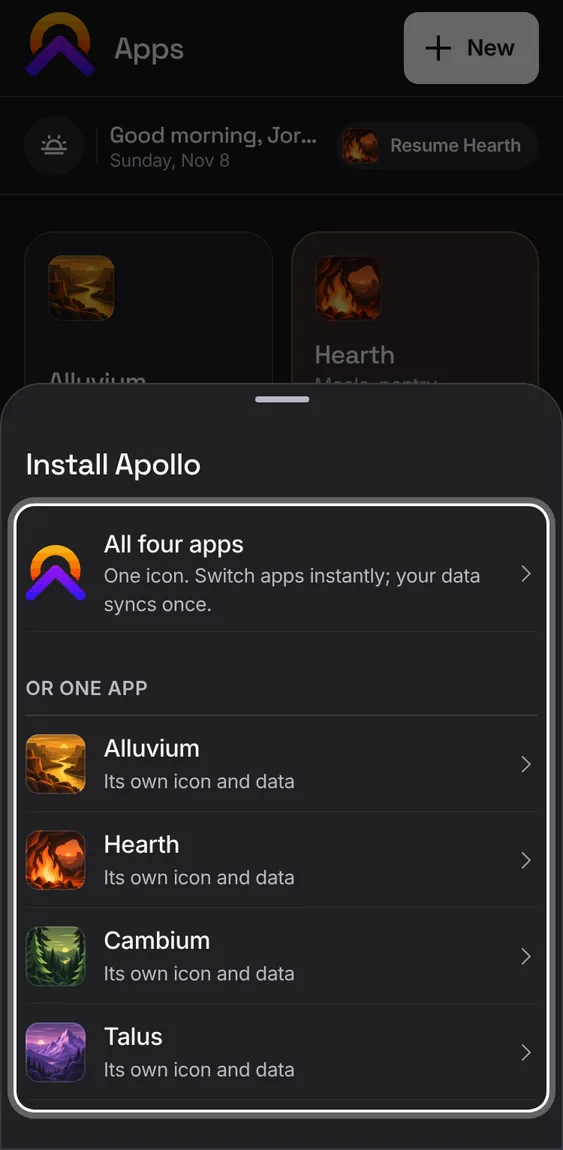
Shows whether Apollo is installed here and, if not, the one step this browser needs.
- It shows the browser's install prompt when there is one, or where this browser keeps its Install command.
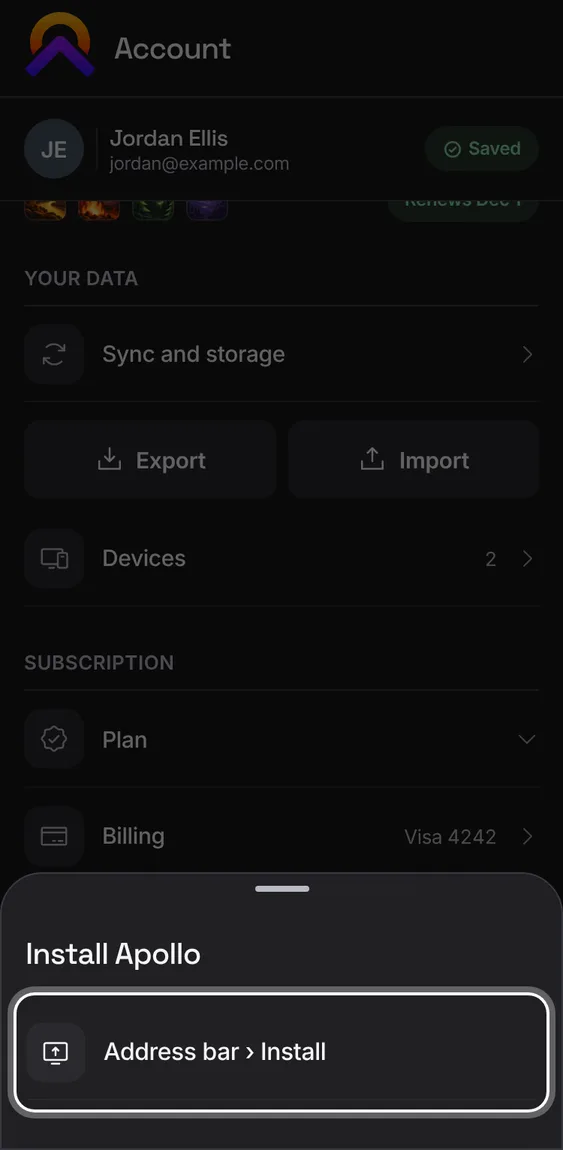
On iPhone and iPad, Install walks you through Share › Add to Home Screen, which is also how notifications work there.
- Tap Install and follow the steps.
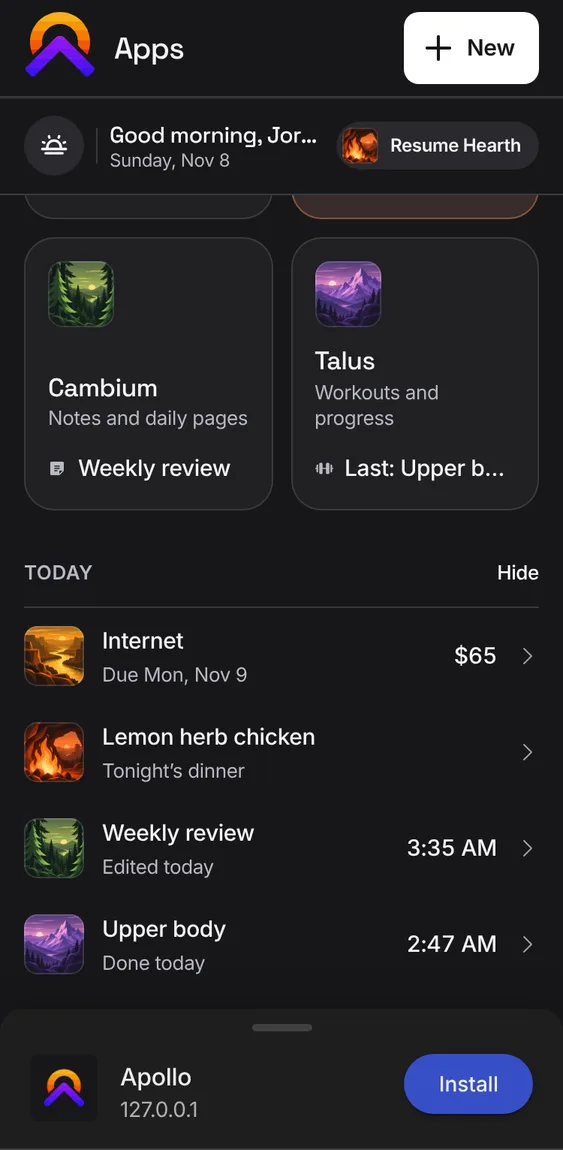
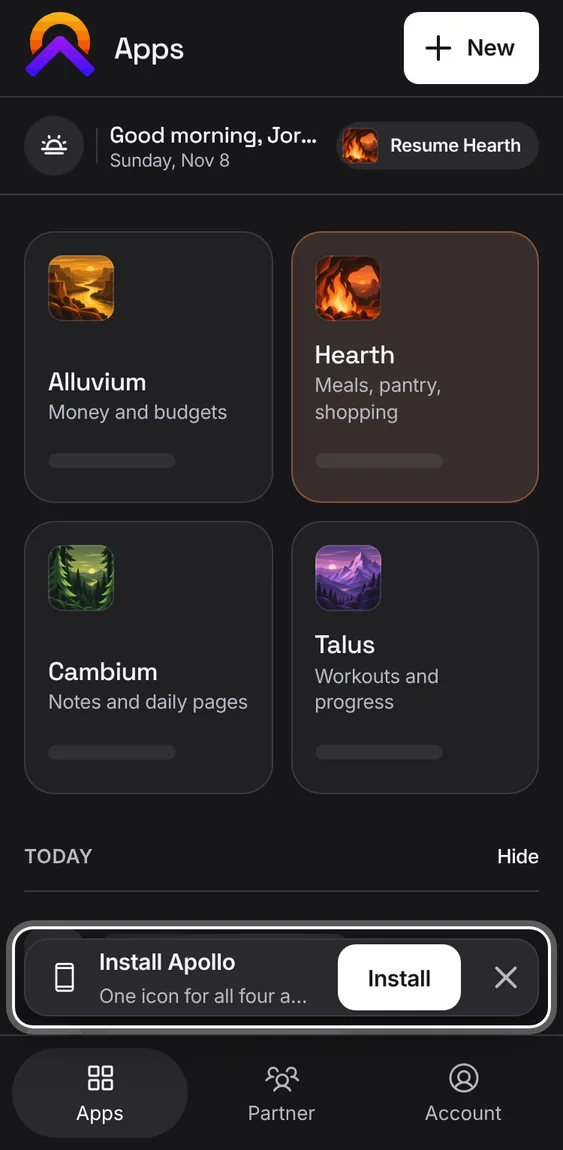
On a phone or tablet that can install Apollo, an app offers it in a small bar above its tabs. Not now hides it for two weeks.
- Tap Install. Where the browser has its own prompt, that's one tap.
An app installed on its own still opens the others; on iPhone they run from your account there instead of downloading again.
- From a single app's icon, use the app switcher as usual.
Not in the demo. Shows in the installed app, not in a browser tab.
When an update is ready, Sync and storage offers Update now or After it's saved. Open work is saved first.
- Tap Update now, or After it's saved to let it wait for your work.
Not in the demo. Shows when a new version of Apollo is ready.
All 2 in Updates when you're readyAn update waits for a workout or an edit in progress and applies by itself once it's over.
- Tap After it's saved. Change undoes the choice.
Not in the demo. Shows when a new version of Apollo is ready.
If a page asks for a file from an older version that's gone, it reloads once, then says so if that didn't help. Recent versions' files are kept for a while.
- Nothing to do; reload if asked.
Not in the demo. Shows when a new version of Apollo is ready.